Apple CarPlay has become one of the most valuable features in modern GMC vehicles, allowing drivers to access navigation, music, phone calls, messages, and compatible apps directly from the infotainment display. Whether you’re driving a GMC Sierra, Yukon, Acadia, Terrain, or Canyon, CarPlay helps create a safer and more convenient driving experience by minimizing distractions and keeping essential functions within easy reach.
However, it can be incredibly frustrating when GMC CarPlay is not working. You plug in your iPhone, but nothing happens. The screen may remain black, CarPlay may disconnect repeatedly, or your vehicle may fail to recognize your device altogether. In some cases, Wireless CarPlay refuses to connect, while in others, audio works but the display does not. These issues can occur unexpectedly, even if CarPlay was working perfectly the day before.
The good news is that most CarPlay problems are not caused by major hardware failures. Instead, they often result from outdated software, incorrect iPhone settings, faulty USB cables, Bluetooth or Wi-Fi conflicts, or temporary glitches within the GMC infotainment system. Identifying the root cause is the first step toward restoring a stable connection.
This comprehensive troubleshooting guide explains the most common reasons why GMC CarPlay is not working and provides clear, step-by-step solutions to fix both wired and wireless connection issues. You’ll also learn how to reset your infotainment system, update your vehicle’s software, troubleshoot model-specific problems, and determine when it’s time to seek professional assistance from a GMC dealership. By following these proven troubleshooting methods, you can quickly get Apple CarPlay back up and running and enjoy a seamless driving experience once again.
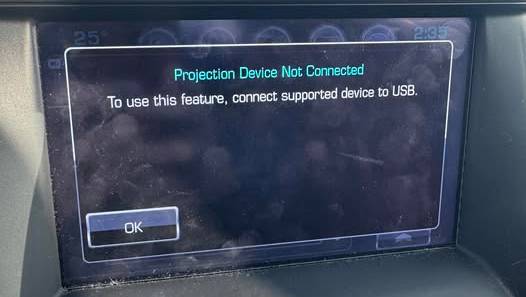
Quick Fix Checklist for GMC CarPlay Problems
When GMC CarPlay is not working, it is best to start with the simplest solutions before changing advanced settings or resetting the infotainment system. Many connection problems are caused by temporary software glitches, disabled features, or minor communication errors between the iPhone and the vehicle.
Use this quick checklist before moving to more detailed troubleshooting:
- Restart your iPhone.
A simple restart can clear temporary iOS errors that prevent CarPlay from launching or maintaining a stable connection.
- Restart your GMC infotainment system.
Turn the vehicle off, open the driver’s door, wait a few minutes, and restart the vehicle. This allows the infotainment system to shut down completely before rebooting.
- Confirm that Apple CarPlay is enabled on your iPhone.
Open Settings, select General, and tap CarPlay. Check whether your GMC appears under available or previously connected vehicles.
- Make sure Siri is enabled.
Apple CarPlay depends on Siri for voice commands, hands free calling, navigation, and messaging. CarPlay may not function properly when Siri is disabled.
- Check Bluetooth and Wi-Fi.
Wireless CarPlay requires both Bluetooth and Wi-Fi. Make sure they are turned on and that Airplane Mode is disabled.
- Inspect your USB cable.
For wired CarPlay, use a high quality data cable. Some cables can charge an iPhone but cannot transfer the data required for Apple CarPlay.
- Try another USB port.
Some GMC vehicles have multiple USB ports, but only certain ports support smartphone projection. Look for a smartphone or CarPlay symbol near the compatible port.
- Forget and reconnect the vehicle.
Remove your GMC from the iPhone’s CarPlay and Bluetooth settings, delete the phone from the vehicle’s paired device list, and complete the pairing process again.
- Update your iPhone.
Install the latest stable iOS update available for your device. Software updates often correct connectivity and compatibility problems.
- Check for GMC infotainment updates.
Vehicle software problems can affect CarPlay performance. Depending on the model and year, updates may be available through the infotainment system or a GMC service center.
- Disconnect other phones.
Multiple paired devices can cause the vehicle to connect to the wrong phone. Temporarily disable Bluetooth on other nearby devices.
- Test another iPhone.
Connecting another compatible iPhone can help determine whether the issue comes from your phone or the GMC infotainment system.
If CarPlay begins working after one of these steps, the problem was likely caused by a temporary connection or configuration issue. If the problem continues, use the detailed troubleshooting sections below to identify the underlying cause.
Why Is GMC CarPlay Not Working?
When GMC CarPlay is not working, the problem usually involves one of three areas: the iPhone, the connection method, or the vehicle’s infotainment system. Because these systems work together, a small error in any one of them can prevent CarPlay from starting.
The first possible source is the iPhone itself. Apple CarPlay depends on several iPhone features, including Siri, Bluetooth, Wi-Fi, USB permissions, and app restrictions. If one of these features is disabled, the vehicle may detect the phone but fail to launch CarPlay. A recent iOS update, corrupted network settings, or a temporary software glitch can also interfere with the connection.
The second source is the physical or wireless connection. Wired CarPlay depends on a compatible USB port and a cable capable of transferring data. A worn connector, dirty port, damaged cable, or charging only cable can interrupt communication even when the phone continues to charge. This often confuses drivers because the charging symbol may appear while CarPlay remains unavailable.
Wireless CarPlay relies on both Bluetooth and Wi-Fi. Bluetooth is typically used during the initial pairing process, while Wi-Fi supports the ongoing transfer of audio, navigation, and display information. Interference, saved network conflicts, multiple connected phones, or disabled wireless settings can make CarPlay disconnect repeatedly or refuse to connect.
The third possible source is the GMC infotainment system. Like a smartphone or computer, the vehicle’s system can experience software freezes, delayed startup, corrupted pairing information, or outdated firmware. A temporary infotainment glitch may cause a black screen, frozen CarPlay icon, missing audio, or complete failure to recognize the iPhone.
Compatibility also matters. Apple CarPlay availability differs by GMC model, trim level, model year, and infotainment configuration. Some vehicles support only wired CarPlay, while newer systems may offer both wired and wireless connectivity. A driver who expects wireless CarPlay in a wired only system may assume the feature is broken when the vehicle actually requires a USB connection.
The symptoms can help narrow down the cause. If the iPhone does not charge, the cable or USB port may be faulty. If the phone charges but CarPlay does not appear, the cable may not support data transfer, or CarPlay may be disabled. If wireless CarPlay connects and then drops, Bluetooth interference, Wi-Fi problems, or multiple paired phones may be responsible. If the entire touchscreen freezes, the infotainment system may need to be restarted or updated.
The most effective approach is to troubleshoot one category at a time. Start with the phone settings, inspect the connection, restart both devices, and then examine the infotainment software. This method prevents unnecessary factory resets and makes it easier to identify the exact reason GMC CarPlay is not working.
Common Causes of GMC CarPlay Problems
Outdated iPhone Software
An outdated iOS version can create compatibility problems between the iPhone and the GMC infotainment system. CarPlay depends on software communication protocols that may change or receive corrections through iOS updates.
If CarPlay stopped working after a period of normal operation, check whether an iPhone update is available. Installing the latest stable version may resolve connection failures, missing audio, app crashes, and repeated disconnections.
However, problems can also appear immediately after an update. In that situation, restart the iPhone, remove the saved CarPlay connection, and pair the phone again. The update may have changed network permissions or corrupted an existing pairing record.
Outdated GMC Infotainment Software
The infotainment system controls smartphone projection, Bluetooth, Wi-Fi, audio routing, and touchscreen functions. Outdated vehicle software may struggle to communicate with newer iPhone software.
Possible signs include a missing CarPlay icon, slow response, random disconnections, a frozen display, or failure to recognize a previously connected device. Restarting the system may provide temporary relief, but a software update may be necessary when the issue returns frequently.
Software update methods vary by model and year. Some GMC vehicles support updates through the infotainment menu, while others may require dealer installation. Avoid interrupting a vehicle software update because an incomplete installation can create additional infotainment problems.
Faulty or Incompatible USB Cable
A damaged USB cable is one of the most common reasons wired GMC CarPlay stops working. The cable may still deliver power while failing to transmit data.
Inspect the cable for bent connectors, loose ends, cuts, or signs of internal wear. Replace it with a reliable cable designed for both charging and data transfer. Very long cables and low quality adapters may create unstable connections.
Connect the cable directly to the vehicle whenever possible. USB hubs, extension cables, and certain adapters can interfere with the communication required for CarPlay.
Damaged or Dirty USB Port
Dust, lint, corrosion, or a loose connection inside the USB port can prevent the vehicle from reading the iPhone. The same problem may occur in the charging port on the phone.
Check both ports carefully under good lighting. Remove visible debris gently without using metal objects or excessive force. If the phone disconnects whenever the cable moves, the port or connector may be physically damaged.
You should also confirm that you are using the correct USB port. Some GMC models include ports intended only for charging, while another port supports smartphone projection.
Bluetooth Pairing Problems
Bluetooth problems are especially relevant to wireless Apple CarPlay. Old pairing records, incorrect permissions, or conflicts with another phone can prevent the connection from completing.
Delete the GMC connection from the iPhone’s Bluetooth settings and remove the iPhone from the vehicle’s device list. Restart both systems and pair them again as new devices.
During pairing, approve all relevant prompts for contacts, notifications, and CarPlay access. Skipping a permission request may limit functionality or stop CarPlay from launching automatically.
Wi-Fi Connection Issues
Wireless CarPlay requires Wi-Fi even when the phone has an active mobile data connection. If Wi-Fi is disabled, restricted, or connected incorrectly, CarPlay may fail after the initial Bluetooth pairing.
Make sure Wi-Fi is enabled and avoid manually disconnecting from the vehicle’s wireless connection while using CarPlay. VPN services, personal hotspots, and saved wireless networks can occasionally interfere with the connection.
If the problem continues, forget the vehicle from CarPlay and Bluetooth settings, restart the phone, and create a fresh wireless connection.
Apple CarPlay Is Disabled
CarPlay can be disabled through iPhone settings, Screen Time restrictions, or the GMC infotainment menu. This may happen after a software update, factory reset, or change to privacy settings.
On the iPhone, open Settings, select General, and tap CarPlay. Confirm that your GMC is listed and allowed. You should also review Screen Time settings to make sure CarPlay is not restricted.
In the GMC infotainment system, look for settings related to smartphone projection, Apple CarPlay, or connected devices. Confirm that the feature is enabled for the paired phone.
Siri Is Turned Off
Siri is an essential part of Apple CarPlay. It enables voice commands for navigation, calls, messages, music, and supported apps. When Siri is disabled, CarPlay may not launch or may provide limited functionality.
Open the iPhone settings and confirm that Siri is enabled. Allow Siri to function while the phone is locked, since CarPlay is commonly used when the iPhone screen is not active.
After enabling Siri, restart the iPhone and reconnect it to the vehicle.
Multiple Paired Phones
A GMC infotainment system may store several phones and attempt to connect to a device other than the one you are using. This is common in shared or family vehicles.
Temporarily turn off Bluetooth on other nearby phones. Then select your iPhone manually from the GMC device menu. You can also change the connection priority if the infotainment system provides that option.
Removing old or unused devices can reduce pairing conflicts and improve wireless CarPlay reliability.
VPN, Hotspot, or Security Settings
Wireless CarPlay creates a direct connection between the iPhone and the vehicle. VPN applications, hotspot settings, security profiles, and network management tools may interfere with that connection.
Temporarily disable the VPN or personal hotspot and test CarPlay again. If the feature starts working, review the application’s network permissions or configuration before turning it back on.
This issue is less common than a faulty cable or pairing error, but it should be considered when standard troubleshooting does not solve the problem.
Temporary Software Glitches
Both the iPhone and GMC infotainment system can develop temporary software errors. These glitches may cause a black screen, missing icon, delayed connection, frozen controls, or loss of audio.
Restart the iPhone first. Then fully restart the vehicle’s infotainment system by turning off the vehicle, opening the driver’s door, and allowing the system time to shut down before restarting.
A reboot clears temporary memory and restores communication between the devices without deleting personal settings. For many drivers, this simple step is enough to fix GMC CarPlay not working.
How to Fix GMC CarPlay Not Working
Once you have identified the possible cause of the problem, you can begin troubleshooting using the following step by step solutions. Start with the easiest fixes before moving on to more advanced procedures. In many cases, the issue can be resolved within a few minutes without visiting a dealership.
Restart Your iPhone
A simple restart can resolve temporary software bugs that prevent Apple CarPlay from working correctly. Press and hold the appropriate buttons for your iPhone model until the power slider appears. Turn the device off, wait about 30 seconds, and power it back on.
After the iPhone restarts, reconnect it to your GMC and check whether CarPlay launches normally. This simple process clears temporary memory and refreshes background services that support CarPlay.
Restart the GMC Infotainment System
Like any computer, the GMC infotainment system can occasionally freeze or experience software glitches. Restarting the system often restores communication between the vehicle and your iPhone.
Turn off the engine, remove the key if applicable, open the driver’s door, and wait for the infotainment system to completely power down. Depending on the vehicle model, this may take one to three minutes. Restart the vehicle and reconnect your iPhone.
If your GMC provides a manual reboot option through button combinations or the infotainment settings menu, follow the instructions in your owner’s manual.
Enable Siri
Apple CarPlay relies heavily on Siri. If Siri is disabled, CarPlay may fail to start or some functions may not operate correctly.
Open the Settings app on your iPhone and select Siri. Make sure the options for listening to Siri and allowing Siri while the phone is locked are enabled.
Reconnect your phone after changing these settings to verify that CarPlay recognizes the update.
Verify That CarPlay Is Enabled
Sometimes CarPlay is accidentally disabled after an iOS update or device reset.
Open Settings, tap General, then select CarPlay. If your GMC appears in the list, tap the vehicle and verify that CarPlay is allowed.
If your vehicle does not appear, disconnect the phone completely and set up the connection again from the beginning.
Forget and Reconnect Your Vehicle
Corrupted pairing information is one of the most common causes of connection failures.
On your iPhone, open Settings, select General, then CarPlay, choose your GMC, and tap Forget This Car.
Next, remove the iPhone from the GMC infotainment system’s paired devices menu.
Restart both the phone and the vehicle before pairing them again as if connecting for the first time.
Reset Network Settings
Network configuration errors may interfere with Bluetooth and Wireless CarPlay.
Navigate to Settings, then General, followed by Transfer or Reset iPhone. Choose Reset and select Reset Network Settings.
Keep in mind that this process removes saved Wi Fi networks, Bluetooth devices, and VPN settings, so you will need to reconnect them afterward.
Update Your iPhone
Apple frequently releases updates that improve CarPlay compatibility and resolve known bugs.
Go to Settings, then General, and tap Software Update.
Install the latest stable version of iOS before testing CarPlay again.
Avoid using beta versions of iOS if you rely on CarPlay every day, as beta software may introduce unexpected compatibility issues.
Update GMC Infotainment Software
Vehicle software is just as important as iPhone software.
Some newer GMC models support over the air updates, while older vehicles require updates performed by a dealership.
Keeping the infotainment software current improves system stability, smartphone compatibility, touchscreen responsiveness, and overall reliability.
Replace the USB Cable
For wired CarPlay, always use a certified high quality USB cable capable of transferring both power and data.
Avoid extremely long cables, damaged connectors, inexpensive adapters, or charging only cables.
If possible, test a different cable that is known to work with Apple CarPlay.
Test Another USB Port
Many GMC vehicles include several USB ports, but not every port supports CarPlay.
Try every compatible USB port available in the vehicle.
If one port works while another does not, the issue may involve the specific port rather than the infotainment system itself.
Perform a Factory Reset
If every troubleshooting step has failed, resetting the infotainment system may remove corrupted settings that prevent CarPlay from functioning properly.
Before performing a factory reset, save any personal settings, radio presets, or paired devices.
After the reset is complete, pair your iPhone again and configure CarPlay from scratch.
A factory reset should be considered one of the final troubleshooting steps before seeking professional service.
Wireless GMC CarPlay Keeps Disconnecting
Wireless Apple CarPlay offers greater convenience because it automatically connects when you enter the vehicle. However, it also relies on several wireless technologies working together. If any part of the connection becomes unstable, CarPlay may disconnect unexpectedly.
One of the most common causes is Bluetooth interference. Nearby devices such as smartwatches, wireless headphones, tablets, or other smartphones can interfere with the pairing process. Disconnect unnecessary Bluetooth devices and leave only your primary iPhone connected to the vehicle.
Weak Wi Fi communication is another frequent issue. Although Wireless CarPlay uses Bluetooth to establish the initial connection, it depends on Wi Fi for transferring navigation data, music, phone calls, and screen information. Signal interference from nearby wireless networks or electronic devices may interrupt this communication.
Battery optimization settings can also affect Wireless CarPlay. Low Power Mode may reduce background activity or temporarily impact wireless performance. If CarPlay disconnects only when your battery is low, disable Low Power Mode temporarily and test the connection again.
Vehicles shared by multiple drivers often experience automatic connection conflicts. If several phones have been paired with the infotainment system, the vehicle may attempt to connect to another device before recognizing yours. Removing old devices and setting your iPhone as the preferred connection can improve reliability.
VPN applications, mobile hotspot settings, and certain security apps may also interrupt Wireless CarPlay communication. Temporarily disabling these features can help determine whether they are contributing to the problem.
If Wireless CarPlay disconnects randomly while driving, monitor when the issue occurs. Frequent disconnections in the same locations may indicate temporary radio interference rather than a problem with the vehicle itself.
When all wireless troubleshooting steps fail, delete the existing CarPlay profile, remove the Bluetooth pairing, restart both devices, and establish a completely new connection. This process often resolves persistent wireless instability.
Wired GMC CarPlay Not Connecting
Although wired Apple CarPlay is generally more stable than its wireless counterpart, connection problems can still occur because of hardware issues or incorrect accessories.
The USB cable is the first component to inspect. Many third party cables are designed only for charging and cannot transmit the data required for CarPlay. Even cables that previously worked may fail over time due to internal wire damage.
Check both ends of the cable carefully. Bent connectors, loose fittings, exposed wiring, or visible wear are clear signs that the cable should be replaced.
Next, inspect the USB ports in both the vehicle and the iPhone. Dust, lint, and debris can prevent the connectors from making proper contact. Cleaning the ports carefully with appropriate tools may restore a reliable connection.
Some GMC models include multiple USB ports with different functions. One port may support charging only, while another supports smartphone projection. Connecting the iPhone to the incorrect port is a surprisingly common mistake.
USB adapters, extension cables, and external hubs should also be avoided. Apple CarPlay performs best when the phone is connected directly to the vehicle using a certified cable.
If your iPhone begins charging but CarPlay never launches, unlock the phone and check whether a prompt asking you to trust the vehicle appears. Declining or ignoring this permission request prevents data communication even though the phone continues charging.
Finally, test another compatible iPhone if available. If a second phone connects successfully, the problem likely originates from your original device rather than the GMC infotainment system. If neither phone works, the issue is more likely related to the vehicle, USB hardware, or infotainment software.
GMC Model Specific CarPlay Problems
Although Apple CarPlay is available across many GMC vehicles, the exact user experience varies depending on the model year, infotainment system, and available features. Some models support only wired CarPlay, while newer vehicles include Wireless Apple CarPlay. Understanding model specific issues can help you diagnose problems more efficiently.
GMC Sierra CarPlay Problems
The GMC Sierra is one of the most popular trucks equipped with Apple CarPlay. Most connection problems reported by owners involve software glitches, delayed infotainment startup, or unstable Wireless CarPlay connections after software updates.
Some Sierra owners notice that CarPlay fails to launch immediately after starting the engine. In many cases, waiting a few moments for the infotainment system to fully initialize allows the connection to establish successfully.
If CarPlay disconnects frequently while driving, check for infotainment software updates and remove any old Bluetooth pairings that are no longer in use.
Older Sierra models equipped with earlier infotainment systems may also require dealership software updates to improve compatibility with newer iPhone versions.
GMC Yukon CarPlay Problems
The GMC Yukon offers a premium infotainment experience, but Wireless CarPlay problems are occasionally reported, particularly in vehicles connected to multiple smartphones.
The system may automatically attempt to connect to another previously paired phone instead of the driver’s primary device. Removing unused phones from the infotainment memory often improves connection speed and reliability.
Another common issue involves delayed CarPlay startup after remote engine start. Waiting until the vehicle is fully started before unlocking the phone and connecting can help establish a more stable connection.
If the infotainment display freezes while CarPlay is active, restarting the infotainment system usually restores normal operation.
GMC Terrain CarPlay Problems
Many GMC Terrain owners experience USB related connection problems rather than software failures.
A damaged USB cable, worn connector, or incorrect USB port is often responsible when the iPhone charges but CarPlay does not appear.
Terrain owners should also verify that the selected USB port supports smartphone projection, since some ports are intended only for charging.
If the touchscreen responds slowly or fails to recognize the connected iPhone, restarting both the vehicle and the phone usually resolves temporary communication errors.
GMC Acadia CarPlay Problems
Older GMC Acadia models equipped with earlier IntelliLink systems may experience compatibility issues after major iOS updates.
These systems occasionally require firmware updates provided by a GMC dealership to maintain full compatibility with newer Apple devices.
If CarPlay repeatedly disconnects, deleting the existing pairing information and reconnecting the iPhone from scratch often restores stable operation.
Acadia owners should also confirm that Siri remains enabled after updating iOS, as some privacy settings may change during major software upgrades.
GMC Canyon CarPlay Problems
The GMC Canyon shares many infotainment components with other GMC trucks, making its CarPlay issues similar to those found in the Sierra.
Wireless connection interruptions typically result from Bluetooth interference or outdated infotainment software.
For wired CarPlay, replacing an aging USB cable is often the quickest and least expensive solution.
Drivers who regularly switch between multiple iPhones should periodically remove unused devices from the infotainment system to reduce pairing conflicts.
Although each GMC model has its own characteristics, the majority of CarPlay problems are still related to software compatibility, connection settings, or hardware accessories rather than permanent vehicle defects.
Symptoms and Solutions Reference Table
The following table summarizes the most common GMC CarPlay symptoms, their likely causes, and the recommended troubleshooting steps.
| Symptom | Possible Cause | Recommended Solution |
|---|---|---|
| CarPlay does not start | CarPlay disabled | Enable CarPlay in iPhone settings and GMC infotainment |
| iPhone charges but CarPlay does not appear | Charging only USB cable | Replace with a certified data cable |
| Black infotainment screen | Temporary software glitch | Restart the infotainment system |
| CarPlay disconnects randomly | Bluetooth or Wi Fi interference | Remove unused paired devices and reconnect |
| Wireless CarPlay will not connect | Bluetooth or Wi Fi disabled | Enable both wireless features |
| No sound during CarPlay | Incorrect audio output | Select CarPlay as the active audio source |
| Siri does not respond | Siri disabled | Enable Siri in iPhone settings |
| Touchscreen becomes unresponsive | Infotainment software issue | Restart or update the infotainment system |
| Phone is not recognized | Dirty or damaged USB port | Inspect and clean the USB port |
| Connection fails after iOS update | Compatibility issue | Update both iPhone and vehicle software |
| CarPlay keeps reconnecting | Corrupted pairing information | Forget the vehicle and pair again |
| Only one USB port works | Incorrect USB port | Use the port that supports smartphone projection |
This reference table provides a quick way to identify the most likely cause before performing more advanced troubleshooting. Working through the solutions one by one will usually resolve the problem without requiring professional repairs.
When Should You Visit a GMC Dealer?
Most Apple CarPlay issues can be resolved using the troubleshooting methods covered in this guide. However, there are situations where professional diagnosis becomes necessary.
If you have already restarted both the iPhone and the infotainment system, replaced the USB cable, reset the connection, updated all available software, and performed a factory reset without success, the problem may involve the vehicle’s hardware.
A faulty USB module is one possible cause. Over time, repeated use can wear out the internal connector, preventing reliable communication between the iPhone and the infotainment system. Although the phone may still charge, data transmission required for Apple CarPlay may no longer function properly.
The infotainment control module itself can also develop hardware faults. Symptoms may include a permanently frozen display, repeated system crashes, missing smartphone projection options, or complete failure to detect any compatible device.
In some cases, software corruption cannot be corrected through standard updates. A GMC dealership has access to factory diagnostic tools capable of reinstalling infotainment firmware, recalibrating control modules, and identifying hidden fault codes that are unavailable to consumers.
If your vehicle remains under the manufacturer’s warranty, scheduling a dealership inspection is often the best option. Warranty coverage may include repairs or replacement of defective infotainment components at little or no cost, depending on the vehicle’s age and warranty terms.
Before visiting the dealership, prepare the following information to help technicians diagnose the issue more efficiently:
Record your GMC model, model year, and trim level.
Note your iPhone model and current iOS version.
Write down when the problem started and whether it appeared after a software update.
Describe the exact symptoms, including whether the issue affects wired CarPlay, Wireless CarPlay, audio, touchscreen response, or all functions.
Mention every troubleshooting step you have already completed.
Providing this information can reduce diagnostic time and help technicians identify the root cause more quickly.
If dealership diagnostics confirm a hardware failure, replacing the defective component is usually the most reliable long term solution. Once repaired, Apple CarPlay should return to normal operation without requiring additional troubleshooting.
How to Prevent Future GMC CarPlay Problems
Once your Apple CarPlay is working again, taking a few preventive measures can help reduce the chances of future connection issues. Most CarPlay problems develop gradually because of outdated software, worn accessories, or incorrect settings. Regular maintenance can significantly improve the reliability of both wired and wireless connections.
Keep Your iPhone Updated
Apple regularly releases iOS updates that improve system stability, enhance security, and fix known Apple CarPlay bugs. Installing the latest stable version ensures your iPhone remains compatible with your GMC infotainment system.
Avoid installing developer or public beta versions of iOS on your primary device unless you are prepared to deal with possible compatibility issues. Beta software is designed for testing and may introduce unexpected CarPlay problems.
Update Your GMC Infotainment Software
Vehicle software is just as important as your phone’s operating system. GMC periodically releases infotainment updates that improve performance, fix software bugs, and enhance compatibility with newer iPhone models.
Check for available software updates whenever you perform routine vehicle maintenance. If your vehicle does not support over the air updates, ask your local GMC dealership whether newer infotainment software is available.
Use a High Quality USB Cable
For vehicles that rely on wired Apple CarPlay, the USB cable plays a critical role in maintaining a stable connection.
Choose a high quality cable designed for both charging and data transfer. Replace the cable if it shows signs of wear, loose connectors, or physical damage.
Avoid inexpensive charging only cables because they often fail to transmit the data required for Apple CarPlay.
Keep USB Ports Clean
Dust, dirt, and lint can gradually accumulate inside both the vehicle’s USB port and your iPhone charging port.
Inspect these ports occasionally and remove visible debris carefully using appropriate cleaning tools. Keeping the ports clean helps maintain a reliable electrical connection.
Remove Unused Bluetooth Devices
Over time, your GMC infotainment system may store numerous paired devices. Having too many saved phones can slow down the connection process or cause the system to connect to the wrong device.
Delete phones that are no longer used and keep only the devices you regularly connect.
Restart Devices Occasionally
Just like smartphones and computers, infotainment systems benefit from an occasional restart.
If you notice slower performance or delayed CarPlay connections, restarting both the vehicle and your iPhone can clear temporary software glitches before they become larger problems.
Avoid Excessive Wireless Interference
Wireless Apple CarPlay depends on Bluetooth and Wi Fi communication.
Keeping unnecessary wireless devices disconnected while driving can improve connection stability. If possible, avoid placing multiple active Bluetooth devices near the infotainment system.
Review CarPlay Settings After Updates
Major iOS updates occasionally reset privacy permissions or modify connectivity settings.
After updating your iPhone, verify that Siri remains enabled, CarPlay is still allowed, and your GMC remains listed as an approved vehicle.
Performing a quick settings review can prevent unexpected connection failures.
By following these simple maintenance practices, most GMC owners can enjoy reliable Apple CarPlay performance for years without recurring connection problems.
Frequently Asked Questions
Why is my GMC not recognizing my iPhone?
The most common causes include a damaged USB cable, disabled Apple CarPlay settings, Bluetooth or Wi Fi connection problems, outdated software, or temporary infotainment glitches. Start by restarting both your iPhone and the vehicle before moving on to more advanced troubleshooting.
Why does Wireless CarPlay keep disconnecting?
Wireless Apple CarPlay depends on both Bluetooth and Wi Fi. Signal interference, multiple paired phones, outdated software, battery optimization features, or corrupted pairing information can all cause repeated disconnections.
Does Apple CarPlay require Siri?
Yes. Siri is an essential part of Apple CarPlay. If Siri is disabled, certain CarPlay functions may not work correctly, and the system may fail to launch altogether.
Can a USB cable cause Apple CarPlay to stop working?
Yes. A damaged or charging only USB cable is one of the most common reasons wired CarPlay fails to connect. Always use a high quality cable capable of transferring both power and data.
How do I reset Apple CarPlay on my GMC?
Remove your GMC from the CarPlay settings on your iPhone, delete the phone from the infotainment system, restart both devices, and complete the pairing process again.
How do I reset the GMC infotainment system?
The reset procedure varies by model year. In most cases, turning off the vehicle, opening the driver’s door, waiting for the infotainment system to shut down completely, and restarting the vehicle performs a soft reboot. Some models also provide a factory reset option within the infotainment settings menu.
Can software updates fix CarPlay problems?
Yes. Both Apple and GMC regularly release software updates that improve compatibility and resolve known connectivity issues. Keeping both systems updated is one of the most effective ways to prevent recurring problems.
Does every GMC support Wireless Apple CarPlay?
No. Wireless Apple CarPlay availability depends on the vehicle model, trim level, and model year. Some older GMC vehicles support only wired Apple CarPlay through a compatible USB connection.
Why does my iPhone charge but CarPlay does not work?
This usually indicates that the USB cable or USB port is supplying power but not transferring data. Replacing the cable or using another compatible USB port often resolves the issue.
When should I contact a GMC dealership?
If you have completed every recommended troubleshooting step and Apple CarPlay still fails to operate, professional diagnosis is recommended. Hardware failures involving the infotainment system, USB module, or internal electronics typically require specialized diagnostic equipment.
Conclusion
Experiencing a GMC CarPlay not working issue can be frustrating, especially when you rely on Apple CarPlay for navigation, hands free communication, and entertainment during your daily drive. Fortunately, the majority of CarPlay problems are caused by minor software glitches, outdated settings, damaged USB cables, or temporary Bluetooth and Wi Fi communication issues rather than serious vehicle defects.
By following the troubleshooting steps outlined in this guide, you can systematically identify the source of the problem and restore a reliable connection. Begin with the simplest solutions, such as restarting your iPhone, checking your USB cable, enabling Siri, and reconnecting Apple CarPlay. If those steps do not resolve the issue, continue with software updates, infotainment resets, and network troubleshooting before considering more advanced repairs.
Regular software updates, high quality accessories, and routine maintenance can significantly reduce the likelihood of future Apple CarPlay problems. Keeping both your iPhone and your GMC infotainment system updated ensures the best possible compatibility and overall performance.
If every troubleshooting method has been exhausted and your Apple CarPlay still refuses to connect, scheduling an inspection with a certified GMC dealership is the next logical step. Professional diagnostic equipment can identify hardware faults or software issues that are not visible through standard troubleshooting.
We hope this guide has helped you understand why GMC CarPlay is not working and provided practical solutions to get everything functioning again. If you have experienced a different CarPlay issue or discovered another effective fix, share your experience in the comments below. Your insights may help other GMC owners solve the same problem more quickly and enjoy a safer, more connected driving experience.