Tesla Sentry Mode is one of the vehicle’s most valuable security features because it automatically records activity around your car when it detects a potential threat. If your Tesla is not recording Sentry Mode events, however, you lose important video evidence that could help identify vandalism, theft, or parking lot accidents. In many cases, the Sentry Mode icon still appears active even though no clips are being saved, making the problem difficult to identify.
Most Sentry Mode recording failures are caused by storage device issues, incorrect settings, software-related problems, or hardware faults. A disconnected USB drive, an improperly formatted SSD, insufficient storage space, or a firmware update can all prevent the system from saving event footage even when the cameras continue to operate normally.
This guide explains how Tesla Sentry Mode records events, why it may stop saving videos, and how to diagnose the root cause step by step. You’ll also learn how to restore recording functionality, choose a reliable storage device, determine whether a software update is responsible, and recognize the signs that indicate it’s time to contact Tesla Service.
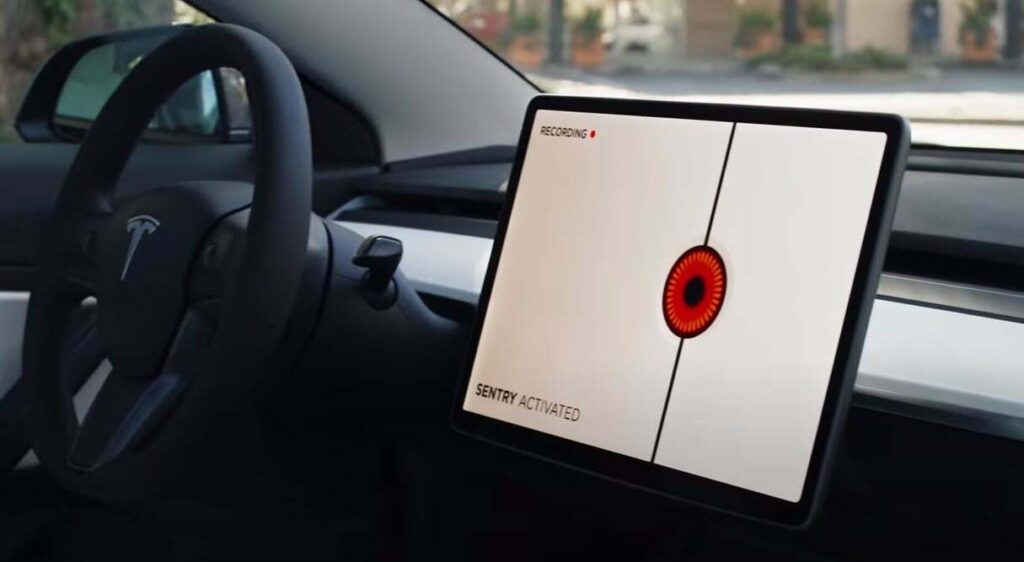
Why is Tesla not recording Sentry Mode?
Tesla Sentry Mode usually stops recording because the vehicle cannot save video files, even though the cameras and Sentry Mode itself may still be active. In most cases, the issue is related to the storage device, system settings, software, or hardware rather than the cameras.
The seven most common causes are:
1. The USB drive or SSD is not recognized
Tesla requires a compatible USB flash drive or external SSD to save Sentry Mode footage. If the storage device becomes loose, disconnects unexpectedly, or fails to initialize when the vehicle starts, Sentry Mode can monitor the surroundings without saving any video. A missing Dashcam icon or a warning that the storage device is unavailable usually indicates that the drive is not being detected.
2. The storage device is full or corrupted
Sentry Mode continuously writes and deletes video files. If the storage reaches its capacity or the file system becomes corrupted after repeated write cycles or improper removal, Tesla may stop creating new recordings. Corrupted sectors can also prevent the vehicle from writing new clips even though the drive appears accessible.
3. The drive is formatted incorrectly or the TeslaCam folder is missing
Tesla only records footage when it detects a supported file system and the required TeslaCam directory. If the USB drive is formatted with an unsupported file system or the TeslaCam folder has been deleted, the vehicle cannot store Dashcam or Sentry Mode videos.
4. The storage device cannot sustain recording speeds
Sentry Mode records multiple camera feeds simultaneously, creating a continuous stream of data. Low-quality USB flash drives often cannot maintain the required write speed after extended use. As performance declines, Tesla may stop recording events or save incomplete video files. High-endurance USB drives and external SSDs are generally more reliable because they are designed for frequent write operations.
5. Sentry Mode settings prevent recording
Recording may be disabled by configuration rather than a technical fault. For example, Sentry Mode can be excluded automatically at Home, Work, or Favorite locations if those options are enabled. Some settings may also prevent event recording under specific conditions, leading owners to believe the feature has stopped working when it is simply inactive by design.
6. A software update introduced a temporary issue
Firmware updates occasionally affect USB recognition, recording behavior, or security feature settings. In some cases, previously working storage devices are no longer detected until they are reconnected, reformatted, or the vehicle is restarted. These issues are typically resolved through later software updates or basic troubleshooting.
If the storage device is functioning correctly but Sentry Mode still does not save events, the problem may involve the camera system or another hardware component. Camera faults, missing camera feeds, or persistent recording failures after replacing the storage device usually indicate that professional diagnosis is required.
How does Tesla Sentry Mode record events?
Tesla Sentry Mode records video automatically when the vehicle detects suspicious activity while parked. It uses the vehicle’s external cameras to capture footage before, during, and after an event, then saves the clips to a compatible USB flash drive or external SSD connected to the vehicle.
Unlike Dashcam, which records while you are driving, Sentry Mode is designed to monitor the vehicle when it is parked. Depending on the severity of the detected activity, the system may display a warning on the touchscreen, trigger the alarm, and preserve the recorded footage for later review.
Tesla stores Sentry Mode videos in the TeslaCam directory on the connected storage device. If the vehicle cannot access the storage drive, the required folder is missing, or the drive is unavailable, Sentry Mode may continue monitoring the surroundings but will not save any recordings.
Because Sentry Mode and Dashcam share the same storage device and recording infrastructure, a problem affecting one feature often affects the other. If Dashcam recordings are also unavailable, the issue is usually related to the USB drive, SSD, or recording configuration rather than Sentry Mode itself.
How can you check why Tesla Sentry Mode is not recording?
The fastest way to identify the problem is to check the recording system from the storage device outward. This approach eliminates the most common causes before moving on to software or hardware diagnostics.
Confirm that the USB drive or SSD is detected
Open the Dashcam Viewer or check whether the Dashcam icon appears on the touchscreen. If the icon is missing or displays an error, Tesla is not recognizing the storage device. Disconnect the drive, reconnect it securely, and verify whether the vehicle detects it after a few moments or following a restart.
Verify the storage format and TeslaCam folder
A compatible storage device should use a supported file system and contain a folder named TeslaCam. If the folder has been deleted or the drive was reformatted for another purpose, Sentry Mode cannot create or save recordings. Reformatting the drive and recreating the required directory often resolves this issue.
Check available storage space and drive health
Nearly full storage or a drive with file system corruption can prevent new recordings from being written. Connect the USB drive or SSD to a computer and inspect its available capacity, file integrity, and recording folders. If the drive frequently disconnects, reports errors, or performs slowly, replacing it is often more reliable than attempting repeated repairs.
Review your Sentry Mode settings
Open the vehicle’s Safety settings and verify that Sentry Mode is enabled for the locations where you expect it to record. Exclusions for Home, Work, or Favorites can prevent event recording without indicating that the feature is malfunctioning. Also confirm that no profile or security setting is limiting Sentry Mode operation.
Determine whether the issue began after a software update
If Sentry Mode stopped recording immediately after installing a firmware update, the problem may be software-related. Restart the touchscreen, reconnect the storage device, and check for another available software update. If multiple owners report the same behavior after the same firmware release, Tesla typically addresses the issue in a subsequent update.
How do you fix Tesla Sentry Mode that is not recording?
Fixing Tesla Sentry Mode begins with restoring the vehicle’s ability to write video files. Most recording failures can be resolved by checking the storage device, correcting configuration issues, or refreshing the vehicle’s software before considering hardware repairs.
Reconnect or replace the storage device
Disconnect the USB drive or SSD, wait a few seconds, and reconnect it securely. Once the vehicle recognizes the device, verify that the Dashcam icon appears on the touchscreen and that new recordings are being created.
If the storage device disconnects intermittently, generates read or write errors, or has been used for several years, replacing it is often the most effective solution. High-endurance storage devices are designed for continuous recording and are less likely to fail under frequent write cycles.
Reformat the storage device
A corrupted or unsupported file system can prevent Tesla from saving Sentry Mode events. Back up any important recordings, then reformat the drive using a Tesla-supported file system. After formatting, ensure that the required TeslaCam folder exists before reconnecting the device to the vehicle.
Reformatting also removes damaged file structures that may interfere with continuous recording.
Delete old recordings
Although Tesla automatically manages storage in many situations, retained Sentry clips and manually saved Dashcam videos can gradually consume available space. If the drive is nearly full, remove unnecessary recordings or archive them to another device to restore free capacity.
Keeping at least several gigabytes of available space helps maintain consistent recording performance.
Restart the touchscreen
Temporary software glitches may interrupt communication between the vehicle and the storage device. Restart the touchscreen using the steering wheel scroll buttons, then allow the system to reboot completely before checking whether Sentry Mode resumes recording.
This procedure refreshes several software processes without affecting vehicle settings or stored recordings.
Install the latest software update
Tesla regularly releases firmware updates that improve vehicle stability and resolve known software issues. If Sentry Mode stopped working after an earlier update, installing the latest available version may restore normal recording behavior.
After every update, confirm that the storage device is still recognized and review the Sentry Mode settings, as some preferences may require verification.
Perform a vehicle power cycle
If reconnecting the storage device and restarting the touchscreen do not resolve the issue, performing a full vehicle power cycle may clear temporary system faults. After the vehicle shuts down and restarts, reconnect the storage device and verify that new Sentry events are being saved.
If recording still does not resume after completing these steps, the problem is more likely related to hardware or a persistent software fault that requires further diagnosis.
Which USB drives work best for Tesla Sentry Mode?
The best storage devices for Tesla Sentry Mode are high-endurance USB flash drives and external SSDs that can sustain continuous video recording. Because Sentry Mode writes data whenever the vehicle detects activity, the storage device must prioritize durability and consistent write performance rather than maximum capacity alone.
When choosing a storage device, consider these characteristics:
- High write endurance: Devices designed for continuous recording last significantly longer than standard consumer USB drives.
- Consistent write speed: Stable write performance helps prevent dropped frames, incomplete clips, and recording interruptions.
- Adequate capacity: A drive with at least 128 GB provides enough space for regular Sentry and Dashcam recordings before older files need to be removed.
- Reliable file system support: The device should be formatted using a Tesla-supported file system and include the required TeslaCam directory.
For most drivers, a high-quality USB flash drive provides sufficient performance for daily use. However, owners who rely heavily on Sentry Mode, park in busy public areas, or accumulate large numbers of recordings often benefit from an external SSD. SSDs generally offer higher endurance, faster sustained write speeds, and greater long-term reliability under continuous workloads.
Regardless of the device you choose, periodically inspect its available storage, back up important recordings, and reformat it when necessary. Routine maintenance reduces the likelihood of file system corruption and helps ensure Sentry Mode continues recording when you need it most.
Can software updates stop Tesla Sentry Mode from recording?
Yes, a Tesla software update can temporarily affect Sentry Mode recording, although storage device issues remain the more common cause. Firmware updates occasionally modify how the vehicle recognizes USB devices, manages security features, or interacts with Dashcam and Sentry Mode.
After installing an update, some owners notice that the vehicle no longer detects the USB drive, previously saved settings have changed, or new Sentry events are no longer stored. These issues are typically caused by temporary software bugs, compatibility changes, or a storage device that requires reconnection after the update.
If Sentry Mode stops recording immediately after updating your vehicle, follow these steps before assuming a hardware failure:
- Restart the touchscreen.
- Disconnect and reconnect the USB drive or SSD.
- Verify that the storage device is still formatted correctly and contains the TeslaCam folder.
- Confirm that Sentry Mode remains enabled in the vehicle’s Safety settings.
- Check whether a newer firmware version is available that addresses known software issues.
If the problem persists after completing these checks, continue monitoring future software releases or contact Tesla Service for further diagnosis.
When should you contact Tesla Service?
You should contact Tesla Service when Sentry Mode continues to fail after the storage device, settings, and software have all been verified. Persistent recording failures may indicate a camera malfunction, hardware defect, or a system issue that cannot be resolved through standard troubleshooting.
Professional service is recommended if you notice any of the following:
- The vehicle repeatedly fails to recognize multiple compatible USB drives or SSDs.
- One or more camera views are unavailable or display an error.
- Sentry Mode activates but never saves event footage.
- Dashcam and Sentry Mode both stop recording after multiple troubleshooting attempts.
- The problem continues after reinstalling or updating the latest Tesla firmware.
Before scheduling a service appointment, note when the issue started, whether it followed a software update, and which troubleshooting steps you have already completed. Providing this information can help technicians diagnose the problem more efficiently.
How can you prevent Tesla Sentry Mode recording problems?
Regular maintenance of the storage device and recording system significantly reduces the risk of Sentry Mode failures. Most recording issues develop gradually because of storage wear, file system corruption, or overlooked configuration changes.
Follow these best practices to improve long-term reliability:
- Use a high-endurance USB drive or external SSD designed for continuous recording.
- Keep sufficient free storage space by removing or archiving older recordings.
- Reformat the storage device periodically to maintain file system integrity.
- Safely eject the storage device before removing it from the vehicle whenever possible.
- Confirm that the Dashcam icon appears after reconnecting the storage device.
- Review Sentry Mode settings after every software update.
- Install Tesla firmware updates to receive bug fixes and stability improvements.
- Test Sentry Mode occasionally by confirming that new event clips are saved successfully.
These simple maintenance habits help ensure Sentry Mode remains ready to capture footage when an incident occurs.
Frequently Asked Questions
Why is the Sentry Mode icon on but no videos are saved?
This usually means Sentry Mode is active, but the vehicle cannot write recordings to the storage device. The most common causes include an unrecognized USB drive, a corrupted file system, insufficient storage space, or an incorrectly configured TeslaCam directory.
Does Sentry Mode record continuously?
No. Sentry Mode records when the vehicle detects activity or a potential security event while parked. Continuous driving footage is handled by Dashcam, which uses the same storage device but operates under different conditions.
Can Tesla record Sentry Mode events without a USB drive?
No. Tesla requires a compatible storage device to save Dashcam and Sentry Mode footage. Without available storage, the vehicle may monitor activity but cannot preserve recorded video for later viewing.
Does Tesla automatically overwrite old Sentry recordings?
Tesla can automatically manage certain recording categories, but manually saved clips and retained Sentry events may continue occupying storage space. Reviewing and removing unnecessary recordings periodically helps prevent storage-related recording failures.
Why is Dashcam working but Sentry Mode is not?
If Dashcam records normally while Sentry Mode does not, the problem is often related to Sentry Mode settings, excluded locations such as Home or Work, or software behavior rather than the storage device itself. Reviewing the vehicle’s security settings is the best place to begin troubleshooting.