Spotify not loading in your Tesla is usually caused by connectivity issues, temporary software glitches, an outdated vehicle firmware version, or problems with your Spotify account. In most cases, the issue can be resolved without visiting a Tesla Service Center by following a structured troubleshooting process.
Native Spotify integration is one of Tesla’s most popular entertainment features because it allows drivers to stream music directly through the vehicle’s infotainment system without relying on a phone. When the app becomes stuck on the loading screen, displays a blank interface, or refuses to play music, it can interrupt navigation, commuting, and long-distance travel.
The challenge is that the same symptom can have multiple causes. A weak cellular connection, expired Premium Connectivity subscription, Spotify server outage, corrupted app session, or an unfinished Tesla software update can all prevent Spotify from loading correctly. Restarting the app may solve the problem in one case, while another situation may require rebooting the infotainment system or installing a newer software version.
This guide walks through the troubleshooting process in the order Tesla owners should perform it. You’ll learn how to identify the most likely cause, apply the appropriate fix, and determine when the issue requires assistance from Tesla Support. By starting with the simplest checks before moving to more advanced solutions, you can restore Spotify quickly while avoiding unnecessary resets or service appointments.
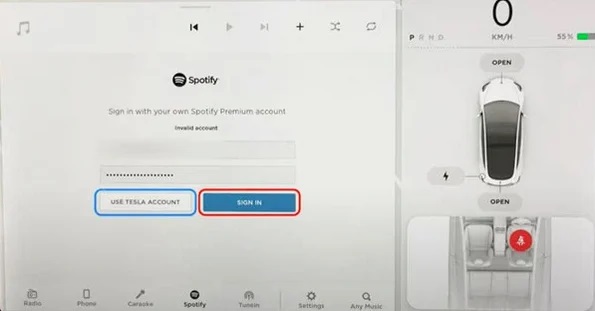
Why Is Spotify Not Loading in My Tesla?
Spotify may fail to load in a Tesla because the vehicle cannot establish a stable connection with Spotify’s servers or complete the authentication process. The problem can originate from Tesla’s infotainment system, your internet connection, your Spotify account, or Spotify’s own services. Identifying the source of the issue first prevents unnecessary troubleshooting.
One of the most common causes is an unstable internet connection. Native Spotify streaming depends on either Tesla Premium Connectivity or a reliable Wi-Fi network. If the vehicle loses cellular coverage, experiences poor signal strength, or disconnects from Wi-Fi, Spotify may remain on the loading screen, display a blank page, or fail to play music.
Software-related issues are another frequent cause. Temporary glitches in Tesla’s infotainment system can interrupt communication between the operating system and the Spotify application. This often happens after the vehicle wakes from sleep, following a software update, or after the system has been running continuously for an extended period. In these situations, restarting the infotainment system usually restores normal operation.
Your Spotify account can also prevent the app from loading correctly. An expired Premium subscription, authentication failure, or corrupted login session may stop the application from completing the sign-in process. In many cases, signing out of Spotify and logging back in refreshes the account session and resolves the issue.
Not every problem originates from your vehicle. Spotify occasionally experiences server outages or service disruptions that affect connected devices, including Tesla vehicles. During these incidents, other online services in the car may continue working while Spotify remains unavailable. Checking Spotify’s service status before changing vehicle settings can save time and eliminate unnecessary troubleshooting.
Less commonly, outdated Tesla firmware may affect compatibility between the infotainment system and Spotify. Tesla regularly releases software updates that include bug fixes, performance improvements, and compatibility enhancements for built-in applications. If your vehicle has missed several updates, installing the latest software version may resolve persistent loading issues.
Because several different factors can produce the same symptom, the most effective approach is to troubleshoot from the simplest possibility to the most advanced. The next section walks through each solution in the recommended order, helping you identify the root cause and restore Spotify as quickly as possible.
How Can You Fix Tesla Not Loading Spotify?
Fix Tesla not loading Spotify by checking Spotify’s service status, verifying your internet connection, restarting the app, rebooting the infotainment system, and installing the latest Tesla software update. Following these solutions in order helps eliminate the most common causes before moving to advanced troubleshooting.
1. Check Whether Spotify Is Experiencing a Service Outage
Start by confirming that the problem is not on Spotify’s side. If Spotify’s servers are temporarily unavailable, the Tesla app may remain stuck on the loading screen even though your vehicle is connected to the internet.
You can verify this by opening Spotify on another device connected to a different network or checking an outage reporting service. If Spotify is experiencing a widespread outage, there is no need to reset your vehicle. Wait until the service is restored before trying again.
2. Verify Your Internet Connection
Spotify cannot load without an active internet connection. Tesla streams music through Premium Connectivity or a connected Wi-Fi network, so any interruption in connectivity can prevent the app from communicating with Spotify’s servers.
Check whether other online Tesla features are working, such as satellite maps, web browsing, or music streaming from other supported services. If these features also fail to load, the problem is likely related to the vehicle’s network connection rather than Spotify itself.
If you’re using Wi-Fi, move closer to the router or reconnect the network. If you’re using cellular connectivity, drive to an area with stronger signal coverage or wait until the LTE connection stabilizes.
3. Restart Spotify
Temporary application errors can prevent Spotify from completing the loading process.
Close Spotify, return to another menu such as Navigation or Radio, wait a few seconds, and then reopen the application. If the loading screen disappears and your playlists appear normally, the issue was likely caused by a temporary software glitch.
4. Sign Out and Sign Back Into Spotify
A corrupted authentication session may stop Spotify from connecting to your account even when the internet connection is working properly.
Log out of Spotify from the vehicle, then sign in again using your Spotify credentials. This refreshes the account authentication and often resolves problems related to loading playlists, albums, or personalized recommendations.
If you recently changed your Spotify password or subscription plan, signing in again also updates your account information on the vehicle.
5. Reboot the Tesla Infotainment System
A soft reboot clears temporary software glitches without deleting your personal settings. It is one of the most effective solutions for entertainment system issues.
Press and hold both scroll wheels on the steering wheel until the touchscreen turns black and the Tesla logo appears. Wait for the system to restart completely before launching Spotify again.
Because this process only restarts the infotainment system, your navigation history, driver profiles, and vehicle settings remain unchanged.
6. Power Off the Vehicle
If restarting the touchscreen does not solve the issue, perform a complete system power cycle.
Open Controls > Safety > Power Off, remain seated without touching the pedals, steering wheel, or touchscreen for approximately two minutes, then press the brake pedal to wake the vehicle.
A full power cycle reloads additional vehicle systems that are not restarted during a standard touchscreen reboot, making it useful for persistent software-related issues.
7. Install the Latest Tesla Software Update
Tesla regularly releases software updates that improve system stability and fix compatibility issues affecting built-in applications, including Spotify.
Open Controls > Software and check whether a new update is available. If one is pending, connect the vehicle to Wi-Fi and complete the installation before testing Spotify again.
Keeping your vehicle updated also improves compatibility with Spotify’s latest service changes and reduces the likelihood of recurring infotainment bugs.
Following these troubleshooting steps resolves most Spotify loading problems without requiring professional assistance. If Spotify still fails to load after completing every step, the issue may involve a deeper software fault or an account-specific problem that requires additional investigation.
What Should You Do If Spotify Still Does Not Work?
If Spotify still does not load after completing the standard troubleshooting steps, the issue is likely related to a persistent software fault, an account synchronization problem, or a vehicle-specific system error. At this stage, focus on collecting useful information before contacting Tesla Support instead of repeatedly restarting the vehicle.
Check Whether the Problem Is Limited to Spotify
Before assuming there is a system-wide issue, test other online features in your Tesla.
Open another streaming app if available, load satellite maps, or use the web browser. If every online feature fails to connect, the problem is more likely related to your vehicle’s internet connection or Premium Connectivity service. If only Spotify is affected while everything else works normally, the issue is probably isolated to the Spotify integration or your account.
This simple comparison helps narrow down the root cause and provides valuable information if you need to contact Tesla Support.
Verify Your Tesla Software Version
Persistent Spotify issues sometimes occur because the vehicle is running an older firmware version that contains known bugs. Even if you recently checked for updates, confirm that your Tesla has successfully installed the latest available software.
Go to Controls > Software and verify that the installation completed without interruption. If an update is still downloading or waiting to install, finish the update before testing Spotify again.
Avoid Performing a Factory Reset Immediately
A factory reset should be considered a last resort.
Although resetting the infotainment system can resolve rare software conflicts, it also removes saved preferences, navigation history, paired Bluetooth devices, and other personalized settings. Because most Spotify loading issues are resolved through connectivity checks, account reauthentication, or software updates, a factory reset is usually unnecessary.
Only consider this option if Tesla Support specifically recommends it after reviewing your vehicle’s diagnostics.
Contact Tesla Support If the Problem Persists
Contact Tesla Support if Spotify continues to fail after verifying your network connection, restarting the infotainment system, signing back into Spotify, and updating the vehicle software.
Using the Tesla mobile app is typically the fastest way to request assistance. When submitting a service request, include as much relevant information as possible to help technicians diagnose the issue efficiently.
Useful details include:
- Your Tesla model and model year.
- Current software version.
- Whether you’re using Premium Connectivity or Wi-Fi.
- The exact error message, if one appears.
- Whether Spotify is stuck on the loading screen, displays a blank page, or fails after signing in.
- The troubleshooting steps you’ve already completed.
- The approximate date and time when the issue first occurred.
Providing this information reduces unnecessary back-and-forth communication and allows Tesla technicians to determine whether the problem is related to your account, the infotainment system, or a known software issue.
In rare cases, Tesla may identify a firmware bug affecting multiple vehicles and resolve it through a future over-the-air software update. If your vehicle is otherwise operating normally, you may simply need to wait for the next software release after confirming the issue with Tesla Support.
Does Tesla Require Spotify Premium?
No, Tesla does not require Spotify Premium in every situation, but your streaming experience depends on both your Spotify subscription and your vehicle’s internet connectivity.
Tesla’s native Spotify app allows you to sign in with your own Spotify account. If you have a Spotify Premium subscription, you can access your playlists, albums, podcasts, and personalized recommendations directly from the vehicle. A Premium account also provides ad-free playback, unlimited skips, and on-demand listening.
If you use Spotify Free where it is supported, the listening experience may be limited by Spotify’s own restrictions, including advertisements, shuffle-only playback for certain content, or reduced feature availability. These limitations are controlled by Spotify rather than Tesla.
It’s also important to distinguish between Spotify Premium and Tesla Premium Connectivity. Spotify Premium unlocks music streaming features within your Spotify account, while Tesla Premium Connectivity provides the internet connection required for native streaming when the vehicle is not connected to Wi-Fi. Even an active Spotify Premium subscription cannot stream music if the vehicle has no internet access.
Can You Play Spotify Through Bluetooth Instead?
Yes. Bluetooth audio is an effective alternative when the native Spotify app is unavailable.
If Spotify refuses to load through Tesla’s built-in application, open Spotify on your smartphone and connect it to the vehicle using Bluetooth. Music is streamed from your phone instead of Tesla’s native Spotify integration, allowing you to continue listening without waiting for the in-car app to recover.
Although Bluetooth playback does not provide the same level of integration as the native Tesla app, it supports core functions such as play, pause, skip, and volume adjustment from the touchscreen or steering wheel controls on most Tesla models.
Bluetooth streaming is particularly useful when:
- Spotify’s Tesla integration is temporarily unavailable.
- The vehicle is experiencing a software issue.
- You’re waiting for a Tesla software update.
- Spotify servers are experiencing an outage.
If Bluetooth playback works normally while the native Spotify app does not, the issue is likely related to Tesla’s Spotify integration rather than your Spotify account.
Which Tesla Models Support Native Spotify?
Native Spotify support is available on most modern Tesla vehicles equipped with the current infotainment system and supported software.
Spotify is available on:
- Tesla Model S
- Tesla Model 3
- Tesla Model X
- Tesla Model Y
- Cybertruck (supported software versions)
Availability depends on several factors, including your vehicle’s software version, region, and connected services. Tesla enables or expands entertainment features through over-the-air software updates, so the exact functionality may vary between countries and firmware releases.
If Spotify does not appear in the Music menu, first verify that your vehicle software is up to date and that Spotify is supported in your region before assuming there is a system fault.
How Can You Prevent Spotify Loading Problems in the Future?
Most Spotify loading issues can be prevented by maintaining a stable internet connection, keeping your Tesla software updated, and ensuring your Spotify account remains active.
Adopting a few routine maintenance habits reduces the likelihood of recurring problems.
- Install Tesla software updates promptly. New firmware releases frequently include bug fixes, performance improvements, and compatibility updates for built-in entertainment applications.
- Maintain reliable connectivity. Connect the vehicle to a stable Wi-Fi network whenever possible for software downloads, and confirm that Premium Connectivity remains active if you rely on cellular streaming.
- Keep your Spotify account in good standing. Avoid expired subscriptions, authentication issues, or repeated password changes without signing back into the vehicle.
- Restart the infotainment system occasionally. A periodic reboot clears temporary memory and helps maintain smooth performance, especially if the vehicle has been running continuously for several days.
- Monitor Tesla and Spotify service announcements. If multiple users report the same issue after a software rollout or service disruption, waiting for an official fix is often more effective than repeatedly resetting the vehicle.
Following these best practices helps minimize interruptions and ensures that Spotify remains available whenever you start your drive.
Conclusion
Most Tesla Spotify loading issues can be resolved without professional assistance by following a structured troubleshooting process. In the majority of cases, the problem is caused by a temporary software glitch, an unstable internet connection, an expired Premium Connectivity subscription, or a Spotify account authentication issue rather than a hardware failure.
Start with the simplest checks, such as verifying Spotify’s service status and confirming that your Tesla has a stable internet connection. If the issue persists, restart the Spotify app, sign back into your account, reboot the infotainment system, and install any available Tesla software updates. These steps eliminate the most common causes while avoiding unnecessary resets or service appointments.
If Spotify still refuses to load after completing every troubleshooting step, contact Tesla Support through the Tesla mobile app and provide details such as your vehicle model, software version, connectivity type, and the fixes you’ve already tried. This information helps technicians identify the root cause more efficiently and determine whether the issue requires a software update or further diagnosis.
To reduce the chance of future Spotify loading problems, keep your Tesla software up to date, maintain a reliable internet connection, and ensure both your Spotify account and Premium Connectivity subscription remain active. Following these best practices will help you enjoy uninterrupted music streaming and a more reliable in-car entertainment experience.