Tesla Karaoke not working is usually caused by software issues, unstable internet connectivity, regional feature restrictions, or temporary infotainment system glitches rather than permanent hardware failures. The problem can appear in several ways, including the Karaoke app failing to launch, songs not loading, audio not playing, or the screen becoming unresponsive. While these symptoms can be frustrating, most can be resolved without visiting a Tesla Service Center.
Tesla Karaoke relies on multiple vehicle systems working together, including the infotainment system, network connection, software version, and audio output. If any of these components stops functioning correctly, the feature may become unavailable or perform unexpectedly. Identifying which system is responsible is the fastest way to restore normal operation and avoid unnecessary troubleshooting.
This guide explains the most common reasons Tesla Karaoke stops working and provides a step-by-step troubleshooting process, starting with simple checks such as verifying internet connectivity and restarting the touchscreen before moving to software updates and advanced diagnostics. You’ll also learn when the issue requires professional service and what preventive measures can reduce the chance of the problem occurring again.
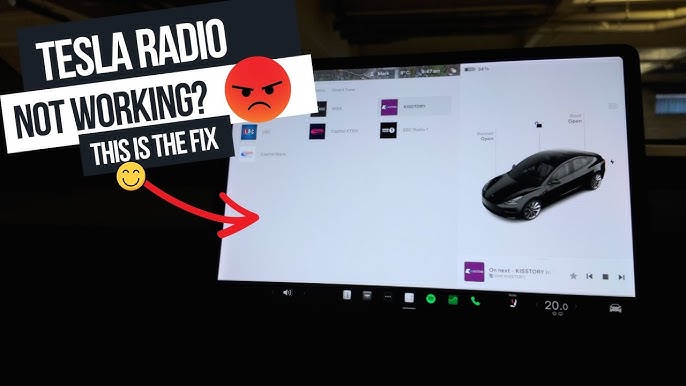
What Does It Mean When Tesla Karaoke Is Not Working?
Tesla Karaoke is not working when the feature cannot function as intended because one or more supporting systems fail to operate correctly. The issue may affect launching the app, loading songs, playing audio, displaying lyrics, or responding to touchscreen input. Identifying the symptom first helps narrow down the underlying cause and speeds up troubleshooting.
Common signs include:
- The Karaoke app does not open.
- Songs fail to load or remain stuck on a loading screen.
- Lyrics appear, but no audio is played.
- Audio plays without synchronized lyrics.
- The touchscreen freezes after opening Karaoke.
- An error message appears when selecting a song.
These symptoms do not always indicate a fault with the Karaoke application itself. Because Tesla Karaoke depends on the vehicle’s infotainment system, internet connection, software version, and audio system, a problem in any of these components can prevent the feature from working normally.
What Are the Most Common Reasons Tesla Karaoke Stops Working?
There are five primary reasons Tesla Karaoke stops working: outdated software, network connectivity issues, regional availability restrictions, infotainment system glitches, and incorrect audio settings. Each affects a different part of the entertainment system and requires a different solution.
1. Outdated Tesla software
Tesla frequently improves entertainment features through over-the-air software updates. If the vehicle is running an older firmware version, Tesla Karaoke may experience compatibility issues, reduced functionality, or unexpected errors. Installing the latest software often resolves bugs introduced in previous releases.
2. Internet connection problems
Tesla Karaoke streams song content, making a stable internet connection essential. Weak cellular coverage, disconnected Wi-Fi, or intermittent network service can prevent songs from loading or cause playback failures. Checking the vehicle’s connectivity status should be one of the first troubleshooting steps.
3. Regional feature availability
Tesla does not offer every entertainment feature in every country. Depending on the vehicle’s location, software configuration, or licensing agreements, Tesla Karaoke may be unavailable or have a limited song catalog. If the feature is unsupported in your region, troubleshooting alone will not restore access.
4. Temporary infotainment system glitches
Like any computer, Tesla’s infotainment system can experience temporary software conflicts. After long operating sessions or software updates, background processes may become unresponsive, preventing entertainment applications from launching correctly. Restarting the touchscreen often clears these temporary issues without affecting vehicle settings.
5. Incorrect audio settings
If Tesla Karaoke opens but produces no sound, the problem is often related to audio output rather than the application itself. Muted media volume, incorrect audio balance, or conflicts with connected Bluetooth devices can prevent music and vocals from playing even though the app appears to function normally.
How Do You Fix Tesla Karaoke Not Working?
Follow the troubleshooting steps below in order. Start with the simplest checks before moving to more advanced solutions. This approach helps identify the root cause while avoiding unnecessary resets or service appointments.
1. Confirm Tesla Karaoke Is Available
Before troubleshooting, verify that Tesla Karaoke is supported by your vehicle, software version, and region. Tesla may limit certain entertainment features based on market availability or licensing agreements. If the feature is unavailable in your location, the app may not appear or may have limited functionality regardless of your vehicle’s condition.
If you’ve recently traveled to another country or received a software update, check whether the feature is still available before continuing with additional troubleshooting.
2. Check Your Internet Connection
A stable internet connection is required for Tesla Karaoke to load and stream songs. If the vehicle has poor cellular coverage or an unstable Wi-Fi connection, the app may fail to load content or display connection errors.
Open another online entertainment feature, such as Theater or Music Streaming. If those services also fail to load, the issue is likely related to network connectivity rather than Tesla Karaoke itself.
If possible:
- Move the vehicle to an area with stronger cellular reception.
- Connect to a reliable Wi-Fi network.
- Wait a few minutes if mobile service is temporarily unavailable.
Once the connection is restored, reopen Tesla Karaoke and check whether songs load normally.
3. Restart the Touchscreen
A temporary software glitch is one of the most common causes of infotainment issues.
To restart the touchscreen:
- Park the vehicle safely.
- Press and hold both steering wheel scroll wheels.
- Continue holding until the touchscreen turns black.
- Release the buttons and wait for the Tesla logo to appear.
- Allow the infotainment system to finish restarting before opening Tesla Karaoke again.
This soft reboot refreshes the infotainment system without affecting vehicle settings, saved profiles, or personal data.
4. Install the Latest Tesla Software Update
Tesla regularly releases over-the-air software updates that improve vehicle stability, fix bugs, and enhance entertainment features. Running an outdated firmware version may cause compatibility problems with Tesla Karaoke.
To check for updates:
- Open Controls > Software.
- Verify whether a new update is available.
- Download and install the latest version if prompted.
After the installation is complete, allow the vehicle to finish background optimization before testing Tesla Karaoke again.
5. Review Audio Settings
If songs load but there is no sound, inspect the vehicle’s audio configuration.
Check the following:
- Media volume is not muted.
- Audio balance and fade settings are centered.
- No Bluetooth device is redirecting audio unexpectedly.
- Vehicle speakers function correctly in other entertainment apps.
If audio works normally in Music Streaming or Theater but not in Karaoke, continue with the next troubleshooting step.
6. Test Other Entertainment Apps
Opening other entertainment applications helps determine whether the problem affects only Tesla Karaoke or the entire infotainment system.
For example:
- If Theater, YouTube, or Music Streaming also fail to load, the issue is likely related to the infotainment system or network connection.
- If only Tesla Karaoke is affected while other apps work normally, the problem is more likely an application-specific software bug.
This comparison helps narrow the diagnosis before contacting Tesla Support.
7. Contact Tesla Service
Schedule a Tesla Service appointment if Tesla Karaoke continues to malfunction after completing every troubleshooting step. Persistent failures may indicate a software defect that requires Tesla’s diagnostics or, in rare cases, a hardware issue affecting the infotainment system.
Before creating a service request, record useful information such as:
- Vehicle model and model year.
- Current software version.
- The exact error message, if one appears.
- Whether the issue occurs consistently or intermittently.
- The troubleshooting steps already completed.
Providing these details allows Tesla technicians to diagnose the problem more efficiently and reduces the time required to resolve the issue.
Does Tesla Karaoke Require Premium Connectivity?
Premium Connectivity is not always the reason Tesla Karaoke stops working, but internet access is essential for streaming karaoke content. Whether the feature works depends on your vehicle’s connectivity method, software configuration, and regional availability.
If your vehicle has access to a stable Wi-Fi network, Tesla Karaoke may function without relying on the cellular connection. However, if the vehicle is disconnected from both Wi-Fi and cellular data, songs may fail to load or playback may stop unexpectedly.
If Tesla Karaoke suddenly stops working after a connectivity plan changes, verify that the vehicle still has internet access before assuming the application itself is faulty.
Can Tesla Software Updates Cause Tesla Karaoke Problems?
Yes, software updates can occasionally affect Tesla Karaoke because entertainment features are closely integrated with the vehicle’s infotainment system. Although most updates improve stability and introduce bug fixes, temporary issues may appear immediately after a new firmware version is installed.
Common post-update symptoms include:
- The Karaoke app does not launch.
- Songs take longer than usual to load.
- The application closes unexpectedly.
- Audio or lyrics become temporarily unavailable.
These issues are often resolved after the infotainment system finishes background optimization or after Tesla releases a follow-up software update.
If Tesla Karaoke stops working immediately after installing new firmware:
- Restart the touchscreen.
- Confirm the software installation completed successfully.
- Connect the vehicle to a stable Wi-Fi network.
- Check for a newer software release if the issue continues for several days.
If other entertainment applications also begin malfunctioning after the update, the problem is likely related to the infotainment system rather than Tesla Karaoke alone.
When Should You Contact Tesla Service?
Contact Tesla Service if Tesla Karaoke continues to fail after you’ve completed every recommended troubleshooting step. Persistent issues may require diagnostic tools that are not available to vehicle owners.
Schedule a service appointment if you experience any of the following:
- Tesla Karaoke never opens after multiple system restarts.
- The infotainment system frequently freezes or reboots.
- Multiple entertainment applications stop working simultaneously.
- Audio problems affect the entire vehicle rather than only Karaoke.
- The issue remains after installing the latest software update.
Before submitting a service request, prepare the following information:
- Vehicle model and model year.
- Current software version.
- Date when the issue first appeared.
- Photos or videos of any error messages.
- A list of troubleshooting steps already completed.
Providing complete information helps Tesla technicians reproduce the problem more efficiently and reduce diagnostic time.
How Can You Prevent Tesla Karaoke Problems?
Most Tesla Karaoke issues can be avoided through routine software maintenance and reliable network connectivity. Preventive maintenance reduces the likelihood of temporary software conflicts and improves the overall stability of the infotainment system.
Follow these best practices:
- Install Tesla software updates soon after they become available.
- Connect the vehicle to a reliable Wi-Fi network whenever possible to ensure updates download successfully.
- Restart the infotainment system occasionally if you notice reduced responsiveness.
- Verify internet connectivity before using streaming entertainment features.
- Avoid interrupting software installations or restarting the vehicle during firmware updates.
- Confirm that Tesla Karaoke is supported in your current region before assuming the feature has malfunctioned.
By following these practices, you can reduce unexpected interruptions and keep Tesla Karaoke operating reliably alongside the vehicle’s other entertainment features.
Conclusion
Most Tesla Karaoke issues can be resolved without professional assistance by following a structured troubleshooting process. In many cases, the problem is caused by an outdated software version, an unstable internet connection, a temporary infotainment system glitch, or incorrect audio settings rather than a hardware failure.
Start with the simplest solutions, such as verifying your network connection, restarting the touchscreen, and installing the latest Tesla software update. If Tesla Karaoke still doesn’t function after completing each troubleshooting step, testing other entertainment apps can help determine whether the issue is isolated to Karaoke or affects the entire infotainment system. Persistent problems across multiple features should be addressed through Tesla Service for further diagnosis.
Keeping your vehicle’s software up to date, maintaining a reliable internet connection, and periodically restarting the infotainment system can reduce the likelihood of future issues. If you frequently use Tesla’s entertainment features, you may also find our guides on Tesla infotainment system troubleshooting, how to restart a Tesla touchscreen, and Tesla Premium Connectivity helpful for resolving related problems and optimizing your in-car experience.