A Tesla that doesn’t lock with a Key Card is more than an inconvenience—it can leave your vehicle unsecured and make you question whether the problem lies with the card, the vehicle, or its software. In most cases, the issue is caused by incorrect card positioning, disabled locking settings, a software glitch, or a problem with the Key Card itself rather than a major hardware failure.
This guide explains why your Tesla is not locking with a Key Card, how the locking system works, and the most effective troubleshooting steps to restore normal operation. You’ll learn how to verify whether the vehicle detects the Key Card correctly, review lock settings, restart the vehicle, update the software, and re-pair the Key Card when necessary.
The troubleshooting process is organized from the simplest checks to more advanced solutions so you can eliminate common causes before scheduling a service appointment. By the end of this guide, you’ll know whether the issue can be resolved at home or whether it’s time to contact Tesla Service for further diagnosis.
Why Is My Tesla Not Locking with a Key Card?
A Tesla may not lock with a Key Card because the vehicle cannot authenticate the card, a door lock setting is preventing the lock command, the NFC reader is not detecting the card correctly, or a software issue is interfering with the locking system. Most cases can be resolved without replacing the Key Card by following a systematic troubleshooting process.
The Key Card is not being detected properly
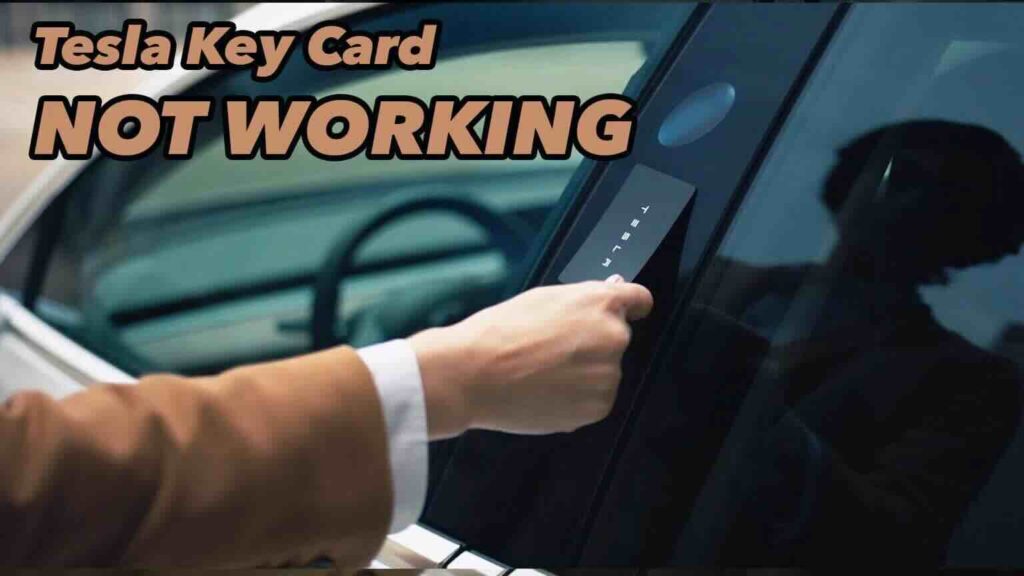
The Tesla Key Card communicates with the vehicle through Near Field Communication (NFC). Unlike a Phone Key that uses Bluetooth, the Key Card must be placed directly on the NFC reader located on the driver’s side B-pillar to lock or unlock the vehicle.
If the card is held too far away, removed too quickly, or tapped in the wrong location, the vehicle may fail to recognize the authentication request. As a result, Tesla ignores the lock command even though the Key Card is valid.
Before assuming the Key Card is defective, try holding it flat against the B-pillar for several seconds until the vehicle responds.
The vehicle’s lock settings are preventing automatic locking
Tesla’s locking behavior depends on several vehicle settings rather than the Key Card alone. If features such as Walk-Away Door Lock, Lock Confirmation Sound, or profile-specific lock preferences have been changed, the vehicle may remain unlocked even after successful authentication.
Review the Controls → Locks menu to verify that the expected locking options are enabled. Also confirm that all doors, the trunk, and the front trunk are fully closed, as Tesla will not complete the locking process if an opening is detected.
A temporary software issue is affecting the locking system
Tesla vehicles rely heavily on software to manage authentication and security features. After an interrupted software update, a temporary system error, or prolonged vehicle uptime, the locking system may stop responding normally even though the Key Card is functioning correctly.
Symptoms of a software-related issue often include intermittent locking failures, inconsistent Key Card detection, or normal operation returning after the vehicle is restarted. In these situations, restarting the vehicle or installing the latest software update is often enough to restore normal functionality.
The Key Card or NFC reader may be damaged
Although less common, physical damage can also prevent the vehicle from locking. A cracked, bent, or water-damaged Key Card may no longer transmit a reliable NFC signal. Likewise, a malfunctioning NFC reader inside the B-pillar can fail to detect even a properly functioning card.
A quick way to isolate the cause is to test another registered Key Card. If one card works while the other does not, the original Key Card is likely faulty. If neither card is recognized, the problem is more likely related to the vehicle’s NFC reader or another component of the locking system.
How Does a Tesla Key Card Lock and Unlock the Vehicle?
A Tesla Key Card locks and unlocks the vehicle by using Near Field Communication (NFC) to authenticate an authorized key. Unlike a Phone Key that communicates over Bluetooth, the Key Card only works when it is placed directly against one of the vehicle’s NFC readers.
When you tap the Key Card against the driver’s side B-pillar, the NFC reader scans the encrypted credentials stored on the card. If the credentials match a registered key in the vehicle, Tesla immediately processes the authentication request. Depending on the vehicle’s current state, it either unlocks the doors or locks them if all locking conditions have been met.
After entering the vehicle, the Key Card must be authenticated a second time before driving. Place the card on the center console card reader, located behind the cup holders on most Tesla models. Once the vehicle recognizes the card, you can press the brake pedal and shift into Drive.
Although the authentication process typically takes only a second, several conditions must be satisfied before Tesla will lock the vehicle successfully.
- The Key Card must be positioned directly over the NFC reader. Holding the card a few centimeters away or removing it too quickly may prevent authentication.
- All doors, the trunk, and the front trunk must be completely closed. Tesla will not lock if any opening is detected.
- The Key Card must already be paired with the vehicle. An unregistered card cannot send a valid authentication request.
- The locking system must be operating normally. Software glitches, damaged NFC hardware, or incorrect lock settings can interrupt the locking process even when the Key Card is valid.
Understanding how the authentication sequence works makes troubleshooting much easier. If the vehicle never detects the Key Card, the problem is usually related to the card or the NFC reader. If the card is detected but the vehicle still refuses to lock, the cause is more likely a door status issue, an incorrect lock setting, or a temporary software fault. Identifying where the process fails allows you to choose the correct solution instead of replacing parts unnecessarily.
How to Fix a Tesla That Won’t Lock with a Key Card?
Follow these troubleshooting steps in order, starting with the simplest checks before moving on to more advanced solutions. This approach helps identify the root cause quickly and avoids unnecessary repairs or Key Card replacement.
Step 1: Make Sure All Doors and Compartments Are Fully Closed
Tesla will not lock if it detects that any entry point is still open. Even a slightly unlatched door, trunk, or front trunk (frunk) can prevent the locking sequence from completing.
Walk around the vehicle and confirm that:
- All four doors are completely closed.
- The trunk is fully latched.
- The frunk is securely shut.
- No warning messages appear on the touchscreen indicating that a door or compartment is open.
If a door sensor incorrectly reports an open status, the vehicle may also refuse to lock. In this case, reopening and firmly closing the affected door often resolves the issue.
Step 2: Tap the Key Card on the Correct NFC Reader
Incorrect Key Card positioning is one of the most common reasons Tesla fails to lock.
Place the Key Card flat against the driver’s side B-pillar, directly below the camera assembly. Hold the card in place for one to two seconds instead of tapping it quickly.
If the vehicle recognizes the card, you should receive visual confirmation through the exterior lights or hear the lock confirmation sound if that feature is enabled.
If nothing happens, remove the card and try again using a slightly different position on the reader.
Step 3: Check the Door Lock Settings
Tesla’s security settings determine when the vehicle is allowed to lock automatically. If these settings have been changed, the Key Card may authenticate successfully while the vehicle remains unlocked.
Open:
Controls → Locks
Review the following options:
- Walk-Away Door Lock
- Lock Confirmation Sound
- Driver Door Unlock Mode
- Exclude Home (if applicable)
If Walk-Away Door Lock has been disabled or another setting conflicts with your expected behavior, enable the appropriate option and test the Key Card again.
Step 4: Restart the Vehicle
Temporary software glitches can interrupt communication between the Key Card and the locking system.
To perform a soft reboot:
- Park the vehicle safely.
- Shift into Park.
- Press and hold both steering wheel scroll buttons.
- Continue holding until the touchscreen turns black.
- Wait for the Tesla logo to appear.
- Allow the system to finish restarting before testing the Key Card again.
A reboot refreshes several software services and often resolves intermittent authentication or locking problems without affecting your personal settings.
Step 5: Install the Latest Tesla Software Update
Tesla regularly releases software updates that improve vehicle security, NFC communication, and system stability.
To check for updates:
- Open Controls → Software.
- Verify whether a new software version is available.
- Install the update if prompted.
- After installation is complete, test the Key Card again.
If the problem began shortly after a software update, installing a newer version may also resolve bugs introduced in an earlier release.
Step 6: Re-Pair the Key Card
If Tesla no longer recognizes the Key Card consistently, the card may need to be paired again.
You’ll need:
- A functioning authenticated key (another Key Card or Phone Key).
- The Key Card you want to pair.
Navigate to:
Controls → Locks → Keys → Add Key
Follow the on-screen instructions to authenticate the existing key first, then scan the new Key Card when prompted.
Once pairing is complete, lock and unlock the vehicle several times to verify that the process was successful.
Step 7: Test Another Registered Key Card
Testing another Key Card helps determine whether the problem is caused by the card itself or by the vehicle.
- If the second Key Card locks the vehicle normally, the original card is likely damaged or defective.
- If neither Key Card works, the issue is more likely related to the vehicle’s NFC reader, door lock system, or software.
This simple comparison can save time before scheduling a service appointment.
Step 8: Contact Tesla Service
Contact Tesla Service if none of the previous steps restores normal locking.
Professional diagnosis is recommended when:
- Multiple Key Cards fail to authenticate.
- The NFC reader does not detect any card.
- The vehicle reports persistent locking errors.
- The issue continues after a software update and Key Card re-pairing.
- Physical damage to the B-pillar reader or door locking mechanism is suspected.
Tesla technicians can inspect the NFC reader, locking actuators, wiring, and vehicle software using specialized diagnostic tools that are not available to owners.
How Do You Re-Pair a Tesla Key Card?
Re-pairing a Tesla Key Card registers it with the vehicle again, allowing Tesla to recognize the card for locking, unlocking, and driving authorization. This procedure is recommended if the Key Card is no longer detected consistently, has been replaced, or was removed from the vehicle’s list of authorized keys.
Before you begin, make sure you have an authenticated key available. Tesla requires an existing authorized key—either another Key Card or a Phone Key—to approve the addition of a new Key Card. Without an authenticated key, you cannot pair another card yourself.
To re-pair the Key Card:
- Park the vehicle and shift into Park.
- Open the touchscreen and navigate to Controls → Locks.
- Select Keys and choose Add Key.
- Authenticate the request using an existing authorized key when prompted.
- Place the Key Card you want to pair on the center console card reader.
- Wait for the confirmation message indicating that the Key Card has been added successfully.
After pairing is complete, verify that the card works correctly before relying on it as your primary key. Lock the vehicle by tapping the Key Card against the driver’s side B-pillar, then unlock it using the same method. Finally, place the card on the center console reader and confirm that the vehicle allows you to shift into Drive.
If the pairing process fails repeatedly, the problem is unlikely to be the registration procedure itself. A damaged Key Card, a malfunctioning NFC reader, outdated vehicle software, or an authentication issue with the existing key can all prevent successful pairing. In these situations, testing another registered Key Card helps determine whether the fault lies with the card or the vehicle.
When Should You Replace a Tesla Key Card?
Replace the Tesla Key Card only after confirming that the problem is caused by the card itself rather than the vehicle. Since locking issues can also result from software bugs, incorrect lock settings, or an NFC reader malfunction, replacing the Key Card should be one of the final troubleshooting steps.
The Key Card is likely defective if you notice one or more of the following signs:
- The vehicle never detects the card, even when it is positioned correctly on the NFC reader.
- The card cannot be paired again after multiple attempts.
- The card has visible physical damage, such as cracks, bending, or water exposure.
- Another registered Key Card works normally on the same vehicle while the original card consistently fails.
If multiple Key Cards produce the same symptoms, replacing the card is unlikely to solve the problem. Instead, the issue may involve the NFC reader in the driver’s side B-pillar, the center console card reader, the door locking system, or the vehicle’s software. Professional diagnosis by Tesla Service is recommended before purchasing a replacement Key Card.
A replacement Key Card should always be paired with the vehicle immediately after purchase and tested for locking, unlocking, and driving authorization to ensure it functions as expected.
Frequently Asked Questions
Why does my Tesla unlock but not lock with the Key Card?
This usually indicates that the Key Card is working, but another condition is preventing the vehicle from locking. The most common causes include an open door, trunk, or frunk, disabled Walk-Away Door Lock, incorrect lock settings, or a temporary software issue. If the vehicle unlocks consistently but refuses to lock, verify the door status and lock settings before assuming the Key Card is defective.
Does Walk-Away Door Lock affect the Key Card?
Yes. Walk-Away Door Lock determines whether the vehicle locks automatically after you leave with an authenticated key. If this feature is disabled or excluded for a specific location, your Tesla may remain unlocked even though the Key Card is recognized successfully.
You can review this setting by navigating to Controls → Locks and confirming that Walk-Away Door Lock is enabled for your preferred locations.
Can a software update fix Tesla locking problems?
Yes. Tesla software updates frequently include bug fixes, security improvements, and enhancements to vehicle systems, including key authentication and door locking. If your Key Card stopped working after unusual system behavior or an interrupted update, installing the latest software version may restore normal operation.
If the issue started immediately after an update, check whether Tesla has released a newer version addressing known software issues before replacing any hardware.
Can I use my Phone Key if the Key Card is not working?
Yes, provided your Phone Key has already been paired with the vehicle and Bluetooth communication is functioning correctly. A Phone Key operates independently of the NFC-based Key Card, making it a useful backup while troubleshooting Key Card issues.
If both the Phone Key and the Key Card fail to lock the vehicle, the problem is more likely related to the vehicle’s locking system or software rather than the authentication method.
When should I contact Tesla Service?
Contact Tesla Service after completing the standard troubleshooting steps without resolving the problem. Professional diagnosis is recommended if:
- Multiple registered Key Cards fail to authenticate.
- The Phone Key and Key Card stop working at the same time.
- The NFC reader never detects any Key Card.
- The vehicle displays persistent lock or security warnings.
- The locking issue continues after restarting the vehicle, updating the software, and re-pairing the Key Card.
- Physical damage to the door lock hardware or NFC reader is suspected.
Tesla technicians can perform hardware diagnostics, inspect the NFC reader, verify door lock actuators, and identify software faults that cannot be diagnosed through the vehicle’s standard controls.