Tesla Arcade lets owners download and play a growing collection of games directly from the vehicle’s infotainment system. When a game refuses to download, however, the issue is usually related to one of four areas: internet connectivity, software compatibility, available storage, or a temporary infotainment system error. Identifying the correct cause first allows you to fix the problem faster instead of trying random solutions.
Most Tesla game download failures can be resolved without visiting a service center. Simple actions such as reconnecting to a stable Wi-Fi network, restarting the infotainment system, installing the latest software update, or freeing up storage are often enough to restore normal downloads. In some situations, the problem originates from Tesla’s servers or a firmware bug, meaning the issue may resolve after an official software update.
This guide explains why your Tesla is not downloading games, what you should check before troubleshooting, and the most effective fixes in the order Tesla owners should perform them. You’ll also learn when a download problem indicates a hardware or software issue that requires assistance from Tesla Service, helping you avoid unnecessary downtime while getting Tesla Arcade working again.
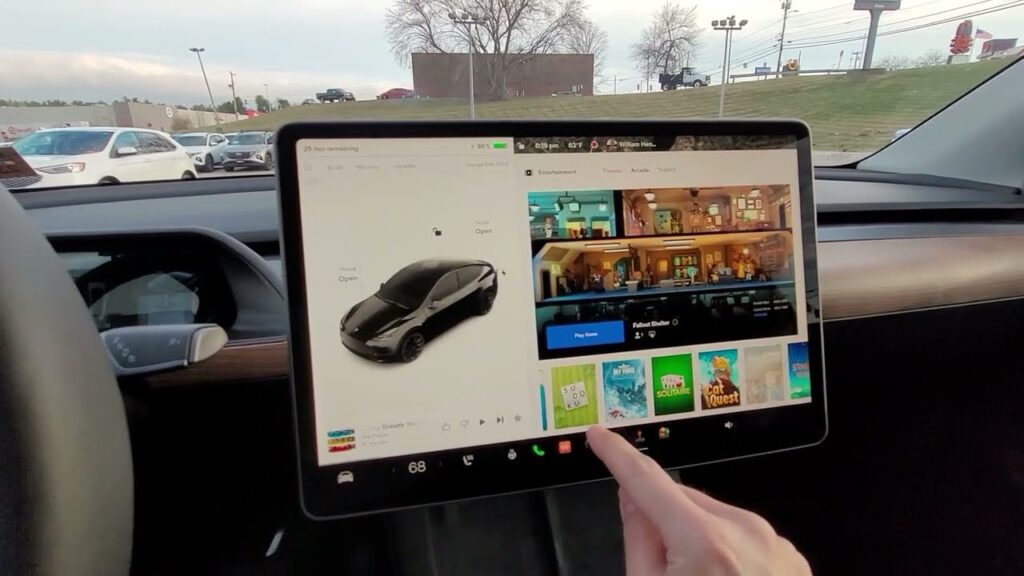
Why Is My Tesla Not Downloading Games?
Tesla may fail to download games because of four primary causes: an unstable internet connection, incompatible software, insufficient storage space, or a temporary infotainment system issue. Identifying the correct cause first makes troubleshooting much faster and prevents unnecessary resets.
A weak or interrupted internet connection is the most common reason downloads fail. Tesla recommends using a stable Wi-Fi network when downloading large content such as games and software updates. If the connection drops or becomes too slow, the download may remain at 0%, pause indefinitely, or display a “Download Failed” message. Public Wi-Fi networks with captive portals can also prevent downloads because the vehicle cannot complete the authentication process.
Software compatibility is another common factor. Tesla Arcade continuously expands its game library, but not every game is available on every vehicle. Availability depends on your vehicle’s hardware generation and the installed firmware version. If your Tesla is running outdated software, newer games may not appear or may fail to install until the latest over-the-air (OTA) update is completed.
Limited storage space can also stop new game downloads. The infotainment system stores games, navigation data, media files, and temporary system files in its internal storage. When available space becomes too low, the system may reject additional downloads or leave them stuck in the download queue until storage is freed.
Temporary software bugs occasionally interrupt the download manager. After weeks of continuous operation, the infotainment system may experience minor glitches that affect background processes, including game downloads. A simple restart often restores normal operation by refreshing the system and restarting interrupted services.
In some cases, the problem is not caused by the vehicle at all. Tesla periodically performs server maintenance or experiences temporary service outages that can interrupt downloads across multiple regions. If other online Tesla services are also unavailable, waiting until the servers return to normal is often the only solution.
What Should You Check Before Fixing the Problem?
Before restarting your Tesla or reinstalling a game, verify a few basic conditions that commonly prevent successful downloads. Spending a few minutes checking these items can eliminate unnecessary troubleshooting and quickly identify the real cause.
Start by confirming that your Tesla is connected to a reliable Wi-Fi network. Although some online features work over Premium Connectivity, game downloads are designed to perform best on a stable Wi-Fi connection. Open Controls > Wi-Fi and make sure the vehicle is connected to a network with a strong signal. If the connection repeatedly disconnects or the speed is inconsistent, move closer to the router or connect the vehicle to another trusted network.
Next, check whether your vehicle has enough available storage. Tesla stores games, navigation data, media files, and system files on internal storage. If the remaining space is limited, new downloads may fail before installation begins or remain stuck in the queue. Removing unused games or clearing unnecessary media files can free enough space for the download to continue.
Your Tesla should also be running the latest available software version. Tesla frequently adds new Arcade titles, fixes download-related bugs, and improves system stability through over-the-air software updates. If an update is waiting to be installed, complete the installation before attempting to download another game.
Vehicle status is another factor that many owners overlook. Some downloads and software-related operations require the vehicle to remain in Park with sufficient battery charge. If the battery level is too low or the vehicle is preparing for another system process, Tesla may temporarily postpone downloads until the required conditions are met.
Finally, determine whether the issue is isolated to your vehicle or caused by Tesla’s online services. If multiple owners report problems downloading games or installing updates at the same time, the interruption may be related to Tesla’s servers rather than your infotainment system. In that situation, waiting for Tesla to restore normal service is often more effective than repeatedly restarting the vehicle.
How Do You Fix Tesla Not Downloading Games?
You can fix Tesla not downloading games by following a troubleshooting sequence that starts with simple connection checks and moves toward software and storage solutions. The most effective fixes include restarting the infotainment system, reconnecting to Wi-Fi, updating Tesla software, freeing storage space, and retrying the download after system conditions improve.
The first step is to restart the Tesla infotainment system. A system reboot refreshes background processes, including the game download manager, and can resolve temporary software glitches. To perform a soft reboot, keep the vehicle in Park, press and hold both steering wheel scroll buttons until the touchscreen turns off, then wait for the system to restart. This process does not delete vehicle settings or installed applications.
Reconnect your Tesla to Wi-Fi if the download remains stuck. A connection that appears active may still have unstable performance or limited bandwidth. Open the Wi-Fi settings, remove the current network, and reconnect using the correct password. If the problem continues, test another network such as a mobile hotspot to determine whether the issue comes from your home internet connection or the vehicle system.
Install any available Tesla software updates before attempting another download. Tesla regularly releases OTA updates that improve infotainment performance, fix software bugs, and maintain compatibility with newer features. If your vehicle has an update waiting, complete the installation process while the vehicle is parked and connected to a reliable network.
Freeing storage space can resolve download failures caused by limited internal capacity. Remove games you no longer use or delete unnecessary stored content if your Tesla has reached its storage limit. After creating additional space, restart the download process because the previous failed installation attempt may not automatically resume.
Retry the game download after completing each troubleshooting step. If the download begins normally after one of these actions, the problem was likely caused by a temporary system condition rather than a permanent hardware issue. However, repeated failures after performing these fixes may indicate deeper problems involving Tesla software, internal storage, or the infotainment hardware.
What If Tesla Still Won’t Download Games?
If Tesla still will not download games after checking the network connection, updating software, and restarting the infotainment system, the problem may involve deeper software or hardware-related issues. Persistent download failures usually indicate that the vehicle cannot complete communication between the Tesla operating system, internal storage, or online services required for Tesla Arcade.
A repeated download failure may indicate a software issue within the Tesla infotainment system. The download process depends on multiple background services that manage authentication, file transfers, installation, and verification. If one of these processes becomes corrupted after an interrupted update or failed installation, the game may continue showing errors even after reconnecting to Wi-Fi.
Performing a complete power cycle can help resolve problems that a standard infotainment restart does not fix. A power cycle turns off vehicle systems more completely and allows the vehicle computers to restart their operating processes. This procedure is useful when the touchscreen, applications, or other infotainment features also show unusual behavior.
Storage-related problems can also prevent Tesla games from installing correctly. If the vehicle has damaged storage sectors or cannot properly access available memory, downloads may repeatedly fail even when enough storage appears to be available. Signs of a storage problem include slow application loading, missing media files, repeated installation failures, or other infotainment performance issues.
Contact Tesla Service if the game download continues failing after completing standard troubleshooting steps. Tesla technicians can access vehicle diagnostic information, identify software errors, check hardware status, and determine whether the issue requires a remote repair, software intervention, or physical service.
A Tesla that cannot download games is rarely caused by the game itself. The failure usually comes from the connection between the vehicle, Tesla software infrastructure, and infotainment hardware. Diagnosing these areas systematically helps determine whether the issue can be solved at home or requires professional support.
Which Tesla Models Support Downloadable Games?
Tesla models that support downloadable games depend on the vehicle’s hardware configuration, infotainment system generation, and installed software version. Tesla Arcade availability is not determined only by the vehicle model name because the same model can have different hardware versions that affect gaming features.
Model S, Model 3, Model X, and Model Y vehicles can access Tesla Arcade features when they meet the required hardware and software conditions. Newer Tesla vehicles with updated infotainment computers generally provide better gaming performance because they include more powerful processors and improved graphics capabilities.
The Media Control Unit (MCU) plays an important role in determining which games a Tesla can run. Tesla vehicles equipped with newer MCU hardware can support more demanding games because the system has greater processing capability. Older vehicles may still access some Tesla Arcade titles, but certain games may be unavailable due to hardware limitations.
Software version also affects game availability. Tesla regularly changes the Arcade library through over-the-air updates, adding new titles, improving existing games, and adjusting compatibility requirements. A vehicle that supports Tesla Arcade may still fail to download a specific game if its firmware does not meet the minimum version required by that title.
Owners should check the Tesla Arcade menu directly to confirm available games for their vehicle. The available game list reflects the combination of the vehicle model, hardware configuration, region, and current software version. If a game does not appear in the Arcade menu, the issue may be compatibility rather than a download failure.
Understanding hardware and software compatibility helps Tesla owners avoid troubleshooting problems that cannot be fixed through network changes or system resets. If a specific game is unavailable because of vehicle limitations, updating software or changing internet settings will not enable the unsupported feature.
Does Premium Connectivity Affect Tesla Game Downloads?
Premium Connectivity does not replace the need for a stable internet connection when downloading Tesla games. Tesla game downloads primarily depend on a reliable Wi-Fi connection because games are larger files that require consistent data transfer speeds during installation.
Premium Connectivity provides access to internet-based features such as live traffic visualization, satellite maps, video streaming, music streaming, and web browsing through Tesla’s cellular connection. However, it does not guarantee that every download operation, including Tesla Arcade games, will work without Wi-Fi access. The availability of download features can vary depending on vehicle model, software version, region, and Tesla service configuration.
A slow cellular connection can affect Tesla game downloads when the vehicle attempts to use available online services. Mobile data networks may experience unstable speeds, weak signal strength, or temporary restrictions that interrupt large file transfers. A download that starts but stops repeatedly may indicate that the connection is not strong enough to maintain continuous data transmission.
Using a mobile hotspot can be an effective alternative when home Wi-Fi is unavailable. A smartphone hotspot allows the Tesla to connect through another internet source and helps determine whether the original Wi-Fi network is causing the problem. If the game downloads successfully through the hotspot, the issue is likely related to the previous network configuration rather than the Tesla infotainment system.
The best setup for downloading Tesla games is a stable Wi-Fi connection with sufficient bandwidth and minimal interruptions. Premium Connectivity improves many connected vehicle features, but it should be considered a supporting service rather than the primary solution for large Tesla Arcade downloads.
Understanding the difference between Premium Connectivity and Wi-Fi helps Tesla owners troubleshoot download problems more accurately. If a vehicle cannot download games despite having Premium Connectivity, checking network stability, software status, and storage availability should be the next steps.
How Can You Prevent Tesla Game Download Problems?
You can prevent Tesla game download problems by maintaining a stable internet connection, keeping the vehicle software updated, managing available storage, and avoiding interruptions during downloads. Regular maintenance of the Tesla infotainment system reduces the chance of failed installations and keeps Tesla Arcade features working correctly.
Use a reliable Wi-Fi connection whenever downloading games or large software files. A strong network signal helps maintain continuous data transfer and reduces interruptions caused by connection drops. Positioning the vehicle closer to the Wi-Fi router or using a dedicated garage network can improve download reliability compared with weak or unstable connections.
Keep your Tesla software updated to the latest available version. Tesla releases over-the-air updates that improve system performance, fix known bugs, and maintain compatibility with new features. Delaying software updates for long periods can create compatibility problems between the vehicle firmware and newer Tesla Arcade games.
Maintain sufficient internal storage for future downloads. Tesla vehicles store applications, navigation data, and system files alongside games, which means available space gradually changes as the vehicle collects additional data. Removing unused games and unnecessary stored content helps prevent installation failures caused by limited storage capacity.
Avoid interrupting downloads whenever possible. Turning off the vehicle system, changing network connections repeatedly, or losing internet access during installation can leave incomplete files that interfere with future download attempts. Allow the download and installation process to finish completely before changing settings or disconnecting the vehicle from its network.
Restarting the infotainment system periodically can also help maintain stable performance. A reboot clears temporary software issues and refreshes background processes responsible for applications and online services. This simple habit can prevent minor glitches from developing into repeated download failures.
Following these preventive steps helps Tesla owners maintain reliable access to Tesla Arcade games. Most download issues occur because of temporary connection, software, or storage conditions that can be managed through regular vehicle care.
Frequently Asked Questions
Why Is My Tesla Game Download Stuck at 0%?
A Tesla game download stuck at 0% is usually caused by a connection problem, software issue, or download process interruption. The vehicle may show the game in the Arcade menu but cannot begin transferring the required files from Tesla servers.
Check your Wi-Fi connection first because an unstable network prevents the download from starting. If the connection is working correctly, restart the infotainment system and retry the download. Installing pending software updates and checking available storage can also resolve downloads that remain at 0%.
Can You Download Tesla Games Without Wi-Fi?
Tesla games generally require an internet connection to download, and Wi-Fi is the recommended option because game files can be large. Premium Connectivity provides cellular access for many Tesla features, but a stable Wi-Fi network is usually more reliable for large downloads and software installations.
If Wi-Fi is unavailable, a mobile hotspot can provide an alternative connection. The Tesla vehicle must maintain a consistent internet connection throughout the download process to prevent interruptions.
Does Restarting Tesla Delete Downloaded Games?
Restarting the Tesla infotainment system does not delete downloaded games. A soft reboot only refreshes the vehicle’s computer systems and restarts background processes that manage applications and connectivity.
Downloaded games, vehicle settings, and user preferences remain stored after a normal restart. A factory reset is different because it removes personal settings and stored information from the vehicle.
Why Does Tesla Say “Download Failed”?
Tesla displays a “Download Failed” message when the vehicle cannot complete the file transfer or installation process. The most common causes are unstable internet connections, insufficient storage, incompatible software versions, or temporary system errors.
Reconnect to Wi-Fi, restart the infotainment system, check available storage, and install software updates before trying the download again. If the error continues, Tesla Service may need to review vehicle diagnostics.
Can Tesla Games Download While Driving?
Tesla games generally cannot be played while the vehicle is moving because Tesla restricts gaming features for safety reasons. Download availability may also depend on vehicle status, software version, and current system conditions.
Keeping the vehicle parked during downloads helps ensure the infotainment system can complete installation processes without interruptions. Owners should allow downloads and updates to finish before driving.