A Tesla menu that won’t open is usually caused by a temporary software issue, a touchscreen system error, or a problem that occurs after a firmware update. Because nearly every vehicle function—from navigation and climate controls to charging settings and safety features—is managed through the center display, an unresponsive menu can make the vehicle difficult to operate even if it remains drivable.
In most cases, the problem does not indicate a serious hardware failure. Temporary software glitches, overloaded background processes, or incomplete system initialization can prevent the user interface from responding correctly. Many of these issues can be resolved by performing a touchscreen reboot, allowing the system to finish background tasks, or verifying that the vehicle is running the latest Tesla software version. However, recurring failures, display artifacts, or repeated crashes may point to a deeper hardware or firmware issue that requires professional diagnosis.
This guide explains why the Tesla menu may stop opening, how to troubleshoot the problem step by step, and when it is appropriate to contact Tesla Service. It also helps you distinguish between software-related issues and hardware failures, so you can choose the right solution without performing unnecessary resets or scheduling service before it is actually needed.
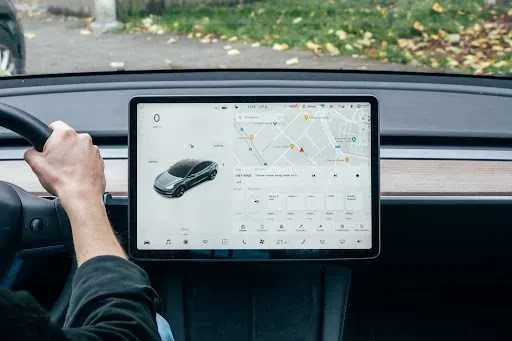
What Does It Mean When the Tesla Menu Is Not Opening?
A Tesla menu that is not opening means the vehicle’s touchscreen interface cannot load or respond to menu commands, preventing access to one or more vehicle settings. The issue may appear as an unresponsive menu icon, a frozen display after tapping the screen, or a blank menu panel that never finishes loading. In some cases, only the menu becomes inaccessible while the rest of the touchscreen continues to function. In others, the entire center display becomes unresponsive.
Because Tesla vehicles rely on the center display to control navigation, climate settings, charging options, driving preferences, and entertainment features, a menu failure can significantly reduce usability. Basic driving functions such as steering, braking, and acceleration remain operational because they are managed by separate vehicle control systems, but many convenience and configuration features become unavailable until the interface responds normally again.
It is also important to distinguish a menu that will not open from a completely frozen touchscreen. A frozen touchscreen typically ignores every touch input, whereas a menu issue may affect only specific interface elements. Identifying which behavior occurs is the first step toward selecting the correct troubleshooting method.
Why Is the Tesla Menu Not Opening?
Most Tesla menu problems are caused by temporary software issues rather than permanent hardware failures. During normal operation, the infotainment system continuously processes navigation data, vehicle diagnostics, connectivity services, and background applications. If one of these processes fails to respond correctly, the user interface may stop loading certain menus or become temporarily unresponsive.
Another common cause is a software update that does not complete cleanly. After installing new firmware, the operating system may continue indexing files, optimizing applications, or synchronizing vehicle data. During this period, some owners experience delayed menu loading, interface lag, or missing controls until these background tasks finish.
Hardware-related problems are less common but should not be ignored. A failing touchscreen digitizer, display controller, or Media Control Unit (MCU) can prevent the menu from responding even after multiple restarts. These failures are often accompanied by additional symptoms such as screen flickering, unexpected reboots, display artifacts, or persistent black screens, indicating that the issue extends beyond the software interface.
External factors may also contribute to menu instability. Weak connectivity during software synchronization, insufficient system resources, or corrupted temporary system data can occasionally interrupt normal interface behavior. While these conditions are usually temporary, repeated occurrences may indicate an underlying software bug that requires a future Tesla firmware update or professional diagnosis.
How Do You Fix a Tesla Menu That Won’t Open?
Fix a Tesla menu that won’t open by troubleshooting the issue from the simplest software checks to more advanced recovery methods. This approach helps identify temporary glitches before assuming a hardware failure.
1. Check whether the touchscreen is still responding
Begin by determining whether the issue affects only the menu or the entire display. Tap different areas of the screen, switch between available apps, or check whether maps and media controls continue to respond. If only the menu fails to open while other functions work normally, the problem is likely limited to the user interface rather than the entire infotainment system.
2. Restart the touchscreen
A touchscreen restart clears temporary system processes that may prevent the menu from loading correctly. This is the first troubleshooting step recommended for many interface-related issues because it refreshes the operating system without affecting personal settings or saved vehicle data.
3. Allow background processes to finish
If the problem appears immediately after a software update, wait several minutes before attempting another restart. Tesla vehicles may continue optimizing applications, rebuilding system files, or synchronizing data after installation. Interrupting these background processes repeatedly can delay system recovery.
4. Check for available software updates
Open the Software section if it remains accessible or use the Tesla mobile app to verify whether a newer firmware version is available. Tesla frequently releases updates that improve touchscreen stability, resolve interface bugs, and optimize system performance. Installing the latest stable version may eliminate recurring menu issues caused by earlier software builds.
5. Power cycle the vehicle if the issue persists
If restarting the touchscreen does not resolve the problem, perform a complete vehicle power cycle. A power cycle shuts down additional electronic modules that remain active during a standard touchscreen reboot, allowing the vehicle to reload more system components during startup.
6. Confirm that the problem has been resolved
After restarting the system, test the menu under normal driving conditions. Open Settings, Controls, Climate, Navigation, and other frequently used menus to verify that the interface responds consistently. If the menu becomes unresponsive again within a short period, the issue is more likely related to firmware instability or hardware and should be investigated further.
How Do You Reboot the Tesla Touchscreen?
Rebooting the Tesla touchscreen is the safest way to resolve temporary software glitches without affecting vehicle settings or personal data. Most interface problems can be corrected with a standard reboot that takes only a few minutes.
To perform a touchscreen reboot, park the vehicle safely and keep it in Park. Press and hold both steering wheel scroll buttons simultaneously until the center display turns black. Continue holding the buttons until the Tesla logo appears, then release them and allow the system to restart completely. The reboot process typically finishes within one to three minutes.
If the touchscreen continues to experience the same problem after multiple standard reboots, consider performing a full vehicle power cycle through the vehicle settings, provided the menu is accessible. A power cycle shuts down additional control modules and reloads more vehicle systems than a standard touchscreen restart, making it more effective for persistent software-related issues.
Avoid interacting with the touchscreen, opening doors repeatedly, or attempting another reboot while the system is restarting. Interrupting the reboot process may delay startup or prevent background services from initializing correctly. Wait until the interface has fully loaded before testing whether the menu functions normally again.
How Do You Know Whether the Problem Is Software or Hardware?
You can usually identify whether the Tesla menu issue is caused by software or hardware by observing when the problem occurs, how often it happens, and whether restarting the system temporarily resolves it. Software issues tend to appear after updates or during heavy system activity, while hardware failures usually become more frequent over time and continue regardless of reboot attempts.
Software-related issues often have predictable behavior. The menu may stop responding after a firmware update, become sluggish while background processes are running, or return to normal after a touchscreen reboot. These symptoms typically affect the user interface without causing permanent display problems. If the issue disappears after restarting the system and only returns occasionally, the root cause is likely software-related.
Hardware problems produce more persistent symptoms. A faulty touchscreen digitizer may ignore touch input in specific areas, while a failing Media Control Unit (MCU) can cause repeated system crashes, unexpected reboots, or a display that remains black even after restarting. Flickering, screen discoloration, dead touch zones, or abnormal noises from the display system also suggest a hardware fault rather than a temporary software bug.
Another useful indicator is whether the problem changes over time. Software glitches are often inconsistent and may disappear after installing a newer firmware version. Hardware failures generally become more severe, occurring more frequently until the affected component is repaired or replaced.
Before scheduling a service appointment, document the symptoms carefully. Record when the issue occurs, whether it follows a software update, how often it happens, and whether a touchscreen reboot resolves it. Photos or short videos of the malfunction can also help Tesla technicians diagnose the issue more efficiently.
When Should You Contact Tesla Service?
Contact Tesla Service if the menu remains unresponsive after completing standard troubleshooting or if the issue is accompanied by signs of hardware failure. While temporary interface glitches are common, persistent failures usually require professional diagnostics.
Schedule a service appointment if the menu still will not open after multiple touchscreen reboots and a complete vehicle power cycle. Repeated system crashes, continuous reboot loops, a permanently black display, or touchscreen areas that no longer register input indicate problems that cannot typically be resolved through software troubleshooting alone.
You should also seek professional assistance if the issue affects critical vehicle functions. For example, if you cannot access charging controls, camera settings, navigation, or safety-related features because the menu is unavailable, continuing to rely on temporary workarounds may reduce the vehicle’s usability and convenience.
Before contacting Tesla Service, prepare as much diagnostic information as possible. Record the vehicle model, software version, the date the problem first appeared, and whether it started after a firmware update. Note any warning messages displayed on the screen and list the troubleshooting steps you have already completed, such as restarting the touchscreen or performing a power cycle. Providing detailed information allows technicians to reproduce the issue more quickly and determine whether a software update, remote diagnosis, or hardware repair is the most appropriate solution.
If your vehicle is still covered by Tesla’s warranty, avoid attempting unofficial repairs or disassembling the display. Unauthorized modifications may complicate the diagnostic process and could affect warranty coverage for the infotainment system.
Can a Software Update Cause the Tesla Menu to Stop Working?
Yes, a software update can temporarily cause the Tesla menu to stop working if the update introduces a software bug or the system has not finished completing background processes. Although Tesla regularly improves vehicle performance through over-the-air (OTA) updates, no software release is completely free of defects.
Immediately after an update, the infotainment system may continue rebuilding system files, indexing data, and restarting background services. During this period, the touchscreen can respond more slowly than usual, and some interface elements—including the Settings or Controls menu—may fail to load correctly. In many cases, the issue disappears automatically after the vehicle completes these background tasks or after a touchscreen reboot.
Less commonly, a firmware release may contain an unexpected software bug that affects only certain vehicle configurations or software versions. When multiple owners report the same behavior after installing a new update, Tesla typically investigates the issue and distributes a follow-up OTA update to restore normal operation. If the menu problem began immediately after updating and no hardware symptoms are present, checking for a newer software release is often the most effective long-term solution.
Does the Problem Affect Every Tesla Model?
No, a Tesla menu that won’t open is not limited to a specific model. Because Model 3, Model Y, Model S, and Model X all rely on Tesla’s touchscreen-based operating system, similar software issues can occur across the entire lineup.
The symptoms are generally the same regardless of model. Drivers may experience an unresponsive Controls menu, delayed Settings pages, frozen interface elements, or a touchscreen that requires restarting before the menu becomes available again. While the underlying operating system is similar, the frequency and exact behavior may vary depending on the vehicle’s hardware generation, Media Control Unit (MCU), and installed firmware version.
Older vehicles may experience slower system performance because of aging hardware, while newer models are more likely to encounter issues related to recently released software updates. Despite these differences, the recommended troubleshooting process remains largely the same: verify touchscreen responsiveness, perform a reboot, install the latest software, and contact Tesla Service if the issue persists.
How Can You Prevent the Tesla Menu From Freezing Again?
Preventing future Tesla menu issues focuses on maintaining a stable software environment and recognizing recurring problems early. Although not every software glitch can be avoided, good maintenance practices reduce the likelihood of repeated interface failures.
Keep your vehicle updated with the latest stable Tesla firmware, as new releases often include fixes for touchscreen performance and system stability. Avoid interrupting software installations by ensuring the update completes before driving the vehicle whenever possible.
Restart the touchscreen if you notice persistent lag after a major software update. A reboot refreshes the infotainment system and can clear temporary processes that remain active after installation.
Monitor recurring symptoms instead of treating each incident as an isolated event. If the menu becomes unresponsive under the same conditions—for example, after every update or whenever a specific application is opened—the pattern can help Tesla technicians identify the underlying cause more quickly.
Finally, report persistent software issues through the Tesla mobile app when they continue after normal troubleshooting. Early reporting helps determine whether the problem is isolated to your vehicle or part of a broader software issue that may be addressed in a future firmware release.
Frequently Asked Questions
Will rebooting the touchscreen erase my settings?
No. A standard touchscreen reboot does not delete driver profiles, navigation favorites, charging preferences, or other personal vehicle settings. It simply restarts the infotainment system.
Yes, in most cases. The vehicle’s core driving systems operate independently of the infotainment display. However, you may lose access to features such as navigation, climate controls, charging settings, and certain vehicle configurations until the menu responds normally.
How long does a Tesla touchscreen reboot take?
A standard reboot usually takes one to three minutes. The Tesla logo appears during startup, and the touchscreen becomes usable again after the operating system finishes loading.
Can I reset the touchscreen without losing vehicle data?
Yes. A touchscreen reboot refreshes the user interface without erasing saved settings or personal data. If a deeper system reset or hardware repair is required, Tesla Service will advise whether any additional actions are necessary.