Tesla LTE not working can disable many of the connected features that make Tesla ownership convenient, including live traffic, music streaming, satellite maps, remote app commands, and online navigation services. While the LTE icon disappearing often suggests a network problem, the root cause is not always poor cellular coverage. Temporary carrier outages, software update bugs, Premium Connectivity subscription issues, infotainment system glitches, and hardware faults can all interrupt the vehicle’s cellular connection.
Fortunately, most Tesla LTE issues can be diagnosed by following a structured troubleshooting process before scheduling a service appointment. Simple actions such as checking Tesla’s network status, restarting the touchscreen, performing a vehicle power cycle, or verifying your Premium Connectivity subscription frequently restore the connection without requiring repairs. Understanding whether the problem is related to software, network availability, or hardware also helps prevent unnecessary service visits and shortens the diagnostic process if professional assistance becomes necessary.
This guide explains the most common reasons Tesla LTE stops working and provides step-by-step solutions, starting with the easiest fixes and progressing to advanced troubleshooting. You’ll also learn how to distinguish temporary connectivity issues from hardware failures, recognize when Tesla Service is required, and reduce the likelihood of future LTE problems through proper vehicle maintenance and software management.
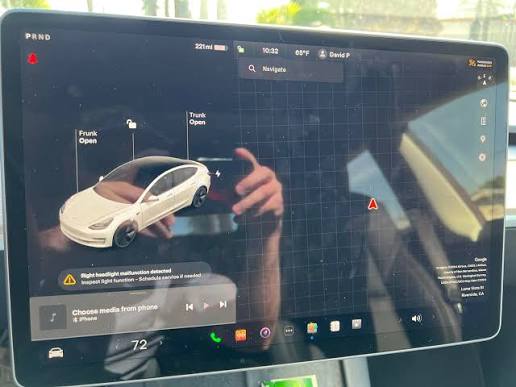
Why Is Tesla LTE Not Working?
Tesla LTE stops working when the vehicle cannot establish or maintain a stable cellular connection to Tesla’s online services. When this happens, connected features that rely on internet access either stop functioning completely or work intermittently. Common symptoms include the LTE icon disappearing, navigation failing to load live traffic data, music streaming services becoming unavailable, satellite maps not loading, or the Tesla mobile app being unable to communicate with the vehicle.
Not every LTE issue indicates a hardware failure. In many cases, the problem is temporary and resolves after the vehicle reconnects to the cellular network or completes a system restart. Identifying which features are affected is the first step toward determining whether the issue is related to network coverage, vehicle software, or onboard hardware.
What Causes Tesla LTE to Stop Working?
There are six primary causes of Tesla LTE connectivity problems: temporary network outages, weak cellular coverage, software issues, Premium Connectivity subscription problems, infotainment system faults, and hardware failures. Identifying the correct cause allows you to apply the appropriate fix instead of replacing parts or scheduling unnecessary service.
Temporary cellular network outage
Tesla vehicles rely on cellular carriers to access online services. If the carrier serving your region experiences an outage or temporary congestion, the vehicle may lose LTE connectivity even though all onboard systems are functioning normally. During these periods, the LTE signal may disappear or reconnect repeatedly until service is restored.
Weak LTE signal
Poor cellular reception is one of the most common reasons for intermittent LTE connectivity. Underground parking garages, tunnels, remote highways, mountainous terrain, and rural areas often provide limited LTE coverage. In these environments, the vehicle may struggle to maintain a stable connection, causing online features such as live traffic, music streaming, and satellite maps to stop responding until stronger signal coverage becomes available.
Software or firmware issues
A software bug can interrupt communication between the infotainment system and Tesla’s cellular services. Some owners notice LTE problems immediately after installing a firmware update, while others experience temporary connectivity glitches caused by background software processes. These issues are typically resolved through a touchscreen restart, a vehicle power cycle, or a subsequent software update that addresses the underlying bug.
Premium Connectivity subscription issues
Premium Connectivity enables features such as satellite maps, live traffic visualization, internet music streaming, and web-based services. If the subscription has expired, payment verification is pending, or account synchronization fails, certain online features may stop working even though the vehicle still displays an LTE connection. Verifying your subscription status helps determine whether the issue is related to service availability rather than cellular connectivity.
Infotainment system malfunction
The Media Control Unit (MCU) manages the vehicle’s display and communication systems. When the infotainment software becomes unresponsive or encounters a temporary error, LTE connectivity may fail despite adequate cellular signal strength. Restarting the touchscreen often restores communication by reinitializing the system without affecting driving data or vehicle settings.
Hardware failure
Although less common, defective cellular hardware can prevent Tesla from connecting to the LTE network. Problems involving the modem, antenna, wiring, or related communication components typically persist after software troubleshooting and continue regardless of location or signal strength. When connectivity cannot be restored through standard diagnostic steps, Tesla Service should inspect the vehicle to identify and repair the faulty component.
How to Fix Tesla LTE Not Working
Follow the troubleshooting steps below in order. Each step eliminates one of the most common causes of LTE connectivity problems before moving on to more advanced diagnostics.
1. Check for a Tesla service or cellular network outage
A temporary outage is often the quickest explanation for a sudden LTE failure. If Tesla’s online services or your local cellular carrier is experiencing an interruption, the vehicle may lose internet connectivity even though no component is malfunctioning.
Compare your vehicle with the Tesla mobile app or another Tesla in the same area if possible. If multiple connected features stop working simultaneously, waiting for the service to recover may be the only required solution.
2. Move to an area with stronger LTE coverage
Poor signal strength can prevent the vehicle from maintaining a stable LTE connection. Underground parking garages, tunnels, remote highways, and mountainous regions commonly have weak or inconsistent cellular coverage.
Drive to an open location with stronger network reception and allow the vehicle several minutes to reconnect automatically. If LTE returns after changing locations, the issue is likely related to signal availability rather than the vehicle itself.
3. Restart the touchscreen
Restarting the infotainment system resolves many temporary software glitches affecting LTE connectivity. This process refreshes the Media Control Unit (MCU) without deleting personal settings or vehicle data.
To restart the touchscreen:
- Park the vehicle safely.
- Press and hold both steering wheel scroll wheels.
- Keep holding until the touchscreen turns black.
- Wait for the Tesla logo to appear.
- Allow the system to finish rebooting before checking the LTE indicator.
After the restart, test connected features such as navigation, music streaming, or live traffic to confirm whether the connection has been restored.
4. Perform a full vehicle power cycle
A power cycle reloads vehicle systems more completely than a touchscreen restart. It can resolve communication issues between different control modules that continue after rebooting the display.
Open Controls → Safety → Power Off, remain seated without interacting with the vehicle for approximately two minutes, then press the brake pedal to wake the system. Once the vehicle powers back on, verify whether LTE reconnects normally.
5. Install any available software updates
Outdated firmware or unresolved software bugs can interrupt Tesla’s cellular communication. Tesla periodically releases updates that improve connectivity stability, fix known software defects, and optimize communication with backend services.
Navigate to Controls → Software and check whether an update is available. If one is pending, install it when the vehicle is connected to Wi-Fi and has sufficient battery charge.
6. Verify your Premium Connectivity subscription
Premium Connectivity affects several internet-based Tesla features. If the subscription has expired or there is an account synchronization issue, services such as live traffic visualization, satellite maps, and music streaming may become unavailable even though LTE appears connected.
Open the Tesla mobile app or your Tesla account and confirm that Premium Connectivity is active. If the subscription status has recently changed, allow time for the vehicle to synchronize with Tesla’s servers.
7. Disconnect and reconnect Wi-Fi
A saved Wi-Fi network with poor signal quality can interfere with connectivity testing. If the vehicle repeatedly attempts to use an unstable wireless connection, it may appear that LTE is not functioning correctly.
Disable Wi-Fi temporarily and allow the vehicle to rely exclusively on the cellular network. Then reopen online services such as navigation or streaming media to determine whether LTE is operating normally.
8. Test multiple connected features
Confirm that LTE has fully recovered before ending the troubleshooting process. Checking only the LTE icon does not always verify that internet services are functioning correctly.
Test several connected features, including:
- Live Traffic visualization
- Satellite Maps
- Music Streaming
- Web browser (if available)
- Tesla mobile app remote commands
If all services operate normally, the issue has likely been resolved. If LTE remains unavailable after completing every step above, the problem may require deeper diagnosis or professional inspection.
How Do You Know If the Problem Is Hardware or Software?
The behavior of the LTE connection often indicates whether the issue is caused by software or hardware. Software-related problems usually appear after a firmware update, occur intermittently, or disappear after restarting the touchscreen or performing a power cycle. Hardware failures, by contrast, remain consistent regardless of location, software version, or troubleshooting attempts.
Software problems are typically temporary and affect the communication between the Media Control Unit (MCU) and Tesla’s online services rather than the cellular hardware itself.
Common signs include:
- LTE stopped working immediately after a software update.
- The LTE icon appears and disappears randomly.
- The connection returns after restarting the touchscreen.
- Some online features work while others fail.
- The problem affects multiple owners after a recent firmware release.
These symptoms often improve after installing a newer software update or rebooting the infotainment system.
Persistent connectivity failures are more likely to indicate a hardware problem. A faulty modem, damaged antenna, or communication module cannot usually be fixed through software troubleshooting.
Common indicators include:
- No LTE connection in areas with strong cellular coverage.
- The issue continues for several days or weeks.
- Restarting the touchscreen and performing a power cycle have no effect.
- Premium Connectivity is active, but all online services remain unavailable.
- LTE never reconnects after multiple troubleshooting attempts.
When these symptoms persist, professional diagnosis is usually required to identify the defective component.
Gather information before contacting Tesla Support
Collecting accurate information helps Tesla technicians diagnose the issue more efficiently.
Record the following details before scheduling service:
- Vehicle model and model year.
- Current software version.
- Date and time the problem first occurred.
- Locations where LTE failed.
- Whether the issue began after a software update.
- Troubleshooting steps already completed.
- Photos of any warning messages or connectivity indicators.
Providing this information reduces diagnostic time and helps technicians determine whether the issue is related to software, network conditions, or hardware.
When Should You Contact Tesla Service?
When Should You Schedule a Service Appointment?
Contact Tesla Service after completing the standard troubleshooting steps if LTE connectivity is still unavailable. At this stage, the problem is more likely to involve hardware, account synchronization, or a system fault that requires Tesla’s diagnostic tools.
A service appointment is recommended when:
- LTE never reconnects after restarting the touchscreen and performing a power cycle.
- The vehicle has strong cellular coverage but remains offline.
- Multiple connected features fail continuously for several days.
- Software updates do not restore connectivity.
- Warning messages related to communication hardware appear on the display.
Ignoring persistent connectivity problems may affect navigation, remote vehicle access, emergency services, and future software downloads.
What may Tesla inspect?
Depending on the diagnostic results, Tesla technicians may inspect or replace components such as:
- Cellular modem
- LTE antenna
- Communication wiring
- Media Control Unit (MCU)
- Connectivity control modules
In many cases, technicians also perform remote diagnostics before the appointment, allowing them to identify software faults or review vehicle logs in advance.
What happens during a Tesla service visit?
A typical LTE diagnostic begins with a review of the vehicle’s connectivity logs and software status. If no software issue is detected, technicians test the communication hardware and verify that the vehicle can connect to Tesla’s cellular network.
If a defective component is identified, Tesla will recommend the appropriate repair or replacement. After the repair is completed, technicians confirm that connected features—including navigation, live traffic, music streaming, satellite maps, and remote app communication—are functioning normally before returning the vehicle.
How Can You Prevent Tesla LTE Problems?
Most Tesla LTE issues can be prevented by keeping the vehicle’s software up to date, maintaining a stable connectivity setup, and monitoring unusual behavior before it develops into a persistent problem. While temporary network outages are beyond your control, regular maintenance reduces the likelihood of software-related connectivity failures.
Keep your vehicle updated with the latest Tesla software whenever a stable Wi-Fi connection is available. Firmware updates often include bug fixes, modem stability improvements, and compatibility enhancements that improve cellular performance.
If your vehicle uses Premium Connectivity, verify that your subscription remains active and your Tesla account information is current. An expired subscription will not disable LTE itself, but it can make several internet-based features appear unavailable, leading owners to believe the cellular connection has failed.
Restart the touchscreen whenever the infotainment system behaves abnormally, such as delayed loading, frozen maps, or missing connectivity icons. A quick reboot can resolve temporary software glitches before they affect LTE communication.
Finally, pay attention to recurring patterns. If LTE disconnects only in specific locations, poor cellular coverage is the likely cause. If the problem occurs after every software update or persists regardless of location, documenting these details will help identify the root cause and make future troubleshooting or service appointments more efficient.
Frequently Asked Questions
Why does Tesla LTE keep disconnecting?
Intermittent LTE disconnections are usually caused by weak cellular coverage, temporary carrier outages, or software glitches. If the connection returns after moving to another location or restarting the touchscreen, the issue is unlikely to be hardware-related.
Does Tesla LTE work without Premium Connectivity?
Yes. Tesla vehicles can still use the built-in cellular connection for essential services without Premium Connectivity. However, features such as live traffic visualization, satellite maps, internet music streaming, and the web browser may be limited or unavailable depending on your subscription.
Why is LTE connected but there is no internet?
An LTE signal does not always mean Tesla’s online services are functioning correctly. Temporary server issues, account synchronization problems, or software bugs can prevent internet-based features from working even though the vehicle remains connected to the cellular network.
Does restarting the touchscreen delete any vehicle data?
No. Restarting the touchscreen only reboots the infotainment system. Your driving history, vehicle settings, driver profiles, navigation data, and saved preferences remain unchanged.
Can a software update cause Tesla LTE to stop working?
Yes. Although uncommon, firmware updates can introduce temporary connectivity bugs or interrupt communication with Tesla’s online services. Installing a later software update or restarting the infotainment system often restores normal LTE operation if the issue is software-related.