Tesla GPS not working is usually caused by temporary software glitches, outdated firmware, weak satellite reception, connectivity issues, or hardware faults affecting the navigation system. In most cases, the problem can be resolved without visiting a Tesla Service Center by following a structured troubleshooting process.
A malfunctioning GPS can cause your Tesla to display the wrong vehicle location, freeze on the map, calculate incorrect routes, or lose navigation entirely. These issues affect more than turn-by-turn directions. Features that rely on accurate vehicle positioning, such as estimated arrival times, traffic-aware routing, and certain location-based vehicle functions, may also become less reliable.
The good news is that most Tesla GPS problems originate from software or communication issues rather than permanent hardware failures. Restarting the infotainment system, installing the latest software update, restoring GPS calibration, or checking network connectivity often resolves the issue within minutes. However, persistent GPS failures after these steps may indicate a faulty GPS antenna, Media Control Unit (MCU), or another component that requires professional diagnosis.
This guide explains the most common causes of Tesla GPS problems, provides step-by-step troubleshooting methods from the simplest fixes to advanced solutions, and helps you determine when the issue can be resolved at home and when it’s time to schedule a Tesla Service appointment.
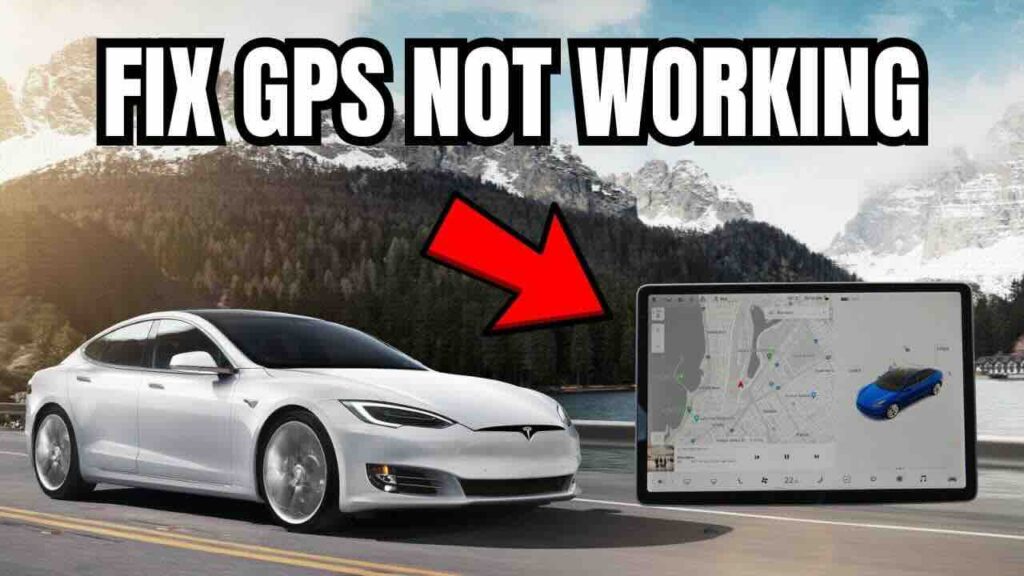
Why Is My Tesla GPS Not Working?
Tesla GPS stops working because the vehicle cannot determine its accurate location or synchronize navigation data correctly. In most cases, the issue is caused by software glitches, interrupted system processes, poor GPS signal reception, or connectivity problems rather than a failed GPS component.
You can usually identify a GPS problem by observing how the navigation system behaves. Common symptoms include the vehicle icon remaining in the same location while driving, the map displaying the wrong position, delayed route updates, incorrect driving direction, or navigation failing to calculate a route. Some drivers also notice that the estimated arrival time changes unexpectedly because the vehicle cannot accurately track its movement.
Software-related issues are the most common cause of Tesla GPS failures. A temporary bug in the Media Control Unit (MCU), an incomplete software update, or a navigation service that fails to initialize correctly after startup can prevent the system from receiving or processing location data. These issues typically appear suddenly and are often resolved by restarting the touchscreen or rebooting the vehicle.
GPS reception problems are another frequent cause. Tesla vehicles rely on signals from multiple GPS satellites to determine their location. Parking inside underground garages, tunnels, enclosed buildings, or areas surrounded by tall buildings can temporarily weaken or block satellite signals. Once the vehicle returns to an open environment with a clear view of the sky, GPS accuracy usually recovers automatically after a short recalibration period.
Connectivity issues can also contribute to navigation problems. Although GPS positioning itself does not require an internet connection, Tesla Maps, live traffic information, online routing, and certain navigation features depend on cellular data or Wi-Fi. If Premium Connectivity is unavailable or the vehicle experiences poor cellular coverage, the map may load slowly, traffic data may disappear, and navigation performance may appear inconsistent even when GPS positioning remains functional.
Hardware failures are less common but should not be ignored when the problem persists. A damaged GPS antenna, faulty wiring, or a malfunctioning MCU can prevent the vehicle from receiving satellite signals altogether. These failures are more likely if the GPS issue begins after a collision, windshield replacement, water intrusion, or repeated software troubleshooting attempts fail to restore normal operation. In these situations, Tesla Service can perform diagnostic tests to identify the affected component and recommend the appropriate repair.
How to Fix Tesla GPS Not Working?
Fix Tesla GPS problems by following the troubleshooting steps from the simplest software checks to more advanced diagnostics. This approach helps identify whether the issue is temporary or requires professional repair.
1. Restart the Tesla Touchscreen
Restarting the touchscreen is the quickest way to resolve temporary navigation glitches. The Media Control Unit (MCU) controls the navigation interface, maps, and location display. If one of its background processes stops responding, the GPS may freeze or display incorrect information.
Press and hold both steering wheel scroll buttons until the touchscreen turns black. Continue holding the buttons until the Tesla logo appears, then wait for the system to finish rebooting. This process usually takes one to two minutes and does not erase your personal settings or navigation history.
After the restart, drive the vehicle for several minutes in an open area to determine whether the GPS updates your location correctly.
2. Perform a Full Vehicle Reboot
If restarting the touchscreen does not solve the problem, reboot the entire vehicle. A full reboot reloads additional vehicle systems that communicate with the navigation software and may resolve issues affecting GPS synchronization.
Park the vehicle safely, shift into Park, then go to Controls > Safety > Power Off. Leave the vehicle untouched for at least two minutes without opening doors, pressing pedals, or interacting with the touchscreen. After the waiting period, press the brake pedal to wake the vehicle and allow all systems to restart.
This procedure often resolves software processes that remain active after a standard touchscreen reboot.
3. Check for Software Updates
Outdated firmware or an interrupted over-the-air (OTA) update can cause navigation services to malfunction. Tesla regularly releases software updates that include navigation improvements, GPS stability fixes, and bug patches.
Open Controls > Software to verify whether an update is available. If a newer version is ready for installation, connect the vehicle to a stable Wi-Fi network and complete the update before testing the GPS again. Avoid interrupting the installation because incomplete updates can temporarily affect navigation functions.
4. Verify Your Internet Connection
GPS positioning works independently of the internet, but Tesla Maps, live traffic, satellite imagery, and online route calculations depend on a stable data connection. Poor cellular coverage or unavailable Premium Connectivity can make the navigation system appear unresponsive even when GPS positioning remains accurate.
Check whether the vehicle has an active cellular signal or Wi-Fi connection. If possible, connect to a reliable Wi-Fi network and reload the map. If only live traffic or map tiles are missing while the vehicle location remains accurate, the issue is more likely related to connectivity than GPS hardware.
5. Move the Vehicle to an Open Area
GPS receivers require signals from multiple satellites to calculate an accurate location. Underground parking garages, tunnels, enclosed structures, and dense urban environments with tall buildings can temporarily reduce satellite visibility.
Drive the vehicle to an open location with a clear view of the sky and continue driving for several minutes. Once the system receives enough satellite signals, the vehicle location usually updates automatically without additional intervention.
6. Allow Time for GPS Recalibration
Tesla may need several minutes to recalibrate GPS after a software update, prolonged vehicle storage, or a system restart. During this period, the navigation system may display an inaccurate location or delayed movement.
Continue driving normally in an area with good satellite reception and monitor whether the vehicle icon gradually aligns with your actual position. In most cases, recalibration completes automatically without requiring any manual action.
7. Check Whether Tesla Services Are Experiencing Temporary Issues
Although uncommon, server-side issues can affect navigation features, online routing, or map synchronization. If multiple Tesla owners report similar problems after a recent software release, the issue may not originate from your vehicle.
Compare your vehicle’s behavior with reports from the Tesla community or wait for an official software update if the issue appears widespread. If your GPS continues to display the wrong location while other vehicles operate normally, the problem is more likely specific to your vehicle.
How Can You Tell Whether the Problem Is Software or Hardware?
Identifying whether the GPS problem is caused by software or hardware helps you choose the right solution and avoid unnecessary repairs. Software issues are far more common and are often resolved with basic troubleshooting, while hardware failures usually require professional diagnosis and replacement.
Software-related GPS problems typically appear after a system restart, an over-the-air (OTA) update, or a temporary system malfunction. Common signs include the navigation map freezing, the vehicle showing an incorrect location, delayed route calculations, or GPS returning to normal after restarting the touchscreen. These symptoms indicate that the GPS receiver is still functioning but the navigation software is not processing location data correctly. In most cases, updating the vehicle software, rebooting the Media Control Unit (MCU), or allowing the system to recalibrate restores normal operation.
Hardware-related problems usually persist regardless of how many times the vehicle is restarted. If the GPS constantly displays the wrong location, fails to detect movement in open areas, or repeatedly loses satellite reception even after completing every troubleshooting step, the issue may involve the GPS antenna, antenna wiring, or the MCU itself. Hardware failures are also more likely after physical damage, including front-end collisions, windshield replacement, water intrusion, or electrical repairs that affect components connected to the navigation system.
Another way to distinguish the two is by observing whether the problem changes under different conditions. If the GPS works normally after a reboot or improves once the vehicle reaches an open area, software or signal reception is the more likely cause. If the navigation remains inaccurate every time the vehicle is driven, regardless of location, weather, or software updates, the likelihood of a hardware fault increases significantly.
Tesla technicians use built-in diagnostic tools to identify GPS-related faults before replacing any components. During a service inspection, the vehicle can be tested for GPS signal strength, antenna communication, navigation module status, and stored system error codes. These diagnostics allow technicians to determine whether the problem originates from software, a damaged GPS antenna, faulty wiring, or another electronic component without relying solely on visible symptoms.
When Should You Contact Tesla Service?
You should contact Tesla Service when GPS problems continue after completing all recommended troubleshooting steps or when the issue is likely caused by damaged hardware. Persistent navigation failures usually indicate a fault that cannot be resolved through software alone.
Schedule a service appointment if the GPS continues to display the wrong vehicle location after restarting the touchscreen, performing a full vehicle reboot, updating the software, checking connectivity, and driving in an open area. Completing these troubleshooting steps eliminates most common software causes, making hardware failure more likely.
You should also seek professional assistance if the GPS problem begins immediately after a collision, windshield replacement, dashboard repair, or any work involving the front section of the vehicle. The GPS antenna is typically mounted beneath the windshield or roof area, and accidental damage or loose electrical connections during repairs can interrupt satellite reception.
Repeated GPS failures after multiple software updates are another indication that the vehicle requires inspection. While an OTA update can temporarily introduce navigation bugs, Tesla normally resolves software issues through later updates. If the same problem returns after every reboot or persists across several software versions, technicians can determine whether the MCU, GPS antenna, or another navigation component needs repair or replacement.
Before scheduling a service appointment, record the symptoms you observe, including incorrect vehicle location, navigation errors, or loss of GPS signal, along with the time and location where the issue occurs. This information helps Tesla technicians reproduce the problem more efficiently and shorten the diagnostic process.
Can a Software Update Cause Tesla GPS Problems?
Yes, a software update can temporarily affect Tesla GPS performance, but these issues are usually resolved through system recalibration or a later software release. Most navigation problems that appear after an over-the-air (OTA) update are caused by software initialization errors rather than permanent hardware damage.
During a software update, Tesla installs new firmware for the navigation system, Media Control Unit (MCU), and other electronic modules. The vehicle may need additional time to synchronize map data, reconnect to navigation services, and recalibrate its GPS position after the installation finishes. As a result, some drivers notice delayed location updates, inaccurate vehicle positioning, or temporary route calculation errors immediately after updating.
Most post-update GPS issues disappear after restarting the touchscreen and driving for several minutes in an open area. This allows the navigation system to reconnect with GPS satellites and rebuild its location data. If the problem remains after several drives and no newer software version is available, the issue may require further diagnosis through Tesla Service.
Does Internet Connection Affect Tesla GPS?
Internet connectivity affects Tesla navigation features but does not determine GPS positioning. GPS uses satellite signals to calculate the vehicle’s location, while internet access supports online navigation services such as live traffic, satellite imagery, and cloud-based route optimization.
A weak cellular signal or unavailable Wi-Fi connection may prevent maps from loading quickly or stop real-time traffic information from updating. In these situations, the vehicle can still identify its location accurately because GPS satellites continue providing positioning data. Drivers often mistake missing map data for a GPS failure when the actual problem is limited network connectivity.
If the vehicle displays the correct location but traffic information, satellite maps, or online routing are unavailable, verify the cellular signal strength or connect to a stable Wi-Fi network before investigating possible GPS faults.
Does Tesla GPS Work Without Premium Connectivity?
Yes, Tesla GPS continues working without Premium Connectivity because satellite positioning is independent of Tesla’s subscription services. Standard navigation remains available on supported vehicles, allowing drivers to search destinations and receive turn-by-turn directions.
Premium Connectivity enhances the navigation experience by adding features such as live traffic visualization, satellite map imagery, and internet-based media services. If the subscription expires, these online features may disappear, but the GPS receiver continues determining the vehicle’s position using satellite signals.
If navigation stops working entirely instead of only losing live traffic or satellite imagery, the problem is unlikely to be caused by Premium Connectivity alone and should be investigated using the troubleshooting steps described earlier.
Can Weather Affect Tesla GPS Accuracy?
Weather can reduce GPS accuracy under certain conditions, but it rarely causes a complete GPS failure. Heavy storms, dense cloud cover, snow, and severe atmospheric conditions may slightly weaken satellite signals, although modern GPS receivers are designed to maintain accurate positioning in most weather conditions.
Environmental obstacles have a greater impact than weather itself. Underground parking garages, tunnels, mountain roads, and city streets surrounded by tall buildings can temporarily block or reflect GPS signals, reducing navigation accuracy. Once the vehicle returns to an open area with a clear view of the sky, the navigation system normally restores accurate positioning automatically.
If inaccurate positioning continues after leaving these environments, the issue is more likely related to software or hardware than temporary signal obstruction.
How Can You Prevent Tesla GPS Problems?
Regular maintenance and software management significantly reduce the risk of recurring Tesla GPS problems. Preventive measures help maintain stable communication between the navigation software, GPS receiver, and Tesla’s connected services.
Keep the vehicle updated with the latest Tesla software releases because navigation improvements and bug fixes are frequently included in OTA updates. Install updates using a stable Wi-Fi connection and avoid interrupting the installation process.
Restart the touchscreen occasionally if you notice slower system performance or minor navigation delays. Periodic reboots refresh the Media Control Unit and clear temporary software processes before they develop into larger issues.
Maintain reliable internet connectivity whenever possible, especially before downloading software updates or loading map data. While GPS positioning does not require internet access, stable connectivity improves the overall navigation experience.
If you notice recurring GPS inaccuracies, document when and where they occur instead of ignoring the symptoms. Repeated failures under normal driving conditions often provide valuable diagnostic information and help Tesla technicians identify underlying hardware problems more efficiently.
Frequently Asked Questions About Tesla GPS Problems
Why is my Tesla showing the wrong location?
Tesla may display the wrong location because of temporary software glitches, weak satellite reception, incomplete GPS calibration, or hardware issues affecting the GPS antenna. Restarting the touchscreen and driving in an open area resolve most temporary positioning errors.
How long does GPS recalibration take?
GPS recalibration typically completes within a few minutes of driving in an open environment after restarting the vehicle or installing a software update. The exact time depends on satellite visibility and system synchronization.
Can I drive safely if Tesla GPS stops working?
Yes. A GPS malfunction primarily affects navigation and location-based services. Core driving functions, steering, braking, and acceleration continue operating normally, although you should use an alternative navigation method until the issue is resolved.
No. Restarting the touchscreen or performing a standard vehicle reboot does not erase saved destinations, driver profiles, or navigation preferences. These procedures simply restart the software controlling the infotainment and navigation systems.