The MyMazda app helps you stay connected with your vehicle wherever you are. You can remotely start the engine, lock or unlock the doors, check vehicle status, and receive maintenance alerts from your smartphone. When the app stops working, these convenient features suddenly become unavailable. Many drivers feel frustrated when the app freezes, displays an error, or fails to connect to the vehicle.
If your MyMazda app is not working, you are not alone. Many Mazda owners experience login errors, app crashes, delayed vehicle updates, or remote commands that never finish. Sometimes a weak internet connection causes the problem. In other cases, an outdated app, incorrect phone settings, or Mazda Connected Services may prevent the app from working properly.
Fortunately, you can solve most MyMazda app issues without visiting a dealership. A few simple checks often restore the connection between your phone and your vehicle. Starting with the right troubleshooting steps also saves time and helps you avoid unnecessary repairs.
This guide explains why the MyMazda app is not working and walks you through 15 proven fixes. You will learn how to solve connection problems, login issues, remote start failures, app crashes, and vehicle synchronization errors. Follow each solution in order until the app works normally again.
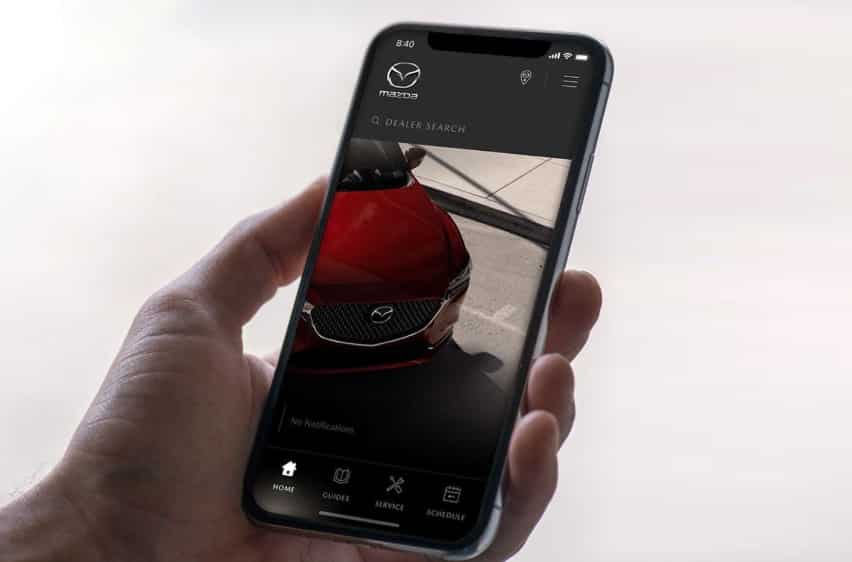
Why Is MyMazda App Not Working?
Several factors can prevent the MyMazda app from working as expected. The app relies on your smartphone, your internet connection, Mazda Connected Services, and your vehicle to communicate with each other. If any part of this process stops working, the app may fail to complete remote commands or display updated vehicle information.
In many cases, the problem starts with a weak internet connection or an outdated version of the app. Login sessions can also expire after a period of inactivity. When this happens, the app may reject your credentials or remain stuck on the loading screen. Incorrect app permissions, low device storage, or software conflicts can also interrupt normal operation.
The vehicle also plays an important role. Remote features depend on Mazda Connected Services and the vehicle’s built in communication system. If the vehicle has a weak cellular signal or the Connected Services subscription is inactive, the app may not receive the latest vehicle status. As a result, remote commands such as Remote Engine Start or Door Lock may fail even though your phone works normally.
Temporary server issues can create similar symptoms. During maintenance or unexpected service interruptions, the MyMazda app may struggle to connect with Mazda’s online services. In this situation, restarting the app or your phone may not solve the issue immediately. Waiting until the service returns often resolves the problem.
Understanding the root cause makes troubleshooting much easier. Instead of trying random solutions, you can follow a logical process and identify whether the issue comes from your phone, your account, Mazda Connected Services, or your vehicle. The next section provides a quick troubleshooting checklist that helps you narrow down the problem in just a few minutes.
Quick Troubleshooting Checklist
Before trying advanced solutions, spend a few minutes checking the most common causes. This simple checklist helps you identify the problem faster and choose the right fix. In many cases, one quick adjustment is enough to restore the connection between the MyMazda app and your vehicle.
| Problem | Possible Cause | Recommended Fix |
|---|---|---|
| The app will not open | Temporary app error or outdated version | Force close the app, restart your phone, and install the latest update. |
| You cannot sign in | Incorrect password or expired login session | Sign out, reset your password if needed, and sign in again. |
| The app cannot connect to the vehicle | Weak network connection or Connected Services issue | Check your internet connection and confirm that Connected Services are active. |
| Remote Engine Start does not work | Vehicle safety conditions are not met | Make sure the doors, hood, and liftgate are fully closed and the vehicle is in Park. |
| Vehicle status does not refresh | Delayed synchronization or poor vehicle signal | Refresh the app after a few minutes and move the vehicle to an area with better cellular coverage if possible. |
| Remote commands stay pending | Temporary communication delay | Wait a few moments and send the command again. |
| The app keeps crashing | Corrupted cache or software conflict | Restart your phone, clear the app cache if available, or reinstall the app. |
| Notifications do not appear | Notification settings are disabled | Enable notifications and allow the app to run in the background. |
If you still cannot identify the cause, do not worry. The following sections explain each solution in detail. Start with the basic fixes first because they solve most MyMazda app problems. If the issue continues, move on to the account, Connected Services, and vehicle related checks until you restore normal operation.
15 Proven Fixes to Restore Connection Quickly
Most MyMazda app issues have a simple solution. The key is to start with the easiest fixes before moving to more advanced troubleshooting. Following this order saves time and helps you identify the exact cause without making unnecessary changes.
Check Your Internet Connection
A stable internet connection is essential for the MyMazda app. Every remote command travels through Mazda Connected Services before reaching your vehicle. If your phone loses its connection, the app cannot communicate with Mazda’s servers or update your vehicle information.
Start by opening a website or another app that requires internet access. If nothing loads, switch between WiFi and mobile data. You can also enable Airplane Mode for a few seconds before turning it off again. This simple step often refreshes your network connection and resolves temporary communication problems.
If you use a VPN, disable it temporarily and try the app again. Some network settings may interfere with secure communication between the app and Mazda’s online services.
Restart the MyMazda App
Temporary software glitches can prevent the app from working correctly. Closing the app completely removes the current session and allows it to establish a new connection.
On an iPhone, swipe up from the bottom of the screen or double press the Home button, then swipe the MyMazda app away. On Android, open Recent Apps and remove MyMazda from the list before launching it again.
After reopening the app, wait a few moments for it to refresh your account and vehicle information. If the problem was caused by a temporary software issue, the connection should return immediately.
Restart Your Smartphone
Your phone manages the network connection, background services, and app processes. When one of these components stops responding, the MyMazda app may freeze, crash, or fail to complete remote commands.
Restarting your smartphone clears temporary memory and reloads important system services. It also refreshes network connections that may have become unstable after long periods of use.
After the phone finishes restarting, open the MyMazda app and check whether your vehicle information loads correctly before trying any remote commands.
Update the MyMazda App
Running an older version of the app may cause compatibility issues, especially after Android or iOS receives a major update. New releases often include bug fixes, security improvements, and performance enhancements that resolve common connection problems.
Open the App Store on your iPhone or Google Play on your Android device. Search for MyMazda and install any available update. Once the installation finishes, reopen the app and sign in if necessary.
Keeping the app updated also reduces the risk of unexpected crashes and improves communication with Mazda Connected Services.
Update Your Phone Software
An outdated operating system can also affect how the MyMazda app performs. Older versions of Android and iOS may not fully support the latest app features or security requirements.
Open your phone settings and check for available system updates. Install the latest version that your device supports, then restart your phone after the installation completes.
Updating your operating system improves compatibility, strengthens security, and fixes system bugs that may interfere with vehicle connectivity. Once your phone restarts, launch the MyMazda app again and verify that it can connect to your vehicle successfully.
Clear the App Cache
Temporary files help the MyMazda app load faster, but they can also become corrupted over time. When this happens, the app may freeze, crash, or display outdated vehicle information. Clearing the cache removes these temporary files without affecting your Mazda account.
Android users can open Settings, select Apps, choose MyMazda, then open Storage and tap Clear Cache. If the issue continues, you can also select Clear Data. Keep in mind that this option signs you out of the app and removes locally stored settings.
If you use an iPhone, there is no dedicated option to clear the cache. Instead, delete the app and install it again to remove temporary files and restore a clean installation.
Sign Out and Sign Back In
Your login session may expire after a period of inactivity or after an app update. When this happens, the MyMazda app may stop syncing with your vehicle even though your account details are correct.
Open the app menu and sign out of your account. Close the app completely before opening it again. Sign in with the same email address linked to your Mazda account, then allow a few moments for the app to synchronize your vehicle information.
This simple step often restores communication between the app, Mazda Connected Services, and your vehicle without requiring additional troubleshooting.
Reset Your Password
If you cannot sign in, an incorrect password or account authentication problem may be responsible. Repeated login attempts can also trigger a temporary security lock, preventing access even when you enter the correct credentials.
Select Forgot Password on the login screen and follow the instructions to create a new password. Use a strong password that you have not used before. After resetting your password, sign in again and confirm that your vehicle appears in the app.
If you do not receive the password reset email, check your spam or junk folder before requesting another one. You should also verify that you entered the correct email address during the reset process.
Check App Permissions
The MyMazda app requires several permissions to work properly. If you accidentally deny these permissions, some features may stop working or fail to update correctly.
Open your phone settings and review the permissions assigned to the app. Make sure it can access the internet, send notifications, and run in the background. If location access is required for specific features, enable it while using the app or all the time, depending on your preference.
Android users should also disable aggressive battery optimization for MyMazda. On some devices, battery saving features stop background activity and interrupt communication with Mazda Connected Services.
Reinstall the MyMazda App
If none of the previous solutions work, reinstalling the app can resolve deeper software problems. This process replaces damaged files, removes hidden configuration errors, and installs the latest version of the application.
Before deleting the app, confirm that you know your Mazda account email address and password. Remove the app from your device, restart your phone, and download the latest version from the official app store. Sign in again and verify that your vehicle appears under your account.
Once the installation is complete, test several features such as vehicle status, door lock, or Remote Engine Start. If these functions work normally, the issue was most likely caused by corrupted app files rather than your vehicle or Mazda Connected Services.
Verify Your Vehicle Enrollment
The MyMazda app only works after your vehicle is correctly linked to your Mazda account. If the enrollment process is incomplete, the app may not display your vehicle or allow remote features to work.
Open the MyMazda app and check whether your vehicle appears under My Vehicles. Verify that the Vehicle Identification Number matches your car and confirm that you signed in with the correct Mazda account. If you recently purchased a used vehicle, the previous owner may still have the vehicle linked to their account. In this situation, you may need help from an authorized Mazda dealer to complete the ownership transfer.
After confirming your account details, refresh the app and check whether your vehicle information updates normally.
Check Your Mazda Connected Services Status
Many remote features depend on an active Mazda Connected Services account. If the service is unavailable or inactive, the app cannot communicate with your vehicle even when your phone and internet connection work properly.
Open the MyMazda app and review the Connected Services section. Make sure your vehicle supports the service in your region and confirm that your trial or subscription is still active. If your complimentary service period has expired, some remote functions may no longer be available until you renew your subscription.
Once you confirm that Connected Services are active, reopen the app and test a remote feature to verify that communication has been restored.
Check Vehicle Conditions Before Using Remote Features
The MyMazda app may send a remote command successfully, but your vehicle can still reject it if one or more safety conditions are not met.
Before using Remote Engine Start, make sure every door is fully closed and locked. Check that the hood and liftgate are completely shut. Confirm that the transmission is in Park and that no warning messages appear on the dashboard. A weak vehicle battery or poor cellular signal can also prevent remote commands from reaching the vehicle.
If a remote command fails, wait a few moments before trying again. Repeated requests within a short period may delay communication instead of improving it.
Enable Connected Services in Your Vehicle
Some vehicles allow drivers to manage Connected Services directly through the infotainment system. If these settings are disabled, the MyMazda app cannot exchange information with the vehicle.
Turn on your vehicle and open the infotainment settings. Navigate to the Connected Services menu and verify that online communication is enabled. Review any privacy or data sharing settings that may prevent the vehicle from connecting to Mazda’s online services.
After saving your changes, restart the infotainment system if necessary. Then reopen the MyMazda app and check whether your vehicle status refreshes correctly.
Contact Mazda Support
If you have completed every troubleshooting step and the MyMazda app still does not work, the issue may require professional assistance. Account verification problems, telematics hardware faults, or vehicle communication errors often require additional diagnosis.
Contact Mazda Support if your vehicle never finishes the enrollment process, disappears from the app without explanation, or continues to reject remote commands after multiple attempts. You should also request assistance if your Vehicle Identification Number is already linked to another account or if Connected Services remain unavailable after confirming that your subscription is active.
Before contacting support, write down any error messages shown in the app and note the model year of your vehicle, your smartphone model, and the version of the MyMazda app. Providing these details helps the support team identify the problem more quickly and recommend the most appropriate solution.
MyMazda App Not Connecting to the Vehicle
One of the most common complaints from Mazda owners is that the MyMazda app opens normally but cannot connect to the vehicle. In this situation, the app may display outdated information, leave remote commands in a pending state, or report that communication with the vehicle has failed. Since several systems work together to deliver Connected Services, identifying the exact cause is the first step toward solving the problem.
A weak cellular signal is one of the most common reasons for connection failures. While your smartphone may have a strong internet connection, your vehicle also needs cellular coverage to receive and send data. If the vehicle is parked inside an underground garage, surrounded by large concrete buildings, or located in an area with poor network coverage, communication may stop until the signal improves.
Vehicle enrollment problems can also interrupt communication. If the Vehicle Identification Number was entered incorrectly or the enrollment process was never completed, the app may fail to recognize the vehicle. This issue is more common after purchasing a used Mazda or creating a new MyMazda account. Confirm that your vehicle appears under My Vehicles and that it is linked to the correct account.
Synchronization delays are another possible cause. After adding a vehicle, updating account information, or restoring the app, Mazda Connected Services may need several minutes to refresh vehicle data. During this time, remote features may remain unavailable even though everything has been configured correctly. Waiting a short time before trying again often resolves the issue.
You should also check whether Connected Services are enabled in the vehicle. If communication settings have been turned off through the infotainment system, the app cannot exchange information with your vehicle. Restoring these settings and restarting the vehicle may reestablish the connection.
If the app still cannot connect after completing these checks, test another remote feature such as Door Lock or Vehicle Status instead of repeatedly sending the same command. If every feature fails, the problem is more likely related to Connected Services or the vehicle itself than to your smartphone. At that point, contacting Mazda Support is the most effective next step.
MyMazda Remote Start Not Working
Remote Engine Start is one of the most useful features in the MyMazda app. It lets you warm up or cool down your vehicle before you get inside. When this feature stops working, many drivers blame the app. However, the vehicle often blocks the command because it detects a safety condition that requires your attention.
First, inspect your vehicle carefully. Make sure every door is fully closed and locked. Check that the hood and liftgate are completely shut. Confirm that the transmission stays in the Park position. Also, look at the dashboard and make sure no warning lights appear. If the vehicle detects any of these issues, it will not start the engine remotely.
Next, inspect the vehicle battery. A weak battery can interrupt communication with Mazda Connected Services and stop remote commands. If you recently installed a new battery or disconnected the old one, give the communication system enough time to reconnect before testing Remote Engine Start again.
After that, verify both network connections. Your smartphone needs a stable internet connection to send the command. At the same time, your vehicle needs a strong cellular signal to receive it. Poor signal strength on either side can interrupt communication and leave the request pending.
Now, review your Connected Services account. Confirm that your subscription remains active and verify that your Mazda model supports Remote Engine Start in your country. Some regions, model years, and trim levels offer different Connected Services features.
Finally, open the Message Center in the MyMazda app if Remote Engine Start still does not work. Read the latest notification and identify the exact reason for the failed command. If every check above looks normal and the problem continues, contact Mazda Support or an authorized Mazda dealer. Their technicians can inspect the telematics system, verify vehicle communication, and identify any hardware issues.
MyMazda App Login Issues
Login problems can prevent you from accessing every feature in the MyMazda app. You may see an incorrect password message, experience an endless loading screen, or return to the sign in page after entering your account details. Although these issues seem frustrating, you can usually fix them with a few simple checks.
Start by confirming that you entered the correct email address and password. Many users accidentally sign in with a different email account, especially if they own more than one Mazda vehicle or recently created a new account. Double check your login information before trying again.
If you cannot remember your password, select Forgot Password on the sign in screen. Follow the instructions to create a new password, then sign in with your updated credentials. If the reset email does not arrive within a few minutes, check your spam or junk folder before requesting another email.
Sometimes the app stores an expired login session after an update or a long period of inactivity. Signing out and signing in again often refreshes your account and restores communication with Mazda Connected Services. You should also close the app completely before opening it again to start a new session.
Internet connectivity can also affect the login process. A slow or unstable connection may interrupt account verification and prevent the app from loading correctly. Switch between WiFi and mobile data to determine whether your current network causes the problem.
If you recently changed your email address or transferred ownership of your Mazda vehicle, review your account information carefully. Make sure your vehicle still appears under My Vehicles and confirm that the Vehicle Identification Number matches your account. Incorrect account information can prevent the app from displaying your vehicle even after a successful login.
If the login problem continues after completing these steps, update the MyMazda app to the latest version and restart your smartphone. When the issue still persists, contact Mazda Support for additional assistance. The support team can verify your account, check your vehicle enrollment, and help you restore access to the app.
MyMazda App Keeps Crashing
A crashing app can make it impossible to access your vehicle when you need it most. The MyMazda app may close immediately after opening, freeze on the loading screen, or stop responding while you use a remote feature. Fortunately, you can usually solve these problems without professional assistance.
Start by checking whether you use the latest version of the MyMazda app. Developers regularly release updates that improve performance, fix software bugs, and increase compatibility with newer versions of Android and iOS. Installing the latest update may resolve the problem immediately.
Next, restart your smartphone. A simple restart clears temporary system files, refreshes background processes, and frees memory that other applications may consume. After the device starts again, launch the MyMazda app before opening other applications and check whether it runs normally.
If the app continues to crash, review the available storage on your phone. Low storage space can slow down applications and cause unexpected errors. Delete unnecessary files or unused apps to create more free space, then restart the MyMazda app.
Android users should also clear the app cache. Temporary files sometimes become corrupted and prevent the app from loading correctly. If clearing the cache does not solve the issue, clear the app data or reinstall the application. iPhone users can remove the app and install a fresh copy from the App Store to achieve the same result.
You should also avoid beta versions of Android or iOS whenever possible. Beta software often contains unfinished features that can create compatibility issues with third party applications, including the MyMazda app. If you recently installed a beta update, consider returning to the latest stable version of your operating system.
Finally, test the app after each troubleshooting step instead of making several changes at once. This approach helps you identify the exact cause of the problem and prevents unnecessary troubleshooting. If the MyMazda app still crashes after you complete every step, contact Mazda Support. They can determine whether the problem comes from the application, your account, or the Connected Services platform.
Frequently Asked Questions
Why is my MyMazda app not working today?
The problem may come from several different sources. Your internet connection may be unstable, Mazda Connected Services may experience a temporary interruption, or the app may require an update. Start with the basic troubleshooting steps in this guide before checking your account and vehicle settings.
Why can’t the MyMazda app connect to my vehicle?
Your vehicle needs a stable cellular connection to communicate with Mazda Connected Services. Poor signal strength, an incomplete vehicle enrollment, or disabled Connected Services can interrupt communication. Confirm that your vehicle appears under My Vehicles and verify that Connected Services remain active.
Why does Remote Engine Start fail?
Your vehicle checks several safety conditions before starting the engine remotely. Make sure every door is closed and locked, the hood is shut, and the transmission stays in the Park position. You should also confirm that the vehicle battery and cellular connection work properly.
Why doesn’t my vehicle appear in the MyMazda app?
The app may not display your vehicle if you signed in with the wrong account or if you did not complete the enrollment process. This issue also occurs when a previous owner still links the vehicle to another Mazda account. Verify your Vehicle Identification Number and contact Mazda Support if the problem continues.
Do I need Mazda Connected Services to use the MyMazda app?
You can still access some ownership features without Connected Services. However, remote features such as Remote Engine Start, Vehicle Status, and Door Lock require an eligible vehicle with active Connected Services.
Should I reinstall the MyMazda app?
Yes. Reinstalling the app can solve software conflicts, damaged files, and persistent crashes. Before removing the app, make sure you know your Mazda account email address and password so you can sign in again after the installation finishes.
Conclusion
When the MyMazda app is not working, the problem does not always come from the application itself. Your smartphone, internet connection, Mazda Connected Services, account settings, and vehicle communication system all work together to deliver remote features. A problem in any of these areas can interrupt the connection and prevent the app from working as expected.
Start with the simplest solutions first. Check your internet connection, restart the app, update your device, and verify your account information. If the problem continues, inspect your vehicle settings, confirm that Connected Services remain active, and review the operating conditions for Remote Engine Start. Following these steps in order helps you identify the cause faster and avoids unnecessary repairs.
If none of these solutions restore the connection, contact Mazda Support or visit an authorized Mazda dealership. Their team can inspect the communication system, verify your account, and diagnose any vehicle related issues that require professional attention.
Have you found a solution that worked for your vehicle? Share your experience in the comments below, including your Mazda model, model year, smartphone, and the error message you received. Your experience may help other Mazda owners solve the same problem more quickly.