Android Auto makes every drive easier by bringing navigation, calls, messages, and music directly to your Mazda’s infotainment screen. Most drivers expect it to connect within seconds. When it fails, even a short trip can become frustrating.
If your Mazda Android Auto is not working, you may notice several different problems. The system may not detect your phone. It may only charge the device without launching Android Auto. In other cases, the connection drops unexpectedly, the screen turns black, or the app freezes during startup.
Several factors can trigger these issues. A damaged USB cable, incorrect phone settings, outdated software, or a temporary Mazda Connect glitch can all interrupt the connection. Wireless Android Auto may also fail because of Bluetooth or WiFi problems.
Fortunately, you can solve most of these issues without visiting a dealership. This guide explains the most common causes and walks you through 15 proven fixes. Each solution follows a logical order, starting with the quickest checks before moving to more advanced troubleshooting. Whether you drive a Mazda3, CX5, CX30, CX50, Mazda6, CX90, or another compatible model, these steps can help you restore a stable Android Auto connection and get back on the road with confidence.
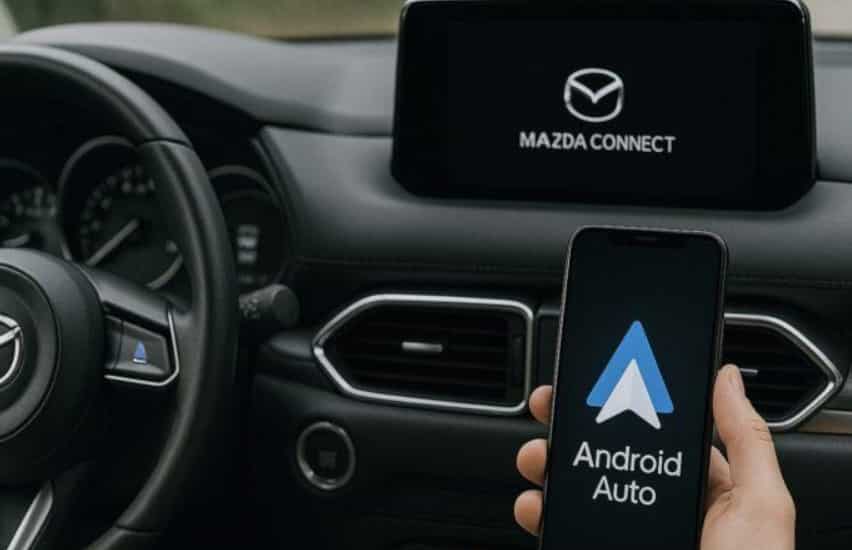
Why Is Mazda Android Auto Not Working?
Android Auto depends on several components working together at the same time. Your phone, USB cable, Android Auto app, Mazda Connect system, and vehicle software must communicate without interruption. If just one component fails, Android Auto may stop connecting or work inconsistently.
In many cases, the problem starts with the USB connection. A damaged cable may charge your phone but fail to transfer data. Dirt inside the USB port can also interrupt the connection. Even using the wrong USB port in your Mazda may prevent Android Auto from launching.
Your smartphone can also cause connection problems. Android Auto requires the correct permissions to access calls, contacts, messages, and location. If these permissions are disabled, the app may not start properly. Battery saving features can create similar issues by limiting background activity.
Software plays another important role. An outdated version of Android Auto, Google Play Services, or the Android operating system can reduce compatibility with Mazda Connect. Likewise, older infotainment software may struggle to communicate with newer smartphones after major system updates.
Wireless Android Auto introduces additional factors. Bluetooth and WiFi must remain stable throughout the connection process. If either connection drops or another paired device interferes, Android Auto may disconnect or fail to launch.
Although these problems appear different, they often share the same root causes. Understanding what interrupts the connection makes troubleshooting much easier. Instead of guessing, you can focus on the most likely cause and apply the right solution from the beginning.
Before You Start Troubleshooting
Before you try any fix, take a few minutes to check the basics. Many Android Auto problems have simple causes that are easy to overlook. A quick inspection can save time and help you avoid unnecessary changes.
First, confirm that your Mazda supports Android Auto. Some older models require a hardware upgrade or a software update before the feature becomes available. If your vehicle does not support Android Auto, no troubleshooting step will restore the connection.
Next, make sure your Android phone is compatible with Android Auto. It should run a supported version of Android and have the latest Android Auto updates installed. An outdated device may experience connection errors or limited functionality.
The USB cable also deserves close attention. Choose a high quality data cable instead of a charging only cable. A damaged or low quality cable can interrupt data transfer even if it charges your phone normally.
If your Mazda supports wireless Android Auto, enable Bluetooth, WiFi, and location services before you begin. These features work together to establish and maintain the wireless connection. Turning one of them off can prevent Android Auto from starting.
You should also disconnect any other phones that are paired with the vehicle. Mazda Connect may try to reconnect to a previously paired device instead of the one you want to use. Removing unnecessary connections helps eliminate potential conflicts.
Finally, restart both your phone and the Mazda Connect system if they have been running for a long time. A fresh restart clears temporary software glitches and gives you a clean starting point for the troubleshooting steps that follow. Spending a few minutes on these basic checks often resolves the issue before you need more advanced solutions.
Restart Your Phone and Mazda Connect
Restarting your phone and the Mazda Connect system is the fastest way to eliminate temporary software glitches. Although this solution seems simple, it often restores a stable connection without requiring any additional changes.
Begin by closing all apps that are running on your phone. Then turn the phone off completely instead of selecting the restart option. Wait for about 30 seconds before turning it back on. This short pause allows the operating system to clear temporary processes that may interfere with Android Auto.
Next, restart your Mazda. Turn off the engine and switch off the infotainment system if possible. Open the driver’s door and wait for the vehicle to shut down completely. After a short pause, start the engine again and allow Mazda Connect to finish loading before connecting your phone.
Once both devices are ready, unlock your phone and connect it using a reliable USB data cable. If your vehicle supports wireless Android Auto, wait until Bluetooth and WiFi reconnect automatically before opening the app. Rushing this process can sometimes delay the connection.
If Android Auto works normally after the restart, the issue was likely caused by a temporary communication error between your phone and Mazda Connect. These errors may appear after installing a system update, running multiple apps in the background, or leaving the infotainment system active for an extended period.
However, if the problem remains, continue with the next solution. A successful restart rules out temporary software glitches and helps narrow down the possible cause, making the remaining troubleshooting steps more effective.
Unlock Your Phone Before Connecting
Many drivers connect their phones as soon as they enter the vehicle. However, a locked screen can prevent Android Auto from starting on some Android devices. The phone may charge normally, but the infotainment system cannot complete the connection until you unlock the device.
Before connecting the USB cable, unlock your phone and keep the screen active for a few seconds. This allows Android Auto to verify the connection and request any permissions it needs. If a notification appears, read it carefully and approve the request.
Some phones ask for permission to access data the first time they connect to a vehicle. Others display a prompt to launch Android Auto automatically. If you dismiss these messages or select the wrong option, the connection may fail without showing an obvious error.
You should also review the app permissions on your phone. Android Auto needs access to contacts, phone calls, messages, location, and notifications to work correctly. Missing permissions can prevent certain features from loading or stop the app from launching altogether.
If your phone has multiple user profiles or a work profile, make sure you are using the correct account. Security restrictions in managed profiles may limit Android Auto functionality until the required permissions are granted.
After confirming these settings, disconnect the phone and connect it again. Wait a few seconds for Mazda Connect to recognize the device. If Android Auto opens successfully, the issue was likely related to screen lock or missing permissions. If nothing changes, move on to the next solution to continue narrowing down the cause.
Use a High Quality USB Data Cable
A faulty USB cable is one of the most common reasons why Mazda Android Auto is not working. Many drivers assume the cable is fine because it charges the phone. In reality, charging and data transfer use different connections inside the cable. A damaged cable may supply power but fail to transmit data.
Start by inspecting your current cable. Look for signs of wear, loose connectors, bent plugs, or damaged insulation. Even minor damage can reduce the quality of the connection and cause Android Auto to disconnect without warning.
If the cable looks worn, replace it with a certified USB data cable from a trusted manufacturer. Shorter cables often provide a more stable connection because they experience less signal loss. Whenever possible, use the cable that came with your phone or another high quality replacement designed for data transfer.
Avoid using USB adapters, extension cables, or multiport hubs. These accessories can interrupt communication between your phone and the Mazda Connect system. Connecting the phone directly to the vehicle provides the most reliable results.
After replacing the cable, reconnect your phone and wait for Android Auto to launch. If the system connects immediately, the original cable was likely the source of the problem. If the issue continues, test another compatible phone with the same cable. This simple comparison helps determine whether the fault lies with the cable, the phone, or the vehicle.
A reliable USB data cable is the foundation of a stable Android Auto connection. Spending a few minutes testing another cable can save hours of unnecessary troubleshooting later.
Connect to the Correct USB Port
Not every USB port in a Mazda supports Android Auto. Some ports only provide power for charging, while others handle both charging and data transfer. If you connect your phone to the wrong port, Android Auto may never appear even though the battery starts charging.
Check your owner’s manual or look for a USB port marked for smartphone connectivity. Many Mazda models include a dedicated port for Android Auto and Apple CarPlay. Using a different port may prevent the infotainment system from recognizing your device.
Once you identify the correct port, inspect it carefully. Dust, lint, and other debris can block the connection between the cable and the USB contacts. Use a flashlight if necessary and remove any visible debris with a soft, nonmetallic cleaning tool. Avoid inserting sharp objects because they can damage the connector.
Next, reconnect the cable and make sure it fits securely. A loose connection may interrupt data transfer whenever the cable moves. If the connector feels unstable, try another certified USB data cable to rule out a worn plug.
After reconnecting your phone, wait for Mazda Connect to detect the device. Do not unplug the cable immediately if Android Auto does not launch within a second or two. Some phones take a little longer to establish the first connection, especially after a restart or software update.
If Android Auto still does not work from the correct USB port, continue with the next troubleshooting step. At this point, you have already ruled out one of the most common hardware related causes of connection problems.
Change the USB Connection Mode
Some Android phones connect in charging mode by default. When this happens, the phone receives power but does not share data with the vehicle. As a result, Mazda Connect cannot detect Android Auto even though the device appears to be connected.
Connect your phone to the correct USB port and unlock the screen. After a few seconds, look for the USB notification in the notification panel. Tap the notification to view the available connection options.
Choose a mode that allows data transfer. Depending on your phone, the option may appear as File Transfer, Android Auto, USB Data Transfer, or Transfer Files. Avoid selecting a charging only option because it blocks communication between the phone and the infotainment system.
Once you change the USB mode, disconnect the cable and reconnect it. Give Android Auto a few moments to establish the connection. If a permission request appears, approve it and allow the app to launch automatically.
Keep in mind that menu names vary between manufacturers. Samsung, Google Pixel, Motorola, Xiaomi, OnePlus, and other brands may use different labels for the same function. However, the goal remains the same. The phone must allow USB data transfer instead of charging only.
If Android Auto starts working after changing the USB mode, the issue was related to your phone’s connection settings. If the problem continues, move on to the next solution. This step confirms that your phone is sending data correctly and helps eliminate another common cause of connection failures.
Enable Android Auto in Mazda Connect
Even if your phone is configured correctly, Android Auto will not launch if the feature is disabled in Mazda Connect. This setting may change after a software update, a factory reset, or when another device becomes the primary connection.
Open the Mazda Connect settings and navigate to the smartphone or connectivity menu. Look for the Android Auto option and confirm that it is enabled. If the feature is turned off, enable it and save the changes before reconnecting your phone.
Next, review the list of paired devices. If several phones are stored in the system, Mazda Connect may attempt to connect to another device first. Select your phone as the preferred device or remove old devices that you no longer use. This helps the system establish the correct connection every time you start the vehicle.
You should also check whether Android Auto has been restricted for your device. Some infotainment systems allow you to disable smartphone integration for specific phones. If your device appears in the list, make sure Android Auto is allowed to run without restrictions.
After updating these settings, disconnect your phone and reconnect it. Wait until Mazda Connect finishes detecting the device before opening any other apps. If Android Auto launches successfully, the issue was related to the infotainment settings rather than your phone.
If the connection still fails, continue with the next fix. At this stage, you have already confirmed that both the phone and the Mazda Connect system are configured correctly, making it easier to identify the remaining causes.
Remove and Pair Your Phone Again
Sometimes the connection profile between your phone and Mazda Connect becomes corrupted. This can happen after a software update, a failed pairing attempt, or repeated connection errors. When that occurs, Android Auto may stop working even though every setting appears correct.
Start by removing your phone from Mazda Connect. Open the list of paired devices, select your phone, and delete the existing connection. Next, open the Bluetooth settings on your phone and forget the Mazda device. If your vehicle supports wireless Android Auto, remove that saved connection as well.
After deleting the pairing information, restart both your phone and the infotainment system. This step clears temporary data and ensures both devices start with a clean connection history. Once they restart, pair the phone with your Mazda as if you were connecting it for the first time.
During the setup process, approve every permission request that appears on your phone. Allow access to contacts, messages, phone calls, location, and notifications. If Android Auto asks to launch automatically, accept the request so future connections become faster and more reliable.
When the pairing is complete, connect the phone with a certified USB data cable or follow the wireless setup instructions if your Mazda supports wireless Android Auto. Wait for the system to recognize the device before opening any apps on your phone.
If Android Auto works after creating a new connection, the previous pairing profile was likely damaged. Rebuilding the connection often resolves problems that cannot be fixed by changing individual settings. If the issue still persists, continue to the next solution and check whether outdated software is affecting compatibility.
Update Android Auto and Google Apps
Keeping your software up to date is essential for a stable Android Auto experience. Google regularly releases updates to improve compatibility, fix connection bugs, and support new versions of Android. If one app falls behind, communication between your phone and Mazda Connect may become unreliable.
Start by updating Android Auto through the Google Play Store. If no update appears, check for updates to Google Play Services, Google Maps, and the Google app. These applications work together whenever Android Auto starts, so an outdated version of any one of them can affect performance.
After installing the available updates, restart your phone before connecting it to your Mazda. A restart allows the system to load the latest software correctly and prevents older processes from interfering with the new versions.
If you recently updated Android Auto and the problem started afterward, check for another update a few days later. Google often releases follow up patches to address newly discovered issues. Installing the latest version may resolve problems without requiring any additional troubleshooting.
You should also make sure all Google apps are signed in with the correct account. Sync errors or incomplete updates can sometimes prevent Android Auto from loading certain features. Although this issue is less common, it is easy to verify while reviewing your software.
Reconnect your phone after completing the updates and wait for Android Auto to launch. If the connection becomes stable, outdated software was likely the root cause. If the issue remains, continue with the next fix and check whether your Android operating system needs an update.
Install the Latest Android System Update
Your phone’s operating system plays a major role in how Android Auto communicates with Mazda Connect. Running an outdated version of Android can lead to connection failures, compatibility issues, or unexpected crashes. Installing the latest system update helps improve stability and supports the newest Android Auto features.
Open the Settings app on your phone and check for available system updates. If an update is available, download and install it over a stable WiFi connection. Make sure your phone has enough battery power or connect it to a charger before starting the installation.
After the update finishes, restart your phone even if the system does not require it. A fresh restart allows Android to complete background optimization and load all updated services correctly. Skipping this step may leave temporary processes running and affect Android Auto performance.
Once your phone restarts, reconnect it to your Mazda and wait for Android Auto to launch. If you see a permission request, review it carefully and grant the required access. Major Android updates sometimes reset app permissions or change privacy settings, which can prevent Android Auto from working as expected.
If the connection improves after the update, the previous Android version was likely causing the issue. If the problem started immediately after installing a new Android version, do not assume the update is faulty. App developers often release compatibility updates shortly after a major Android release. Installing the latest version of Android Auto and related Google apps usually resolves these temporary conflicts.
If Android Auto still fails to connect, proceed to the next solution. Clearing the app cache and data can remove corrupted files that software updates cannot fix.
Clear Android Auto Cache and App Data
Temporary files help Android Auto load faster, but they can also become corrupted over time. When that happens, the app may fail to connect, freeze during startup, or stop responding even though your phone and vehicle are configured correctly. Clearing the cache removes these temporary files without affecting your personal data.
Open the Settings app on your phone and go to Apps. Find Android Auto, then open the Storage section. Tap Clear Cache and close the settings menu. Restart your phone before testing the connection again.
Reconnect your phone to your Mazda and check whether Android Auto launches normally. If the problem disappears, corrupted cache files were preventing the app from working correctly. In many cases, this simple step restores normal operation without any additional changes.
If the issue continues, return to the same settings page and select Clear Data. This option removes the app’s saved preferences and resets Android Auto to its default state. You will need to set up the app again and approve the required permissions during the next connection.
After clearing the app data, reconnect your phone and complete the setup process from the beginning. Allow Android Auto to access your contacts, messages, location, and notifications. These permissions are essential for the app to function correctly.
If Android Auto starts working after the reset, the original app configuration was likely corrupted. If the connection still fails, continue with the next fix. The next step focuses on battery optimization settings, which often interrupt Android Auto while it runs in the background.
Disable Battery Optimization
Battery optimization helps extend battery life by limiting background activity. While this feature is useful for many apps, it can interrupt Android Auto because the app needs to run continuously during your drive. If Android limits its background activity, the connection may fail or disconnect without warning.
Open the Settings app on your phone and navigate to the battery management section. Find the list of optimized apps, then locate Android Auto. Change its setting to Unrestricted, Not Optimized, or the closest available option. The exact name depends on your phone manufacturer.
Next, review the battery settings for Google Play Services, Google Maps, and any music or navigation apps that you use with Android Auto. These apps also run in the background and may experience connection issues if battery restrictions remain active.
Some manufacturers apply additional power saving features beyond the standard Android settings. Samsung, Xiaomi, OnePlus, OPPO, vivo, and other brands often include their own battery management tools. If your phone has these features, make sure they do not limit Android Auto or related Google services.
After changing the battery settings, restart your phone and reconnect it to your Mazda. Test Android Auto during a short drive to confirm that the connection remains stable. A successful test usually indicates that background restrictions were interrupting the app.
If Android Auto still disconnects or refuses to launch, continue with the next solution. Checking the app permissions will help confirm that Android Auto has access to every feature it needs to operate correctly.
Check Android Auto Permissions
Android Auto needs permission to access several features on your phone. Without these permissions, the app may fail to launch or work only partially. You might notice missing contacts, navigation errors, voice commands that do not respond, or repeated connection failures.
Open the Settings app and go to Apps, then select Android Auto. Open the Permissions section and review each item carefully. Make sure the app can access your phone, contacts, location, microphone, notifications, and SMS. These permissions allow Android Auto to support navigation, hands free calling, voice commands, and message notifications.
If you recently denied a permission by mistake, enable it and save the change. Some Android devices also include additional privacy controls that restrict background access. Review these settings and confirm that Android Auto is allowed to operate normally while your phone is connected to your vehicle.
Next, check the notification access settings. Android Auto relies on notification access to display incoming messages and provide voice replies. If notification access is disabled, several features may stop working even though the connection appears successful.
After updating the permissions, disconnect your phone and reconnect it to Mazda Connect. Wait for Android Auto to load completely before opening any navigation or media apps. If everything works as expected, a missing permission was preventing the app from functioning correctly.
If the problem persists, move on to the next solution. The following section focuses on wireless Android Auto, which introduces additional connection requirements that do not apply to a wired setup.
Fix Wireless Android Auto Connection Issues
Wireless Android Auto offers greater convenience, but it also relies on more technologies than a wired connection. Your phone and Mazda Connect must maintain a stable Bluetooth and WiFi connection throughout the entire session. If either connection becomes unstable, Android Auto may fail to start or disconnect while you are driving.
Before troubleshooting, confirm that your Mazda model supports wireless Android Auto. Many older vehicles only support a wired connection. If your vehicle requires a USB cable, wireless troubleshooting steps will not resolve the issue.
Next, turn on Bluetooth, WiFi, and location services on your phone. Android Auto uses all three features during the connection process. If one of them is disabled, the system may not recognize your vehicle or complete the pairing process.
If you have connected your phone to multiple vehicles, remove the existing wireless Android Auto profile for your Mazda and create a new one. Also delete the Bluetooth pairing from both the phone and Mazda Connect before pairing the devices again. This process removes outdated connection data that may cause repeated failures.
Nearby wireless devices can also interfere with the connection. Disconnect unused Bluetooth accessories such as headphones or smartwatches if you suspect they are affecting the pairing process. In some situations, temporarily disabling your phone’s automatic connection to known WiFi networks can also improve stability during setup.
After completing these steps, restart your phone and reconnect it to your Mazda. Give the system enough time to establish the wireless connection before opening navigation or media apps. If Android Auto connects successfully and remains stable, the issue was likely caused by a wireless communication conflict rather than a problem with the infotainment system.
If wireless Android Auto still does not work, continue with the next solution. Restarting or resetting Mazda Connect can resolve software issues that prevent the infotainment system from communicating with your phone.
Restart or Reset Mazda Connect
If your phone appears to work correctly but Android Auto still refuses to connect, the problem may be inside the Mazda Connect system. Temporary software errors can prevent the infotainment system from recognizing your phone, even when every connection setting is correct.
Start with a simple restart instead of a full reset. Turn off your vehicle and allow the infotainment system to shut down completely. Wait for about one minute before starting the engine again. This process clears temporary system errors and reloads the software.
If a normal restart does not help, perform a soft reboot if your Mazda Connect system supports it. A soft reboot refreshes the infotainment software without removing your personal settings. It is a safe option when the display becomes unresponsive or Android Auto fails to launch repeatedly.
A factory reset should only be your last option. This process removes paired phones, saved Bluetooth connections, radio presets, navigation preferences, and other personalized settings. Before you continue, make sure you are prepared to set everything up again.
After the reset finishes, pair your phone with Mazda Connect as if it were a new device. Approve every permission request and allow Android Auto to complete the initial setup. Testing the connection immediately after the reset helps confirm whether the infotainment software was causing the problem.
If Android Auto still does not work after restarting or resetting Mazda Connect, the issue may involve outdated firmware or a hardware fault. In that situation, the next step is to check for a firmware update or seek assistance from an authorized Mazda service center.
Update Mazda Connect Firmware or Visit a Dealer
If none of the previous solutions restore Android Auto, the issue may involve outdated firmware or a hardware problem. Although software settings cause most connection failures, older versions of Mazda Connect can struggle to communicate with newer Android devices.
Check whether your vehicle has the latest Mazda Connect firmware. Some updates improve Android Auto compatibility, fix known connection bugs, and enhance overall system stability. Depending on your Mazda model and infotainment generation, you may need to install the update through an authorized Mazda dealership.
If your firmware is already up to date, test Android Auto with another compatible Android phone and a different USB data cable. This comparison helps identify whether the problem follows your phone or remains with the vehicle. If multiple phones fail to connect, the issue is more likely related to the infotainment system or its hardware.
You should also inspect the USB port for physical damage. A loose connector, worn contacts, or internal wiring problem can interrupt data transfer even when the port still charges your phone. In some cases, the USB hub itself may require replacement.
When the problem continues after every troubleshooting step, schedule an inspection with an authorized Mazda service center. A qualified technician can check the firmware version, test the USB hub, inspect the infotainment module, and diagnose wiring or hardware faults that are difficult to identify at home.
Although dealer service may be necessary in rare cases, most Android Auto issues are resolved long before reaching this stage. Completing each troubleshooting step in order gives you the best chance of restoring the connection while avoiding unnecessary repair costs.
If Mazda Android Auto Still Doesn’t Work
If you have completed all fifteen fixes and Android Auto still fails to connect, it is time to narrow down the source of the problem. A systematic approach helps you determine whether the issue comes from your phone, the USB connection, or the vehicle itself.
Start by testing another Android phone that supports Android Auto. Connect it using a certified USB data cable and follow the same setup process. If the second phone connects without any issues, the problem is likely related to your original device rather than your Mazda.
Next, replace the USB cable even if it appears to be in good condition. Internal damage is not always visible, and a faulty cable can interrupt data transfer while continuing to charge your phone. Testing a different cable is one of the fastest ways to eliminate this possibility.
You should also inspect the USB port inside your vehicle. Dirt, moisture, or worn connectors can affect communication between the phone and Mazda Connect. If the port feels loose or the connection drops whenever the cable moves, the USB hardware may require professional inspection.
Another useful step is to connect your phone to a different vehicle that supports Android Auto. If the same phone fails in multiple vehicles, the issue is almost certainly related to the phone or its software. If it works normally elsewhere, your Mazda Connect system becomes the most likely cause.
At this stage, persistent problems may point to outdated firmware, a defective USB hub, or an infotainment hardware fault. These issues require specialized diagnostic equipment and cannot be confirmed through software troubleshooting alone.
Taking a structured approach prevents unnecessary repairs and saves both time and money. Once you identify whether the problem follows the phone or the vehicle, you can choose the most effective solution with greater confidence.
Common Mazda Android Auto Problems and Solutions
Although every driver experiences the issue differently, most Android Auto failures fall into a few common categories. Recognizing the symptom can help you identify the most likely cause much faster.
| Problem | Most Likely Cause | Recommended Solution |
|---|---|---|
| Android Auto does not detect the phone | Incorrect USB port, damaged cable, or disabled Android Auto | Use the correct USB port, replace the cable, and check Mazda Connect settings |
| Phone charges but Android Auto does not launch | Charging only cable or incorrect USB mode | Use a certified USB data cable and enable data transfer mode |
| Android Auto keeps disconnecting | Loose cable, battery optimization, or unstable wireless connection | Replace the cable, disable battery optimization, and reconnect the phone |
| Black screen after connecting | Software conflict or corrupted app cache | Restart both devices and clear the Android Auto cache |
| Frozen infotainment screen | Temporary Mazda Connect software issue | Restart or reset Mazda Connect |
| Wireless Android Auto fails to connect | Bluetooth or WiFi communication problem | Remove the pairing and connect the phone again |
| Android Auto stopped working after an update | Compatibility issue between Android and Mazda Connect | Update Android Auto, Google apps, and Mazda Connect firmware |
| No Android phone can connect | Outdated firmware or hardware fault | Visit an authorized Mazda dealer for diagnosis |
Understanding these symptoms makes troubleshooting much easier. Instead of trying every possible fix, you can focus on the solution that matches your specific problem. This approach reduces unnecessary steps and increases the chances of restoring Android Auto quickly.
Mazda Models That Commonly Experience Android Auto Issues
Android Auto problems can affect almost any Mazda model that supports smartphone integration. However, the exact symptoms often depend on the model year, infotainment generation, and software version. Two vehicles with the same name may behave differently if they use different versions of Mazda Connect.
The Mazda3 is one of the most common models reported by drivers. Connection failures often occur after Android or infotainment software updates. Some owners also report that the phone charges normally while Android Auto never appears on the display.
The Mazda CX5 frequently experiences random disconnections caused by worn USB cables or battery optimization settings on Android phones. In many cases, replacing the cable and updating the phone software restores a stable connection.
Owners of the Mazda CX30 and Mazda CX50 sometimes encounter wireless connection problems. Bluetooth pairing may succeed while Android Auto fails to launch because WiFi communication does not complete correctly. Recreating the wireless pairing usually resolves this issue.
The Mazda6 can experience similar connection issues, especially on vehicles that received Android Auto through a software or hardware upgrade. Checking the firmware version is an important step before replacing any hardware.
Drivers of the Mazda CX9, Mazda CX90, and MX5 Miata may also experience occasional compatibility issues after major Android updates. Installing the latest Android Auto version and updating Mazda Connect often improves reliability.
Although these symptoms vary between models, the troubleshooting process remains largely the same. Starting with the USB cable, connection settings, software updates, and Mazda Connect configuration gives you the best chance of restoring Android Auto without unnecessary repairs.
Frequently Asked Questions
Why is Mazda Android Auto not working?
The problem usually comes from a faulty USB cable, incorrect phone settings, outdated software, disabled permissions, or a temporary issue with Mazda Connect. In some cases, outdated firmware or a hardware fault may also prevent Android Auto from connecting.
Why does my phone charge but Android Auto does not start?
Charging only confirms that power is reaching your phone. It does not confirm that data can pass through the USB cable. A charging only cable, the wrong USB mode, or an unsupported USB port can prevent Android Auto from launching.
Does Mazda require a special USB cable for Android Auto?
Mazda does not require a proprietary cable. However, you should use a high quality USB data cable that supports both charging and data transfer. Certified cables generally provide the most reliable connection.
Can Android Auto work wirelessly in every Mazda?
No. Wireless Android Auto is only available on certain Mazda models and infotainment systems. Many older vehicles require a wired USB connection even after receiving Android Auto support.
Why did Android Auto stop working after an Android update?
Major Android updates sometimes introduce temporary compatibility issues or reset important permissions. Updating Android Auto, Google Play Services, and Google Maps usually resolves these problems after Google releases compatibility patches.
When should I visit a Mazda dealer?
Consider visiting an authorized Mazda dealer if multiple phones and USB cables fail to connect, the USB port appears damaged, the infotainment system frequently crashes, or Android Auto still does not work after completing every troubleshooting step in this guide.
Conclusion
A Mazda Android Auto connection depends on your phone, USB cable, Android Auto app, and Mazda Connect system working together. When one part of that process fails, the entire connection can stop working. Fortunately, most issues have simple solutions that you can complete at home.
Start with the basics by checking your USB cable, confirming the correct USB port, restarting both devices, and reviewing your phone settings. Next, update Android Auto, install the latest Android software, and verify that Mazda Connect is running the latest available firmware. These steps resolve the majority of connection problems without requiring professional repairs.
If the issue continues, test another compatible phone and a different USB data cable before assuming your vehicle has a hardware fault. This simple comparison can quickly determine whether the problem comes from the phone or the infotainment system.
By following these fifteen proven fixes in order, you can troubleshoot the problem efficiently and avoid unnecessary repair costs. Most drivers restore their connection long before they need dealer assistance.
Did one of these solutions fix your Mazda Android Auto problem? Share your Mazda model, model year, Android phone, and the solution that worked in the comments. Your experience could help other drivers restore their connection more quickly.