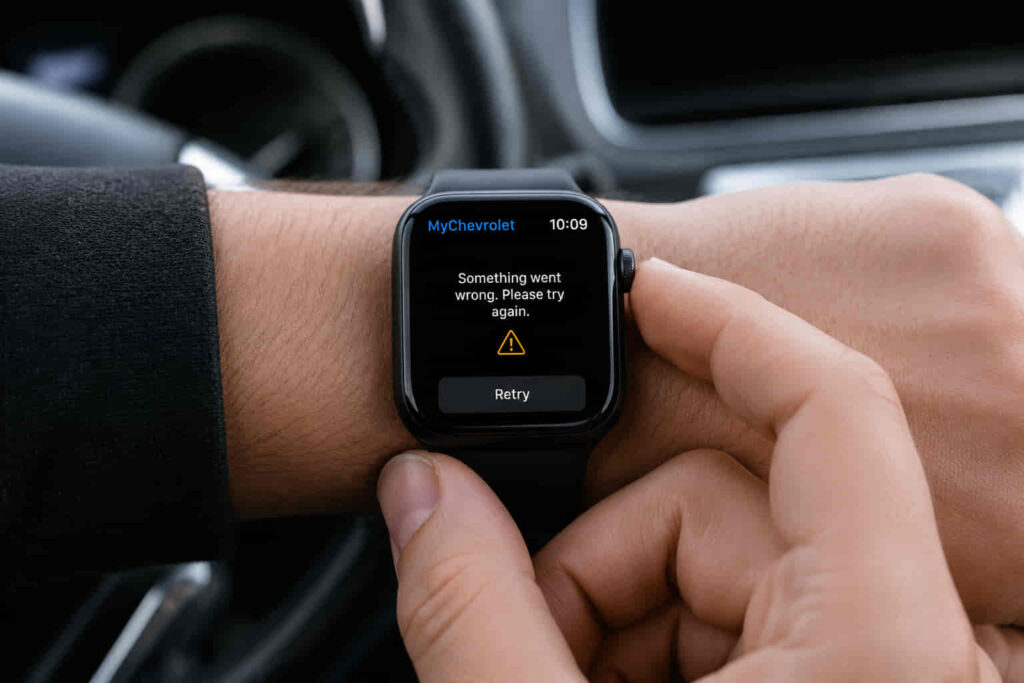
My Chevrolet App may stop working on Apple Watch because of compatibility issues, outdated software, connection problems, account synchronization errors, or restricted permissions. The Apple Watch version of My Chevrolet App depends on a connected ecosystem that includes the Apple Watch, iPhone, Chevrolet account, mobile application, and vehicle connectivity services. When one part of this system fails, features such as vehicle status updates, notifications, or remote commands may stop responding correctly.
The first step is identifying whether the problem comes from the Apple Watch, the My Chevrolet App installation, the iPhone connection, or the Chevrolet service connection. A simple software update may resolve the issue, while some problems require checking account access or reconnecting the devices.
This guide explains the main factors that affect My Chevrolet App performance on Apple Watch and provides a structured way to diagnose the problem. By checking device compatibility, application settings, connectivity, permissions, and vehicle connection status, most common Apple Watch issues can be identified before reinstalling the app or contacting Chevrolet support.
Is Your Apple Watch Compatible With My Chevrolet App?
Apple Watch compatibility is the first factor to check when My Chevrolet App does not work because the application depends on supported Apple devices, operating systems, and software versions. If the Apple Watch, iPhone, or operating system does not meet the technical requirements of the application, the app may fail to install, fail to synchronize, or display incomplete vehicle information.
My Chevrolet App operates through an ecosystem rather than a standalone Apple Watch application. The Apple Watch receives information through the paired iPhone, where the main My Chevrolet App installation, account authentication, and vehicle connection are usually managed. This means a problem with the iPhone or its software environment can directly affect how the app functions on the watch.
Checking compatibility requires verifying that both devices are running supported software versions. An outdated watchOS version may prevent the Apple Watch from communicating correctly with the iPhone, while an outdated iOS version may affect application synchronization and background processes. Updating both devices creates a consistent software environment where My Chevrolet App can transfer information properly.
Software compatibility problems often appear after users upgrade their Apple Watch or iPhone without updating related applications. For example, a newly updated watchOS version may introduce changes that require an updated version of My Chevrolet App before vehicle status information, notifications, or remote features appear correctly.
Is My Chevrolet App Updated to the Latest Version?
Updating My Chevrolet App is one of the most effective checks when the application stops working on Apple Watch because outdated versions can contain compatibility errors, synchronization failures, or missing feature support. Mobile applications receive updates to maintain compatibility with new versions of iOS, watchOS, and connected vehicle services.
The update process should begin on the iPhone because the primary My Chevrolet App installation is managed there. After updating the iPhone application, users should also confirm that the Apple Watch has the latest available app version through the Apple Watch app. Keeping both versions synchronized reduces communication problems between the devices.
An outdated application can affect specific functions rather than completely preventing the app from opening. For example, the app may launch normally but fail to display vehicle status, send notifications, or complete remote commands because older software cannot properly communicate with current Chevrolet connected services.
Restarting the devices after an update helps complete the synchronization process. The iPhone, Apple Watch, and My Chevrolet App need to reload their background services after software changes, especially when the previous version stored outdated connection data.
Read more: My Chevrolet App Not Showing Remote Start
Is Your Apple Watch Properly Connected to Your iPhone?
Apple Watch must maintain a stable connection with the paired iPhone for My Chevrolet App features to work correctly because the watch depends on the iPhone application environment to receive vehicle information and service updates. When the connection between the two devices is interrupted, My Chevrolet App may fail to load data, display outdated vehicle status, or delay notifications.
The connection between Apple Watch and iPhone involves multiple communication methods, including Bluetooth, Wi-Fi, and cellular connectivity depending on the device setup. My Chevrolet App uses this connection pathway to transfer information between the Chevrolet account, mobile application, and Apple Watch interface. A weak or interrupted connection can prevent the watch from receiving updated information from the vehicle.
Checking the connection starts by confirming that the Apple Watch is still paired with the correct iPhone. Users who replace their iPhone, reset their Apple Watch, or restore device backups may experience synchronization problems because the watch is no longer connected to the same device environment used by My Chevrolet App.
Network availability also affects connected vehicle features. If the iPhone cannot access the internet through Wi-Fi or cellular data, My Chevrolet App may not retrieve current vehicle information from Chevrolet services. For example, a user may open the Apple Watch application successfully but see an unavailable vehicle status because the underlying connection between the app and Chevrolet servers is interrupted.
Is Your Chevrolet Account Properly Connected to My Chevrolet App?
A correct Chevrolet account connection is required for My Chevrolet App to work on Apple Watch because the application uses account authentication to identify the vehicle, ownership information, and available connected services. If the Apple Watch receives information from an incorrect account or an incomplete vehicle profile, features connected to the vehicle may not appear.
My Chevrolet App does not only function as a simple mobile interface. It acts as a connection point between the vehicle owner, Chevrolet account system, and connected vehicle services. The Apple Watch experience depends on this account relationship because commands and vehicle information must be associated with the correct vehicle profile.
Login problems can occur after changing passwords, updating account information, switching Chevrolet accounts, or reinstalling the application. When authentication data becomes outdated, the application may appear installed correctly while vehicle features remain unavailable.
Users should confirm that the same Chevrolet account is active on the iPhone application and that the correct vehicle is linked to that account. A missing vehicle profile, expired connected service access, or incomplete account setup can prevent Apple Watch features from displaying accurate information.
Are My Chevrolet App Permissions Enabled on Apple Watch and iPhone?
My Chevrolet App permissions must be enabled on both iPhone and Apple Watch because restricted access can prevent the application from delivering notifications, updating vehicle information, or supporting connected features. Modern vehicle applications depend on system permissions to communicate with device hardware, background services, and location-based functions.
The most important permissions include notifications, Bluetooth access, location services, and background app refresh. Notifications allow Apple Watch to display alerts from My Chevrolet App, while Bluetooth and network permissions support communication between connected devices. Location access may also affect features that depend on vehicle location information or mobile service functions.
Permission problems often happen after users update iOS, restore an iPhone backup, reinstall the application, or change privacy settings. In these situations, My Chevrolet App may remain installed and appear functional, but certain features can stop working because the operating system blocks required access.
Checking permissions helps separate application problems from device configuration problems. For example, if vehicle status updates work inside the iPhone application but Apple Watch notifications do not appear, the issue may come from notification settings rather than a Chevrolet account or vehicle connection problem.
Is Your Chevrolet Vehicle Connected to My Chevrolet App?
The Chevrolet vehicle connection must remain active for My Chevrolet App features on Apple Watch to work because the watch depends on vehicle data provided through Chevrolet connected services. Apple Watch does not independently communicate with the vehicle in most situations; instead, information moves through a connected system involving the watch, iPhone, My Chevrolet App, Chevrolet account, and vehicle services.
A vehicle connection problem can appear in several ways. The Apple Watch application may open normally, but vehicle status information may not update, remote commands may fail, or available features may appear unavailable. These issues usually indicate that the application cannot retrieve current information from the connected vehicle system.
The vehicle profile inside My Chevrolet App should match the actual Chevrolet vehicle associated with the owner account. Problems can occur when a vehicle has not been fully added, ownership information has changed, or connected services are inactive. The application requires accurate vehicle data before Apple Watch features can display reliable information.
For example, a user may successfully pair an Apple Watch with an iPhone and log into My Chevrolet App, but remote start or vehicle status functions may still fail because the vehicle connection layer is incomplete. Checking the vehicle profile and connected service status helps identify whether the problem exists beyond the Apple devices.
Should You Restart or Reinstall My Chevrolet App?
Restarting devices or reinstalling My Chevrolet App can resolve application failures caused by temporary software errors, corrupted connection data, or incomplete synchronization between Apple Watch, iPhone, and Chevrolet services. These troubleshooting steps refresh the communication process without requiring changes to the vehicle or account settings.
Restarting the Apple Watch and iPhone is the simplest recovery method because both devices maintain background processes that support application performance. When these processes encounter temporary errors, My Chevrolet App may stop updating information, fail to send notifications, or display outdated vehicle data even though the application remains installed.
Reinstalling the application removes stored app data that may interfere with normal operation. A damaged installation, failed update, or outdated session information can prevent the application from communicating correctly with Chevrolet connected services. After reinstalling, users need to sign back into their Chevrolet account and confirm that their vehicle profile is connected.
The correct troubleshooting sequence is important. Restarting the Apple Watch and iPhone should happen before reinstalling the application because simple connection issues do not require removing the software. Reinstallation becomes more useful when the application continues failing after device restarts, software updates, and permission checks.
For example, if My Chevrolet App opens on the iPhone but the Apple Watch version remains frozen or fails to synchronize after multiple connection attempts, reinstalling the application can remove old configuration data and create a cleaner connection between the devices.
When Should You Contact Chevrolet Support About Apple Watch Problems?
You should contact Chevrolet support when My Chevrolet App continues failing on Apple Watch after checking device compatibility, software updates, account access, permissions, and connection settings. Persistent problems after standard troubleshooting usually indicate an issue that requires access to account, service, or vehicle connectivity information.
Support assistance becomes necessary when the problem involves Chevrolet account authentication, connected service availability, or vehicle communication. These systems depend on backend services that users cannot directly repair through device settings.
Before contacting support, users should prepare relevant information to speed up troubleshooting. Important details include the Chevrolet vehicle model and year, Apple Watch model, iPhone model, operating system versions, My Chevrolet App version, and a description of the specific feature that is not working.
A clear description of the problem helps identify whether the issue belongs to the Apple device, application environment, account system, or vehicle connection. For example, “My Chevrolet App does not open on Apple Watch” requires a different investigation path from “remote commands do not respond while the app opens normally.”
How Can You Restore My Chevrolet App on Apple Watch?
You can restore My Chevrolet App functionality on Apple Watch by checking the connection between devices, updating software, confirming account access, reviewing permissions, and verifying vehicle connectivity. Most Apple Watch problems with My Chevrolet App are caused by communication failures between multiple components rather than a single application error.
The troubleshooting process should begin with basic technical requirements, including Apple Watch compatibility, iPhone connection stability, and application updates. After confirming the device environment, users should check Chevrolet account synchronization, vehicle connection status, and system permissions that control notifications and background communication.
A connected vehicle application depends on cooperation between hardware, software, and service systems. The Apple Watch provides the user interface, the iPhone manages application communication, and Chevrolet services provide vehicle information and remote features. When each part works correctly together, My Chevrolet App can deliver a consistent experience across devices.
If the application continues to fail after completing these checks, Chevrolet support can help identify account-level or vehicle connectivity issues that cannot be resolved through device settings alone. Maintaining updated software and a properly connected Chevrolet account helps prevent future Apple Watch problems and ensures reliable access to connected vehicle features.