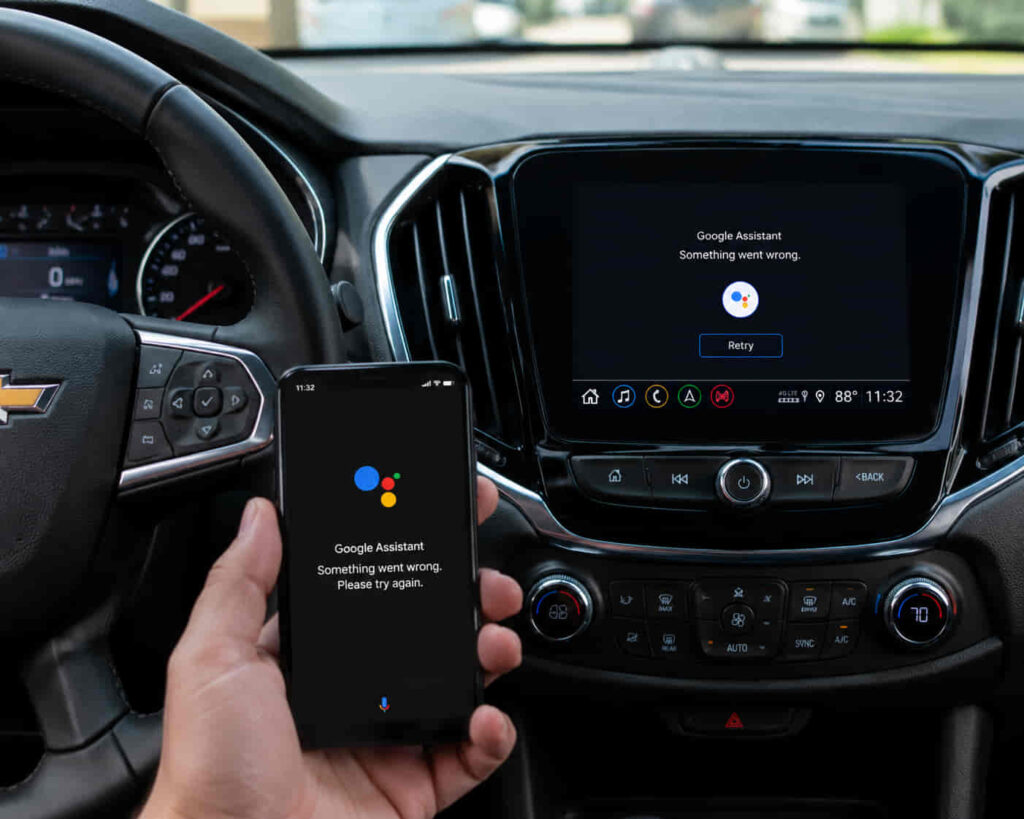
Chevrolet Google Assistant may stop working because of connection problems, outdated software, incorrect account settings, Android Auto issues, or communication failures between the smartphone and the vehicle infotainment system. Google Assistant does not operate as an independent feature inside Chevrolet vehicles. It depends on multiple connected components, including the Android phone, Google account, Android Auto, Bluetooth connection, Chevrolet infotainment system, and Chevrolet Connected Services.
When Google Assistant fails to respond, the problem may appear in different ways. Some drivers experience voice commands that are not recognized, while others cannot connect Android Auto, control navigation, make calls, or use voice-based vehicle features. Identifying the exact failure point helps determine whether the issue comes from the phone, application settings, network connection, or Chevrolet system.
This guide explains the most common Chevrolet Google Assistant problems and the technical factors behind them. By checking compatibility, software versions, permissions, account connections, and vehicle settings, drivers can restore communication between Google Assistant and their Chevrolet vehicle without immediately performing complex resets or contacting support.
Is Your Android Phone Compatible With Chevrolet Google Assistant?
Android phone compatibility is the first factor to check when Google Assistant is not working with Chevrolet because the voice assistant depends on communication between the smartphone, Android Auto, and the vehicle infotainment system. If the phone does not meet compatibility requirements or uses outdated software components, Google Assistant may fail to connect, respond to voice commands, or transfer information to the Chevrolet system.
Google Assistant integration in Chevrolet vehicles requires several technology layers to work together. The Android phone must support Android Auto, maintain an active Google account connection, and have updated Google Play Services. The vehicle infotainment system then uses this connection to receive voice commands for functions such as navigation, calling, messaging, and media control.
Software compatibility problems commonly appear after users change phones, update Android versions, or restore device settings. A phone may still connect through Bluetooth while advanced Google Assistant features fail because Android Auto or Google services are not functioning correctly in the background.
Checking compatibility helps separate device limitations from Chevrolet system problems. For example, if Google Assistant works normally on the phone but does not respond through the Chevrolet infotainment screen, the issue is more likely related to Android Auto configuration or vehicle integration rather than the Google Assistant service itself.
Is Android Auto Connected Correctly to Your Chevrolet?
Android Auto must establish a stable connection with the Chevrolet infotainment system because it acts as the communication bridge between Google Assistant and the vehicle. When Android Auto fails to connect properly, Chevrolet cannot receive voice commands from Google Assistant, even when the assistant works normally on the smartphone.
The connection process depends on several components, including USB or wireless Android Auto pairing, Bluetooth communication, and device recognition by the Chevrolet infotainment system. A failure in any of these connections can prevent voice commands from reaching the vehicle.
Connection problems often occur after changing phones, updating Android software, resetting the infotainment system, or pairing multiple devices with the vehicle. The Chevrolet system may recognize the phone for basic Bluetooth functions such as calling or audio playback while failing to activate Android Auto features.
For example, a driver may be able to stream music through Bluetooth but cannot use “Hey Google” commands to control navigation or send messages through the Chevrolet display. This difference shows that Bluetooth connection and Android Auto integration are separate systems that require individual troubleshooting.
Read more: My Chevrolet App Not Working on Apple Watch
Are Google Assistant and Google Account Settings Correct?
Google Assistant requires the correct Google account configuration to work with Chevrolet because the assistant uses account authentication, voice recognition settings, and personalized permissions to process user commands. When the wrong account is connected or Google Assistant settings are incomplete, voice commands may fail even though Android Auto and Bluetooth connections appear normal.
The Google account acts as the identity layer between the driver, smartphone, and Google Assistant service. Features such as navigation preferences, contacts, calendar information, and personalized responses depend on the account currently active on the Android device. If users switch accounts, reset their phone, or change Google settings, the connection between Google Assistant and Chevrolet may become inconsistent.
Voice recognition settings are also important because Google Assistant needs permission to recognize the driver’s commands. Features such as Voice Match allow Google Assistant to identify the correct user and respond when activated through voice. If voice activation is disabled or microphone access is restricted, the Chevrolet system may appear unable to process commands.
Checking Google Assistant settings helps determine whether the problem exists before the command reaches the Chevrolet vehicle. For example, if Google Assistant cannot answer a voice request directly on the smartphone, the issue is related to the Google account or assistant configuration rather than the Chevrolet infotainment system.
Are Bluetooth and Network Connections Working Properly?
Bluetooth and network connections must remain stable because Chevrolet Google Assistant relies on device communication and internet access to process voice commands and deliver information. Bluetooth manages communication between the smartphone and vehicle system, while mobile data or Wi-Fi allows Google Assistant to access online services.
Some Google Assistant features require an active internet connection to complete requests. Navigation searches, traffic updates, weather information, and online searches depend on communication with Google’s servers. If the phone has weak network coverage or restricted background data access, commands may fail or respond slowly.
Bluetooth problems can also prevent Chevrolet from receiving voice input correctly. A phone may appear connected to the vehicle while the audio channel used for voice commands is unavailable. This explains why some drivers can play music or make calls but cannot activate Google Assistant through the Chevrolet system.
A practical example is when Google Assistant responds normally through the phone speaker but stops working after connecting to Chevrolet. In this situation, checking Bluetooth pairing, mobile data availability, and Android Auto connection status helps identify whether the failure comes from communication between devices rather than from Google Assistant itself.
Are Microphone and App Permissions Enabled?
Microphone and application permissions must be enabled for Google Assistant to work with Chevrolet because voice control depends on the smartphone being able to capture commands and share information with Android Auto. When these permissions are restricted, Google Assistant may fail to hear commands, respond incorrectly, or stop working after connecting to the vehicle.
The microphone permission is the most important setting because Google Assistant requires voice input to recognize driver requests. Android Auto and related Google services also need access to specific functions on the phone, including notifications, contacts, location services, and background activity. These permissions allow the assistant to perform tasks such as making calls, providing navigation directions, and controlling media.
Permission issues commonly appear after Android updates, application reinstalls, privacy setting changes, or device transfers. A driver may experience a situation where Google Assistant works outside the vehicle but stops responding after connecting to Chevrolet because Android Auto no longer has access to required phone features.
Checking permissions helps identify problems that are unrelated to the Chevrolet infotainment system. For example, if the microphone icon activates but Google Assistant cannot recognize speech, the issue may come from blocked microphone access or Android system restrictions rather than a failure in the vehicle hardware.
Is Your Chevrolet Infotainment System Updated?
A Chevrolet infotainment system update is necessary when Google Assistant stops working because outdated vehicle software can create communication problems between Android Auto, the smartphone, and the vehicle interface. The infotainment system manages how external devices connect with Chevrolet features, including voice commands, navigation controls, and media functions.
Vehicle software updates improve compatibility with newer smartphone operating systems and applications. As Android versions and Google services change, older infotainment software may experience problems recognizing devices, maintaining connections, or processing voice commands correctly.
Infotainment system issues often appear after a phone receives a major Android update. The smartphone may continue working normally, but the Chevrolet display may fail to launch Android Auto or respond to Google Assistant commands because the vehicle software cannot properly communicate with the updated mobile platform.
Restarting the infotainment system can resolve temporary software conflicts, but persistent problems may require checking for available Chevrolet software updates. Keeping the vehicle system current ensures that the connection between Google Assistant and Chevrolet remains compatible as mobile technology changes.
Are Chevrolet Connected Services Available?
Chevrolet Connected Services must be active and properly connected because some smart vehicle features depend on communication between the vehicle, Chevrolet account system, and online services. Google Assistant integration may fail when the vehicle connection layer is incomplete, even if the smartphone and Android Auto settings are correct.
Connected Services provide the digital infrastructure that allows Chevrolet vehicles to communicate with external applications and owner accounts. This system supports features related to vehicle information, remote functions, and connected experiences that extend beyond basic Bluetooth communication.
Account enrollment problems, inactive services, or incomplete vehicle setup can prevent certain commands from working correctly. For example, a driver may successfully connect Google Assistant to Android Auto but still experience unavailable vehicle-related features because the Chevrolet account does not have the correct vehicle connection status.
Checking Chevrolet Connected Services helps determine whether the issue exists inside the vehicle ecosystem rather than the smartphone. When the phone, Android Auto, and Google Assistant work correctly but Chevrolet-specific commands fail, the connected service layer becomes the next area to investigate.
How Do You Restart or Reset Chevrolet Google Assistant Connection?
Restarting or resetting the connection between Google Assistant and Chevrolet can resolve temporary communication failures caused by outdated pairing data, software conflicts, or interrupted connections between the smartphone and vehicle system. When individual components work correctly but the complete integration fails, refreshing the connection can restore communication without changing account information or vehicle settings.
The reset process focuses on rebuilding the communication path between the Android phone, Android Auto, and Chevrolet infotainment system. Temporary connection data stored by Bluetooth, Android Auto, or the vehicle system can become outdated after software updates, device replacements, or repeated pairing attempts.
Restarting the Android phone and Chevrolet infotainment system should be the first step because temporary software errors can prevent normal communication. A fresh system restart reloads background services that support Google Assistant, Android Auto, and vehicle connectivity features.
If restarting does not solve the problem, removing the phone from the Chevrolet system and pairing it again can create a new connection. This process clears old pairing information and allows Android Auto to establish a cleaner communication path with the vehicle.
For example, a driver may notice that Google Assistant worked correctly before a phone update but stopped responding afterward. In this situation, reconnecting Android Auto and resetting the device pairing can resolve conflicts created by changes in the phone software environment.
When Should You Contact Chevrolet Support About Google Assistant Problems?
You should contact Chevrolet support when Google Assistant continues failing after checking device compatibility, Android Auto connection, account settings, permissions, software updates, and vehicle connectivity. Persistent problems after standard troubleshooting may indicate an issue with Chevrolet services, vehicle software, or account-level configuration that users cannot repair through personal device settings.
Support assistance becomes important when the problem involves the vehicle system rather than the smartphone. For example, if multiple compatible Android phones experience the same Google Assistant failure in one Chevrolet vehicle, the issue is more likely related to the infotainment system or vehicle connection rather than the mobile device.
Before contacting Chevrolet support, collecting accurate technical information helps reduce troubleshooting time. Important details include the Chevrolet vehicle model and year, Android phone model, Android version, Android Auto version, infotainment system version, and the specific Google Assistant feature that fails.
A clear description of the problem helps identify the correct source of failure. “Google Assistant does not hear my voice commands” points toward microphone or permission problems, while “Android Auto connects but Chevrolet voice commands do not work” suggests a deeper integration issue between the smartphone and vehicle system.
How Can You Restore Google Assistant on Your Chevrolet?
You can restore Google Assistant functionality on your Chevrolet by identifying whether the problem comes from the Android phone, Android Auto connection, Google account settings, vehicle software, or Chevrolet Connected Services. Because Google Assistant depends on multiple connected systems, solving the problem requires checking the entire communication path instead of focusing only on the voice assistant itself.
The most effective troubleshooting approach starts with the basic connection layers. A compatible Android phone, updated Android Auto application, active Google account, stable Bluetooth and internet connection, and correct permissions create the foundation for reliable voice control. After these elements work correctly, the Chevrolet infotainment system and connected services can properly process Google Assistant commands.
Connected vehicle technology combines smartphone software, cloud services, and vehicle hardware into one digital ecosystem. A failure in any part of this system can affect features such as navigation commands, hands-free calling, media control, and other voice-based functions.
If Google Assistant continues not working after completing these checks, Chevrolet support can help identify issues related to vehicle software, account configuration, or connected services. Maintaining updated devices and properly configured connections helps ensure that Google Assistant continues working smoothly with Chevrolet vehicles.