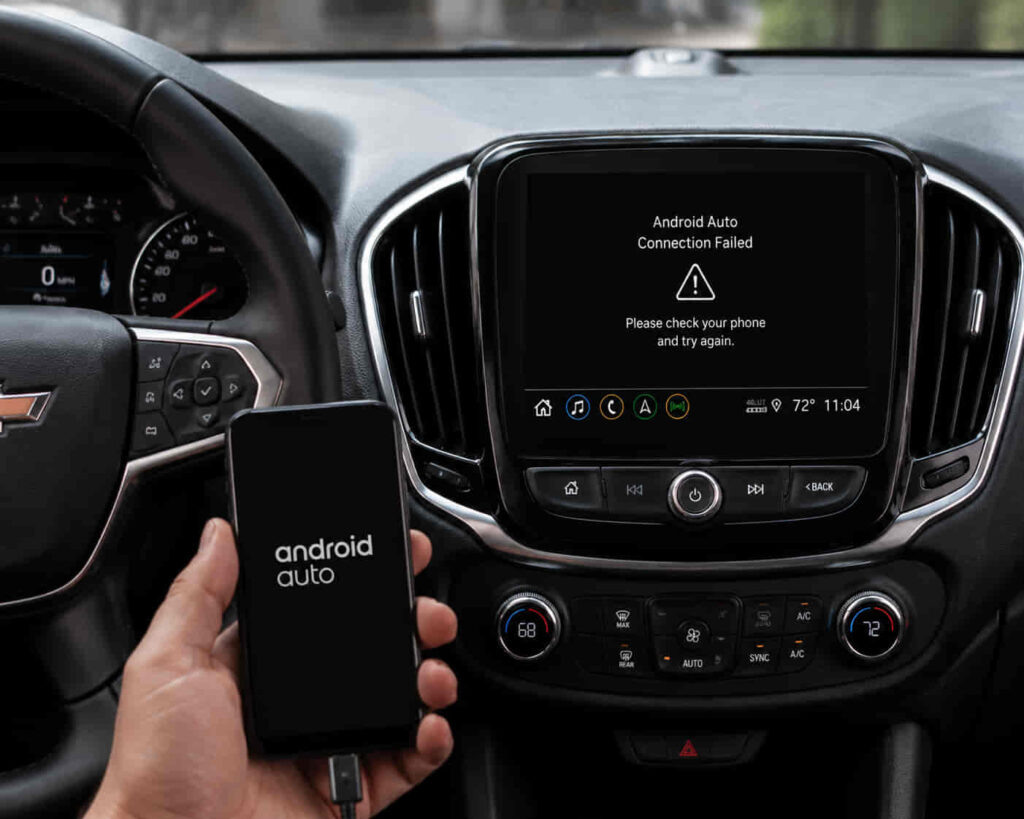
Chevrolet Android Auto may stop working because of phone compatibility problems, outdated software, faulty USB connections, wireless pairing failures, permission restrictions, or Chevrolet infotainment system errors. Android Auto is not a standalone feature inside the vehicle. It works through a connected ecosystem that includes the Android smartphone, Android Auto software, Google services, communication connection, and Chevrolet infotainment system.
When Android Auto fails in a Chevrolet vehicle, the problem can appear in different forms. Some drivers cannot connect their phone to the display, while others experience repeated disconnections, missing audio, unavailable voice commands, or a blank Android Auto screen. Each symptom points to a different part of the connection system that needs to be checked.
The most effective troubleshooting approach is to examine the complete communication path between the smartphone and the vehicle. This includes checking device compatibility, Android Auto updates, USB or wireless connections, phone permissions, and Chevrolet infotainment settings. Understanding how these components interact helps identify the actual cause instead of repeatedly reconnecting devices without solving the underlying problem.
This guide explains the main reasons Chevrolet Android Auto stops working and the steps needed to restore a stable connection between an Android phone and the Chevrolet infotainment system.
Is Your Android Phone Compatible With Chevrolet Android Auto?
Android phone compatibility is the first factor to check when Chevrolet Android Auto is not working because the feature depends on communication between the smartphone, Android Auto software, and Chevrolet infotainment system. If the phone does not meet compatibility requirements or uses outdated system components, Android Auto may fail to launch, disconnect frequently, or not appear on the Chevrolet display.
Android Auto requires more than a simple Bluetooth connection. The smartphone must support Android Auto, maintain updated Google services, and allow the necessary permissions for communication with the vehicle. The Chevrolet infotainment system receives information from the phone and displays compatible features such as navigation, voice commands, calls, and media controls.
Compatibility problems often appear after users upgrade their Android phone, install a major operating system update, or switch to a new device. A phone may still connect for basic functions such as charging or Bluetooth audio while Android Auto features fail because the software environment is no longer communicating correctly with the Chevrolet system.
Checking the smartphone requirements helps determine whether the problem comes from the device or the vehicle. For example, if Android Auto does not open on multiple Chevrolet vehicles but works correctly on another compatible device, the issue may exist within the phone settings, Android version, or Google services rather than the Chevrolet infotainment system.
Are You Using a Working USB Cable or Wireless Connection?
A reliable USB cable or properly configured wireless connection is required for Chevrolet Android Auto to work because Android Auto transfers both data and commands between the phone and the vehicle system. Many connection problems happen because users focus on the phone or vehicle settings while the actual failure comes from the communication method.
USB connections require a cable that supports data transfer, not only power charging. A cable may successfully charge an Android phone while failing to send the information required for Android Auto. Damaged cables, low-quality cables, or cables designed only for charging can prevent the Chevrolet infotainment system from recognizing the smartphone.
Wireless Android Auto depends on additional connection layers, including Bluetooth pairing and Wi-Fi communication. Because wireless connections involve more system components, problems can occur after phone updates, device resets, or changes in Bluetooth pairing information.
Testing another USB cable or reconnecting the wireless Android Auto setup can help identify the source of the problem. For example, if the Chevrolet display recognizes the phone immediately with a different cable, the original cable was the connection failure rather than the Android Auto application or vehicle system.
Is Android Auto Updated to the Latest Version?
Updating Android Auto and related Google services is necessary when Chevrolet Android Auto stops working because outdated software can create compatibility problems between the smartphone and Chevrolet infotainment system. Android Auto depends on several software components, including the Android operating system, Google Play Services, and the Android Auto application environment.
Software updates improve communication between the phone and vehicle by fixing compatibility errors, improving device recognition, and supporting newer smartphone operating systems. When Android Auto becomes outdated, users may experience problems such as connection failures, missing features, delayed responses, or repeated disconnections from the Chevrolet display.
Android updates can also affect Android Auto performance because changes in the operating system may modify how applications access Bluetooth, USB connections, background activity, or permissions. A phone that was previously working with Chevrolet may develop problems after a major Android update if related applications are not updated at the same time.
Keeping the entire software environment updated creates a stable connection path between the smartphone and vehicle. For example, updating only the Android Auto application while ignoring Google Play Services or the Android operating system may not resolve the problem because all components must work together to transfer information correctly.
Are Android Auto Permissions Enabled on Your Phone?
Android Auto permissions must be enabled because Chevrolet Android Auto requires access to phone features that support navigation, voice commands, calls, notifications, and data communication. When required permissions are restricted, the application may connect to the vehicle but fail to provide complete functionality.
Android Auto commonly depends on permissions related to location, microphone access, notifications, Bluetooth communication, and background activity. Location access allows navigation features to provide accurate directions, while microphone access enables voice commands through Google Assistant. Notification access allows messages and alerts to appear through the Chevrolet display.
Permission problems often occur after Android updates, application reinstallations, privacy setting changes, or switching to a new phone. The application may appear installed correctly, but certain features stop working because Android prevents the necessary communication between the phone and vehicle.
Checking permissions helps identify problems that are not caused by the Chevrolet infotainment system. For example, if Android Auto connects successfully but voice commands, navigation, or notifications do not work, the issue may come from restricted phone permissions rather than a failure in the vehicle hardware.
Is Your Chevrolet Infotainment System Recognizing Your Phone?
The Chevrolet infotainment system must correctly recognize the Android phone because Android Auto depends on the vehicle display identifying and communicating with the connected device. When the infotainment system fails to detect the phone, Android Auto cannot launch even when the smartphone, application, and cable are working correctly.
The recognition process involves several components inside the vehicle system, including USB ports, Bluetooth pairing information, device profiles, and infotainment software. A failure in any of these areas can prevent the Chevrolet display from loading Android Auto or maintaining a stable connection after startup.
Device recognition problems often happen after users connect multiple smartphones, replace their Android device, reset the infotainment system, or update vehicle software. The Chevrolet system may store outdated pairing information that conflicts with the current phone settings.
Restarting the infotainment system and removing old connected devices can refresh the connection environment. For example, if a Chevrolet vehicle automatically connects to an old phone but fails to detect the current Android device, clearing previous connections allows the system to create a new communication path with the correct smartphone.
Are Bluetooth and Wireless Android Auto Connections Working Properly?
Bluetooth and wireless connections must work correctly because wireless Android Auto relies on multiple communication channels between the Android phone and Chevrolet infotainment system. Unlike a wired connection, wireless Android Auto requires Bluetooth for initial pairing and Wi-Fi for continuous data transfer.
Connection instability can cause Android Auto to disconnect, freeze, or fail to start. Common situations include a phone that remains connected for calls but loses Android Auto functionality, or a wireless connection that works temporarily before disappearing after driving for several minutes.
Bluetooth pairing information can become outdated after software updates, phone replacements, or repeated connection attempts. When the stored connection data no longer matches the current device settings, the Chevrolet system may fail to establish a complete Android Auto connection.
Reconnecting wireless Android Auto requires rebuilding the communication process between the phone and vehicle. Removing the existing Bluetooth pairing, restarting both devices, and pairing them again can resolve connection conflicts caused by outdated device information.
Should You Restart or Reset Chevrolet Android Auto Connection?
Restarting or resetting the Chevrolet Android Auto connection can solve temporary communication failures caused by software conflicts, outdated pairing data, or incomplete synchronization between the phone and vehicle system. These steps refresh the connection without changing important vehicle settings or personal data.
The reset process should begin with simple actions because many Android Auto problems come from temporary software states. Restarting the Android phone and Chevrolet infotainment system allows background services responsible for Android Auto, Bluetooth, and device recognition to reload.
If restarting does not resolve the problem, removing the phone from the Chevrolet system and reconnecting it creates a new pairing session. This removes old connection data that may prevent Android Auto from communicating correctly with the vehicle.
For example, a driver may experience Android Auto working normally for several months before suddenly disconnecting after a phone update. Resetting the connection can remove conflicts between the updated smartphone software and the previous Chevrolet pairing information.
Read more: Chevrolet Google Assistant Not Working
When Should You Contact Chevrolet Support for Android Auto Problems?
You should contact Chevrolet support when Android Auto continues not working after checking the phone compatibility, connection method, software updates, permissions, and infotainment settings. Problems that remain after standard troubleshooting may indicate issues with vehicle software, hardware components, or Chevrolet system configuration that cannot be fixed through smartphone settings alone.
Support becomes necessary when the problem appears consistently across different devices or connection methods. For example, if multiple compatible Android phones fail to connect to the same Chevrolet vehicle, the issue is more likely related to the infotainment system, USB port, or vehicle software rather than a single phone.
Before contacting Chevrolet support, collecting technical information helps identify the source of the problem faster. Important details include the Chevrolet vehicle model and year, Android phone model, Android operating system version, Android Auto version, connection type used, and the exact behavior of the failure.
A clear description of the issue allows support teams to separate smartphone problems from vehicle system problems. A phone that charges but does not launch Android Auto suggests a data connection issue, while a vehicle that does not recognize any Android device suggests a possible infotainment system problem.
How Can You Restore Android Auto on Your Chevrolet?
You can restore Android Auto on your Chevrolet by checking every connection layer between the Android phone and the Chevrolet infotainment system. Android Auto depends on the cooperation of multiple technologies, including smartphone compatibility, application software, permissions, communication connections, and vehicle software.
The most effective troubleshooting process starts with basic compatibility checks before moving to advanced solutions. A supported Android phone, updated Android Auto software, working USB or wireless connection, and correct permissions create the foundation for reliable communication with the Chevrolet system.
When these elements work correctly, Android Auto can provide access to important driving features such as navigation, voice commands, hands-free calling, and media control. When one component fails, the entire experience can be interrupted even though other vehicle functions continue operating normally.
Maintaining updated software, removing outdated device connections, and monitoring the condition of cables and wireless connections helps prevent future Android Auto problems. If the issue remains after completing these checks, Chevrolet support can help identify deeper problems related to the infotainment system or vehicle connectivity.
How Can You Keep Android Auto Working Properly in Your Chevrolet?
You can keep Android Auto working properly in your Chevrolet by maintaining a stable connection between your Android phone, Android Auto software, and Chevrolet infotainment system. Because Android Auto depends on multiple technical layers, preventing problems requires more than checking a single application or device.
The most important factors are maintaining software compatibility, using reliable connection methods, enabling required permissions, and keeping both the smartphone and vehicle system updated. These elements allow Android Auto to transfer information correctly and support essential driving features such as navigation, voice commands, hands-free calling, and media controls.
Android Auto problems usually occur when one part of the connected system stops communicating correctly. A damaged cable, outdated application, incorrect permission, unstable wireless connection, or outdated Chevrolet infotainment software can interrupt the entire experience even when other vehicle functions continue working.
Following a structured troubleshooting process helps identify the exact source of the problem and prevents unnecessary resets or repeated connection attempts. If Android Auto remains unavailable after completing these checks, Chevrolet support can investigate deeper vehicle software or hardware issues.
Maintaining a clean connection environment ensures that the Chevrolet infotainment system continues working reliably with Android devices and provides a consistent connected driving experience.