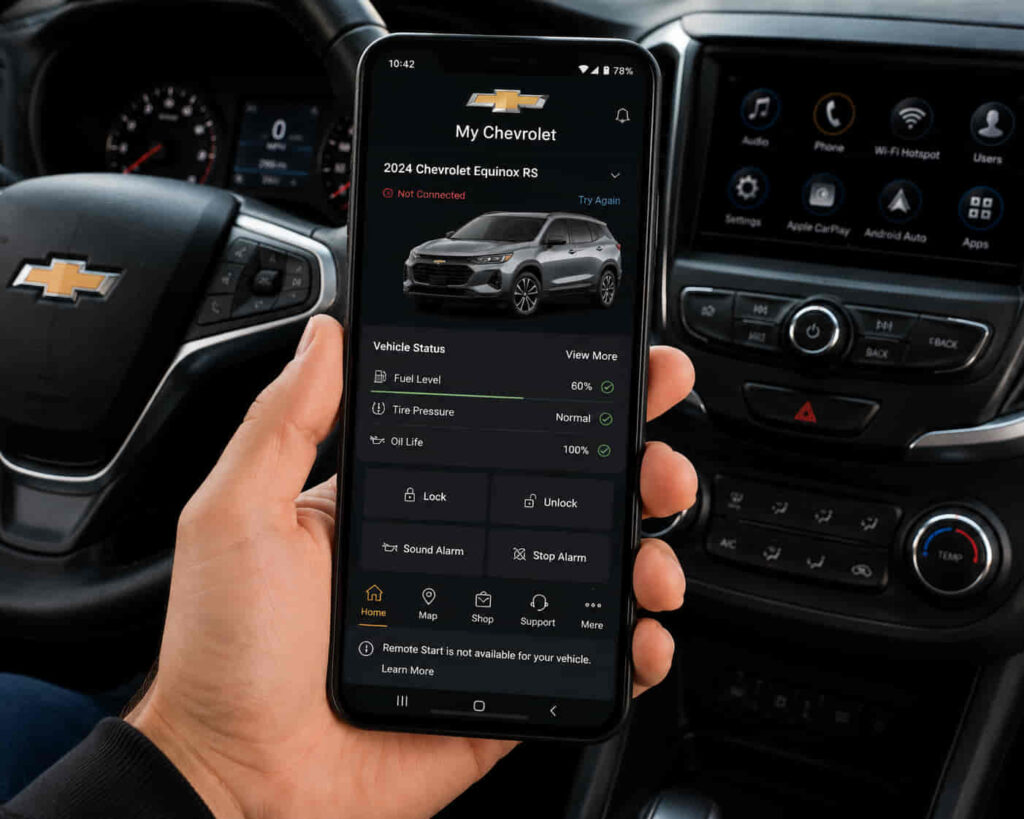
The My Chevrolet App not showing Remote Start usually happens because the application cannot detect the vehicle’s remote control capability, the Chevrolet account is not synchronized correctly, Chevrolet Connected Services is inactive, or the vehicle does not meet the requirements for remote operation. When this issue occurs, Chevrolet owners may still access other app features but cannot find the Remote Start button or use the remote engine start function.
There are 10 proven ways to fix missing Remote Start in the My Chevrolet App, starting with vehicle compatibility checks and continuing through account, application, and connected service troubleshooting. Remote Start availability depends on more than the mobile application because the feature requires communication between the Chevrolet vehicle, connected services platform, user account, and smartphone.
The Remote Start feature works through a connected system where the vehicle sends information through Chevrolet’s communication network, Chevrolet Connected Services verifies the request, and the My Chevrolet App displays available remote controls. A failure in any part of this process can make Remote Start disappear from the application.
This guide explains why Remote Start may not appear in the My Chevrolet App and how to restore access by checking the vehicle configuration, account connection, application settings, and Chevrolet service availability.
Why Is My Chevrolet App Not Showing Remote Start?
The My Chevrolet App does not show Remote Start when the application cannot confirm that the vehicle, account, and connected services are eligible for remote vehicle control. The most common causes are vehicle compatibility issues, inactive Chevrolet Connected Services, account synchronization failures, outdated app data, and communication problems between the vehicle and Chevrolet systems.
Remote Start inside the My Chevrolet App depends on several connected components working together. The vehicle must have compatible Remote Start equipment, the Chevrolet account must be linked correctly, Chevrolet Connected Services must be available, and the application must successfully retrieve the vehicle’s available features.
A Chevrolet vehicle can have a physical Remote Start button on the key fob but still not display Remote Start inside the mobile application. This happens because key fob functionality and app-based remote commands use different systems. The mobile feature requires an active connection between the vehicle communication module, Chevrolet services, and the user account.
Vehicle compatibility is one of the first factors to check when Remote Start is missing from the My Chevrolet App. Not every Chevrolet model or trim level includes app-based Remote Start capability. The feature depends on factory-installed equipment, vehicle configuration, and availability of Chevrolet Connected Services.
For example, a Chevrolet vehicle may support traditional key fob Remote Start but not support smartphone-based remote commands. In this situation, the My Chevrolet App will not display the Remote Start option because the vehicle does not provide the required connected capability.
Another common cause is an inactive or incomplete Chevrolet Connected Services connection. The My Chevrolet App does not communicate directly with the vehicle alone. It relies on Chevrolet’s connected vehicle platform to verify available features and send remote commands.
When Connected Services are unavailable, expired, or not properly activated, the application may hide Remote Start or prevent users from accessing remote controls. Checking the service status helps determine whether the problem comes from the subscription, account, or technical connection.
Account synchronization problems can also remove Remote Start from the application. The My Chevrolet App must recognize the correct vehicle profile and connect it with the correct Chevrolet account. If the vehicle was recently purchased, transferred to another owner, or added to a different account, remote features may not appear until synchronization is completed.
Application-related issues can create similar symptoms. An outdated My Chevrolet App version, corrupted temporary files, or restricted smartphone permissions may prevent the application from loading all available vehicle features. In these cases, the Remote Start capability may exist but remain unavailable inside the app interface.
Read more: My Chevrolet App Not Updating Vehicle Status
How Do You Fix My Chevrolet App Not Showing Remote Start?
The My Chevrolet App Remote Start problem can be fixed by restoring the connection between the vehicle, Chevrolet Connected Services, the Chevrolet account, and the mobile application. The most effective solutions include verifying vehicle compatibility, activating connected services, updating the application, refreshing account synchronization, and checking smartphone settings.
Remote Start availability is determined by multiple systems rather than the application alone. If the vehicle supports the feature but the app does not display it, the issue usually comes from missing connection data, account recognition problems, or communication failures between Chevrolet systems.
Check if your Chevrolet vehicle supports Remote Start
The first step is confirming that the Chevrolet vehicle supports app-based Remote Start. The My Chevrolet App only displays Remote Start when the vehicle has the required hardware, software configuration, and connected service capability.
Chevrolet vehicles can have different levels of remote functionality depending on the model year, trim level, factory equipment, and connected technology package. A vehicle may include key fob Remote Start but not support smartphone-based Remote Start through the My Chevrolet App.
The vehicle identification information stored in the Chevrolet system determines which features appear inside the application. If the vehicle configuration does not include app-based remote controls, the Remote Start option will not appear even when the application is installed correctly.
Checking the vehicle specifications and confirming available connected features helps separate compatibility issues from technical problems. If the vehicle does not support app-based Remote Start, reinstalling the application or changing smartphone settings will not add the missing feature.
Verify Chevrolet Connected Services activation
Chevrolet Connected Services activation is required for Remote Start commands through the My Chevrolet App. The app-based Remote Start feature depends on an active connection between the vehicle, Chevrolet services, and the user account.
Connected Services acts as the communication layer between the smartphone and the vehicle. When a user sends a Remote Start command, the request travels through Chevrolet’s connected platform before reaching the vehicle.
If Connected Services is inactive, expired, or not properly linked to the vehicle, the My Chevrolet App may hide Remote Start or show that the feature is unavailable. This situation commonly occurs after purchasing a used vehicle, changing accounts, or modifying service subscriptions.
Users should verify that the Chevrolet account shows the correct vehicle and that connected services are properly activated. Restoring service activation can make previously unavailable features appear again inside the application.
Update the My Chevrolet App
Updating the My Chevrolet App can restore missing Remote Start when outdated software prevents the application from loading vehicle features correctly. The latest app version improves compatibility, fixes software errors, and allows the application to communicate more reliably with Chevrolet systems.
Connected vehicle applications require regular updates because they interact with smartphone operating systems and cloud-based vehicle platforms. An outdated version may continue opening normally but fail to display newly synchronized vehicle features.
Application updates also resolve interface problems where available features do not appear correctly. For example, Remote Start may remain unavailable because the app cannot properly process the latest vehicle configuration information.
Installing the latest version from the official app store refreshes application files and improves communication between the smartphone and Chevrolet Connected Services. After updating, users should sign out and sign back into their Chevrolet account to create a new connection session.
How Do You Fix My Chevrolet App Not Showing Remote Start?
The My Chevrolet App Remote Start feature may disappear when the application, account, or vehicle connection becomes unsynchronized. Refreshing the Chevrolet account connection, verifying vehicle pairing, checking smartphone settings, and reinstalling the application can restore missing Remote Start functionality.
Remote Start visibility depends on accurate information being shared between the vehicle profile, Chevrolet account, and mobile application. When one system contains outdated information, the app may not recognize that the vehicle supports remote control features.
Refresh your Chevrolet account connection
Refreshing the Chevrolet account connection can restore Remote Start when the app does not correctly recognize available vehicle features. The My Chevrolet App must authenticate the correct account and retrieve current vehicle information before displaying Remote Start controls.
Account synchronization problems often occur after changing smartphones, updating account information, purchasing a used Chevrolet vehicle, or transferring vehicle ownership. During these changes, the application may remain connected to an outdated session and fail to load the latest vehicle capabilities.
Signing out of the My Chevrolet App and signing back in creates a new authentication session. This process allows the application to request updated information from Chevrolet Connected Services and verify which remote features are available for the vehicle.
Users should confirm that the vehicle shown in the account matches the actual Chevrolet vehicle they want to control. Incorrect vehicle information can prevent Remote Start from appearing even when the physical vehicle supports the feature.
Check if your Chevrolet vehicle is properly linked to the app
A correctly linked vehicle profile is required for Remote Start to appear in the My Chevrolet App. The application displays remote features only when the registered vehicle information matches the Chevrolet account and connected service records.
The vehicle connection depends on accurate identification information, including the vehicle registration and account ownership details. If the vehicle is missing from the app, connected to another account, or waiting for activation, Remote Start may not become available.
This issue is common after ownership changes. A previous owner may still have the vehicle connected to their account, while the new owner sees limited functionality until the transfer process is completed.
Checking the vehicle profile inside the My Chevrolet App helps identify whether the problem is related to the app or the account relationship. When the vehicle appears correctly but Remote Start remains missing, the next step is checking service activation and vehicle compatibility.
Check smartphone permissions and app settings
Smartphone restrictions can prevent the My Chevrolet App from displaying or operating remote features correctly. The application requires proper access to mobile data, notifications, and background activity to maintain communication with Chevrolet Connected Services.
Modern smartphones use battery optimization and privacy controls to limit background applications. These settings can interrupt connected vehicle applications by preventing them from refreshing information or receiving updates.
For example, if background activity is restricted, the My Chevrolet App may not retrieve the latest vehicle configuration after an account change. The user may see an incomplete feature list until the application is opened and refreshed manually.
Reviewing application permissions after updates is important because operating system changes can modify existing settings. Allowing the necessary permissions helps maintain a stable connection between the smartphone, Chevrolet services, and the vehicle.
Clear app data or reinstall the My Chevrolet App
Reinstalling the My Chevrolet App can fix Remote Start problems caused by corrupted application files or outdated stored information. A fresh installation removes damaged app data and creates a new connection environment between the smartphone and Chevrolet services.
Application files can become inconsistent after updates, device migrations, or operating system changes. When this happens, the app may open normally but fail to load specific vehicle features such as Remote Start.
Removing the application and installing the latest version allows the smartphone to download clean application files. After reinstalling, users should log in with the correct Chevrolet account and confirm that the vehicle information has synchronized.
Reinstallation does not usually remove vehicle ownership information because the data is stored through the Chevrolet account and connected services rather than only on the smartphone. Once synchronization completes, available remote features should appear if the vehicle and service conditions are satisfied.
Why Does Remote Start Disappear From My Chevrolet App?
Remote Start disappears from the My Chevrolet App when the application no longer receives accurate information about the vehicle’s remote control availability. The most common reasons are account changes, connected service interruptions, application updates, vehicle synchronization delays, and changes in vehicle configuration.
The Remote Start button inside the app is not a permanent feature that appears on every Chevrolet account. The application dynamically displays available features based on information received from the vehicle, Chevrolet Connected Services, and the user account.
When any part of this system becomes disconnected, the application may remove Remote Start from the interface even though the vehicle previously supported the feature. This does not always mean the vehicle has lost Remote Start capability. In many cases, the feature becomes temporarily unavailable because the app cannot verify the vehicle’s current status.
Account changes can remove Remote Start from the app
Changes to the Chevrolet account can cause Remote Start to disappear because the application may no longer recognize the vehicle as belonging to the correct user profile. The My Chevrolet App requires accurate account ownership information to display vehicle-specific remote features.
This situation commonly occurs after buying a used Chevrolet vehicle, changing account details, or moving the vehicle between different Chevrolet accounts. During these transitions, the vehicle may appear in the app but some connected features may remain unavailable.
Updating account information and completing the vehicle ownership connection process allows Chevrolet systems to confirm which features should be available. Once synchronization is complete, Remote Start may return automatically.
Chevrolet Connected Services interruptions can hide Remote Start
Chevrolet Connected Services problems can temporarily remove Remote Start because the application cannot verify or send remote commands without an active connection. The Remote Start feature requires continuous communication between the vehicle, Chevrolet services, and the My Chevrolet App.
A temporary service interruption may affect multiple connected features at the same time. Users may notice that Remote Start, vehicle status updates, and other remote controls are unavailable together.
When the issue comes from Chevrolet service availability rather than the smartphone or app, reinstalling the application will not restore the feature. The connection must be restored at the service level before Remote Start becomes available again.
Vehicle software or configuration changes can affect Remote Start availability
Vehicle configuration changes can affect whether Remote Start appears in the My Chevrolet App. The application displays features based on the vehicle information stored in Chevrolet systems.
Software updates, vehicle service procedures, or changes to vehicle configuration can temporarily affect how connected features are recognized. After these changes, the My Chevrolet App may need time to synchronize updated vehicle information.
If Remote Start disappears after vehicle maintenance or software changes, checking the account connection and refreshing the application can help restore the updated feature list.
How Do You Prevent My Chevrolet App Remote Start Problems?
Preventing My Chevrolet App Remote Start problems requires maintaining a stable connection between the vehicle, Chevrolet Connected Services, the Chevrolet account, and the mobile application. Regular application maintenance, accurate account information, and proper vehicle connectivity reduce the risk of Remote Start disappearing or becoming unavailable.
Remote Start depends on multiple connected systems working together. A problem with the application alone is not always the cause because the feature requires communication between vehicle hardware, Chevrolet services, account authentication, and smartphone software.
Keep the My Chevrolet App updated
Keeping the My Chevrolet App updated prevents compatibility problems that can affect Remote Start visibility. The latest application version helps the app recognize vehicle features, communicate with Chevrolet Connected Services, and display available remote controls correctly.
Application updates include improvements for smartphone compatibility, security changes, and fixes for known connection problems. When users delay updates, the app may continue working with basic functions but fail to load newer vehicle information or remote features.
Checking for updates regularly ensures that the application uses the latest communication system supported by Chevrolet. After major app or smartphone updates, users should also verify that Remote Start remains available inside the application.
Maintain active Chevrolet Connected Services
Maintaining active Chevrolet Connected Services helps ensure that Remote Start remains available in the My Chevrolet App. The remote engine start feature requires an active connection between the vehicle and Chevrolet’s connected service platform.
Connected Services provides the communication pathway that allows smartphone commands to reach the vehicle. Without an active service connection, the application cannot verify vehicle availability or process Remote Start requests.
Users should regularly confirm that their Chevrolet account, vehicle registration, and connected services status remain accurate. Changes in subscription status or account information can affect access to remote vehicle features.
Keep vehicle and account information synchronized
Accurate vehicle and account synchronization prevents Remote Start from disappearing unexpectedly. The My Chevrolet App displays remote features based on the vehicle information connected to the user’s Chevrolet account.
Account changes, ownership transfers, or vehicle profile updates can interrupt synchronization. When the application receives incomplete vehicle information, it may hide Remote Start because the system cannot confirm that the feature is available.
Reviewing vehicle details inside the application and ensuring that the correct Chevrolet account is connected helps maintain consistent access to remote controls.
Check smartphone settings regularly
Smartphone settings can affect how reliably the My Chevrolet App communicates with Chevrolet services. Allowing background activity, mobile data access, and notifications helps the application maintain a continuous connection.
Battery optimization and privacy settings can restrict background applications to improve device performance. However, these restrictions may delay updates or prevent the app from retrieving the latest vehicle information.
Reviewing application permissions after smartphone updates ensures that Android or iOS changes do not accidentally block important Chevrolet App functions.
Monitor recurring Remote Start issues
Recurring Remote Start problems usually indicate a deeper connection issue rather than a temporary application error. Tracking when the problem occurs helps identify whether the cause comes from the vehicle, account, application, or Chevrolet service platform.
For example, Remote Start failures that happen only after long periods of vehicle inactivity may relate to vehicle communication cycles. Problems that appear after account changes may indicate synchronization issues.
When Remote Start repeatedly disappears despite updating the app, checking settings, and reconnecting the vehicle, Chevrolet Support may need to review the account and vehicle service configuration.