Android Auto makes every drive easier. It lets you use Google Maps, music, calls, and voice commands directly from your Kia infotainment screen. When everything works properly, you can stay connected without taking your attention off the road. However, many drivers suddenly face the same problem. Kia Android Auto Not Working can stop navigation, interrupt phone calls, and prevent your favorite apps from appearing on the display.
Several issues can trigger this problem. A damaged USB cable, outdated software, incorrect phone settings, Bluetooth conflicts, or wireless connection errors can all interrupt Android Auto. Sometimes the Kia infotainment system also needs a software update or a simple restart. Since many factors can cause the issue, finding the exact reason often takes a few basic checks.
This guide explains fifteen proven fixes that solve the most common Android Auto problems. Each solution follows a logical order. You will start with simple checks before moving to advanced troubleshooting steps. This approach saves time and helps you avoid unnecessary repairs. It also reduces the chance of replacing parts that still work correctly.
Whether you drive a Kia Sportage, Sorento, Telluride, Seltos, K5, Forte, EV6, or Carnival, these solutions can help restore a stable connection. You will also learn why Android Auto disconnects, why it does not appear on the screen, and how to fix both USB and wireless connection problems. Follow each step carefully, and you will have the best chance of getting Android Auto working normally again.
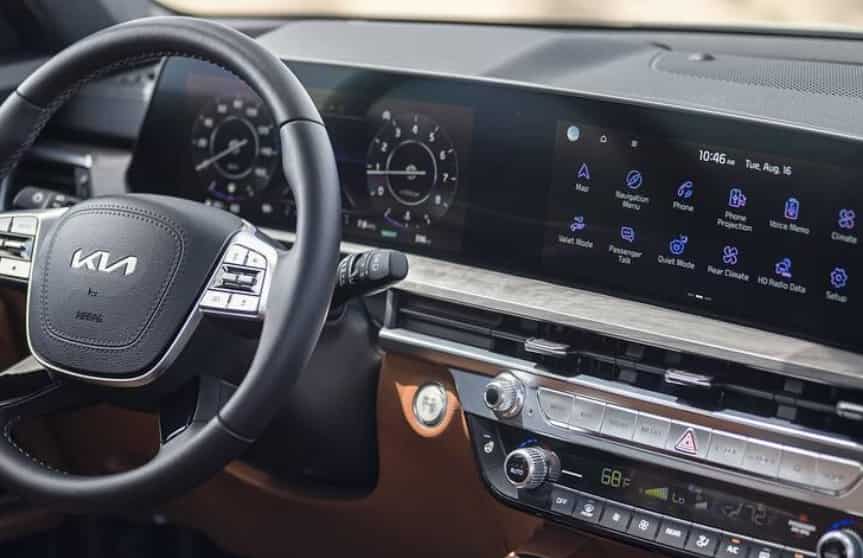
Why Is Kia Android Auto Not Working?
Many drivers ask the same question when Android Auto suddenly stops working in their Kia. The problem often appears without warning. Your phone may charge normally, but Android Auto does not launch. In other cases, the connection starts and then disconnects after a few minutes. Some drivers also notice that the Android Auto icon disappears from the infotainment screen.
Several factors can cause these connection problems. A faulty USB cable ranks among the most common reasons. Many cables only support charging and cannot transfer data. Even a high quality cable can fail after long term use. If the cable cannot deliver a stable data connection, Android Auto will not work correctly.
Software issues can also interrupt the connection. An outdated Android operating system, an old version of Android Auto, or an outdated Google Play Services app may create compatibility problems. If your Kia infotainment software has not received recent updates, the system may also struggle to communicate with newer Android devices.
Phone settings deserve equal attention. Android Auto requires several permissions before it can operate normally. If your phone blocks access to location, contacts, notifications, the microphone, or nearby devices, the connection may fail. Battery optimization can also stop Android Auto from running in the background, especially on Samsung, Xiaomi, OnePlus, and other Android devices that apply aggressive power saving features.
Wireless Android Auto introduces another layer of complexity. Bluetooth starts the pairing process, while Wi Fi maintains the connection. If either service becomes unstable, Android Auto may disconnect or fail to launch. A previous pairing record can also become corrupted over time, which prevents your phone and vehicle from communicating correctly.
The Kia infotainment system itself can also contribute to the problem. Temporary software glitches, incorrect connection settings, or incomplete firmware updates may prevent Android Auto from loading. Fortunately, most of these issues have straightforward solutions. The following fixes will help you identify the exact cause and restore a reliable Android Auto connection as quickly as possible.
15 Proven Fixes for Kia Android Auto Not Working
Restart Your Android Phone and Kia Infotainment System
A simple restart often solves connection problems faster than expected. Your phone and infotainment system store temporary data while they run. Sometimes this data creates small software conflicts that prevent Android Auto from starting correctly.
Turn off your phone completely and wait for about thirty seconds. Next, restart your Kia infotainment system if your model allows it. If not, switch off the engine, lock the vehicle, and wait for a few minutes before starting it again. Once both devices restart, reconnect your phone and check whether Android Auto launches normally.
Many drivers skip this basic step because it seems too simple. However, restarting both devices clears temporary errors and refreshes the connection process. It should always be your first troubleshooting step.
Use a High Quality USB Data Cable
A poor quality cable is one of the most common reasons why Kia Android Auto stops working. Many USB cables only support charging. They cannot transfer data between your phone and the infotainment system. As a result, your phone charges, but Android Auto never starts.
Choose a certified USB data cable in good condition. Keep the cable as short as possible because longer cables may reduce signal quality. Inspect both connectors for damage or dirt before using the cable. If you notice loose connections or worn insulation, replace the cable with a new one.
Testing another cable is often the quickest way to determine whether the original cable causes the problem. If Android Auto starts working immediately, you have already found the solution.
Connect to the Correct USB Port
Some Kia models include more than one USB port. Not every port supports Android Auto. One port may provide charging only, while another supports both charging and data transfer.
Check your owner’s manual if you are unsure which port supports Android Auto. After connecting your phone, unlock the screen and wait a few seconds for the infotainment system to detect the device. If nothing happens, disconnect the cable and try the correct port.
Dust and debris inside the USB port can also interrupt the connection. Inspect the port carefully and remove any visible dirt with appropriate cleaning tools. A clean connection improves data transfer and reduces random disconnects.
Enable Android Auto in Kia Settings
Android Auto cannot connect if the feature remains disabled in your infotainment system. Some drivers accidentally change this setting after a software update or system reset.
Open the Settings menu on your Kia infotainment screen. Navigate to the phone connection or device connection section. Confirm that Android Auto remains enabled. If your vehicle supports phone projection, make sure the feature is active before reconnecting your device.
After enabling the setting, disconnect your phone and connect it again. The infotainment system should detect the device and launch Android Auto within a few moments.
Check Android Auto Permissions on Your Phone
Android Auto depends on several permissions to operate correctly. Missing permissions can prevent the app from connecting or displaying important features.
Open the Android Auto settings on your phone and review every permission. Allow access to location, contacts, phone, microphone, notifications, and nearby devices if your Android version requests them. These permissions help Android Auto communicate with your vehicle and support voice commands, navigation, and hands free calling.
After updating the permissions, disconnect your phone from the vehicle. Restart the phone and reconnect it. If a permission caused the problem, Android Auto should now launch without additional troubleshooting.
Update Android Auto and Google Apps
Outdated apps often create compatibility problems between your phone and your Kia infotainment system. Even a small software bug can stop Android Auto from connecting or cause frequent disconnections during a drive.
Open the Google Play Store and check for updates. Install the latest versions of Android Auto, Google Maps, the Google app, and Google Play Services. These apps work together to deliver navigation, voice commands, and media playback. Running the latest versions helps improve stability and reduces unexpected errors.
After the updates finish, restart your phone and reconnect it to your vehicle. A fresh connection allows the updated apps to communicate correctly with the infotainment system.
Update Your Android Phone
Your phone software plays an important role in Android Auto performance. An outdated Android version may not support the latest features or security improvements. Compatibility issues can appear after Google releases a major Android update.
Open the Settings app and check for system updates. Download and install any available updates before testing Android Auto again. Make sure your phone has enough battery power and storage space before starting the update process.
When the installation finishes, restart the phone. Then connect it to your Kia and check whether Android Auto works normally. Many connection issues disappear after a successful system update.
Remove and Add Your Vehicle Again
Saved connection data can become outdated over time. When this happens, your phone may continue using incorrect settings every time it tries to connect.
Open the Android Auto settings on your phone and remove your Kia from the list of connected vehicles. After that, connect the phone to your vehicle again and complete the setup process from the beginning. Accept every permission request that appears during the setup.
Creating a fresh connection removes damaged settings and gives Android Auto a clean configuration. This simple step often fixes pairing problems that appear after software updates.
Delete the Bluetooth Pairing and Pair Again
Bluetooth starts the communication process even when you use wireless Android Auto. A damaged pairing record can stop the connection before Android Auto has a chance to launch.
Open the Bluetooth settings on both your phone and your Kia infotainment system. Delete the existing pairing record from each device. Turn Bluetooth off for a few seconds, then turn it on again. Pair the devices as if you were connecting them for the first time.
Once the pairing finishes, launch Android Auto and confirm that every permission remains enabled. A fresh Bluetooth connection often improves both stability and connection speed.
Clear Android Auto Cache
Temporary files help apps load faster, but damaged cache files can create unexpected problems. Android Auto may freeze, fail to launch, or stop responding if the cache contains corrupted data.
Open the Apps section in your phone settings and select Android Auto. Open the Storage menu and clear the cache. If the problem continues, clear the app storage as well. Remember that clearing storage resets app preferences, so you may need to complete the setup again.
Restart your phone after clearing the cache. Connect it to your Kia and test Android Auto once more. If corrupted app data caused the issue, the connection should now work much more reliably.
Check Wireless Android Auto Settings
Wireless Android Auto depends on both Bluetooth and Wi Fi. If either connection becomes unstable, Android Auto may fail to launch or disconnect during your trip.
Turn on Bluetooth and Wi Fi before connecting your phone. Disable any active VPN because it can interfere with wireless communication. If your phone uses a mobile hotspot, turn it off during the connection process. Also make sure your phone stays close to the infotainment system because distance can weaken the signal.
After checking these settings, reconnect your phone and wait for Android Auto to start. A stable wireless connection should improve performance and reduce random disconnects.
Disable Battery Optimization
Battery saving features can limit background activity and prevent Android Auto from running correctly. Many Android phones automatically restrict apps to extend battery life.
Open your phone settings and locate the battery management section. Find Android Auto and remove any battery restrictions. Allow the app to run in the background without interruption. You should also check Google Maps and the Google app because these services support Android Auto.
Restart your phone after changing the settings. Connect it to your Kia again and confirm that Android Auto stays connected while you drive.
Reset Network Settings
Network settings control Bluetooth and Wi Fi connections. Incorrect settings or damaged network data can interrupt communication between your phone and your vehicle.
Open your phone settings and select the option to reset network settings. This process removes saved Bluetooth devices and Wi Fi networks, so you will need to reconnect them later. Complete the reset and restart your phone.
Pair your Kia with the phone again after the restart. Test Android Auto to see whether the new network configuration resolves the connection problem.
Update the Kia Infotainment Software
The infotainment system requires regular software updates to maintain compatibility with newer Android devices. An outdated system may fail to recognize your phone or may disconnect without warning.
Check whether your Kia has the latest infotainment software. If an update is available, install it by following the official instructions for your vehicle. Do not interrupt the update because doing so may create additional software issues.
After the installation finishes, restart the infotainment system and reconnect your phone. Updated software often improves connection stability and overall system performance.
Reset the Kia Infotainment System
If every previous solution fails, resetting the infotainment system may solve the problem. This step removes custom settings and restores the original system configuration.
Open the system settings and choose the factory reset option if your Kia model provides one. Confirm the reset and allow the system to complete the process. After the reset finishes, reconnect your phone and complete the Android Auto setup again.
Use this solution only after trying every other fix in this guide. If Android Auto still does not work, the problem may involve hardware or a deeper software fault. At that point, contacting an authorized Kia service center is the best next step.
Kia Android Auto Not Working With USB
A USB connection should provide the most stable way to use Android Auto in your Kia. However, many drivers discover that their phone charges normally while Android Auto never appears on the infotainment screen. This situation often creates confusion because charging suggests that the cable works correctly. In reality, power delivery and data transfer are two different functions. A cable can supply power without supporting the data communication that Android Auto requires.
The first step is to inspect the USB cable. Many inexpensive cables only support charging, while others lose their ability to transfer data after months of daily use. Even if the cable looks undamaged, internal wear can interrupt the connection without showing any visible signs. Replacing the cable with a certified USB data cable is often the quickest and most effective solution. A shorter cable also improves signal stability because it reduces the chance of data loss during transmission.
Next, examine the USB port inside your Kia. Dust, lint, or small particles can prevent the connector from making full contact. A loose connection may allow your phone to charge but still block data transfer. Cleaning the port carefully and reconnecting the cable can restore normal operation. You should also confirm that you are using the correct USB port because some Kia models include ports designed only for charging.
Your phone settings also deserve attention. Unlock the device before connecting it to the vehicle and approve any permission requests that appear on the screen. If Android Auto still fails to launch, test another compatible Android phone. This simple comparison helps identify whether the problem comes from your phone, the USB cable, or the Kia infotainment system. Working through each possibility in a logical order saves time and makes it much easier to find the real cause of the connection problem.
Kia Android Auto Not Working Wirelessly
Wireless Android Auto offers a cleaner and more convenient driving experience because it removes the need for a USB cable. Even so, it depends on several technologies working together at the same time. Your phone uses Bluetooth to establish the initial connection, while Wi Fi handles most of the data transfer after the pairing process finishes. If either connection becomes unstable, Android Auto may fail to launch, disconnect unexpectedly, or disappear from the infotainment screen without warning.
Start by confirming that your Kia supports wireless Android Auto. Some models only work with a wired connection, while others require a specific infotainment software version before the wireless feature becomes available. If your vehicle supports wireless connectivity, make sure both Bluetooth and Wi Fi remain enabled on your phone before you begin the pairing process.
Next, remove any old pairing records from both your phone and the infotainment system. Older connection profiles sometimes become corrupted after software updates or repeated pairing attempts. Creating a fresh connection often resolves problems that continue to appear even after restarting both devices. During the setup process, approve every permission request because Android Auto needs access to several phone features before it can operate correctly.
You should also review your phone settings for features that may interrupt wireless communication. Battery Saver can limit background activity, while a VPN may interfere with network traffic. Some phones also pause wireless services to reduce power consumption. Disabling these features during testing helps eliminate unnecessary variables.
If the wireless connection still fails, connect your phone with a USB data cable. A successful wired connection confirms that Android Auto, your phone, and the infotainment system all work correctly. At that point, you can focus on troubleshooting the wireless connection instead of searching for a larger system failure. Following this step by step approach makes the process more efficient and increases the chances of restoring a reliable wireless Android Auto connection.
Kia Android Auto Keeps Disconnecting
A stable Android Auto connection should last throughout your entire journey. If the connection drops every few minutes, the problem usually points to an unstable communication link rather than a complete system failure. Many Kia owners notice that Android Auto starts normally but suddenly disconnects while using Google Maps, streaming music, or making hands free calls. Frequent interruptions not only reduce convenience but can also distract you while driving.
Begin by checking the USB cable if you use a wired connection. A worn cable may continue charging your phone while failing to maintain a steady data connection. Even slight movement inside the connector can interrupt data transfer and force Android Auto to disconnect. Replacing an old cable with a certified USB data cable often solves this issue without any additional troubleshooting.
If you rely on wireless Android Auto, Bluetooth and Wi Fi deserve close attention. Both technologies must remain stable throughout the drive. Signal interference, weak wireless coverage inside the vehicle, or outdated pairing information can all cause random disconnections. Removing the existing pairing and creating a new connection often restores reliable performance.
Your phone can also contribute to the problem. Battery optimization may stop Android Auto from running in the background after several minutes. Excessive heat is another common factor. Navigation, music streaming, and charging at the same time place extra stress on the device. As the phone temperature rises, system performance may decrease, causing Android Auto to disconnect unexpectedly.
Software compatibility is another important consideration. Keep your Android operating system, Android Auto app, Google Play Services, and Kia infotainment software fully updated. These updates often include bug fixes that improve connection stability. If the problem continues after completing every step, test another Android phone in your Kia. This comparison helps determine whether the issue originates from your phone or from the vehicle itself, making the next troubleshooting step much easier.
Kia Android Auto Not Showing on Screen
Many Kia owners successfully connect their phones, yet Android Auto never appears on the infotainment display. This problem often leads drivers to believe that the system has stopped working completely. In most cases, however, the connection exists but one or more settings prevent Android Auto from launching. Understanding where the process fails makes troubleshooting much easier and helps restore the connection without unnecessary repairs.
Start by checking whether Android Auto is enabled in your Kia infotainment settings. Some vehicles disable phone projection after a software update, a factory reset, or changes to the connection menu. If the feature remains turned off, the infotainment system cannot display the Android Auto interface even though it recognizes your phone. Enabling the feature is often enough to solve the problem within a few minutes.
Next, review the settings on your Android phone. Android Auto requires permission to access your location, contacts, phone, microphone, notifications, and nearby devices. Missing permissions can prevent the application from opening or limit important functions after the connection begins. Keep your phone unlocked during the first setup because some devices require manual approval before Android Auto can appear on the screen.
You should also verify that your phone meets the software requirements for Android Auto. An outdated Android version or an older release of Google Play Services may create compatibility issues with newer Kia infotainment systems. Installing the latest software updates improves communication between both devices and reduces unexpected errors.
If Android Auto still does not appear, remove the existing connection and create a new one from the beginning. Restart both the phone and the infotainment system before pairing them again. This process clears temporary software conflicts and replaces damaged connection data. If another compatible Android phone works correctly in the same vehicle, the issue most likely originates from your original device rather than the Kia infotainment system.
Kia Models Commonly Affected
Android Auto connection problems can appear in almost any Kia vehicle, regardless of the model year. Although the symptoms often look similar, the underlying cause may vary depending on the infotainment system, software version, and smartphone compatibility. Understanding how these issues affect different Kia models helps drivers identify the most appropriate solution before visiting a service center.
The Kia Sportage is one of the most frequently discussed models because many owners rely on Android Auto for daily navigation and entertainment. Connection problems often occur after a phone or infotainment software update. In many cases, updating both devices or creating a new connection restores normal performance.
Owners of the Kia Sorento and Kia Telluride also report occasional pairing problems. These family vehicles often connect with several smartphones over time. Old pairing records can create conflicts that prevent Android Auto from launching correctly. Removing unused devices from the infotainment system often improves connection stability.
Drivers of the Kia Seltos, Kia Forte, and Kia K5 sometimes experience issues related to USB connections. A damaged cable or the use of a charging only cable can stop Android Auto from recognizing the phone even though the battery continues charging. Replacing the cable with a certified USB data cable usually solves the problem.
Newer models such as the Kia EV6 and Kia Carnival often support wireless Android Auto. While this feature offers greater convenience, it also depends on stable Bluetooth and Wi Fi communication. Software updates, battery optimization, or corrupted wireless pairing data can interrupt the connection. Fortunately, these issues usually respond well to software updates and a fresh pairing process.
Regardless of which Kia model you drive, the troubleshooting steps remain largely the same. Begin with the simplest checks, confirm that both devices use the latest software, and test the connection method before assuming that the infotainment system has developed a hardware fault. This systematic approach saves time and resolves most Android Auto issues without expensive repairs.
When Should You Contact Kia Service?
Most Android Auto problems have simple solutions that you can complete at home. A new USB data cable, updated software, or a fresh connection often restores normal performance within a few minutes. However, some situations require professional diagnosis because the issue may involve the infotainment system or another hardware component inside the vehicle. Knowing when to stop troubleshooting can save time and prevent unnecessary frustration.
You should contact an authorized Kia service center if Android Auto still does not work after completing every step in this guide. Test your phone with another compatible Kia if possible. You should also connect a different Android phone to your own vehicle. These simple tests help determine whether the problem comes from the phone or the vehicle. If multiple phones fail to connect, the infotainment system may require professional inspection.
Pay close attention to the behavior of the USB port. A loose connector, physical damage, or an unstable connection can interrupt data transfer even when the phone continues charging. If the port feels worn or fails to recognize different devices, a technician should inspect the hardware. Continuing to force the connection may create additional damage over time.
Repeated system crashes also indicate that professional support may be necessary. If the infotainment screen freezes, restarts unexpectedly, or becomes unresponsive while using Android Auto, the system may need a software repair or firmware update. These procedures often require specialized equipment that is only available through an authorized service center.
Do not ignore problems that appear immediately after an infotainment software update. Occasionally, an installation may not complete correctly or a compatibility issue may affect certain devices. A Kia technician can verify the software version, reinstall the update if necessary, and confirm that the infotainment system operates as expected. Seeking professional assistance at the right time helps protect your vehicle, reduces unnecessary troubleshooting, and restores a reliable Android Auto experience more quickly.
Frequently Asked Questions
Why is my Kia Android Auto not connecting?
Several factors can prevent Android Auto from connecting to your Kia. The most common causes include a damaged USB data cable, outdated Android software, missing app permissions, Bluetooth or Wi Fi connection issues, and outdated infotainment software. Start by restarting both your phone and the infotainment system. Then check your USB cable, update Android Auto, and confirm that all required permissions are enabled. If the problem continues, remove the existing connection and pair your phone again. Testing another Android phone can also help determine whether the issue comes from your device or the vehicle.
Why does Android Auto keep disconnecting in my Kia?
Frequent disconnections usually indicate an unstable connection rather than a complete system failure. A loose USB cable, weak wireless signal, battery optimization, overheating, or outdated software can interrupt communication between your phone and the infotainment system. Replace old cables, keep your phone updated, disable battery restrictions for Android Auto, and remove old Bluetooth pairing records. These steps solve most random disconnecting issues without requiring professional repairs.
Does my Kia support wireless Android Auto?
Wireless Android Auto is available on many newer Kia models, but availability depends on the model year, trim level, and infotainment system. Some vehicles support only a wired connection, while others require the latest infotainment software before wireless features become available. Check your owner’s manual or infotainment settings to confirm whether your vehicle supports wireless Android Auto.
Why does my phone charge but Android Auto does not start?
Charging and data transfer are separate functions. A USB cable may deliver power while failing to transfer data. This problem often occurs with charging only cables or cables that have internal damage. Replace the cable with a certified USB data cable and connect it to the correct USB port in your Kia. Also unlock your phone and approve any permission requests that appear during the connection process.
How do I reset Android Auto in my Kia?
Begin by deleting your vehicle from the Android Auto settings on your phone. Next, remove your phone from the Bluetooth device list in the Kia infotainment system. Restart both devices and create a new connection from the beginning. If the issue continues, clear the Android Auto cache, update all related software, and perform an infotainment reset only after trying the other troubleshooting steps.
Do I need to update my Kia infotainment system?
Yes. Software updates improve compatibility, fix known bugs, and enhance overall system stability. If Android Auto stopped working after updating your phone, your infotainment system may also require a newer software version. Keeping both your phone and your Kia infotainment system updated reduces compatibility issues and improves long term performance.
Conclusion
Experiencing Kia Android Auto Not Working can be frustrating, especially when you depend on navigation, music, and hands free communication during every drive. Fortunately, most connection problems have straightforward solutions. A faulty USB data cable, outdated software, incorrect phone settings, missing permissions, or unstable Bluetooth and Wi Fi connections are responsible for the majority of Android Auto issues. By checking each possible cause one step at a time, you can usually restore a reliable connection without replacing expensive parts or scheduling an immediate service appointment.
This guide covered the most effective troubleshooting methods, from simple restarts and cable inspections to software updates and infotainment resets. It also explained how to solve USB connection problems, wireless pairing failures, repeated disconnections, and situations where Android Auto does not appear on the screen. Following these steps in the recommended order helps eliminate unnecessary guesswork and makes the troubleshooting process faster and more efficient.
If Android Auto still does not work after completing every solution, test another compatible Android phone before assuming that the vehicle has a hardware fault. This quick comparison can help identify whether the issue originates from the phone or the infotainment system. If multiple devices produce the same result, contacting an authorized Kia service center is the most practical next step.
Keeping your Android phone, Android Auto app, Google services, and Kia infotainment software up to date is the best way to prevent future connection problems. Regular maintenance and timely software updates improve compatibility, increase system stability, and help you enjoy a safer and more reliable driving experience every time you get behind the wheel.