Apple CarPlay plays an important role in modern driving. Many drivers using Hyundai rely on it every day. It connects the iPhone to the car system through Apple CarPlay. Drivers use it for navigation, calls, messages, and music in a safer way.
Many users face a common issue: Hyundai CarPlay stops working. The system may fail to detect the iPhone. It may disconnect during use. Sometimes, it does not start at all. These problems often appear without warning. They can happen after an iOS update, a cable change, or a system glitch.
This guide helps you fix Hyundai CarPlay not working in a clear way. You will not need random guesses. You will follow a structured troubleshooting process. Each section explains a specific cause such as connection errors, USB problems, wireless pairing issues, and software conflicts.
By the end of this guide, you will know how to find the real cause. You will also know how to fix it step by step. Most problems do not require a repair shop. You can solve them at home with the right approach. The goal is to restore stable CarPlay performance and improve your driving experience.
Understanding How Hyundai CarPlay System Works
To fix Hyundai CarPlay issues, you first need to understand how the system works. Many problems appear because one part of the connection chain fails. In vehicles from Hyundai, the infotainment system acts as the central hub that communicates with your iPhone.
Apple CarPlay works as a bridge between your iPhone and the car display. It mirrors selected apps from your phone to the dashboard screen. It also sends voice commands through Siri and manages audio routing for calls and media.
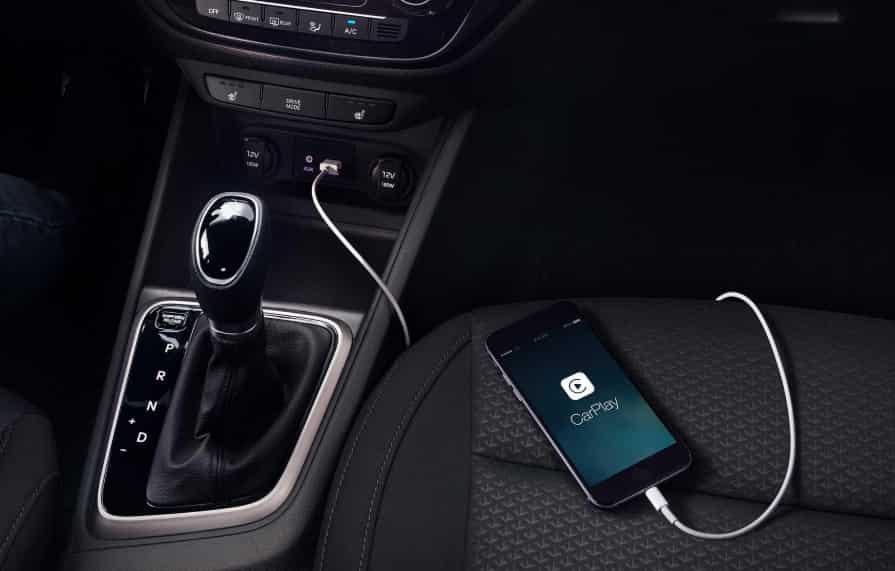
The connection usually works in two ways. The first is a wired connection through a USB cable. The second is a wireless connection using Bluetooth and WiFi together. Both methods depend on stable communication between the phone and the car system.
In a wired setup, the USB cable carries both data and power. The car must detect the iPhone instantly when plugged in. If the cable is damaged or not certified, the system may fail to recognize the device.
In a wireless setup, the process is more complex. Bluetooth handles the initial pairing. WiFi then maintains the data connection. If either system has interference, CarPlay may fail to start or disconnect frequently.
The infotainment system also plays a key role. It runs software that must stay compatible with the iOS version on your iPhone. When Hyundai firmware becomes outdated, CarPlay may stop responding correctly. The same issue can happen after a major iOS update.
Every part of this system depends on the others. The iPhone, the cable or wireless signal, and the Hyundai infotainment unit must all work together. If one part fails, CarPlay will not function properly.
Common Causes of Hyundai CarPlay Not Working
Hyundai CarPlay issues often come from simple but overlooked problems. Most cases do not involve serious hardware damage. Instead, small connection or software errors disrupt the system in vehicles from Hyundai.
One of the most common causes is a faulty or low quality USB cable. Many cables can charge an iPhone but cannot transfer data correctly. When this happens, Apple CarPlay fails to start because the system cannot establish a stable data link.
Another frequent issue comes from iPhone settings. If CarPlay permissions are disabled or restricted, the car will not detect the device. A missing “Trust This Device” confirmation can also block the connection.
Software incompatibility is another major factor. When users update iOS, CarPlay may stop working if the Hyundai firmware is outdated. The reverse can also happen after a vehicle system update.
Wireless CarPlay issues often come from Bluetooth or WiFi conflicts. If the phone connects to multiple devices at the same time, the system may fail to pair correctly. Interference from other wireless signals can also break the connection.
In some cases, the problem comes from the car itself. A clogged or damaged USB port can prevent proper communication. Temporary glitches in the infotainment system may also stop CarPlay from launching.
These causes may look different, but they often lead to the same result. The system cannot build a stable connection between the iPhone and the car. Once you identify the root cause, the fix becomes much easier.
How to Fix Hyundai CarPlay Not Working via USB
When Hyundai CarPlay stops working through USB, the issue usually comes from the connection path between your iPhone and the car system. In vehicles from Hyundai, the USB connection plays a critical role because it carries both data and power for Apple CarPlay.
The first step is to check your USB cable. Use an original Apple cable or an MFi certified cable. Many third party cables only support charging and cannot transmit data properly. If the cable is weak or damaged, CarPlay will not launch at all.
Next, try a different USB port in your Hyundai vehicle. Some models have multiple ports, but only one supports data transfer. If you plug into a charging only port, the system will not detect your iPhone.
You should also restart both your iPhone and the infotainment system. A simple reboot can clear temporary glitches that block CarPlay from starting. After restarting, reconnect the cable and wait a few seconds for the system to recognize the device.
On your iPhone, check the CarPlay settings. Make sure CarPlay is allowed when the phone is locked. If needed, go to the CarPlay menu and remove the vehicle, then pair it again from scratch.
Software updates also matter. If your Hyundai system is outdated, it may not communicate properly with the latest iOS version. Check for available firmware updates in your infotainment settings and install them if needed.
Finally, test with another iPhone if possible. This helps you confirm whether the issue comes from the phone or the car system. If another device works, the problem is likely related to your iPhone settings or software.
Fixing Wireless Apple CarPlay Issues in Hyundai
Wireless CarPlay problems can be more complex than USB issues because they rely on multiple connection layers. In vehicles from Hyundai, wireless connectivity depends on both Bluetooth and WiFi working together to support Apple CarPlay.
The first step is to reset the wireless connection on your iPhone. Turn off Bluetooth and WiFi for a few seconds, then turn them back on. This helps clear temporary pairing errors that often block CarPlay from starting.
Next, remove the existing CarPlay connection. Go to your iPhone settings, find the CarPlay section, and delete the Hyundai vehicle from the list. After that, restart your phone and pair the device again from scratch.
You should also reset network settings on your iPhone if the issue continues. This action clears stored Bluetooth and WiFi configurations that may interfere with CarPlay. After resetting, you will need to reconnect to WiFi networks and pair Bluetooth devices again.
In some cases, the problem comes from the vehicle system. Restart the Hyundai infotainment unit to clear internal glitches. A fresh reboot often restores stable communication between the car and the phone.
Interference from other devices can also cause failure. If your phone is connected to multiple Bluetooth accessories, disconnect them before pairing CarPlay. This helps the system focus on a single stable connection.
Finally, confirm that your Hyundai model supports wireless CarPlay. Some models only support wired connections, and wireless pairing will not work even if settings appear correct.
Advanced Troubleshooting System Level Fixes
When basic fixes do not solve the issue, the problem often sits deeper in the system. At this stage, you need to focus on both the phone and the vehicle system in Hyundai.
A factory reset of the infotainment system can help restore normal function. This action removes corrupted settings and clears hidden software errors. After the reset, you must set up the system again and reconnect Apple CarPlay from scratch.
You should also check your iPhone iOS version. If your system runs an outdated version, update it to the latest stable release. Many CarPlay issues appear after major updates, so staying current improves compatibility and stability.
If the issue continues, you need to check compatibility between your Hyundai model year and CarPlay version. Some older infotainment systems may not fully support newer iOS features. In these cases, partial connection or random disconnections may occur.
Hardware problems can also cause failure. Inspect the USB port for dust, wear, or internal damage. A weak connection inside the port can break data transfer even if charging still works. If possible, test another port or professional inspection.
You should also test with another iPhone. This helps confirm whether the issue comes from the car system or the device itself. If multiple phones fail, the issue is likely inside the infotainment system.
If none of these steps work, the final solution is to contact a Hyundai service center. At this point, the problem may involve internal hardware or system firmware that requires professional repair tools.
Preventing Apple CarPlay Issues in Hyundai
Preventing CarPlay issues is easier than fixing them after they appear. Most problems in vehicles from Hyundai come from unstable connections, outdated software, or poor maintenance habits. If you manage these factors well, Apple CarPlay will stay stable and responsive over time.
One of the most important habits is using a high quality certified cable for wired connections. Low quality cables often degrade over time and cause unstable data transfer. Even if they work at first, they may fail randomly during use.
You should also keep both your iPhone and Hyundai infotainment system updated. Software updates improve compatibility and fix known bugs. Many CarPlay issues appear after one side updates while the other remains outdated, so staying synchronized reduces risk.
Avoid connecting too many Bluetooth devices at the same time. When multiple devices stay active, the system may struggle to prioritize the correct connection. This can lead to pairing failures or random disconnections.
It is also useful to restart your infotainment system occasionally. Like any digital system, it stores temporary data that can accumulate and slow down performance. A simple reboot helps clear minor glitches before they become real problems.
Keeping the USB port clean is another small but important step. Dust or debris can weaken the physical connection and cause intermittent signal loss. Regular cleaning helps maintain stable data transfer.
Finally, if you frequently change cables or phones, always recheck your CarPlay settings. This ensures the system does not store outdated pairing information that could interfere with future connections.
Conclusion
Hyundai CarPlay issues can feel frustrating, especially when the system stops working without warning. In most cases, the problem is not serious. It usually comes from simple causes such as cable issues, software mismatches, or temporary system glitches in vehicles from Hyundai.
The key to solving these problems is a structured approach. When you understand how Apple CarPlay works with your iPhone and the car system, you can quickly identify where the failure happens. It may come from the USB connection, wireless pairing, iOS compatibility, or the infotainment system itself.
Most users can fix the issue at home without professional help. Simple actions like changing the cable, resetting CarPlay settings, or updating software often restore normal function. More advanced steps like factory resets or system updates help when basic solutions are not enough.
To avoid future issues, you should maintain good usage habits. Keep your devices updated, use certified accessories, and ensure stable connections. These small actions significantly reduce the chance of CarPlay failures.
With the right troubleshooting process, Hyundai CarPlay can run smoothly and reliably again. The goal is not just to fix the problem once, but to keep the system stable for long-term use.