Modern Toyota vehicles are equipped with advanced touchscreen infotainment systems that control everything from navigation and Bluetooth connectivity to music streaming and smartphone integration. While these systems are designed for convenience and reliability, they can occasionally experience issues such as freezing, lagging, black screens, or unresponsive touch controls.
If you’ve ever started your Toyota only to find that the touch screen refuses to respond, you’re not alone. Many drivers encounter temporary software glitches that can disrupt the normal operation of the multimedia system. The good news is that most of these problems can be resolved quickly without visiting a dealership or paying for expensive repairs.
Knowing how to reset a Toyota touch screen is a valuable troubleshooting skill that can save you time, frustration, and unnecessary service costs. Whether you’re dealing with a frozen display, Bluetooth connection issues, navigation errors, or a system that keeps rebooting unexpectedly, a simple reset is often the fastest solution.
In this step by step guide, you’ll learn the most effective methods for resetting your Toyota touch screen, including soft resets, factory resets, and alternative troubleshooting techniques. By following these instructions, you can restore your infotainment system and get back to enjoying a smooth and connected driving experience.
Common Reasons Your Toyota Touch Screen Needs a Reset
Before attempting any reset procedure, it is important to understand why your Toyota touch screen may have stopped working properly. Identifying the root cause can help you choose the most effective solution and prevent the problem from recurring in the future.
One of the most common causes is a temporary software glitch. Like smartphones and computers, Toyota infotainment systems rely on software to manage multiple functions simultaneously. Over time, background processes, cached data, or unexpected system errors can cause the interface to freeze or become unresponsive.
Bluetooth connectivity problems are another frequent issue. When paired devices fail to connect correctly or repeatedly attempt to reconnect, the multimedia system may slow down or stop responding altogether. This can affect phone calls, music streaming, and smartphone integration features such as Apple CarPlay or Android Auto.
Some drivers also experience frozen screens while using navigation, media applications, or vehicle settings. In many cases, the display remains powered on but fails to respond to touch inputs. This issue is often caused by software conflicts or overloaded system memory.
A black or blank screen can also indicate a malfunction. While the system may continue running in the background, the display itself may fail to load correctly due to a software error, interrupted startup sequence, or outdated firmware.
Software updates can occasionally contribute to touchscreen problems as well. If an update is interrupted or installed incorrectly, system files may become corrupted, leading to performance issues that require a reset.
Before You Reset Your Toyota Touch Screen
Taking a few precautionary steps before resetting your Toyota touch screen can help protect your settings and ensure a smoother recovery process.
First, verify that your vehicle’s battery is functioning properly. Low battery voltage can cause infotainment systems to behave unpredictably. Symptoms may include slow startup times, random restarts, or intermittent screen failures. If your battery is weak or nearing the end of its lifespan, addressing that issue first may resolve the problem without requiring a reset.
Next, consider saving important settings and information. Depending on the reset method you choose, some personal data may be removed. This can include paired Bluetooth devices, navigation history, favorite destinations, radio presets, and customized system preferences.
It is also important to determine which type of reset is appropriate for your situation. A soft reset is generally recommended for minor issues such as freezing, lagging, or temporary software glitches. A factory reset should be reserved for more serious problems that persist after basic troubleshooting. In rare cases, disconnecting the vehicle battery may be necessary to clear deeper system errors.
Understanding the available reset options will help you avoid unnecessary data loss while maximizing the chances of restoring your Toyota touch screen to normal operation.
Method 1: Perform a Soft Reset on Your Toyota Touch Screen
A soft reset is the quickest and safest way to resolve most touchscreen issues. This method restarts the infotainment system without deleting your saved settings, making it the preferred first step for troubleshooting.
Begin by turning on your vehicle or switching the ignition to accessory mode. Make sure the multimedia system is powered on and displaying the main interface.
Locate the Power or Volume knob on your infotainment system. In most Toyota models, this button is positioned on the left side of the display.
Press and hold the Power button continuously for approximately ten to fifteen seconds. During this time, the screen may go black as the system shuts down.
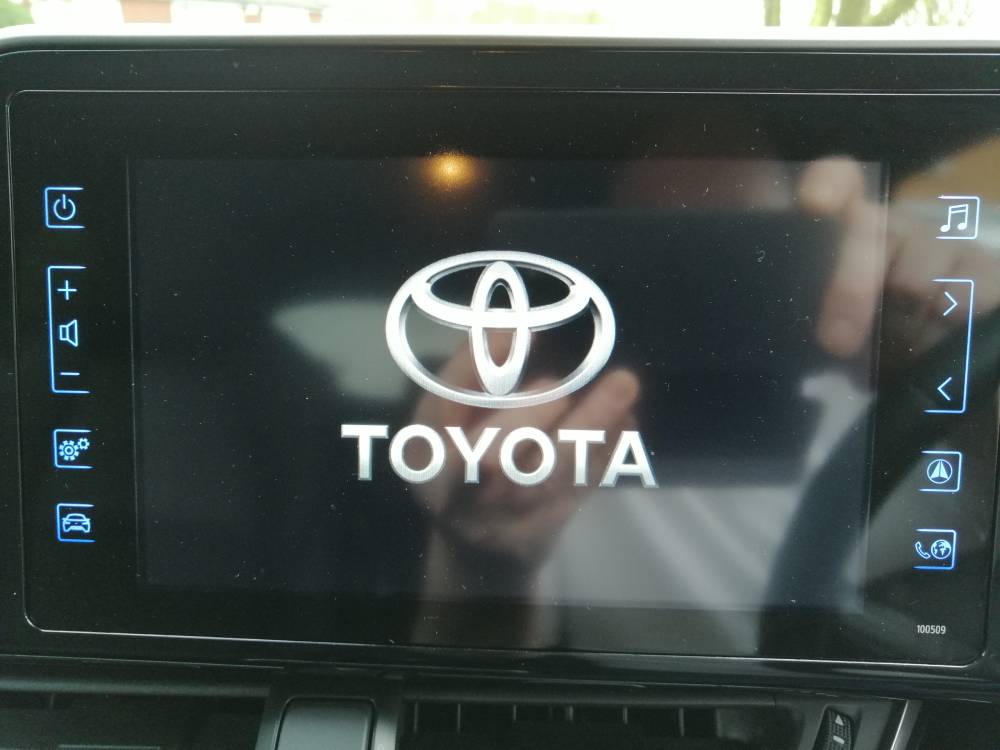
Continue holding the button until the Toyota logo or system startup screen appears. This indicates that the multimedia system is rebooting successfully.
Once the system finishes loading, test the touch screen to confirm that it is responding normally. Check navigation functions, Bluetooth connectivity, audio controls, and menu responsiveness.
A soft reset is highly effective for resolving frozen screens, delayed touch responses, minor software glitches, and temporary connectivity issues. Because it does not erase personal data, it should always be your first troubleshooting step before attempting more advanced reset procedures.
Method 2: Reset Through the Toyota Settings Menu
If a soft reset does not resolve the issue, the next step is to perform a system reset through the Toyota infotainment settings menu. This method can help eliminate minor software bugs, connectivity issues, and configuration conflicts while preserving most of your system functionality.
Start by turning on your vehicle and allowing the multimedia system to fully load. From the home screen, tap the Settings icon. Depending on your Toyota model and software version, the menu layout may vary slightly, but the overall process remains similar.
Navigate to the General or System Settings section. Scroll through the available options until you locate the Reset menu. Some systems may label this feature as “System Reset,” “Reset Settings,” or “Restore Defaults.”
Select the reset option and carefully review any on screen prompts. The system may notify you that certain personalized settings will be restored to their default configuration. Confirm your selection to begin the reset process.
The infotainment system may take several minutes to complete the procedure. During this time, avoid turning off the vehicle or interacting with the screen. Once the reset is finished, the system will restart automatically.
After the reboot is complete, test all key functions, including Bluetooth connectivity, navigation, media playback, and touchscreen responsiveness. Many users find that this method successfully resolves recurring software issues that a simple reboot cannot fix.
Method 3: Factory Reset the Toyota Infotainment System
A factory reset is a more advanced troubleshooting option that restores the infotainment system to its original factory settings. This method should only be used when other reset procedures have failed or when persistent software problems continue to affect system performance.
Before proceeding, remember that a factory reset may erase saved Bluetooth devices, radio presets, navigation history, user profiles, and other personalized settings. If possible, make note of any important configurations you wish to restore later.
To begin, access the Settings menu from the infotainment home screen. Navigate to the General, System, or Device Settings section. Look for an option labeled Factory Reset, Factory Data Reset, or Restore Factory Settings.
Select the factory reset option and carefully read the warning message displayed on the screen. The system will typically ask you to confirm your decision before proceeding.
Once confirmed, the infotainment system will begin deleting stored data and restoring its default configuration. Depending on the model and software version, this process may take several minutes.
When the reset is complete, the system will restart and display the initial setup screen. At this point, you can reconnect your smartphone, configure Bluetooth settings, restore radio presets, and personalize the system according to your preferences.
A factory reset can be particularly effective for resolving recurring crashes, severe touchscreen lag, software corruption, and unexplained multimedia system behavior.
Method 4: Reset the System by Disconnecting the Battery
If your Toyota touch screen remains unresponsive after performing both a soft reset and a factory reset, disconnecting the vehicle battery may help clear deeper electronic faults. This method forces various vehicle control modules to power down completely and restart from a clean state.
Before beginning, ensure that the vehicle is parked safely with the engine turned off. Remove the key from the ignition and allow all electronic systems to shut down fully.
Open the hood and locate the vehicle battery. Using the appropriate tool, disconnect the negative battery terminal. The negative terminal is typically marked with a minus symbol and is often connected to a black cable.
After disconnecting the terminal, wait approximately five to fifteen minutes. This allows residual electrical charge stored within various vehicle systems to dissipate completely.
Once sufficient time has passed, reconnect the negative battery terminal securely and ensure that all connections are tight. Start the vehicle and allow the infotainment system to initialize normally.
Check the touchscreen, audio controls, Bluetooth functions, and navigation system to determine whether the issue has been resolved. In many cases, this procedure can clear stubborn software faults that survive traditional reset methods.
Although battery disconnection can be effective, it may also reset certain vehicle settings such as clock preferences, fuel economy data, window calibration settings, or driver memory functions. For this reason, it should be considered a last resort before seeking professional diagnosis.
Toyota Models Covered by These Reset Methods
The reset procedures described in this guide apply to a wide range of Toyota vehicles equipped with touchscreen infotainment systems. While menu names and interface designs may vary depending on the model year and multimedia generation, the core reset methods remain largely the same.
Owners of the Toyota Camry can typically perform soft resets and factory resets through the multimedia settings menu. These procedures are often effective for resolving navigation errors, Bluetooth connectivity issues, and touchscreen freezes.
Toyota Corolla drivers may encounter occasional software glitches that affect smartphone integration or media playback. In most cases, a simple system reboot or settings reset is sufficient to restore normal operation.
The Toyota RAV4 features one of Toyota’s most widely used infotainment platforms. Whether you own an older model equipped with Entune or a newer multimedia system, the reset methods outlined in this guide can help address common performance issues.
Toyota Highlander owners may experience touchscreen lag or delayed responses due to extensive use of navigation, entertainment, and connectivity features. Resetting the system can often improve responsiveness and stability.
Truck owners driving the Toyota Tacoma or Toyota Tundra can also benefit from these procedures. Multimedia systems in these vehicles are susceptible to the same software related issues found in passenger vehicles, including frozen screens, failed Bluetooth connections, and unexpected reboots.
Because Toyota continuously updates its infotainment technology, some menu labels and reset options may differ slightly. Always refer to your owner’s manual if you are unable to locate a specific setting on your vehicle.
What to Do If the Toyota Touch Screen Still Does Not Work
If none of the reset methods successfully restore your Toyota touch screen, the issue may extend beyond a simple software glitch. In such cases, additional troubleshooting steps are necessary to identify the underlying cause.
One of the first things to check is whether your infotainment system is running the latest software version. Manufacturers regularly release updates that address bugs, improve performance, and fix known compatibility issues. Installing the latest software may resolve persistent touchscreen problems.
You should also inspect the display for signs of physical damage. Cracks, moisture intrusion, excessive heat exposure, or internal component failures can affect touchscreen performance. Even if damage is not immediately visible, hardware faults may still exist within the display assembly.
Another important area to examine is the vehicle’s fuse box. A damaged or blown fuse can interrupt power delivery to the infotainment system, causing the screen to remain black or function intermittently. Consult your owner’s manual to locate the correct fuse and inspect it carefully.
If the problem persists despite software updates and basic inspections, professional diagnosis is recommended. A certified Toyota technician can use specialized diagnostic equipment to identify hardware failures, communication errors, or module malfunctions that are not visible to the average vehicle owner.
Seeking expert assistance early can prevent further complications and ensure that any necessary repairs are completed correctly.
Frequently Asked Questions
Does resetting a Toyota touch screen delete my data?
A soft reset typically does not erase personal data, Bluetooth pairings, radio presets, or navigation settings. However, a factory reset restores the infotainment system to its original configuration and may remove saved information. Always review the reset type before proceeding.
How long does a Toyota touch screen reset take?
Most soft resets take less than one minute to complete. Factory resets generally require several minutes, depending on the multimedia system and the amount of stored data.
Why does my Toyota touch screen keep freezing?
Repeated freezing can result from software bugs, outdated firmware, overloaded system memory, connectivity conflicts, or hardware issues. Performing a reset may solve the problem temporarily, but recurring issues should be investigated further.
Can I reset the screen without disconnecting the battery?
Yes. In fact, battery disconnection should be considered only after attempting a soft reset and a factory reset. Most touchscreen problems can be resolved without disconnecting the battery.
Is a factory reset safe?
Yes, a factory reset is generally safe when performed according to Toyota’s instructions. However, it will restore default settings and may erase stored user preferences. Be sure to save important information whenever possible.
Will resetting fix Bluetooth connection problems?
In many cases, yes. A reset can clear temporary communication errors that prevent smartphones and other devices from connecting properly. If problems continue, deleting and re pairing the device may also help.
When should I visit a Toyota dealership?
You should consider professional service if the screen remains black, fails to power on, becomes unresponsive after multiple resets, or shows signs of hardware failure. Diagnostic testing can determine whether repairs or component replacement are necessary.
Conclusion
A malfunctioning touchscreen can quickly turn an enjoyable driving experience into a frustrating one. Fortunately, most Toyota infotainment system issues can be resolved without expensive repairs or a trip to the dealership. Whether your screen is frozen, unresponsive, displaying a black screen, or experiencing connectivity problems, knowing how to reset your Toyota touch screen can save both time and money.
In many situations, a simple soft reset is enough to restore normal operation and eliminate temporary software glitches. If the problem persists, resetting the system through the settings menu or performing a factory reset can often resolve deeper software conflicts. For more stubborn issues, disconnecting the vehicle battery may help clear system errors that traditional reset methods cannot fix.
Regular software updates, proper device management, and routine system maintenance can also reduce the likelihood of future touchscreen problems. By taking a proactive approach, you can keep your Toyota multimedia system running smoothly and enjoy uninterrupted access to navigation, entertainment, and connectivity features.
If you have followed every step in this guide and your Toyota touch screen still does not function correctly, the issue may be hardware related. In that case, consulting a qualified Toyota technician is the best way to identify the root cause and ensure a reliable repair.
With the right troubleshooting approach, most touchscreen issues can be resolved quickly, allowing you to get back on the road with confidence.