Yes, you can make your Tesla stay unlocked at home by enabling the Exclude Home option within the Walk-Away Door Lock settings. When this feature is configured correctly, your Tesla will continue to lock automatically in other locations while remaining unlocked whenever it detects that it is parked at your saved Home location. This setup is especially useful for owners who keep their vehicle inside a private garage or a secured driveway and want quicker access without repeatedly unlocking the doors.
Tesla relies on a combination of Walk-Away Door Lock, Home Location, GPS, and your Phone Key to determine whether the vehicle should lock automatically. If any of these settings are incorrect, your Tesla may continue locking at home or fail to lock elsewhere. Understanding how these features work together is essential before making changes to your vehicle’s security settings.
This guide explains how to stop your Tesla from locking at home, how the Exclude Home feature works, and what to check if the setting does not behave as expected. You’ll also learn when leaving your Tesla unlocked is appropriate, the security considerations to keep in mind, and the most common troubleshooting steps to restore normal automatic locking behavior if problems occur.
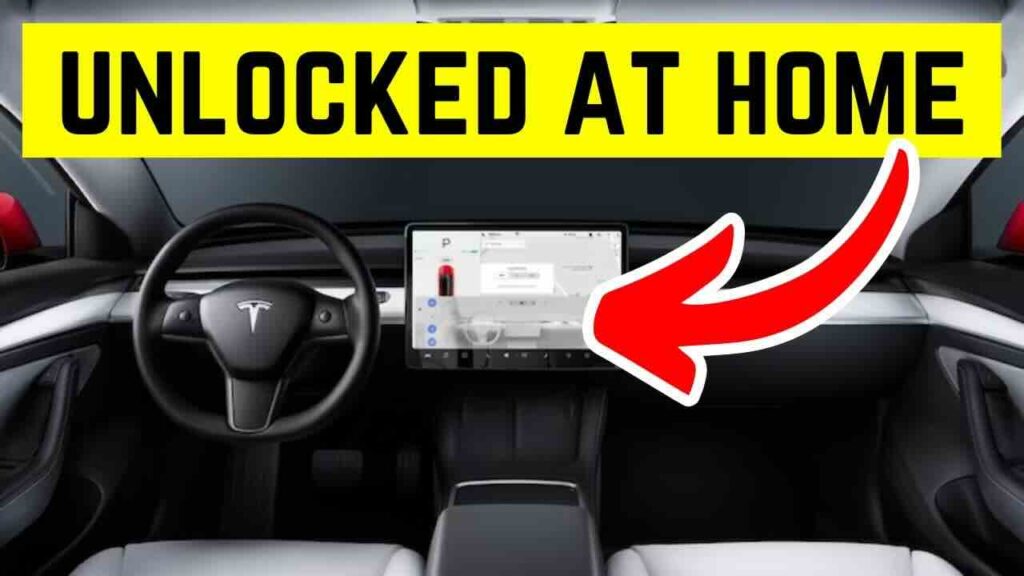
Can You Make a Tesla Not Lock at Home?
Yes, Tesla allows you to prevent your vehicle from locking automatically when it is parked at your Home location. This is done through the Walk-Away Door Lock feature by enabling the Exclude Home option. Once configured, the vehicle remains unlocked only when it detects that it is at the saved Home location, while automatic locking continues to work everywhere else.
This feature is designed for owners who park in secure environments, such as a private garage or a gated driveway. Keeping the vehicle unlocked at home eliminates the need to unlock the doors repeatedly when loading groceries, moving items between the house and the car, or making several short trips. At the same time, Tesla preserves the convenience and security of automatic locking whenever the vehicle is away from home.
Most modern Tesla models that support Walk-Away Door Lock, including the Model 3, Model Y, Model S, and Model X, also support the Exclude Home setting. However, the exact menu layout may vary slightly depending on your vehicle’s software version.
How Do You Stop Your Tesla From Locking at Home?
To stop your Tesla from locking at home, enable Walk-Away Door Lock and turn on the Exclude Home option in the Locks settings. The setup only takes a few minutes if your Home location has already been saved correctly.
Follow these steps:
- Park your Tesla at your Home location.
- On the touchscreen, open Controls.
- Select Locks.
- Turn on Walk-Away Door Lock if it is disabled.
- Enable Exclude Home.
- Exit the vehicle with your Phone Key and verify that the doors remain unlocked.
If the Exclude Home option does not appear, confirm that your Home address has been saved in the navigation system. Tesla uses the vehicle’s GPS location to determine when it is parked at Home. An inaccurate Home location can prevent the feature from working correctly.
After completing the setup, test the feature by driving away from home and parking at another location. Your Tesla should lock automatically when you walk away outside the Home geofence, while remaining unlocked only when parked at your saved Home address. This quick test confirms that both Walk-Away Door Lock and Exclude Home are functioning as intended.
Why Is Your Tesla Still Locking at Home?
A Tesla usually continues locking at home because it cannot recognize the Home location or one of the required settings is not configured correctly. In most cases, the issue is related to an inaccurate Home address, the Exclude Home option being disabled, or the vehicle failing to detect your Phone Key.
Home location is incorrect
Tesla uses the saved Home location as the reference point for the Exclude Home feature. If your Home address is inaccurate or was saved while the vehicle was parked in a different location, the system may determine that the car is outside the Home geofence and activate Walk-Away Door Lock.
Open the navigation system and verify that your Home address is correct. If necessary, update the location and park the vehicle where you normally leave it before testing the feature again.
Exclude Home is disabled
Walk-Away Door Lock and Exclude Home work together. Turning on Walk-Away Door Lock alone does not prevent the vehicle from locking at home. The Exclude Home option must also be enabled in the Locks menu.
After changing the setting, exit the vehicle with your Phone Key and wait a few seconds to confirm that the doors remain unlocked. If the car still locks, review the remaining settings before assuming there is a software issue.
Phone Key or Bluetooth connection is unstable
The Phone Key is a key part of Tesla’s automatic locking system. If Bluetooth disconnects unexpectedly or the Tesla app loses permission to run in the background, the vehicle may incorrectly determine that the key has left the area and lock the doors.
Check that Bluetooth is enabled, the Tesla app has permission to use Bluetooth and location services, and your phone is connected as the active Phone Key. Restarting Bluetooth or reconnecting the Phone Key often resolves intermittent detection issues.
Driver profile or software problems
Driver-specific settings and software behavior can also affect automatic locking. If multiple drivers use the vehicle, confirm that the active driver profile has the expected lock preferences. After a software update, it is also worth reviewing the Locks menu to ensure your previous settings were not changed.
If everything appears correct but the problem persists, restart the vehicle, install any available software updates, and test the feature again. If your Tesla continues to ignore the Home setting after these steps, contacting Tesla Service is the next recommended option.
When Should You Leave Your Tesla Unlocked at Home?
Leaving your Tesla unlocked at home is only recommended when the vehicle is parked in a secure, controlled environment. The Exclude Home feature is intended to improve convenience without sacrificing security in locations that you trust.
A private garage is the ideal place to use this setting. Since the vehicle is protected by the garage itself, automatically locking the doors provides little additional benefit. Keeping the car unlocked allows you to load groceries, retrieve charging cables, or move items in and out of the vehicle without repeatedly unlocking it.
A gated driveway can also be an appropriate location if access to the property is restricted. However, if visitors, contractors, or delivery personnel regularly enter the property, locking the vehicle may still be the safer choice.
If your Tesla is parked in a shared underground garage, apartment parking structure, or any area where other people have access, leaving the vehicle unlocked is generally not recommended. Although Tesla offers security features such as Sentry Mode, an unlocked vehicle still provides easier access to the cabin and any valuables left inside.
As a general rule, enable Exclude Home only when your Home location is genuinely private. If your parking situation changes—for example, during travel, renovations, or moving to a new residence—review your lock settings to ensure they still match your security needs.
Which Tesla Settings Affect Automatic Locking?
Several vehicle settings work together to determine whether your Tesla locks automatically. Understanding these settings makes it easier to diagnose unexpected behavior and avoid conflicts between convenience and security features.
Walk-Away Door Lock
This is the primary feature that locks the vehicle automatically after you exit with your authenticated key. If this setting is disabled, Tesla will not perform automatic locking regardless of your Home configuration.
Exclude Home
Exclude Home overrides Walk-Away Door Lock only at your saved Home location. When enabled, the vehicle remains unlocked at Home while continuing to lock automatically everywhere else.
Phone Key
Tesla verifies the presence of an authorized Phone Key before deciding whether to lock or unlock the vehicle. If the phone loses Bluetooth connectivity, enters battery-saving mode, or the Tesla app cannot run in the background, automatic locking may not behave as expected.
Driver Profile
Some lock preferences are associated with the active driver profile. If multiple people use the vehicle, switching profiles may change how certain convenience features operate. Confirm that you are testing the feature with the intended driver profile.
Sentry Mode
Sentry Mode and Walk-Away Door Lock are separate features. Enabling Exclude Home does not automatically disable Sentry Mode. Depending on your security preferences, you can configure Sentry Mode independently so that it remains active or is excluded at Home.
Software Version
Tesla regularly updates vehicle software to improve features and resolve bugs. If automatic locking starts behaving differently after an update, check the release notes and review your lock settings to ensure they were not modified during the installation.
How Do You Fix Tesla Auto Lock Problems?
Most Tesla auto lock issues can be resolved by checking your Phone Key, verifying your Home location, and reviewing the Walk-Away Door Lock settings. Because the feature relies on multiple systems working together, a problem with any one of them can prevent automatic locking from functioning correctly.
1. Verify Walk-Away Door Lock and Exclude Home
Start by opening Controls > Locks on the touchscreen and confirming that Walk-Away Door Lock is enabled. If your goal is to keep the vehicle unlocked only at home, verify that Exclude Home is also turned on.
If either option is disabled, the vehicle may lock unexpectedly or stop locking automatically altogether.
2. Check Your Home Location
Tesla determines whether it is “at home” using the saved Home address and the vehicle’s GPS location. If the Home location is inaccurate, the car may believe it is parked somewhere else and activate Walk-Away Door Lock.
Open the navigation system and confirm that the Home address matches your actual parking location. If necessary, update the address and test the feature again after parking in your usual spot.
3. Inspect the Phone Key Connection
A stable Phone Key connection is essential for automatic locking. If your smartphone disconnects from Bluetooth or the Tesla app cannot access location services, the vehicle may not correctly detect when you leave.
Check the following:
- Bluetooth is enabled.
- The Tesla app is running in the background.
- Location permissions are set to Always (where supported).
- Battery optimization is disabled for the Tesla app.
- Your phone is listed as an active Phone Key.
If problems continue, remove the Phone Key from the vehicle and pair it again.
4. Install the Latest Software Update
Tesla regularly releases software updates that improve vehicle features and fix known bugs. If automatic locking stopped working after an update—or if your vehicle hasn’t been updated for some time—install the latest available version and retest the feature.
After updating, review the Locks menu to ensure your preferred settings remain enabled.
5. Restart the Vehicle
A simple restart can resolve temporary software glitches affecting vehicle settings.
Restart the touchscreen using the steering wheel scroll buttons, then allow the system to reboot completely before testing Walk-Away Door Lock again. If necessary, perform a full vehicle power cycle through the Safety menu.
6. Contact Tesla Service
If your Tesla still locks at home despite the correct settings, or if automatic locking no longer works anywhere, the issue may involve software, hardware, or a vehicle-specific configuration.
Before scheduling service, record the conditions under which the problem occurs—for example, whether it only happens at Home, after software updates, or with a specific Phone Key. Providing these details can help Tesla Service diagnose the issue more efficiently.
Frequently Asked Questions
Does Exclude Home turn off Sentry Mode?
No. Exclude Home only affects the Walk-Away Door Lock feature. Sentry Mode has its own settings and can be configured independently. Depending on your preferences, you can allow Sentry Mode to remain active at Home or exclude your Home location from Sentry Mode as well.
Can different driver profiles use different lock settings?
Yes. Some lock and convenience settings are linked to the active driver profile. If multiple drivers share the vehicle, verify that you are using the correct profile before troubleshooting automatic locking behavior.
Will my Tesla stay unlocked if I park near my house?
Not necessarily. Tesla determines whether the vehicle is at Home using the saved Home location and its geofence. If you park outside that boundary, such as on a nearby street or in a neighboring parking lot, the vehicle may still activate Walk-Away Door Lock and lock automatically.
Can I temporarily disable Exclude Home?
Yes. You can return to Controls > Locks at any time and turn off Exclude Home. Once disabled, your Tesla will resume locking automatically when you walk away, including when it is parked at your Home location.