Imagine you’re heading out on a road trip, relying on your GMC’s built in WiFi hotspot to keep passengers entertained, navigate unfamiliar roads, or stay connected for work. Suddenly, the WiFi disappears, devices refuse to connect, or the hotspot shows a connection but provides no internet access. It can quickly turn a convenient feature into a frustrating experience.
Fortunately, most GMC WiFi issues are easier to resolve than you might think. Whether the problem is caused by a weak cellular signal, an expired OnStar data plan, outdated infotainment software, incorrect network settings, or a temporary system glitch, many connectivity problems can be fixed without visiting a dealership.
This comprehensive troubleshooting guide explains the most common reasons why your GMC WiFi is not working and provides practical, step by step solutions to restore your connection. You’ll also learn how the GMC WiFi hotspot works, when a simple restart is enough, when to reset your infotainment system, and how to determine whether the issue requires professional service.
By the end of this guide, you’ll have the knowledge to diagnose your GMC’s WiFi problems confidently and get your hotspot back online, allowing you and your passengers to enjoy a reliable internet connection on every journey.
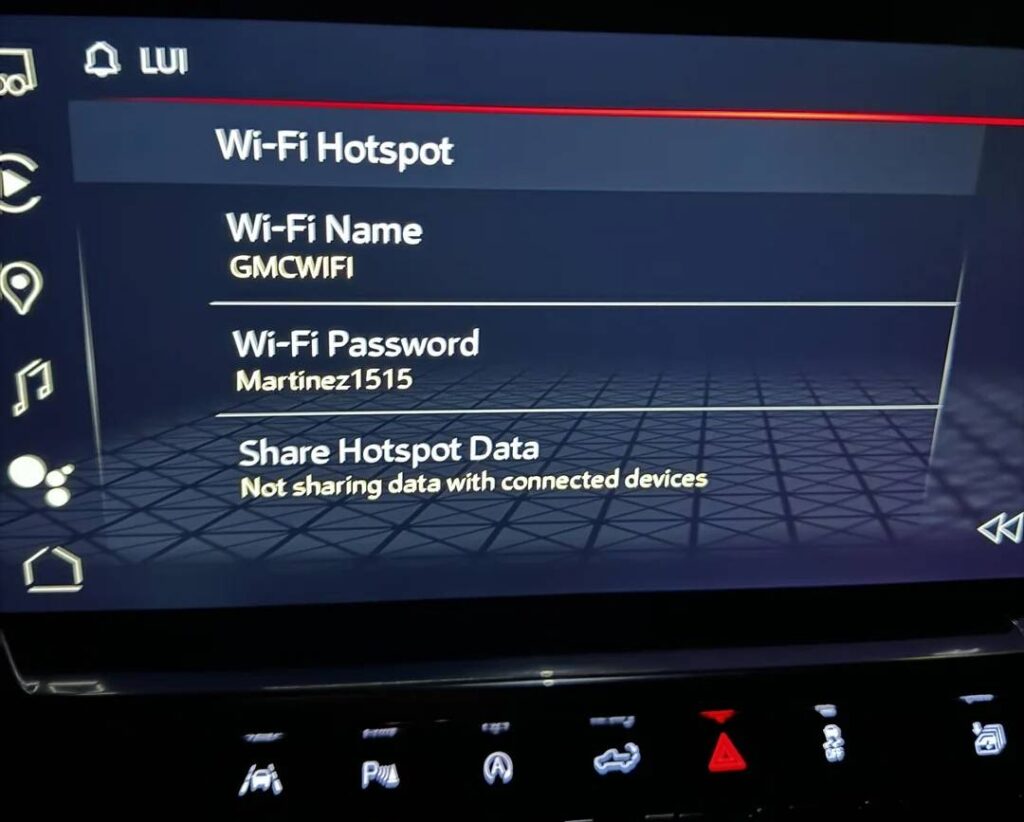
How GMC WiFi Works
Before troubleshooting any connectivity issue, it helps to understand how your GMC WiFi hotspot operates. Unlike a traditional home router, the vehicle’s hotspot depends on several systems working together. If just one component fails, your WiFi may stop functioning or lose internet access.
At the heart of the system is the infotainment unit, which acts as the control center for the vehicle’s connectivity features. When the hotspot is enabled, the infotainment system communicates with the built in cellular modem. This modem connects to the nearest cellular tower using an active data plan provided through OnStar and its wireless carrier partner. Once the connection is established, the vehicle broadcasts a secure WiFi network that allows passengers to connect smartphones, tablets, laptops, and other compatible devices.
The process is relatively simple. Your GMC connects to the cellular network, receives internet access through an active data subscription, and then shares that connection with nearby devices via its built in WiFi hotspot. If any link in this chain is interrupted, the hotspot may appear to work while internet access is unavailable.
Because the system relies on cellular coverage rather than satellite communication, network quality can vary depending on your location. Remote highways, mountainous terrain, underground parking garages, and areas with limited cellular service may result in slower speeds or temporary connection loss.
Understanding this connection flow makes it much easier to identify the source of the problem. Whether the issue is related to your data plan, cellular signal, infotainment software, or the connected device itself, knowing how each component interacts will help you troubleshoot more efficiently.
Common Signs Your GMC WiFi Isn’t Working
A WiFi problem does not always present itself in the same way. In some situations, the hotspot disappears entirely. In others, devices connect successfully but fail to access the internet. Recognizing the specific symptom is the first step toward identifying the underlying cause.
One of the most common issues is that the GMC WiFi network no longer appears in the list of available wireless networks. This often points to a disabled hotspot, an infotainment software glitch, or a problem with the vehicle’s cellular module.
Another frequent complaint is that a phone or laptop connects to the hotspot without any errors, yet web pages refuse to load and streaming services remain offline. This usually indicates that the hotspot itself is functioning, but the vehicle has lost its connection to the cellular network or the associated data plan has expired.
Some drivers notice that the connection repeatedly drops during a trip. Frequent disconnections can occur when driving through areas with inconsistent cellular coverage, but they may also indicate outdated software or excessive demand from multiple connected devices.
Slow internet performance is another common symptom. Video buffering, delayed downloads, and poor video call quality often result from weak cellular signals, network congestion, or limited bandwidth shared among several passengers.
In other cases, the infotainment display may show an error message stating that the hotspot cannot be activated or that connected services are unavailable. These messages can point to temporary service interruptions, account issues, or hardware faults that require additional diagnosis.
By carefully identifying how your GMC WiFi is failing, you can eliminate unnecessary troubleshooting steps and focus on the solutions most likely to restore your connection.
10 Common Reasons GMC WiFi Is Not Working
Several factors can prevent your GMC WiFi hotspot from working properly. While some issues are resolved with a simple restart, others require checking your subscription, updating software, or repairing hardware. Below are the most common causes.
1. Your OnStar or Data Plan Has Expired
The most frequent reason a GMC hotspot stops providing internet access is an inactive data subscription. Even if the WiFi network is still visible, internet service will not function without an active OnStar or compatible cellular data plan. Logging into your OnStar account or contacting customer support can quickly confirm whether your subscription is still active.
Your GMC hotspot depends entirely on cellular service. If you’re driving through rural areas, mountain roads, tunnels, or underground parking structures, the vehicle may not receive a strong enough signal to maintain an internet connection. Waiting until you return to an area with better coverage often restores normal operation.
3. Temporary Carrier Network Outage
Occasionally, the issue has nothing to do with your vehicle. Wireless carriers may perform maintenance or experience unexpected outages that temporarily affect connected vehicle services. During these situations, waiting a short period and trying again is often the only solution.
4. Infotainment Software Glitch
Like any modern computer, the infotainment system can occasionally freeze or develop temporary software errors. Restarting the system or turning the vehicle off for several minutes frequently clears these glitches and restores WiFi functionality.
5. Outdated Vehicle Software
Manufacturers regularly release software updates that improve system stability and fix known connectivity bugs. If your GMC has not received the latest infotainment update, installing the newest software may resolve recurring WiFi issues.
6. Incorrect WiFi Settings
Changes to the hotspot name, password, or network configuration can prevent devices from connecting successfully. Verifying the hotspot settings and reconnecting your devices often solves these problems.
7. Too Many Connected Devices
Every vehicle hotspot has practical limits on the number of devices that can connect simultaneously. If several passengers are streaming videos, downloading large files, or participating in video calls at the same time, available bandwidth may become limited, resulting in slow speeds or unstable connections.
8. Device Related Problems
Sometimes the problem lies with the smartphone, tablet, or laptop rather than the vehicle. Cached network settings, outdated operating systems, or software conflicts may prevent a specific device from accessing the internet while others continue working normally.
9. Hardware Malfunctions
Although less common, damaged antennas, faulty cellular modules, or infotainment hardware failures can completely disable the hotspot. If software troubleshooting does not restore service, professional diagnosis at a GMC dealership may be necessary.
10. OnStar Account or Activation Issues
Problems with account activation, billing, or service provisioning can also interrupt WiFi functionality. Verifying your account status and ensuring all connected services are properly activated can eliminate these issues before more advanced troubleshooting is required.
Step by Step GMC WiFi Troubleshooting Guide
If your GMC WiFi is not working, there is no need to assume the worst immediately. Most connectivity problems can be resolved by following a logical troubleshooting process. Start with the simplest solutions before moving on to more advanced diagnostics. This approach saves time and often restores your connection without requiring professional assistance.
Step 1: Make Sure the WiFi Hotspot Is Enabled
Open your GMC infotainment system and navigate to the WiFi Hotspot or Connectivity menu. Verify that the hotspot feature is turned on. In some cases, the hotspot may have been disabled after a software update, factory reset, or accidental settings change.
If the hotspot is disabled, enable it and wait a few moments for the network to appear on your mobile device.
Step 2: Check Cellular Signal Strength
Your GMC hotspot depends entirely on cellular coverage. If your vehicle is parked in an underground garage, driving through rural areas, or surrounded by mountains, weak signal strength may prevent internet access.
Move the vehicle to an area with stronger cellular coverage and test the connection again. Even if the WiFi network appears on your device, poor cellular reception can prevent internet traffic from reaching connected devices.
Step 3: Restart Your Mobile Device
Sometimes the problem is not with the vehicle at all. Smartphones, tablets, and laptops occasionally experience temporary networking issues.
Restart your device completely before reconnecting to the GMC hotspot. This clears temporary network errors and refreshes wireless connections.
Step 4: Forget and Reconnect to the WiFi Network
If your device has saved outdated connection information, it may fail to authenticate correctly.
Open your device’s WiFi settings, select the GMC hotspot, choose “Forget Network,” then reconnect using the current WiFi password displayed in the infotainment system.
This simple step often resolves authentication problems after password changes or software updates.
Step 5: Verify Your OnStar and Data Plan
An expired subscription is one of the most common reasons why GMC WiFi stops working.
Log into your OnStar account or contact customer support to confirm that your connected services and hotspot data plan are still active. If the subscription has expired, renewing it should restore internet access almost immediately.
Step 6: Restart the Infotainment System
Temporary software glitches can interrupt WiFi functionality even when every other component is working correctly.
Restart the infotainment system using the manufacturer’s recommended procedure. If your model does not support a manual reboot, turn the vehicle off completely, lock the doors, wait several minutes, and restart the engine.
Many temporary connectivity issues disappear after a complete system restart.
Step 7: Install Available Software Updates
Manufacturers regularly release software updates to improve system stability and resolve connectivity bugs.
Check whether your vehicle has pending infotainment or connectivity updates. Installing the latest software may eliminate recurring WiFi problems without requiring additional repairs.
Step 8: Test with Another Device
Connect a different smartphone, tablet, or laptop to the hotspot.
If the second device works normally, the original device is likely experiencing a software or configuration issue rather than a vehicle problem.
If neither device connects successfully, the issue is more likely related to the vehicle, subscription, or cellular connection.
Step 9: Power Cycle the Vehicle
Turn off the engine completely, exit the vehicle, lock all doors, and wait approximately five minutes before restarting.
This allows multiple electronic control modules to shut down completely and reload during startup, which can resolve temporary communication errors between the infotainment system and the cellular modem.
Step 10: Contact GMC Support
If none of the previous steps restore your connection, the problem may involve hardware failure, activation issues, or a more complex software fault.
At this stage, contacting GMC Customer Support or scheduling service with an authorized dealership is the most effective next step.
How to Reset GMC WiFi
Resetting your GMC WiFi can often resolve persistent connectivity problems caused by corrupted settings, temporary software bugs, or communication errors within the infotainment system. Before performing a factory reset, begin with the least disruptive methods.
The first option is a soft restart. Turn the vehicle off completely, exit the cabin, lock the doors, and wait several minutes before restarting the engine. This allows the infotainment system and communication modules to reboot naturally.
If the issue persists, restart the infotainment system using your vehicle’s built in reset procedure. Many newer GMC models allow the infotainment unit to reboot without affecting saved navigation data or personal settings. Refer to your owner’s manual for the exact procedure since button combinations vary by model year.
Next, review the hotspot settings within the infotainment menu. Confirm that the hotspot is enabled, verify the network name and password, and reconnect your devices after removing any previously saved network profiles.
If software corruption is suspected, performing a network settings reset may restore default WiFi configurations while leaving other vehicle settings unchanged. This option is preferable to a full factory reset whenever available.
A complete factory reset should only be considered after all other troubleshooting steps have failed. While this process restores the infotainment system to its original configuration, it may erase paired Bluetooth devices, saved WiFi settings, navigation preferences, and customized system options. Be sure to record any important settings before proceeding.
After any reset, reconnect your devices, verify your OnStar subscription status, and test internet connectivity before assuming additional repairs are necessary.
When You Should Visit a GMC Dealer
Although most GMC WiFi issues can be resolved through basic troubleshooting, some situations require professional diagnosis. Modern GMC vehicles contain sophisticated communication modules, integrated antennas, and infotainment hardware that cannot be repaired without specialized diagnostic equipment.
If the WiFi hotspot never appears despite confirming that it is enabled, the vehicle may have a malfunctioning cellular modem or damaged communication hardware. Similarly, if repeated software resets fail to restore connectivity, a deeper electronic issue could be preventing the hotspot from functioning correctly.
Drivers should also seek professional service if the infotainment system repeatedly freezes, displays connectivity error messages, restarts unexpectedly, or fails to install software updates. These symptoms may indicate corrupted system software or failing hardware components.
Another warning sign is when multiple devices consistently fail to access the internet even though your OnStar subscription remains active and strong cellular coverage is available. In this case, technicians can inspect the vehicle’s antenna, communication module, and network configuration using manufacturer specific diagnostic tools.
If your GMC recently received an infotainment update and WiFi problems began immediately afterward, a dealership may need to reinstall or reprogram the software. This type of repair typically requires factory authorized equipment that is unavailable to most vehicle owners.
Visiting an authorized GMC service center ensures that technicians can identify the exact cause of the problem, apply the latest software updates, verify your connected services, and replace defective components if necessary. Seeking professional assistance early can prevent intermittent connectivity issues from developing into more significant electronic problems.
Tips to Prevent Future GMC WiFi Problems
While occasional connectivity issues are unavoidable, adopting a few simple habits can significantly reduce the chances of experiencing WiFi problems in your GMC. Preventive maintenance not only improves the reliability of your hotspot but also helps ensure a smoother driving experience for everyone in the vehicle.
Keep your infotainment system up to date whenever new software becomes available. GMC periodically releases updates that improve system stability, enhance security, and fix known connectivity issues. Installing these updates promptly can prevent many common WiFi problems before they occur.
Monitor your OnStar subscription and hotspot data plan regularly. Many drivers mistakenly assume their hotspot has failed when the real issue is an expired data plan. Checking your account status before a long trip can save you from unexpected interruptions.
Restart your infotainment system occasionally, especially if you notice slower performance or minor software glitches. Like any connected computer, the system benefits from periodic reboots that clear temporary memory and refresh background processes.
Avoid connecting more devices than necessary. Although GMC hotspots support multiple devices, every additional connection consumes bandwidth. Streaming high definition videos, downloading large files, and participating in video conferences simultaneously can reduce overall network performance for everyone in the vehicle.
Delete old WiFi profiles from your smartphones, tablets, and laptops if you have changed the hotspot password or replaced your vehicle. Removing outdated network information helps prevent authentication conflicts that may interfere with future connections.
Whenever possible, park or drive in areas with strong cellular coverage when you need reliable internet access. Since the hotspot relies on nearby cellular towers, signal quality directly affects browsing speed, video streaming, and online communication.
Finally, familiarize yourself with your owner’s manual and the connectivity features available in your specific GMC model. Knowing how to restart the infotainment system, access hotspot settings, and verify your subscription status can save valuable time when troubleshooting unexpected issues.
Frequently Asked Questions
Why is my GMC WiFi connected but not working?
This usually means your device has successfully connected to the vehicle’s hotspot, but the hotspot itself cannot access the internet. Common causes include an expired OnStar data plan, poor cellular reception, temporary carrier outages, or software glitches within the infotainment system.
Does GMC WiFi require an OnStar subscription?
In most GMC models, the built in WiFi hotspot relies on an active OnStar Connected Services plan along with a compatible cellular data subscription. Without an active plan, the hotspot may still appear but internet access will typically be unavailable.
How do I reset my GMC WiFi?
Start by restarting your vehicle and infotainment system. If the problem continues, forget the WiFi network on your device and reconnect using the correct password. If necessary, reset the network settings or perform a factory reset according to your owner’s manual.
Why does my GMC hotspot keep disconnecting?
Frequent disconnections are commonly caused by weak cellular coverage, software bugs, excessive connected devices, or temporary network congestion. Updating your infotainment software and reducing the number of connected devices can often improve stability.
How many devices can connect to the GMC hotspot?
The exact number depends on your vehicle model and model year, but most GMC hotspots can support multiple devices at the same time. However, connecting many devices simultaneously may reduce internet speed because all users share the same available bandwidth.
Can I use GMC WiFi without cellular coverage?
No. The built in hotspot depends on cellular network connectivity. If your vehicle is outside the coverage area of the supported wireless network, devices may still connect to the hotspot but will not have internet access.
Why can’t my phone find the GMC WiFi network?
If the hotspot does not appear, verify that it is enabled through the infotainment system. Restart the vehicle, reboot the infotainment system, and confirm that your connected services are active. If the hotspot remains unavailable, professional diagnosis may be required.
Should I visit a dealership immediately?
Not necessarily. Most GMC WiFi issues are caused by software settings, subscription problems, or temporary network conditions that owners can resolve themselves. A dealership visit is recommended only after basic troubleshooting steps fail or if you suspect a hardware malfunction.
Conclusion
A reliable in vehicle WiFi connection has become an essential feature for many GMC owners, providing internet access for navigation, entertainment, remote work, and connected services during every journey. When your GMC WiFi is not working, the problem can be frustrating, but it is often easier to resolve than expected.
Most connectivity issues are linked to expired data plans, weak cellular coverage, outdated infotainment software, incorrect network settings, or temporary system glitches. By following the troubleshooting steps outlined in this guide, you can identify the root cause, restore your hotspot, and avoid unnecessary dealership visits in many situations.
If basic troubleshooting does not solve the problem, resetting the infotainment system, installing the latest software updates, and verifying your OnStar account are the next logical steps. Persistent issues after these procedures may indicate a hardware fault that should be diagnosed by an authorized GMC technician.
Keeping your software updated, maintaining an active data subscription, and understanding how your vehicle’s connectivity system operates will help minimize future interruptions and ensure your hotspot remains dependable whenever you need it.
Have you experienced a GMC WiFi issue that was solved differently? Share your experience or troubleshooting tips in the comments below. Your insights may help other GMC owners quickly get back online and make every drive more connected and enjoyable.