Apple CarPlay has become one of the most valuable features for modern drivers because it creates a safer and more convenient way to use an iPhone while on the road. Instead of reaching for your phone, you can access navigation, make calls, send messages, listen to music, and control compatible apps directly from your Land Rover touchscreen or by using Siri voice commands. Whether you drive a Range Rover, Defender, Discovery, Evoque, Velar, or another compatible model, learning how to connect Apple CarPlay to Land Rover can significantly improve your driving experience.
Although the setup process is designed to be simple, many owners still encounter connection issues because different Land Rover models use different infotainment systems. Some vehicles support a wired connection only, while newer models also offer wireless Apple CarPlay. Software versions, USB ports, Bluetooth settings, and iPhone compatibility can all affect the connection process. Understanding these differences before you begin can save time and prevent unnecessary frustration.
This complete guide explains how to connect Apple CarPlay to Land Rover step by step for every supported model. You will learn how to set up both wired and wireless connections, discover which vehicles are compatible, explore the most useful Apple CarPlay features, and find practical solutions for common connection problems. By the end of this guide, you will be able to enjoy a seamless Apple CarPlay experience and make the most of your Land Rover infotainment system.
What You Need Before Connecting Apple CarPlay to Land Rover
Before you connect Apple CarPlay to your Land Rover, check that your vehicle and iPhone meet the basic requirements. A few quick checks can prevent connection problems later. They also help you complete the setup process without interruptions. Taking these steps first saves time and improves the overall experience.
Start by confirming that your Land Rover supports Apple CarPlay. Most newer models with the Pivi or Pivi Pro infotainment system include this feature. Some vehicles with Touch Pro or Touch Pro Duo also support Apple CarPlay after a software update. You can find your infotainment version in the vehicle settings menu or the owner’s manual.
Next, check your iPhone. Apple recommends an iPhone 6s or a newer model with a recent version of iOS. Updating your device improves compatibility and fixes many common software issues. You should also enable Siri before connecting because Apple CarPlay uses Siri for voice control and hands free commands.
If your Land Rover requires a wired connection, use a certified Lightning or USB C cable. Many low quality cables only provide charging and cannot transfer data. Plug the cable into the media USB port inside the vehicle. Some USB ports only charge your phone and do not support Apple CarPlay.
If your vehicle supports wireless Apple CarPlay, turn on both Bluetooth and WiFi before pairing your iPhone. Bluetooth starts the connection process. WiFi transfers data between your phone and the infotainment system. After the first setup, your iPhone should reconnect automatically each time you start the vehicle.
Finally, update the software on both your iPhone and your Land Rover. Software updates improve performance and increase compatibility. They also fix known bugs that may interrupt the connection. Installing the latest updates before setup gives you the best Apple CarPlay experience.
Before You Start Checklist
| Requirement | Recommendation |
|---|---|
| Vehicle Compatibility | Land Rover with Pivi, Pivi Pro, Touch Pro, or Touch Pro Duo that supports Apple CarPlay |
| iPhone | iPhone 6s or newer |
| iOS Version | Latest available version |
| Siri | Enabled |
| USB Cable | Apple certified data cable |
| Bluetooth | Enabled for wireless connection |
| WiFi | Enabled for wireless connection |
| Vehicle Software | Updated to the latest version |
Which Land Rover Models Support Apple CarPlay?
Apple CarPlay is available on many modern Land Rover vehicles, but compatibility depends on the model year and the infotainment system. Some vehicles support Apple CarPlay as a standard feature, while others require a software update before you can use it. Knowing your vehicle’s system helps you choose the correct setup method and avoid unnecessary troubleshooting.
Most Land Rover models built in recent years include either the Pivi or Pivi Pro infotainment system. These systems offer the easiest Apple CarPlay experience and often support both wired and wireless connections. Earlier models equipped with Touch Pro or Touch Pro Duo may still work with Apple CarPlay, but some require a dealer installed software update before the feature becomes available.
The table below provides a general overview of Apple CarPlay compatibility across popular Land Rover models. Features may vary by market, trim level, and production date, so you should always check your vehicle specifications before starting the setup process.
| Land Rover Model | Typical Model Years | Apple CarPlay | Wireless Support | Infotainment System |
|---|---|---|---|---|
| Range Rover | 2020 and newer | Yes | Yes on most models | Pivi Pro |
| Range Rover Sport | 2020 and newer | Yes | Yes on most models | Pivi Pro |
| Defender | 2020 and newer | Yes | Yes | Pivi Pro |
| Discovery | 2021 and newer | Yes | Yes | Pivi Pro |
| Discovery Sport | 2020 and newer | Yes | Yes | Pivi Pro |
| Range Rover Velar | 2021 and newer | Yes | Yes | Pivi Pro |
| Range Rover Evoque | 2020 and newer | Yes | Yes | Pivi Pro |
| Selected earlier models | Varies | Yes after software update | Usually No | Touch Pro or Touch Pro Duo |
If your Land Rover uses the Pivi Pro infotainment system, connecting Apple CarPlay usually takes only a few minutes. The system recognizes compatible iPhones quickly and remembers previously paired devices. After the initial setup, your phone often reconnects automatically when you start the vehicle.
Owners of older Land Rover models should verify whether Apple CarPlay is already installed. Some vehicles received the feature through a software upgrade instead of including it from the factory. If Apple CarPlay does not appear in the infotainment menu, your local Land Rover retailer can confirm whether your vehicle qualifies for an update.
Understanding your vehicle’s compatibility before beginning the setup process saves time and reduces frustration. It also ensures that you follow the correct instructions for your infotainment system instead of trying solutions designed for a different model.
How to Connect Apple CarPlay to Land Rover Using a USB Connection
Connecting Apple CarPlay with a USB cable is the fastest and most reliable method. Most Land Rover models support this setup, especially vehicles equipped with the Pivi, Pivi Pro, Touch Pro, or Touch Pro Duo infotainment system. A wired connection also provides stable performance during long drives because it charges your iPhone while transferring data.
Before you begin, park your vehicle in a safe location and start the engine. Unlock your iPhone and make sure Siri is turned on. If your phone asks for permission to use Siri while locked, allow the request before moving to the next step.
Locate the media USB port inside your Land Rover. This port is usually in the center console or beneath the dashboard. Connect your iPhone with a certified Lightning or USB C data cable. Avoid using charging only cables because they cannot transfer the data required for Apple CarPlay.
After you connect the cable, the infotainment screen should detect your iPhone within a few seconds. A message may appear asking if you want to enable Apple CarPlay. Tap Allow on your iPhone, then confirm the connection on the vehicle display if another prompt appears.
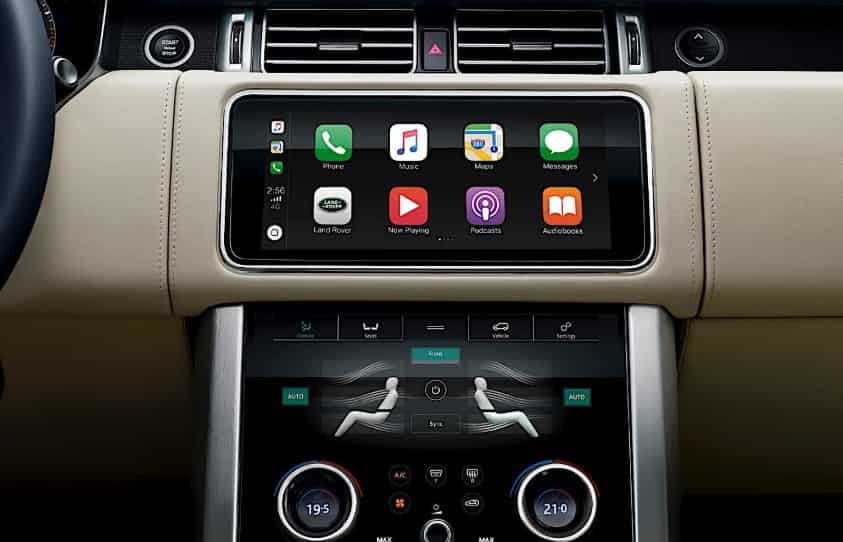
Once the setup finishes, the Apple CarPlay home screen will replace the standard infotainment interface. You can now open Apple Maps, Google Maps, Waze, Apple Music, Spotify, Podcasts, Phone, Messages, and other compatible apps directly from the touchscreen. You can also press the voice control button on the steering wheel to activate Siri without touching your phone.
If Apple CarPlay does not open automatically, check the infotainment settings and make sure the feature is enabled. Disconnect the cable and reconnect it after a few seconds. You should also inspect the cable for damage because worn connectors often cause connection failures. If the issue continues, restart both your iPhone and the infotainment system before trying again.
Step by Step USB Setup
- Start your Land Rover.
- Unlock your iPhone.
- Turn on Siri.
- Connect your iPhone to the media USB port.
- Use a certified data cable.
- Tap Allow when your iPhone requests permission.
- Confirm Apple CarPlay on the infotainment screen if required.
- Wait for the Apple CarPlay home screen to appear.
- Open your favorite apps and begin driving safely.
Common Mistakes to Avoid
Many connection problems occur because drivers use the wrong USB port. Some ports only supply power and cannot transfer data. Another common mistake is using an old or damaged cable. A low quality cable may charge your iPhone but still prevent Apple CarPlay from starting.
Some users also forget to enable Siri before connecting their iPhone. Apple CarPlay depends on Siri for voice commands, so the system may not work correctly if Siri is disabled. Keeping your iPhone and your Land Rover software up to date also reduces compatibility issues and improves overall performance.
How to Connect Wireless Apple CarPlay to Land Rover
Wireless Apple CarPlay offers a more convenient driving experience because you do not need to connect a cable every time you enter your vehicle. Once you complete the first pairing, your iPhone can connect automatically whenever you start your Land Rover. This feature keeps your cabin organized and gives you instant access to navigation, music, calls, and messages.
Before you begin, make sure your Land Rover supports wireless Apple CarPlay. Most vehicles equipped with the Pivi Pro infotainment system include this feature. Your iPhone should also run the latest version of iOS with both Bluetooth and WiFi turned on. Keeping your software updated helps improve connection speed and overall stability.
Open the infotainment settings and select the phone or device pairing menu. If no phone is connected, choose the option to add a new device. Your Land Rover will begin searching for nearby smartphones.
On your iPhone, open Settings, tap Bluetooth, and wait for your Land Rover to appear in the list of available devices. Select your vehicle and confirm the pairing code shown on both screens. This step creates a secure connection between your phone and the infotainment system.
After Bluetooth pairing finishes, Apple CarPlay will ask for permission to use wireless connectivity. Tap Allow on your iPhone. The system will automatically switch to WiFi because wireless Apple CarPlay transfers data through a WiFi connection instead of Bluetooth. This process usually takes less than one minute.
When the setup is complete, the Apple CarPlay home screen will appear on your Land Rover display. You can now access Apple Maps, Google Maps, Waze, Apple Music, Spotify, Phone, Messages, Podcasts, and other supported applications. Voice commands also become available through Siri, allowing you to control many functions without taking your hands off the steering wheel.
The next time you start your Land Rover, your iPhone should reconnect automatically. Keep Bluetooth and WiFi enabled on your phone to maintain this automatic connection. If you pair multiple iPhones with the same vehicle, select the preferred device in the infotainment settings to avoid connection conflicts.
Step by Step Wireless Setup
- Start your Land Rover.
- Turn on Bluetooth and WiFi on your iPhone.
- Open the device pairing menu on the infotainment screen.
- Select your Land Rover from the Bluetooth list on your iPhone.
- Confirm the pairing code on both screens.
- Allow Apple CarPlay when your iPhone displays the request.
- Wait for the Apple CarPlay interface to load.
- Enjoy automatic wireless connections during future drives.
Tips for a Faster Wireless Connection
Keep your iPhone unlocked during the first setup because this allows permission requests to appear immediately. Remove older Bluetooth pairings that you no longer use, as too many saved devices can slow the connection process. If your vehicle does not reconnect automatically, turn Bluetooth off and on again before restarting the infotainment system. In most cases, these simple steps restore the connection within a few seconds.
Wireless Apple CarPlay uses more battery power than a wired connection because Bluetooth and WiFi remain active throughout the drive. If you plan a long journey, consider placing your iPhone on a wireless charging pad or connecting it to a charging port to keep the battery level stable.
Apple CarPlay Not Working in Your Land Rover? Try These Solutions
If Apple CarPlay does not work in your Land Rover, there is no need to assume that your vehicle has a serious problem. Most connection issues result from simple settings, outdated software, or an incompatible accessory. In many cases, you can restore Apple CarPlay within a few minutes by checking a few common areas before seeking professional assistance. Starting with the simplest solutions often saves time and prevents unnecessary repairs.
Begin by inspecting your USB cable if you use a wired connection. A charging cable may power your iPhone without transferring data, which prevents Apple CarPlay from launching. You should also connect your phone to the designated media USB port because some USB ports only provide power. If your Land Rover supports wireless Apple CarPlay, confirm that both Bluetooth and WiFi remain enabled on your iPhone. These two wireless technologies work together to establish and maintain a stable connection throughout your journey.
Software compatibility is another common cause of connection failures. Install the latest version of iOS on your iPhone and check whether your Land Rover infotainment system has an available software update. New software versions often improve stability, fix known bugs, and increase compatibility with newer Apple devices. If Apple CarPlay still does not appear, restart both your iPhone and the infotainment system before attempting another connection. You can also remove the existing Bluetooth pairing and complete the setup process again from the beginning.
If none of these steps resolve the issue, the problem may involve your vehicle’s infotainment hardware or software configuration. In that situation, contacting an authorized Land Rover service center is the most reliable option. A qualified technician can verify system compatibility, install required updates, and identify any underlying faults that prevent Apple CarPlay from working correctly.
Tips for Getting the Best Apple CarPlay Experience in Your Land Rover
Once you successfully connect Apple CarPlay to your Land Rover, a few simple habits can help you enjoy a smoother and more reliable experience every time you drive. Although Apple CarPlay is designed to work automatically, its performance depends on your iPhone, the infotainment system, and the quality of the connection. Keeping both devices updated is one of the most effective ways to improve stability. Apple frequently releases iOS updates that fix software bugs and enhance compatibility, while Land Rover regularly improves the Pivi and Pivi Pro infotainment systems through software updates. Installing the latest versions reduces connection errors and ensures that new Apple CarPlay features work as expected.
Using high quality accessories also makes a noticeable difference. If your vehicle relies on a wired connection, choose an Apple certified data cable instead of a low quality charging cable. Certified cables provide a faster and more stable data connection, especially when using navigation apps or streaming music during long trips. If your Land Rover supports wireless Apple CarPlay, keep Bluetooth and WiFi enabled on your iPhone to allow automatic reconnection each time you start the engine. You should also remove old Bluetooth pairings that you no longer use because too many saved devices can slow the pairing process or create unnecessary connection conflicts.
Organizing your Apple CarPlay dashboard can further improve convenience and reduce distractions while driving. Place the apps you use most often, such as Apple Maps, Google Maps, Spotify, Phone, and Messages, on the first screen for quicker access. Siri can also help you perform many tasks without touching the display, allowing you to make calls, send messages, change music, or request directions using simple voice commands. These small adjustments create a safer driving experience while helping you get the most value from Apple CarPlay every time you drive your Land Rover.
Frequently Asked Questions About Apple CarPlay in Land Rover
Many Land Rover owners have similar questions before using Apple CarPlay for the first time. Understanding how the system works can help you avoid common problems and make the setup process much easier. The answers below address the questions that drivers search for most often and provide practical information based on vehicle compatibility and Apple CarPlay functionality.
Does every Land Rover support Apple CarPlay? No. Apple CarPlay is available on many newer Land Rover models, but compatibility depends on the model year, trim level, and infotainment system. Vehicles equipped with Pivi or Pivi Pro usually include Apple CarPlay, while some older models require a software update before the feature becomes available.
Can I add Apple CarPlay to an older Land Rover? In some cases, yes. Certain vehicles with the Touch Pro or Touch Pro Duo infotainment system can receive Apple CarPlay through a software update. However, older vehicles without compatible hardware may require additional upgrades or may not support the feature at all.
Does Apple CarPlay work wirelessly? Many recent Land Rover models support wireless Apple CarPlay. Earlier models typically require a USB connection. The available connection method depends on the infotainment system installed in your vehicle.
Why does Apple CarPlay keep disconnecting? Frequent disconnections usually result from an unstable USB cable, outdated software, Bluetooth interference, or incorrect network settings. Updating your iPhone, using a certified data cable, and keeping the infotainment software current can solve most connection problems.
Can I use Google Maps and Spotify with Apple CarPlay? Yes. Apple CarPlay supports many popular applications, including Google Maps, Waze, Spotify, Apple Music, Podcasts, WhatsApp, Phone, and Messages. Compatible apps appear automatically on the Apple CarPlay home screen after your iPhone connects successfully.
Conclusion
Learning how to connect Apple CarPlay to Land Rover is easier than many drivers expect. Whether your vehicle supports a wired or wireless connection, the setup process only takes a few minutes when your iPhone and infotainment system meet the necessary requirements. Once connected, Apple CarPlay transforms your driving experience by providing quick access to navigation, music, phone calls, messages, and voice control through Siri. These features help you stay connected while keeping your attention on the road.
If you experience connection problems, simple checks such as using a certified data cable, enabling Siri, updating your iPhone, or installing the latest Land Rover software often resolve the issue. Understanding your vehicle’s infotainment system and following the correct setup method can also prevent many common errors before they occur. Regular software updates and proper device maintenance ensure that Apple CarPlay continues to perform reliably throughout the life of your vehicle.
We hope this complete guide has helped you understand how to connect Apple CarPlay to Land Rover with confidence. Whether you drive a Range Rover, Defender, Discovery, Evoque, Velar, or another compatible model, following the steps in this guide will help you enjoy a safer, smarter, and more convenient driving experience. If you still cannot connect Apple CarPlay after trying these solutions, contact your nearest Land Rover service center for professional assistance and the latest software support.