If your Chevy CarPlay not working, you are not alone. Many drivers face this issue every day. CarPlay may fail to connect, disconnect randomly, or stop showing on the screen.
This problem can quickly ruin your driving experience. You may lose access to maps, music, and calls. That creates frustration, especially during long trips or busy commutes.
Many users expect CarPlay to work instantly. You plug in your iPhone or connect wirelessly, but nothing happens. Sometimes the screen stays blank. Other times, the system keeps trying to connect without success.
Several factors can cause this issue. An outdated iOS version, a faulty cable, or a system glitch can break the connection. In some cases, a small setting can block CarPlay without you noticing.
The good news is simple. You can fix most Chevy CarPlay issues in minutes. You do not need advanced technical skills or expensive repairs.
In this guide, you will learn the real causes behind Chevy CarPlay not working. You will also discover quick solutions and advanced fixes that work in 2025. Whether your CarPlay fails to connect or keeps disconnecting, you will find a clear solution here.
What Is Apple CarPlay in Chevy
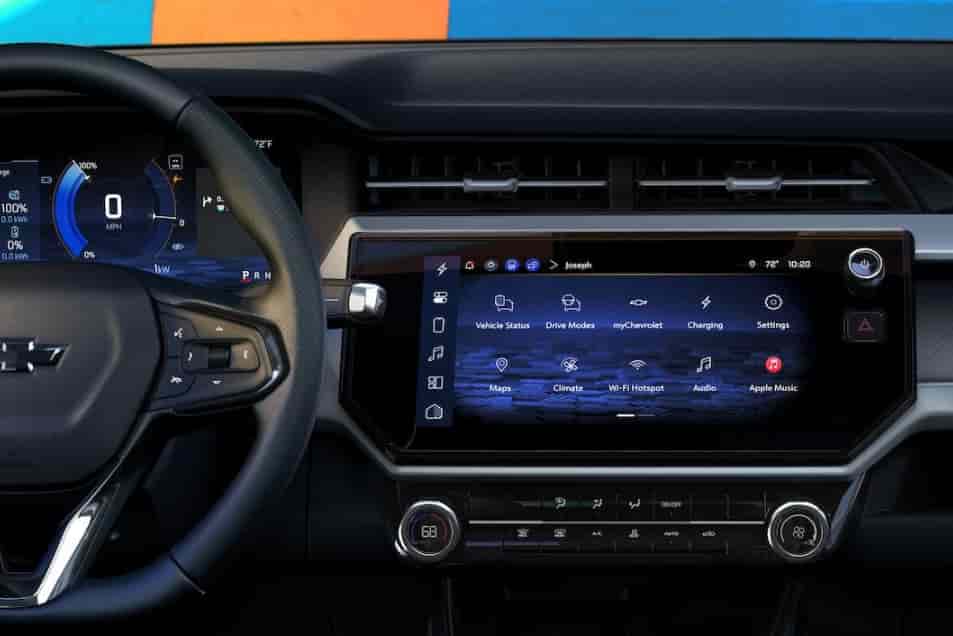
Apple CarPlay lets you connect your iPhone to your Chevy infotainment system. It brings key apps directly to your car screen. You can use maps, music, messages, and calls without touching your phone.
Chevy integrates CarPlay into its infotainment system to improve driving safety. Drivers can control everything through the touchscreen, steering wheel buttons, or voice commands. Siri plays a big role here. It allows hands free control, which reduces distractions on the road.
CarPlay works in two main ways. You can connect your iPhone using a USB cable, or you can use wireless CarPlay if your Chevy supports it. Wired connections often provide more stable performance. Wireless connections offer more convenience but may face signal issues.
Many popular Chevy models support Apple CarPlay. These include Silverado, Malibu, Equinox, and Tahoe. However, the performance can vary depending on the model year and software version. Older systems may show more bugs or compatibility issues.
Understanding how CarPlay works helps you fix problems faster. When you know the system relies on iOS, Bluetooth, USB, and the infotainment software, you can identify where the issue starts. This knowledge becomes important when your Chevy CarPlay not working and you need a quick solution.
Common Causes of Chevy CarPlay Not Working
Many issues can cause Chevy CarPlay not working, and identifying the root problem is the first step to fixing it effectively. In most cases, the issue starts with the iPhone itself. An outdated iOS version can break compatibility, while newer updates may introduce temporary bugs that affect CarPlay performance. Device compatibility also matters, as older iPhone models may struggle to work smoothly with newer Chevy infotainment systems.
Hardware problems also play a major role. A low quality or damaged USB cable can interrupt data transfer, which prevents CarPlay from connecting. Even if the cable looks fine, it may not support stable communication. At the same time, the USB port in your Chevy can collect dust or wear out over time, leading to unreliable connections.
Wireless CarPlay introduces another layer of complexity. It depends on both Bluetooth and WiFi, so any instability in these connections can stop CarPlay from launching. Signal interference from other devices can also cause random disconnections.
Software issues inside the Chevy infotainment system are another common cause. Bugs or outdated firmware can freeze the system or block CarPlay completely. In some cases, the problem comes from simple settings. CarPlay might be disabled, or Siri may not be turned on, which is essential for proper functionality.
Understanding these causes makes it easier to fix Chevy CarPlay issues quickly and avoid unnecessary frustration.
Performance Air Filter (High Flow Drop In)
If you are just starting your journey with 3.0 Duramax performance upgrades, a high flow drop in air filter is often the first modification most owners consider. It is simple, affordable, and requires no complex installation. But the real question is, does it actually deliver noticeable horsepower gains?
A performance air filter is designed to improve airflow into the engine by reducing restriction compared to the stock paper filter. Better airflow means the engine can breathe more efficiently, which is a fundamental requirement for producing more power. However, the increase at this level is relatively small because the rest of the intake system still limits overall airflow.
In real world conditions, you can expect gains of around 2 to 5 horsepower. While that might not sound impressive, the benefit is more about improving engine efficiency rather than raw power. Some drivers also report slightly better throttle smoothness and marginal fuel efficiency improvements over time.
The biggest advantage of this upgrade is its cost effectiveness. It is one of the cheapest entry points into diesel performance mods, and it can be installed in minutes without any special tools. For beginners, this makes it a low risk upgrade that still contributes to the overall performance system.
However, it is important to understand its limitations. On its own, a high flow air filter will not transform your truck. The gains are too small to feel a dramatic difference. This is why it ranks at number ten on this list. It works best as part of a larger upgrade strategy, especially when combined with intake systems and tuning later on.
If your goal is to build power step by step, this is a logical starting point. But if you are chasing significant horsepower gains, you will need to look at more impactful upgrades further down this list.
Cold Air Intake System
A cold air intake system is one of the most popular 3.0 Duramax performance upgrades, yet it is also one of the most misunderstood. Many aftermarket brands promise significant horsepower gains, but the real world results often tell a different story.
The main function of a cold air intake is to deliver cooler and less restricted air into the engine. Cooler air contains more oxygen, which improves combustion efficiency. In theory, this leads to better performance. In practice, the gains depend heavily on the design of the intake system and how restrictive the factory setup is.
For the 3.0 Duramax, a quality cold air intake can realistically produce around 5 to 10 horsepower. The improvement is more noticeable when paired with other upgrades, especially tuning. On its own, the difference is often subtle and may not dramatically change how the truck feels during daily driving.
One key benefit that many drivers notice is improved throttle response and a more aggressive intake sound. This creates the perception of increased power, which is why this upgrade is often overrated. The sound enhancement can make the vehicle feel faster even when the actual horsepower gain is modest.
There is also an important myth to address. Not all cold air intakes outperform the stock system. Some factory setups are already well engineered, meaning poorly designed aftermarket intakes can actually reduce efficiency by drawing in warmer air from the engine bay.
This is why choosing the right product matters. A well designed intake that isolates heat and improves airflow can be a valuable addition to your setup. But expecting massive gains from this upgrade alone is a common mistake.
In the context of a complete performance strategy, a cold air intake plays a supporting role. It prepares the engine for more advanced upgrades by improving airflow, but it truly shines when combined with tuning and exhaust modifications later in the build.
Throttle Response Controller
At first glance, a throttle response controller might seem like one of the most effective 3.0 Duramax performance upgrades. Many drivers install it and immediately feel a sharper, more responsive acceleration. But here is the reality that most people do not realize. This upgrade does not actually increase horsepower.
A throttle response controller works by modifying the signal between the accelerator pedal and the engine control system. It makes the throttle react faster to your input, reducing the delay that is common in modern drive by wire systems. This creates a more immediate and aggressive driving feel.
The biggest pain point it addresses is turbo lag and sluggish pedal response. In stock form, the 3.0 Duramax is tuned for smoothness and efficiency, which can make acceleration feel slightly delayed. By removing that delay, the truck feels quicker and more alive, especially in city driving or when merging onto highways.
However, it is important to understand the difference between perceived performance and actual performance. The engine is not producing more power. Instead, you are accessing the available power more quickly. This distinction is critical if your goal is real horsepower gains.
So why does it still make this list? Because driving experience matters. Even without increasing horsepower, improving throttle response can dramatically change how the vehicle feels behind the wheel. For many drivers, this alone makes the upgrade worthwhile.
That said, it should not be your priority if your main goal is maximizing power output. Think of it as a complementary upgrade rather than a core performance modification. It works best when combined with actual power increasing upgrades like tuning, intake, and exhaust systems.
Quick Fixes for Chevy CarPlay Not Working
If your Chevy CarPlay not working, you can often fix it in just a few minutes. These quick solutions solve most common issues without advanced steps.
Start by restarting your iPhone. This simple action clears temporary glitches and refreshes the system. Many connection issues disappear after a quick reboot.
Next, reconnect CarPlay from scratch. Unplug your iPhone, wait a few seconds, then plug it back in. If you use wireless CarPlay, turn Bluetooth and WiFi off, then turn them back on before reconnecting.
Check your USB cable carefully. Use an original or certified cable for the best results. If possible, try a different cable to rule out hardware problems.
Make sure Siri is enabled on your iPhone. CarPlay depends on Siri to function properly. Go to Settings, then Siri and Search, and turn it on if needed.
You should also reset your network settings. This step removes saved connections that may cause conflicts. Go to Settings, select General, then Transfer or Reset iPhone, and choose Reset Network Settings.
Updating your iPhone can also fix hidden bugs. Install the latest iOS version to improve compatibility with your Chevy system.
Finally, restart your Chevy infotainment system. Turn off the car, wait a moment, and start it again. This can resolve temporary system errors.
These quick fixes can restore your CarPlay connection fast and save you from unnecessary stress.
Advanced Troubleshooting for Chevy CarPlay Not Working
If the quick fixes do not solve the problem, you need deeper troubleshooting. These methods target system level issues that often cause Chevy CarPlay not working.
Start by resetting the Chevy infotainment system. This step clears hidden bugs and restores default settings. Turn off the vehicle, wait a few minutes, then restart it. Some models also allow a factory reset through the settings menu. Use this option if the issue persists.
Next, remove and reconnect CarPlay completely. Go to your iPhone settings, find CarPlay, and delete your Chevy from the list. Then reconnect it as a new device. This process removes corrupted connection data that may block proper syncing.
You should also check CarPlay restrictions on your iPhone. Open Screen Time settings and make sure CarPlay is allowed. Restrictions can silently disable features without clear warnings.
Updating your Chevy software is another important step. Outdated firmware can cause compatibility issues with newer iOS versions. Visit a dealership or check if your system supports updates to ensure optimal performance.
In some cases, resetting all settings on your iPhone can help. This does not delete your data but restores system configurations. It can fix deeper conflicts that affect connectivity.
These advanced methods take more time, but they often resolve persistent issues that simple fixes cannot handle.
Chevy Models Most Affected by CarPlay Issues
Chevy CarPlay not working does not affect all models the same way. Some vehicles show more issues due to their infotainment system or software version. Understanding which models face these problems can help you identify risks faster.
The Chevy Silverado is one of the most reported models. Many drivers experience connection drops or CarPlay failing to launch. These issues often appear in older infotainment systems or after iOS updates.
The Chevy Malibu also shows frequent CarPlay problems. Users report screen freezing or delayed response when using navigation apps. In some cases, the system connects but does not display anything.
The Chevy Equinox faces similar issues, especially with wireless CarPlay. Drivers often deal with unstable connections or random disconnections. This usually links to Bluetooth or WiFi interference.
The Chevy Tahoe, especially older model years, can struggle with compatibility. CarPlay may fail to connect or require multiple attempts before working. Software limitations often play a key role here.
Newer Chevy models show fewer issues, but they are not perfect. Bugs can still appear, especially after system or iOS updates. This means even modern vehicles may face temporary CarPlay problems.
Knowing how your specific model behaves helps you choose the right fix. It also explains why Chevy CarPlay not working may happen more often in certain vehicles.
Wireless vs Wired CarPlay: Which Is More Reliable in Chevy
Chevy CarPlay not working often depends on whether you use a wired or wireless connection. Both options work differently and have their own strengths and weaknesses.
Wired CarPlay uses a USB cable to connect your iPhone directly to the Chevy infotainment system. This method usually provides a more stable connection. It reduces lag and lowers the chance of disconnection. However, it depends heavily on cable quality and USB port condition. A damaged cable or dirty port can easily break the connection.
Wireless CarPlay connects through Bluetooth and WiFi. It offers more convenience because you do not need to plug in your phone every time. You can enter your car and connect automatically. However, this convenience comes with risks. Wireless connections are more sensitive to interference. They can disconnect unexpectedly or fail to start if the signal is weak.
In most Chevy vehicles, wired CarPlay is still more reliable for daily use. It performs better for navigation and long drives where stability matters. Wireless CarPlay is better for short trips or users who prefer a cable free experience.
If you frequently face Chevy CarPlay not working issues, switching to a wired connection is often the fastest way to improve stability. In contrast, if your cable setup works fine, you may continue using wireless mode for convenience.
When to Visit a Dealership
In most cases, Chevy CarPlay not working can be fixed at home with simple steps. However, there are situations where professional help becomes necessary.
You should consider visiting a Chevy dealership if CarPlay fails on multiple devices. If your iPhone connects correctly but CarPlay still does not launch, the issue may come from the infotainment hardware itself.
Another warning sign is a completely unresponsive system. If your Chevy screen freezes, restarts repeatedly, or does not detect any device, the problem may go beyond software fixes.
You also need professional support if software updates do not resolve the issue. In some cases, the infotainment system requires a firmware reflash that only a dealership can perform safely.
Hardware damage is another reason to seek help. A faulty USB module, damaged internal wiring, or defective infotainment unit cannot be fixed with basic troubleshooting.
Dealership repair costs vary depending on the issue. Some problems are covered under warranty, especially for newer vehicles. This is why it is important to check your warranty status before paying for repairs.
While visiting a dealership takes more time and effort, it ensures that deeper system issues are diagnosed correctly. This is the safest option when all other fixes fail and Chevy CarPlay not working becomes a persistent problem.
Prevent Future Chevy CarPlay Issues
To avoid Chevy CarPlay not working in the future, you need to maintain both your iPhone and your vehicle system properly. Small habits can prevent most connection problems before they happen.
Always keep your iPhone updated to the latest iOS version. Apple regularly releases updates that improve CarPlay stability and fix hidden bugs. Running an outdated system increases the risk of compatibility issues.
You should also use a high quality certified USB cable if you rely on wired CarPlay. Cheap or damaged cables often cause unstable connections and random disconnections. Replacing the cable early can save you from repeated issues.
For wireless CarPlay users, make sure Bluetooth and WiFi are stable. Avoid connecting too many devices at the same time, as this can create interference and reduce performance.
It is also important to restart your Chevy infotainment system occasionally. This helps clear temporary glitches and keeps the system running smoothly. A simple restart once in a while can prevent many hidden errors.
Avoid modifying your iPhone system with unsupported software or jailbreak tools. These changes can break CarPlay functionality and cause unpredictable issues.
By following these simple maintenance habits, you can significantly reduce the chances of Chevy CarPlay not working again. Prevention is always easier than fixing the problem after it appears.
Conclusion
Chevy CarPlay not working is a common issue, but it is usually easy to fix once you understand the cause. Most problems come from simple factors like a faulty cable, outdated iOS, unstable wireless connection, or minor infotainment system glitches.
In many cases, quick fixes such as restarting your iPhone, reconnecting CarPlay, or updating software can restore normal functionality within minutes. More persistent issues may require advanced steps like resetting the infotainment system or checking CarPlay restrictions on your device.
Different Chevy models may show different symptoms, but the troubleshooting logic remains the same. Whether you drive a Silverado, Malibu, Equinox, or Tahoe, the key is to identify whether the issue comes from hardware, software, or connection settings.
If all basic and advanced solutions fail, visiting a dealership ensures that deeper system or hardware problems are properly diagnosed and repaired.
The most important takeaway is that Chevy CarPlay not working is rarely permanent. With the right approach, you can quickly bring your system back to normal and avoid unnecessary frustration on the road.
If you have experienced similar CarPlay issues in your Chevy, sharing your situation can help others find faster solutions as well.