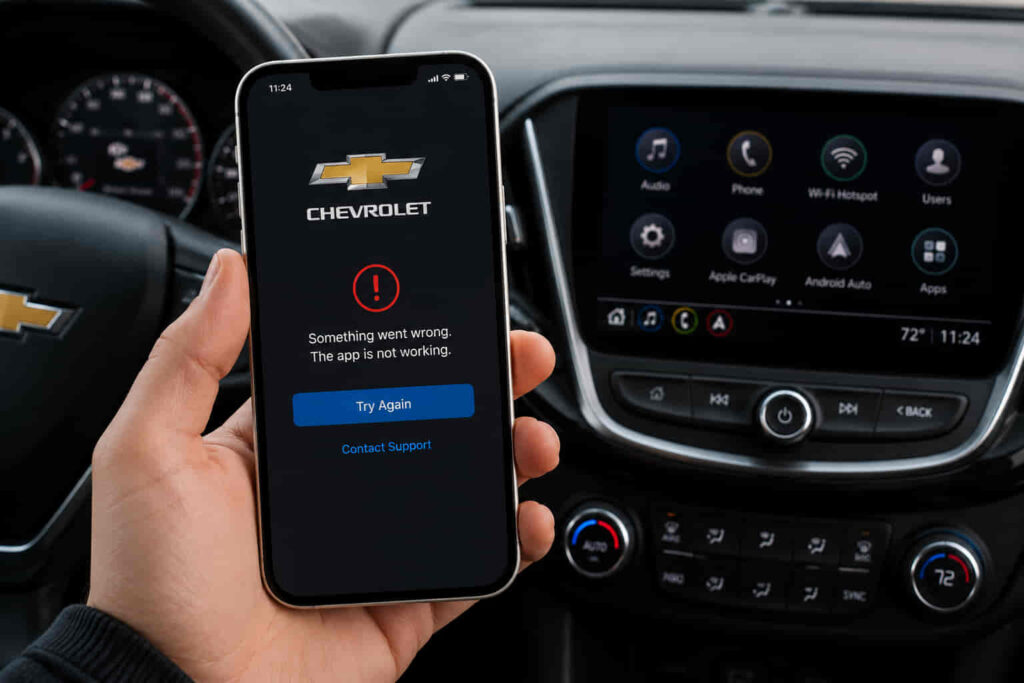
If the myChevrolet app is not working on your iPhone, the problem usually stems from one of four areas: the iPhone itself, the app, your Chevrolet account, or Chevrolet’s connected services. A failed login, an app that keeps crashing, missing Remote Start controls, or a vehicle that no longer syncs with the app can all have different underlying causes. Identifying where the issue originates is the fastest way to restore normal functionality instead of trying random fixes.
The myChevrolet app depends on several connected components to work correctly. Your iPhone must be running a supported version of iOS, the application must communicate with Chevrolet’s servers, your vehicle must remain linked to your account, and connected services such as OnStar must be active when required. If any part of this connection chain fails, features like Remote Start, Lock and Unlock, Vehicle Status, location tracking, or maintenance alerts may stop responding even though the vehicle itself is operating normally.
This guide explains why the Chevrolet app stops working on an iPhone, how to diagnose the exact cause, and which solutions resolve the issue in most situations. Instead of focusing on a single symptom, it follows a logical troubleshooting process that covers software problems, account issues, connectivity failures, server outages, and vehicle pairing errors so you can restore the app with the least amount of effort.
Why Is the Chevrolet App Not Working on iPhone?
The myChevrolet app can stop working on an iPhone because the connection between the mobile device, the Chevrolet account, the vehicle, and General Motors’ connected services has been interrupted. Although users often assume the application itself is defective, most issues originate from a failed communication process rather than a software bug. This is why two users experiencing the same symptom—for example, the Remote Start button not responding—may actually have completely different root causes.
One of the most common causes is an unstable connection between the iPhone and Chevrolet’s cloud services. Every action performed inside the app, including checking vehicle status, locking the doors, sending navigation destinations, or starting the engine remotely, requires the application to exchange encrypted data with GM’s servers before communicating with the vehicle through its embedded connectivity system. If the iPhone loses internet access, switches repeatedly between Wi-Fi and cellular data, or encounters network restrictions, the request may never reach Chevrolet’s servers. As a result, the app may display outdated vehicle information, remain stuck on a loading screen, or return an unexpected error even though the vehicle is functioning normally.
Software compatibility is another frequent reason the application stops working. Apple releases new versions of iOS several times each year, while Chevrolet periodically updates the myChevrolet app to maintain compatibility with those changes. If the application has not been updated after installing a newer version of iOS, conflicts may occur between the operating system and the app. These compatibility issues can lead to crashes during startup, freezing after login, blank screens, or features that stop responding without displaying an error message. Likewise, an outdated version of iOS may prevent the latest release of the myChevrolet app from operating correctly because certain APIs or security frameworks required by the application are unavailable.
Account authentication problems can also prevent the app from functioning as expected. The myChevrolet app relies on a valid Chevrolet account to verify vehicle ownership and synchronize connected services. If the authentication token stored on the iPhone expires, the account password has recently been changed, or multiple devices attempt to access the same account simultaneously, the application may fail to complete the login process. In some cases, users remain signed in but lose access to remote commands because the authentication session is no longer valid. Refreshing the account session often restores communication without requiring changes to the vehicle itself.
Vehicle connectivity is another critical factor that is frequently overlooked. The app does not communicate directly with the iPhone over Bluetooth for most remote functions. Instead, it sends requests through Chevrolet Connected Services and, on supported models, the OnStar network. If the vehicle has poor cellular reception, its connected services subscription has expired, or the vehicle has not synchronized with Chevrolet’s servers for an extended period, commands such as Remote Start, Lock and Unlock, Vehicle Status, Fuel Level, or Charging Status may become unavailable. In these situations, reinstalling the application alone will not resolve the issue because the interruption occurs between the vehicle and Chevrolet’s cloud infrastructure rather than between the app and the iPhone.
Temporary server outages are another possible explanation, particularly when many users report similar problems simultaneously. Chevrolet periodically performs maintenance on its backend infrastructure or experiences unexpected service interruptions that temporarily affect account synchronization and remote vehicle commands. During these periods, users may be unable to sign in, receive repeated timeout errors, or notice that every connected feature stops responding despite having a stable internet connection. Because the problem exists on the server side, waiting until services are restored is often the only effective solution.
Local settings on the iPhone can also interfere with the application’s operation. If Cellular Data has been disabled for the myChevrolet app, Background App Refresh is turned off, Location Services are restricted, or Low Power Mode aggressively limits background activity, the application may fail to refresh vehicle information automatically. Similarly, insufficient storage space or corrupted cached application files can cause repeated crashes or prevent new data from loading correctly after an update.
Understanding these possible causes is essential before attempting any repairs. The same symptom—whether the app will not open, keeps crashing, cannot connect to the vehicle, or refuses to execute remote commands—does not always have the same underlying reason. Identifying whether the problem originates from the iPhone, the application, the user account, Chevrolet’s servers, or the vehicle itself allows you to apply the correct solution first and avoid unnecessary troubleshooting steps.
Why Is the Chevrolet App Not Working on iPhone?
The myChevrolet app can stop working on an iPhone because the connection between the mobile device, the Chevrolet account, the vehicle, and General Motors’ connected services has been interrupted. Although users often assume the application itself is defective, most issues originate from a failed communication process rather than a software bug. This is why two users experiencing the same symptom—for example, the Remote Start button not responding—may actually have completely different root causes.
One of the most common causes is an unstable connection between the iPhone and Chevrolet’s cloud services. Every action performed inside the app, including checking vehicle status, locking the doors, sending navigation destinations, or starting the engine remotely, requires the application to exchange encrypted data with GM’s servers before communicating with the vehicle through its embedded connectivity system. If the iPhone loses internet access, switches repeatedly between Wi-Fi and cellular data, or encounters network restrictions, the request may never reach Chevrolet’s servers. As a result, the app may display outdated vehicle information, remain stuck on a loading screen, or return an unexpected error even though the vehicle is functioning normally.
Software compatibility is another frequent reason the application stops working. Apple releases new versions of iOS several times each year, while Chevrolet periodically updates the myChevrolet app to maintain compatibility with those changes. If the application has not been updated after installing a newer version of iOS, conflicts may occur between the operating system and the app. These compatibility issues can lead to crashes during startup, freezing after login, blank screens, or features that stop responding without displaying an error message. Likewise, an outdated version of iOS may prevent the latest release of the myChevrolet app from operating correctly because certain APIs or security frameworks required by the application are unavailable.
Account authentication problems can also prevent the app from functioning as expected. The myChevrolet app relies on a valid Chevrolet account to verify vehicle ownership and synchronize connected services. If the authentication token stored on the iPhone expires, the account password has recently been changed, or multiple devices attempt to access the same account simultaneously, the application may fail to complete the login process. In some cases, users remain signed in but lose access to remote commands because the authentication session is no longer valid. Refreshing the account session often restores communication without requiring changes to the vehicle itself.
Vehicle connectivity is another critical factor that is frequently overlooked. The app does not communicate directly with the iPhone over Bluetooth for most remote functions. Instead, it sends requests through Chevrolet Connected Services and, on supported models, the OnStar network. If the vehicle has poor cellular reception, its connected services subscription has expired, or the vehicle has not synchronized with Chevrolet’s servers for an extended period, commands such as Remote Start, Lock and Unlock, Vehicle Status, Fuel Level, or Charging Status may become unavailable. In these situations, reinstalling the application alone will not resolve the issue because the interruption occurs between the vehicle and Chevrolet’s cloud infrastructure rather than between the app and the iPhone.
Temporary server outages are another possible explanation, particularly when many users report similar problems simultaneously. Chevrolet periodically performs maintenance on its backend infrastructure or experiences unexpected service interruptions that temporarily affect account synchronization and remote vehicle commands. During these periods, users may be unable to sign in, receive repeated timeout errors, or notice that every connected feature stops responding despite having a stable internet connection. Because the problem exists on the server side, waiting until services are restored is often the only effective solution.
Local settings on the iPhone can also interfere with the application’s operation. If Cellular Data has been disabled for the myChevrolet app, Background App Refresh is turned off, Location Services are restricted, or Low Power Mode aggressively limits background activity, the application may fail to refresh vehicle information automatically. Similarly, insufficient storage space or corrupted cached application files can cause repeated crashes or prevent new data from loading correctly after an update.
Understanding these possible causes is essential before attempting any repairs. The same symptom—whether the app will not open, keeps crashing, cannot connect to the vehicle, or refuses to execute remote commands—does not always have the same underlying reason. Identifying whether the problem originates from the iPhone, the application, the user account, Chevrolet’s servers, or the vehicle itself allows you to apply the correct solution first and avoid unnecessary troubleshooting steps.
How Do You Fix the Chevrolet App That Won’t Open on iPhone?
The most effective way to fix a myChevrolet app that won’t open on an iPhone is to eliminate potential issues one layer at a time, starting with the iPhone itself before moving to the application, the user account, and finally Chevrolet’s connected services. This troubleshooting sequence reduces unnecessary steps because many launch failures originate from temporary software conflicts rather than permanent defects in the application.
A simple iPhone restart should always be the first step because it clears temporary system processes that may prevent applications from launching correctly. During everyday use, iOS continuously allocates memory to active and background applications. Over time, these processes may conflict with newly opened apps, especially after an iOS update or extended device uptime. Restarting the device refreshes system resources, reloads essential services, and often resolves launch failures without changing any settings.
If the application still refuses to open, verify that the iPhone has a stable internet connection. The myChevrolet app relies on continuous communication with Chevrolet’s cloud platform to authenticate the user and synchronize vehicle information. A weak Wi-Fi signal, unstable mobile data connection, VPN interference, or network restrictions can interrupt this authentication process before the home screen finishes loading. Switching between Wi-Fi and cellular data or temporarily disabling a VPN helps determine whether the issue is network-related rather than application-related.
Outdated software is another common reason the application cannot launch successfully. Chevrolet regularly releases updates to improve compatibility with newer versions of iOS, fix stability issues, and support additional vehicle features. Likewise, Apple modifies security frameworks and application programming interfaces with every major iOS release. Running an outdated version of either the operating system or the myChevrolet app increases the likelihood of compatibility conflicts, resulting in crashes during startup or an application that remains stuck on the splash screen. Installing the latest versions of both iOS and the app ensures they use the same software environment intended by their developers.
Corrupted application data can also prevent the app from opening correctly. Like most modern mobile applications, the myChevrolet app stores login credentials, cached vehicle information, user preferences, and temporary files locally to improve performance. If these files become corrupted during an interrupted update, unexpected shutdown, or failed synchronization, the application may repeatedly crash before reaching the login screen. Because iOS does not provide a built-in option to clear cache for individual applications, deleting and reinstalling the myChevrolet app is often the most effective method for replacing damaged local data with a clean installation.
Authentication problems should also be considered when the application opens but immediately returns to the login screen or displays unexpected account errors. Chevrolet accounts use secure authentication tokens to maintain user sessions without requiring a password every time the application starts. These tokens occasionally expire or become invalid after a password reset, security update, or prolonged inactivity. Signing out and signing back into the account forces the application to request a new authentication token from Chevrolet’s servers, restoring normal access if the issue is account-related.
Several iPhone settings can silently prevent the application from functioning correctly even after it launches. If Cellular Data is disabled for the myChevrolet app, the application may appear to work only while connected to Wi-Fi. If Background App Refresh is turned off, vehicle information may stop updating automatically until the app is opened manually. Restricting Location Services may also affect features that rely on geographic information, while Low Power Mode can delay background synchronization to conserve battery life. Reviewing these settings ensures that iOS does not unintentionally limit communication between the app and Chevrolet’s connected services.
Available storage space should not be overlooked during troubleshooting. iOS requires free storage for temporary files, application updates, and background operations. When storage becomes critically low, applications may fail to install updates correctly, load cached resources, or initialize normally after launch. Freeing storage by removing unnecessary files or unused applications can restore normal behavior, particularly on devices that have received several years of software updates.
If none of these steps resolves the problem, the issue may no longer reside on the iPhone. The application depends on Chevrolet’s backend infrastructure to verify accounts and communicate with vehicles. Temporary service interruptions, maintenance windows, or problems affecting Chevrolet Connected Services can prevent the app from opening or completing the login process even when the iPhone is configured correctly. In these situations, confirming whether other users are experiencing similar issues helps determine whether waiting for Chevrolet to restore service is more appropriate than continuing to troubleshoot the device itself.
Following this progression—from checking the iPhone, updating software, refreshing application data, verifying account authentication, reviewing system permissions, and finally confirming Chevrolet service availability—addresses the vast majority of cases where the myChevrolet app fails to open on an iPhone. More importantly, it identifies the true source of the problem instead of relying on trial-and-error solutions that may not apply to the actual cause.
Read more: My Chevrolet App Not Updating
Why Does the Chevrolet App Keep Crashing on iPhone?
A myChevrolet app that repeatedly crashes on an iPhone usually indicates a software conflict rather than a hardware problem. The application depends on multiple system components—including iOS frameworks, local storage, account authentication, and Chevrolet’s cloud services—to operate correctly. If any of these components fails during startup or while processing data, iOS may automatically terminate the application to protect system stability. As a result, the app may close immediately after opening, crash during login, freeze when loading vehicle information, or unexpectedly return to the Home Screen.
One of the most common causes is corrupted application data. Every time the myChevrolet app synchronizes with Chevrolet’s servers, it stores temporary files such as login credentials, vehicle information, user preferences, and cached content to improve loading speed. If these files become corrupted after an interrupted update, an unexpected shutdown, or an incomplete synchronization, the application may attempt to read invalid data the next time it launches. Instead of recovering automatically, the app can repeatedly crash because the damaged cache prevents normal initialization. This explains why reinstalling the application often resolves persistent crashing issues even when no visible error message appears.
Compatibility issues between iOS and the application are another frequent source of instability. Apple introduces new security policies, background processing rules, and application frameworks with every major iOS release. Chevrolet must update the myChevrolet app to ensure it remains compatible with these operating system changes. If the app has not yet been optimized for the installed version of iOS, conflicts may occur when accessing system resources such as notifications, location services, Bluetooth, or network communication. These conflicts often cause the application to crash immediately after launch or while loading features that rely on newly modified iOS APIs.
Insufficient storage space can also contribute to application instability. Although the myChevrolet app does not consume a large amount of storage compared to games or media applications, it still requires available system space to create temporary files, download updates, and cache synchronized vehicle data. When the iPhone approaches its storage limit, iOS prioritizes essential system operations and may restrict memory allocation for applications running in the foreground. Under these conditions, the myChevrolet app can become unresponsive, reload repeatedly, or terminate unexpectedly while processing account information or vehicle commands.
Background software conflicts represent another factor that is frequently overlooked. Antivirus applications, VPN services, content filters, enterprise security profiles, or beta versions of iOS may interfere with secure network communication between the app and Chevrolet’s cloud platform. Because the myChevrolet app relies on encrypted authentication and continuous server communication, interruptions during this process can cause the application to stop responding or close unexpectedly. Users participating in Apple’s Developer Beta or Public Beta programs may experience these issues more frequently because beta software is designed for testing rather than long-term stability.
Problems with account synchronization can produce symptoms that resemble application crashes even though the underlying issue is authentication. If the Chevrolet account session expires while the app is synchronizing vehicle data, the application may become stuck in a loading loop before unexpectedly closing. In other cases, the app successfully launches but crashes immediately after the user attempts to access Remote Start, Vehicle Status, or account settings because authentication cannot be completed. Refreshing the login session by signing out and signing back in often resolves this type of instability without requiring any changes to the vehicle.
Server-side interruptions should also be considered before assuming the application itself is defective. The myChevrolet app continuously exchanges information with Chevrolet Connected Services to retrieve vehicle status and execute remote commands. If backend systems are temporarily unavailable because of maintenance or unexpected outages, the application may struggle to complete requests that normally finish within seconds. Depending on how the failure is handled, users may experience repeated loading screens, unexpected error messages, or apparent crashes when the app attempts to retrieve information that the server cannot provide. In these situations, the application may return to normal automatically once Chevrolet restores full service.
Persistent crashes that continue after updating iOS, reinstalling the application, verifying network connectivity, and refreshing account authentication may indicate a more complex issue involving the specific Chevrolet account or the vehicle’s connected services. For example, synchronization failures between the vehicle identification number (VIN), Chevrolet account, and cloud database can interrupt communication every time the app requests vehicle information. Because this type of problem occurs within Chevrolet’s connected ecosystem rather than on the iPhone itself, additional troubleshooting through Chevrolet Customer Support or OnStar may be required to restore full functionality.
Understanding why the myChevrolet app crashes is important because the visible symptom rarely identifies the actual cause. The application may fail for reasons related to corrupted local files, software incompatibility, storage limitations, authentication failures, network interruptions, or backend service availability. Diagnosing each layer systematically allows users to resolve the issue more efficiently and prevents unnecessary changes that do not address the underlying problem.
Why Is the Chevrolet App Not Connecting to My Vehicle?
If the myChevrolet app is not connecting to your vehicle, the problem is usually caused by a communication failure between the Chevrolet cloud platform and the vehicle rather than a direct issue with the iPhone itself. Unlike many mobile applications that communicate directly with nearby devices through Bluetooth, the myChevrolet app relies on a connected ecosystem that includes the user’s Chevrolet account, General Motors’ cloud infrastructure, the vehicle’s built-in telematics hardware, and, for many models, OnStar Connected Services. When any component within this communication chain becomes unavailable, the app may display outdated vehicle information or fail to execute remote commands even though both the iPhone and the vehicle appear to be operating normally.
One of the most common reasons for connection failures is an interruption in Chevrolet Connected Services. Every remote action performed through the app, including Remote Start, Lock and Unlock, Vehicle Status, Fuel Level monitoring, battery information for electric vehicles, and maintenance reports, must first be authenticated through Chevrolet’s servers before the request is transmitted to the vehicle. If the vehicle temporarily loses its cellular connection, remains parked in an area with poor network coverage, or cannot establish communication with GM’s cloud platform, the request may expire before reaching the vehicle. In these situations, the application often displays messages indicating that the command could not be completed or that vehicle information is currently unavailable.
An inactive or expired OnStar subscription is another frequent cause of synchronization problems. Many connected features available through the myChevrolet app depend on an active Connected Services or OnStar plan. While certain informational functions may continue to work, remote capabilities such as Remote Start, remote door controls, and vehicle location services may become unavailable once the subscription expires. Because these features rely on Chevrolet’s telematics infrastructure rather than the mobile application alone, reinstalling the app or restarting the iPhone will not restore functionality until the connected service has been reactivated.
Vehicle pairing errors can also prevent the application from recognizing or communicating with the vehicle correctly. Every Chevrolet vehicle linked to the myChevrolet app is associated with a specific Vehicle Identification Number (VIN) and Chevrolet account. If ownership has recently changed, the vehicle has been transferred to another account, factory settings have been reset, or the registration process was not completed successfully, synchronization between the account and the vehicle may fail. As a result, the application may display incomplete vehicle information, repeatedly request activation, or refuse to send remote commands because the cloud platform cannot verify account authorization.
Although Bluetooth is not responsible for most remote commands, local wireless communication may still affect certain features on supported vehicles that use KeyPass technology. If Bluetooth permissions have been disabled, pairing information becomes corrupted, or another nearby device interferes with the connection, the application may struggle to identify the vehicle when the user is within close range. This issue generally affects proximity-based functions rather than cloud-based remote services, making it important to distinguish between Bluetooth connectivity problems and failures involving Chevrolet’s online infrastructure.
Authentication inconsistencies between the Chevrolet account and connected services can also interrupt vehicle synchronization. After changing an account password, enabling additional security verification, or modifying account information through Chevrolet’s website, previously issued authentication tokens stored within the app may no longer be valid. Although the user may still appear to be signed in, the application can lose permission to communicate with the vehicle until a new authentication session is established. Signing out of the app and completing a fresh login forces the account to obtain updated credentials, which often restores communication without requiring any changes to the vehicle.
Temporary server maintenance should also be considered before assuming there is a problem with the vehicle itself. Chevrolet periodically performs maintenance on its connected platform to improve reliability, introduce new features, or resolve backend issues. During these maintenance periods, users may experience delayed synchronization, unavailable vehicle information, or remote commands that remain in a pending state for several minutes before failing. When multiple users report identical symptoms at the same time, the issue is more likely related to Chevrolet’s infrastructure than to an individual vehicle or mobile device.
Successfully restoring the connection requires identifying which layer of the communication process has failed. The issue may originate from the iPhone, the user’s Chevrolet account, the vehicle’s embedded connectivity system, an inactive Connected Services subscription, or Chevrolet’s cloud platform. Once the source of the interruption is identified, the appropriate solution becomes significantly more straightforward, avoiding unnecessary troubleshooting steps that address the wrong component of the connected ecosystem.
How Do You Know if the Chevrolet Servers Are Down?
A Chevrolet server outage can prevent the myChevrolet app from functioning correctly even when your iPhone, internet connection, and vehicle are all working as expected. Because the app relies on General Motors’ cloud infrastructure to authenticate user accounts, synchronize vehicle data, and process remote commands, a disruption on the server side can affect every connected feature simultaneously. In these situations, the application itself is not defective. Instead, it cannot complete requests because Chevrolet’s backend services are temporarily unavailable.
One of the clearest signs of a server-related problem is that multiple features stop working at the same time. Instead of experiencing a single issue, users often notice that the app cannot retrieve vehicle status, Remote Start remains unavailable, Lock and Unlock commands fail, charging information no longer updates, and account synchronization becomes extremely slow or stops completely. When several independent functions become unavailable simultaneously, the problem is less likely to originate from the iPhone and more likely to involve Chevrolet’s cloud platform.
Login failures that affect many users within the same period are another strong indicator of a backend outage. Normally, signing into the myChevrolet app requires Chevrolet’s authentication servers to verify account credentials before granting access to connected services. If those authentication systems become unavailable, users may receive repeated timeout messages, generic sign-in errors, or endless loading screens despite entering the correct email address and password. Restarting the device or reinstalling the application rarely resolves this type of issue because the authentication request never reaches a functioning server.
Delayed execution of remote commands also points toward server instability. Under normal conditions, actions such as Remote Start or remote door unlocking are processed within a few seconds after the request is submitted. During a service disruption, however, the command may remain in a pending state for an extended period before eventually failing or returning an error. In some cases, the request reaches Chevrolet’s servers but cannot be forwarded to the vehicle because the backend infrastructure responsible for processing connected services is temporarily overloaded or undergoing maintenance.
Comparing your experience with reports from other Chevrolet owners can help determine whether the problem is isolated or widespread. If users across different regions, vehicle models, and iPhone versions begin reporting identical symptoms within a short timeframe, the likelihood of a server outage increases significantly. Widespread failures affecting login, vehicle synchronization, and remote commands usually indicate an issue with Chevrolet’s online services rather than with individual devices or vehicles.
The most effective response during a confirmed server outage is to avoid unnecessary troubleshooting. Reinstalling the application, resetting network settings, or removing the vehicle from your account rarely provides any benefit when Chevrolet’s backend systems are unavailable. Instead, monitor official service announcements, wait for maintenance to conclude, and retry the affected features after the platform has been restored. Once cloud services return to normal, the application typically reconnects automatically without requiring additional configuration.
Distinguishing a server outage from a local device problem saves both time and effort. If only one feature is malfunctioning while the rest of the application operates normally, the issue is more likely related to the iPhone, account settings, or vehicle connectivity. However, when login, synchronization, remote commands, and vehicle information all fail together, Chevrolet’s connected infrastructure should be considered the primary point of investigation before making changes to the device.
What Should You Do if Remote Start or Lock/Unlock Does Not Work?
When Remote Start, Lock, or Unlock stops working in the myChevrolet app, the failure usually occurs after the application has already connected successfully to your account. This means the problem often lies in the communication between Chevrolet’s connected services and the vehicle rather than in the mobile application itself. Understanding this distinction is important because a successful login does not guarantee that remote vehicle commands can be executed.
The first step is to confirm that the vehicle is eligible to receive remote commands. Chevrolet processes every Remote Start or Lock and Unlock request through its Connected Services platform before transmitting the instruction to the vehicle’s embedded communication module. If the vehicle has temporarily lost cellular connectivity, is parked in an underground garage with limited signal coverage, or has remained offline for an extended period, the command may never reach its destination. The application will usually return a timeout message because it cannot verify that the vehicle has acknowledged the request.
Connected Services or OnStar subscription status should also be verified whenever remote commands stop responding unexpectedly. Many remote functions depend on an active subscription, and expiration can disable specific features without affecting the user’s ability to sign into the application. In this situation, vehicle information may continue to appear inside the app while Remote Start and remote door controls remain unavailable because authorization for those services has expired.
Vehicle operating conditions can also prevent Remote Start from executing successfully. Modern Chevrolet vehicles include multiple safety systems that reject remote engine start requests if certain conditions are not satisfied. An open hood, low fuel level on some models, low 12-volt battery voltage, active engine warning conditions, or a previously triggered security system may all cause the vehicle to reject the command. From the user’s perspective, the application appears to fail, but the vehicle is intentionally refusing the request to protect the engine or maintain safety.
Account synchronization problems may produce similar symptoms. If the vehicle has recently been transferred to another Chevrolet account, ownership information has changed, or authentication credentials have expired, remote commands may fail even though the application continues to display basic vehicle information. Refreshing the account session by signing out, signing back in, and allowing the vehicle to synchronize again often restores authorization for remote services.
Software updates should not be overlooked when troubleshooting intermittent failures. Chevrolet periodically improves communication between the mobile application and connected services, while Apple updates iOS security and networking components that influence how mobile applications communicate with cloud platforms. Installing the latest version of the myChevrolet app and ensuring the iPhone is running a supported version of iOS reduces the likelihood of compatibility issues that interfere with remote command processing.
If Remote Start, Lock, and Unlock continue to fail after verifying connectivity, subscription status, vehicle conditions, and software updates, the issue may require assistance from Chevrolet Customer Support or OnStar. Support representatives can verify whether the vehicle is correctly registered in the connected services database, confirm that telematics hardware is communicating with Chevrolet’s servers, and identify account-level synchronization problems that cannot be diagnosed directly from the mobile application. This final step is particularly important when every troubleshooting measure on the iPhone has already been completed but remote functions remain consistently unavailable.
Does Updating iOS Cause the Chevrolet App to Stop Working?
Updating iOS does not automatically cause the myChevrolet app to stop working, but it can temporarily create compatibility issues if the application has not yet been optimized for the latest version of Apple’s operating system. Every major iOS release introduces changes to security policies, networking frameworks, notification services, Bluetooth communication, and privacy permissions. Because the myChevrolet app relies on many of these system components to communicate with Chevrolet’s connected services, even a minor compatibility issue can affect how the application launches, synchronizes vehicle data, or executes remote commands.
Compatibility problems are most common immediately after a major iOS release. Apple typically makes significant changes to its software architecture each year, while application developers require additional time to test and update their apps. During this transition period, some users may experience unexpected crashes, login failures, delayed synchronization, or missing features despite having installed the latest version of iOS successfully. These issues are generally resolved through subsequent app updates rather than changes to the iPhone itself.
System permissions may also change after an operating system update. Although iOS usually preserves application settings during the upgrade process, certain privacy-related permissions can be modified automatically depending on new security requirements introduced by Apple. The myChevrolet app depends on permissions such as Cellular Data, Background App Refresh, Bluetooth, Location Services, and Notifications to deliver a seamless connected vehicle experience. If any of these permissions becomes disabled after updating iOS, the application may continue to open normally while important functions—including Vehicle Status updates, charging notifications, or Remote Start confirmation messages—stop working as expected.
Network configuration changes introduced during an iOS upgrade can produce similar symptoms. The operating system rebuilds several background services during installation, including Wi-Fi settings, cellular communication modules, and secure authentication frameworks. In rare cases, these changes interrupt existing authentication sessions with Chevrolet’s servers, causing the application to repeatedly request login credentials or lose synchronization with the user’s vehicle. Refreshing the account session by signing out and signing back into the app often restores communication because it generates a new authentication token compatible with the updated operating system.
Background processing is another area affected by iOS updates. Apple continuously refines how applications refresh data while running in the background to improve battery efficiency and strengthen user privacy. If the myChevrolet app has not yet been fully optimized for these changes, background synchronization may become less reliable. Users may notice delayed vehicle status updates, missing maintenance alerts, or notifications arriving significantly later than expected even though remote commands continue to function correctly.
Fortunately, most post-update issues are temporary rather than permanent. Chevrolet routinely releases compatibility updates after Apple publishes a new version of iOS, addressing software conflicts identified during broader public adoption. Installing the latest version of the myChevrolet app, verifying all required permissions, restarting the iPhone, and refreshing the account session resolve the majority of problems reported after an operating system upgrade. Only when these measures fail should users consider more advanced troubleshooting or contact Chevrolet Customer Support.
When Should You Contact Chevrolet or OnStar Support?
Most problems with the myChevrolet app can be resolved by updating software, restoring account authentication, verifying connected services, or correcting iPhone settings. However, some issues originate within Chevrolet’s connected ecosystem and cannot be repaired from the user’s device. When troubleshooting no longer produces any improvement, contacting Chevrolet Customer Support or OnStar becomes the most efficient way to identify account-level, vehicle-level, or backend service problems.
One of the strongest indicators that professional assistance is required is when the application functions normally but never establishes communication with the vehicle. If the app successfully signs in, displays account information, and remains stable without crashing, yet Vehicle Status, Remote Start, Lock and Unlock, or charging information consistently fail, the problem often involves the vehicle’s telematics module or Chevrolet’s connected services database. These systems can only be diagnosed through Chevrolet’s internal support tools.
Support should also be contacted when the vehicle cannot be activated within the myChevrolet app. During activation, Chevrolet verifies ownership by linking the Vehicle Identification Number (VIN), the user’s account, and the vehicle’s embedded communication hardware. If this registration process fails because of incorrect ownership records, synchronization errors, or incomplete account verification, users may be unable to access connected features regardless of how many times they reinstall the application or repeat the setup process. These activation issues generally require intervention from Chevrolet representatives who can validate ownership information and reinitialize the connected services profile.
Repeated authentication failures are another situation where additional assistance is appropriate. If users continue receiving login errors after resetting passwords, updating the application, and confirming internet connectivity, the account itself may be experiencing synchronization problems within Chevrolet’s authentication platform. Customer Support can verify account status, detect security restrictions, and identify authentication conflicts that are invisible from the mobile application.
Persistent failures affecting only one specific vehicle should also be investigated professionally. For example, if the same Chevrolet account works correctly with another connected vehicle but repeatedly fails to synchronize with one particular VIN, the issue is unlikely to originate from the iPhone or the application. Instead, it may involve the vehicle’s communication hardware, subscription configuration, or cloud registration records. Support personnel can remotely verify whether the vehicle is actively communicating with Chevrolet’s servers and whether connected services are operating normally.
Preparing relevant information before contacting support helps accelerate the troubleshooting process. Vehicle model, model year, VIN, the email address associated with the Chevrolet account, the installed iOS version, the current version of the myChevrolet app, and a detailed description of the error allow representatives to identify potential causes more efficiently. Including screenshots of error messages or noting the exact time when failures occurred may also help technicians correlate the issue with server logs or ongoing maintenance activities.
Contacting Chevrolet or OnStar should be considered the final step rather than the first. Once software updates, permission checks, account reauthentication, network verification, application reinstallation, and connected service validation have all been completed without success, professional diagnostics become necessary because the remaining causes typically involve backend systems or vehicle communication hardware that cannot be accessed directly by end users.
How Can You Prevent Chevrolet App Problems on iPhone?
Preventing problems with the myChevrolet app is easier than resolving them after they occur because most connection failures develop gradually as software versions become outdated, account credentials expire, or connected services lose synchronization. Maintaining a stable connection between the iPhone, Chevrolet account, vehicle, and GM’s cloud platform significantly reduces the likelihood of unexpected login failures, app crashes, or remote command errors.
Keeping both iOS and the myChevrolet app up to date is one of the most effective preventive measures. Chevrolet regularly publishes application updates that improve compatibility with new iOS releases, strengthen security, and fix software defects identified after deployment. At the same time, Apple continuously enhances its operating system by modifying application frameworks, networking protocols, and privacy controls. Running the latest supported versions of both the operating system and the application ensures they are designed to work together, reducing the risk of compatibility conflicts that can interrupt communication with connected services.
Maintaining accurate account information also plays an important role in long-term reliability. The myChevrolet app authenticates every remote command through the user’s Chevrolet account before sending requests to the vehicle. Changing an email address, resetting a password, enabling new security settings, or transferring vehicle ownership without refreshing account credentials may leave outdated authentication tokens stored on the iPhone. Periodically signing back into the application after significant account changes helps establish a fresh authentication session and minimizes synchronization issues before they become noticeable.
Reviewing application permissions after software updates is another preventive practice that is often overlooked. Major iOS upgrades occasionally modify privacy settings or introduce additional permission requirements that affect existing applications. Features such as Background App Refresh, Cellular Data, Bluetooth, Location Services, and Notifications allow the myChevrolet app to synchronize vehicle information, execute remote commands, and deliver real-time alerts. Confirming that these permissions remain enabled after updating iOS helps preserve normal operation without requiring additional troubleshooting later.
Reliable internet connectivity is equally important because every interaction between the application and the vehicle passes through Chevrolet’s connected infrastructure. Frequent switching between unstable Wi-Fi networks and mobile data, aggressive VPN configurations, or restrictive firewall settings may interrupt authentication requests and delay synchronization. Using a stable network whenever possible reduces communication failures and improves the consistency of remote features such as Remote Start, Vehicle Status, and charging updates.
Vehicle connectivity should also be monitored regularly. Chevrolet’s connected services depend on the vehicle’s embedded telematics hardware maintaining communication with GM’s servers. If the vehicle remains disconnected for extended periods, has an expired Connected Services or OnStar subscription, or experiences persistent cellular reception problems, synchronization may gradually become unreliable. Verifying subscription status and ensuring the vehicle periodically reconnects to Chevrolet’s network helps maintain uninterrupted access to connected features.
Finally, users should avoid making multiple configuration changes simultaneously when troubleshooting minor issues. Reinstalling the application, resetting network settings, removing the vehicle from the account, and changing Apple ID settings at the same time can introduce unnecessary variables that make the original problem more difficult to identify. Applying one solution at a time and confirming whether the issue has been resolved provides a more systematic troubleshooting process and reduces the chance of creating additional synchronization problems.
Consistent software maintenance, stable account authentication, properly configured iPhone settings, and active Chevrolet Connected Services form the foundation of a reliable connected vehicle experience. When these components remain synchronized, the myChevrolet app can communicate with the vehicle more consistently and is far less likely to experience recurring problems on an iPhone.
Frequently Asked Questions
Why won’t the myChevrolet app log in?
The myChevrolet app may fail to log in because of expired authentication tokens, incorrect account credentials, temporary Chevrolet server outages, unstable internet connectivity, or outdated application software. If the login screen repeatedly reloads or returns an authentication error, signing out completely, updating the application, verifying your internet connection, and signing in again usually resolves the problem. If the issue persists across multiple devices, the cause is more likely related to the Chevrolet account or backend services than the iPhone itself.
Why does Remote Start fail even though my vehicle is working normally?
Remote Start depends on several conditions beyond the vehicle’s engine. The request must pass through Chevrolet Connected Services, the vehicle must have an active data connection, and all safety requirements must be satisfied before the command is accepted. An expired OnStar subscription, poor cellular coverage, low battery voltage, an open hood, or a temporary server interruption can all prevent Remote Start from executing even though the vehicle itself has no mechanical problems.
Does deleting the myChevrolet app remove my vehicle from my account?
No. Deleting the application removes locally stored data from the iPhone, including cached files and authentication information, but it does not remove the vehicle from your Chevrolet account. Vehicle registration, ownership records, and Connected Services remain associated with the account on Chevrolet’s servers. After reinstalling the application and signing back in, the vehicle should synchronize automatically unless a separate account or activation issue exists.
Can I use the myChevrolet app without OnStar?
The answer depends on the vehicle model and the specific feature being used. Basic account functions may remain available without an active subscription, but most connected features—including Remote Start, Lock and Unlock, Vehicle Location, and several real-time vehicle services—require an eligible Connected Services or OnStar plan. Availability varies according to the vehicle, region, and subscription package.
Why are push notifications not working?
Push notifications may stop working if notification permissions have been disabled, Background App Refresh is turned off, Low Power Mode is restricting background activity, or the application has lost synchronization with Chevrolet’s servers. Confirming notification settings within both iOS and the myChevrolet app usually restores maintenance reminders, charging alerts, and security notifications once communication with the connected platform resumes.
Is the myChevrolet app compatible with every iPhone?
The myChevrolet app is compatible only with iPhone models and iOS versions supported by Chevrolet’s current application release. Older devices that cannot install supported versions of iOS may experience reduced functionality or lose compatibility after future application updates. Checking the App Store requirements before updating either the application or the operating system helps ensure continued compatibility.