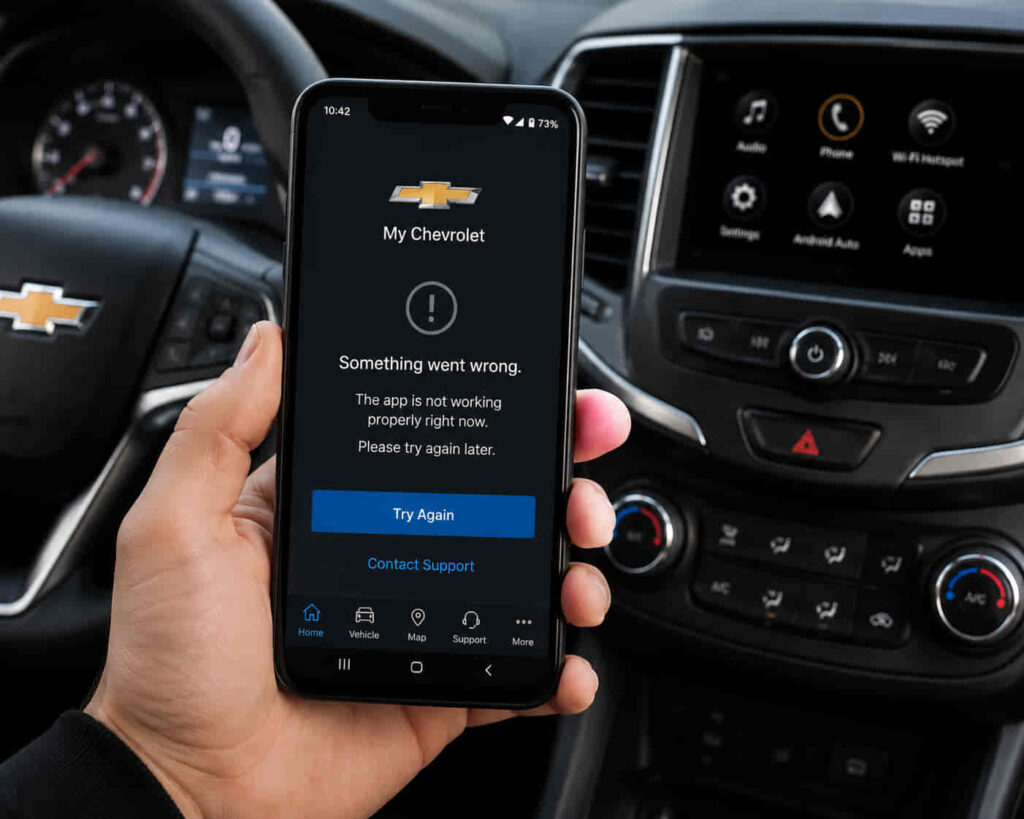
The Chevrolet App not working on Android is usually caused by problems with the application, smartphone settings, internet connection, account authentication, or vehicle connectivity. When the app stops working, Chevrolet owners may lose access to important connected features such as checking vehicle status, using remote commands, managing Chevrolet Connected Services, or receiving updates from their vehicle.
There are 12 main fixes for Chevrolet App problems on Android, starting with basic troubleshooting steps and progressing to account, device, and vehicle connection checks. The correct solution depends on whether the issue comes from the Chevrolet App itself, the Android operating system, the smartphone configuration, or Chevrolet’s connected service system.
Common problems include the Chevrolet App crashing after opening, failing to load vehicle information, preventing user login, disconnecting from the vehicle, or failing to activate features such as Remote Start and Remote Lock/Unlock. These problems do not always require professional support because many errors come from temporary software conflicts, outdated app versions, restricted permissions, or unstable network connections.
This guide explains why the Chevrolet App may not work on Android and provides practical solutions to restore the connection between your smartphone and Chevrolet vehicle. By following each troubleshooting step, users can identify the source of the problem and apply the correct fix without unnecessary resets or service visits.
Why Is the Chevrolet App Not Working on Android?
The Chevrolet App may stop working on Android because of problems related to the application version, smartphone configuration, internet connection, account authentication, or Chevrolet Connected Services. The most common causes are outdated software, restricted Android permissions, corrupted app data, unstable network access, and connection failures between the app and the vehicle.
Understanding the source of the problem is important because Chevrolet App errors do not always come from the application itself. For example, an app that cannot display vehicle information may have a connection issue with Chevrolet servers, while an app that closes immediately after opening may have corrupted cache files or compatibility problems with the Android operating system.
What causes the Chevrolet App to stop working on Android phones?
The Chevrolet App depends on multiple systems working together, including the Android device, Chevrolet account, internet connection, and vehicle communication services. A failure in any one of these components can prevent the application from performing normally.
An outdated Chevrolet App version is one of the most common causes of Android performance problems. Mobile applications receive updates to maintain compatibility with newer Android versions, improve security, and fix software bugs. When users continue running an older version of the app, features such as vehicle status updates, remote commands, or account synchronization may stop responding correctly.
Android system settings can also prevent the Chevrolet App from working properly. The application requires specific permissions to access features such as location services, Bluetooth communication, notifications, and background activity. If these permissions are disabled, Android may restrict the app from maintaining a connection with the Chevrolet vehicle.
Another frequent cause is damaged temporary data stored by the application. The Chevrolet App saves cache files to improve loading speed, but corrupted cache data can create errors during startup, login attempts, or vehicle synchronization. Clearing outdated app data allows Android to rebuild a clean connection between the application and its required services.
Network problems can also interrupt Chevrolet App functionality. The application requires a stable internet connection to communicate with Chevrolet Connected Services and retrieve vehicle information. Weak mobile signals, unstable Wi-Fi networks, VPN restrictions, or background data limitations can prevent commands from reaching the vehicle.
How can you identify whether the problem comes from the Chevrolet App or your Android phone?
Identifying the source of the problem reduces unnecessary troubleshooting steps. The fastest way to diagnose a Chevrolet App issue is to separate application problems from device, account, and vehicle connection problems.
If the Chevrolet App opens normally but cannot display vehicle information, the problem is likely related to account synchronization, network access, or Chevrolet Connected Services. If the application crashes immediately after launch, the cause is more likely connected to the app installation, cache files, or Android compatibility.
Testing other applications on the same smartphone can also reveal whether the issue comes from the Android device. When multiple apps experience connection problems, the cause is usually related to network settings, operating system restrictions, or device performance. When only the Chevrolet App fails, troubleshooting should focus on the application itself.
Checking the Chevrolet account status is another important diagnostic step. Features such as Remote Start, vehicle location, and remote locking depend on a valid account connection and active Chevrolet Connected Services. A login problem or expired service connection can make the app appear broken even when the Android device is working correctly.
Read more: My Chevrolet App Not Loading
How Do You Fix Chevrolet App Not Working on Android?
There are 12 proven ways to fix the Chevrolet App when it is not working on Android, including restarting the application, updating the app, clearing cache data, checking permissions, verifying account access, and restoring vehicle connectivity. These solutions address the most common causes of Chevrolet App failures without requiring immediate professional support.
The correct troubleshooting method is to start with simple software checks before changing advanced settings. Many Chevrolet App problems happen because Android temporarily restricts the application, outdated files interfere with normal operation, or the smartphone loses communication with Chevrolet Connected Services.
How do you restart the Chevrolet App on Android?
Restarting the Chevrolet App can fix temporary software conflicts that prevent the application from loading correctly. Force closing and reopening the app clears inactive processes and allows Android to create a new application session.
Android applications sometimes remain active in the background even after users leave them. When a background process becomes unstable, the Chevrolet App may freeze, fail to refresh vehicle information, or stop responding to user commands.
To restart the application, users should close the Chevrolet App completely from the Android recent apps screen and open it again. This process reloads the application interface and reconnects it with required services. A simple restart is often effective when the problem appears suddenly after normal usage.
Restarting the smartphone can provide an additional solution because Android may have temporary memory or system process issues affecting multiple applications. A device reboot refreshes background services, clears temporary conflicts, and allows the Chevrolet App to reconnect with Android features such as mobile data, Bluetooth, and notifications.
How do you update the Chevrolet App on Android?
Updating the Chevrolet App from Google Play Store is one of the most effective ways to fix compatibility problems. A current app version ensures that the Chevrolet App contains the latest bug fixes, security improvements, and compatibility updates for Android devices.
Application updates are released because mobile operating systems continuously change. When Android receives new system updates, older versions of connected vehicle applications may experience problems such as login failures, delayed vehicle status updates, or unexpected crashes.
Users should open Google Play Store, search for the Chevrolet App, and check whether a newer version is available. Installing the latest update replaces outdated application files and restores compatibility with current Android software.
Keeping the Chevrolet App updated also improves reliability for connected features. Functions such as Remote Start, Remote Lock/Unlock, and vehicle status monitoring depend on stable communication between the application and Chevrolet Connected Services. An outdated app may fail to process these commands correctly.
How do you clear Chevrolet App cache on Android?
Clearing the Chevrolet App cache can solve problems caused by damaged temporary files. Cached data helps applications load faster, but corrupted cache files can prevent the Chevrolet App from opening, logging in, or synchronizing vehicle information.
Android stores temporary application data to reduce loading time during future sessions. However, when these files become outdated or damaged after app updates, they may conflict with newer application components.
To clear the cache, Android users can open device settings, access the application management section, select the Chevrolet App, and remove stored cache data. This process does not delete the user account or permanently remove vehicle information.
After clearing the cache, the Chevrolet App creates new temporary files during the next launch. This allows the application to establish a cleaner connection with Chevrolet services and can resolve problems such as slow loading, frozen screens, or failed synchronization.
How Do You Fix Chevrolet App Login, Permission, and Connection Problems on Android?
The Chevrolet App requires a stable connection between the Android device, Chevrolet account, and connected vehicle services to operate correctly. Login failures, missing permissions, and vehicle connection errors are among the most common reasons why Chevrolet App features stop working on Android.
These problems usually occur because Android restricts application access, account authentication becomes outdated, or the vehicle connection loses synchronization with Chevrolet Connected Services. Checking each connection point helps identify whether the problem comes from the smartphone, the application, or the vehicle system.
How do you fix Chevrolet App login problems on Android?
A Chevrolet App login problem usually happens because of incorrect account information, authentication errors, or a temporary connection failure between the app and Chevrolet servers. The first step is verifying that the Chevrolet account credentials are correct and that the application can communicate with Chevrolet services.
Users should confirm that they are signing in with the same Chevrolet account linked to their vehicle. A mismatch between the account used in the application and the account registered for Chevrolet Connected Services can prevent the app from loading vehicle information.
Password-related issues are another common cause of login failures. If the Chevrolet App repeatedly rejects login attempts, resetting the account password and signing in again can refresh the authentication process. This action creates a new secure session between the Android device and Chevrolet account system.
Temporary server communication problems can also affect login performance. When the Chevrolet App cannot reach its authentication service, users may experience loading screens, failed sign-ins, or repeated requests to enter account information. Waiting for the service connection to recover and trying again can resolve these temporary failures.
How do you check Chevrolet App permissions on Android?
The Chevrolet App needs specific Android permissions to provide connected vehicle features. Location, Bluetooth, notification, and background activity permissions allow the application to communicate with the vehicle and deliver important updates.
Location access helps connected vehicle services determine relevant vehicle information and support location-based features. Bluetooth permission allows communication between compatible devices and vehicle-related systems, while notification access ensures that users receive alerts about vehicle status and account activity.
Android automatically manages application permissions to protect user privacy. However, these security controls can sometimes block necessary Chevrolet App functions. For example, disabling background activity may prevent the app from updating vehicle information when it is not actively open.
Users can review Chevrolet App permissions through Android settings and enable the required access. Restoring these permissions allows the application to operate normally without unnecessary restrictions from the operating system.
How do you fix Chevrolet App connection problems with your vehicle?
The Chevrolet App depends on a connection between the user account, smartphone, vehicle, and Chevrolet Connected Services platform. A vehicle connection problem occurs when one part of this communication chain fails to exchange information correctly.
The first step is confirming that the vehicle is registered under the correct Chevrolet account. If the vehicle was recently purchased, transferred to another owner, or removed from the account, the application may not display vehicle information or support remote features.
Connected features such as Remote Start, Remote Lock/Unlock, and vehicle status updates require active communication between the vehicle and Chevrolet services. A weak network connection, inactive service plan, or synchronization delay can interrupt these features.
Reconnecting the vehicle through the Chevrolet App can restore communication when the account and vehicle information become disconnected. If the problem continues after checking the smartphone and account settings, the issue may require assistance from Chevrolet support because it could involve vehicle services or server-side connection problems.
How Do You Fix Chevrolet App Problems Caused by Android Settings and Network Issues?
The Chevrolet App relies on Android system settings and a stable internet connection to communicate with Chevrolet Connected Services. Android restrictions, unstable networks, and background limitations can prevent the application from updating vehicle information or completing remote commands correctly.
Many users focus only on reinstalling the Chevrolet App when problems occur, but the root cause is often outside the application. Android controls how apps use battery, mobile data, location services, and background activity, which means incorrect device settings can interrupt connected vehicle features.
How do you fix Chevrolet App problems caused by internet connection issues?
The Chevrolet App requires an active internet connection to exchange information between the smartphone, Chevrolet servers, and the vehicle. A weak or unstable connection can cause delayed updates, failed commands, and incomplete loading of vehicle information.
Mobile data and Wi-Fi networks affect how quickly the Chevrolet App communicates with Chevrolet Connected Services. When the connection drops frequently, the application may fail to update vehicle status or complete actions such as Remote Start and Remote Lock/Unlock.
Users should test the Chevrolet App using a different network to determine whether the problem comes from the current connection. For example, switching from mobile data to a reliable Wi-Fi network can identify whether weak cellular coverage is causing the failure.
VPN applications and network security settings can also interfere with connected vehicle communication. Some network configurations limit access to external services, which may prevent the Chevrolet App from reaching Chevrolet servers successfully.
Checking Android data restrictions is another important step. If background data usage is disabled for the Chevrolet App, the application may stop receiving updates when it is running in the background. Allowing background data helps maintain continuous communication with connected services.
Can Android battery settings prevent the Chevrolet App from working?
Android battery optimization can restrict Chevrolet App activity and reduce its ability to operate in the background. Battery-saving features may close background processes that the Chevrolet App needs for notifications, vehicle updates, and remote commands.
Modern Android devices use aggressive power management to extend battery life. While this improves energy efficiency, it can limit applications that require continuous background communication.
When battery optimization restricts the Chevrolet App, users may notice delayed notifications, missing vehicle updates, or remote commands that take longer than expected to complete. These problems happen because Android pauses the application when it is not actively open.
Adjusting battery settings to allow the Chevrolet App to run without unnecessary restrictions can improve reliability. The application should be permitted to operate in the background, especially for users who frequently use connected features such as vehicle monitoring or remote controls.
How do you reinstall the Chevrolet App on Android?
Reinstalling the Chevrolet App removes damaged application files and creates a fresh installation environment. A complete reinstall is useful when updating, clearing cache, or changing permissions does not resolve persistent app failures.
Application files can become corrupted after incomplete updates, system changes, or conflicts with other software. These damaged files may cause repeated crashes, login problems, or loading failures.
To reinstall the Chevrolet App, users should remove the existing application from their Android device and download the latest version from Google Play Store. After installation, they need to sign in again using the Chevrolet account connected to their vehicle.
A fresh installation does not usually remove vehicle ownership information because that data is linked to the Chevrolet account rather than stored only on the smartphone. Once the user signs in successfully, the app can restore access to connected vehicle features.
How Do You Check Chevrolet Services and Android Compatibility Issues?
The Chevrolet App depends on both smartphone compatibility and Chevrolet Connected Services availability to function correctly. When the application, Android device, and Chevrolet service platform cannot communicate properly, users may experience missing vehicle information, failed remote commands, or repeated connection errors.
Checking system compatibility helps determine whether the problem comes from the Android device itself or from Chevrolet’s connected vehicle infrastructure. This step is especially important when the app worked previously but stopped functioning after a phone update, app update, or account change.
Chevrolet Connected Services problems can prevent the Chevrolet App from completing vehicle-related actions even when the Android device works normally. A service outage or temporary server communication problem can affect features that require real-time connection between the vehicle and Chevrolet systems.
Connected features such as Remote Start, Remote Lock/Unlock, vehicle status updates, and vehicle location depend on communication between multiple systems. The smartphone sends a request through the Chevrolet App, the request reaches Chevrolet services, and the vehicle receives the command through its connected technology.
When Chevrolet servers experience technical problems, users may notice that the app opens normally but fails to complete actions. For example, the vehicle status may not update, remote commands may remain pending, or the application may display connection-related messages.
Users can identify service-related problems by checking whether other Chevrolet App users experience similar failures or by waiting and testing the application again later. If the issue continues for an extended period, contacting Chevrolet support can help determine whether the problem involves account services or connected vehicle infrastructure.
How do you fix Chevrolet Remote Start not working on Android?
Chevrolet Remote Start problems usually happen because the app cannot communicate correctly with the vehicle, the required service is unavailable, or vehicle conditions prevent the command from being completed. Remote Start requires an active connection between the Chevrolet App, Chevrolet Connected Services, and the vehicle system.
The first step is confirming that other Chevrolet App features work correctly. If vehicle status updates and account information also fail, the problem is likely related to the overall connection rather than the Remote Start feature itself.
Vehicle conditions can also affect Remote Start operation. The vehicle must meet specific requirements before accepting a remote command, including having sufficient system availability and maintaining communication with Chevrolet services. When these conditions are not met, the command may fail even though the application is working correctly.
Android users should also verify that the Chevrolet App has proper permissions, a stable internet connection, and the latest software version. These factors directly affect whether remote commands can travel successfully from the smartphone to the vehicle.
When should you contact Chevrolet Support for Android app problems?
Chevrolet Support should be contacted when standard troubleshooting steps cannot restore the Chevrolet App connection. Professional assistance is usually required when the problem involves account activation, vehicle registration, Connected Services status, or possible server-side issues.
Users should consider contacting support when the app consistently fails after updating, reinstalling, checking permissions, and verifying network connections. Persistent problems may indicate that the issue is related to the Chevrolet account, vehicle configuration, or backend service connection.
Before contacting support, users should prepare important information such as the Android device model, Android version, Chevrolet App version, vehicle information, and a description of the error message. This information helps support teams identify whether the failure comes from the smartphone, application, account, or vehicle system.
How Do You Prevent Chevrolet App Problems on Android?
Preventing Chevrolet App problems on Android requires maintaining a stable connection between the smartphone, application, Chevrolet account, and vehicle services. Regular app maintenance, correct Android settings, and proper account management reduce the chance of crashes, connection failures, and missing vehicle information.
Many Chevrolet App problems happen because small software issues accumulate over time. An outdated application version, restricted permissions, or excessive background limitations can gradually reduce the reliability of connected vehicle features. Maintaining the application environment helps ensure that the Chevrolet App continues communicating correctly with Chevrolet Connected Services.
Keeping the Chevrolet App updated is one of the most effective prevention methods. Application updates improve compatibility with newer Android versions, fix known software problems, and maintain secure communication with Chevrolet systems. Users who delay updates may eventually experience problems when Android changes system requirements or security settings.
Maintaining proper Android permissions also improves long-term app performance. The Chevrolet App needs access to features such as location services, notifications, Bluetooth, and background activity to provide connected vehicle functions. Removing these permissions may improve battery privacy settings temporarily but can prevent important app features from operating correctly.
A stable internet connection is another important factor for preventing Chevrolet App failures. Since connected vehicle features rely on communication between the smartphone and Chevrolet services, frequent network interruptions can create delayed updates or failed remote commands. Using reliable Wi-Fi or mobile data helps maintain consistent communication.
Users should also regularly verify their Chevrolet account status and connected vehicle information. A properly synchronized Chevrolet account ensures that vehicle features remain available through the Android application. Account changes, vehicle ownership transfers, or inactive Connected Services subscriptions can interrupt access even when the smartphone and application work correctly.
Finally, restarting the Chevrolet App and Android device periodically can prevent temporary software conflicts. Background processes, memory usage, and system changes can affect application performance over time. Simple maintenance actions help keep the Chevrolet App responsive and reduce the need for advanced troubleshooting.