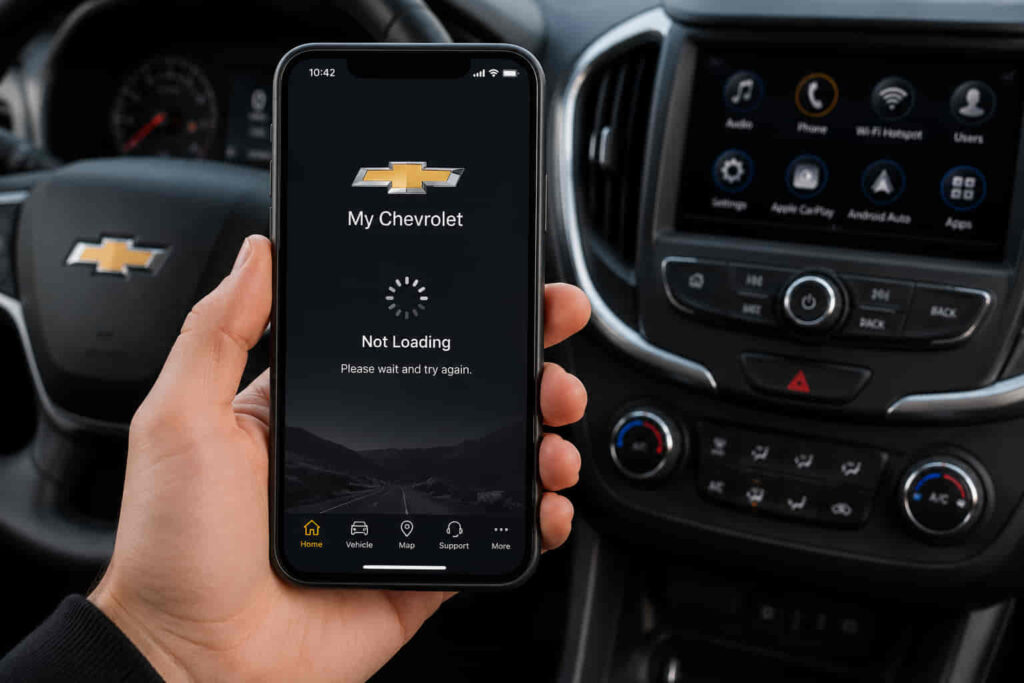
The My Chevrolet App allows Chevrolet owners to remotely start their vehicle, lock or unlock doors, check fuel or battery levels, monitor vehicle health, and access connected services through a smartphone. When the app stops loading, these features become unavailable, making it difficult to manage the vehicle remotely or receive important status updates. In most cases, the problem is not caused by a single factor. A loading issue can originate from the mobile device, the application itself, the user’s account, Chevrolet Connected Services, or a temporary server interruption.
Identifying the source of the problem is the fastest way to restore the app. Restarting the application may resolve a temporary software glitch, but the same approach will not fix an expired OnStar plan, a server outage, or a corrupted app installation. For that reason, troubleshooting should begin by determining where the failure occurs before applying a solution.
This guide explains the most common reasons the My Chevrolet App is not loading, how to distinguish between device-related and server-related problems, and the most effective solutions for Android and iPhone users. It also covers situations where the application opens but cannot communicate with the vehicle, why the app may repeatedly crash, and when contacting Chevrolet or OnStar Support becomes the most appropriate next step. By following a structured troubleshooting process, you can eliminate unnecessary steps, restore the application’s functionality more quickly, and regain access to Chevrolet’s connected features.
Why Is My Chevrolet App Not Loading?
The My Chevrolet App usually fails to load because the connection between the mobile application, your smartphone, your Chevrolet account, and Chevrolet Connected Services is interrupted. The application depends on all of these components working together to retrieve account information, vehicle status, and remote command data. If any part of this communication chain becomes unavailable, the app may remain on the loading screen, display a blank page, or fail to open altogether.
Most loading issues fall into five categories: network connectivity problems, application software issues, device compatibility problems, account authentication failures, and Chevrolet server interruptions. Identifying which category applies to your situation is more effective than trying multiple random fixes because each problem requires a different solution. For example, clearing the app cache may resolve corrupted temporary files, but it will not restore functionality if Chevrolet’s backend services are temporarily unavailable.
A poor internet connection is one of the most common reasons the My Chevrolet App cannot finish loading. The application continuously exchanges encrypted data with Chevrolet’s cloud services to verify your account, synchronize vehicle information, and retrieve remote commands. When Wi-Fi is unstable, mobile data is restricted, or a VPN interferes with secure communication, the loading process may stop before the home screen appears. Switching from Wi-Fi to cellular data, or vice versa, often helps determine whether the problem is related to the network rather than the application itself.
Outdated software is another frequent cause. Chevrolet regularly updates the My Chevrolet App to maintain compatibility with the latest versions of Android and iOS while improving security, fixing bugs, and supporting new vehicle features. Running an older version of the application or an unsupported mobile operating system can prevent the app from initializing correctly. In many cases, updating both the application and the device operating system restores normal performance because compatibility issues are eliminated.
Corrupted application data can also prevent the app from loading successfully. During normal use, the My Chevrolet App stores cached files to reduce loading time and improve responsiveness. If these temporary files become damaged after an interrupted update, insufficient storage, or an unexpected system crash, the application may repeatedly freeze or remain stuck on the Chevrolet logo. Removing cached data on Android or reinstalling the application on iPhone replaces corrupted files with a clean installation, allowing the app to establish a new connection with Chevrolet’s servers.
Authentication problems represent another common source of loading failures. Every time the application starts, it validates your Chevrolet account credentials and confirms that your Connected Services subscription remains active. An expired login session, changed password, multi-factor authentication issue, or account synchronization error may interrupt this verification process before the dashboard loads. In these situations, signing out and logging back into the application usually refreshes the authentication token and restores access without affecting your saved vehicle information.
Not every loading problem originates on the user’s device. Chevrolet occasionally performs scheduled maintenance or experiences temporary service disruptions affecting Connected Services and OnStar infrastructure. During these events, thousands of users may experience identical symptoms, including continuous loading screens, failed login attempts, unavailable remote commands, or delayed vehicle synchronization. If the application suddenly stops working despite a stable internet connection and an up-to-date device, checking Chevrolet’s service status before troubleshooting further can prevent unnecessary reinstallation or configuration changes.
The appearance of the loading issue also provides valuable clues about its underlying cause. An application that closes immediately after opening often indicates software instability or compatibility conflicts. A permanent loading spinner usually suggests communication failures between the application and Chevrolet’s cloud platform. A blank white or black screen frequently points to corrupted application resources, while repeated login prompts typically indicate an authentication or account validation problem. Recognizing these patterns helps narrow the diagnosis and reduces the time required to restore the application’s functionality.
How Do You Fix the My Chevrolet App That Won’t Load?
The fastest way to fix the My Chevrolet App is to identify where the loading process fails before making changes to the application or your device. Because the app depends on your smartphone, Chevrolet servers, your account credentials, and Connected Services working simultaneously, troubleshooting should follow the same communication path. Resolving the issue at its source prevents unnecessary reinstallation and reduces the risk of disrupting existing vehicle settings.
The first step is to verify that the problem is not caused by a temporary interruption. Close the My Chevrolet App completely instead of leaving it running in the background, then reopen it after several seconds. Mobile operating systems occasionally leave background processes in an unstable state after memory pressure, interrupted updates, or network changes. Restarting the application forces it to establish a new session with Chevrolet’s cloud services and reload vehicle data from the beginning. If the application loads normally after reopening, the issue was likely caused by a temporary software process rather than a persistent system failure.
If restarting the application does not resolve the problem, restart the mobile device before making additional changes. Both Android and iPhone continuously manage system memory, background services, network interfaces, and security certificates that applications rely on. A device reboot refreshes these resources, terminates stalled background processes, and restores stable communication between the operating system and installed applications. Many loading problems disappear after a complete restart because the operating system rebuilds the software environment from a clean state.
Network connectivity should be evaluated before assuming the application itself is defective. The My Chevrolet App cannot display vehicle information unless it successfully exchanges encrypted data with Chevrolet’s servers. Even when a phone appears connected to the internet, unstable Wi-Fi, weak cellular coverage, captive public networks, VPN configurations, or firewall restrictions may interrupt secure communication. Switching from Wi-Fi to mobile data, or from mobile data back to Wi-Fi, helps determine whether the connection is preventing the application from completing the loading process. If the application immediately begins working after changing networks, the underlying cause is almost always related to connectivity rather than the application.
Running the latest software version is equally important because Chevrolet regularly releases updates that improve stability, security, and compatibility with newer versions of Android and iOS. An outdated application may fail to communicate correctly with updated backend services or may contain bugs that have already been resolved in newer releases. Likewise, older operating systems may no longer fully support the latest application framework. Updating both the My Chevrolet App and the device operating system ensures that communication protocols, security requirements, and application components remain compatible.
Corrupted temporary data is another common reason the application refuses to load. The My Chevrolet App stores cached information to reduce loading time and improve responsiveness, but damaged cache files may prevent the application from completing its startup sequence. On Android devices, clearing the application’s cache removes temporary files without deleting account information or vehicle data. On iPhone, where cache cannot be cleared independently for most applications, removing and reinstalling the application creates a fresh installation with new application files. After signing in again, the application downloads updated account information directly from Chevrolet’s servers instead of relying on corrupted local data.
Account authentication should also be reviewed if the loading screen appears immediately after entering login credentials. Every session requires Chevrolet to validate the user’s identity, verify Connected Services eligibility, and synchronize the registered vehicle with the account. Password changes, expired authentication tokens, multiple-device sign-ins, or temporary account synchronization errors can interrupt this verification process before the application finishes loading. Signing out of the account and completing a new login session refreshes authentication credentials and often restores normal operation without affecting saved vehicle settings.
Some users continue troubleshooting even though the issue originates entirely outside their devices. Chevrolet periodically performs maintenance on Connected Services infrastructure or experiences temporary server interruptions affecting authentication, vehicle synchronization, and remote command processing. During these periods, reinstalling the application, clearing cache, or changing device settings will not restore functionality because the backend services remain unavailable. Before performing advanced troubleshooting, it is worth confirming whether other users are reporting similar problems or whether Chevrolet has announced an ongoing service interruption. Waiting until backend services return to normal is often the only effective solution in these situations.
If the My Chevrolet App still refuses to load after verifying the network connection, updating the software, refreshing cached data, confirming account credentials, and ruling out server interruptions, the issue may involve a deeper account synchronization problem or vehicle connectivity error. These cases typically require assistance from Chevrolet Customer Support or OnStar representatives, who can verify account status, Connected Services activation, vehicle registration, and server-side synchronization that cannot be accessed from within the application itself.
Read more: Chevrolet AC Not Working
Why Does the My Chevrolet App Load but Not Connect to Your Vehicle?
A successfully loaded My Chevrolet App does not necessarily mean it can communicate with your Chevrolet vehicle. The application and the vehicle exchange information through Chevrolet Connected Services and the OnStar communication network rather than through a direct internet connection between your phone and the vehicle. As a result, the app may open normally while vehicle information fails to update, remote commands remain unavailable, or the connection status continues to display as “Unable to Connect.” In these situations, the issue usually lies in the communication pathway between the vehicle and Chevrolet’s cloud platform instead of the mobile application itself.
One of the most common causes is an interruption in Chevrolet Connected Services or an inactive OnStar subscription. Every remote function, including Remote Start, Remote Lock and Unlock, Vehicle Status, Fuel Level, Battery Status, and Vehicle Location, depends on an active connection between the vehicle’s embedded telematics module and Chevrolet’s backend infrastructure. If the subscription has expired, the vehicle has not completed its activation process, or Connected Services are temporarily unavailable, the application can authenticate the user successfully while remaining unable to retrieve live vehicle data. This explains why many owners can sign into the app but continue seeing outdated information or failed remote commands.
Vehicle synchronization delays can also prevent the application from displaying current information. The My Chevrolet App does not maintain a permanent real-time connection with the vehicle. Instead, it periodically synchronizes data whenever the vehicle communicates with Chevrolet’s servers. After purchasing a new vehicle, transferring ownership, changing account details, reinstalling the application, or completing a software update, synchronization may require additional time before all connected services become available. During this period, the application may recognize the registered vehicle but temporarily fail to execute commands because the account and vehicle records have not finished synchronizing across Chevrolet’s systems.
Poor cellular coverage affecting the vehicle itself is another frequently overlooked cause. While users often focus on the internet connection of their smartphones, Chevrolet vehicles equipped with Connected Services rely on their own embedded cellular communication hardware to exchange information with Chevrolet’s servers. If the vehicle is parked in an underground garage, inside a concrete structure, or in an area with weak network coverage, it may be unable to transmit updated vehicle data even though the mobile phone has a strong internet connection. In these cases, moving the vehicle to an area with better cellular reception often restores communication without requiring any changes to the application.
Software inconsistencies between the vehicle and the mobile application may also interrupt synchronization. Chevrolet periodically releases firmware updates for vehicle infotainment systems and telematics modules to improve security, connectivity, and compatibility with Connected Services. If the mobile application has already been updated while the vehicle continues operating on outdated software, communication errors may occur because the two systems are using different software versions or protocols. Ensuring both the mobile application and the vehicle software remain current reduces compatibility issues and improves long-term connection stability.
Account configuration problems can produce similar symptoms even when the application itself functions normally. If multiple Chevrolet accounts are associated with the same vehicle, ownership has recently changed, or the vehicle identification number (VIN) has not been linked correctly to the primary account, Chevrolet’s servers may reject synchronization requests despite allowing the user to sign in successfully. Verifying that the correct VIN appears in the account dashboard and confirming that Connected Services are assigned to the active Chevrolet account helps eliminate account-level synchronization conflicts.
If the application opens consistently but every remote feature continues to fail after confirming network availability, account status, subscription validity, and vehicle software updates, the remaining cause is often a server-side synchronization issue that cannot be resolved from the user’s device. Chevrolet Customer Support and OnStar representatives can verify telematics activation, inspect vehicle communication logs, refresh backend account synchronization, and confirm whether the vehicle is correctly registered within Chevrolet’s Connected Services platform. These server-side checks are typically the final step when all standard troubleshooting procedures have already been completed but the application still cannot establish communication with the vehicle.
When Should You Contact Chevrolet or OnStar Support?
Most My Chevrolet App loading problems can be resolved by updating the application, restarting the mobile device, refreshing account credentials, or restoring a stable internet connection. However, some failures originate within Chevrolet’s Connected Services infrastructure or the vehicle’s telematics system, making them impossible to resolve through standard troubleshooting. Once every common device-related cause has been eliminated, continuing to reinstall the application or repeatedly clearing cached data rarely produces different results. At that stage, contacting Chevrolet Customer Support or OnStar Support becomes the most efficient way to restore full functionality.
A persistent loading issue that affects only one Chevrolet account often indicates a backend synchronization failure rather than a software problem on the phone. The application depends on Chevrolet’s servers to authenticate the account, verify Connected Services eligibility, and associate the correct Vehicle Identification Number (VIN) with the owner’s profile. If these records become inconsistent because of an ownership transfer, account migration, subscription renewal, or system maintenance, the application may remain unable to retrieve vehicle information even though it appears correctly installed and updated. Customer Support has access to backend diagnostic tools that can verify account integrity, refresh synchronization, and correct registration errors that are inaccessible from within the mobile application.
Support should also be contacted when remote vehicle functions consistently fail despite the application loading successfully. If Remote Start, Remote Lock, Vehicle Status, or Vehicle Location remain unavailable for an extended period while the phone, network connection, and application version are functioning normally, the underlying issue may involve the vehicle’s embedded communication module. Chevrolet technicians can determine whether the telematics hardware is communicating with Connected Services, whether the vehicle is transmitting diagnostic information correctly, and whether software provisioning has completed successfully after activation or repair.
Repeated authentication failures represent another situation where professional assistance is often required. If the My Chevrolet App continuously requests login credentials, rejects valid account information, or repeatedly signs the user out immediately after authentication, the issue may involve identity verification, subscription authorization, or account security policies rather than an incorrect password. Chevrolet Support can verify account status, reset authentication records, and confirm that Connected Services remain associated with the correct Chevrolet account.
Preparing relevant information before contacting support significantly reduces diagnostic time. Knowing the vehicle’s VIN, the smartphone model, the operating system version, the My Chevrolet App version, the exact error message, and the time the problem first occurred allows support representatives to reproduce the issue more efficiently. Screenshots of loading errors, failed remote commands, or authentication messages can further assist technical teams in identifying server-side abnormalities without requiring multiple follow-up requests. The more precise the information provided, the faster Chevrolet can isolate whether the issue originates from the account, the application, the vehicle, or Connected Services infrastructure.
How Can You Prevent the My Chevrolet App from Failing to Load Again?
Preventing future loading problems begins with maintaining compatibility between the My Chevrolet App, the mobile operating system, the vehicle software, and Chevrolet Connected Services. These components evolve continuously through security updates, performance improvements, and infrastructure changes. Allowing one component to remain outdated while the others continue receiving updates increases the likelihood of communication failures, authentication errors, and synchronization delays. Keeping every part of the connected ecosystem updated significantly improves long-term application stability.
Automatic application updates are one of the simplest ways to reduce recurring loading issues. Chevrolet frequently releases new versions of the My Chevrolet App to improve compatibility with newer Android and iOS releases, resolve software defects, and support additional connected vehicle features. Installing updates promptly ensures the application communicates with Chevrolet’s latest cloud infrastructure using current security protocols and supported APIs instead of relying on deprecated software components.
Maintaining a reliable internet connection also contributes to consistent application performance. Because the My Chevrolet App exchanges encrypted data with Chevrolet’s cloud platform every time it loads or executes a remote command, unstable public Wi-Fi networks, aggressive VPN configurations, and restrictive firewall settings can interrupt communication unexpectedly. Using trusted Wi-Fi networks or stable mobile data connections reduces authentication failures and allows vehicle information to synchronize more consistently.
Vehicle software should receive the same attention as the mobile application. Chevrolet periodically publishes infotainment and telematics updates that improve communication with Connected Services, enhance cybersecurity, and resolve connectivity bugs identified after vehicle production. Installing available vehicle software updates helps maintain compatibility between onboard communication systems and Chevrolet’s evolving backend services, reducing synchronization problems that may otherwise appear as application loading failures.
Managing account security carefully also prevents avoidable authentication problems. Password changes, multiple simultaneous logins across different devices, expired Connected Services subscriptions, or incomplete account verification can interrupt communication between the application and Chevrolet’s servers. Reviewing account settings periodically and ensuring subscription services remain active minimizes the risk of unexpected login failures or unavailable connected features.
Finally, understanding how the My Chevrolet App communicates with the vehicle helps users diagnose future issues more accurately. The application does not operate independently; it functions as one component within Chevrolet’s broader Connected Services ecosystem, which includes cloud infrastructure, mobile operating systems, embedded vehicle telematics, and account authentication services. When each component remains updated, properly configured, and actively connected, the application delivers reliable access to remote commands, vehicle diagnostics, maintenance information, and other connected features with minimal interruption.
Frequently Asked Questions
Why is the My Chevrolet App stuck on the loading screen?
A My Chevrolet App that remains on the loading screen is usually unable to complete communication with Chevrolet’s Connected Services. The interruption may occur while verifying account credentials, synchronizing vehicle information, or retrieving remote service data from Chevrolet’s cloud platform. In most situations, the issue is caused by an unstable internet connection, corrupted application data, an outdated app version, or a temporary server interruption. If the loading screen persists after restarting the application, updating the software, and verifying network connectivity, the problem is more likely related to backend services or account synchronization than to the mobile device itself.
Why can’t I log into my My Chevrolet account?
Login failures occur when Chevrolet cannot successfully authenticate the account or authorize Connected Services. Incorrect credentials are only one possible cause. Expired authentication sessions, password changes, account security verification, inactive subscriptions, or temporary server maintenance can all prevent successful login even when the application is functioning correctly. Signing in through another device or Chevrolet’s official owner portal helps determine whether the issue is account-related or limited to the mobile application.
Does reinstalling the My Chevrolet App delete my vehicle information?
Reinstalling the My Chevrolet App removes locally stored application files but does not delete vehicle information saved within your Chevrolet account. Vehicle registration, Connected Services status, subscription details, maintenance history, and remote service eligibility are stored on Chevrolet’s servers rather than on the smartphone itself. After reinstalling the application and signing back into the same account, the app downloads the latest synchronized data from the cloud. Only customized settings stored locally on the device, such as notification preferences or cached files, may need to be configured again.
Can I use Remote Start if the My Chevrolet App is not working?
Remote Start requires successful communication between the My Chevrolet App, Chevrolet Connected Services, and the vehicle’s telematics system. If the application cannot authenticate the account or establish communication with Chevrolet’s cloud infrastructure, remote commands cannot be transmitted to the vehicle. Even when the vehicle itself is fully operational, features such as Remote Start, Remote Lock and Unlock, Vehicle Status, and Vehicle Location remain unavailable until the connection between the application and Chevrolet’s Connected Services is restored.
Is the My Chevrolet App compatible with all Chevrolet vehicles?
The My Chevrolet App is compatible only with Chevrolet vehicles that support Connected Services and the required telematics hardware. Available features vary according to the vehicle model, model year, market, equipment level, and active OnStar or Connected Services subscription. Newer vehicles generally support a wider range of connected functions, while older models may provide limited remote capabilities or require additional activation before connected features become available. Checking your vehicle’s compatibility through your Chevrolet account or your local Chevrolet dealer is the most reliable way to confirm which services are supported.