Apple CarPlay is one of the most useful features in the Honda Accord. It lets you access navigation, music, phone calls, and messages directly from the infotainment screen. You can also use Siri to control many functions without taking your hands off the steering wheel. This makes every trip safer and more convenient.
Many drivers eventually face the frustrating issue of Honda Accord Apple CarPlay Not Working. The problem can appear at any time. Your iPhone may charge normally, but CarPlay never opens. The connection may also drop repeatedly, show a black screen, or fail after an iOS update. Some owners cannot even detect their vehicle through Wireless Apple CarPlay.
Several factors can trigger these problems. A damaged USB cable, the wrong USB port, disabled Siri, outdated software, or incorrect connection settings are among the most common causes. Temporary glitches in the Honda infotainment system can also interrupt the connection. Fortunately, most of these issues are easy to fix without replacing expensive components.
This guide walks you through 15 proven fixes for Honda Accord Apple CarPlay Not Working. We begin with the simplest solutions and gradually move to more advanced troubleshooting steps. By following the guide in order, you can identify the real cause more quickly and restore a reliable Apple CarPlay connection with confidence.
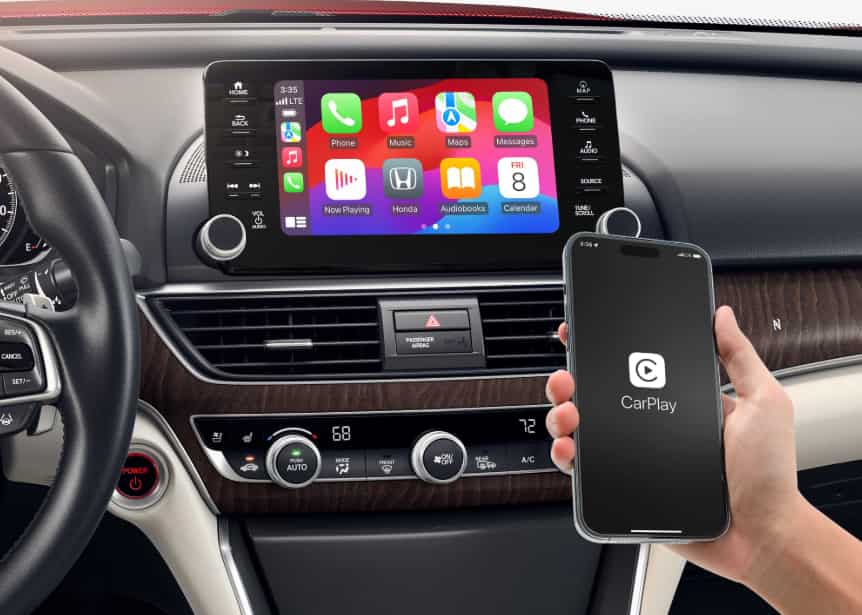
Why Is Honda Accord Apple CarPlay Not Working?
When Apple CarPlay stops working, many drivers assume the infotainment system has failed. In reality, the problem often starts with a much simpler issue. A loose cable, incorrect settings, or outdated software can interrupt the connection within seconds. Finding the real cause is the first step toward a lasting solution.
The USB cable is one of the most common reasons behind Honda Accord Apple CarPlay Not Working. Some cables only support charging and cannot transfer data. Even a certified cable may fail if it becomes worn or damaged. Dirt inside the USB port can also prevent a stable connection between the iPhone and the vehicle.
Software issues can create similar symptoms. An outdated iPhone, an older Honda infotainment version, or corrupted connection data may stop CarPlay from launching. In some cases, Siri is disabled or Screen Time restrictions block Apple CarPlay without the driver realizing it. These settings often change after an iOS update or when a new device is configured.
Wireless Apple CarPlay introduces another layer of complexity. The system relies on both Bluetooth and WiFi to establish and maintain the connection. If either feature is disabled or another phone connects first, CarPlay may never appear on the display. Interference from previously paired devices can also prevent a successful connection.
Vehicle compatibility is another factor worth checking. Not every Honda Accord offers the same Apple CarPlay features. Availability depends on the model year, trim level, infotainment system, and market. Some models support only wired CarPlay, while others include wireless connectivity.
Understanding these possible causes helps you troubleshoot more efficiently. Instead of guessing, you can follow a logical process and eliminate each possibility one by one. This approach saves time and greatly increases the chance of restoring a stable Apple CarPlay connection.
Quick Checks Before Troubleshooting
Before trying advanced solutions, spend a few minutes checking the basics. These simple steps can help you identify the source of the problem and avoid unnecessary resets or repairs. In many cases, the issue becomes clear after a quick inspection.
First, confirm whether your Honda Accord uses wired or wireless Apple CarPlay. The available connection method depends on the model year and trim level. If your vehicle only supports a wired connection, wireless troubleshooting will not solve the problem. Checking your owner’s manual can save time and prevent confusion.
Next, inspect your iPhone and the USB cable. Make sure the phone is unlocked before connecting it to the vehicle. Look for visible damage on the cable and check both connectors for dust or debris. If possible, test another certified data cable. A cable that charges your iPhone may still fail to transfer the data required for Apple CarPlay.
You should also test another compatible iPhone if one is available. If the second phone connects without any issues, the problem likely comes from your original device or its settings. On the other hand, if neither phone connects, the cable, USB port, or infotainment system deserves closer attention.
Wireless Apple CarPlay users should verify that both Bluetooth and WiFi are turned on. Remove any old pairings that you no longer use because they can interfere with a new connection. If multiple phones are stored in the vehicle, make sure the correct device has priority.
After completing these quick checks, you will have a better idea of where the problem begins. This information makes the remaining troubleshooting steps much more effective and helps you reach the right solution faster.
Check Compatibility, USB Port, and Cable
Start with the simplest fixes before changing any software settings. Many Apple CarPlay problems come from basic connection issues rather than serious hardware failures. Spending a few minutes on these checks can save both time and money.
First, confirm that your Honda Accord supports Apple CarPlay. Support depends on the model year, trim level, and infotainment system. Some models only offer wired Apple CarPlay, while newer trims may include wireless connectivity. If your vehicle does not support the feature, changing your iPhone settings will not solve the problem. Always verify the specifications in your owner’s manual or through Honda’s official documentation.
Next, make sure you are using the correct USB port. Many Honda Accord models include more than one USB port, but only one supports smartphone data transfer. The remaining ports may provide power for charging only. If your iPhone charges but Apple CarPlay never appears, connect the phone to the designated data port and try again.
The USB cable also plays an important role. A damaged cable can interrupt data transfer even if it still charges your iPhone. Low quality cables often create unstable connections that disconnect without warning. Choose a certified data cable and avoid long extensions, adapters, or USB hubs whenever possible. If you have another compatible cable, test it before moving to the next troubleshooting step.
After completing these three checks, reconnect your iPhone and wait a few seconds for Apple CarPlay to launch. If the problem continues, the connection itself is probably not the main cause. You can then continue with the next group of fixes that focuses on iPhone settings and wireless communication.
Check Siri, Permissions, Bluetooth, and WiFi
If the cable and USB port are not causing the problem, the next step is to review your iPhone settings. Apple CarPlay depends on several features working together. If one setting is disabled, the connection may fail even though your phone appears to connect normally.
Start by checking Siri. Apple CarPlay requires Siri to handle voice commands and several background functions. Open the Settings app, tap Apple Intelligence & Siri or Siri, depending on your iOS version, and make sure Siri is turned on. If you recently changed privacy settings or restored your iPhone, review these options before testing CarPlay again.
Next, check whether Apple CarPlay has permission to connect. Unlock your iPhone before plugging it into the vehicle. If a message asks whether you trust the vehicle or want to allow Apple CarPlay, tap Allow. If you denied this request in the past, remove the vehicle from your CarPlay settings and connect it again. This creates a new connection and restores the required permissions.
If your Honda Accord supports Wireless Apple CarPlay, verify both Bluetooth and WiFi before moving forward. Turn on both features and keep them enabled during the setup process. If your phone connects to another saved device first, disconnect that device and try again. You should also remove old Bluetooth pairings that you no longer use because they can interfere with a new connection.
After updating these settings, restart the connection and wait for the infotainment system to recognize your iPhone. If Apple CarPlay still does not appear, continue to the next group of fixes that focuses on restarting devices, removing restrictions, and creating a fresh connection.
Restart, Remove Restrictions, and Pair Again
Temporary software glitches can prevent Apple CarPlay from working even when every connection appears normal. Restarting your devices and refreshing the connection often removes these errors. This process only takes a few minutes and does not require any special tools.
Begin by restarting both your iPhone and your Honda Accord. Turn off the vehicle completely and wait for the infotainment system to shut down. Restart your iPhone while you wait. Once both devices are ready, reconnect your phone and check whether Apple CarPlay launches normally. A fresh restart clears temporary processes that may block communication between the phone and the vehicle.
If the problem continues, review your Screen Time settings. Open Settings, select Screen Time, and then tap Content and Privacy Restrictions. Make sure Apple CarPlay is allowed if restrictions are enabled. Some users activate these controls without realizing they also limit CarPlay. Company managed devices and parental controls may create similar restrictions.
The next step is to remove the existing connection and create a new one. Open Settings, select General, and then tap CarPlay on your iPhone. Choose your Honda Accord and select Forget This Car. After that, remove your iPhone from the Bluetooth and smartphone connection list in the Honda infotainment system. Pair the devices again and accept every permission request that appears during setup.
Creating a new connection removes outdated pairing data that may cause repeated connection failures. If Apple CarPlay still does not work after these steps, the issue may involve outdated software on your iPhone or the Honda infotainment system. The next section explains how to update both systems safely and improve overall compatibility.
Update and Reboot Both Systems
If Apple CarPlay still does not work, outdated software may be the cause. Apple and Honda regularly release updates that improve compatibility, fix connection problems, and increase system stability. Installing the latest software can resolve issues that simple troubleshooting cannot fix.
Start by checking your iPhone for updates. Open Settings, tap General, and then select Software Update. If a new iOS version is available, back up your data before installing it. Connect your iPhone to a reliable WiFi network and keep the battery charged during the update. Once the installation finishes, restart the phone and reconnect it to your Honda Accord.
Next, restart the Honda infotainment system. A reboot clears temporary software errors without removing your personal settings. The restart method may differ between model years, so follow the instructions in your owner’s manual. After the system finishes restarting, reconnect your iPhone and check whether Apple CarPlay responds normally.
If the problem remains, look for available infotainment software updates. Many Honda models allow you to check for updates through the system settings. Some updates require a WiFi connection, while others may need assistance from a Honda dealership. Install every available update and allow the process to finish without interruption. Turning off the vehicle during an update may damage the software or leave the installation incomplete.
Once both systems run the latest software, test Apple CarPlay again. Many connection problems disappear after updating the iPhone and the infotainment system together. If the issue still continues, the next step is to inspect the hardware and consider more advanced troubleshooting.
Inspect Ports, Reset Settings, and Check Hardware
If the previous fixes do not solve the problem, it is time to inspect the hardware more closely. Physical damage, worn connectors, or corrupted system settings can interrupt the connection even when everything appears to work correctly. A careful inspection can help you decide whether the issue requires a simple reset or professional service.
Begin by checking the charging port on your iPhone and the USB port inside your Honda Accord. Dust, lint, or other debris can block the connection between the cable and the device. Use a flashlight to inspect both ports and remove any visible dirt with a soft, nonmetal tool. Avoid using sharp objects because they can damage the connectors. You should also check the cable for bent pins or loose ends that may cause an unstable connection.
If the ports look clean, consider resetting your network settings. Open Settings, tap General, select Transfer or Reset iPhone, and then choose Reset Network Settings. This process removes saved WiFi networks and Bluetooth connections, but it often fixes communication problems that affect Apple CarPlay. After the reset finishes, reconnect your iPhone to the vehicle and complete the pairing process again.
When Apple CarPlay still refuses to connect, test another compatible iPhone and another certified cable. If neither device works, the problem may involve the USB module, infotainment system, or internal wiring. At this point, scheduling an inspection with a Honda dealer is the best option. A trained technician can diagnose hardware faults, install software updates if necessary, and confirm whether any components need replacement.
After completing all fifteen fixes, most Honda Accord owners can identify the source of the problem. Following each step in order reduces guesswork and helps you restore a reliable Apple CarPlay connection as quickly as possible.
How to Fix Specific Honda Accord Apple CarPlay Problems
Not every Apple CarPlay problem looks the same. Some drivers cannot connect their iPhone at all, while others experience random disconnections or a frozen display. Understanding the exact symptom helps you choose the right solution instead of trying every fix without a clear direction.
If your iPhone charges but Apple CarPlay does not start, begin by checking the USB cable and the USB port. Make sure you are using the data port instead of a charging only port. Unlock your iPhone before connecting it and confirm that Apple CarPlay is allowed in your settings. If the problem continues, test another certified data cable to rule out a faulty connection.
Wireless Apple CarPlay requires both Bluetooth and WiFi to work together. If the system cannot detect your Honda Accord, turn both features off and back on before trying again. Remove old Bluetooth pairings that you no longer use and reconnect your iPhone from the beginning. If another phone connects automatically, disconnect it before pairing your preferred device.
Frequent disconnections usually point to an unstable connection. A worn cable, a loose USB port, outdated software, or wireless interference can all create this issue. Replace the cable first because it is the easiest component to test. If the connection still drops, update both your iPhone and the Honda infotainment system.
A black screen or a frozen display often results from temporary software errors. Restart both the iPhone and the infotainment system before testing Apple CarPlay again. If the display remains unresponsive after several attempts, install the latest software updates and check whether the problem occurs with another compatible iPhone.
Audio issues require a different approach. If Apple CarPlay connects but produces no sound, increase the media volume and confirm that the correct audio source is selected. Disconnect other Bluetooth audio devices because they may receive the sound instead of your vehicle speakers. If the problem affects only one app, close the app completely and open it again.
Matching the solution to the symptom saves time and reduces unnecessary troubleshooting. Once you understand how the problem behaves, you can focus on the most likely cause and restore Apple CarPlay more efficiently.
Honda Accord Apple CarPlay Compatibility by Model Year
Apple CarPlay availability has changed over the years, so it is important to confirm what your Honda Accord actually supports before troubleshooting. Many drivers assume every model offers the same features, but that is not the case. The connection method depends on the model year, trim level, infotainment system, and the market where the vehicle was sold.
Honda first introduced Apple CarPlay on selected Accord models, and early versions supported a wired connection only. Later model years added more advanced infotainment systems with faster performance and, on selected trims, Wireless Apple CarPlay. Because these features vary, always check your owner’s manual or your vehicle specifications before trying to solve a connection problem.
The table below provides a general overview of Apple CarPlay compatibility. Keep in mind that equipment may differ by region and trim level.
| Model Year | Apple CarPlay Availability | Typical Connection |
|---|---|---|
| 2016 to 2017 | Available on selected trims | Wired |
| 2018 to 2020 | Available on most equipped models | Wired |
| 2021 to 2022 | Available on selected trims | Wired or Wireless |
| 2023 and newer | Widely available | Wired or Wireless |
If your Honda Accord supports only wired Apple CarPlay, focus on the USB cable, USB port, and iPhone settings during troubleshooting. Wireless troubleshooting steps will not resolve a wired connection issue. On the other hand, if your vehicle supports Wireless Apple CarPlay, you should also inspect Bluetooth, WiFi, and saved device pairings.
Verifying compatibility before troubleshooting helps you avoid unnecessary steps. It also makes the remaining fixes more effective because you can focus on the features that are available on your specific Honda Accord.
When Should You Visit a Honda Dealer?
Most Apple CarPlay problems can be solved with basic troubleshooting. However, some issues require professional diagnosis because they involve the vehicle’s hardware or software. If you have completed all fifteen fixes and the problem remains, it is time to contact a Honda dealer.
Start by considering how often the problem occurs. If Apple CarPlay never connects with any compatible iPhone or certified data cable, the issue may not be related to your phone. A faulty USB module, damaged wiring, or a malfunctioning infotainment system can prevent the connection from working correctly.
You should also schedule an inspection if the infotainment display freezes, restarts without warning, or becomes completely unresponsive. These symptoms may point to software corruption or an internal hardware fault. A Honda technician can run diagnostic tests, check for service updates, and verify whether the system operates as intended.
Another warning sign appears when the problem starts after electrical repairs, a battery replacement, or water exposure. Changes to the vehicle’s electrical system can affect communication between the infotainment unit and connected devices. Professional testing can identify hidden faults that are difficult to detect during home troubleshooting.
Before visiting the dealership, write down the symptoms you have experienced. Record your Honda Accord model year, trim level, iPhone model, iOS version, and the type of cable you used. Also note when the problem occurs and whether it happens every time or only under certain conditions. This information helps the technician diagnose the issue more quickly and recommend the most effective repair.
A professional inspection may cost less than replacing parts that still work properly. Taking a systematic approach saves time, reduces unnecessary expenses, and increases the chances of restoring Apple CarPlay to normal operation.
Frequently Asked Questions
Why is my Honda Accord Apple CarPlay not working even though my iPhone is charging?
This usually means the USB connection is supplying power but not transferring data. The problem may come from a charging only cable, the wrong USB port, damaged connectors, or incorrect Apple CarPlay settings. Try another certified data cable and make sure you are using the designated smartphone USB port.
Why did Apple CarPlay suddenly stop working in my Honda Accord?
Apple CarPlay can stop working after an iOS update, a change in your iPhone settings, or a temporary infotainment system error. Restart both your iPhone and your Honda Accord before checking for software updates and connection settings.
Does every Honda Accord support Apple CarPlay?
No. Apple CarPlay availability depends on the model year, trim level, infotainment system, and market. Earlier models may not support the feature, while some newer models offer both wired and Wireless Apple CarPlay.
How do I reset Apple CarPlay on my Honda Accord?
Remove your Honda Accord from the CarPlay settings on your iPhone. Then delete your iPhone from the vehicle’s Bluetooth and smartphone connection list. Pair the devices again and approve every permission request during the setup process.
Why does Apple CarPlay keep disconnecting?
Repeated disconnections often result from a damaged USB cable, a loose USB port, outdated software, wireless interference, or corrupted pairing data. Replacing the cable and updating both devices usually resolve the issue.
Can a USB cable cause Apple CarPlay to stop working?
Yes. A worn or low quality cable may charge your iPhone without transferring data. Always use a certified data cable and replace it if you notice loose connectors or intermittent connections.
Does Siri need to be enabled for Apple CarPlay?
Yes. Apple CarPlay relies on Siri for voice commands and several background functions. If Siri is disabled, Apple CarPlay may fail to connect or operate correctly.
Can an iOS update affect Apple CarPlay?
Yes. A software update can occasionally introduce temporary compatibility issues. Installing the latest stable iOS version and restarting both devices often restores normal operation.
Will resetting my Honda infotainment system erase my settings?
It depends on the type of reset. A simple restart usually keeps your settings, while a factory reset may remove paired phones, saved preferences, and other personalized data. Back up important information before performing a full reset.
What should I do if none of the fixes work?
Test another compatible iPhone and another certified data cable. If Apple CarPlay still does not work, schedule an inspection with a Honda dealer. A technician can check the USB module, infotainment system, wiring, and available software updates.
Conclusion
Experiencing Honda Accord Apple CarPlay Not Working can be frustrating, especially when you depend on Apple CarPlay for navigation, music, and hands free communication. Fortunately, most connection problems have simple solutions. A faulty USB cable, an incorrect USB port, outdated software, disabled Siri, or corrupted pairing information causes many of the issues that drivers encounter every day.
The best approach is to follow a logical troubleshooting process. Begin with the easiest checks, including your USB cable, iPhone settings, and Bluetooth or WiFi connections. Next, restart both devices and install the latest software updates. If the problem continues, inspect the USB ports, reset the connection, and test another compatible iPhone before assuming a hardware failure.
When every troubleshooting step fails, professional diagnosis becomes the safest option. A Honda technician can identify problems involving the infotainment system, USB module, or vehicle wiring that are difficult to detect at home. Early diagnosis may also prevent unnecessary repairs and reduce long term costs.
If this guide helped you solve your Honda Accord Apple CarPlay Not Working issue, share your experience in the comments. Include your Honda Accord model year, iPhone model, iOS version, and the fix that worked for you. Your experience may help other Honda owners restore Apple CarPlay more quickly and avoid the same frustration.