Tesla not automatically connecting to a phone is usually caused by issues with Phone Key, Bluetooth, the Tesla Mobile App, or smartphone permissions. When the system fails to recognize a phone, the vehicle may not unlock automatically, connect calls, or play media as expected.
Tesla phone connection problems are usually related to connection settings or authentication between the vehicle and smartphone rather than a hardware failure. Tesla relies on multiple connected systems, including Phone Key for driver authentication, Bluetooth for media and calls, and the Tesla Mobile App for maintaining communication between the vehicle and mobile device.
This guide explains how to fix Tesla not automatically connecting to a phone by following a step-by-step troubleshooting process. It covers the most common causes, including Phone Key configuration errors, Bluetooth pairing problems, Tesla app permission issues, iPhone and Android settings, and Tesla software-related connection failures.
The solutions in this article are designed for Tesla owners who use a smartphone as a primary connection method and want to restore automatic phone recognition without immediately contacting Tesla Service.
Tesla not automatically connecting to a phone usually happens because of five main causes: Phone Key authentication problems, Bluetooth connection errors, Tesla Mobile App issues, smartphone permission restrictions, and Tesla software problems. The automatic connection process depends on communication between the vehicle, mobile app, and smartphone settings, so a failure in any part of this system can prevent the phone from being recognized.
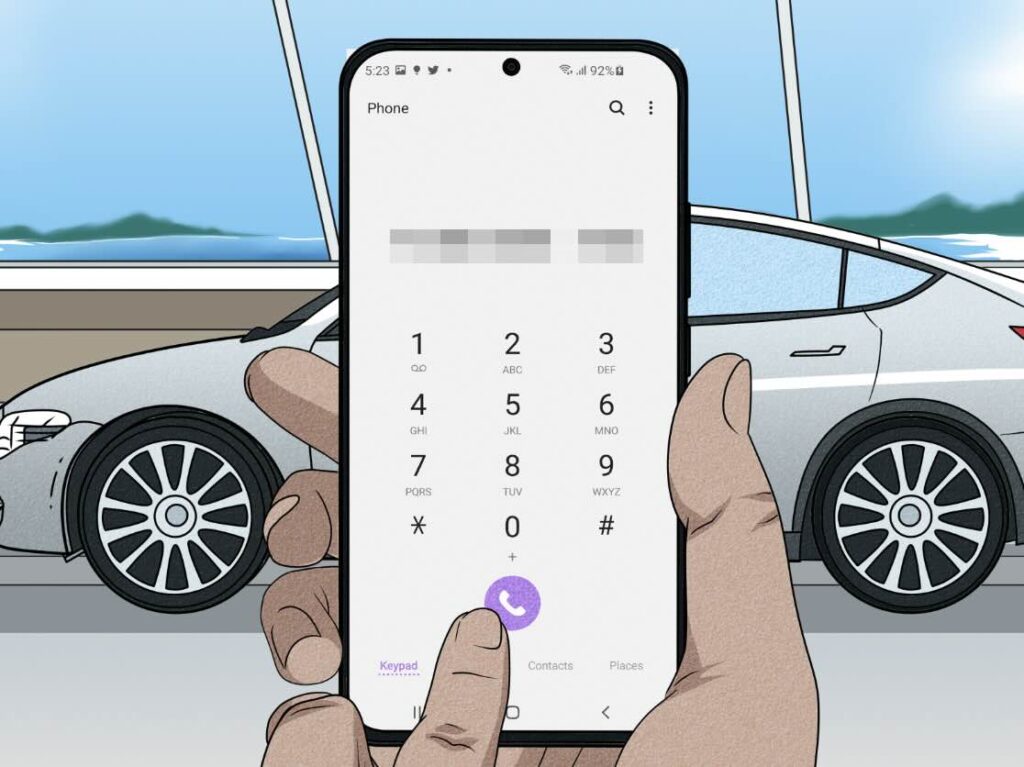
Why Is My Tesla Not Automatically Connecting to My Phone?
Phone Key authentication problems are the most common reason Tesla fails to recognize a phone automatically. Tesla uses the Phone Key feature to identify an authorized smartphone and allow functions such as automatic unlocking when the driver approaches the vehicle. If the Phone Key setup becomes disconnected, expires, or loses authorization after a device change, the vehicle may no longer detect the phone as an approved key.
Bluetooth connection errors can also prevent Tesla from connecting to a phone automatically. Tesla uses Bluetooth for phone calls, audio streaming, and communication with the smartphone, but Bluetooth pairing can fail after software updates, phone resets, or when multiple devices compete for connection priority. For example, a Tesla may connect to a previous phone instead of the current device if both phones remain paired.
Tesla Mobile App problems affect how the vehicle communicates with the smartphone. The app manages account authentication and Phone Key functionality, which means outdated app versions, disabled permissions, or restricted background activity can interrupt automatic recognition. On Android devices, battery optimization settings can prevent the Tesla app from running properly in the background, while iPhone users may experience issues when Bluetooth or location permissions are limited.
Smartphone settings can block Tesla’s automatic connection process even when the vehicle system works correctly. Modern smartphones control access to Bluetooth, location services, and background applications for security and battery management. If these permissions are removed or changed, Tesla may require manual reconnection instead of automatically detecting the device.
Tesla software issues can temporarily affect phone connectivity features. Vehicle firmware updates, touchscreen software errors, or temporary system glitches can interrupt communication between the car and smartphone. Restarting the Tesla touchscreen or updating the vehicle software often resolves these temporary connection failures.
Understanding the cause of the connection problem helps Tesla owners choose the correct solution instead of repeatedly pairing devices or changing settings without identifying the source of the issue.
How Does Tesla Automatically Connect to a Phone?
Tesla automatically connects to a phone through a combination of Phone Key authentication, Bluetooth communication, and Tesla Mobile App verification. The vehicle does not rely on a single connection method because each system performs a different function. Phone Key allows the vehicle to recognize an authorized driver, while Bluetooth manages communication features such as calls and audio streaming.
Tesla Phone Key works by using the smartphone as a digital vehicle key. When the driver approaches the vehicle with an authorized phone, the Tesla system uses Bluetooth Low Energy (BLE) communication to detect the device and verify that it is linked to the correct Tesla account. After successful authentication, the vehicle can unlock automatically without requiring a physical key card.
The Phone Key system requires several conditions to work correctly. The smartphone must have Bluetooth enabled, the Tesla Mobile App must have the required permissions, and the phone must remain authorized in the vehicle settings. If any of these connections are interrupted, Tesla may fail to detect the phone even when the device is nearby.
Bluetooth connection and Phone Key are separate Tesla features with different purposes. Phone Key is designed for vehicle access and driver authentication, while Bluetooth mainly supports entertainment and communication features. For example, a Tesla can connect to a phone through Bluetooth for music playback while the Phone Key function is still unavailable.
This distinction helps identify connection problems more accurately. If the vehicle unlocks automatically but does not play audio, the issue is likely related to Bluetooth settings. If the vehicle does not recognize the phone at all, the problem is more likely connected to Phone Key authentication, Tesla app permissions, or smartphone settings.
Understanding how Tesla connects to a phone makes troubleshooting easier because each component can be checked separately instead of resetting the entire system without identifying the cause.
How Do I Fix Tesla Phone Key Connection Problems?
Tesla Phone Key connection problems can be fixed by checking the phone authorization status, reconnecting the device, and verifying that the Tesla Mobile App has the required permissions. Since Phone Key is responsible for automatic vehicle recognition, restoring this connection usually resolves cases where Tesla does not unlock or detect the phone automatically.
The first step is to check whether the phone is still authorized as a Tesla Phone Key. Open the Tesla Mobile App and confirm that the smartphone is listed as an active Phone Key for the vehicle. If the phone was replaced, the Tesla app was reinstalled, or the account session changed, the previous authorization may no longer be valid.
Removing and adding the Phone Key again can restore the connection when authentication fails. To reset the connection, remove the existing phone key from the Tesla vehicle settings, then use the Tesla Mobile App to add the smartphone again. The vehicle may require a Key Card for verification because Tesla uses the physical key card as an authentication backup when adding a new digital key.
Checking smartphone permissions is necessary because Phone Key requires continuous communication between the phone and vehicle. The Tesla app needs access to Bluetooth and location services to detect the vehicle when the driver approaches. If these permissions are disabled, the app cannot maintain the background connection required for automatic unlocking.
Keeping the Tesla Mobile App active in the background improves Phone Key reliability. Smartphones often limit background activity to save battery, which can interrupt apps that depend on continuous communication. Android users should check battery optimization settings, while iPhone users should ensure Bluetooth and background app features remain enabled.
Testing the Phone Key after each adjustment helps identify the exact cause of the problem. After reconnecting the phone, close the Tesla app, walk away from the vehicle, and approach again to confirm whether automatic detection works. If the Phone Key still fails after reauthorization and permission checks, the issue may involve Bluetooth communication, Tesla software, or vehicle system settings.
How Do I Fix Tesla Bluetooth Not Connecting Automatically?
Tesla Bluetooth connection problems can be fixed by checking the phone’s Bluetooth settings, removing outdated device pairings, and reconnecting the smartphone with the vehicle. Bluetooth controls features such as phone calls, audio streaming, and media playback, so a failed Bluetooth connection can prevent Tesla from automatically recognizing the phone for these functions.
The first step is to confirm that Bluetooth is enabled on both the Tesla vehicle and smartphone. On the phone, open Bluetooth settings and verify that Bluetooth is active. On the Tesla touchscreen, check the Bluetooth menu to confirm that the correct device appears as a paired phone. If Bluetooth is disabled on either device, Tesla cannot establish automatic communication.
Removing and repairing the Bluetooth connection can resolve corrupted pairing data. Old pairing information may become invalid after a smartphone update, Tesla software update, or device replacement. Delete the Tesla vehicle from the phone’s Bluetooth list and remove the phone from the Tesla touchscreen settings, then complete the pairing process again to create a new connection.
Multiple paired devices can interfere with Tesla’s automatic Bluetooth connection. Tesla may attempt to connect with another authorized phone if several devices are stored in the vehicle system. For example, if two drivers have previously connected their smartphones, the vehicle may prioritize the wrong device based on availability and connection history.
Restarting Bluetooth communication can fix temporary connection failures. Turn Bluetooth off and back on again on the smartphone, then allow the Tesla system to search for available devices. This process refreshes the wireless connection without requiring a full vehicle reset.
Software updates can also affect Bluetooth performance. Smartphone operating systems and Tesla vehicle firmware regularly change how wireless connections are managed. Installing the latest updates on both devices can resolve compatibility issues that prevent automatic connections.
If Bluetooth continues failing after re-pairing, the problem may not be the Bluetooth system itself. Issues with Tesla Phone Key, Tesla Mobile App permissions, or smartphone background restrictions should be checked because these systems work together to maintain reliable phone connectivity.
How Do I Fix Tesla App Connection Problems?
Tesla Mobile App connection problems can be fixed by updating the app, checking account authentication, and ensuring that the smartphone has the permissions required for background communication. The Tesla app plays an important role in automatic phone connection because it manages Phone Key authorization and allows the vehicle to communicate with the owner’s smartphone.
Updating the Tesla Mobile App is the first step when connection problems appear. Tesla regularly releases app updates to improve security, compatibility, and vehicle communication features. An outdated app version may contain connection issues that prevent Phone Key from working correctly, especially after a Tesla vehicle software update or smartphone operating system change.
Signing out and signing back into the Tesla account can refresh the connection between the app and vehicle. The Tesla app uses account authentication to link the smartphone with the correct vehicle. If the session expires or authentication data becomes corrupted, the app may fail to communicate with the car even when Bluetooth is enabled.
Checking Tesla app permissions is necessary because automatic connection depends on continuous access to smartphone features. The app requires Bluetooth permission to communicate with the vehicle and location permission to support Phone Key detection. If these permissions are restricted, Tesla may not recognize the phone when the driver approaches the car.
Background activity settings can affect Tesla app reliability, especially on Android devices. Android phones often limit background applications to reduce battery consumption, which can prevent the Tesla app from maintaining an active connection. Allowing background activity and removing battery restrictions can improve Phone Key performance.
Restarting the Tesla app can resolve temporary communication errors. Completely closing the application and reopening it forces the app to establish a new connection with Tesla servers and the vehicle. This simple step can fix temporary failures caused by software conflicts or incomplete authentication.
Reinstalling the Tesla Mobile App is a final troubleshooting step before resetting the vehicle connection. Removing and reinstalling the app clears stored application data and creates a fresh connection process. After reinstalling, the owner should sign in again, enable all required permissions, and verify that Phone Key is active.
If Tesla still does not connect automatically after checking the app, permissions, and authentication, the next troubleshooting step is to examine smartphone-specific settings on iPhone or Android devices.
How Do I Fix Tesla Not Connecting to My iPhone Automatically?
Tesla not connecting to an iPhone automatically is usually caused by restricted permissions, Bluetooth settings, or background activity limitations. iPhones manage app access and wireless connections through privacy and battery controls, so changes to these settings can prevent the Tesla Mobile App and Phone Key system from maintaining a continuous connection.
The first step is to check Bluetooth permission for the Tesla Mobile App. Open the iPhone Settings menu, select the Tesla app, and confirm that Bluetooth access is enabled. Without Bluetooth permission, the app cannot communicate with the vehicle’s Phone Key system, which prevents automatic phone recognition when approaching the Tesla.
Location permission should also be enabled because Tesla Phone Key relies on background location access. The iPhone uses location services to help determine when the driver is near the vehicle and allow the Tesla app to maintain the required connection. Setting the Tesla app location permission to “Always” can improve reliability for automatic unlocking features.
Background App Refresh can affect how consistently the Tesla app communicates with the vehicle. When Background App Refresh is disabled, iOS may restrict the app from performing tasks when it is not actively open. Enabling this feature allows the Tesla app to continue operating in the background and maintain Phone Key functionality.
Low Power Mode can reduce Tesla connection reliability by limiting background processes. iPhones activate power-saving restrictions when Low Power Mode is enabled, which can affect applications that require continuous wireless communication. Disabling Low Power Mode during normal Tesla use can help maintain automatic connections.
Resetting the iPhone Bluetooth connection can resolve pairing conflicts. If Tesla connects manually but fails to connect automatically, remove the vehicle from the iPhone Bluetooth settings and pair it again through the Tesla touchscreen. This process clears outdated connection data and creates a new communication link between the devices.
Restarting the iPhone can fix temporary software conflicts affecting Tesla connectivity. A device restart refreshes Bluetooth services, background applications, and system processes that may have stopped working correctly. After restarting, open the Tesla app, verify Phone Key status, and test the connection near the vehicle.
If the iPhone still does not connect automatically after checking permissions and resetting Bluetooth, the next step is to review Tesla vehicle settings and software status to determine whether the issue originates from the car system.
How Do I Fix Tesla Not Connecting to My Android Phone Automatically?
Tesla not connecting to an Android phone automatically is usually caused by battery restrictions, Bluetooth permission issues, or background app limitations. Android devices use aggressive power management systems that can restrict applications running in the background, which may interrupt communication between the Tesla Mobile App and the vehicle.
The first step is to check Bluetooth and app permissions on the Android phone. Open the phone settings and confirm that Bluetooth access is enabled for the Tesla Mobile App. Android versions also require nearby device permissions for some Bluetooth features, so disabling these permissions can prevent the phone from maintaining a stable connection with the Tesla vehicle.
Battery optimization settings can significantly affect Tesla Phone Key performance on Android devices. Many Android phones limit background applications to extend battery life, but these restrictions can prevent the Tesla app from staying active when the phone screen is off. Allowing the Tesla app to run without battery restrictions helps maintain continuous communication with the vehicle.
Background activity permissions should remain enabled for reliable automatic connection. When Android stops the Tesla app from running in the background, the app may not detect the vehicle until it is manually opened. This explains why some users experience a situation where Tesla connects only after launching the app.
Clearing Bluetooth pairing data can fix connection conflicts between Android phones and Tesla vehicles. Old Bluetooth records may contain incorrect authentication information after phone upgrades, Android updates, or Tesla software changes. Removing the Tesla connection from both the phone and vehicle, then pairing again, creates a clean connection process.
Restarting the Android phone can resolve temporary system-level connection errors. A restart refreshes Bluetooth services, background processes, and permission states that may have become unstable. After restarting the device, open the Tesla app and test the Phone Key function near the vehicle.
Keeping Android software and the Tesla Mobile App updated improves compatibility. Android manufacturers frequently modify battery management and Bluetooth behavior through system updates. An outdated operating system or app version may create connection problems that disappear after installing the latest updates.
If Android settings are correctly configured but Tesla still fails to connect automatically, the next step is to troubleshoot the vehicle system by restarting Tesla software and checking for firmware updates.
How Do I Restart Tesla When Phone Connection Does Not Work?
Restarting Tesla can fix phone connection problems caused by temporary software errors, touchscreen glitches, or communication failures between the vehicle system and smartphone. A restart refreshes Tesla’s internal software processes and can restore features such as Phone Key detection, Bluetooth connection, and Tesla Mobile App communication without changing account settings.
The first step is to restart the Tesla touchscreen system. Press and hold both steering wheel scroll buttons until the touchscreen turns black and the Tesla logo appears. This process reboots the infotainment system and can resolve temporary Bluetooth or connectivity issues while keeping the vehicle settings and driver data unchanged.
A vehicle power cycle can help when a touchscreen restart does not restore phone connectivity. Tesla vehicles allow owners to shut down the vehicle system through the touchscreen settings. After selecting the shutdown option, wait several minutes without pressing pedals, opening doors, or interacting with the vehicle before restarting the car. This allows the vehicle computers to fully power down and restart.
Checking for Tesla software updates is important because firmware affects phone connection reliability. Tesla regularly releases software updates that modify vehicle communication systems, security features, and connectivity performance. If a phone connection problem appears after a software change, installing the latest available update may resolve compatibility issues.
Restarting the smartphone together with the Tesla system can refresh the complete connection process. Phone connectivity depends on communication between two systems, so restarting only one device may not remove the cause of the problem. A complete restart sequence helps clear temporary Bluetooth errors, background app failures, and authentication conflicts.
Tesla Service should be contacted when phone connection problems continue after software troubleshooting. Persistent failures after resetting Phone Key, repairing Bluetooth, updating software, and checking smartphone settings may indicate deeper vehicle communication issues. Professional diagnosis is recommended when multiple phones fail to connect or when the vehicle cannot maintain any smartphone connection.
A Tesla that repeatedly loses phone connectivity should be evaluated based on the full system, including the smartphone, Tesla app, Bluetooth communication, and vehicle software. Checking each component separately helps identify whether the issue comes from user settings or the vehicle itself.
How Can I Prevent Tesla Phone Connection Problems?
Preventing Tesla phone connection problems requires maintaining the smartphone settings, Tesla Mobile App, Bluetooth connection, and vehicle software. Regular maintenance of these systems reduces the chance of automatic connection failures and helps Phone Key, calls, and media features work consistently.
Keeping the Tesla Mobile App updated is one of the most effective ways to maintain reliable phone connectivity. Tesla releases app updates that improve communication performance, security, and compatibility with new smartphone operating systems. Using an outdated app version can create connection conflicts, especially after updating the Tesla vehicle software or changing smartphone settings.
Maintaining correct smartphone permissions prevents automatic connection interruptions. Tesla Phone Key requires continuous access to Bluetooth, location services, and background activity features. If these permissions are removed during a phone update or changed manually, the Tesla app may lose the ability to detect the vehicle automatically.
Limiting unnecessary Bluetooth connections can improve Tesla connection reliability. Multiple paired devices can create conflicts when Tesla attempts to connect automatically. For example, if several phones are stored in the vehicle system, Tesla may connect to a different device depending on availability and previous connection priority.
Installing Tesla software updates helps maintain compatibility between the vehicle and smartphone. Tesla firmware updates often include improvements to communication systems, security features, and wireless connectivity. Keeping the vehicle software current reduces the risk of problems caused by outdated connection protocols.
Checking Phone Key functionality regularly helps identify problems before they affect daily use. Tesla owners can test automatic unlocking, verify that the Tesla app recognizes the vehicle, and confirm that Bluetooth features work correctly. Early detection allows users to fix minor permission or pairing issues before they become persistent connection failures.
Using a consistent smartphone setup improves long-term Tesla connectivity. Frequent changes between phones, account sessions, or Bluetooth configurations can create authentication conflicts. Keeping one primary device properly configured with updated software and correct permissions provides the most reliable automatic connection experience.
Following these preventive steps helps Tesla owners maintain stable communication between their vehicle and smartphone while reducing the need for repeated troubleshooting or manual reconnection.
What Should I Do If Tesla Still Does Not Connect to My Phone Automatically?
If Tesla still does not connect to a phone automatically after checking Phone Key, Bluetooth, app permissions, and smartphone settings, the next step is to perform a complete connection review. Persistent connection failures usually indicate that one part of the communication system has not been properly synchronized between the vehicle, Tesla Mobile App, and smartphone.
The first step is to remove and reconnect the phone from the Tesla system completely. Delete the phone from the Tesla touchscreen Bluetooth settings and remove the vehicle connection from the smartphone. After both devices forget the previous connection, pair them again and verify that Phone Key is active. This process removes outdated authentication data that may prevent automatic recognition.
Testing with another smartphone helps determine whether the issue comes from the vehicle or the original phone. If another authorized phone connects automatically, the problem is likely related to smartphone settings, permissions, or the Tesla app installation. If multiple phones fail to connect, the issue is more likely related to Tesla vehicle software or account configuration.
Checking the Tesla account connection can resolve authentication problems. The vehicle must be linked to the correct Tesla account, and the smartphone must use the same account that has access to the vehicle. Account changes, ownership transfers, or incorrect login details can prevent the Tesla app from establishing a valid Phone Key connection.
Contacting Tesla Service is recommended when basic troubleshooting does not restore connectivity. Professional support may be required if the vehicle cannot detect any smartphone, Bluetooth connections repeatedly fail, or Phone Key stops working after multiple resets. Tesla technicians can review vehicle diagnostics and identify issues that are not visible through normal settings.
A complete troubleshooting process should always check the connection system in order: smartphone settings, Tesla app, Bluetooth, Phone Key, and vehicle software. This approach prevents unnecessary resets and helps identify the exact component causing the automatic connection failure.
Final Steps to Fix Tesla Not Automatically Connecting to Phone
Fixing Tesla not automatically connecting to a phone requires checking the entire communication system instead of focusing on only one setting. The connection depends on multiple components working together, including Tesla Phone Key, Bluetooth, Tesla Mobile App, smartphone permissions, and vehicle software.
The most effective troubleshooting process starts with the simplest solutions: checking Phone Key authorization, confirming Bluetooth settings, updating the Tesla app, and verifying iPhone or Android permissions. If these steps do not resolve the issue, restarting the Tesla system, reconnecting the phone, and checking software updates can help identify deeper connection problems.
Maintaining correct settings after the issue is fixed helps prevent future failures. Keeping the Tesla app updated, allowing necessary background permissions, limiting unnecessary Bluetooth pairings, and maintaining current vehicle software improves long-term phone connectivity.
A Tesla that recognizes a phone automatically depends on consistent communication between the vehicle and smartphone. By troubleshooting each component separately, owners can restore reliable automatic connection and reduce the need for repeated manual pairing.