Tesla Bluetooth not working is usually caused by a connection issue between the vehicle’s Bluetooth system and a paired smartphone. The most common causes include failed pairing, incorrect Bluetooth settings, temporary Tesla touchscreen errors, outdated software, or smartphone compatibility problems.
Tesla Bluetooth is part of the vehicle’s infotainment system that manages hands-free calls, audio streaming, and smartphone connectivity. When this system stops working, drivers may experience problems such as a phone not appearing in the Tesla device list, Bluetooth disconnecting repeatedly, or music not playing even when the phone is connected.
Fixing Tesla Bluetooth problems usually starts with checking the connection settings, removing and pairing the device again, restarting the Tesla touchscreen, and verifying that both the vehicle and smartphone software are updated. These troubleshooting steps apply to popular Tesla models, including Model 3, Model Y, Model S, and Model X.
This guide explains why Tesla Bluetooth stops working, how to identify the cause, and the specific steps to restore a stable Bluetooth connection between your Tesla vehicle and smartphone.
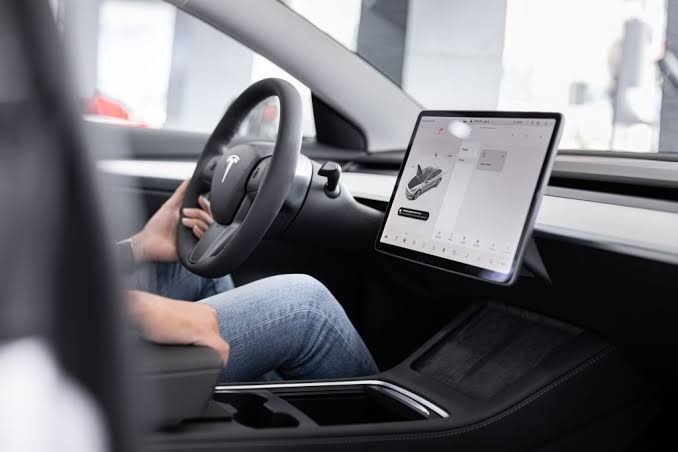
Why Is My Tesla Bluetooth Not Working?
Tesla Bluetooth stops working when the connection between the vehicle’s Bluetooth system and the paired smartphone fails. The 5 most common causes are failed Bluetooth pairing, incorrect phone settings, Tesla touchscreen software errors, outdated vehicle software, and conflicts with previously connected devices.
A Bluetooth connection requires communication between multiple systems, including the Tesla infotainment system, the smartphone operating system, and the Bluetooth profile used for calls or media playback. If one part of this connection fails, Tesla may not detect the phone, disconnect repeatedly, or connect without transmitting audio.
Failed Bluetooth pairing is one of the most common reasons Tesla Bluetooth does not work. This happens when the saved connection information between the Tesla vehicle and smartphone becomes invalid or corrupted. For example, a phone may appear in the Tesla Bluetooth list but fail to reconnect automatically after a software update or device restart.
Incorrect smartphone Bluetooth settings can also prevent Tesla from establishing a stable connection. iPhone and Android devices require Bluetooth permission, active wireless settings, and correct media access to communicate with Tesla’s infotainment system. A phone may show as connected while blocking audio transfer because the required permissions are disabled.
Tesla touchscreen software problems can interrupt Bluetooth functionality because the touchscreen controls many vehicle connectivity features. Temporary software glitches may affect device discovery, audio routing, or hands-free calling without indicating a hardware failure.
Outdated Tesla software can create compatibility problems between the vehicle and newer smartphone operating systems. Tesla regularly releases software updates that modify infotainment features, connectivity functions, and system stability. Installing available updates can resolve Bluetooth problems caused by previous firmware issues.
Multiple paired devices can also create connection conflicts. When several smartphones are stored in the Tesla Bluetooth system, the vehicle may connect to the wrong device or fail to prioritize the intended phone. Removing unused devices helps maintain a cleaner Bluetooth connection environment.
Understanding the cause of Tesla Bluetooth failure makes troubleshooting more effective. Instead of immediately resetting the entire system, Tesla owners should first identify whether the issue comes from the vehicle, smartphone, pairing information, or software compatibility.
How Do I Check Tesla Bluetooth Settings?
Checking Tesla Bluetooth settings is the first troubleshooting step when the connection stops working. The process identifies whether the problem comes from the Tesla vehicle, the connected smartphone, or incorrect pairing information stored in the Bluetooth system.
Tesla Bluetooth requires the vehicle and smartphone to recognize each other through a paired connection. If the phone is not visible in the Tesla Bluetooth menu, the connection profile may have been removed, disabled, or replaced by another device. Checking the Bluetooth settings helps confirm whether Tesla detects the phone correctly before performing deeper troubleshooting steps.
To check Tesla Bluetooth settings, open the Bluetooth menu on the Tesla touchscreen and review the connected device list. The touchscreen displays available smartphones, previously paired devices, and the current connection status. If the intended phone does not appear, Tesla cannot establish a Bluetooth connection until the device is paired again.
Tesla owners should also check the Bluetooth settings on their smartphone. On an iPhone, Bluetooth must be enabled through the device settings, and Tesla must have permission to access connection features. On Android phones, users should confirm that Bluetooth is active and that the device allows media and call connections.
A connected phone does not always mean that all Bluetooth functions are working correctly. Tesla uses separate Bluetooth profiles for different functions, including hands-free calling and audio streaming. For example, a phone may successfully connect for calls while failing to transfer music because the media connection is disabled.
Removing unused devices can also improve Tesla Bluetooth reliability. When several smartphones are saved in the vehicle system, Tesla may attempt to connect with a different device or experience conflicts when selecting the preferred phone. Deleting old connections creates a cleaner pairing environment.
After checking both Tesla and smartphone Bluetooth settings, test the connection by making a phone call and playing audio through the Tesla sound system. If the problem remains after confirming the settings, the next step is to reset the Tesla Bluetooth connection and create a new pairing.
How Do I Reset Tesla Bluetooth Connection?
Resetting the Tesla Bluetooth connection fixes many connection problems caused by corrupted pairing data or failed communication between the vehicle and smartphone. The reset process removes the existing Bluetooth relationship and creates a new connection between the Tesla infotainment system and the mobile device.
A Bluetooth pairing stores information that allows Tesla and a smartphone to recognize each other automatically. When this stored information becomes outdated or damaged, the vehicle may fail to connect, disconnect frequently, or show the phone as unavailable. Re-pairing the devices removes the old connection data and allows both systems to establish a fresh Bluetooth profile.
To reset Tesla Bluetooth, start by removing the Tesla connection from the smartphone’s Bluetooth settings. Open the phone’s Bluetooth menu, find the Tesla vehicle in the paired device list, and select the option to forget or remove the device. This step deletes the old connection information stored on the smartphone.
Next, remove the smartphone from the Tesla Bluetooth device list through the vehicle touchscreen. Deleting the phone from both systems is important because keeping old pairing information on either side can cause the same connection problem to return.
After removing the previous connection, pair the smartphone with Tesla again. Open the Bluetooth settings on the Tesla touchscreen, select the phone from the available devices, and confirm the pairing code shown on both screens. Once connected, test both hands-free calling and Bluetooth audio streaming to verify that all functions work correctly.
A successful Bluetooth reset should restore normal communication between the Tesla vehicle and smartphone. However, if the phone repeatedly disconnects after a complete re-pairing process, the issue may be related to Tesla software, smartphone compatibility, or another vehicle connectivity problem.
Tesla owners should also test with another smartphone when troubleshooting persistent Bluetooth issues. If a second device connects normally, the original phone is likely causing the problem. If multiple phones fail to connect, the issue is more likely related to the Tesla Bluetooth system or infotainment software.
How Do I Restart Tesla Touchscreen to Fix Bluetooth Problems?
Restarting the Tesla touchscreen can fix Bluetooth problems caused by temporary software errors in the vehicle’s infotainment system. The touchscreen controls important connectivity functions, including Bluetooth pairing, smartphone communication, audio selection, and hands-free calling.
Tesla Bluetooth issues do not always come from the phone or Bluetooth settings. The vehicle’s software manages the connection process, and temporary system glitches can interrupt communication between the Tesla touchscreen and connected devices. A touchscreen restart refreshes the infotainment system and clears short-term software errors without deleting saved vehicle settings.
A Tesla touchscreen restart is different from a factory reset. A restart only reboots the vehicle’s infotainment system and keeps personal settings, paired devices, and vehicle preferences unchanged. A factory reset removes stored information and should only be considered when other troubleshooting methods fail.
To restart the Tesla touchscreen, place the vehicle in Park and press and hold both steering wheel scroll buttons until the screen turns black. The touchscreen will shut down temporarily and restart automatically. During this process, the vehicle’s display and some infotainment features will become unavailable until the system completes the reboot.
After the touchscreen restarts, wait for the Tesla system to fully load before testing Bluetooth again. Open the Bluetooth menu, reconnect the smartphone if necessary, and check whether phone calls and audio streaming work normally.
A touchscreen restart is especially useful when Tesla Bluetooth problems appear suddenly after normal operation. For example, a phone that connected successfully yesterday but cannot connect today may be affected by a temporary software issue rather than a hardware failure.
If restarting the touchscreen does not restore Bluetooth functionality, the next troubleshooting step is checking Tesla software updates. Software compatibility problems between the vehicle firmware and smartphone operating systems can continue causing Bluetooth failures until the vehicle receives a newer update.
Can Tesla Software Updates Fix Bluetooth Problems?
Tesla software updates can fix Bluetooth problems when the issue is caused by vehicle firmware errors, compatibility problems, or infotainment system bugs. Tesla uses software updates to improve vehicle functions, including connectivity features such as Bluetooth pairing, smartphone integration, and audio performance.
The Tesla infotainment system depends on vehicle software to manage communication between the touchscreen, Bluetooth hardware, and connected smartphones. When the software version contains a bug, Tesla Bluetooth may stop detecting devices, disconnect unexpectedly, or fail to transfer audio even when the phone appears connected.
Software compatibility problems often occur after smartphone operating systems receive major updates. For example, an iPhone or Android phone running a newer operating system may communicate differently with the Tesla Bluetooth system. If the vehicle software has not been updated to support these changes, connection problems can appear.
To check for Tesla software updates, open the Software tab on the Tesla touchscreen. The vehicle displays whether a new update is available and provides installation instructions. Tesla vehicles normally download updates automatically when connected to Wi-Fi, but owners should regularly check the software menu when experiencing connectivity problems.
Installing the latest Tesla software can improve Bluetooth stability by replacing outdated system files and correcting known issues. After completing an update, the vehicle may restart some systems automatically, and Bluetooth connections may need to be tested or paired again.
Tesla owners should avoid assuming every Bluetooth problem requires a software update. If the vehicle software is already current, the problem may come from incorrect pairing data, smartphone settings, or another connectivity issue. Software updates are most effective when Bluetooth problems are caused by the Tesla infotainment system itself.
After updating Tesla software, test the main Bluetooth functions, including phone calls, contact synchronization, and audio streaming. If Bluetooth continues failing after the update, the next step is identifying whether the issue affects all Bluetooth functions or only specific features such as music playback.
Why Is Tesla Bluetooth Connected but Not Playing Music?
Tesla Bluetooth can connect successfully while failing to play music when the phone connection works for calls but the audio streaming profile is not active. This problem usually comes from incorrect audio settings, disabled media permissions, wrong audio source selection, or a failed Bluetooth media connection.
Tesla Bluetooth uses separate connection functions for hands-free calling and audio streaming. A smartphone may successfully connect for phone calls because the call profile is active, while the media profile required for music playback remains disconnected. This explains why some Tesla owners can answer calls but cannot hear music through the vehicle speakers.
The first step is checking the selected audio source on the Tesla touchscreen. Tesla must be set to play audio from the connected Bluetooth device rather than another source such as streaming services, radio, or another connected device. Selecting the correct Bluetooth audio source allows the vehicle to receive music from the smartphone.
Smartphone media permissions can also prevent Tesla from playing music. iPhone and Android devices may require permission settings that allow Bluetooth devices to access media audio. If these permissions are restricted, Tesla may display the phone as connected without receiving music data.
A common solution is to disconnect and reconnect the Bluetooth connection after checking audio settings. Remove the Tesla connection from the smartphone, remove the phone from the Tesla Bluetooth menu, and pair the devices again. This process refreshes both the call and media profiles.
Volume settings should also be checked on both devices. Tesla and the smartphone control different parts of the audio system, so a low phone volume, muted media output, or incorrect audio routing can make it appear that Bluetooth is not working.
If Tesla Bluetooth works for calls but not music after reconnecting, test another smartphone with the vehicle. A second device helps determine whether the issue comes from the Tesla audio system or the original phone’s Bluetooth configuration.
Resolving Tesla Bluetooth audio problems requires checking the complete connection path from smartphone settings to Tesla media controls. A successful Bluetooth connection depends on both devices allowing call functions and audio streaming functions to operate together.
What Should I Do If Tesla Bluetooth Still Does Not Work?
If Tesla Bluetooth still does not work after checking settings, resetting the connection, restarting the touchscreen, and updating software, the next step is to identify whether the problem comes from the smartphone, vehicle software, or Tesla hardware. A structured diagnosis prevents unnecessary resets and helps determine the correct solution.
The first troubleshooting step is testing another smartphone with the Tesla Bluetooth system. Connecting a different iPhone or Android device shows whether the issue is specific to the original phone or affects the vehicle itself. For example, if another phone connects normally, the original smartphone likely has a Bluetooth configuration or compatibility problem.
Checking Tesla software status is also important when Bluetooth continues failing. A vehicle running outdated firmware may experience repeated connection problems even after Bluetooth pairing has been reset. Confirm that the Tesla software is current and complete any available updates before assuming the problem requires service.
Tesla owners should also review whether all Bluetooth functions are affected. A complete Bluetooth failure means the vehicle cannot detect or connect with any smartphone. A partial failure, such as calls working while music does not, points to a different issue involving audio settings, media permissions, or Bluetooth profiles.
Persistent Bluetooth problems after multiple troubleshooting attempts may indicate a deeper infotainment system issue. The Tesla touchscreen, Bluetooth hardware, or vehicle communication modules may require professional diagnosis if the system cannot connect with multiple devices.
Contacting Tesla Service is recommended when Bluetooth problems continue after completing basic troubleshooting steps. Service support can check vehicle logs, identify software-related errors, and determine whether the infotainment system requires additional repair or replacement.
Before contacting Tesla Service, owners should record specific details about the problem, including the Tesla model, software version, smartphone type, connection symptoms, and troubleshooting steps already completed. This information helps technicians diagnose the issue more efficiently.
A Tesla Bluetooth problem does not always indicate a major vehicle failure. Most connection issues come from pairing data, software compatibility, or device settings and can be resolved through systematic troubleshooting.
How Can I Prevent Tesla Bluetooth Problems?
Preventing Tesla Bluetooth problems requires maintaining a stable connection between the vehicle’s infotainment system and the connected smartphone. The most effective prevention methods include keeping Tesla software updated, managing paired devices, maintaining smartphone software, and avoiding unnecessary Bluetooth conflicts.
Keeping Tesla software updated is one of the most important ways to maintain Bluetooth reliability. Tesla releases firmware updates that improve vehicle performance, fix software bugs, and enhance connectivity features. Running outdated software increases the chance of compatibility problems between the Tesla Bluetooth system and newer smartphone operating systems.
Managing paired devices helps prevent connection conflicts inside the Tesla Bluetooth system. When too many smartphones remain stored in the vehicle, Tesla may attempt to connect with the wrong device or experience delays when establishing a connection. Removing old phones that are no longer used keeps the Bluetooth device list organized.
Smartphone maintenance also affects Tesla Bluetooth performance. Keeping iPhone or Android operating systems updated ensures that the phone uses current Bluetooth standards and security settings. Restarting the smartphone occasionally can also clear temporary Bluetooth errors that affect communication with Tesla.
Avoiding multiple simultaneous Bluetooth connections improves connection stability. For example, a smartphone connected to wireless headphones, another vehicle, or other Bluetooth accessories may experience conflicts when trying to connect with Tesla. Disconnecting unnecessary devices helps the phone prioritize the Tesla connection.
Tesla owners should also avoid repeatedly pairing and unpairing devices without removing old connection data. Frequent incomplete pairing attempts can leave outdated Bluetooth profiles on either the vehicle or smartphone, increasing the chance of future connection failures.
Regularly testing Bluetooth functions can help identify problems early. Checking phone calls, audio streaming, and automatic reconnection after starting the vehicle ensures that the Tesla Bluetooth system continues working correctly.
A reliable Tesla Bluetooth connection depends on both vehicle maintenance and smartphone management. By keeping software current, reducing connection conflicts, and maintaining clean pairing information, Tesla owners can prevent many common Bluetooth problems before they affect daily driving.
How Can I Keep My Tesla Bluetooth Connection Reliable?
Keeping Tesla Bluetooth reliable requires maintaining both the vehicle’s connectivity system and the connected smartphone. Most Tesla Bluetooth problems come from temporary software issues, outdated connection data, or device compatibility problems rather than permanent hardware failures.
A stable Tesla Bluetooth connection depends on several factors, including updated Tesla software, correct smartphone settings, clean Bluetooth pairing information, and proper audio configuration. Regularly checking these areas helps prevent common problems such as failed pairing, unexpected disconnections, and audio playback failures.
Tesla owners should follow a consistent troubleshooting process when Bluetooth stops working. Start by checking Bluetooth settings, then reset the connection, restart the Tesla touchscreen, update vehicle software, and test another smartphone if the problem continues. This approach identifies the source of the issue without unnecessary system resets.
For most drivers, Tesla Bluetooth problems can be resolved through simple connection management and software maintenance. However, persistent failures across multiple devices may indicate a deeper infotainment system issue that requires Tesla Service support.
Maintaining reliable smartphone connectivity is an important part of the Tesla ownership experience because Bluetooth supports essential features such as hands-free calls, navigation assistance, and in-car audio streaming. A properly maintained Tesla Bluetooth system ensures these features continue working smoothly during daily driving.