Imagine getting into your Subaru, ready to use navigation, stream your favorite playlist, or make a hands-free call, only to find that the Starlink system is not responding. A frozen screen, failed Bluetooth connection, or an unresponsive app can quickly turn a convenient driving experience into a frustrating one. If you are currently searching for solutions because your Subaru Starlink is not working, you are certainly not alone.
Subaru Starlink is designed to provide drivers with enhanced connectivity, entertainment, and safety features. However, like any modern infotainment system, it can occasionally experience software glitches, connectivity issues, outdated updates, or compatibility problems with mobile devices. The good news is that many of these issues can be resolved without an expensive repair bill or an immediate trip to the dealership.
In this guide, we will explore 10 effective fixes for Subaru Starlink not working, ranging from simple system restarts to more advanced troubleshooting methods. Whether your Starlink screen is frozen, the app is malfunctioning, or Bluetooth refuses to connect, these practical solutions can help you restore functionality and get back on the road with confidence.
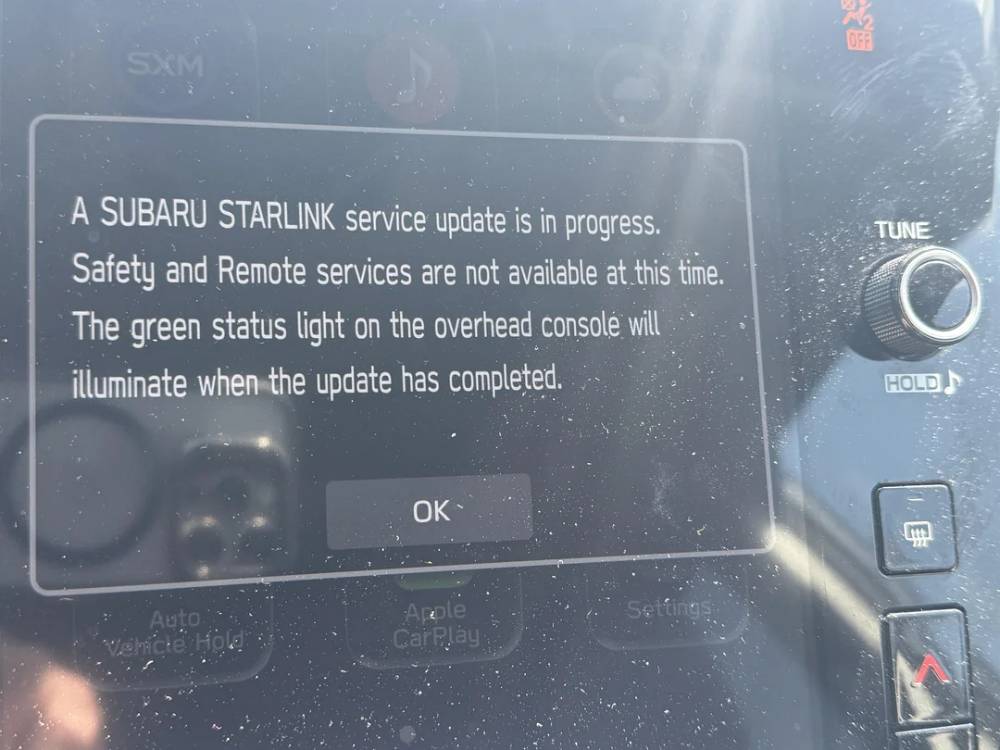
Why Is My Subaru Starlink Not Working?
Before attempting any repairs, it is important to understand what may be causing the problem. Subaru Starlink relies on a combination of software, hardware, wireless connectivity, and smartphone integration to function properly. When one of these components encounters an issue, the entire system may become unstable or stop working altogether.
One of the most common causes is a temporary software glitch. Like smartphones and computers, infotainment systems occasionally experience bugs that can lead to frozen screens, delayed responses, or unexpected crashes. In many cases, a simple restart is enough to resolve the issue.
Outdated software is another frequent culprit. Subaru periodically releases updates to improve performance, enhance compatibility, and fix known bugs. If your system has not been updated for an extended period, you may encounter functionality problems.
Bluetooth conflicts can also interfere with Starlink’s performance. Multiple paired devices, incomplete connections, or corrupted pairing data may prevent your smartphone from communicating properly with the vehicle.
In addition, smartphone-related factors such as outdated operating systems, restricted app permissions, or unsupported devices can contribute to Starlink malfunctions. Less commonly, hardware failures involving the infotainment unit itself may require professional diagnosis.
Identifying the root cause will help you choose the most effective troubleshooting method and avoid unnecessary repairs.
Fix 1: Restart Your Subaru Infotainment System
Sometimes, the simplest solution is the most effective. Restarting the infotainment system can clear temporary software errors and restore normal functionality without requiring any technical expertise.
Start by parking your vehicle safely and turning off the engine completely. Open the driver’s side door and wait for several minutes to allow the system to power down fully. During this time, avoid pressing any buttons or interacting with the display.
After waiting approximately three to five minutes, restart the vehicle and allow the infotainment system to boot up naturally. Check whether the touchscreen responds correctly, Bluetooth reconnects, and Starlink features operate as expected.
This method is particularly helpful if you notice symptoms such as a frozen display, delayed responses, sudden audio interruptions, or apps that refuse to launch properly. Because it is quick and carries virtually no risk, restarting the system should always be your first troubleshooting step.
Many Subaru owners report that this simple process resolves minor glitches immediately, saving them the inconvenience of scheduling a dealership appointment.
Fix 2: Perform a Soft Reset on Subaru Starlink
If a standard restart does not solve the problem, performing a soft reset may help restore system stability. A soft reset forces the infotainment system to reboot without affecting your personal settings or stored information.
To perform a soft reset, locate the power or volume knob on your Subaru’s infotainment unit. Press and hold the button continuously for approximately ten to fifteen seconds. Depending on your vehicle model, the screen may go black before displaying the Subaru startup logo again.
Once the reboot process is complete, allow the system a few moments to initialize all functions. Then test key features such as navigation, Bluetooth connectivity, media playback, and touchscreen responsiveness.
A soft reset can be particularly effective when dealing with issues including an unresponsive display, repeated system crashes, lagging menus, or features that fail to load properly. Since this procedure does not erase saved preferences, it offers a convenient way to address persistent software hiccups without causing additional inconvenience.
If Starlink begins functioning normally after the reset, monitor its performance over the following days. Should the issue continue to occur frequently, additional troubleshooting steps or professional inspection may be necessary.
Fix 3: Update the Subaru Starlink Software
Running outdated software is one of the most overlooked reasons why Subaru Starlink may stop functioning properly. Software updates often include bug fixes, performance improvements, enhanced security measures, and better compatibility with newer smartphones. Ignoring these updates can lead to recurring connectivity issues and unstable system behavior.
To determine whether your system requires an update, navigate to the settings menu on your infotainment display and look for the software information section. Depending on your Subaru model and model year, you may be able to install updates through a Wi Fi connection or by visiting an authorized Subaru service center.
Before beginning the update process, ensure that your vehicle has sufficient battery power or keep the engine running if recommended by the manufacturer. Interrupting an update could potentially create additional complications. Follow the instructions displayed on the screen carefully and allow the installation to complete without interruption.
Once the update has finished, restart the infotainment system and test the affected features. Many drivers notice improved responsiveness, fewer connection errors, and enhanced stability after updating their Starlink software. Keeping your system current is one of the easiest ways to prevent future issues and maintain optimal performance.
Fix 4: Verify Bluetooth Connections
Bluetooth connectivity problems are among the most common complaints reported by Subaru owners experiencing Starlink issues. If your phone suddenly fails to connect, audio streaming becomes unreliable, or hands free calling stops working, a Bluetooth conflict may be responsible.
Begin by accessing the Bluetooth settings on both your smartphone and the Subaru infotainment system. Review the list of paired devices and remove any entries that are no longer in use. Having multiple inactive devices stored in memory can occasionally create confusion during the pairing process.
Next, disable Bluetooth on your smartphone for a few seconds before turning it back on. Repeat the same process on the vehicle’s infotainment system if possible. Afterward, pair your phone again as if connecting it for the first time. Confirm that any pairing codes displayed on the screen match correctly before completing the setup.
If problems persist, try connecting a different smartphone to determine whether the issue originates from the vehicle or the original device. This simple test can provide valuable insight into the underlying cause of the malfunction.
Maintaining a clean and updated list of paired devices often improves connection reliability and reduces unexpected disruptions during everyday use.
Fix 5: Check Your Smartphone Compatibility
Your smartphone plays a crucial role in the overall Starlink experience. Even when the vehicle’s infotainment system is functioning correctly, compatibility issues with your mobile device can lead to failed connections, app crashes, or limited functionality.
Start by verifying that your phone is running the latest version of its operating system. Manufacturers frequently release updates that address Bluetooth performance, security vulnerabilities, and application compatibility concerns. Delaying these updates may inadvertently affect the way your device interacts with Subaru Starlink.
Next, review the permissions granted to the Starlink app. Features such as Bluetooth access, location services, notifications, and background activity may need to be enabled for the application to operate correctly. Restrictive settings can prevent the app from establishing a stable connection with your vehicle.
It is also worth consulting Subaru’s official documentation or dealership support team to confirm that your specific smartphone model is fully supported. Older devices or heavily customized operating systems may not deliver the same level of compatibility as newer models.
If you suspect your phone is contributing to the problem, testing Starlink with another compatible device can help isolate the issue quickly. Identifying whether the source of the malfunction lies with the vehicle or the smartphone will save valuable time and guide you toward the most effective solution.
Fix 6: Reinstall the Subaru Starlink App
If the Subaru Starlink app continues to malfunction despite trying other troubleshooting methods, reinstalling the application may help eliminate corrupted files or configuration errors. Over time, apps can accumulate bugs caused by incomplete updates, software conflicts, or damaged cache data.
Begin by uninstalling the Starlink app from your smartphone. Once the app has been removed, restart your device to clear any temporary files that may still be affecting performance. After your phone reboots, visit the appropriate app store and download the latest version of the application.
Before signing back into your account, ensure that all required permissions are enabled. The app may need access to features such as Bluetooth, location services, notifications, and mobile data to function properly. Skipping these permissions can result in recurring connection issues.
After completing the setup process, reconnect your smartphone to the Subaru infotainment system and test the affected functions. Check whether remote services respond correctly, synchronization occurs without delays, and the app remains stable during regular use.
Although reinstalling an app may seem like a basic solution, it often resolves persistent issues that other methods fail to address. It is a straightforward troubleshooting step that requires minimal effort while potentially restoring full functionality.
Fix 7: Inspect USB Cables and Ports
A damaged USB cable or faulty connection point can interfere with Subaru Starlink features, particularly when using smartphone integration services. Drivers frequently focus on software problems while overlooking physical components that play an equally important role.
Start by examining the USB cable you normally use inside the vehicle. Look for signs of wear, fraying, bent connectors, or loose fittings. Even minor damage can disrupt data transfer between your smartphone and the infotainment system. Whenever possible, use a high quality cable recommended by the device manufacturer.
Next, inspect the USB ports inside the vehicle. Dust, debris, or foreign objects lodged within the port may prevent a secure connection. Carefully clean the area if necessary, avoiding excessive force that could damage sensitive components.
To further isolate the issue, test a different cable that is known to function properly. If Starlink begins operating normally after switching cables, you have likely identified the source of the problem.
Regularly checking these physical connections can help prevent unexpected interruptions and ensure a more reliable experience when using navigation, media playback, and smartphone integration features.
Fix 8: Reset Network Settings on Your Phone
Network settings control several communication functions on your smartphone, including Bluetooth, Wi Fi, and mobile data connections. When these settings become corrupted or misconfigured, they can interfere with the way your phone communicates with Subaru Starlink.
Before proceeding, keep in mind that resetting network settings will remove saved Wi Fi passwords and previously paired Bluetooth devices. You may need to reconnect to your preferred networks afterward.
For iPhone users, navigate to the settings menu, select the general section, locate the transfer or reset options, and choose the network reset function. Android users can typically find a similar option within the system settings under reset preferences, although the exact location may vary depending on the manufacturer.
After completing the reset, restart your smartphone and pair it with your Subaru again from the beginning. Allow sufficient time for the devices to establish a fresh connection and synchronize properly.
Many users experience improved Bluetooth stability and fewer connectivity disruptions following this procedure. If other troubleshooting methods have been unsuccessful, resetting network settings may provide the clean slate needed to restore normal operation.
While this step requires a bit more effort than previous fixes, it remains a practical option before considering professional diagnostic services.
Fix 9: Disconnect the Vehicle Battery Temporarily
If none of the previous solutions have resolved the issue, disconnecting the vehicle battery may help reset the infotainment system at a deeper level. This method should be approached with caution, as it affects multiple electronic systems within the vehicle.
Before beginning, consult your owner’s manual to ensure that disconnecting the battery is appropriate for your specific Subaru model. Make sure the vehicle is parked safely, the engine is turned off, and the keys are removed from the ignition.
Using the appropriate tools, disconnect the negative battery terminal and allow the vehicle to remain without power for approximately ten to fifteen minutes. This waiting period gives the electronic control modules sufficient time to reset. Afterward, reconnect the terminal securely and restart the vehicle.
Once the system powers back on, check whether Subaru Starlink functions have been restored. Test the touchscreen, Bluetooth connectivity, audio controls, and smartphone integration features. You may need to reconfigure certain settings, such as radio presets or clock preferences, after reconnecting the battery.
This approach can sometimes resolve stubborn software issues that persist despite multiple restart attempts. However, if you are uncomfortable working with automotive electrical components, it is advisable to seek assistance from a qualified technician.
Fix 10: Contact an Authorized Subaru Dealer
When basic troubleshooting methods fail to restore Starlink functionality, professional diagnosis may be necessary. Persistent issues can occasionally indicate hardware failures or software defects that require specialized equipment to identify and repair.
An authorized Subaru dealer has access to manufacturer specific diagnostic tools and technical service information that independent repair facilities may not possess. Technicians can perform comprehensive system evaluations, verify whether your vehicle qualifies for software updates, and inspect components that are not easily accessible to the average driver.
You should strongly consider scheduling a service appointment if your infotainment screen remains completely black, the system repeatedly crashes without warning, touchscreen controls stop responding entirely, or critical safety related functions are affected.
If your Subaru is still covered under warranty, repairs associated with eligible Starlink defects may be completed at little or no additional cost. Contacting the dealership promptly can help prevent minor concerns from developing into more expensive problems later.
Although most Starlink issues can be resolved at home, recognizing when professional intervention is appropriate is an important part of responsible vehicle ownership.
When Should You Seek Professional Help?
While many Subaru Starlink problems can be fixed using the methods outlined above, certain warning signs should never be ignored. Continuing to operate a malfunctioning infotainment system without proper diagnosis may result in recurring inconvenience and additional repair costs.
Professional assistance is recommended if you experience any of the following situations:
• The screen remains black despite multiple restart attempts.
• The system freezes frequently or reboots unexpectedly.
• Software updates repeatedly fail to install.
• The touchscreen becomes completely unresponsive.
• Audio functions stop working without an obvious explanation.
• Connectivity problems continue after testing multiple smartphones.
• You suspect a wiring issue or hardware malfunction.
Seeking expert support early can save valuable time and provide peace of mind, particularly if the vehicle is still protected by a manufacturer’s warranty.
Frequently Asked Questions
How do I reset Subaru Starlink?
A soft reset can often resolve temporary software issues. Press and hold the power or volume button on the infotainment system for approximately ten to fifteen seconds until the screen restarts. Once the system finishes rebooting, verify whether the affected functions have returned to normal.
Why is my Subaru Starlink screen black?
A black screen may result from software glitches, failed updates, overheating, electrical problems, or hardware failures involving the infotainment unit itself. Performing a restart or soft reset may resolve the issue. If the display remains unresponsive, professional diagnosis is recommended.
Does Subaru Starlink require a subscription?
Certain Starlink connected services may require an active subscription, depending on your vehicle model and the features you wish to access. However, basic infotainment functions such as radio controls and some smartphone integration capabilities may continue to operate independently of subscription status.
Can I fix Subaru Starlink problems myself?
Yes. Many common issues can be addressed using simple troubleshooting techniques, including restarting the system, updating software, re pairing Bluetooth devices, reinstalling the Starlink app, or resetting network settings on your smartphone. More complex hardware related concerns should be evaluated by trained professionals.
Conclusion
Experiencing problems with Subaru Starlink can be frustrating, especially when you rely on its features for navigation, communication, and entertainment during your daily drives. Fortunately, most cases involving a Subaru Starlink not working are linked to software glitches, connectivity conflicts, outdated applications, or minor configuration issues that can often be resolved without extensive repairs.
By following these ten effective troubleshooting methods, you may be able to restore your system quickly and avoid unnecessary trips to the dealership. From performing a simple restart to reinstalling the Starlink app or checking smartphone compatibility, each step is designed to help you identify and eliminate the underlying cause of the problem.
If your Starlink system continues to malfunction despite your best efforts, do not hesitate to consult an authorized Subaru technician for further assistance. Addressing persistent issues promptly can help maintain the reliability and convenience that modern drivers expect from their vehicles.
Have you encountered Subaru Starlink problems before? Share your experience and let other Subaru owners know which solution worked best for you. Your insights could help someone else get back on the road with confidence.