Apple CarPlay has become one of the most useful features in modern vehicles, allowing drivers to access navigation, music, messages, and calls directly through their car’s infotainment screen. For Subaru owners, CarPlay is designed to make every journey more convenient and connected. However, when Subaru CarPlay stops working, that convenience quickly turns into frustration.
Imagine starting your morning commute, plugging in your iPhone, and expecting your favorite navigation app to appear, only to find that nothing happens. Maybe your phone is not recognized, the screen stays black, or CarPlay keeps disconnecting while you’re driving. These issues can be especially frustrating when you rely on CarPlay for directions, hands-free communication, or entertainment during long trips.
The good news is that most Subaru CarPlay problems are not caused by major hardware failures. In many cases, the issue can be traced to a faulty USB cable, outdated software, incorrect settings, wireless connection conflicts, or temporary glitches within the Subaru STARLINK infotainment system. The challenge is identifying the exact cause and applying the right solution.
In this guide, you’ll discover 12 proven fixes that actually work for resolving Subaru CarPlay connection issues. Whether you drive a Subaru Forester, Outback, Crosstrek, Ascent, Legacy, or Impreza, these troubleshooting steps can help restore CarPlay functionality quickly and get you back on the road with a seamless driving experience.
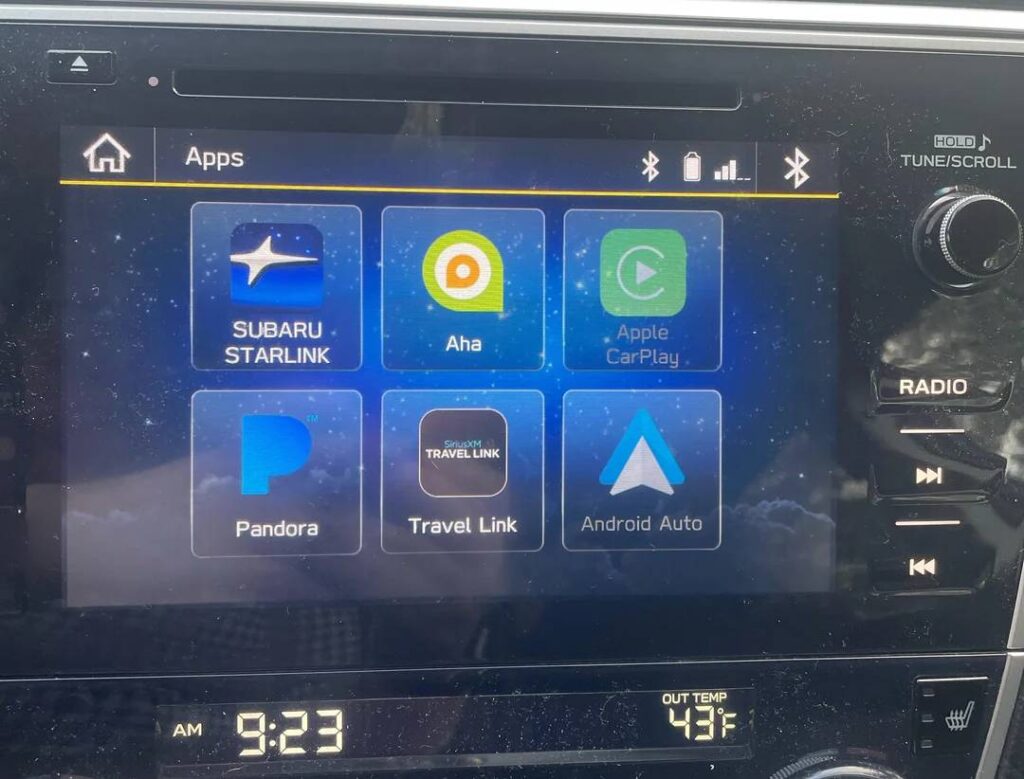
Why Is Subaru CarPlay Not Working?
Before jumping into solutions, it is important to understand why Apple CarPlay may stop working in your Subaru. While the problem can sometimes appear serious, most cases are caused by relatively simple software or connectivity issues.
Drivers commonly report symptoms such as CarPlay failing to launch when an iPhone is connected, repeated disconnections during a trip, a blank infotainment screen, delayed responses, or an inability to detect the phone altogether. Wireless CarPlay users may also experience pairing failures or unstable connections.
Several factors can contribute to these problems. A damaged or low quality USB cable is one of the most common causes, especially in vehicles that rely on a wired connection. Outdated iOS software can create compatibility issues with Subaru’s infotainment system. In some cases, the STARLINK system may develop temporary glitches that prevent CarPlay from launching correctly. Incorrect iPhone settings, Bluetooth conflicts, disabled permissions, and network configuration problems can also interfere with communication between the vehicle and the device.
Fortunately, most of these issues can be resolved without visiting a dealership. The following troubleshooting methods are arranged from the simplest fixes to more advanced solutions, allowing you to identify and solve the problem as efficiently as possible.
Fix #1: Restart Your iPhone
One of the quickest and most effective solutions is restarting your iPhone. Although it may sound overly simple, a restart can eliminate temporary software bugs that prevent Apple CarPlay from functioning properly.
When an iPhone remains active for extended periods, background processes can occasionally interfere with system functions, including USB communication and wireless connectivity. Restarting the device refreshes these processes and clears temporary memory issues.
To restart your iPhone, press and hold the appropriate power and volume buttons depending on your model. Once the power slider appears, turn off the device completely and wait approximately 30 seconds before turning it back on. After the phone has restarted, reconnect it to your Subaru and check whether CarPlay launches normally.
This solution is particularly effective if CarPlay suddenly stopped working without any recent changes to your vehicle or phone settings. Many drivers find that a simple reboot restores functionality immediately.
If the problem persists, move on to the next troubleshooting step.
Fix #2: Restart the Subaru STARLINK Infotainment System
Just as your iPhone can experience temporary software glitches, Subaru’s STARLINK infotainment system can also become unstable over time. Small software errors may prevent the system from recognizing connected devices or launching Apple CarPlay correctly.
A soft reboot often clears these temporary issues without affecting saved settings or personal preferences. Depending on your Subaru model, you can typically perform a reboot by pressing and holding the power or volume knob for approximately 10 to 15 seconds until the screen turns off and restarts.
After the system reboots, reconnect your iPhone and wait a few moments for CarPlay to initialize. Many users notice improved responsiveness and restored connectivity after completing this process.
If your STARLINK system frequently freezes, crashes, or becomes unresponsive, this may indicate a software update is needed. However, a reboot should always be your first troubleshooting step before exploring more advanced solutions.
Combining an iPhone restart with an infotainment system reboot often resolves many connection issues that appear difficult at first glance.
Fix #3: Use an Apple Certified USB Cable
A surprising number of CarPlay problems are caused by the charging cable itself. While many third party cables work well for charging, they may not provide the stable data transfer required for Apple CarPlay.
Over time, cables can develop internal damage from bending, twisting, or frequent use. Even if a cable appears normal on the outside, damaged internal wiring may prevent reliable communication between the iPhone and the Subaru infotainment system.
If you are experiencing connection failures, random disconnections, or situations where the phone charges but CarPlay does not launch, the cable should be one of the first things you investigate.
For the best results, use an Apple original cable or a certified MFi cable approved for use with Apple devices. Avoid extremely long cables or low quality alternatives from unknown manufacturers, as they often cause intermittent connectivity problems.
To test whether the cable is responsible, try connecting your iPhone with a different certified cable. If CarPlay immediately begins working, you have likely identified the source of the issue.
Many Subaru owners spend hours troubleshooting software settings only to discover that replacing a worn cable completely resolves the problem.
Fix #4: Check That You Are Using the Correct USB Port
Many Subaru owners are unaware that not every USB port in their vehicle supports Apple CarPlay. Depending on the model year and trim level, Subaru vehicles may include multiple USB ports, but only specific ports are designed for data transfer and CarPlay functionality.
This often creates confusion because an iPhone may begin charging as soon as it is plugged in, leading drivers to assume the connection is working properly. In reality, the phone may be connected to a charging-only port that cannot communicate with the infotainment system.
Start by consulting your owner’s manual to identify the correct CarPlay-compatible USB port. In many Subaru models, the supported ports are located in the center console or beneath the infotainment screen. If your vehicle has more than one USB port, test each one individually to determine whether CarPlay launches successfully.
While inspecting the port, check for dust, debris, or signs of damage. Dirt accumulation can interfere with the connection between the cable and the vehicle’s hardware. Carefully cleaning the port may restore proper communication and resolve the issue.
A surprising number of CarPlay complaints are ultimately traced back to the use of the wrong USB port rather than a software failure.
Fix #5: Verify That Apple CarPlay Is Enabled on Your iPhone
Even if your Subaru’s infotainment system is functioning correctly, CarPlay will not work if the feature has been disabled on your iPhone. Certain settings changes, software updates, or parental restrictions can prevent CarPlay from launching.
Begin by opening the Settings app on your iPhone. Navigate to General and then select CarPlay. Your Subaru should appear in the list of available vehicles if it has been connected previously. If the vehicle is not listed, your phone may not be recognizing the connection.
You should also review any restrictions that may affect CarPlay functionality. On some devices, Screen Time settings can limit access to certain applications and vehicle integrations. If CarPlay has been disabled accidentally, enabling it again may immediately restore connectivity.
Siri should also be activated because many CarPlay functions rely on Apple’s voice assistant. If Siri is disabled, some CarPlay features may not operate correctly.
Once these settings have been confirmed, reconnect your iPhone and allow the system a few moments to establish communication with the vehicle.
Many users overlook this step because they assume CarPlay is enabled by default. However, a quick settings review can often solve the problem within minutes.
Fix #6: Remove Your Subaru From CarPlay and Reconnect It
If CarPlay worked previously but suddenly stopped connecting, the pairing profile between your iPhone and Subaru may have become corrupted. This can happen after software updates, network changes, or repeated connection failures.
Removing the vehicle from your iPhone and creating a fresh connection often resolves these issues. Think of it as giving both systems a clean start.
Open Settings on your iPhone and select General, followed by CarPlay. Locate your Subaru in the list of saved vehicles and choose the option to forget the vehicle. Once removed, disconnect the phone from the car and restart both the iPhone and the STARLINK infotainment system.
After the restart process is complete, reconnect the phone using the appropriate USB port or begin the wireless pairing process if your vehicle supports wireless CarPlay. Follow the on-screen prompts to establish a new connection.
This procedure removes outdated configuration data that may be preventing proper communication between the phone and the vehicle. In many cases, drivers who experience frequent disconnections or connection failures find that rebuilding the CarPlay profile restores stable performance.
If the issue remains unresolved after reconnecting the vehicle, the next step is to investigate potential software compatibility problems on both the iPhone and the Subaru infotainment system.
Fix #7: Update Your iPhone to the Latest iOS Version
Outdated software is one of the most common reasons Apple CarPlay stops working properly. Apple frequently releases iOS updates that include bug fixes, security improvements, and compatibility enhancements for vehicle infotainment systems. If your iPhone is running an older version of iOS, it may struggle to communicate with your Subaru’s STARLINK system.
Software compatibility issues often become noticeable after purchasing a new phone, upgrading your vehicle’s infotainment system, or installing a major iOS update. In some cases, CarPlay may fail to launch entirely, while in others it may connect but experience random disconnections or performance issues.
To check for updates, open the Settings app on your iPhone and navigate to General, then Software Update. If an update is available, download and install it while connected to a stable Wi Fi network. Ensure that your device has sufficient battery life or is connected to a charger during the update process.
After installation is complete, restart your iPhone and reconnect it to your Subaru. Many connectivity problems disappear after updating to the latest version of iOS because Apple often addresses known CarPlay bugs through software patches.
If your CarPlay issue began immediately after an iOS update, do not assume the update itself is permanently responsible. Apple frequently releases follow up patches to address newly discovered compatibility issues, making it important to stay current with software updates.
Fix #8: Update the Subaru STARLINK Software
Your iPhone is only one half of the CarPlay connection. The Subaru STARLINK infotainment system also requires up to date software to maintain compatibility with modern smartphones and Apple services.
Manufacturers regularly release firmware updates to improve performance, fix software bugs, enhance stability, and support newer iPhone models. If your STARLINK system is running outdated firmware, it may struggle to establish or maintain a reliable CarPlay connection.
Depending on your Subaru model and year, software updates may be available through an over the air update process or through a Subaru dealership. Access your infotainment system settings and look for software information or update options. Compare the installed version with the latest version available for your vehicle.
If an update is available, follow Subaru’s instructions carefully. The update process may take some time, and interrupting it could cause additional issues. Once the installation is complete, restart the infotainment system and reconnect your iPhone.
Drivers often notice improved responsiveness, fewer connection drops, and faster CarPlay startup times after installing the latest STARLINK firmware. This step is especially important if your vehicle has not received a software update in several years.
Keeping both your iPhone and your Subaru software current significantly reduces the likelihood of compatibility related problems.
Fix #9: Disable VPNs, Focus Modes, and Other Connectivity Restrictions
Modern smartphones include numerous privacy, security, and productivity features that can occasionally interfere with Apple CarPlay. While these tools are useful in many situations, they may create unexpected communication issues between your iPhone and Subaru.
Virtual Private Networks, commonly known as VPNs, can sometimes affect network services used by CarPlay applications. Although CarPlay primarily relies on a direct connection between the phone and vehicle, certain apps may experience connectivity issues when VPN services are active.
Focus Modes can also contribute to unexpected behavior. Features such as Driving Focus, Do Not Disturb, or customized notification restrictions may prevent certain CarPlay functions from operating as intended. Some users report missing notifications, unavailable messaging features, or reduced Siri functionality while these modes are active.
Begin by temporarily disabling any active VPN service on your iPhone. Next, review your Focus settings and turn off any modes that may restrict communication or application access. Once these features have been disabled, reconnect your phone and test CarPlay again.
You should also verify that Bluetooth and Wi Fi are enabled if you use wireless CarPlay. Both technologies work together to establish and maintain the wireless connection. If either service is disabled, CarPlay may fail to connect or repeatedly disconnect during use.
Although these settings are not always the root cause, they are often overlooked during troubleshooting. A quick review can save considerable time and help restore normal CarPlay functionality without requiring more advanced repairs.
Fix #10: Reset Network Settings on Your iPhone
If Apple CarPlay still refuses to connect after trying the previous solutions, resetting your iPhone’s network settings may help eliminate hidden connectivity problems. Over time, saved Wi Fi networks, Bluetooth pairings, and other network configurations can become corrupted, leading to communication issues between your iPhone and your Subaru.
This solution is particularly effective for users experiencing wireless CarPlay problems, repeated disconnections, or situations where the vehicle intermittently recognizes the phone.
To reset your network settings, open Settings and navigate to General, then Transfer or Reset iPhone. Select Reset and choose Reset Network Settings. You will be asked to enter your passcode before the process begins.
Keep in mind that this action removes saved Wi Fi passwords, Bluetooth devices, and network preferences. Once the reset is complete, your iPhone will restart automatically.
After the restart, reconnect your phone to your Subaru and set up CarPlay again. Many users find that network related issues disappear after performing this reset because it clears configuration conflicts that may have accumulated over time.
Although this step requires some additional setup afterward, it can be highly effective when simpler troubleshooting methods fail.
Fix #11: Troubleshoot Wireless CarPlay Connection Problems
Wireless Apple CarPlay offers convenience by eliminating the need for a physical cable, but it also introduces additional layers of connectivity that can sometimes create problems. Because wireless CarPlay relies on both Bluetooth and Wi Fi technology, issues affecting either system can prevent a successful connection.
If your Subaru supports wireless CarPlay, start by ensuring Bluetooth and Wi Fi are enabled on your iPhone. Even if one of these services appears to be functioning normally, both are required for wireless CarPlay to operate correctly.
Next, remove your Subaru from the list of paired Bluetooth devices on your iPhone and delete the phone from the vehicle’s Bluetooth settings. Restart both devices and begin the pairing process from scratch.
Environmental interference can also affect wireless performance. Areas with heavy wireless traffic, numerous connected devices, or strong radio signals may occasionally disrupt communication. Testing the connection in a different location can help determine whether interference is contributing to the problem.
Battery optimization settings may also impact wireless connectivity. Certain power saving features can limit background processes necessary for maintaining a stable CarPlay connection. Disabling Low Power Mode during troubleshooting may improve performance.
For Subaru owners whose wireless CarPlay frequently disconnects, reconnecting the system from scratch often resolves the issue and restores reliable operation.
Fix #12: Perform a Factory Reset on the Subaru Infotainment System
If none of the previous fixes have solved the problem, a factory reset of the STARLINK infotainment system may be necessary. This should be considered a last resort because it erases saved preferences, paired devices, navigation settings, and personalized configurations.
Over time, software conflicts, corrupted settings, and incomplete updates can create problems that are difficult to identify individually. A factory reset returns the system to its original state and eliminates these underlying issues.
The exact procedure varies depending on your Subaru model and infotainment version. In most cases, you can access the reset option through the system settings menu. Before proceeding, make note of any important settings you may wish to restore later.
Once the reset is complete, restart the vehicle and reconnect your iPhone as if you were setting up CarPlay for the first time. Follow the prompts carefully and grant all necessary permissions on your device.
Many stubborn CarPlay problems that survive every other troubleshooting step are ultimately resolved through a complete system reset. If the issue continues even after performing a factory reset, the problem may involve hardware components such as the USB port, infotainment module, or internal wiring.
At that point, professional diagnosis may be required.
Subaru CarPlay Problems by Model
Although the troubleshooting steps in this guide apply to most Subaru vehicles, certain models tend to experience specific CarPlay issues more frequently. Understanding these model specific patterns can help you identify the root cause more quickly.
Subaru Forester CarPlay Not Working
The Subaru Forester is one of the brand’s most popular models, and many owners report occasional CarPlay connectivity problems. Common complaints include the iPhone charging without launching CarPlay, delayed system recognition, and intermittent disconnections during longer drives.
In many cases, the issue is related to USB cable quality, outdated STARLINK software, or temporary infotainment glitches. Owners should verify that they are using a CarPlay compatible USB port and install the latest available software updates.
Subaru Outback CarPlay Not Working
Outback drivers frequently encounter issues involving wireless CarPlay connections, particularly after smartphone updates or infotainment firmware changes. Some users report that the system fails to reconnect automatically after restarting the vehicle.
Deleting the existing pairing profile and creating a new connection often resolves these problems. Updating both iOS and STARLINK software can also improve long term stability.
Subaru Crosstrek CarPlay Problems
The Crosstrek generally offers reliable CarPlay performance, but some owners experience connection interruptions or delayed startup times. Bluetooth conflicts and network configuration issues are among the most common causes.
Resetting network settings on the iPhone and rebuilding the CarPlay connection profile often restores normal functionality. Drivers should also verify that Siri is enabled because some CarPlay features depend on it.
Subaru Ascent CarPlay Issues
Ascent owners occasionally report infotainment freezes, black screens, or situations where CarPlay fails to launch despite a successful phone connection. These symptoms are frequently associated with software bugs or outdated firmware.
Performing a STARLINK software update and restarting the infotainment system can often resolve these issues. If problems continue after updating, a factory reset may be necessary to eliminate corrupted system settings.
When to Contact Subaru Support
Most Apple CarPlay issues can be resolved using the troubleshooting methods covered in this guide. However, there are situations where the problem may be caused by hardware failure or a deeper software issue that requires professional assistance.
If you have already tested multiple USB cables, updated both your iPhone and STARLINK software, reset network settings, and performed a factory reset without success, it may be time to contact a Subaru dealer or qualified service technician.
One warning sign is a USB port that no longer supplies power or only works intermittently. Damaged ports can prevent proper communication between the vehicle and your iPhone, even if the cable and phone are functioning normally.
You should also seek professional assistance if the infotainment system freezes regularly, reboots unexpectedly, or displays persistent error messages. These symptoms may indicate internal software corruption or hardware problems within the head unit itself.
In some cases, dealership technicians can install firmware updates that are not available through standard owner update procedures. They can also perform advanced diagnostics to determine whether the issue is related to the infotainment system, wiring harness, USB module, or another vehicle component.
Although hardware failures are far less common than software issues, they do occur. A professional inspection can help prevent unnecessary replacement of parts and ensure that the correct repair is performed.
Frequently Asked Questions
Why won’t my iPhone connect to CarPlay in my Subaru?
The most common causes include a faulty USB cable, incorrect iPhone settings, outdated software, Bluetooth conflicts, or issues with the Subaru STARLINK infotainment system. Start by restarting both your iPhone and infotainment system before moving on to more advanced troubleshooting steps.
Why does Subaru CarPlay keep disconnecting?
Frequent disconnections are often caused by damaged USB cables, unstable wireless connections, outdated software, or network configuration problems. Replacing the cable, updating software, and resetting network settings typically resolve the issue.
Does updating iOS fix Subaru CarPlay problems?
Yes. Apple regularly releases updates that improve CarPlay performance and compatibility. If you are experiencing connection issues, installing the latest version of iOS is one of the first troubleshooting steps you should try.
How do I reset Subaru STARLINK?
Most Subaru models allow you to reboot the infotainment system by pressing and holding the power or volume button for several seconds. For a complete factory reset, access the settings menu and select the system reset option. Procedures may vary depending on the model year and infotainment version.
Which Subaru models support wireless Apple CarPlay?
Wireless Apple CarPlay availability depends on the model year and trim level. Newer versions of the Forester, Outback, Crosstrek, Ascent, Legacy, and other Subaru vehicles often include wireless CarPlay support. Consult your owner’s manual or vehicle specifications for confirmation.
Can a bad USB cable stop CarPlay from working?
Absolutely. A cable may still charge your iPhone while failing to transfer the data required for CarPlay. Using an Apple certified or MFi certified cable is recommended for the most reliable performance.
Why does my iPhone charge but CarPlay does not start?
This usually indicates a communication issue rather than a charging issue. The USB port may not support CarPlay, the cable may be defective, or software settings may be preventing the connection from being established.
Should I factory reset my Subaru infotainment system?
A factory reset should be considered only after all other troubleshooting methods have failed. While it can resolve persistent software conflicts, it also erases saved settings and paired devices.
Conclusion
Experiencing a Subaru CarPlay not working issue can be frustrating, especially when you rely on Apple CarPlay for navigation, communication, and entertainment during your daily drives. Fortunately, most CarPlay problems are not caused by serious hardware failures and can often be fixed with a few simple troubleshooting steps.
In many cases, restarting your iPhone, rebooting the STARLINK infotainment system, replacing a faulty USB cable, or updating software is enough to restore normal functionality. More persistent issues can often be resolved by resetting network settings, rebuilding the CarPlay connection profile, or performing a factory reset of the infotainment system.
The key is to approach troubleshooting systematically. Start with the simplest fixes before moving on to more advanced solutions. This process can save time, reduce frustration, and help you avoid unnecessary repair costs.
Whether you drive a Subaru Forester, Outback, Crosstrek, Ascent, Legacy, or Impreza, the 12 proven fixes in this guide address the most common causes of Apple CarPlay connectivity problems. By following these steps carefully, you can usually get CarPlay working again and enjoy the seamless smartphone integration that makes modern driving more convenient.
If none of these solutions resolve the issue, scheduling a professional diagnostic inspection is the next logical step. A qualified Subaru technician can identify any underlying hardware problems and ensure your infotainment system performs as intended for years to come.