Keeping your Kia navigation system updated is one of the simplest ways to enjoy a safer and more reliable driving experience. Every year, roads are expanded, traffic regulations change, and thousands of new destinations become available. If your vehicle is still using outdated map data, it may provide inaccurate directions, miss recently opened roads, or fail to recognize important locations such as charging stations, fuel stops, and local businesses. Regular updates help your navigation system deliver more accurate routes while improving the overall performance of your infotainment system.
Learning how to update Kia navigation is easier than many drivers expect. Kia provides an official update solution that allows owners to install the latest navigation software and map data from home. Depending on your vehicle, the process typically requires a USB flash drive or an SD card, along with a Windows or Mac computer. Some newer Kia models also support wireless updates through Over the Air technology, making the process even more convenient.
This comprehensive guide explains every step of the update process, from checking your current software version to downloading the correct files and completing the installation safely. You will also discover which Kia models support navigation updates, how long the installation usually takes, and the most effective solutions for common update problems. By the end of this guide, you will have everything you need to keep your Kia navigation system running with the latest maps, improved software, and enhanced driving features.
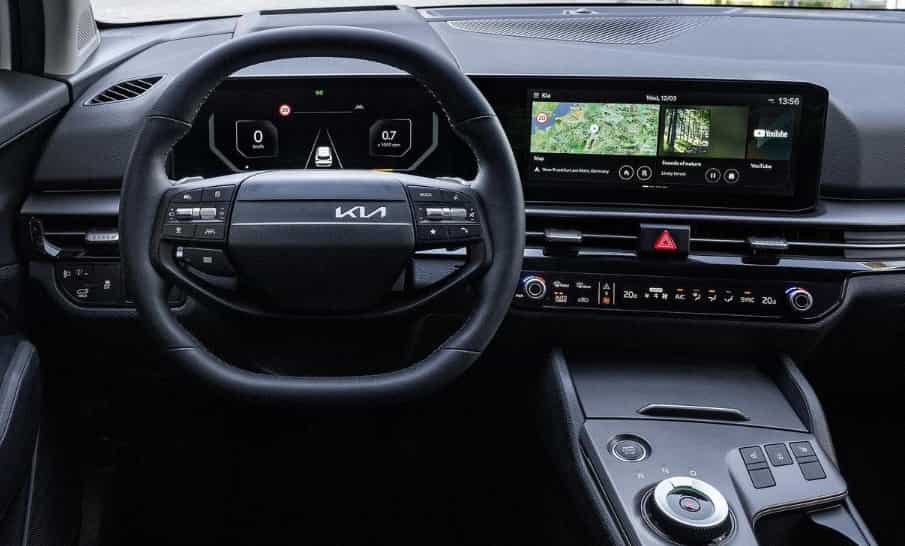
A Kia navigation update refreshes your vehicle’s navigation maps and infotainment software. It also improves system performance and overall reliability. Many drivers think an update only adds new roads. In reality, it includes much more. The latest package can improve route calculation, fix software issues, and enhance the user experience. As road networks continue to expand, accurate map data becomes more important than ever.
Updated maps help your Kia recognize new highways, intersections, and local roads. They also include revised speed limits and recently added destinations. These changes improve route accuracy and reduce navigation errors. Drivers can reach their destinations more efficiently. They are also less likely to miss important turns or nearby services. This is especially helpful when traveling in unfamiliar areas or rapidly growing cities.
A navigation update also improves the infotainment system. The software becomes more stable and responsive after installation. Many updates fix known bugs and improve touchscreen performance. They may also refresh the database of restaurants, hotels, hospitals, fuel stations, and electric vehicle charging stations. As a result, drivers can find useful locations more quickly and enjoy a smoother experience behind the wheel.
Regular updates do more than improve navigation. They help keep the entire system working as intended. Updated software supports better compatibility with connected services and newer vehicle features. It also reduces the risk of unexpected system problems. For the best driving experience, Kia owners should install official navigation updates whenever new versions become available.
Not every Kia vehicle uses the same infotainment system, so update availability may vary by model and production year. Most modern Kia vehicles equipped with a built in navigation system can receive official map and software updates. Popular models such as the Kia Sportage, Sorento, Telluride, Carnival, Seltos, K5, Soul, Niro, EV6, and EV9 are commonly supported. However, vehicles with a basic audio system and no factory navigation usually do not qualify for navigation updates.
Before downloading any files, you should confirm that your vehicle supports the latest update. The easiest way is to check your infotainment system version. Open the Settings menu on the touchscreen and select General. Next, choose Version Information or System Info, depending on your vehicle model. This page displays the current software version, map version, and firmware details. These details help you identify whether a newer update is available for your system.
It is also important to download the correct update for your vehicle. Kia uses different infotainment platforms across its lineup. Installing the wrong software may cause the update to fail or prevent the system from recognizing the installation files. Always select your exact model, model year, and navigation system when using the official Kia Navigation Updater. Taking a few minutes to verify this information can save time and ensure a smooth update process from start to finish.
Preparing everything in advance can make the update process much faster and help you avoid unexpected errors. Most Kia navigation updates require a Windows or Mac computer, a stable internet connection, and a USB flash drive with enough available storage. Some older Kia models use an SD card instead of a USB drive, so you should check your owner’s manual before downloading any files. Using the correct storage device is essential because the navigation system can only detect supported media formats.
You should also make sure your storage device is empty or backed up before starting the download. The update files are often several gigabytes in size and may overwrite existing data. Formatting the USB drive or SD card in the recommended file system can improve compatibility and reduce the risk of installation issues. In addition, keep your computer connected to the internet throughout the download to prevent corrupted files or incomplete transfers.
Before installing the update in your vehicle, park in a safe location and ensure the battery has enough power. Many Kia owners choose to keep the engine running during the installation to avoid power interruptions. Turning off the vehicle before the update is complete may cause the installation to fail or damage the navigation software. Taking a few simple precautions helps protect your infotainment system and ensures the latest maps and software are installed successfully.
The easiest and safest way to update your Kia navigation system is by using the official Kia Navigation Updater. This application downloads the latest map data and software directly from Kia. It also prepares the files for installation, reducing the chance of errors. Before you begin, make sure you have a compatible USB flash drive or SD card and a stable internet connection.
Start by downloading and installing the Kia Navigation Updater on your Windows or Mac computer. Once the installation is complete, launch the program and select your vehicle model. You should also choose the correct model year and infotainment system. Selecting the right information is important because each Kia model uses different software packages. After confirming your vehicle details, the application will display the latest available update.
Next, connect your USB drive or SD card to your computer and begin the download. The software will automatically copy all required files to your storage device. When the process is complete, safely remove the device and take it to your vehicle. Turn on the ignition or keep the engine running, then insert the USB drive or SD card into the correct slot. The infotainment system should detect the update automatically and display an installation prompt.
Follow the instructions shown on the screen and avoid removing the storage device while the update is in progress. The installation may take several minutes depending on your vehicle model and the size of the update. Once the process is finished, the system will restart automatically. Finally, open the navigation settings and verify that the software version and map version match the latest release. This final check confirms that your Kia navigation update was installed successfully.
Updating your Kia navigation system with the official Navigation Updater is the safest and most reliable method. The software downloads the latest maps and system files directly from Kia. It also prepares the installation files automatically, reducing the risk of errors. Before you begin, make sure you have a compatible USB flash drive or SD card, a stable internet connection, and enough storage space.
Visit the official Kia Navigation Update website and download the Navigation Updater for your operating system. The application is available for both Windows and Mac computers. Install the software by following the on screen instructions. Once the installation is complete, launch the program to begin the update process.
Step 2. Select Your Vehicle
Choose your Kia model, model year, and infotainment system from the list. This step is important because different vehicles use different software packages. Selecting the correct information ensures the application downloads compatible files for your navigation system.
Step 3. Download the Latest Update
Connect your USB flash drive or SD card to your computer before starting the download. The Navigation Updater will save the latest maps and software directly to your storage device. Depending on your internet speed, this process may take several minutes.
Step 4. Install the Update in Your Vehicle
Start your vehicle or switch the ignition to the recommended mode. Insert the USB drive or SD card into the correct port. The infotainment system should detect the update automatically. Follow the instructions displayed on the screen and confirm the installation when prompted.
Step 5. Wait for the Installation to Finish
Do not remove the storage device or turn off the vehicle while the update is in progress. Interrupting the installation may cause software errors or incomplete updates. The system may restart one or more times during the process. This is completely normal.
Step 6. Verify the Update
After the installation is complete, open the navigation settings and check the software version and map version. Compare the information with the latest release listed in the Navigation Updater. If the versions match, your Kia navigation system has been updated successfully and is ready to use.
Although most Kia navigation updates are completed without any issues, some drivers may experience problems during the installation process. These errors are usually caused by incorrect settings, unsupported storage devices, or interrupted downloads. Fortunately, most update issues can be resolved without professional assistance. Understanding the common causes allows you to complete the installation more quickly and keep your navigation system working properly.
One of the most common problems is that the infotainment system does not recognize the USB flash drive or SD card. This often happens when the storage device is not formatted correctly or the update files are saved in the wrong location. Another common issue is selecting the wrong Kia model or model year in the Navigation Updater. When this happens, the downloaded files may not be compatible with your vehicle, causing the installation to fail. Checking your vehicle information before downloading the update can prevent this problem.
Some drivers also notice that the installation stops unexpectedly or the navigation system still displays the previous map version after the update. In most cases, these issues are caused by incomplete downloads or interrupted installations. Downloading a fresh copy of the update and repeating the process usually resolves the problem. You should also make sure your vehicle has a stable power supply throughout the installation. Keeping your software up to date and following the official update procedure will reduce errors, improve navigation accuracy, and ensure your Kia infotainment system continues to perform at its best.
The time required to update a Kia navigation system depends on several factors, including your internet speed, the size of the update, and your vehicle model. In most cases, downloading the latest maps and software takes between 30 and 90 minutes. The installation inside the vehicle usually requires an additional 20 to 40 minutes. Newer infotainment systems may complete the process more quickly, while older models often need extra time to install larger map files.
Several factors can affect the total update time. A slow internet connection may increase the download period, especially when the update package contains large map databases and software improvements. The performance of your USB flash drive or SD card also plays an important role. Using a high quality storage device with fast read and write speeds can shorten both the transfer and installation process. In addition, choosing the correct vehicle model in the Navigation Updater helps prevent download errors that could require you to restart the update.
To avoid unnecessary delays, begin the update only when you have enough time to complete the entire process. Keep the vehicle running or follow the instructions provided for your specific Kia model to maintain a stable power supply. Do not remove the USB drive or SD card until the installation is finished and the system restarts successfully. Once the update is complete, verify the software version and map version in the infotainment settings. This final step confirms that your Kia navigation system is running the latest available update.
Following a few simple practices can make every Kia navigation update safer and more successful. Before downloading any files, confirm that your vehicle model and model year match the information shown in the official Navigation Updater. Choosing the correct model ensures that you receive compatible software and map data. You should also use a reliable USB flash drive or SD card with enough free storage to prevent installation errors.
Keeping a stable power supply is equally important during the update process. Many Kia owners leave the engine running while the software installs to avoid unexpected interruptions. If the vehicle loses power before the installation is complete, the navigation system may not function correctly. You should also avoid removing the USB drive or SD card until the system confirms that the update has finished. Waiting a few extra minutes is much safer than restarting the process because of an incomplete installation.
Regular updates help your navigation system deliver the best possible performance throughout the year. Installing the latest software improves route accuracy, refreshes the map database, and enhances overall system stability. It also keeps important locations such as fuel stations, restaurants, hospitals, and charging stations up to date. Checking for new releases every six to twelve months is a simple habit that can improve navigation accuracy and extend the reliability of your Kia infotainment system for years to come.
Frequently Asked Questions
The cost of a Kia navigation update depends on your vehicle model, model year, and local Kia policies. Many newer models include free map and software updates for a specific period, while some older vehicles may require a paid update. Check the official Kia Navigation Update website or contact your local Kia dealer for the latest information.
Most drivers should update their Kia navigation system every six to twelve months. Regular updates provide the latest maps, improved route guidance, and software enhancements. If you frequently travel to new cities or rapidly developing areas, you may benefit from checking for updates more often.
Yes. Most Kia vehicles with a factory navigation system can be updated at home using the official Kia Navigation Updater. You only need a compatible computer, a USB flash drive or SD card, and a stable internet connection. Some newer Kia models also support wireless updates through Over the Air technology.
What happens if the update is interrupted?
If the installation is interrupted, the navigation system may fail to complete the update or continue using the previous software version. In most situations, downloading a new copy of the update and repeating the installation will resolve the issue. Keeping a stable power supply during the installation helps prevent this problem.
Why does my Kia not recognize the USB drive?
This issue is usually caused by an unsupported file system, incorrect file placement, or an incompatible USB device. Make sure the update files are copied correctly and use a high quality USB flash drive with enough available storage. If the problem continues, try formatting the drive and downloading the update again.
No. The navigation system should not be used until the installation is complete. Wait for the update to finish and allow the infotainment system to restart automatically before using any navigation features.
Conclusion
Knowing how to update Kia navigation is an important part of maintaining your vehicle and enjoying a better driving experience. Regular updates provide the latest maps, improve route accuracy, and enhance the performance of your infotainment system. They also help your navigation system recognize new roads, updated speed limits, and recently added points of interest. By keeping your software current, you can reduce navigation errors and travel with greater confidence.
The update process is straightforward when you use the official Kia Navigation Updater and follow the recommended installation steps. Preparing the correct USB flash drive or SD card, selecting the right vehicle model, and maintaining a stable power supply can help you avoid common installation problems. Taking a few extra minutes to verify your software version after the update also ensures that everything has been installed successfully.
Making navigation updates part of your regular vehicle maintenance is a simple habit with long term benefits. Checking for new releases every six to twelve months helps your Kia continue delivering accurate directions and reliable performance. Whether you drive a Kia Sportage, Sorento, Telluride, EV6, or another supported model, keeping your navigation system up to date ensures you always have access to the latest maps and software improvements. If you have questions about the update process or want to share your experience, feel free to leave a comment below.