Knowing how to reset Mazda infotainment can save you time and help you avoid an unnecessary trip to the dealership. Many common problems have simple solutions. A frozen screen, an unresponsive display, Bluetooth connection issues, or Apple CarPlay errors often disappear after you perform the correct reset. The challenge is knowing which reset method fits your situation.
Many Mazda owners believe every reset erases personal settings. That is not true. A soft reset simply restarts the infotainment system and usually keeps your saved preferences. A factory reset restores the system to its original settings and may remove paired phones, saved favorites, and other personal data. Choosing the correct option protects your information and prevents unnecessary work.
Mazda has introduced several versions of Mazda Connect over the years. Different models and model years may use different menus, controls, and reset options. For that reason, one reset procedure does not work for every vehicle. Identifying your infotainment system is an important first step before you begin.
This guide explains how to reset Mazda infotainment safely and correctly for every major Mazda model. You will learn when to use a soft reset, when a factory reset becomes necessary, and how to solve common infotainment problems. You will also discover practical solutions for frozen screens, Bluetooth issues, Apple CarPlay, Android Auto, and other system errors. By the end of this guide, you will know the safest way to restore your Mazda infotainment system while keeping your personal settings whenever possible.
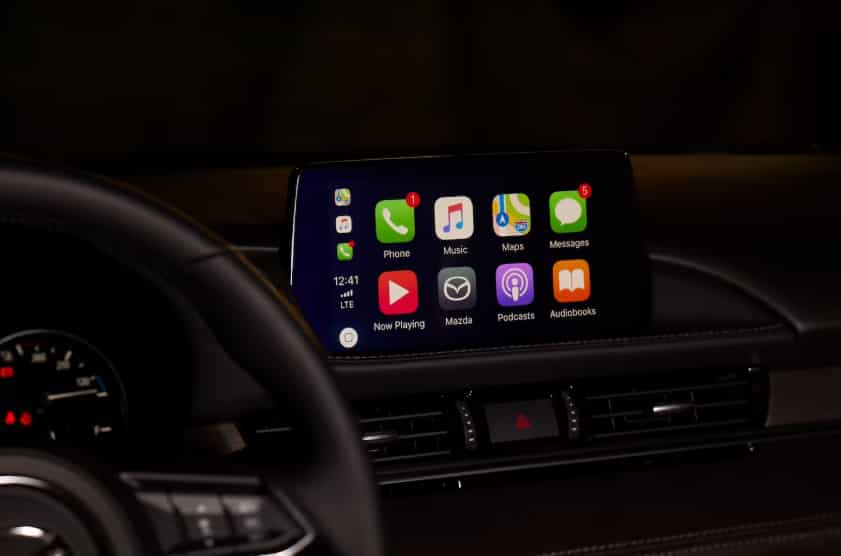
How Do You Reset Mazda Infotainment?
You can reset Mazda infotainment by choosing the reset method that matches your problem. If the screen freezes or responds slowly, start with a soft reset. Turn the vehicle off, wait for the infotainment system to shut down completely, and then restart the vehicle. This simple step often restores normal performance without removing your personal settings.
If the problem continues, open the infotainment settings and look for the option to restore factory settings. A factory reset returns the system to its original configuration. It may remove paired Bluetooth devices, saved radio stations, navigation preferences, and other customized settings. Make sure you save any important information before you continue.
The exact reset process depends on your Mazda model and the version of Mazda Connect installed in your vehicle. Some models use a commander control, while others include a touchscreen or a larger center display. Although the menu layout may differ, the basic troubleshooting process remains the same. Always begin with the least invasive solution before choosing a factory reset.
Before You Reset Mazda Infotainment
Before you reset Mazda infotainment, take a few minutes to identify the problem and prepare your vehicle. This simple step can save time and help you avoid unnecessary data loss. Many infotainment issues have quick solutions, so resetting the entire system is not always the best choice. Understanding the symptoms first allows you to select the safest and most effective troubleshooting method.
Start by parking your Mazda in a safe location. Shift the transmission into Park, apply the parking brake, and keep the engine running if necessary. Never attempt to reset the infotainment system while driving because it can distract you and reduce your ability to focus on the road.
Next, identify the version of Mazda Connect installed in your vehicle. Mazda has introduced different infotainment systems across multiple model years, and the available menus and reset options may vary. Knowing which system your vehicle uses will help you follow the correct instructions and avoid confusion later in the process.
Take a moment to inspect the symptoms before choosing a reset method. The display may freeze, remain black, restart unexpectedly, or lose Bluetooth, Apple CarPlay, or Android Auto connectivity. Some problems disappear after a simple restart, while others require additional troubleshooting. Recognizing the exact issue helps you avoid unnecessary factory resets.
If you decide to restore the system to its factory settings, back up any important information first. Depending on your Mazda model, a factory reset may remove paired phones, saved navigation destinations, favorite radio stations, audio preferences, and other personalized settings. Spending a few minutes on preparation can make the reset process faster, safer, and much easier to complete.
Soft Reset vs Factory Reset
Choosing the correct reset method is one of the most important steps when troubleshooting Mazda infotainment problems. Many drivers perform a factory reset as soon as the system starts acting strangely. However, this approach is not always necessary. Understanding the difference between a soft reset and a factory reset helps you solve the problem faster while protecting your personal settings.
What Is a Soft Reset?
A soft reset simply restarts the infotainment system. It refreshes the software, clears temporary errors, and restores normal performance without changing most of your saved information. In most cases, your paired phones, favorite radio stations, navigation preferences, and audio settings remain available after the restart.
A soft reset works well when the screen freezes, responds slowly, disconnects from Bluetooth, or fails to recognize Apple CarPlay or Android Auto. Since this method does not usually erase your personal data, it should always be your first troubleshooting step.
What Is a Factory Reset?
A factory reset restores the infotainment system to its original configuration. The system removes many customized settings and returns the software to its default state. After the reset finishes, you may need to reconnect your phone, pair Bluetooth devices, adjust the sound settings, and restore other personal preferences.
This method is more appropriate when software errors continue to appear, the system behaves unpredictably, or previous troubleshooting attempts fail to resolve the issue. Although a factory reset often fixes persistent software problems, it requires more time because you must configure the system again afterward.
Which Reset Should You Choose?
Start with a soft reset whenever possible. It is faster, safer, and less disruptive because it usually keeps your personal settings intact. If the same problem returns repeatedly or the infotainment system continues to malfunction after several restarts, a factory reset becomes the next logical solution. Following this order helps you protect your data while reducing unnecessary troubleshooting.
How to Perform a Soft Reset on Mazda Infotainment
A soft reset is the safest way to fix many common infotainment problems. It restarts the Mazda Connect system without removing most of your personal settings. If the display freezes, responds slowly, or loses Bluetooth and smartphone connectivity, try this method before performing a factory reset.
Step 1: Park Your Vehicle Safely
Park your Mazda on a level surface and shift the transmission into Park. Apply the parking brake before you begin. Keeping the vehicle stationary allows you to complete the reset safely and prevents distractions during the process.
Step 2: Turn Off the Infotainment System
Locate the power or volume control on your infotainment system. Press and hold the control until the display turns off. Wait a few seconds before turning the system back on. This simple restart often clears temporary software issues and restores normal performance.
Step 3: Restart the Vehicle
If the problem continues, switch off the engine and allow the infotainment system to shut down completely. Wait for about one minute before restarting the vehicle. This process gives the system enough time to close active processes and reload the software during the next startup.
Step 4: Check the System Performance
After the infotainment system restarts, test every major function. Open the main menu, adjust the volume, connect your phone through Bluetooth, and launch Apple CarPlay or Android Auto if your vehicle supports these features. If everything works normally, the soft reset has resolved the problem.
Step 5: Decide Whether Additional Troubleshooting Is Necessary
If the screen continues to freeze, restarts repeatedly, or fails to respond, further troubleshooting may be necessary. Check for software updates, inspect connected USB devices, and confirm that your smartphone software is up to date. If the problem remains after several soft resets, you should consider performing a factory reset or contacting a Mazda service center for a complete diagnosis.
How to Factory Reset Mazda Infotainment
A factory reset restores the Mazda infotainment system to its original settings. This process can resolve persistent software problems that a soft reset cannot fix. However, it also removes many personalized settings, so you should use it only after trying simpler troubleshooting methods.
Before you begin, make sure your vehicle is parked safely. Take a few minutes to save any important information, including paired Bluetooth devices, favorite radio stations, navigation destinations, and audio preferences. Restoring these settings later may take additional time.
Step 1: Open the Settings Menu
Turn on the ignition or start the engine, then wait for Mazda Connect to finish loading. Open the main menu and select Settings. Depending on your Mazda model and software version, the available options may look slightly different.
Step 2: Locate the Reset Option
Navigate to the system settings menu and look for an option that restores the infotainment system to its default configuration. Some Mazda Connect versions display Restore All Factory Settings, while newer systems may use Reset System Settings or a similar name. Read the confirmation message carefully before continuing.
Step 3: Confirm the Factory Reset
Select the reset option and confirm your choice. The infotainment system will begin restoring the default settings. During this process, avoid turning off the engine or operating the system. Interrupting the reset may cause unexpected software issues.
Step 4: Wait for the System to Restart
The infotainment system will restart automatically after the reset finishes. The first startup may take longer than usual because the software needs to rebuild the default configuration. Be patient and allow the process to finish without interruption.
Step 5: Restore Your Personal Settings
After the system loads successfully, reconnect your smartphone, pair Bluetooth devices, restore your favorite radio stations, and adjust the audio settings. If you use Apple CarPlay or Android Auto, reconnect your device and confirm that all permissions remain enabled.
When Should You Perform a Factory Reset?
A factory reset is a good option when the infotainment system freezes repeatedly, restarts without warning, fails to save settings, or continues to experience software problems after several soft resets. If the same issue returns even after a factory reset, the problem may involve the software, hardware, or another vehicle component. In that situation, professional diagnosis is the safest and most reliable solution.
How to Reset Mazda Infotainment by Model
Although Mazda Connect follows the same basic principles across most vehicles, the interface, menu layout, and available features can vary by model and model year. Before you begin, identify your infotainment system and follow the instructions that match your vehicle.
How to Reset Mazda3 Infotainment
The Mazda3 uses different versions of Mazda Connect depending on the model year. Earlier models rely on the commander control, while newer versions may include a larger center display with updated software. Start with a soft reset if the screen freezes or responds slowly. If the problem continues, open the system settings and perform a factory reset only after saving your personal preferences.
How to Reset Mazda CX 5 Infotainment
The Mazda CX 5 is one of the most popular models equipped with Mazda Connect. If Bluetooth disconnects, the screen becomes unresponsive, or Apple CarPlay stops working, perform a soft reset first. A factory reset is recommended only when repeated software issues continue after several restarts.
How to Reset Mazda CX 30 Infotainment
The Mazda CX 30 features a newer generation of Mazda Connect in many model years. Most infotainment problems result from temporary software glitches or smartphone connectivity issues. Restart the system before changing any settings. If the problem remains, restore the factory settings and reconnect your mobile device.
How to Reset Mazda CX 50 Infotainment
The Mazda CX 50 includes an updated infotainment platform with enhanced connectivity features. If wireless Apple CarPlay or Android Auto fails to connect, restart both the infotainment system and your smartphone before considering a factory reset. This simple step often restores normal operation.
How to Reset Mazda CX 9 Infotainment
Many Mazda CX 9 owners experience occasional screen freezes or Bluetooth connection problems after software updates. A soft reset usually resolves these issues within a few minutes. If the system continues to restart unexpectedly or fails to save settings, perform a factory reset and configure the system again.
How to Reset Mazda CX 90 Infotainment
The Mazda CX 90 offers one of the newest Mazda Connect systems. Before performing a factory reset, install any available software updates and confirm that the problem does not originate from a connected smartphone. If the issue continues after updating the system, restore the factory settings and complete the initial setup again.
How to Reset Mazda6 Infotainment
The Mazda6 may use different infotainment software depending on the production year. If the display remains black, the touchscreen stops responding, or Bluetooth disconnects repeatedly, begin with a soft reset. Only restore the factory settings after other troubleshooting methods fail.
How to Reset Mazda MX 5 Miata Infotainment
The Mazda MX 5 Miata uses Mazda Connect with controls that vary by model year. Most connectivity problems involve Bluetooth pairing or smartphone integration rather than hardware failure. Restart the infotainment system, reconnect your mobile device, and test the connection before choosing a factory reset.
Is the Reset Process the Same for Every Mazda Model?
The overall troubleshooting process remains similar across the Mazda lineup, but the exact menu names, system features, and available reset options may differ. Always check the owner manual for your specific model and model year before restoring the system to its factory settings. Using the correct procedure reduces the risk of data loss and helps you resolve infotainment problems more efficiently.
Common Mazda Infotainment Problems and Their Solutions
Mazda infotainment systems deliver a reliable driving experience, but occasional problems can still occur. Most issues result from temporary software glitches, outdated connections, or incorrect settings rather than serious hardware failures. Understanding the symptom before choosing a solution helps you save time and avoid unnecessary factory resets.
A frozen screen is one of the most common problems. The display may stop responding, react slowly, or remain stuck on the same page. In many cases, a soft reset restores normal operation and clears temporary software errors without affecting your personal settings.
Some drivers encounter a black screen even though the vehicle continues to operate normally. Restart the infotainment system first and then restart the vehicle if necessary. If the display remains black after several attempts, inspect the vehicle battery and seek professional assistance because the issue may involve the display or another electrical component.
Bluetooth connectivity problems often appear after updating a smartphone or changing device settings. Remove the existing Bluetooth connection from both the vehicle and your phone before pairing them again. If Apple CarPlay or Android Auto fails to connect, restart both devices and confirm that all required permissions remain enabled.
Slow system performance, missing audio, and navigation errors may also affect the infotainment system. Restarting the software often resolves temporary issues. However, if the same problem returns repeatedly after several restarts or even after a factory reset, the cause may extend beyond the software. In that situation, updating Mazda Connect or visiting an authorized Mazda service center is the most effective way to restore reliable system performance.
Frequently Asked Questions
Does a Soft Reset Delete My Personal Settings?
No. A soft reset simply restarts the infotainment system and clears temporary software glitches. In most cases, your paired Bluetooth devices, favorite radio stations, navigation preferences, and audio settings remain unchanged. It is the safest troubleshooting method and should always be your first option.
Will a Factory Reset Remove My Data?
Yes. A factory reset restores the infotainment system to its default configuration. Depending on your Mazda model and software version, it may remove paired phones, saved navigation destinations, radio presets, audio preferences, and other personalized settings. Back up important information before starting the reset.
Why Does My Mazda Infotainment Screen Keep Freezing?
A frozen screen usually results from temporary software errors, outdated system software, smartphone connection problems, or unstable USB devices. Begin with a soft reset and disconnect any external devices. If the problem continues, check for available software updates or perform a factory reset.
Why Is My Mazda Infotainment Screen Black?
A black screen does not always indicate hardware failure. The display may stop responding because of a temporary software issue or an interrupted startup process. Restart the infotainment system first. If the display remains black after several attempts, inspect the vehicle battery and contact an authorized Mazda service center for further diagnosis.
Why Is Bluetooth Not Connecting?
Bluetooth problems often occur after updating a smartphone or changing Bluetooth settings. Delete the existing connection from both the vehicle and your phone, restart both devices, and pair them again. Keeping your phone software up to date also improves compatibility with Mazda Connect.
Why Is Apple CarPlay or Android Auto Not Working?
Connection problems may occur because of damaged USB cables, outdated smartphone software, disabled permissions, or temporary infotainment errors. Restart both devices, reconnect the phone, and verify that all required permissions are enabled. If the issue continues, check whether your infotainment software requires an update.
When Should I Perform a Factory Reset?
Perform a factory reset only after a soft reset and other basic troubleshooting methods fail to resolve the problem. This method works best for persistent software issues, repeated system crashes, or corrupted settings. If the same problem returns after the factory reset, professional diagnosis is the next recommended step.
Conclusion
Learning how to reset Mazda infotainment is one of the easiest ways to solve common software problems and restore a smooth driving experience. In many situations, a simple soft reset is enough to fix a frozen screen, slow performance, Bluetooth connection issues, or problems with Apple CarPlay and Android Auto. Because a soft reset usually keeps your personal settings, it should always be your first troubleshooting step.
If the problem continues after several restarts, a factory reset may provide a more effective solution by restoring the infotainment system to its original settings. Before choosing this option, remember to save important information such as paired phones, navigation preferences, and favorite radio stations. Taking a few extra minutes to prepare can save time when you set up the system again.
Since Mazda has introduced different versions of Mazda Connect across multiple models and model years, the exact menu layout and available reset options may vary. Always follow the instructions that match your vehicle and use the least invasive solution before moving to more advanced troubleshooting.
We hope this guide has helped you understand how to reset Mazda infotainment safely and confidently. If you continue to experience recurring software issues after completing every recommended step, contact an authorized Mazda service center for a professional inspection.
Have you recently reset the infotainment system in your Mazda? Share your model, model year, and experience in the comments below. Your feedback may help other Mazda owners find the right solution more quickly.