How to Reset Hyundai Infotainment System: Step by Step Guide for All Models is a common search among drivers who use vehicles from Hyundai Motor Company. Modern infotainment systems combine navigation, music, Bluetooth, and car settings into one interface. These systems improve driving comfort and convenience.
However, these systems can also develop issues. Many drivers experience a frozen screen, slow response, Bluetooth connection errors, or a black display. Sometimes the navigation stops working. In other cases, the audio system fails without warning. These problems can appear suddenly and disrupt daily driving.
A reset often solves these issues quickly. It helps clear temporary software glitches and restores normal system performance. In many cases, a reset works before any repair or dealership visit becomes necessary. This makes it one of the first solutions drivers should try.
This guide explains how to reset Hyundai infotainment system in a simple and clear way. You will learn soft reset, hard reset, and factory reset methods. Each method works for different situations. Some Hyundai models may also require slightly different steps, and this article will cover those differences.
By the end of this guide, you will understand how to restore your infotainment system safely. You will also know when to reset and when to seek professional support. This ensures your driving experience stays smooth and reliable.
Types of Hyundai Infotainment Reset
Before you learn how to reset Hyundai infotainment system, you need to understand the three main reset types. Each type works in a different situation. Each one also affects the system in a different way. Drivers should choose the right method based on the problem they face.
The first type is a soft reset. A soft reset restarts the infotainment system without deleting any data. It clears temporary glitches and refreshes the system memory. Drivers usually use this method when the screen becomes slow or unresponsive for a short time. It is the safest and quickest option.
The second type is a hard reset. A hard reset shuts down the system completely and forces it to restart. This method helps when the screen freezes or stops responding for a longer time. It is more powerful than a soft reset but still does not remove saved settings. It works as a deeper reboot of the system.
The third type is a factory reset. A factory reset restores the system to its original settings. It removes personal data, saved Bluetooth devices, and navigation history. Drivers use this method only when serious software issues occur. It can also help when other reset methods fail to fix the problem. After a factory reset, the system behaves like a new unit.
Understanding these reset types is important for all users of vehicles from Hyundai Motor Company. It helps you choose the correct solution without risking unnecessary data loss or system changes. It also improves your ability to fix infotainment problems quickly and safely.
Step by Step Guide to Reset Hyundai Infotainment System
Now you can learn how to reset Hyundai infotainment system in a simple and practical way. These methods work on most vehicles from Hyundai Motor Company and help fix common issues such as screen freezing, slow response, or system errors. You should always choose the reset method based on the severity of the problem.
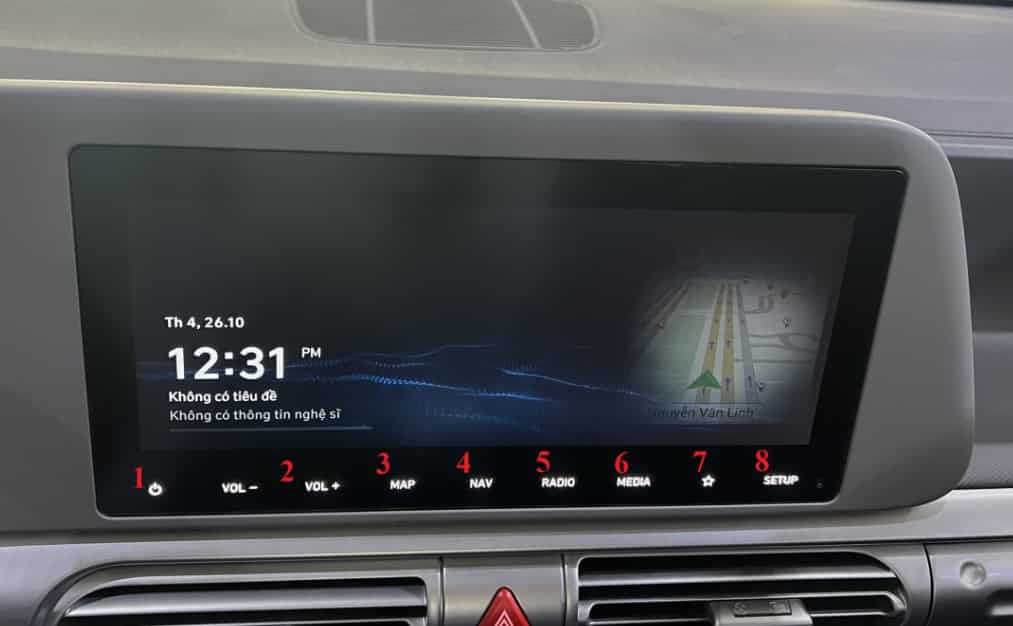
A soft reset is the easiest method. You simply press and hold the power button on the infotainment system for about ten seconds. The screen will turn off and restart automatically. This process clears minor glitches and refreshes system performance without deleting any saved data. It is the first method you should try when the system becomes slow or unresponsive.
A hard reset is more powerful and works when the system completely freezes. In this case, turn off the engine and open the driver door. Wait a few minutes so the system can fully shut down. After that, restart the vehicle and check if the infotainment system works normally again. This method helps clear deeper temporary errors but still keeps your personal settings unchanged.
A factory reset should only be used when other methods fail. You go into the Settings menu, find the System or General section, and select Factory Reset. Once confirmed, the system will erase all saved data, including Bluetooth connections, navigation history, and personalized settings. After the reset, the system will return to its original factory condition and require a full setup again.
Model-Specific Instructions for Hyundai Infotainment Reset
Different Hyundai models may have slightly different infotainment systems, so the reset process can vary depending on the vehicle you drive. Understanding these differences helps you apply the correct method and avoid unnecessary confusion when fixing system issues in vehicles from Hyundai Motor Company.
In the Hyundai Elantra, the infotainment system usually uses a standard touchscreen interface with a physical or touch power button. Most resets can be done through a soft reset by holding the power button, or through the settings menu for a factory reset. Some older versions may require a slightly longer press time to trigger a reboot, so you should hold the button until the screen fully restarts.
In the Hyundai Tucson, the infotainment system is often larger and more advanced. It includes deeper integration with navigation and smartphone connectivity. You can reset the system through the settings menu under the General or System section. The Tucson system may also take longer to reboot after a reset because of its more complex software features. A soft reset is usually enough to fix minor issues like lag or Bluetooth errors.
In the Hyundai Santa Fe, the infotainment system is designed for higher trims with more advanced digital features. You can reset it using both physical controls and the touchscreen menu. In some cases, the system may require a full ignition cycle after a hard reset to restore normal operation. This model is more sensitive to software updates, so keeping the system updated can reduce the need for frequent resets.
Although the steps are slightly different across models, the core reset principles remain the same. You can always start with a soft reset, move to a hard reset if needed, and use a factory reset only when necessary.
Common Problems and Troubleshooting
Many drivers try to learn how to reset Hyundai infotainment system because they face unexpected issues while driving vehicles from Hyundai Motor Company. These problems often come from software glitches, temporary system overload, or connectivity errors. Understanding these issues helps you decide whether a reset is necessary or if a simpler fix is enough.
One of the most common problems is a frozen or lagging screen. The touchscreen may stop responding or react slowly to inputs. This usually happens when the system memory is overloaded. In many cases, a soft reset can fix this issue quickly without any data loss.
Another frequent issue is Bluetooth connection failure. The system may fail to pair with a smartphone or may disconnect repeatedly during use. This problem often appears after software updates or long periods of system use. Restarting the system or removing and reconnecting the device can solve the issue before a full reset is needed.
Navigation errors are also common. The GPS may stop updating or show incorrect locations. This usually results from outdated software or temporary signal loss. A system reboot often restores normal navigation performance.
Some drivers also experience audio problems where sound suddenly disappears or becomes distorted. This can be caused by software bugs or conflicting settings inside the infotainment system. A soft reset often restores normal audio function.
Before performing a full reset, you should always try basic troubleshooting steps. Check Bluetooth connections, restart the vehicle, and ensure the system software is up to date. If these steps do not work, then a reset becomes the next logical solution.
Conclusion
Understanding how to reset Hyundai infotainment system is essential for every driver using vehicles from Hyundai Motor Company. Modern infotainment systems play an important role in driving comfort. They control navigation, entertainment, and connectivity features. When these systems stop working correctly, it can affect the overall driving experience.
In most cases, a simple reset can solve common problems such as frozen screens, Bluetooth errors, slow response, or navigation glitches. A soft reset works best for minor issues. A hard reset helps when the system becomes unresponsive. A factory reset should only be used when other methods fail or when serious software problems occur.
Each reset method serves a specific purpose. Choosing the right one helps you fix issues quickly without unnecessary data loss. It also helps you avoid unnecessary visits to service centers. However, if the problem continues after multiple resets, the issue may be related to hardware or deeper software faults.
Drivers should also maintain their infotainment system regularly. Keeping the software updated and avoiding system overload can reduce the need for frequent resets. This helps ensure stable performance over time.
By following this guide, you can confidently handle most infotainment issues and keep your system running smoothly. A proper reset process ensures a better and more reliable driving experience every day.