Apple CarPlay allows iPhone users to connect their smartphones with the Uconnect system and access essential features through the vehicle’s touchscreen display. Drivers can use navigation apps, make phone calls, send messages, listen to music, and control compatible applications with fewer distractions while driving. However, getting Apple CarPlay on Uconnect depends on the vehicle model, Uconnect system version, and available connection technology.
To get Apple CarPlay on Uconnect, you need a compatible Uconnect system, a supported iPhone, and the correct connection method. Some vehicles support wired Apple CarPlay through a USB connection, while newer Uconnect systems provide wireless Apple CarPlay through Bluetooth and Wi-Fi pairing. Checking compatibility before setup helps prevent connection problems and unnecessary upgrades.
This guide explains how to check Uconnect Apple CarPlay compatibility, prepare your iPhone for connection, complete the setup process, and solve common issues when Apple CarPlay does not work correctly. Understanding how Uconnect and Apple CarPlay work together helps vehicle owners use smartphone integration features more effectively and maintain a reliable connection.
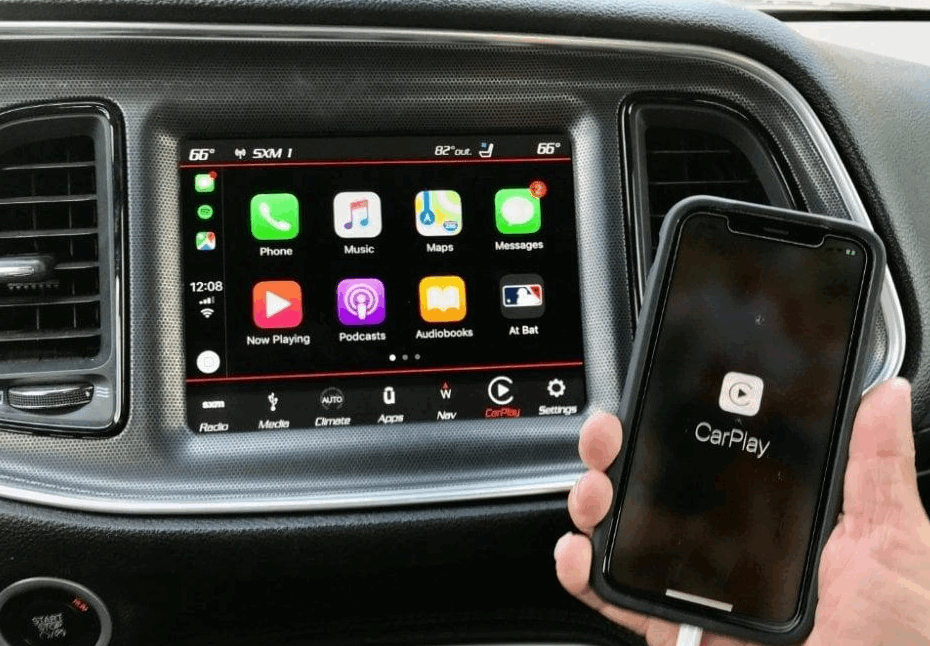
How Do You Check If Your Uconnect System Supports Apple CarPlay?
Apple CarPlay is available on many Uconnect systems, but compatibility depends on the Uconnect hardware version, vehicle model year, and factory configuration. A Uconnect system supports Apple CarPlay when the infotainment hardware includes smartphone integration capability and the vehicle software can recognize compatible iPhone connections. This means not every Uconnect touchscreen can activate Apple CarPlay through a simple software update.
The easiest way to check compatibility is to review the vehicle owner’s manual, inspect the Uconnect touchscreen menu, or verify the vehicle specifications from the manufacturer. Many newer vehicles equipped with Uconnect systems include Apple CarPlay as a standard or available feature, while older models may have different hardware limitations. For example, a Uconnect system with a compatible USB media port and updated software has a higher chance of supporting Apple CarPlay compared with older infotainment units designed before smartphone integration became common.
Uconnect and Apple CarPlay serve different purposes within the vehicle technology system. Uconnect is the vehicle’s built in infotainment platform, while Apple CarPlay is a smartphone integration feature that extends iPhone functions to the vehicle display. The Uconnect touchscreen provides the interface, speakers, controls, and vehicle connection points, while Apple CarPlay provides access to iPhone based applications such as Apple Maps, Messages, Music, and Siri.
Vehicle owners should also identify their specific Uconnect version before attempting installation or troubleshooting. Uconnect systems have changed across different generations, including improvements in display technology, connectivity options, and wireless capabilities. Knowing the exact system version helps determine whether Apple CarPlay can be enabled through settings, requires a software update, or needs a hardware upgrade.
What Do You Need to Connect Apple CarPlay to Uconnect?
You need three things to connect Apple CarPlay to Uconnect: a compatible iPhone, a supported Uconnect system, and the correct connection method. Apple CarPlay works with Uconnect when the system can communicate with an iPhone through USB, Bluetooth, or Wi-Fi. Preparing these requirements before setup helps users avoid common connection problems.
The first requirement is a compatible iPhone with an updated iOS version. Apple CarPlay supports modern iPhone models that include smartphone integration features. Users should update iOS regularly because software updates improve compatibility and fix connection issues. An outdated iPhone system may prevent Uconnect from recognizing the device or loading Apple CarPlay correctly.
The second requirement is a reliable connection method. Wired Apple CarPlay uses a USB cable to transfer data between the iPhone and Uconnect. The cable must support data transfer, not only charging. A damaged cable or a charging-only cable can power the phone but cannot establish an Apple CarPlay connection. A certified cable provides a more stable connection.
Wireless Apple CarPlay requires a Uconnect system with wireless capability. This feature uses Bluetooth and Wi-Fi to connect the iPhone with the vehicle. Bluetooth creates the initial pairing, while Wi-Fi handles data communication. After the first setup, the system can connect automatically when the driver enters the vehicle with the paired iPhone.
Users should also check several iPhone settings before starting the setup. Bluetooth, Wi-Fi, and Siri must remain active because Apple CarPlay uses these features for navigation, voice commands, calls, and messages. Correct settings create a faster setup process and reduce connection errors.
How Do You Set Up Apple CarPlay on Uconnect Step by Step?
To set up Apple CarPlay on Uconnect, connect your iPhone to the vehicle system and approve the required permissions. Apple CarPlay starts working on Uconnect when the iPhone completes the connection process and the driver selects the CarPlay interface from the touchscreen. The setup process usually takes only a few minutes when the Uconnect system and iPhone meet all compatibility requirements.
Start the vehicle and turn on the Uconnect touchscreen before connecting the iPhone. For wired Apple CarPlay, connect the iPhone to the correct USB port using a cable that supports data transfer. Uconnect will detect the iPhone and display a permission request on the touchscreen. The driver must unlock the iPhone and allow Apple CarPlay access before the system can display compatible apps.
Wireless Apple CarPlay follows a different process. First, enable Bluetooth, Wi-Fi, and Siri on the iPhone. Then open the Uconnect connection menu and pair the iPhone with the vehicle. After the first pairing, Uconnect stores the device information and can reconnect automatically during future drives. This feature allows drivers to use Apple CarPlay without plugging in a cable every time.
After the connection succeeds, the Uconnect touchscreen displays the Apple CarPlay interface. Drivers can access navigation apps such as Apple Maps, Google Maps, and Waze. They can also use Siri for voice commands, answer calls, read messages, and control music applications without handling the phone.
The first connection may take longer because Uconnect and the iPhone exchange system information during setup. The vehicle saves the connection settings after the initial setup, which makes future connections faster. If Apple CarPlay does not appear after connecting, users should check the USB cable, iPhone permissions, and Uconnect settings before attempting advanced troubleshooting.
Why Is Apple CarPlay Not Working on Uconnect?
Apple CarPlay may not work on Uconnect because of connection problems, software issues, incorrect settings, or compatibility limitations. Uconnect fails to connect with Apple CarPlay when the system cannot properly communicate with the iPhone. Identifying the cause helps users restore the connection without replacing hardware or performing unnecessary repairs.
One common cause is an unreliable USB connection. Wired Apple CarPlay requires a USB cable that transfers both power and data. A damaged cable or a cable designed only for charging can prevent Uconnect from detecting the iPhone. Users should test another certified cable and connect the phone to the correct USB port in the vehicle.
Another common issue involves iPhone settings. Apple CarPlay requires specific permissions to access the device. Users should check whether CarPlay access is enabled in the iPhone settings and confirm that Siri remains active. The iPhone must also stay unlocked during the first connection because Uconnect needs permission to communicate with the device.
Software compatibility can also affect Apple CarPlay performance. Uconnect systems use internal software to manage smartphone connections. An outdated Uconnect software version may create problems such as delayed connections, missing CarPlay options, or repeated disconnections. Updating the Uconnect system and iOS version can improve communication between both devices.
Users can also reset the connection when basic solutions do not work. Removing the iPhone from the Uconnect device list and deleting the vehicle from the iPhone Bluetooth settings creates a fresh connection process. Restarting both the iPhone and Uconnect system can clear temporary software errors.
If Apple CarPlay still does not work after these steps, the problem may come from hardware limitations. Some older Uconnect systems do not support Apple CarPlay because they lack the required components. In these cases, owners need to confirm compatibility before considering software updates or hardware upgrades.
Can You Add Apple CarPlay to an Older Uconnect System?
Adding Apple CarPlay to an older Uconnect system depends on the vehicle hardware and infotainment system generation. Older Uconnect systems can support Apple CarPlay only when they include compatible hardware and software components. A software update alone cannot add Apple CarPlay to every Uconnect system because the feature requires specific communication technology inside the infotainment unit.
The first step is identifying the exact Uconnect version installed in the vehicle. Different Uconnect generations use different processors, display systems, and connection methods. A newer Uconnect touchscreen may support Apple CarPlay after a software update, while an older system may lack the hardware needed for smartphone integration. Checking the vehicle model year and Uconnect system specifications helps determine the available options.
Some older vehicles can receive Apple CarPlay through an official Uconnect upgrade. These upgrades usually replace or update the infotainment hardware instead of changing only the software. The available upgrade depends on the vehicle model, trim level, and manufacturer support. Owners should verify compatibility before purchasing any replacement components.
Aftermarket infotainment upgrades provide another option for vehicles without factory Apple CarPlay support. These systems replace the original head unit with a new receiver that includes Apple CarPlay, Bluetooth, and modern smartphone features. However, aftermarket solutions may affect factory features such as steering wheel controls, backup cameras, or vehicle settings.
Before upgrading an older Uconnect system, owners should compare the cost, compatibility, and available features. A factory upgrade may provide better integration with the vehicle, while an aftermarket system may offer more advanced technology. The best solution depends on the vehicle’s condition, existing Uconnect hardware, and the owner’s technology needs.
What Features Does Apple CarPlay Add to Uconnect?
Apple CarPlay expands the functionality of the Uconnect system by bringing familiar iPhone features to the vehicle touchscreen. Apple CarPlay adds navigation, communication, entertainment, and voice control features to compatible Uconnect systems. These features allow drivers to access important smartphone functions while keeping their attention focused on the road.
Navigation is one of the main benefits of Apple CarPlay on Uconnect. Drivers can use apps such as Apple Maps, Google Maps, and Waze directly through the vehicle display. These applications provide turn by turn directions, traffic information, and route updates. The integration helps drivers use familiar navigation tools without relying on a separate phone mount or manually checking their smartphone.
Apple CarPlay also improves communication while driving. The system connects phone calls and messages with the Uconnect touchscreen and steering wheel controls. Drivers can answer calls, listen to incoming messages, and send replies through Siri voice commands. This hands free approach reduces the need to interact with the iPhone while driving.
Entertainment is another important feature that Apple CarPlay brings to Uconnect. Users can access applications such as Apple Music, Podcasts, and other compatible audio services through the vehicle speakers. The system allows drivers to control playlists, select songs, and manage audio content using voice commands or touchscreen controls.
Siri integration creates a more natural way to interact with Apple CarPlay. Drivers can ask Siri to make calls, provide directions, read messages, or control music without touching the phone. This voice control feature connects the iPhone experience with the vehicle environment and makes daily driving more convenient.
By combining Uconnect hardware with Apple CarPlay software, drivers receive a more connected infotainment experience. The vehicle system provides the display and controls, while Apple CarPlay provides access to the iPhone ecosystem. This relationship allows users to enjoy modern smartphone features without replacing the original Uconnect system.
How Do You Successfully Get Apple CarPlay on Uconnect?
Getting Apple CarPlay on Uconnect requires three main steps: checking compatibility, preparing the correct connection method, and completing the setup process. Apple CarPlay works with Uconnect when the vehicle system, iPhone, and connection settings support smartphone integration. Understanding these requirements helps drivers avoid common connection problems and choose the right solution for their vehicle.
Drivers should first confirm that their Uconnect system supports Apple CarPlay. The vehicle model year, Uconnect version, and available hardware determine whether the feature works through a simple connection, a software update, or a hardware upgrade. This compatibility check prevents unnecessary troubleshooting and upgrade costs.
After confirming compatibility, users can connect their iPhone through a USB cable or wireless pairing, depending on the Uconnect system. Correct iPhone settings, updated software, and reliable connection methods improve system performance. When Apple CarPlay does not work, checking cables, permissions, Bluetooth settings, and software versions usually resolves the most common issues.
Apple CarPlay and Uconnect work together to create a more connected driving experience. Uconnect provides the vehicle interface, while Apple CarPlay brings iPhone features such as navigation, communication, and entertainment to the touchscreen. By following the correct setup process, vehicle owners can use these features safely and efficiently during daily driving.