Connecting your smartphone to Jeep Uconnect unlocks a safer, smarter, and more enjoyable driving experience. Whether you want to make hands-free calls, stream your favorite music, use GPS navigation, or access Apple CarPlay or Android Auto, pairing your phone with the Uconnect infotainment system is the first step.
While the process is generally straightforward, many Jeep owners encounter common issues such as Bluetooth pairing failures, devices not appearing on the screen, or repeated connection drops. These problems can be frustrating, especially when you’re relying on your phone for navigation or communication during your drive.
The good news is that most connection issues can be resolved in just a few minutes with the correct setup process. Whether you own a new Jeep Wrangler, Grand Cherokee, Compass, Gladiator, Cherokee, Renegade, or another model equipped with the Uconnect system, the pairing steps are very similar.
In this comprehensive guide, you’ll learn how to connect your phone to Jeep Uconnect step by step. We’ll walk you through pairing both iPhone and Android devices, setting up Apple CarPlay and Android Auto, troubleshooting common Bluetooth issues, and sharing practical tips to help you get the most out of your Jeep’s infotainment system. By the end of this guide, you’ll be ready to enjoy seamless connectivity every time you get behind the wheel.
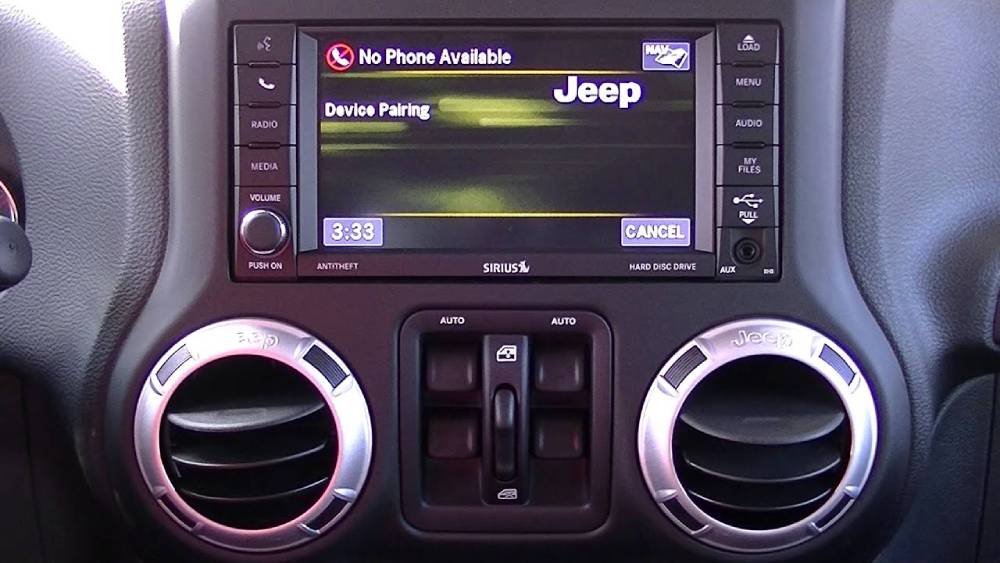
Why Connect Your Phone to Jeep Uconnect?
Connecting your phone to Jeep Uconnect gives you access to essential features without constantly reaching for your device. Once paired, you can make and receive calls, listen to music, follow navigation directions, hear text messages, and use voice commands while keeping your attention on the road.
One of the biggest advantages is hands free communication. Instead of holding your phone while driving, you can answer calls through the vehicle’s speakers and speak using the built in microphone. This makes conversations clearer and helps reduce distractions behind the wheel.
Jeep Uconnect also allows you to stream audio from apps such as Spotify, Apple Music, YouTube Music, Audible, and other supported services. Depending on your Jeep model and Uconnect version, you may be able to browse playlists, skip tracks, adjust volume, and control playback directly from the touchscreen or steering wheel buttons.
When Apple CarPlay or Android Auto is available, the connection becomes even more useful. These systems display compatible phone apps on the Uconnect screen, giving you easier access to navigation, calls, messages, podcasts, and music. You can also use Siri or Google Assistant to complete many tasks with your voice.
For drivers who regularly use their phones for directions or entertainment, connecting to Uconnect removes much of the inconvenience of handling a small screen. It keeps important controls in one central location and creates a more organized driving experience.
A proper connection can also help reduce common frustrations such as missing calls, unclear audio, or repeatedly plugging in different devices. Once your phone is saved as a trusted device, Uconnect can often reconnect automatically whenever you start the vehicle.
Before You Connect Your Phone
Before beginning the pairing process, take a few minutes to prepare both your phone and the Uconnect system. Most failed connections are caused by simple issues such as disabled Bluetooth, outdated software, too many saved devices, or missing phone permissions.
First, park your Jeep in a safe location. Avoid attempting to pair a phone while the vehicle is moving, since some Uconnect controls may be restricted and the process can become distracting.
Turn on the vehicle and allow the infotainment system to load completely. If the screen has just started, wait until the main menu appears before opening the phone settings.
Next, enable Bluetooth on your smartphone. On an iPhone, open Settings, select Bluetooth, and make sure the switch is turned on. On an Android device, open Settings, choose Connected Devices or Bluetooth, and enable pairing mode.
Keep your phone unlocked and close to the Uconnect screen. The system may not detect the device if it is too far away, locked for an extended period, or already connected to another Bluetooth accessory.
Check whether your phone is connected to wireless headphones, a smartwatch, another vehicle, or a portable speaker. These devices do not always prevent pairing, but disconnecting them temporarily can make troubleshooting easier.
You should also review the list of phones already saved in Uconnect. If the system has reached its device limit, remove an old phone before adding a new one. Delete outdated Uconnect connections from your smartphone as well, especially if you previously paired with the same Jeep and the connection is no longer working.
Make sure your phone’s operating system is current. Software updates often improve Bluetooth stability and compatibility. The Uconnect system may also require an update, particularly if you experience repeated disconnections or problems with Apple CarPlay or Android Auto.
Finally, be ready to approve permissions for contacts, call history, messages, and media audio. Without these permissions, your phone may appear connected while certain features remain unavailable.
How to Connect an iPhone to Jeep Uconnect
The exact menu names may vary slightly depending on the Jeep model, model year, and Uconnect version, but the general pairing process is similar across most vehicles.
Step 1: Turn On Bluetooth on Your iPhone
Unlock your iPhone and open the Settings app. Tap Bluetooth and make sure Bluetooth is enabled. Leave this screen open so the phone can search for nearby devices.
Step 2: Open the Phone Menu on Uconnect
On the Uconnect touchscreen, select the Phone icon. If no phone is currently connected, the system may display a message asking whether you want to pair a device.
Select Yes, Add Device, or Pair a Phone, depending on the wording shown on your screen.
Step 3: Make Uconnect Discoverable
The Uconnect screen should display the vehicle’s Bluetooth name. It may appear as Uconnect, Jeep, or a similar device name.
The system may also show instructions asking you to search for available Bluetooth devices from your phone.
Step 4: Select Uconnect on Your iPhone
Look at the list of available devices under the Bluetooth settings on your iPhone. Tap the Uconnect name that matches the one displayed on the vehicle’s screen.
It may take several seconds for the device to appear. Keep the phone close to the dashboard and avoid leaving the Bluetooth menu during this step.
Step 5: Confirm the Pairing Code
A numerical code should appear on both the iPhone and the Uconnect screen. Check that the numbers match.
Tap Pair on your iPhone and confirm the connection on Uconnect. Do not approve the request if the codes are different.
Step 6: Allow Contacts and Notifications
Your iPhone may ask whether Uconnect can access contacts, favorites, recent calls, or notifications. Approve the options you want to use.
Allowing contact access makes it possible to call saved contacts by name. Notification access may also allow compatible messages to be displayed or read aloud through the vehicle.
Step 7: Set the iPhone as a Favorite Device
If multiple phones are paired with the Jeep, Uconnect may ask whether you want to set your iPhone as the favorite or primary device.
Choose Yes if this is the phone you use most often. A favorite device usually receives priority when the vehicle starts and several saved phones are nearby.
Step 8: Test the Connection
Make a short call to confirm that the microphone and speakers are working. Then open a music or podcast app and select Bluetooth Audio from the Uconnect media menu.
If calls work but music does not, confirm that media audio is enabled and that Bluetooth is selected as the current audio source.
Once the connection is successful, your iPhone should reconnect automatically the next time you start the Jeep, provided Bluetooth remains enabled and no higher priority device connects first.
How to Connect an Android Phone to Jeep Uconnect
Pairing an Android phone with Jeep Uconnect is a simple process that takes only a few minutes. Although the interface may differ slightly depending on your smartphone brand and Android version, the overall steps remain nearly identical across most devices.
Step 1: Enable Bluetooth on Your Android Phone
Unlock your Android phone and open the Settings app. Navigate to Bluetooth or Connected Devices, then turn Bluetooth on. Keep the Bluetooth settings page open so your phone can search for nearby devices.
If your phone asks for permission to make the device discoverable, allow it to remain visible during the pairing process.
Step 2: Open the Phone Menu on Uconnect
Start your Jeep and wait for the Uconnect system to load completely. Tap the Phone icon on the touchscreen.
If no phone has been connected before, the system will prompt you to add a new device. Select Add Device or Pair Device to begin.
Step 3: Select the Uconnect Device
On your Android phone, wait until the available Bluetooth devices appear. Look for a device named Uconnect, Jeep, or a similar vehicle name.
Tap the device name to initiate the pairing process.
Step 4: Verify the Pairing Code
A pairing code will appear on both your Android phone and the Uconnect display.
Verify that the numbers match exactly before tapping Pair on your phone and Confirm on the vehicle’s screen.
Step 5: Grant Required Permissions
After pairing, Android will request permission to access your contacts, call history, messages, and media.
Allow these permissions to enjoy the full functionality of Jeep Uconnect. Without them, features such as voice dialing, caller identification, and contact synchronization may not work properly.
Some Android devices also ask for permission to access notifications. Enabling this feature allows compatible messaging apps to display notifications through the infotainment system.
Step 6: Set the Phone as the Preferred Device
If multiple smartphones are stored in Uconnect, you can assign your Android phone as the preferred device.
This ensures that your phone connects automatically each time you start the vehicle, provided Bluetooth remains enabled.
Step 7: Verify the Connection
Make a test phone call using the steering wheel controls or the touchscreen. Next, play music from Spotify, YouTube Music, Amazon Music, or another streaming app to confirm that media audio is working correctly.
If everything functions properly, your Android phone is successfully connected and should reconnect automatically during future trips.
How to Set Up Apple CarPlay
Apple CarPlay enhances the Uconnect experience by bringing your favorite iPhone apps directly to the Jeep touchscreen. Instead of interacting with your phone while driving, you can safely access navigation, music, phone calls, messages, and Siri through the infotainment system.
Check Vehicle Compatibility
Not every Jeep model supports Apple CarPlay. Most newer Jeep vehicles equipped with Uconnect 4 or newer systems include this feature, while older models may only support Bluetooth connectivity.
Consult your owner’s manual or vehicle specifications if you are unsure whether your Jeep supports Apple CarPlay.
Connect Using a USB Cable
For most Jeep models, connect your iPhone to the designated USB port using an Apple certified Lightning cable.
Within a few seconds, the Uconnect screen should display a prompt asking whether you would like to launch Apple CarPlay.
Select Yes to continue.
Wireless Apple CarPlay
Some newer Jeep models support Wireless Apple CarPlay.
To use this feature, first pair your iPhone through Bluetooth. The system may then request permission to enable wireless connectivity through Wi Fi.
Follow the prompts displayed on both your iPhone and the Uconnect screen. Once configured, your phone should connect automatically each time you enter the vehicle.
Using Apple CarPlay
After setup is complete, you can access a wide range of applications, including Apple Maps, Google Maps, Waze, Apple Music, Spotify, Podcasts, Audible, Phone, Messages, Calendar, and compatible third party apps.
Press and hold the Voice Command button on the steering wheel to activate Siri. You can ask Siri to call a contact, send a text message, play music, provide directions, or answer general questions without taking your hands off the wheel.
Apple CarPlay offers a familiar interface for iPhone users while reducing distractions and improving convenience during daily driving.
How to Set Up Android Auto
Android Auto provides a driving friendly version of your Android phone that integrates directly with Jeep Uconnect. It allows you to use navigation, music, communication, and voice commands from the infotainment display.
Confirm Compatibility
Most recent Android phones support Android Auto, although older devices may require the Android Auto application to be installed separately.
Ensure that both your smartphone and the Uconnect software are updated to the latest available versions before beginning the setup.
Connect Through USB
Use a high quality USB cable to connect your Android phone to the Jeep’s USB port.
The Uconnect system should automatically detect the phone and display an Android Auto setup prompt.
Accept the requested permissions on both your phone and the infotainment screen.
Wireless Android Auto
Certain Jeep models also support Wireless Android Auto.
Complete the initial Bluetooth pairing first. Afterward, the system may automatically establish a wireless connection using Wi Fi for future drives.
Wireless connectivity provides greater convenience because you no longer need to plug in your phone every time you enter the vehicle.
Explore Android Auto Features
Android Auto gives you quick access to Google Maps, Waze, Spotify, YouTube Music, Amazon Music, Audible, WhatsApp, Google Messages, Phone, and many other compatible applications.
You can press the steering wheel Voice Command button to activate Google Assistant. Simply say commands such as “Navigate to the nearest gas station,” “Call John,” or “Play my driving playlist.”
Google Assistant can also read incoming messages, send replies, check weather conditions, and answer questions while helping you stay focused on the road.
Once Android Auto is configured, your driving experience becomes safer, more productive, and significantly more enjoyable thanks to seamless smartphone integration.
How to Make Calls and Stream Music
Once your phone is successfully connected to Jeep Uconnect, you can enjoy a wide range of communication and entertainment features without taking your hands off the steering wheel. Whether you’re commuting to work or heading out on a road trip, Uconnect helps keep you connected while minimizing distractions.
Making Hands Free Phone Calls
Open the Phone application from the Uconnect home screen or press the Phone button on your steering wheel.
You can browse your synced contact list, view recent calls, or manually enter a phone number using the touchscreen. If your contacts have been synchronized correctly, simply tap the person’s name to place a call.
Many Jeep models also support voice dialing. Press the Voice Command button on the steering wheel and say commands such as:
“Call Sarah Johnson.”
“Dial 555 123 4567.”
“Call Home.”
The built in microphone captures your voice, while the vehicle’s speakers provide clear audio quality for both incoming and outgoing calls.
Receiving Calls
When someone calls your connected phone, the caller’s name or number appears on the Uconnect display if contact synchronization is enabled.
You can answer the call using the touchscreen or the steering wheel controls. Likewise, you can decline or end the conversation without reaching for your smartphone.
Streaming Music Through Bluetooth
Bluetooth Audio allows you to wirelessly stream music from nearly any application installed on your phone.
After pairing your device, open the Media menu on the Uconnect screen and select Bluetooth Audio as the audio source.
Launch your preferred music or podcast application, including:
Spotify
Apple Music
YouTube Music
Amazon Music
Pandora
Audible
Pocket Casts
Overcast
The audio will play through your Jeep’s sound system while basic playback controls remain available from the touchscreen or steering wheel.
Using Apple CarPlay or Android Auto
If your Jeep supports Apple CarPlay or Android Auto, music playback becomes even more convenient.
Instead of controlling playback from your phone, you can browse playlists, albums, artists, podcasts, and navigation apps directly on the Uconnect display.
Voice assistants such as Siri and Google Assistant can also play songs, skip tracks, or launch playlists without requiring manual input.
Tips for Better Audio Quality
For the best listening experience, keep your phone battery sufficiently charged and avoid running too many background applications that may interrupt Bluetooth performance.
If music occasionally skips or pauses, move your phone closer to the dashboard and verify that no other Bluetooth devices are competing for the connection.
Common Jeep Uconnect Bluetooth Problems
Although Jeep Uconnect is generally reliable, Bluetooth issues can occur from time to time. Most problems are easy to resolve once you identify the underlying cause.
Phone Cannot Find Uconnect
If your phone cannot detect the Uconnect system, first confirm that Bluetooth is enabled on both devices.
Restart Bluetooth on your smartphone, then return to the Bluetooth settings and scan for available devices again.
If the problem continues, restart the vehicle and allow Uconnect to fully load before attempting another search.
Pairing Failed
A pairing failure usually occurs because one or both devices still remember an old connection.
Delete the existing Bluetooth profile from your phone.
Next, remove the phone from the Uconnect paired devices list.
Restart both devices before trying the pairing process again.
Phone Connects but Calls Do Not Work
If Bluetooth appears connected but calls cannot be made, verify that the Phone Audio option is enabled within your Bluetooth settings.
Some smartphones separate media audio and phone audio into different permissions.
Disabling phone audio prevents calls from being routed through Uconnect.
Contacts Do Not Sync
If your contact list is empty, your phone probably denied permission during the initial pairing process.
Open the Bluetooth settings on your smartphone.
Select the paired Uconnect device and enable Contacts, Call History, and Sync Contacts.
After changing the settings, disconnect and reconnect the phone.
Music Will Not Play
Many users accidentally leave the infotainment system set to FM radio instead of Bluetooth Audio.
Open the Media menu and confirm that Bluetooth Audio is selected as the current source.
Also verify that media audio remains enabled within your phone’s Bluetooth settings.
Bluetooth Disconnects Frequently
Intermittent Bluetooth connections often result from outdated software.
Check whether your phone has a pending operating system update.
Likewise, install any available Uconnect software updates recommended by Jeep.
If several phones are paired with the system, removing unused devices may also improve connection stability.
Apple CarPlay Is Not Working
If Apple CarPlay does not launch automatically, inspect your Lightning cable for damage.
Try using an original Apple cable or a certified replacement.
Restart both the iPhone and the Uconnect system before reconnecting.
Also confirm that Apple CarPlay is enabled within your iPhone settings.
Android Auto Will Not Connect
For Android Auto, verify that your USB cable supports both charging and data transfer.
Some inexpensive charging cables cannot transmit data, preventing Android Auto from launching.
You should also confirm that Android Auto permissions have been granted and that the application is updated to the latest version.
Poor Call Quality
If callers report echo or excessive background noise, reduce the vehicle’s audio volume slightly and close the windows when possible.
Keeping the microphone area clean and unobstructed can also improve voice clarity during conversations.
How to Reset Jeep Uconnect Bluetooth
If Bluetooth problems continue after basic troubleshooting, resetting the connection often restores normal operation. This process removes corrupted pairing information and allows both devices to establish a completely new connection.
Step 1: Remove the Phone from Uconnect
Open the Phone settings on the Uconnect screen.
Locate the list of paired devices.
Select your smartphone and choose Delete Device or Forget Device.
Confirm the deletion.
Step 2: Remove Uconnect from Your Phone
Open the Bluetooth settings on your smartphone.
Locate the saved Uconnect connection.
Tap Forget This Device or Unpair.
This removes all previous pairing information from your phone.
Step 3: Restart Both Devices
Turn your smartphone completely off before powering it back on.
Next, switch off the Jeep, wait approximately one minute, and restart the vehicle.
Allow Uconnect to finish loading before continuing.
Step 4: Pair the Devices Again
Repeat the complete Bluetooth pairing procedure from the beginning.
Verify the pairing code, approve all requested permissions, and test both phone calls and media playback.
In many cases, this fresh connection immediately resolves persistent Bluetooth issues.
Step 5: Perform a Uconnect System Reset
If problems remain, some Jeep models allow you to restart or reset the infotainment system through the Settings menu.
Follow the instructions provided in your owner’s manual, as menu options vary between Uconnect versions.
A system reset may correct software glitches without affecting other vehicle functions.
Step 6: Install Software Updates
If Bluetooth instability continues even after resetting, check whether software updates are available for both your smartphone and the Uconnect system.
Manufacturers regularly release updates that improve compatibility, security, and Bluetooth performance across newer devices.
After updating both systems, pair your phone again and verify that all features operate normally.
Tips for a Better Uconnect Experience
Once your phone is connected, a few simple habits can help you enjoy a faster, more stable, and more reliable connection every time you drive.
Keep Your Software Up to Date
Both Jeep and smartphone manufacturers regularly release software updates that improve Bluetooth compatibility, security, and overall performance.
If you experience random disconnections, delayed pairing, or missing features, check for updates on both your phone and the Uconnect system before attempting more advanced troubleshooting.
Use a High Quality USB Cable
If you rely on Apple CarPlay or Android Auto, always use a high quality USB cable. Low quality or damaged cables may charge your phone but fail to transfer data properly.
For the most reliable performance, use the original cable supplied by your phone manufacturer or a certified replacement.
Reduce the Number of Paired Devices
Uconnect can store multiple Bluetooth devices, but keeping too many inactive phones in memory may occasionally slow down automatic pairing.
Delete devices that are no longer used to help the system identify your primary phone more quickly.
Enable Automatic Bluetooth Connection
Most smartphones automatically reconnect to previously paired vehicles.
Make sure Bluetooth remains enabled whenever you enter your Jeep. If automatic reconnection stops working, remove the saved connection and pair the phone again.
Organize Your Favorite Contacts
Save frequently called contacts as favorites on your smartphone. Once synchronized with Uconnect, these contacts are easier to access through the touchscreen or voice commands.
This can save valuable time while driving and reduce unnecessary distractions.
Learn Voice Commands
Voice commands are one of the most useful features available in Jeep Uconnect.
Instead of navigating menus manually, you can ask Siri or Google Assistant to place calls, send messages, play music, provide directions, or locate nearby destinations.
Using voice control allows you to keep both hands on the steering wheel and your eyes focused on the road.
Protect Your Battery
Wireless Apple CarPlay and Android Auto provide excellent convenience, but they also consume more battery power than standard Bluetooth connections.
If you’re taking a long trip, consider keeping a charging cable available so your phone remains fully powered throughout the drive.
Restart Occasionally
Like any electronic device, infotainment systems perform better after an occasional restart.
If you notice slower performance or unusual Bluetooth behavior, restarting both your phone and the Uconnect system can often resolve minor software glitches.
Frequently Asked Questions
Why won’t my phone connect to Jeep Uconnect?
The most common reasons include disabled Bluetooth, outdated software, existing pairing conflicts, missing permissions, or too many saved Bluetooth devices. Restart both your phone and the Uconnect system, remove old pairings, and complete the setup process again.
Can I connect more than one phone to Jeep Uconnect?
Yes. Most Uconnect systems allow multiple devices to be stored in memory. However, only one phone is typically used for active calls and media playback at a time. You can select a preferred device for automatic connection.
Does every Jeep support Apple CarPlay?
No. Apple CarPlay is available only on compatible Jeep models equipped with supported versions of the Uconnect infotainment system. Older vehicles may only offer standard Bluetooth connectivity.
Does every Jeep support Android Auto?
Most newer Jeep models support Android Auto, while earlier vehicles may require a software update or may not include the feature at all. Check your vehicle specifications or owner’s manual for compatibility.
Why is Bluetooth connected but there is no sound?
This usually happens when the audio source is still set to FM radio instead of Bluetooth Audio. Open the Media menu and select Bluetooth Audio. Also verify that Media Audio is enabled within your phone’s Bluetooth settings.
How do I remove an old phone from Jeep Uconnect?
Open the Phone or Bluetooth settings on the Uconnect screen, select the stored device, and choose Delete Device or Forget Device. You should also remove the Uconnect connection from your smartphone before pairing a new device.
Can I use Apple CarPlay or Android Auto wirelessly?
Some newer Jeep models support wireless connectivity. If your vehicle is compatible, complete the initial Bluetooth pairing and follow the on screen instructions to enable wireless Apple CarPlay or Android Auto.
Why does my Bluetooth keep disconnecting?
Frequent disconnections are commonly caused by outdated software, Bluetooth interference, low battery levels, or corrupted pairing information. Removing the existing connection and pairing the phone again usually resolves the issue.
Do I need the Uconnect mobile app?
No. Bluetooth pairing does not require the Uconnect app. However, the app may provide additional connected services, remote vehicle controls, maintenance information, and other features depending on your Jeep model and subscription plan.
Conclusion
Learning how to connect your phone to Jeep Uconnect is one of the easiest ways to improve your daily driving experience. Once your smartphone is paired, you can make hands free calls, stream your favorite music, access navigation, send messages using voice commands, and enjoy the convenience of Apple CarPlay or Android Auto without constantly handling your device.
Although the setup process only takes a few minutes, occasional Bluetooth issues can occur because of outdated software, incorrect settings, or old pairing information. Fortunately, most of these problems can be resolved by following the troubleshooting steps outlined in this guide. Keeping your phone and Uconnect system updated, removing unused Bluetooth devices, and using quality accessories can significantly improve connection stability over time.
Whether you drive a Jeep Wrangler, Grand Cherokee, Compass, Gladiator, Cherokee, Renegade, or another model equipped with Uconnect, these instructions will help you establish a reliable connection and take full advantage of your vehicle’s infotainment features.
If this guide helped you successfully connect your phone to Jeep Uconnect, consider sharing it with other Jeep owners who may be experiencing similar Bluetooth issues. If you still have questions or have encountered a problem not covered here, leave a comment below and we’ll be happy to help you find the right solution.