Many drivers now rely on their smartphones every time they get behind the wheel. They use navigation apps for traffic updates, stream music during long trips, and answer calls through voice commands. Because of this, Apple CarPlay has become an essential feature in modern Hyundai vehicles.
Still, many users struggle during the setup process. Some Hyundai owners cannot connect their iPhone through USB. Others deal with wireless pairing issues or sudden connection drops while driving. These problems can quickly ruin the driving experience, especially when drivers depend on maps or hands free communication every day.
The good news is that learning how to connect Hyundai to CarPlay is much easier in 2026 than before. Most Hyundai models now support Apple CarPlay through either a wired USB connection or wireless pairing. With the correct settings, you can complete the setup process in just a few minutes.
This guide explains everything step by step in a simple and practical way. You will learn how to connect Hyundai to CarPlay, how to enable wireless Apple CarPlay, and how to solve common connection issues. You will also discover which Hyundai models support CarPlay and how to improve overall performance for a smoother driving experience.
What Is Apple CarPlay in Hyundai Vehicles?
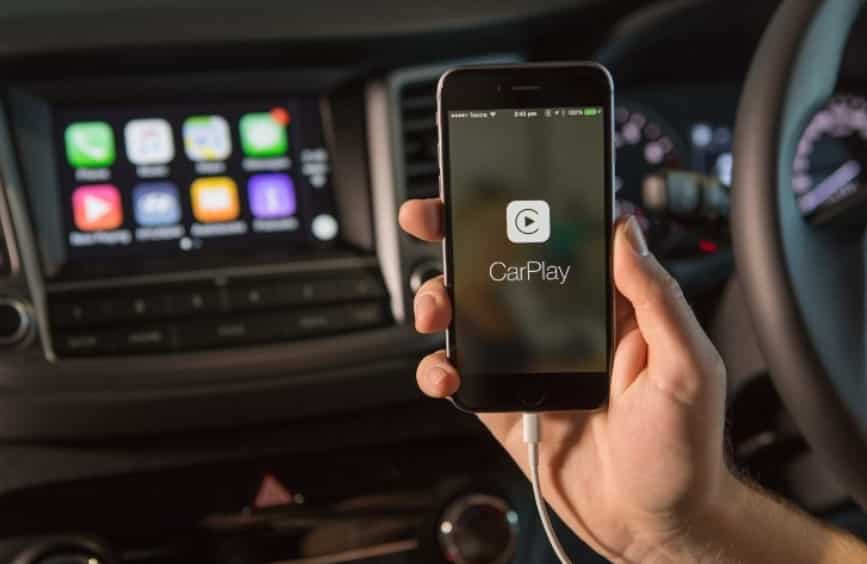
Apple CarPlay is a smart connectivity feature that links your iPhone to the Hyundai infotainment system. After connecting, drivers can use important iPhone apps directly from the dashboard screen. This setup helps drivers stay focused on the road while still accessing useful smartphone functions.
Many Hyundai owners use Apple CarPlay for navigation. Apps like Apple Maps and Google Maps provide real time traffic updates and faster route planning. Drivers can also listen to music, stream podcasts, send messages, and answer calls without touching their phones.
One major benefit of Apple CarPlay is convenience. Instead of checking notifications manually, drivers can use Siri voice commands through the infotainment system. This reduces distractions and creates a safer driving environment during daily commutes or long road trips.
Hyundai supports both wired and wireless Apple CarPlay in many modern vehicles. Wired CarPlay connects through a USB cable and usually offers a more stable connection. It also charges the iPhone while driving. Many users prefer this option because it reduces connection delays and minimizes signal interruptions.
Wireless Apple CarPlay removes the need for cables completely. After the first setup, the iPhone can connect automatically whenever the vehicle starts. This setup creates a cleaner dashboard and gives drivers more flexibility inside the cabin.
Although both options work well, some users still experience connection problems. Weak Bluetooth signals, outdated software, or low quality USB cables often create setup issues. Understanding how Apple CarPlay works inside Hyundai vehicles can help drivers avoid these common problems and enjoy a smoother infotainment experience.
What You Need Before Connecting Hyundai to CarPlay
Before starting the setup process, drivers should check a few important requirements. Preparing everything first can prevent connection errors and save time during installation.
First, your iPhone must support Apple CarPlay. Most iPhones from the iPhone 6 and newer models work with CarPlay. However, drivers should always update their devices to the latest iOS version. Older software can create compatibility problems with Hyundai infotainment systems.
Next, Siri must remain enabled on the iPhone. Apple CarPlay depends on Siri for voice commands and hands free controls. Without Siri, CarPlay may not appear on the Hyundai display at all.
To enable Siri:
- Open Settings on the iPhone
- Tap Siri & Search
- Turn on all Siri options
- Allow Siri when the phone is locked
Drivers should also check whether their Hyundai vehicle supports Apple CarPlay. Most Hyundai models released after 2016 include this feature, but some trims require infotainment software updates before CarPlay becomes available.
A high quality USB cable also matters. Many connection failures happen because drivers use damaged or low quality charging cables. Cheap accessories often fail to transfer data correctly between the iPhone and the infotainment system.
For the best results, drivers should use:
- An original Apple Lightning cable
- A certified high speed USB cable
- The correct Hyundai USB data port
Some Hyundai vehicles include multiple USB ports, but not every port supports data transfer. Connecting the cable to the wrong port can stop Apple CarPlay from working properly.
Preparing these requirements before setup makes the entire connection process faster, easier, and more reliable.
How to Connect Hyundai to CarPlay Using USB
Connecting Hyundai to Apple CarPlay with a USB cable is usually the fastest and most reliable method. Most Hyundai vehicles support this setup, and the process only takes a few minutes when drivers use the correct settings and accessories.
Start by turning on the Hyundai vehicle. You can start the engine or switch the car into accessory mode. Once the infotainment system fully loads, prepare your iPhone and USB cable.
Next, connect the iPhone to the Hyundai USB data port. Many Hyundai models include several USB ports, but only one port typically supports Apple CarPlay data transfer. Drivers often make the mistake of using a charging only port, which prevents the infotainment system from detecting the device.
After connecting the cable, the Hyundai infotainment screen should display a permission request for Apple CarPlay. Tap “Enable” or “Allow” to continue. At the same time, the iPhone may show a message asking whether you want to allow CarPlay while the phone is locked. Press “Allow” to complete the setup.
Once approved, the Apple CarPlay interface should appear automatically on the Hyundai display. Drivers can now access navigation apps, music streaming platforms, contacts, calls, and messages directly from the dashboard screen.
Many users immediately open Apple Maps or Google Maps after connecting because these apps improve navigation accuracy and provide live traffic updates. Music apps like Spotify and Apple Music also become easier to control through steering wheel buttons or Siri voice commands.
Although the setup process is simple, some drivers still experience connection issues. In many cases, the problem comes from a faulty USB cable or an outdated iPhone software version. Restarting the phone often fixes temporary glitches. Switching to another USB cable can also solve repeated disconnecting problems.
Drivers should also keep the iPhone unlocked during the first setup attempt. Some Hyundai infotainment systems struggle to complete the connection process when the device remains locked during pairing.
Using a wired connection still offers several advantages in 2026. The connection remains stable during long drives, charging speed stays consistent, and drivers experience fewer audio delays compared to wireless CarPlay setups.
How to Connect Hyundai to Wireless Apple CarPlay
Wireless Apple CarPlay gives Hyundai drivers a cleaner and more convenient setup experience. Instead of plugging in a USB cable every time, the iPhone connects automatically after the initial pairing process.
Before starting, drivers should activate both Bluetooth and Wi Fi on the iPhone. Wireless Apple CarPlay depends on both systems to maintain a stable connection between the phone and the Hyundai infotainment system.
After enabling Bluetooth and Wi Fi, open the infotainment settings inside the Hyundai vehicle. Navigate to the phone connection or device connection menu. Then select the Apple CarPlay option and enable wireless connectivity if the feature appears on the screen.
Next, open Bluetooth settings on the iPhone and search for available devices. Select the Hyundai vehicle from the list and confirm the pairing code shown on both screens. This step connects the phone to the vehicle securely.
Once Bluetooth pairing finishes, the iPhone should display a message asking whether you want to use wireless Apple CarPlay with the Hyundai vehicle. Tap “Use CarPlay” to continue.
After completing the setup process, the iPhone should reconnect automatically every time the driver enters the vehicle. This automatic connection creates a smoother experience during daily driving because users no longer need to plug in cables manually.
Wireless Apple CarPlay works especially well for short trips and city driving. Drivers can enter the vehicle, start the engine, and access maps or music within seconds. The cabin also looks cleaner without extra cables around the center console.
However, wireless setups can sometimes experience connection interruptions. Weak Bluetooth signals, crowded wireless networks, or outdated Hyundai software may reduce connection stability. Keeping the iPhone updated and restarting the infotainment system regularly can improve wireless performance significantly.
Some Hyundai owners still prefer wired Apple CarPlay because it offers more stable performance during long road trips. Others enjoy the flexibility and convenience of wireless connectivity. Both options work well, and drivers can choose the setup that best matches their daily driving habits.
Which Hyundai Models Support Apple CarPlay in 2026?
Hyundai continues to expand Apple CarPlay support across its vehicle lineup in 2026. Most modern Hyundai vehicles now include either wired or wireless Apple CarPlay as a standard infotainment feature. This improvement gives drivers easier access to smartphone connectivity without needing expensive aftermarket upgrades.
Popular Hyundai models that support Apple CarPlay include the Hyundai Tucson, Hyundai Santa Fe, Hyundai Elantra, Hyundai Sonata, Hyundai Kona, Hyundai Palisade, and Hyundai Ioniq 5. Many newer trims also support wireless Apple CarPlay, which removes the need for USB cables completely.
Drivers should still remember that compatibility can vary depending on trim level, infotainment package, and regional market. Some base models may only support wired Apple CarPlay, while premium trims often include wireless functionality and larger infotainment displays.
Older Hyundai vehicles released before 2016 may not support Apple CarPlay from the factory. However, some models can still gain compatibility through infotainment software updates. Hyundai dealerships and official software update tools sometimes provide firmware upgrades that activate Apple CarPlay support on older systems.
Before attempting setup, drivers should confirm compatibility through the Hyundai infotainment settings or the official Hyundai support platform. Checking compatibility first can prevent confusion during the installation process.
Many Hyundai owners upgrade to Apple CarPlay because modern driving depends heavily on smartphone integration. Drivers want instant access to navigation, traffic updates, voice commands, and entertainment apps without touching their phones repeatedly during travel.
As Hyundai continues improving infotainment technology, Apple CarPlay has become one of the most requested features among drivers who value convenience, safety, and seamless smartphone connectivity.
Why Hyundai CarPlay Is Not Working
Even though Apple CarPlay setup is usually simple, many Hyundai drivers still encounter connection problems. These issues can happen suddenly and often create frustration during daily driving.
One common reason Apple CarPlay stops working is disabled Siri settings. Apple CarPlay depends on Siri for voice controls and system communication. If Siri remains turned off, the Hyundai infotainment system may fail to detect the iPhone completely.
Faulty USB cables also create many connection problems. Cheap charging cables often provide power but fail to transfer data correctly. As a result, the iPhone charges normally while Apple CarPlay never appears on the infotainment display.
Outdated iPhone software can also affect compatibility. Older iOS versions sometimes struggle to communicate with modern Hyundai infotainment systems. Updating the iPhone to the latest software version often fixes random connection failures and improves overall performance.
Wireless Apple CarPlay users may experience Bluetooth or Wi Fi interference. Crowded wireless environments, weak signals, or multiple paired devices inside the vehicle can interrupt the connection process. In some situations, the infotainment system repeatedly disconnects while driving, especially during long trips.
Temporary infotainment system bugs can also prevent Apple CarPlay from launching correctly. Some Hyundai systems freeze, lag, or fail to recognize connected devices after software updates or long periods without restarting.
Another common issue happens when drivers connect the iPhone to the wrong USB port. Many Hyundai vehicles include charging only ports that do not support data transfer. Connecting to the incorrect port prevents Apple CarPlay from activating even when everything else works properly.
Understanding these common causes makes troubleshooting much easier. Most Hyundai Apple CarPlay problems can be solved quickly once drivers identify the exact source of the issue.
How to Fix Hyundai Apple CarPlay Connection Problems
Drivers can solve most Hyundai Apple CarPlay issues with a few simple troubleshooting steps. In many cases, small adjustments restore the connection immediately without requiring professional repairs.
The first solution is restarting both the iPhone and the Hyundai infotainment system. Temporary software glitches often disappear after a full restart. This process refreshes the system connection and removes minor errors affecting Apple CarPlay performance.
If the issue continues, drivers should disconnect the iPhone and remove the saved vehicle profile from Bluetooth settings. Reconnecting the device from the beginning often fixes pairing conflicts and wireless connection failures.
Resetting network settings on the iPhone can also help. This option clears old Bluetooth and Wi Fi configurations that may interfere with Apple CarPlay. After resetting, drivers can reconnect the Hyundai vehicle and complete the setup process again.
Updating Hyundai infotainment software is another important step. Manufacturers regularly release firmware updates that improve smartphone compatibility and fix connection bugs. Drivers who ignore software updates may continue experiencing repeated CarPlay problems.
Testing another USB cable is also recommended. Many users spend hours troubleshooting software when the actual problem comes from a damaged cable. Using an original Apple cable or a certified replacement often restores stable connectivity immediately.
Drivers should also inspect the Hyundai USB port for dirt or damage. Dust buildup inside the port can interrupt data transfer and prevent Apple CarPlay from connecting correctly.
For wireless Apple CarPlay problems, disconnecting unused Bluetooth devices may improve signal stability. Too many active wireless connections inside the vehicle can overload the infotainment system and create connection interruptions.
Most Hyundai Apple CarPlay issues have simple solutions once drivers follow the correct troubleshooting steps carefully. Regular software updates, high quality accessories, and proper connection habits can prevent many problems before they appear.
Best Tips for Stable Hyundai CarPlay Performance
Keeping Apple CarPlay stable inside a Hyundai vehicle requires more than a simple setup. Many drivers experience random disconnects, delayed responses, or failed connections because they ignore small maintenance habits that affect infotainment performance over time.
One of the most important steps is keeping the iPhone updated. Apple regularly releases iOS updates that improve CarPlay compatibility, fix software bugs, and strengthen wireless stability. Drivers who continue using outdated software often experience avoidable connection problems.
Using high quality accessories also makes a major difference. Cheap charging cables may look identical to certified cables, but they often fail to transfer data correctly. This can cause Apple CarPlay to disconnect suddenly while driving. Choosing an original Apple cable or a certified replacement helps maintain a stable wired connection.
Wireless Apple CarPlay users should pay attention to Bluetooth and Wi Fi signal quality. Weak wireless signals can interrupt communication between the iPhone and the Hyundai infotainment system. Drivers can improve performance by disconnecting unused devices and avoiding crowded wireless environments whenever possible.
Restarting the infotainment system occasionally can also improve long term stability. Many drivers leave their systems running for weeks without refreshing the software. Over time, temporary system errors and cached data may reduce responsiveness.
Customizing the Apple CarPlay dashboard creates a better driving experience as well. Drivers can rearrange navigation, music, and communication apps based on personal preferences. Placing frequently used apps near the main screen reduces distractions and improves convenience during daily driving.
Battery settings on the iPhone can also affect wireless Apple CarPlay. Low Power Mode sometimes limits background wireless activity and weakens connection stability. Keeping the battery charged and disabling aggressive power saving features often improves performance.
Drivers who travel long distances should consider using wired Apple CarPlay during road trips. Wired connections usually provide stronger stability, faster response times, and continuous charging during extended driving sessions.
Following these small habits can improve Apple CarPlay reliability significantly and create a smoother infotainment experience inside Hyundai vehicles.
Benefits of Using Apple CarPlay in Hyundai Cars
Apple CarPlay offers several important advantages for Hyundai drivers in 2026. As vehicles become more connected, drivers expect safer and faster access to smartphone features while staying focused on the road.
One of the biggest benefits is hands free driving convenience. Instead of touching the phone repeatedly, drivers can use Siri voice commands to make calls, send messages, open navigation apps, or control music playback. This reduces distractions and helps drivers keep both hands on the steering wheel.
Navigation also becomes much easier with Apple CarPlay. Apps like Apple Maps and Google Maps provide live traffic updates, faster rerouting, accident alerts, and estimated arrival times. Many drivers prefer these smartphone navigation systems because they update more frequently than built in vehicle navigation software.
Music and entertainment improve significantly as well. Drivers can access Spotify, Apple Music, podcasts, and audiobooks directly from the Hyundai infotainment screen. Steering wheel controls and voice commands make entertainment management simpler during long trips.
Communication becomes safer and more efficient through Apple CarPlay. Incoming calls, text messages, and notifications appear directly on the dashboard display. Siri can even read messages aloud and respond through voice commands, allowing drivers to stay connected without losing focus.
Wireless Apple CarPlay also adds convenience for daily commuting. Drivers no longer need to connect a cable manually every time they enter the vehicle. The iPhone reconnects automatically, saving time and creating a cleaner cabin environment.
Many Hyundai owners also appreciate the familiar smartphone interface. Since Apple CarPlay mirrors the iPhone experience, drivers can navigate apps quickly without learning complicated infotainment menus.
For modern drivers, Apple CarPlay is no longer just a luxury feature. It has become an essential tool that improves convenience, entertainment, navigation, and overall driving safety.
Conclusion
Learning how to connect Hyundai to CarPlay is much easier in 2026 thanks to improved infotainment systems and better smartphone integration. Whether drivers choose a wired USB connection or wireless Apple CarPlay, the setup process usually takes only a few minutes when using the correct settings and accessories.
Most Hyundai Apple CarPlay problems also have simple solutions. Updating the iPhone, using a certified USB cable, enabling Siri, and restarting the infotainment system can solve many common connection issues quickly. Drivers who maintain their devices regularly often experience smoother and more reliable performance over time.
Apple CarPlay continues to improve the driving experience for Hyundai owners by offering safer communication, better navigation, and easier access to entertainment apps. Instead of handling a smartphone while driving, users can control everything directly from the dashboard through voice commands and touchscreen controls.
As Hyundai expands wireless connectivity across more vehicle models, Apple CarPlay will likely become even more important for daily driving convenience in the coming years. Drivers who understand the correct setup process can enjoy a smarter, cleaner, and more connected driving experience every time they start their vehicle.
Have you successfully connected your Hyundai to Apple CarPlay yet? Many drivers prefer wired connections for stability, while others enjoy the convenience of wireless setup. Choosing the right option depends on your driving habits and infotainment preferences.