Connecting the Toyota app to your car requires you to sign in to your Toyota account, add your vehicle using its VIN, complete vehicle verification, and activate any eligible Connected Services. Once the setup is complete, the app can display supported vehicle information and provide access to connected features available for your specific Toyota.
Before starting, have your Toyota account credentials and 17-character Vehicle Identification Number (VIN) ready. You should also keep your smartphone connected to the internet and have access to the vehicle, since some Toyota models and multimedia systems may require confirmation inside the car. Bluetooth pairing may also be required for certain functions, but pairing a phone through Bluetooth is not necessarily the same as connecting the vehicle to the Toyota app.
The exact setup process and available features depend on the Toyota model, model year, multimedia or telematics equipment, region, and Connected Services eligibility. This guide explains what you need before setup, how to connect the Toyota app to your car step by step, how to confirm the connection, and how to troubleshoot common connection problems.
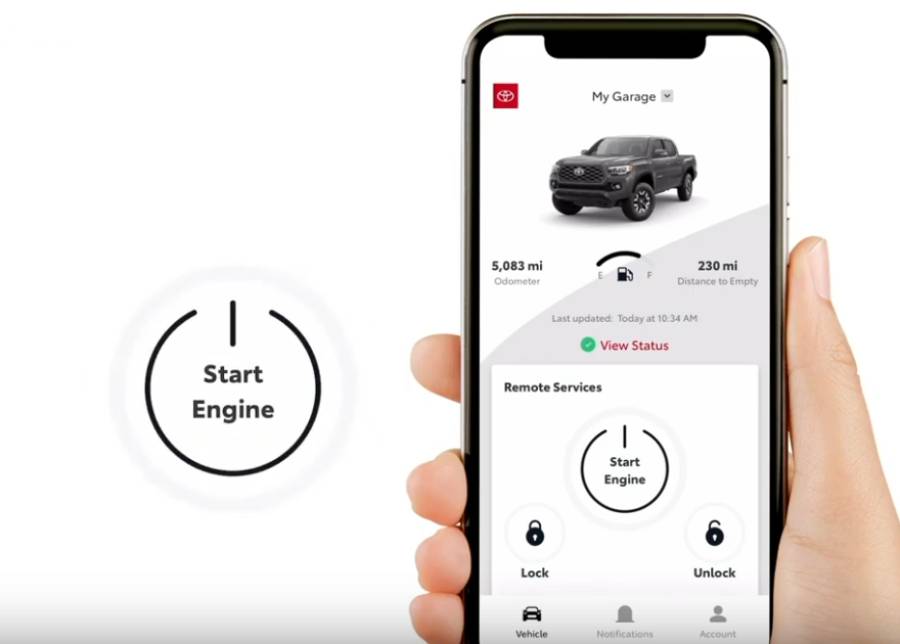
What Do You Need Before Connecting the Toyota App to Your Car?
You need a Toyota account, the Toyota app, your vehicle’s VIN, an internet-connected smartphone, and access to the vehicle before starting the connection process. Having these items ready prevents interruptions when the app asks you to identify or verify the vehicle.
Your Toyota account connects your user profile with the vehicle added to the app. Install the latest available version of the Toyota app on a compatible smartphone and sign in with the account you intend to associate with the car. Keep the phone connected to Wi-Fi or mobile data because account authentication, vehicle registration, and Connected Services rely on an internet connection.
You also need your Toyota’s Vehicle Identification Number (VIN). Modern Toyota vehicles use a 17-character VIN that uniquely identifies the vehicle. You can typically find it through the lower portion of the windshield on the driver’s side, the driver-side door jamb, or vehicle documents such as the registration. Entering the correct VIN is important because the Toyota app uses it to identify the specific vehicle being added to your account.
Keep access to the physical vehicle during setup. Depending on the model, model year, multimedia system, and region, Toyota may require an additional verification or authorization step involving the vehicle. Available app functions also vary by vehicle equipment and Connected Services eligibility, so successfully adding a Toyota does not mean every connected feature will be available.
How Do You Connect the Toyota App to Your Car?
To connect the Toyota app to your car, sign in to your Toyota account, add the vehicle using its VIN, complete the required vehicle verification or authorization, and activate the Connected Services supported by your Toyota. The process can be completed in 7 main steps.
1. Download and open the Toyota app. Install the current Toyota app on your smartphone and open it while your phone has an active internet connection. Using the current version reduces the risk of encountering setup problems caused by an outdated app interface or compatibility issue.
2. Sign in to your Toyota account. Enter your existing Toyota account credentials or create an account if you do not already have one. Use the account you want associated with the vehicle because the app uses this account to manage the Toyota vehicles and eligible services connected to your profile.
3. Add your Toyota vehicle. Find the option for adding a vehicle within the Toyota app and start the vehicle registration process. Adding the vehicle tells the app which Toyota you want associated with your account, but this step alone may not complete authorization for Connected Services.
4. Enter or scan your Toyota VIN. Provide the 17-character VIN when prompted. Enter it exactly as displayed on the vehicle or its documentation. If the version of the Toyota app you are using provides a VIN scanning function, you can use it instead of entering all 17 characters manually. Check the VIN before continuing because an incorrect character can prevent the app from identifying the correct vehicle.
5. Complete vehicle verification and authorization. Follow the verification instructions displayed in the Toyota app after the vehicle has been identified. Depending on the vehicle and multimedia system, the process may require additional confirmation from inside the Toyota. This authorization establishes that the account is permitted to access the supported connected functions associated with that vehicle.
6. Complete any required vehicle or multimedia confirmation. Follow the prompts shown in the app and the vehicle’s multimedia system when an additional pairing or confirmation procedure is required. A verification code, authorization prompt, or another confirmation method may be part of the process on supported systems. Follow the instructions displayed for your specific vehicle rather than assuming every Toyota uses the same pairing method.
7. Activate eligible Toyota Connected Services. Complete the activation prompts for the services available to your vehicle. Features associated with services such as Remote Connect, Service Connect, or Drive Connect depend on the Toyota model, model year, installed equipment, region, and current service eligibility. Some services may also have trial or subscription requirements.
After completing these 7 steps, check the Toyota app to confirm that the correct vehicle appears under your account and that its eligible information or connected functions are available. A successful vehicle registration establishes the app-to-vehicle association, while the exact functions you can use are determined by the services supported by that Toyota.
How Do You Know if the Toyota App Is Connected to Your Car?
The Toyota app is connected to your car when the correct vehicle appears in your account, its supported vehicle information loads, and the Connected Services available for that vehicle can be accessed. Checking these elements after setup confirms that vehicle registration and authorization have been completed rather than assuming the connection succeeded because the VIN was accepted.
Start by checking the vehicle profile displayed in the Toyota app. The identifying information should correspond to the Toyota you added during setup. If the vehicle does not appear, appears under the wrong account, or the setup process remains incomplete, the app-to-vehicle association may not have been completed successfully.
Next, check whether supported vehicle information and eligible connected functions are available. The exact information displayed depends on the model, model year, multimedia or telematics equipment, region, and Connected Services eligibility. For example, a compatible Toyota with an active connected service may provide functions that are not available on another Toyota that has been successfully added to the same app.
Do not use the presence of a specific feature as the only test of a successful connection. A Toyota can be successfully associated with the app without supporting every Toyota Connected Services feature. A better confirmation is that the correct vehicle is registered to the intended account and the features for which that specific vehicle is eligible are accessible without an unresolved setup or authorization request.
Do You Need Bluetooth to Connect the Toyota App to Your Car?
Bluetooth is not the same as the Toyota app-to-vehicle connection because Bluetooth pairing primarily connects your smartphone with the vehicle’s multimedia system, while Toyota app registration associates the vehicle with your Toyota account and eligible Connected Services. Depending on the vehicle and the function you want to use, you may need to complete both processes.
Bluetooth creates a short-range wireless connection between the smartphone and compatible equipment in the vehicle. It is commonly associated with multimedia functions such as hands-free calling and audio. The Toyota app connection follows a different process involving your Toyota account, VIN, vehicle authorization, internet connectivity, and supported connected services.
This distinction explains why a smartphone can show that it is connected to a Toyota through Bluetooth while the Toyota app still shows an incomplete setup. A successful Bluetooth connection does not by itself confirm that the vehicle has been added and authorized in the Toyota app. In this situation, return to the app and check the vehicle profile, VIN registration, authorization status, and any remaining activation prompts.
The reverse situation is also possible: adding and authorizing a vehicle in the Toyota app does not automatically mean the smartphone has completed the Bluetooth pairing required for multimedia functions. Complete Bluetooth pairing separately through the compatible vehicle multimedia system when the function you want to use requires it.
Treat the two connections according to their purpose: use Toyota app registration for account-based vehicle and Connected Services access, and use Bluetooth pairing for supported phone-to-multimedia functions. Keeping these processes separate makes it easier to identify whether a connection problem originates in the Toyota app, the Toyota account, Connected Services, or the vehicle’s Bluetooth system.
Why Is the Toyota App Not Connecting to Your Car?
The Toyota app may fail to connect to your car because of a vehicle or VIN identification problem, an incomplete verification or authorization process, or a communication problem between the app, vehicle, and connected services. Start with the stage where the connection fails instead of repeatedly reinstalling or pairing everything from the beginning.
There are 3 main areas to check. First, confirm that the correct Toyota and VIN are associated with your account. Second, confirm that vehicle verification and any required authorization steps have been completed. Third, check whether the app and vehicle can communicate through the required network and connected services. Identifying the failed stage helps isolate the problem without resetting a connection that is already working.
Why Is Your Toyota Vehicle or VIN Not Showing in the App?
Your Toyota vehicle or VIN may not appear correctly when the VIN was entered incorrectly, the vehicle has not been successfully added to the account, or the vehicle is not eligible for the app functionality you are trying to activate. Check the vehicle identification information before troubleshooting Bluetooth or Connected Services.
Compare all 17 characters of the VIN entered in the Toyota app with the VIN displayed on the vehicle or its documentation. A single incorrect character can prevent the app from identifying the intended vehicle. Re-enter or rescan the VIN when the information in the app does not match the physical vehicle.
Next, verify that you are signed in to the Toyota account intended to contain the vehicle. Adding a Toyota and authorizing its connected functions are related but distinct stages, so finding the vehicle in the app does not necessarily mean every activation step has been completed.
Compatibility also matters. Toyota app and Connected Services functionality can differ according to the vehicle model, model year, installed multimedia or telematics equipment, and region. If the VIN is correct but a particular service does not appear, check the vehicle’s eligibility for that service rather than assuming the VIN itself is the problem.
Why Does Toyota App Pairing or Vehicle Verification Fail?
Toyota app pairing or vehicle verification can fail when an authorization step remains incomplete, the required confirmation is not completed in the vehicle, or the verification information is no longer valid. Follow the prompts shown for your specific Toyota because the verification process is not identical across every vehicle and multimedia system.
Keep the smartphone connected to the internet and remain near or inside the vehicle when the setup instructions require vehicle interaction. Complete any authorization prompt, verification code, or multimedia-system confirmation presented during setup. If a code is rejected or expires, restart the relevant verification step and use the current information displayed by the system rather than repeatedly entering an older code.
Check app permissions when the setup process requires access that has been disabled on the smartphone. Also confirm that you remain signed in to the correct Toyota account throughout the process. Changing accounts during vehicle registration or authorization can prevent the setup from reaching its completed state.
Do not treat Bluetooth pairing as a substitute for vehicle verification. A phone can successfully connect to the multimedia system through Bluetooth while Toyota app authorization remains unfinished. Resolve the verification request within the Toyota app or vehicle interface before troubleshooting unrelated Bluetooth functions.
Why Is the Toyota App Connected but Not Updating?
The Toyota app can show your vehicle while failing to update its information when communication between the smartphone, Toyota services, and vehicle is interrupted or delayed. This differs from an initial setup failure because the vehicle has already been associated with the account.
Check the smartphone’s internet connection first and reopen or refresh the Toyota app. Sign in again if the account session has expired, and confirm that the necessary app permissions remain enabled. These checks address smartphone-side communication without removing the vehicle from the account.
Next, check whether the problem affects one feature or all connected information. A single unavailable feature can indicate that the specific Connected Service is inactive, unsupported, or subject to an eligibility or subscription condition. A broader failure to retrieve vehicle information points to a wider communication or account issue.
Use a structured troubleshooting sequence when the cause is unclear: check the internet connection, restart the Toyota app, confirm the correct account and VIN, review app permissions, verify Connected Services status, and retry any incomplete vehicle authorization. Re-pair or reset a connection only when the failed stage requires it, because resetting an unrelated connection adds unnecessary setup work.
Seek Toyota support when the correct vehicle remains unavailable, authorization repeatedly fails, or eligible Connected Services cannot be restored after these checks. Have the VIN, Toyota account information, vehicle model and model year, and a description of the failed setup stage available so the connection issue can be identified more precisely.
Which Toyota Vehicles Are Compatible With the Toyota App?
Toyota app compatibility depends on the vehicle model, model year, installed multimedia or telematics equipment, region, and the Connected Service you want to use. A vehicle appearing in the Toyota app does not automatically mean that it supports every connected feature available through the platform.
Model year is particularly important because two vehicles with the same Toyota model name can have different connectivity hardware and service capabilities. Multimedia and telematics equipment can also determine whether a vehicle supports specific app-based functions. For this reason, compatibility should be checked for the individual vehicle rather than assumed from the model name alone.
Connected Services eligibility adds another layer to compatibility. Remote Connect, Service Connect, Drive Connect, and other services can have different vehicle, equipment, regional, trial, or subscription requirements. A Toyota may therefore support the app while remaining ineligible for a particular connected function.
Use your vehicle’s VIN when checking compatibility whenever Toyota provides a VIN-based eligibility option. The 17-character VIN identifies the individual vehicle and provides a more precise basis for checking compatibility than relying only on the model and model year.
What Can You Do After Connecting the Toyota App to Your Car?
After connecting the Toyota app to your car, you can access the vehicle information and Connected Services supported by your specific Toyota. The available functions vary because Toyota app registration provides access to eligible features rather than activating an identical feature set for every vehicle.
Vehicle-related information is one category that may become accessible after the connection is complete. Depending on vehicle compatibility and service availability, the app can provide supported vehicle or service information associated with the Toyota registered to your account. This creates a direct connection between the vehicle profile and the ownership information available through the app.
Eligible vehicles can also provide additional connected functions through Toyota Connected Services. For example, functions associated with Remote Connect, Service Connect, or Drive Connect depend on the service supported by the vehicle. The presence of one service does not establish eligibility for another because each service can have separate equipment and availability requirements.
Check the services displayed for your vehicle after completing setup to determine what you can use. This approach is more reliable than expecting a feature simply because it appears in information about another Toyota model or model year.
Can More Than One Phone or Driver Connect to the Same Toyota?
More than one phone may be paired with a Toyota multimedia system when the system supports multiple devices, but phone pairing and Toyota app user authorization are separate processes. The distinction matters when several people use the same vehicle.
For multimedia connectivity, each smartphone is paired according to the Bluetooth and multimedia functions supported by the vehicle. A second driver who wants hands-free calling or supported audio functions may therefore need to pair their phone separately. Adding another Bluetooth device does not automatically give that person access to the Toyota app services associated with the vehicle.
Toyota app access follows account and vehicle authorization rules instead. The ability to add another user or provide access to the same vehicle depends on the functionality supported by the applicable Toyota account, vehicle, app, and Connected Services. Follow the user or driver management options presented for the specific vehicle rather than sharing the primary account credentials as a substitute for authorization.
When troubleshooting a multi-user setup, identify which connection is failing first. A Bluetooth problem should be resolved through the phone and multimedia connection, while an app-access problem should be checked through the Toyota account, vehicle registration, and authorization process.
Read more: Toyota Extended Warranty Cost: How Much Does It Cost?
Do You Have to Pay to Connect the Toyota App to Your Car?
Connecting a compatible Toyota to the Toyota app and paying for individual Connected Services are not necessarily the same requirement. Costs depend on the specific services available for the vehicle rather than on the word “connection” alone.
Toyota Connected Services can have different eligibility, trial, and subscription conditions. A feature available during an included trial period may require a subscription after that period ends, while another vehicle or service can have different terms. Model, model year, equipment, service type, and region can all affect what is available.
For this reason, check the service information associated with your individual Toyota before paying for a subscription. Determine which feature you want to use, identify the Connected Service responsible for that feature, and then review its current eligibility and subscription status.
A missing paid feature also does not necessarily mean that the Toyota app connection failed. If the correct vehicle is registered to your account but a particular connected function is unavailable, check that function’s service eligibility and subscription status before repeating the entire vehicle connection process.