A Honda CRV infotainment system can freeze, display a black screen, lose Bluetooth connectivity, or stop working with Apple CarPlay and Android Auto. In most cases, you can solve these problems with the correct reset method. Start with a soft reset because it refreshes the system without removing your saved settings. If the problem continues, perform a system reboot or a factory reset.
Each reset method serves a different purpose. A soft reset fixes temporary software glitches and slow system performance. A system reboot helps when the touchscreen becomes unresponsive or keeps freezing. A factory reset restores the infotainment system to its default settings and removes saved devices, radio presets, navigation favorites, and other personalized preferences. Choose this option only after simpler solutions fail.
The reset process also varies by Honda CRV model year, trim level, and infotainment software version. Some models use physical buttons, while others rely on on-screen menus. This guide explains how to choose the correct reset method, complete every step safely, restore Apple CarPlay, Android Auto, and Bluetooth, and identify problems that require professional diagnosis.
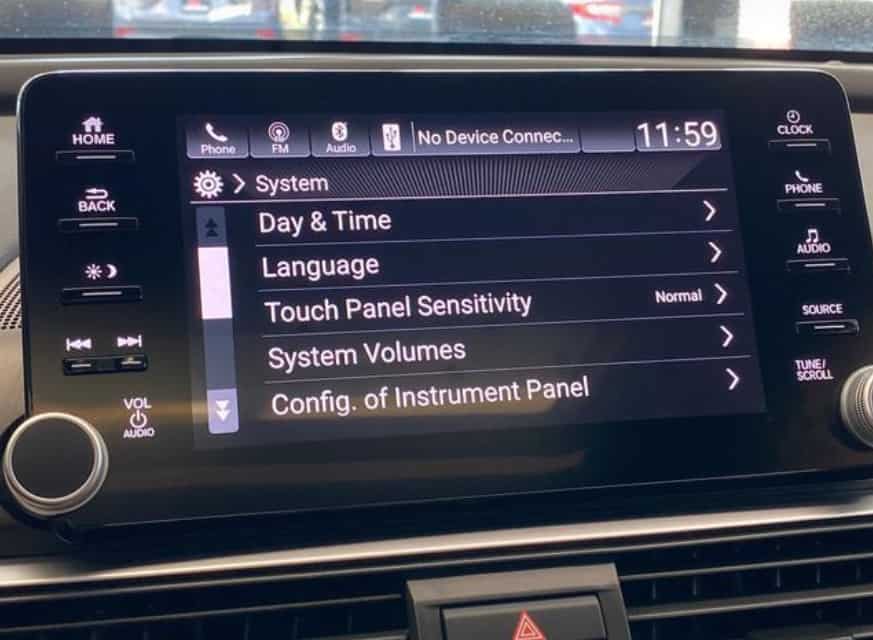
What Is the Fastest Way to Reset a Honda CR-V Infotainment System?
The fastest way to reset a Honda CR-V infotainment system is to perform a soft reset. This method refreshes the infotainment software without restoring the system to factory settings. In most cases, it takes only a few minutes and keeps your personal data intact.
A soft reset works well when the touchscreen freezes, the system responds slowly, or the audio suddenly stops working. It can also fix temporary Bluetooth connection issues and restore Apple CarPlay or Android Auto after a minor software glitch. Because it does not erase saved information, Honda owners should always try this method before using more advanced reset options.
To perform a soft reset, park the vehicle in a safe location and keep the ignition in the ON position. Press and hold the audio power or volume button until the reboot prompt or Honda logo appears on the screen. Release the button and allow the infotainment system to restart without pressing other controls. Once the home screen loads completely, test the feature that caused the problem. Check the touchscreen, audio output, Bluetooth connection, navigation, and smartphone integration to confirm that the system works normally again.
If the infotainment system continues to freeze or becomes unresponsive after a soft reset, the problem may require a full system reboot or a factory reset. Repeated crashes, a black screen, or a continuous reboot loop often indicate a deeper software or hardware issue. In these situations, the next troubleshooting step depends on the symptoms and your Honda CR-V model year.
Which Honda CR-V Infotainment Reset Method Should You Use?
Choosing the correct reset method helps you fix the problem without deleting important settings. The Honda CR-V infotainment system offers three reset options. Each one addresses a different type of issue. Starting with the least invasive method reduces unnecessary data loss and saves time during troubleshooting.
A soft reset is the best choice for temporary software problems. Use it when the touchscreen responds slowly, the audio cuts out, Bluetooth disconnects, or Apple CarPlay and Android Auto stop working unexpectedly. This method refreshes the operating system while keeping your paired devices, radio presets, and personalized settings.
A system reboot is more appropriate when the infotainment screen freezes completely or the interface crashes repeatedly. It reloads the system after a deeper shutdown and can restore normal operation when a standard soft reset does not solve the problem. This method also preserves most personal settings under normal conditions.
A factory reset should be your last troubleshooting step. It restores the infotainment system to its original configuration and removes saved Bluetooth devices, smartphone permissions, navigation favorites, radio presets, display preferences, and user profiles. Because you must set up the system again after the reset, use this option only when software issues continue after other reset methods fail.
If the infotainment system still displays a black screen, enters a reboot loop, or freezes immediately after a factory reset, the problem likely extends beyond software settings. In that situation, inspect the vehicle for software updates, electrical faults, or hardware failures before repeating another reset.
How Do You Soft Reset a Honda CR-V Infotainment System?
You can complete a soft reset in just a few minutes. This procedure refreshes the infotainment software without restoring the system to factory settings. It is the safest reset method because it usually keeps your saved devices, radio presets, navigation favorites, and personal preferences.
Park your Honda CR-V in a safe location before starting. Shift the transmission into Park and turn the ignition to the ON position. Wait until the infotainment system finishes loading. Locate the audio power or volume button on the dashboard. Press and hold the button until the screen displays a restart prompt or the Honda logo appears. Release the button and allow the system to restart. Do not press other controls while the reboot is in progress.
After the home screen appears, test every feature that previously failed. Open several menus to confirm that the touchscreen responds correctly. Play audio from the radio or a connected phone to verify that the speakers work normally. Connect your smartphone and check whether Apple CarPlay, Android Auto, and Bluetooth reconnect without errors. If the system responds quickly and all functions operate as expected, the soft reset has completed successfully.
A soft reset cannot solve every problem. If the touchscreen remains frozen, the display stays black, or the system crashes again within a few minutes, the issue may involve corrupted software or a hardware fault. In that situation, continue with a full system reboot or a factory reset instead of repeating the same procedure several times.
How Do You Reboot a Frozen or Black Honda CR-V Infotainment Screen?
A system reboot can restore the infotainment system when the touchscreen stops responding or the display turns black. This method performs a deeper restart than a soft reset and can recover the system after a serious software error. Use it only after a soft reset fails to solve the problem.
Start by parking the vehicle in a safe location and leaving the ignition in the ON position. Press and hold the audio power or volume button until the infotainment system begins to restart. If the Honda logo appears, wait for the system to finish loading before touching the screen. Test the touchscreen, audio, and smartphone connection after the home screen returns.
If the display remains black, turn the vehicle off and remove the key or press the power button to shut down the engine. Open the driver’s door and wait for the vehicle’s electronic modules to power down completely. After a few minutes, restart the vehicle and allow the infotainment system to load without pressing any buttons. Disconnect USB devices and accessories during the restart because an external device can sometimes interrupt the startup process.
A successful reboot should restore normal screen response and menu navigation. If the display stays black, the Honda logo never disappears, or the system restarts repeatedly, the problem likely extends beyond a temporary software failure. Check for available software updates and inspect the vehicle battery if other electrical systems also behave abnormally. When the issue continues after several restart attempts, a factory reset or professional diagnosis becomes the next recommended step.
How Do You Factory Reset a Honda CR-V Infotainment System?
A factory reset restores the Honda CR-V infotainment system to its original settings. This method removes saved data and reloads the default configuration. Use it only after a soft reset and a system reboot fail to fix the problem. It is also a good option when recurring software errors, repeated crashes, or persistent connection issues continue to affect the system.
Before starting, back up any information you want to keep. A factory reset can remove paired Bluetooth devices, Apple CarPlay and Android Auto permissions, radio presets, navigation favorites, user profiles, display preferences, and audio settings. Recording these settings in advance makes the setup process much easier after the reset.
Turn the ignition to the ON position and wait for the infotainment system to finish loading. Open the Settings menu and look for System, General, or a similar option, depending on your Honda CR-V model year. Select Factory Data Reset or Factory Reset, then read the warning message carefully. Confirm the reset when prompted and allow the system to complete the process. Keep the vehicle powered on until the infotainment system restarts automatically. Interrupting the reset can cause additional software problems.
After the restart finishes, follow the on-screen instructions to complete the initial setup. Reconnect your smartphone, pair Bluetooth devices, restore radio presets, and configure display preferences. Test the touchscreen, navigation, audio system, and smartphone integration before driving.
If the infotainment system continues to freeze, displays a black screen, or enters a reboot loop after a factory reset, the problem is unlikely to involve user settings alone. In that case, inspect the software version, battery condition, and electrical system, or schedule a professional diagnosis to identify possible hardware faults.
Does the Reset Process Change by Honda CR-V Model Year?
Yes, the reset process can vary by Honda CR-V model year. Honda has updated the infotainment system several times, and each version uses different software, menu layouts, and hardware controls. While the basic troubleshooting approach remains the same, the exact reset steps may differ depending on the vehicle you own.
Honda CR-V models from 2017 to 2019 often use an earlier Display Audio system with physical buttons and a different settings menu. Some versions allow you to restart the infotainment system by holding the audio power button, while others require you to access the reset option through the system settings. The available menu names may also vary between trim levels.
Models produced between 2020 and 2022 feature updated software and a revised interface. Although the reset methods remain similar, Honda reorganized several menu options and changed the appearance of the infotainment system. You may notice different labels for reset functions or additional confirmation screens before the system begins restarting.
Newer Honda CR-V models from 2023 onward include redesigned infotainment hardware and expanded smartphone integration. Many trims support wireless Apple CarPlay and Android Auto, and the settings menu may look completely different from previous generations. Despite these changes, Honda still recommends starting with the least invasive reset method before performing a factory reset.
Before following any reset instructions, confirm your Honda CR-V model year and infotainment system. You can find this information in the owner’s manual or by checking the vehicle information menu. Using instructions that match your specific model reduces the risk of selecting the wrong menu option or resetting features that do not apply to your vehicle.
What Should You Check Before Resetting the Infotainment System?
Before you reset the Honda CR-V infotainment system, check a few common issues that can cause similar symptoms. Many touchscreen, audio, and connectivity problems come from external devices or temporary software conflicts. A quick inspection can save time and prevent you from resetting the system unnecessarily.
Start by restarting your smartphone if Apple CarPlay or Android Auto stops working. Then disconnect the USB cable and inspect it for damage. A worn or low-quality cable may charge your phone but fail to transfer data. If possible, test a certified data cable before moving to the next troubleshooting step.
Next, review the Bluetooth connection. Remove the existing pairing from both the infotainment system and your smartphone, then create a new connection. Duplicate Bluetooth profiles or outdated permissions can prevent the devices from reconnecting automatically. After pairing the devices again, test phone calls, music streaming, and voice commands to confirm the connection is stable.
You should also check whether a software update is available for the infotainment system. Honda occasionally releases updates that improve system stability, fix known bugs, and enhance smartphone compatibility. Installing the latest software may solve recurring issues without requiring a factory reset.
Finally, inspect the vehicle battery if the infotainment system freezes frequently or restarts unexpectedly. Low battery voltage can affect electronic control modules and interrupt the startup process. If other electrical components also behave abnormally, test the battery before performing additional troubleshooting. Once you complete these checks, you can decide whether a soft reset, system reboot, or factory reset is still necessary.
How Do You Restore Apple CarPlay, Android Auto, and Bluetooth After Resetting?
You need to reconnect your devices after completing a factory reset. The reset removes saved connections and permissions, so the infotainment system starts with a clean configuration. Restoring Apple CarPlay, Android Auto, and Bluetooth only takes a few minutes when you follow the correct steps.
Begin by deleting the Honda CR-V from your smartphone’s saved vehicle list. Then remove your phone from the infotainment system’s Bluetooth menu. Restart your smartphone before creating a new connection. This step clears temporary communication errors and helps both devices establish a fresh pairing.
If your Honda CR-V supports Apple CarPlay, connect your iPhone with a certified data cable or follow the wireless pairing instructions if your model includes wireless support. Unlock the phone and approve every permission request that appears on the screen. Allow access to contacts, messages, Siri, and location services to ensure all features work correctly.
If you use Android Auto, connect your Android phone with a compatible USB cable or complete the wireless setup if your vehicle supports it. Accept the requested permissions for calls, notifications, contacts, microphone access, and location. Keep the Android Auto app updated because older versions can create compatibility problems after a system reset.
Next, pair your phone through Bluetooth if you want to make hands-free calls or stream music. Confirm that the pairing code matches on both devices before approving the connection. After the setup finishes, test phone calls, music playback, voice commands, and navigation. If only one phone cannot reconnect while other devices work normally, the issue usually involves the phone, its settings, or the USB cable instead of the Honda CR-V infotainment system.
Why Does the Honda CR-V Infotainment System Keep Freezing?
A Honda CR-V infotainment system usually freezes because of software, connectivity, or electrical issues. Although a temporary glitch can cause the problem, repeated freezing often points to an underlying issue that requires more than a simple reset. Identifying the root cause helps you choose the right solution and prevents the problem from returning.
Outdated infotainment software is one of the most common causes. Older software versions may contain bugs that affect touchscreen response, menu navigation, and smartphone integration. Installing the latest Honda software update can improve system stability and resolve known compatibility issues.
Corrupted system settings can also make the infotainment system unstable. If configuration files become damaged, the system may crash during startup or freeze while switching between applications. A factory reset can remove these corrupted settings and restore the default configuration. However, if the problem returns immediately after the reset, the cause likely extends beyond saved data.
External devices may also trigger system freezes. A damaged USB cable, an incompatible smartphone, or outdated Apple CarPlay or Android Auto software can interrupt communication with the infotainment system. Disconnect all external devices and test the system again before assuming the display unit has failed.
Electrical problems should not be overlooked. A weak vehicle battery or unstable voltage can prevent electronic modules from operating correctly. You may also notice slow startup, random restarts, or other electrical symptoms at the same time. Testing the battery and charging system can help rule out power-related faults.
If the infotainment system continues to freeze after software updates, a factory reset, and basic troubleshooting, the problem may involve the display hardware or an internal control module. Professional diagnosis is the safest way to identify hardware failures and avoid replacing parts unnecessarily.
Why Is the Backup Camera Still Not Working After a Reset?
A factory reset cannot fix every backup camera problem. Although the backup camera displays its image on the infotainment screen, it relies on separate hardware and electrical components. If the camera still does not work after a reset, the issue likely involves the camera itself or another part of the vehicle.
Start by checking whether the infotainment display works normally in other situations. Open the navigation screen, radio menu, or system settings to confirm that the display responds correctly. If every function works except the backup camera, the problem usually affects the camera system instead of the infotainment unit.
Next, inspect the camera image when you shift the vehicle into Reverse. A completely black screen often points to a power supply issue, damaged wiring, or a faulty camera module. A blurry or distorted image may indicate moisture inside the camera housing or a damaged camera lens. If the image appears only occasionally, a loose electrical connector or unstable voltage may interrupt the video signal.
You should also inspect the related fuse and wiring if the camera stops working without warning. A blown fuse can disable the camera circuit, while damaged wiring may interrupt communication between the camera and the infotainment system. These problems require physical inspection because a software reset cannot repair electrical faults.
If the backup camera remains unavailable after basic troubleshooting, schedule a professional inspection. A qualified technician can test the camera module, wiring harness, control unit, and electrical system with the proper diagnostic equipment. Repeating factory resets rarely solves a hardware problem and may only delay the correct repair.
Should You Disconnect the Battery or Remove a Fuse to Reset the Infotainment System?
Disconnecting the battery or removing a fuse can restart the Honda CR-V infotainment system, but neither method should be your first choice. Both procedures interrupt power to the vehicle’s electronic systems and may create additional issues. Always try a soft reset, a system reboot, or a factory reset before disconnecting electrical components.
Disconnecting the battery forces the infotainment system to shut down completely. While this may clear temporary software glitches, it can also erase radio presets, reset the clock, remove stored system preferences, and require you to reconnect Bluetooth devices. Some Honda CR-V models may also need to relearn certain vehicle settings after battery power is restored.
Removing the infotainment fuse has a similar effect because it cuts power to the display unit. However, locating the correct fuse can be difficult if you are unfamiliar with the fuse box layout. Pulling the wrong fuse may disable another vehicle system and make troubleshooting more complicated. A blown fuse can also indicate an electrical fault rather than a software problem, so replacing it without finding the underlying cause may only provide a temporary solution.
If you decide to disconnect the battery or inspect a fuse, follow the instructions in your Honda CR-V owner’s manual. Use the correct tools and observe all recommended safety precautions. After restoring power, allow the infotainment system to complete its startup before reconnecting your smartphone or changing any settings.
If the infotainment system still freezes, displays a black screen, or repeatedly crashes after power is restored, the problem likely involves faulty hardware, damaged wiring, or outdated software. In that case, professional diagnosis is more effective than repeating the same reset procedure.
When Should You Visit a Honda Dealer?
Most infotainment problems can be resolved with a soft reset, a system reboot, or a factory reset. However, some issues require professional diagnosis because they involve software corruption, electrical faults, or failed hardware components. If basic troubleshooting does not restore normal operation, schedule an inspection at an authorized Honda dealer or a qualified repair shop.
Visit a dealer if the infotainment screen remains black after multiple restart attempts. You should also seek professional service if the system enters a continuous reboot loop, freezes immediately after every startup, or never loads beyond the Honda logo. These symptoms often indicate problems that a standard reset cannot repair.
A dealer should also inspect the vehicle if the factory reset option is unavailable or the reset process fails before completion. In some cases, the infotainment software may require reprogramming with Honda’s diagnostic equipment. Installing the latest software version can resolve stability issues that are not addressed by a normal reset.
Persistent backup camera failures also require professional attention. If the display works normally but the camera image never appears, the technician can inspect the camera module, wiring harness, control unit, and related electrical circuits. The same recommendation applies when a fuse continues to blow or warning messages return after every restart.
Before visiting the dealer, record the symptoms you notice and the conditions that trigger them. Note whether the problem occurs during startup, while using navigation, or after connecting a smartphone. This information helps the technician identify the root cause more quickly and reduces unnecessary diagnostic time. Once the issue is resolved, following good maintenance practices can help prevent similar infotainment problems in the future.
How Can You Prevent Future Honda CR-V Infotainment Problems?
Regular maintenance is the best way to keep the Honda CR-V infotainment system running smoothly. Many common problems develop gradually because of outdated software, unstable connections, or poor power supply. Following a few simple practices can reduce the risk of unexpected system failures and improve long-term reliability.
Keep the infotainment software up to date whenever Honda releases a new version. Software updates often improve system stability, fix known bugs, and enhance compatibility with Apple CarPlay, Android Auto, and Bluetooth devices. Installing updates promptly helps prevent issues that older software versions may cause.
Use high-quality USB data cables when connecting your smartphone. A damaged or low-quality cable may interrupt data transmission even if it continues charging the device. If your Honda CR-V supports wireless smartphone integration, keep your phone’s operating system and companion apps updated to maintain a stable connection.
Review the Bluetooth device list regularly and remove phones you no longer use. Too many saved devices can slow the pairing process and create automatic connection conflicts. Reconnecting only active devices makes the infotainment system respond more quickly when the vehicle starts.
A healthy vehicle battery also plays an important role in infotainment performance. Low battery voltage can affect electronic control modules and cause slow startup, random restarts, or intermittent display problems. If you notice electrical issues beyond the infotainment system, test the battery before assuming the display unit is faulty.
At the first sign of lag or temporary freezing, perform a soft reset instead of waiting for the problem to become more serious. Early troubleshooting often restores normal operation and reduces the need for a factory reset or professional repair.
Conclusion
Resetting the Honda CR-V infotainment system is an effective way to solve many common software issues, including a frozen touchscreen, slow performance, Bluetooth errors, and Apple CarPlay or Android Auto connection problems. In most situations, a soft reset provides the quickest and safest solution because it refreshes the system without removing your personal settings.
If a soft reset does not resolve the issue, continue with a system reboot before considering a factory reset. A factory reset should remain the final troubleshooting step because it removes saved preferences and requires you to set up the infotainment system again. Following this sequence helps protect your data while reducing unnecessary work.
When problems continue after every reset method, the cause may involve outdated software, a weak battery, damaged wiring, or faulty hardware. In these cases, professional diagnosis is the most reliable solution. Using the correct reset procedure for your Honda CR-V model year, keeping the software updated, and maintaining stable smartphone connections can help prevent future infotainment problems and ensure the system performs as expected.