Is your Subaru’s infotainment system freezing unexpectedly, struggling to connect with Apple CarPlay or Android Auto, or responding more slowly than usual? If so, outdated software could be the culprit. Like smartphones and computers, modern Subaru vehicles rely heavily on software to power navigation, connectivity, entertainment, and vehicle management systems. Keeping that software up to date is essential for maintaining optimal performance and accessing the latest features.
Many Subaru owners overlook software updates until they encounter frustrating issues such as Bluetooth connectivity problems, navigation errors, touchscreen glitches, or system crashes. Fortunately, Subaru regularly releases software updates designed to improve system stability, enhance security, fix bugs, and introduce new functionality. Whether you drive an Outback, Forester, Crosstrek, Ascent, Legacy, or another Subaru model, staying current with software updates can significantly improve your driving experience.
The good news is that updating Subaru software is easier than many drivers think. Depending on your vehicle model, updates can often be installed through WiFi, USB, or over-the-air (OTA) technology without requiring a visit to the dealership. However, knowing the correct update process is important to avoid interruptions and ensure a successful installation.
In this complete step-by-step guide, you’ll learn how to check your current Subaru software version, perform updates using different methods, troubleshoot common update problems, and keep your vehicle’s technology running smoothly. By the end of this guide, you’ll have everything you need to confidently update your Subaru software and enjoy the latest improvements available for your vehicle.
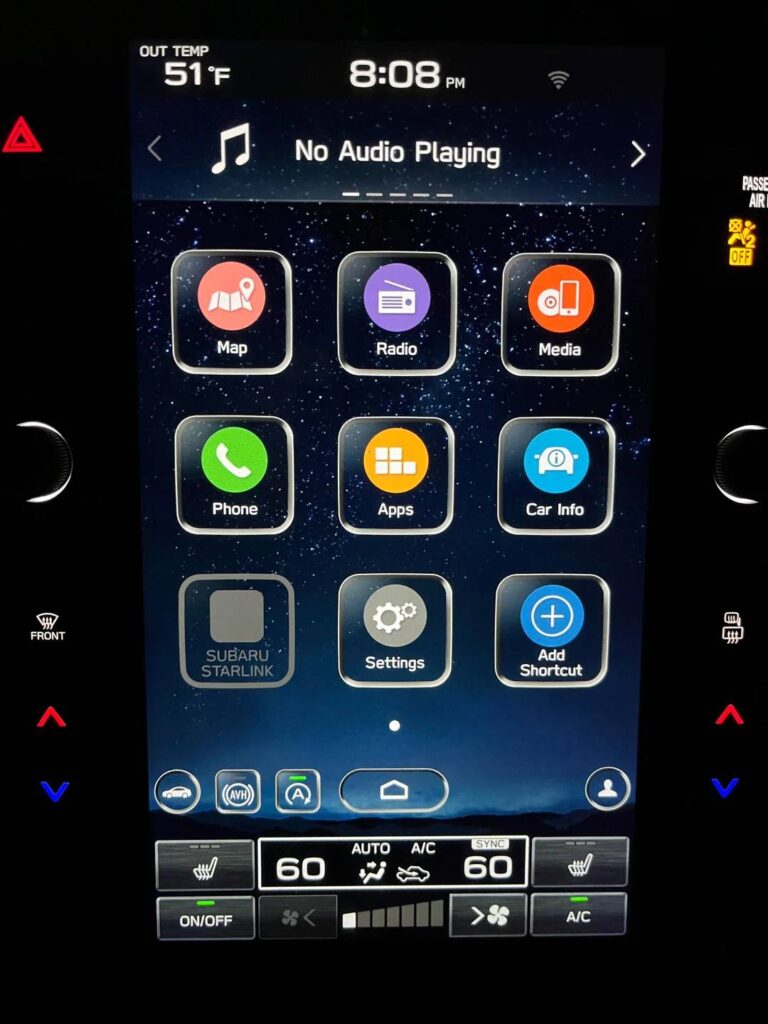
Understanding Subaru Software Updates
Modern Subaru vehicles are equipped with sophisticated software systems that control much more than entertainment features. The software ecosystem includes the STARLINK infotainment platform, navigation services, Bluetooth connectivity, smartphone integration, voice recognition, and various system management functions. As technology evolves, Subaru releases software updates to improve performance, fix known issues, strengthen cybersecurity, and enhance compatibility with newer mobile devices.
Software updates can provide a wide range of benefits for Subaru owners. One of the most noticeable improvements is increased system stability. If your infotainment screen occasionally freezes, restarts unexpectedly, or responds slowly to touch commands, a software update may resolve these issues. Updates can also improve Apple CarPlay and Android Auto functionality, resulting in smoother smartphone integration and fewer connection interruptions.
Another important benefit is security enhancement. As connected vehicles become more advanced, software updates help address potential vulnerabilities and ensure vehicle systems remain protected. Navigation updates may improve route accuracy, while infotainment updates often introduce new features and user interface improvements.
Several warning signs may indicate that your Subaru needs a software update. Frequent Bluetooth disconnections, delayed touchscreen responses, navigation glitches, audio system problems, failed smartphone connections, and random system reboots are among the most common indicators. Even if your vehicle appears to be functioning normally, installing the latest available software can help prevent future issues and ensure optimal performance.
Understanding the purpose and benefits of software updates is the first step toward maintaining a reliable and enjoyable driving experience. By keeping your Subaru software current, you can maximize the value of your vehicle’s technology and reduce the likelihood of frustrating technical problems.
How to Check Your Current Subaru Software Version
Before installing any update, it is important to determine which software version is currently installed in your Subaru. Knowing your existing version allows you to verify whether an update is available and helps prevent unnecessary installations.
Start by turning on your vehicle and allowing the infotainment system to fully load. For the most accurate results, keep the engine running or switch the ignition to accessory mode to ensure uninterrupted power during the process.
From the home screen, tap the Settings icon. Depending on your Subaru model and software version, the menu layout may vary slightly. Navigate to the General or System tab and look for an option labeled System Information, About, or Software Information.
Once inside the information screen, you will see details about your vehicle’s infotainment system, including the current software version number. Some Subaru models may display separate version numbers for the operating system, navigation software, and STARLINK services.
Take a photo of the version information or write it down for future reference. This information will be useful when comparing your system with the latest software releases available from Subaru. If you are planning to visit a dealership for assistance, providing the current software version can also help technicians identify the appropriate update package more quickly.
Checking your software version only takes a few minutes, but it is a critical step that ensures you install the correct updates and avoid compatibility issues. Performing this check regularly can also help you stay informed about your vehicle’s software status and maintenance needs.
How to Update Subaru Software via WiFi
For many newer Subaru models, updating software through a WiFi connection is the easiest and most convenient method. This process allows your vehicle to download and install updates directly without requiring additional hardware or dealership assistance.
Before starting the update, make sure your Subaru is parked in a safe location with a strong and stable WiFi connection. It is also recommended to keep the engine running or ensure the battery is fully charged. Losing power during an update can potentially cause installation issues.
Begin by opening the infotainment system’s Settings menu and selecting the WiFi option. Connect your vehicle to a reliable wireless network and confirm that internet access is available. Once connected, return to the Settings menu and locate the Software Update section.
Select Check for Updates. The system will communicate with Subaru’s servers and determine whether a newer software version is available. If an update is found, review any available release notes and select Download to begin the process.
The download time will vary depending on the size of the update and the speed of your internet connection. Smaller updates may take only a few minutes, while larger packages can require considerably more time. Once the download is complete, the system will prompt you to begin installation.
Follow the on-screen instructions carefully. During installation, the infotainment system may restart multiple times. Avoid turning off the vehicle, disconnecting the battery, or interacting with system controls until the update has been fully completed.
Most Subaru software updates take between 15 and 45 minutes to install. After the installation finishes, verify that the new software version appears in the System Information menu. You should also test key functions such as Bluetooth connectivity, navigation, Apple CarPlay, and Android Auto to ensure everything is operating correctly.
Using WiFi for software updates is often the most straightforward option for Subaru owners because it requires minimal technical knowledge while providing direct access to the latest available software improvements.
How to Update Subaru Software Using USB
While WiFi updates are convenient, some Subaru models require software updates to be installed using a USB drive. This method is also useful when internet connectivity is unreliable or when a larger update package is available for manual installation.
Before beginning, you will need a compatible USB flash drive with sufficient storage capacity. It is recommended to use a high-quality USB drive and format it according to Subaru’s requirements to minimize the risk of installation errors. You will also need access to a computer with a stable internet connection.
Start by obtaining the appropriate software update files for your specific Subaru model. Ensure that the files correspond exactly to your vehicle’s year, trim level, and infotainment system. Download the update package and save it to your computer.
Next, format the USB drive and transfer the update files to the root directory of the drive. Avoid placing the files inside additional folders unless specifically instructed by Subaru. Improper file placement is one of the most common causes of failed updates.
Once the files have been transferred successfully, start your vehicle and allow the infotainment system to load completely. Insert the USB drive into the designated USB port. The system should automatically detect the update package and display a prompt to begin installation.
Follow the on-screen instructions carefully. During the update process, avoid removing the USB drive or shutting off the vehicle. Depending on the size of the update, installation may take anywhere from 20 to 60 minutes. The system may reboot several times before the process is completed.
After installation finishes, verify the updated software version through the System Information menu. Test major functions such as audio controls, navigation, Bluetooth pairing, and smartphone integration to confirm that the update was successful.
USB updates offer several advantages, including faster installation speeds and greater reliability in areas with poor internet access. However, they require more preparation and attention to detail compared to wireless updates.
How OTA (Over-the-Air) Subaru Updates Work
Over-the-Air, commonly referred to as OTA, technology allows compatible Subaru vehicles to receive software updates automatically through a wireless connection. This feature eliminates the need for USB drives and reduces the number of dealership visits required for routine software maintenance.
OTA updates have become increasingly common as vehicle technology advances. Much like smartphone operating systems, Subaru can remotely distribute software improvements directly to eligible vehicles. Depending on the model and software platform, updates may be delivered through a built-in cellular connection or a connected WiFi network.
When an OTA update becomes available, the infotainment system typically displays a notification informing the driver that a new software version is ready to download. The owner can then choose to install the update immediately or schedule it for a later time.
The update process is designed to be simple and user-friendly. Once the download begins, the vehicle retrieves the required files in the background. After the files are fully downloaded, the system installs them during a designated update window. In many cases, drivers can continue using the vehicle normally until the installation phase begins.
One of the biggest advantages of OTA updates is convenience. Vehicle owners receive important bug fixes, performance enhancements, security improvements, and feature updates without needing additional equipment. The process also ensures that software remains current throughout the vehicle’s lifecycle.
Many recent Subaru models, including certain versions of the Outback, Forester, Crosstrek, Ascent, and Legacy, support some level of OTA functionality. However, available features may vary depending on model year, region, and infotainment system configuration.
As vehicle software becomes increasingly important, OTA technology is expected to play an even larger role in keeping Subaru systems secure, stable, and feature-rich.
Common Subaru Software Update Problems and Fixes
Although Subaru software updates are generally straightforward, occasional issues can occur during the download or installation process. Understanding the most common problems and their solutions can help prevent unnecessary frustration.
One of the most frequently reported issues is an update becoming stuck during installation. In many cases, the system is still processing files even though progress appears frozen. Before taking any action, wait at least 30 minutes to determine whether the installation resumes. Interrupting the process too early can create additional complications.
WiFi connectivity problems are another common obstacle. If the vehicle repeatedly fails to connect to a network or loses connection during the download, restart the infotainment system and reconnect to the network. Switching to a stronger WiFi signal can often resolve the issue immediately.
Some drivers encounter situations where the system reports that no updates are available despite knowing a newer version exists. This may occur because the update has not yet been released in a specific region or because the vehicle is already running the latest compatible software. Verifying the current version number is an important troubleshooting step.
After completing an update, a small number of users may experience touchscreen freezing or sluggish performance. Performing a system restart often resolves temporary software conflicts. In more persistent cases, a factory reset may be required to restore normal operation.
Connectivity issues involving Apple CarPlay or Android Auto may also appear following an update. If this occurs, remove the paired device from the infotainment system, delete the vehicle connection from the smartphone, and complete the pairing process again from the beginning.
Occasionally, an update may fail entirely due to corrupted files, insufficient battery voltage, or interrupted downloads. When this happens, downloading the update again and repeating the installation process often resolves the problem. If the issue continues, consulting a Subaru dealership may be necessary.
By understanding these common software update challenges and their solutions, Subaru owners can quickly address issues and maintain reliable system performance without unnecessary downtime.
Subaru Software Update Costs
One of the most common questions Subaru owners ask is whether software updates are free. The answer depends on the type of update, the vehicle model, and the circumstances surrounding the installation.
In many cases, infotainment and OTA software updates are provided at no additional cost. Subaru frequently releases updates that address bugs, improve system stability, enhance compatibility with mobile devices, and introduce new features. These updates are typically available to eligible vehicles without requiring payment.
Vehicles that support Over-the-Air updates can often download and install software improvements directly through the infotainment system. This makes it easier for owners to keep their systems current while avoiding service appointments and labor charges.
Software updates performed during warranty-covered service visits are also generally included at no extra cost. If a dealership identifies a known software issue affecting vehicle performance or functionality, the update may be applied as part of the repair process.
However, there are situations where costs may be involved. Older vehicles that require manual diagnostics, infotainment hardware replacement, or advanced troubleshooting may incur service fees. Navigation map updates may also have separate pricing depending on the vehicle and software package. In some cases, dealerships may charge labor costs if significant diagnostic work is required before the update can be completed.
Before scheduling an appointment, it is always a good idea to contact your local Subaru service center and ask whether the update is covered under warranty or available free of charge. Understanding potential costs ahead of time can help you avoid unexpected expenses while ensuring your vehicle receives the latest software improvements.
Model-Specific Subaru Software Update Notes
Although the software update process is generally similar across Subaru vehicles, individual models may receive different enhancements and update packages depending on their hardware and infotainment systems.
Subaru Outback
The Outback is one of Subaru’s most technology-rich models and frequently receives infotainment improvements. Updates often focus on touchscreen responsiveness, navigation performance, voice command functionality, and smartphone integration. Owners may notice improvements in Apple CarPlay and Android Auto stability after installing newer software versions.
Subaru Forester
Software updates for the Forester commonly address Bluetooth connectivity, multimedia performance, and system reliability. Drivers experiencing audio interruptions or occasional touchscreen lag may benefit significantly from the latest software releases.
Subaru Crosstrek
The Crosstrek continues to receive software improvements aimed at enhancing connectivity and user experience. Updates may improve wireless pairing, navigation accuracy, and infotainment responsiveness. Newer model years often receive additional OTA capabilities as Subaru expands connected vehicle services.
Subaru Ascent
As Subaru’s largest SUV, the Ascent relies heavily on infotainment and navigation systems for family travel. Software updates frequently include performance optimizations, multimedia enhancements, and bug fixes designed to improve long-distance driving convenience and overall reliability.
Subaru Legacy
Legacy owners may receive updates that focus on infotainment stability, navigation functionality, and improved compatibility with newer smartphone operating systems. Regular updates can help ensure smooth operation of connected services and entertainment features.
Because software availability varies by model year and region, owners should periodically check for updates even if their systems appear to be functioning normally. Installing the latest available software can help maximize performance and extend the usefulness of the vehicle’s technology.
Frequently Asked Questions
How often should I update Subaru software?
It is recommended to check for software updates every few months or whenever Subaru announces a new release. Keeping your system updated helps ensure optimal performance, improved security, and access to the latest features.
Will I lose my settings after a software update?
Most software updates preserve saved settings, paired devices, and user preferences. However, it is always a good idea to record important settings before beginning the update process in case a reset becomes necessary.
Can I drive my Subaru during a software update?
This depends on the type of update being installed. Downloading updates may occur while the vehicle is parked or operating normally. However, installation should generally be completed while the vehicle remains stationary to prevent interruptions.
How long does a Subaru software update take?
The total time varies depending on update size and installation method. Most updates require between 15 and 60 minutes, although larger software packages may take longer.
What happens if the update fails?
If an update fails, the system may display an error message or restart the installation process. Common solutions include reconnecting to WiFi, redownloading update files, restarting the infotainment system, or performing the installation again. Persistent issues may require assistance from a Subaru dealership.
Does updating software improve vehicle performance?
Software updates primarily affect infotainment, connectivity, navigation, and related electronic systems. While they do not typically increase engine power or fuel efficiency, they can significantly improve system responsiveness, stability, and overall user experience.
Is it safe to skip software updates?
Skipping updates may leave your vehicle without important bug fixes, compatibility improvements, and security enhancements. While missing a single update may not cause immediate problems, regularly installing updates is the best way to maintain long-term reliability and performance.
How do I know if my Subaru supports OTA updates?
OTA availability depends on model year, trim level, region, and infotainment system. Check your vehicle documentation or consult a Subaru dealership to determine whether OTA functionality is available for your specific vehicle.
Conclusion
Keeping your Subaru software up to date is one of the simplest yet most effective ways to maintain a smooth, reliable, and enjoyable driving experience. As modern vehicles become increasingly dependent on advanced technology, regular software updates play a critical role in ensuring that infotainment systems, navigation tools, smartphone connectivity features, and vehicle management functions continue to operate at their best.
Whether you choose to update your Subaru software through WiFi, a USB drive, or an Over-the-Air connection, following the correct procedure can help prevent installation issues and ensure a successful update. In addition to fixing known bugs and improving system stability, software updates often introduce valuable enhancements that improve usability, compatibility, and overall performance.
If you have experienced problems such as touchscreen lag, Bluetooth disconnections, navigation errors, or Apple CarPlay and Android Auto connectivity issues, installing the latest available software may provide an effective solution. Even if your system appears to be working properly, staying current with updates can help protect against future issues while ensuring access to the newest features and security improvements.
The best approach is to check your software version regularly and install updates whenever they become available. A few minutes spent updating today can save hours of troubleshooting later. By following the steps outlined in this guide, you can confidently keep your Subaru technology up to date and enjoy a safer, more connected, and more convenient driving experience for years to come.
Before your next trip, take a moment to check for available updates. Your Subaru may already have new improvements waiting to be installed.