Have you ever noticed your Mercedes-Benz infotainment system becoming slower, navigation maps feeling outdated, or certain features not working as smoothly as before? These issues are often not mechanical problems but simply signs that your vehicle software needs an update.
Modern Mercedes-Benz vehicles are no longer just machines; they are advanced digital ecosystems powered by intelligent software such as MBUX (Mercedes-Benz User Experience). From voice control and navigation to safety assistance and connectivity, everything depends on regularly updated software.
That is why understanding how to update Mercedes-Benz software step by step (2025 guide) is essential for every owner. Software updates improve performance, fix bugs, enhance security, and unlock new features that make driving more enjoyable and efficient.
In this guide, you will learn exactly how to update your Mercedes-Benz software using OTA (Over-the-Air), USB methods, or dealership support. Each method will be explained clearly so you can confidently update your vehicle without confusion or risk.
Whether you are a new Mercedes owner or an experienced driver, this step-by-step guide will help you keep your vehicle running at peak performance.
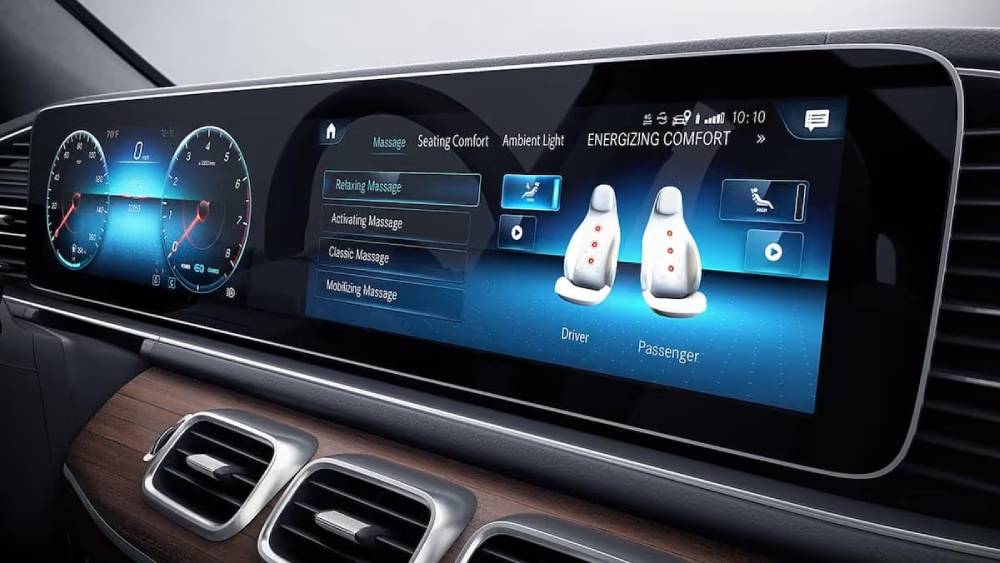
Understanding Mercedes-Benz Software Update System (MBUX & OTA)
Mercedes-Benz uses a combination of advanced systems to manage software updates:
- MBUX (Mercedes-Benz User Experience): The central infotainment operating system in modern Mercedes vehicles
- OTA (Over-the-Air updates): Wireless updates delivered via internet connection
- Dealer updates: Manual updates performed at authorized service centers
Why OTA updates matter
OTA technology allows your vehicle to receive updates automatically without visiting a workshop. This means:
- Faster access to new features
- Improved system stability
- Security patches in real time
However, not all updates are available via OTA. Some major system upgrades still require dealership installation.
Step 1: Check Your Current Software Version
Before updating, you need to identify your current system version.
To check it:
- Turn on the infotainment system
- Go to Settings
- Select System Information
- View the current software version
This step ensures you understand whether an update is necessary and prevents reinstalling the same version.
Step 2: Prepare Your Vehicle for Update
Preparation is critical to avoid interruptions during the update process.
Make sure you:
- Park the vehicle in a safe location
- Keep battery level above 50 percent or connect to a charger
- Ensure stable WiFi or mobile data connection
- Avoid turning off the ignition during the update
Failure to prepare properly may cause system errors or incomplete installation.
Step 3: Update Mercedes-Benz Software via OTA
OTA updates are the most convenient and widely used method.
Follow these steps:
- Open MBUX Settings
- Navigate to Software Update
- Check for available updates
- Select Download and Install
- Wait for the system to complete the process
The update time typically ranges from 20 to 90 minutes depending on file size and system complexity.
During this time, the vehicle may be temporarily unavailable for certain functions, which is completely normal.
Step 4: Update via USB (Manual Method)
If OTA is not available, you can use a USB update method.
Steps include:
- Download the official update file from Mercedes-Benz support portal
- Transfer the file to a USB drive formatted as FAT32
- Insert the USB into the vehicle’s port
- Access System Update in MBUX
- Select USB source and begin installation
This method is commonly used in older models or when network connectivity is limited.
Step 5: Dealer Software Update (Professional Method)
For major updates or system issues, visiting a Mercedes-Benz service center is recommended.
At the dealership:
- Technicians connect the vehicle to diagnostic systems
- Full software packages are installed securely
- All modules are checked for compatibility
Advantages:
- Highest level of safety
- Full system optimization
- Suitable for complex updates
Disadvantages:
- Requires appointment
- May involve service costs depending on region
Step 6: Verify Successful Update
After the update is completed, always verify the installation.
Check the following:
- Software version has changed
- MBUX system runs smoothly
- Navigation and multimedia functions work correctly
- No error messages appear
If everything works properly, your update is successful.
Common Issues When Updating Mercedes-Benz Software
Sometimes updates may not go smoothly. Common issues include:
- Update freezing or stopping midway
- Weak internet connection
- Low battery during installation
- System reboot errors
How to fix them:
- Restart the vehicle system
- Recheck internet connection
- Ensure sufficient battery level
- Visit a dealership if problems persist
Conclusion
Keeping your Mercedes-Benz software updated is essential for maintaining optimal performance, safety, and driving experience. With continuous improvements in MBUX and OTA technology, your vehicle becomes smarter and more capable over time.
By following this how to update Mercedes-Benz software step by step (2025 guide), you can confidently perform updates using OTA, USB, or dealership support without unnecessary stress or confusion.
Regular updates ensure your vehicle remains future-ready, secure, and equipped with the latest features Mercedes-Benz has to offer.
If you are a Mercedes owner, staying updated is not just an option—it is part of maximizing the full potential of your driving experience.