Knowing how to delete a Bluetooth device from a Honda Civic helps you keep your vehicle’s infotainment system organized and connected to the right smartphone. Whether you have purchased a used Honda Civic, upgraded to a new phone, sold your vehicle, or are experiencing Bluetooth connection problems, removing an old paired device is often the quickest solution. It also prevents unauthorized devices from connecting automatically and makes pairing a new phone much easier.
The process is straightforward, but the exact menu layout varies depending on the Honda Civic model year and the infotainment system installed in the vehicle. Older models equipped with HandsFreeLink use a different interface from newer models with Display Audio or the latest touchscreen systems. Understanding these differences allows you to complete the process without unnecessary trial and error.
This guide explains how to delete a Bluetooth device from a Honda Civic step by step for different model years. It also covers how to pair a new phone after removing an existing device, what to do if the Bluetooth menu does not work correctly, and when resetting the Bluetooth system is a better option than deleting a single paired device. By the end of this article, you will know the safest and most effective way to manage Bluetooth connections on your Honda Civic.
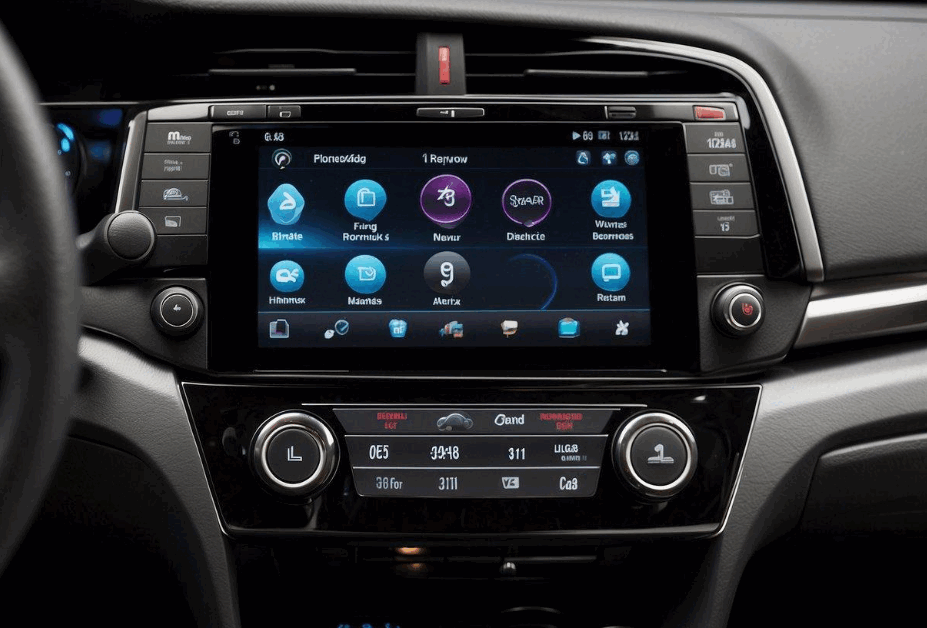
How Do You Delete a Bluetooth Device from a Honda Civic?
Deleting a Bluetooth device from a Honda Civic removes the connection between the vehicle and your smartphone. The car will no longer reconnect to that phone automatically. This step is useful when you buy a new phone, sell your vehicle, purchase a used Honda Civic, or fix Bluetooth connection issues.
Park the vehicle in a safe location before you begin. Turn the ignition to Accessory Mode or start the engine so the infotainment system powers on. Open Settings, then select Phone, Bluetooth, or Connections, depending on your Honda Civic model. Next, open the list of paired devices. The screen displays every smartphone currently saved in the system.
Choose the phone you want to remove. Tap Delete, Remove Device, or Forget This Device. The exact wording varies by model year. Confirm your choice when the system asks for confirmation. The infotainment system removes the selected device within a few seconds.
Removing a paired device only deletes the Bluetooth connection stored in the vehicle. It does not erase contacts, photos, messages, or any other data from your smartphone. If you want to use the same phone again, you can pair it as a new device at any time.
Before leaving the Bluetooth menu, check the paired device list one more time. Make sure the deleted phone no longer appears. This final step prevents connection conflicts and helps the infotainment system recognize your active smartphone more quickly.
Are the Bluetooth Removal Steps Different Across Honda Civic Model Years?
Yes, the steps vary because Honda has updated the infotainment system across different Honda Civic generations. While the overall process remains similar, the menu names, screen layout, and navigation change depending on the model year. Knowing which system your vehicle uses helps you remove a Bluetooth device more quickly.
Honda Civic models from 2012 to 2015 use the HandsFreeLink system instead of the newer Display Audio interface. To remove a paired phone, press the Phone button on the dashboard or steering wheel, then open Phone Setup. Select Bluetooth Setup, choose the paired device, and confirm the deletion. The menu uses physical buttons instead of a touchscreen, so the process may take a little longer.
Honda Civic models from 2016 to 2021 feature the Display Audio system with a touchscreen interface. Open Settings, tap Phone, and select Bluetooth Device List. Choose the device you want to remove, then tap Delete. The system asks for confirmation before it removes the Bluetooth profile from the vehicle.
Honda Civic models from 2022 onward include Honda’s latest infotainment system with an updated menu structure. Open Settings, select Connections or Bluetooth, and access the paired device list. Choose the connected phone, then select Forget Device or Delete Device, depending on the software version. The system removes the device immediately after you confirm the action.
Although each Honda Civic generation uses a different interface, the process follows the same pattern. You open the Bluetooth settings, select the paired phone, confirm the deletion, and verify that the device no longer appears in the list. Once the phone is removed, you can pair a new device without interference from previous Bluetooth connections.
How Do You Pair a New Phone After Deleting a Bluetooth Device?
Pairing a new phone after deleting an old Bluetooth device is a simple process. Once you remove the previous connection, the Honda Civic is ready to recognize another smartphone. Completing the pairing correctly also helps prevent connection errors and ensures stable performance during calls, music streaming, and navigation.
Start by enabling Bluetooth on your smartphone. Keep the Bluetooth settings screen open so the phone remains discoverable. Next, turn on your Honda Civic and open the infotainment system. Go to Settings, then select Phone or Bluetooth, depending on your vehicle’s software version. Choose Add Device or Pair New Device to begin searching for nearby smartphones.
When your phone appears on the screen, tap its name to start the pairing process. The infotainment system displays a pairing code, and your smartphone shows the same code. Compare both numbers carefully before selecting Pair on your phone and Yes or Confirm on the vehicle’s display. This verification protects the connection and prevents unauthorized devices from pairing with your Honda Civic.
After the pairing finishes, allow the requested permissions on your smartphone. Granting access to contacts, call history, and messages enables features such as hands-free calling, voice commands, and contact synchronization. If your Honda Civic supports Apple CarPlay or Android Auto, follow the on-screen instructions to complete the setup for those features.
Before driving, test the new connection to confirm that everything works correctly. Make a short phone call, stream music, and check whether the infotainment system reconnects automatically after you restart the vehicle. If every function operates normally, the pairing process is complete, and your new smartphone is ready for daily use.
Why Can’t You Delete a Bluetooth Device from Your Honda Civic?
You may not be able to delete a Bluetooth device because the infotainment system cannot complete the request. In most cases, the problem comes from an active connection, incorrect vehicle settings, or a temporary software issue. Identifying the cause first helps you resolve the problem more quickly.
One common reason is that the smartphone is still connected to the vehicle. Disconnect the phone from Bluetooth before attempting to remove it. If the connection remains active, the infotainment system may disable the delete option or fail to complete the request. Turning off Bluetooth on the phone for a few seconds often resolves this issue.
The vehicle’s operating mode can also prevent Bluetooth settings from changing. Some Honda Civic models restrict certain functions while the vehicle is moving. Park the car in a safe location and shift into Park before opening the Bluetooth menu. Once the vehicle is stationary, the infotainment system unlocks all Bluetooth management options.
Software glitches are another possible cause. If the touchscreen freezes or the Bluetooth menu stops responding, restart the infotainment system and try again. You can also turn the engine off, wait a minute, and restart the vehicle. This simple step refreshes the system and clears many temporary errors without affecting your saved settings.
Outdated software may also cause Bluetooth management problems. Check whether your Honda Civic has an available infotainment software update. Installing the latest version improves compatibility with newer smartphones and fixes known Bluetooth issues released by Honda.
If you still cannot remove the paired device, reset the Bluetooth settings or delete all saved devices before pairing your phone again. When the problem continues after these steps, the issue may involve the infotainment software or hardware. In that case, contact an authorized Honda dealer for further diagnosis and repair.
Should You Delete Individual Devices or Reset the Entire Bluetooth System?
Deleting a single Bluetooth device is the best option when only one phone is no longer needed. Resetting the entire Bluetooth system is a better choice when several connection problems occur at the same time or when you want to remove every paired device from the vehicle. Choosing the right method saves time and avoids unnecessary setup later.
Delete an individual device if you have replaced your smartphone, sold your old phone, or no longer share the vehicle with another driver. This option removes only the selected Bluetooth profile while keeping every other paired device unchanged. As a result, other drivers can continue using their phones without pairing them again.
Resetting the Bluetooth system clears every saved connection and restores the Bluetooth settings to their default state. This method is useful when the infotainment system cannot recognize new devices, repeatedly disconnects during use, or displays pairing errors after multiple troubleshooting attempts. It also helps eliminate hidden software conflicts that may remain after deleting individual devices.
Before performing a Bluetooth reset, remember that the system removes all paired phones and their connection preferences. Every driver must pair their smartphone again before using hands-free calling, wireless audio streaming, Apple CarPlay, or Android Auto. If several people use the same Honda Civic, resetting the system may require additional time to restore everyone’s preferred settings.
Choose the simplest solution that matches your situation. Delete a single Bluetooth device when the problem affects only one phone. Reset the entire Bluetooth system only after individual troubleshooting fails or when you need to start with a completely clean Bluetooth memory. This approach reduces unnecessary work and helps maintain a stable connection with your active devices.
What Should You Do If Bluetooth Still Doesn’t Work After Removing a Device?
Bluetooth should reconnect normally after you remove an old paired device and complete the pairing process again. If the connection still fails, the problem usually involves the smartphone, the infotainment system, or outdated software. Testing each possibility one by one is the fastest way to identify the source of the issue.
Restart both your smartphone and the Honda Civic infotainment system before trying anything else. A simple restart clears temporary software errors that may interrupt Bluetooth communication. After both devices restart, enable Bluetooth again and attempt to pair the phone as a new device.
Next, check whether your smartphone has already reached its Bluetooth pairing limit. Some devices store dozens of previous connections, and an overloaded Bluetooth memory can create pairing conflicts. Remove unused vehicles, speakers, or wireless accessories from your phone before connecting it to your Honda Civic again.
You should also verify that your phone runs the latest operating system. Software updates improve Bluetooth stability and resolve compatibility issues with newer vehicle infotainment systems. If your Honda Civic supports infotainment updates, install the latest version available from Honda. Keeping both devices updated reduces the chance of repeated connection failures.
If Bluetooth disconnects after pairing, remove the phone from the vehicle and delete the Honda Civic from your smartphone’s Bluetooth history. Then perform a completely new pairing instead of reconnecting to the previous profile. Creating a fresh connection often resolves problems caused by damaged or incomplete pairing records.
When every troubleshooting step fails, reset the Bluetooth system to its factory settings. If the issue continues after the reset, the infotainment system may require professional inspection. An authorized Honda service center can check for software faults, hardware failures, or firmware updates that are not available through standard user settings.
Conclusion
Deleting a Bluetooth device from a Honda Civic is a simple task when you follow the correct steps for your vehicle’s infotainment system. Whether you drive an older model with HandsFreeLink or a newer Civic with Display Audio, the process follows the same basic sequence. Open the Bluetooth settings, remove the unwanted device, and confirm the deletion before pairing another smartphone.
Most Bluetooth issues can be resolved by removing an outdated connection and creating a new pairing. If the problem persists, restarting the infotainment system, updating the software, or resetting the Bluetooth settings usually restores normal operation. These solutions improve connection stability and help the system recognize your active device more reliably.
Keeping your Honda Civic’s Bluetooth device list up to date also improves everyday convenience. A clean list reduces connection conflicts, speeds up automatic pairing, and ensures that hands-free calling, music streaming, Apple CarPlay, and Android Auto work as expected. By managing your Bluetooth settings regularly, you can enjoy a smoother and more reliable driving experience every time you start your vehicle.