If your HondaLink is not working, you are not alone. Many drivers experience connection issues at some point. In most cases, the problem is easy to fix. You simply need to identify where the connection fails.
HondaLink depends on several systems working together. The app connects to your Honda account, Honda’s servers, and your vehicle. It also relies on a stable internet connection. If one part stops responding, the app cannot complete the request. As a result, features like Remote Start, Vehicle Status, or Door Lock may stop working.
Several issues can interrupt this process. An unstable network is one of the most common causes. Outdated software can also create compatibility problems. Some users accidentally disable important permissions after updating their phone. Others experience temporary server outages or account authentication errors. Vehicle registration problems and expired subscriptions can produce similar symptoms.
This guide explains 12 proven fixes in the correct troubleshooting order. You will learn how to identify the real cause before making major changes. That approach saves time and avoids unnecessary resets. It also helps restore HondaLink more quickly. If the problem continues after every step, you will know exactly when to contact Honda Support or visit an authorized Honda dealer.
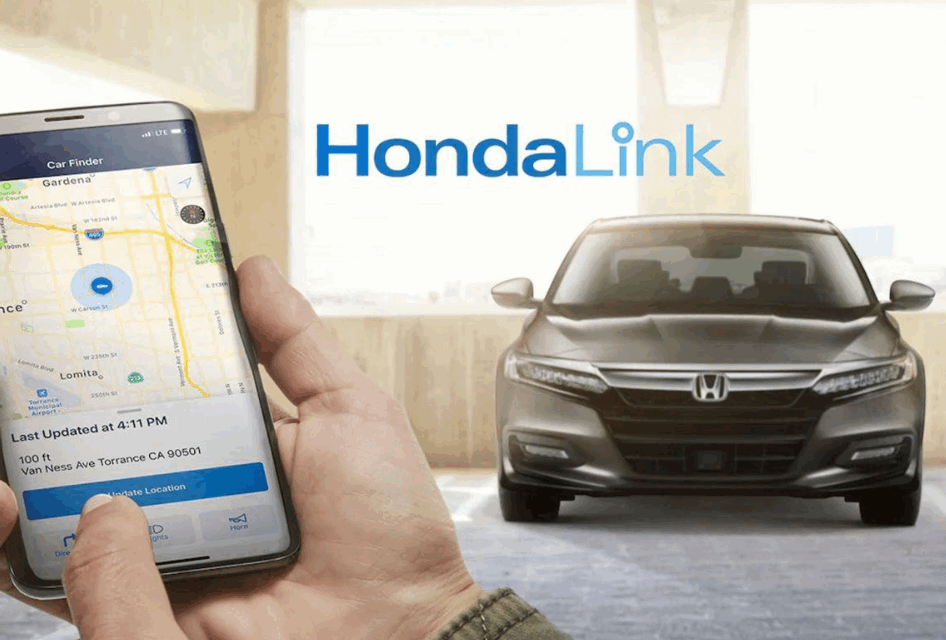
Why Is HondaLink Not Working?
HondaLink stops working when communication between the mobile app, Honda account, Honda servers, and the vehicle is interrupted. Every HondaLink feature depends on multiple systems exchanging information in real time. When one part of that communication chain fails, the application may lose access to vehicle data, reject login requests, or prevent remote commands from reaching the vehicle.
The most common cause is an unstable internet connection on the smartphone. Without reliable Wi Fi or mobile data, HondaLink cannot authenticate your account or synchronize vehicle information. Server maintenance, temporary outages, or heavy network traffic on Honda’s connected services can produce similar symptoms, making Remote Start, Vehicle Status, and Lock or Unlock functions unavailable even though the app appears to be working normally.
Software problems also contribute to many HondaLink connection issues. An outdated application, an unsupported version of iOS or Android, corrupted cached data, or disabled permissions can interrupt communication between the phone and the app. Bluetooth pairing conflicts, although less common, may affect vehicle recognition or local connectivity, particularly after replacing a phone or installing a major operating system update.
Vehicle related factors should also be considered. An incorrect VIN, incomplete ownership verification, an expired HondaLink subscription, unsupported vehicle trim, or a telematics system malfunction can all prevent HondaLink from operating correctly. Before attempting advanced troubleshooting, it is important to identify whether the problem affects the entire application or only a specific feature. A complete app failure often indicates a network, account, or server issue, while a single unavailable feature usually points to a compatibility, subscription, or vehicle communication problem.
How Do You Fix HondaLink When It Is Not Working?
The best way to fix HondaLink is to follow a logical troubleshooting process instead of trying random solutions. Most connection problems come from the phone, the app, or the account rather than the vehicle itself. Therefore, you should always start with the simplest checks before moving to more advanced solutions. This approach saves time and reduces the risk of changing settings that already work correctly.
First, make sure your phone has a stable internet connection. Switch between Wi-Fi and mobile data to see whether the problem changes. Next, confirm that HondaLink is running the latest version and that your phone also has the latest software update. After that, restart the app and sign back into your Honda account. These simple actions refresh the connection and often resolve temporary authentication errors. In many cases, they restore normal communication within a few minutes.
If the issue continues, review the app permissions on your phone. HondaLink needs access to Bluetooth, Location, Mobile Data, and Background App Refresh to perform correctly. Missing permissions can prevent the app from updating vehicle information or sending remote commands. You should also clear the app cache on Android or reinstall the app on iPhone if it continues to crash or display outdated information. Reinstalling removes corrupted files and creates a clean application environment without affecting your Honda account.
When software troubleshooting does not solve the problem, inspect the connection between your Honda account and the vehicle. Verify that the correct VIN appears in HondaLink and confirm that your subscription remains active if your model requires connected services. Finally, restart the infotainment system only after completing every previous step. A factory reset should always be the last option because it removes saved settings and paired devices. By following this sequence, you can identify the real cause of the problem and restore HondaLink without unnecessary troubleshooting.
How Do You Check the Internet Connection and HondaLink Server Status?
A stable internet connection is essential for HondaLink to work properly. The app must communicate with Honda’s servers before it can retrieve vehicle information or send remote commands. If your phone loses connectivity, HondaLink cannot complete these requests. As a result, features like Remote Start, Vehicle Status, and Door Lock may stop responding even though the app still opens.
Start by checking whether your phone can access the internet. Open a website or another online app to confirm the connection. If the network seems unstable, switch from Wi-Fi to mobile data or try a different Wi-Fi network. You should also turn Airplane Mode off and make sure HondaLink has permission to use cellular data. If you use a VPN or a private network service, disable it temporarily because it may interfere with the app’s connection.
Next, determine whether the issue comes from Honda’s servers instead of your device. If every HondaLink feature suddenly stops working, a temporary service interruption is possible. Login failures, missing vehicle data, and remote commands that remain pending often appear during server outages. In this situation, reinstalling the app or removing your vehicle will not solve the problem. Instead, wait for the service to recover and try again later.
After confirming that the servers are available, refresh HondaLink and test one feature at a time. For example, update the Vehicle Status page before sending a Remote Start request. This method helps you identify which function is affected and prevents multiple commands from remaining in the queue. If the connection still fails after these checks, continue with the next troubleshooting step instead of repeating the same action. It is a faster and more reliable way to identify the real cause of the problem.
How Do You Restart HondaLink and Refresh Your Account Session?
Restarting HondaLink is one of the fastest ways to fix temporary connection issues. The app stores session data to keep you signed in and synchronized with your vehicle. Sometimes that session expires or becomes corrupted. When this happens, HondaLink may fail to load vehicle information or return an unexpected login error.
Begin by closing the app completely instead of leaving it in the background. Reopen HondaLink after a few seconds and check whether it connects to your vehicle. If the problem remains, restart your smartphone before opening the app again. This simple step clears temporary memory, refreshes network services, and ends background processes that may interfere with the connection.
If restarting does not help, sign out of your Honda account and sign back in. A new login session forces the app to authenticate with Honda’s servers and reload your account information. Make sure you use the same email address that you used when registering the vehicle. Using another account can make it appear as though your vehicle has disappeared, even when it is still linked correctly.
After signing in, verify that your vehicle information is accurate. Check that the displayed VIN matches your Honda and confirm that the expected connected features are available. Then refresh the Vehicle Status page before testing Remote Start or another remote function. If HondaLink still cannot communicate with the vehicle, move on to the next troubleshooting step instead of repeatedly signing in and out. A persistent issue usually points to permissions, software compatibility, or vehicle registration rather than an expired account session.
Which HondaLink Permissions Must Be Enabled?
HondaLink requires several permissions to communicate with your vehicle and deliver connected services. If one of these permissions is disabled, the app may lose important functions. You might still be able to sign in, but Remote Start, Vehicle Status, or location-based features may stop working. Checking these settings takes only a few minutes and often resolves the issue without additional troubleshooting.
Start by reviewing the permissions in your phone’s settings. HondaLink should have access to Bluetooth, Location, Mobile Data, and Notifications. On Android devices, the app may also need permission to access Nearby Devices. On iPhones, you should enable Background App Refresh and allow cellular data if you want HondaLink to update vehicle information while the app is not open. These permissions help the app maintain communication with Honda’s servers and your vehicle throughout the day.
Each permission supports a different function. Bluetooth helps the phone recognize the vehicle during pairing. Location services improve features that rely on your vehicle’s position and can also support Bluetooth scanning on some devices. Background App Refresh allows HondaLink to receive updates without requiring you to open the app manually. Notifications alert you when a remote command succeeds or when your vehicle reports important information. If any of these permissions are disabled, HondaLink may appear connected while specific features fail in the background.
After enabling the required permissions, close HondaLink and open it again. Refresh the Vehicle Status page and test the feature that was not working. If the problem remains, continue with the next troubleshooting step instead of changing more settings. Following a structured process makes it easier to identify the exact cause and prevents unnecessary changes that could create additional connection problems.
How Do You Update or Reinstall the HondaLink App?
Keeping HondaLink up to date helps prevent many common connection problems. Every new version includes bug fixes, security improvements, and compatibility updates for the latest iOS and Android releases. If you use an outdated version, the app may crash, fail to load vehicle information, or reject login requests. Updating the app should always be one of your first troubleshooting steps.
Open the Apple App Store or Google Play Store and search for HondaLink. If an update is available, install it before testing the app again. You should also check for software updates on your smartphone. An older operating system can create compatibility issues, even when the HondaLink app is fully updated. Restart your phone after completing the updates to ensure the changes take effect.
If the latest version still does not work, reinstall the app. Android users can clear the app cache before removing HondaLink because temporary files sometimes become corrupted. If clearing the cache does not solve the problem, uninstall the app completely and install a fresh copy. iPhone users can delete the app and download it again from the App Store. Before removing HondaLink, make sure you know your account credentials so you can sign in without delay.
After reinstalling the app, log in with the same Honda account that is linked to your vehicle. Confirm that the correct VIN appears and review the required permissions before testing any connected features. Refresh the Vehicle Status page first, then try a remote command such as Door Lock or Remote Start. If HondaLink still cannot communicate with your vehicle, the issue is more likely related to Bluetooth pairing, vehicle registration, or your connected services subscription than the app installation itself.
How Do You Reset Bluetooth and Reconnect HondaLink to Your Vehicle?
Bluetooth pairing problems can prevent HondaLink from communicating with your vehicle. This issue often appears after replacing your phone, updating the operating system, or restoring a device from a backup. Old pairing records may conflict with the new connection. As a result, HondaLink may fail to recognize the vehicle or complete certain local communication tasks.
Start by turning Bluetooth off on your phone for a few seconds before turning it back on. Then open the Bluetooth settings and remove your Honda vehicle from the list of paired devices. Next, access the infotainment system and delete the existing phone connection from the vehicle. Restart both your smartphone and the infotainment system before beginning the pairing process again. This step removes outdated connection records and creates a fresh Bluetooth session.
Pair your phone with the vehicle as if you were connecting it for the first time. Confirm that the pairing code matches on both screens before accepting the connection. When your phone requests permission to access contacts, notifications, or nearby devices, allow the necessary permissions. These settings help the infotainment system communicate with your phone correctly. Once the pairing is complete, test Bluetooth audio and hands-free calling to confirm that the local connection works as expected.
Keep in mind that Bluetooth does not control every HondaLink feature. Remote Start, Vehicle Status, and other connected services rely on Honda’s servers and the vehicle’s built-in telematics system instead of a direct Bluetooth connection. If Bluetooth works normally but remote features still fail, continue with the next troubleshooting step. The problem is more likely related to your Honda account, vehicle registration, subscription status, or the connected services network.
How Do You Verify the VIN, Vehicle Registration, and HondaLink Account?
Your vehicle information must be accurate before HondaLink can connect successfully. The app identifies your vehicle through the Vehicle Identification Number (VIN) and the Honda account linked to it. If either record is incorrect, HondaLink may fail to display vehicle data or process remote commands. This problem often appears after purchasing a used vehicle or creating a new Honda account.
Begin by checking the VIN stored in HondaLink. Compare it with the VIN shown on your vehicle registration, the dashboard near the windshield, or the driver-side door frame. Even a single incorrect character can prevent the app from recognizing the correct vehicle. If the VIN does not match, remove the incorrect record and register the vehicle again using the correct information.
Next, verify that your Honda account is the active owner of the vehicle. Some used vehicles remain linked to the previous owner’s account after the sale. In this situation, HondaLink cannot complete the registration process because the ownership record has not been released. Instead of creating another Honda account, contact Honda Support or an authorized Honda dealer to complete the ownership transfer. This solution is faster and prevents duplicate account records.
Finally, review your connected services after confirming the VIN and account information. Make sure the expected features appear in the app and that your vehicle information loads correctly. Refresh the Vehicle Status page before testing Remote Start or another remote function. If HondaLink still cannot connect after verifying these details, continue to the next troubleshooting step. The issue may be related to vehicle compatibility, subscription status, or the telematics system rather than your account information.
Is Your Honda Vehicle and Phone Compatible With HondaLink?
HondaLink only works when both your vehicle and smartphone meet the required compatibility requirements. Many users assume every Honda model supports the same connected features, but that is not the case. Support varies by model, model year, trim level, region, and available hardware. If one of these requirements is missing, HondaLink may install successfully but fail to provide all connected services.
Start by confirming that your Honda model supports HondaLink. Even within the same model lineup, different trims may offer different connected features. For example, one trim may support Remote Start and Vehicle Status, while another only provides maintenance reminders or basic account functions. Your location also matters because Honda offers different HondaLink services in different countries. A feature available in one market may not be available in another.
Your smartphone must also meet the app’s compatibility requirements. HondaLink supports recent versions of iOS and Android, but older operating systems may not work correctly with the latest app release. Before troubleshooting further, update your phone to the latest supported version and install the newest HondaLink update. If you recently changed phones, confirm that the new device is compatible before transferring your vehicle registration.
Compatibility also affects individual features. Installing HondaLink does not guarantee access to every connected service. Features such as Remote Start, Remote Lock, Vehicle Finder, and Security Alerts depend on your vehicle’s hardware, software, and connected services package. If your phone and vehicle meet all compatibility requirements but certain features remain unavailable, check your subscription status and vehicle configuration before assuming the app is malfunctioning.
Does HondaLink Require an Active Subscription?
Yes, some HondaLink features require an active subscription. However, the exact services depend on your vehicle model, model year, trim level, and region. Many drivers expect every feature to remain available after installing the app, but Honda separates basic functions from premium connected services. Understanding this difference helps you identify whether the issue comes from your account or your subscription.
Basic features may continue to work even if a subscription expires. For example, you might still access your account or view limited vehicle information. However, connected services such as Remote Start, Remote Lock, Vehicle Finder, and Security Alerts often require an active service plan. If these features suddenly stop working while the rest of the app functions normally, an inactive subscription is a likely cause.
Open HondaLink and review your connected services status. Confirm that the correct vehicle is linked to your account and verify that your subscription has not expired. If your vehicle recently completed a free trial, you may need to purchase or renew a service plan before remote features become available again. In some cases, account synchronization takes a few minutes after a successful renewal. Signing out and back into the app can help refresh your account information.
Keep in mind that subscription requirements vary across Honda models and markets. Two vehicles from the same model family may not offer identical connected services. Therefore, always check the features included with your specific vehicle instead of relying on general information. If your subscription is active but HondaLink still cannot access connected services, continue with the next troubleshooting step. The problem may involve the vehicle’s telematics system or a temporary server issue rather than your service plan.
Why Is HondaLink Remote Start Not Working?
HondaLink Remote Start stops working when the vehicle cannot accept the remote command or when the connected service cannot communicate with the vehicle. Unlike simple app functions, Remote Start depends on several conditions working together. The HondaLink app, Honda servers, vehicle telematics system, and vehicle safety settings must all allow the command before the engine can start remotely.
The first thing to check is whether your vehicle supports HondaLink Remote Start. Not every Honda vehicle with the HondaLink app includes this feature. Availability depends on the model, model year, trim level, region, and active connected services package. If your vehicle previously supported Remote Start but the feature disappeared, check your subscription status before changing other settings.
Vehicle safety conditions can also block a Remote Start request. Honda vehicles may reject the command when a door, hood, or trunk is open. The system may also prevent remote starting when the key is inside the vehicle, the fuel level is too low, or the vehicle does not meet the required operating conditions. These restrictions protect the vehicle and prevent unsafe operation.
Network communication is another common cause. HondaLink sends the Remote Start request through Honda’s servers before the vehicle receives the command. A weak cellular signal, server delay, or communication problem with the vehicle’s telematics system can cause the request to fail or remain pending. In this situation, repeatedly sending the same command will not improve the connection.
Before trying again, lock the vehicle, confirm that all doors and compartments are closed, refresh HondaLink, and check that your subscription is active. If Remote Start still fails after these checks, the problem may involve vehicle compatibility, account registration, or a telematics system issue that requires Honda Support.
Why Is HondaLink Not Updating the Vehicle Status?
HondaLink vehicle status does not update when the app cannot receive new information from your vehicle. The system depends on communication between the vehicle’s telematics unit, Honda’s servers, and your smartphone. If any part of this process stops working, the app may display old information such as an outdated fuel level, mileage reading, vehicle location, or lock status.
One common cause is that the vehicle has not recently connected to Honda’s network. For example, a vehicle parked in an underground garage or an area with weak cellular coverage may not send new data immediately. The same issue can happen when the vehicle has remained unused for an extended period. In these situations, HondaLink may continue showing the last successful update instead of displaying current information.
Your smartphone settings can also affect vehicle status updates. HondaLink needs permission to use mobile data and background activity so it can refresh information correctly. If background app activity is disabled, the app may only update when you open it manually. An expired login session or an outdated app version can create similar problems because the application cannot complete the synchronization process.
To refresh your vehicle status, open HondaLink and manually update the vehicle information page. If the data remains unchanged, sign out and sign back into your account. You can also start the vehicle and drive it to an area with stronger cellular coverage before checking again. This allows the vehicle to reconnect with Honda’s network and send new information.
If HondaLink still shows outdated information after these steps, the issue may involve the vehicle’s telematics system or a temporary Honda service problem. At this stage, check other connected features before contacting Honda Support. If every connected service fails, the problem is likely related to the vehicle connection rather than the mobile app.
Why Is HondaLink Not Working on iPhone or Android?
HondaLink may stop working on iPhone or Android because of incorrect phone settings, restricted permissions, outdated software, or compatibility issues. The app depends on several smartphone functions to communicate with your Honda account and vehicle. When these settings change after an update or device replacement, some HondaLink features may stop responding.
On iPhone, the most common problems involve restricted permissions. HondaLink needs access to Bluetooth, Location, Cellular Data, Notifications, and Background App Refresh. If any of these settings are disabled, the app may open normally but fail to update vehicle information or complete remote commands. iOS updates can sometimes reset app permissions, so reviewing these settings after a system update is a useful troubleshooting step.
Android users may experience similar problems because of battery optimization and background data restrictions. Some Android manufacturers limit background activity to save battery power. When this happens, HondaLink may stop refreshing vehicle information or sending notifications while running in the background. Android users should allow HondaLink to use background data and remove unnecessary battery restrictions from the app settings.
Phone software also plays an important role in HondaLink performance. An outdated operating system may create compatibility problems with the latest app version. At the same time, an old HondaLink installation may contain corrupted files that prevent normal operation. Updating the phone, updating HondaLink, and restarting the device can often restore normal communication.
If HondaLink continues to fail on one phone, test the account on another compatible device. If the app works on another phone, the problem is likely related to the original device settings. However, if HondaLink fails across multiple devices, the issue may involve your account, vehicle registration, subscription, or Honda’s connected services system.
Is HondaLink the Same as Apple CarPlay or Android Auto?
HondaLink, Apple CarPlay, and Android Auto are different systems that perform separate functions. Many drivers confuse these technologies because they all connect a smartphone with a Honda vehicle. However, a problem with one system does not automatically mean the other systems have failed. Understanding the difference helps you choose the correct troubleshooting method.
HondaLink connects your Honda account with your vehicle’s connected services. It manages features such as Vehicle Status, Maintenance Notifications, Remote Start, Remote Lock, Vehicle Finder, and other eligible services. HondaLink communicates through Honda’s servers and the vehicle’s built-in telematics system. Because of this, it can continue working even when your phone is not connected to the vehicle through Bluetooth.
Apple CarPlay and Android Auto serve a different purpose. They allow drivers to display smartphone applications on the vehicle’s infotainment screen. Apple CarPlay works with iPhone devices, while Android Auto works with Android phones. These systems focus on navigation, calls, messages, music, and compatible third-party applications. They do not manage Honda account information or connected vehicle services.
For example, your Apple CarPlay connection may work perfectly while HondaLink cannot update your vehicle status. This situation usually indicates a HondaLink account, server, subscription, or telematics issue rather than a phone projection problem. On the other hand, CarPlay or Android Auto may fail because of a USB cable, Bluetooth pairing issue, or infotainment setting while HondaLink continues to operate normally.
Before resetting your entire infotainment system, identify which service has the problem. If only HondaLink features fail, focus on the app, account, and connected services. If only smartphone projection fails, troubleshoot CarPlay or Android Auto separately.
When Should You Reset the Honda Infotainment System?
You should reset the Honda infotainment system only after completing basic HondaLink troubleshooting steps. The infotainment system controls important vehicle settings, but it is not always the source of a HondaLink problem. Many connection issues come from the app, account, permissions, or Honda servers. Resetting the system too early can remove saved settings without solving the actual cause.
A simple restart can help when the infotainment screen freezes, Bluetooth stops responding, or temporary software errors affect communication with your phone. Turn the vehicle off, wait briefly, and restart the system according to your owner’s manual instructions. This process refreshes the software environment and may restore normal operation without deleting personal settings.
A factory reset is a more advanced option. It returns the infotainment system to its original settings and removes stored information. This includes paired phones, saved radio stations, navigation preferences, and customized settings. Because of these changes, a factory reset should only happen after checking your internet connection, updating HondaLink, refreshing your account session, and verifying your vehicle registration.
Before performing any reset, confirm that the problem actually involves the infotainment system. For example, if Bluetooth audio, Apple CarPlay, and Android Auto all fail, the vehicle display system may require attention. However, if only HondaLink Remote Start or Vehicle Status fails, the issue is more likely related to Honda’s connected services, subscription, or telematics system.
Reset procedures vary between Honda models and model years. Always follow the instructions provided for your specific vehicle instead of using a generic reset method. If the infotainment system continues showing errors after a proper reset, the problem may require diagnosis from Honda Support or an authorized Honda dealer.
When Should You Contact Honda Support or a Honda Dealer?
You should contact Honda Support or a Honda dealer when HondaLink continues to fail after completing standard troubleshooting steps. Most HondaLink problems come from temporary connection issues, app settings, or account sessions. However, some problems involve vehicle registration, subscription records, telematics hardware, or ownership verification. These issues usually require access to Honda’s internal systems.
Start by contacting support when HondaLink cannot recognize your vehicle even after entering the correct VIN. This situation often happens with used vehicles that remain connected to a previous owner’s Honda account. Creating a new account or reinstalling the app will not remove the old ownership record. Honda Support or a dealer must verify ownership and update the vehicle association.
You should also request assistance when connected services remain unavailable despite an active subscription. If Remote Start, Vehicle Status, or other features fail across multiple phones and networks, the problem may not come from your smartphone. A Honda technician can check whether the vehicle’s telematics system is communicating correctly with Honda’s servers.
Before contacting support, prepare important information to speed up the diagnosis. Include your vehicle model, model year, VIN, Honda account email, phone model, operating system version, HondaLink app version, and the exact feature that is not working. You should also describe the troubleshooting steps you already completed.
A detailed report helps Honda identify whether the problem comes from the app, account, server connection, subscription, or vehicle hardware. This prevents repeated troubleshooting steps and allows the support team to provide a more accurate solution. If the issue started after battery replacement, electrical repair, or infotainment service, mention this information because it may indicate a vehicle-side communication problem.
What Should You Do If HondaLink Is Still Not Working?
If HondaLink is still not working after completing all troubleshooting steps, identify whether the problem comes from the app, account, vehicle, or connected services system. A structured diagnosis helps you avoid repeating the same fixes and makes it easier to find the correct solution. Most HondaLink problems can be resolved by checking the connection path between your phone, Honda account, and vehicle.
Start with the simplest areas first. Confirm that your phone has a stable internet connection, HondaLink has the required permissions, and the app uses the latest version. Next, verify your Honda account, VIN registration, and subscription status. These factors control whether HondaLink can access your vehicle and activate connected features. If these settings are correct, the problem may involve the vehicle’s telematics system or Honda’s connected services network.
Remember that different HondaLink features depend on different systems. A login problem usually points to an account or authentication issue. A Remote Start failure may involve subscription status, vehicle safety conditions, or telematics communication. An outdated Vehicle Status page may result from delayed vehicle data transmission rather than an app failure.
If HondaLink fails across multiple compatible phones and networks, contact Honda Support or an authorized dealer. Provide your VIN, vehicle details, phone information, HondaLink version, error messages, and the troubleshooting steps you already completed. This information helps technicians identify the exact source of the problem faster.
A reliable troubleshooting process starts with simple checks and moves toward advanced solutions only when necessary. By following the correct order, you can restore HondaLink connection more efficiently and avoid unnecessary resets or repairs.