Honda Pilot Apple CarPlay should connect to your iPhone within a few seconds. If it does not, a software setting, a faulty USB data cable, or an infotainment system error often causes the problem. Wireless models can also lose the connection because of Bluetooth or Wi-Fi conflicts. Fortunately, you can fix most of these issues without replacing expensive parts.
Apple CarPlay failures do not always look the same. Some drivers cannot launch CarPlay even though the iPhone charges normally. Others lose the connection while driving or after installing an iOS update. In many cases, the symptom reveals where the problem starts. That makes diagnosis much faster and more accurate.
This guide explains the 12 most common causes of Honda Pilot Apple CarPlay problems. It also walks you through each solution in the correct order. You will learn how to check the USB connection, verify iPhone settings, reset the infotainment system, and install software updates. Finally, you will know when the issue points to a hardware fault that requires professional service.
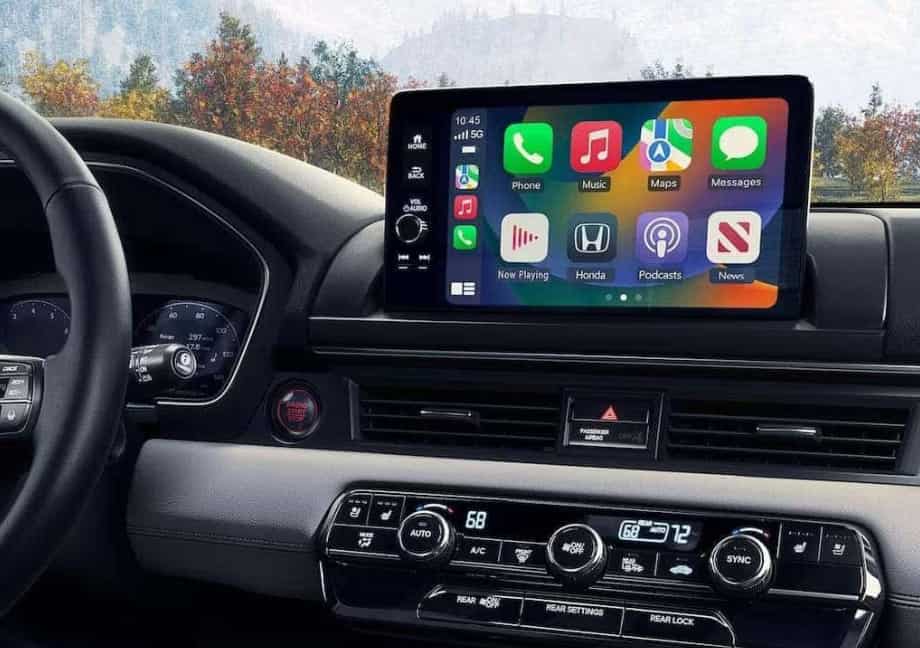
Why Is Honda Pilot Apple CarPlay Not Working?
Honda Pilot Apple CarPlay usually stops working because the vehicle and the iPhone cannot establish a stable data connection. A damaged USB cable, incorrect phone settings, outdated software, or an infotainment system error can interrupt this process. Although these issues produce similar symptoms, each one requires a different solution. Identifying the cause first saves time and prevents unnecessary repairs.
The first sign often appears when CarPlay fails to launch after you connect your iPhone. In some cases, the phone charges normally but the infotainment screen never displays the CarPlay interface. This happens because charging and data transfer use different functions. A cable can supply power while failing to transmit data between the iPhone and the Honda infotainment system.
Some drivers experience random disconnections instead of a complete connection failure. The system may connect for a few seconds before disconnecting repeatedly. Loose cable connections, wireless interference, software bugs, or overheating devices often create this behavior. If the connection drops only while driving, the problem usually points to an unstable physical or wireless link rather than a compatibility issue.
Software also plays a major role in Apple CarPlay performance. An outdated version of iOS or Honda infotainment software may introduce compatibility problems after a system update. Incorrect Siri permissions, disabled CarPlay settings, or corrupted Bluetooth pairing records can also prevent the vehicle from recognizing the iPhone. These issues rarely indicate permanent hardware damage, but they often stop CarPlay from working until you restore the correct settings.
Understanding the symptom before applying a fix makes troubleshooting much easier. For example, an iPhone that charges but never launches CarPlay usually indicates a cable or USB port problem. By comparison, a wireless connection that repeatedly disconnects often suggests Bluetooth or Wi-Fi interference. Once you identify the symptom, you can follow the correct repair process instead of testing random solutions.
What Are the Most Common Causes of Honda Pilot Apple CarPlay Problems?
Several issues can prevent Apple CarPlay from working correctly in a Honda Pilot. Most of them involve the connection between the iPhone and the infotainment system rather than a major hardware failure. Understanding these causes helps you choose the right solution instead of replacing parts that still work properly.
A damaged or low-quality USB cable is one of the most common reasons CarPlay fails to launch. Many third-party cables only support charging and cannot transfer data. As a result, the iPhone receives power, but the infotainment system cannot detect the device. Using an Apple-certified or high-quality data cable often restores the connection immediately.
The USB port can also create connection problems. Honda Pilot models often include multiple USB ports, but not every port supports Apple CarPlay. Drivers sometimes plug the iPhone into a charging port instead of the designated smartphone connection port. Even when the correct port is in use, dust, dirt, or worn connectors can interrupt data transmission and cause frequent connection failures.
Incorrect iPhone settings also prevent Apple CarPlay from working. Siri must remain enabled because CarPlay depends on Apple’s voice assistant to operate. Screen Time restrictions, disabled CarPlay permissions, or previously rejected connection requests can also block communication between the phone and the vehicle. These settings often change after an iOS update or when users adjust privacy options.
Wireless Apple CarPlay introduces another group of potential issues. The system relies on both Bluetooth and Wi-Fi to maintain a stable connection. If either feature is disabled or unstable, CarPlay may disconnect repeatedly or fail to connect altogether. Existing Bluetooth pairings with other devices can also interfere with the connection process, especially when several phones have paired with the vehicle.
Software compatibility plays an equally important role. An outdated version of iOS may contain bugs that affect CarPlay performance. Likewise, outdated Honda infotainment software may struggle to communicate with newer iPhone versions. Installing the latest software updates often improves stability, fixes known compatibility issues, and restores reliable performance without additional repairs.
Hardware faults become more likely after software and connection issues have been ruled out. A damaged USB port, a faulty infotainment module, or an internal wiring problem can prevent the vehicle from recognizing any compatible iPhone. If multiple phones and certified cables produce the same result, the problem usually originates from the vehicle rather than the mobile device. Professional diagnosis becomes the most effective next step in this situation.
How Do You Fix Honda Pilot Apple CarPlay That Won’t Connect?
Fixing Honda Pilot Apple CarPlay starts with the simplest checks before moving to advanced troubleshooting. This approach saves time and helps identify the exact cause without changing multiple settings at once. In most cases, the connection returns after one of the first few steps.
Begin by checking the USB cable if your Honda Pilot uses wired Apple CarPlay. A cable that only supports charging cannot transfer data to the infotainment system. Even a certified cable can fail after years of daily use. If possible, test another Apple-certified Lightning or USB-C cable to eliminate the cable as the source of the problem.
Next, make sure you connect the iPhone to the correct USB port. Many Honda Pilot models include several USB ports, but only one supports Apple CarPlay. Plugging the phone into a charging-only port allows the battery to charge without launching CarPlay. If you are unsure which port supports smartphone integration, check the owner’s manual or look for the smartphone icon beside the port.
Your iPhone settings should also receive careful attention. Unlock the device before connecting it to the vehicle. Then confirm that Siri remains enabled because Apple CarPlay cannot function without it. Open the CarPlay settings on the iPhone and verify that your Honda Pilot appears as an approved vehicle. If the vehicle does not appear, remove any previous pairing and create a new connection.
Restarting both devices often resolves temporary software glitches. Turn off the iPhone completely before powering it back on. After that, restart the Honda infotainment system according to the manufacturer’s instructions. This process clears temporary communication errors and allows both systems to establish a fresh connection. Many intermittent problems disappear after a complete restart.
If the problem continues, update both the iPhone and the Honda infotainment system. Software updates frequently include compatibility improvements for Apple CarPlay. Running different software versions can create communication errors even when the hardware works correctly. Installing the latest stable updates reduces these compatibility issues and improves overall connection reliability.
Testing another compatible iPhone provides another effective diagnostic step. If a second device connects without difficulty, the original iPhone likely contains a settings or software issue. If neither phone connects, the problem probably exists inside the vehicle. At that point, inspect the USB port for dirt or physical damage before considering professional diagnosis.
Following these steps in order prevents unnecessary repairs and reduces troubleshooting time. Most Honda Pilot Apple CarPlay problems result from cables, settings, or software rather than expensive hardware failures. Once these common issues have been eliminated, identifying the remaining cause becomes much more straightforward.
Why Does Apple CarPlay Keep Disconnecting?
Apple CarPlay should remain connected throughout your drive. If the connection drops repeatedly, the system is struggling to maintain stable communication with your iPhone. The interruption may last only a few seconds, but it can disable navigation, music, and hands-free calling until CarPlay reconnects.
A loose or damaged USB cable is the most common cause of repeated disconnections in vehicles with wired Apple CarPlay. The cable may continue charging the iPhone while losing its data connection whenever the vehicle moves over bumps or uneven roads. Over time, frequent bending weakens the internal wires and reduces connection stability. Replacing an old cable often solves the problem immediately.
A dirty or worn USB port can produce similar symptoms. Dust, lint, and debris prevent the connector from making full contact with the cable. As the connection becomes unstable, the infotainment system repeatedly detects and disconnects the iPhone. Cleaning the port carefully and checking for damaged pins can restore a reliable connection without replacing any components.
Wireless Apple CarPlay depends on Bluetooth and Wi-Fi working together at the same time. If either connection becomes unstable, CarPlay may disconnect without warning. Nearby wireless devices, public Wi-Fi networks, or temporary signal interference can interrupt communication between the vehicle and the iPhone. Reconnecting the phone or removing unused Bluetooth pairings often improves connection stability.
Software conflicts can also trigger random disconnections. An outdated version of iOS or Honda infotainment software may contain compatibility issues that affect Apple CarPlay performance. Background applications, temporary system errors, or incomplete software updates may also interrupt communication. Installing the latest software versions and restarting both devices often eliminates these temporary issues.
Your iPhone’s operating condition also affects connection quality. High device temperatures can reduce system performance and temporarily disable certain background functions. If the iPhone becomes too hot after long navigation sessions or direct sunlight exposure, Apple CarPlay may disconnect until the device cools down. Moving the phone away from direct sunlight or removing a thick protective case can help maintain a stable connection.
If Apple CarPlay disconnects every time you drive, test the system under different conditions before assuming a hardware failure. Try another certified cable, connect a different compatible iPhone, or switch between wired and wireless CarPlay if your Honda Pilot supports both options. These simple tests quickly identify whether the issue originates from the phone, the connection method, or the vehicle itself.
Frequent disconnections rarely indicate a serious hardware problem. In most cases, replacing a worn cable, updating the software, or resetting the connection restores normal operation. Only after these solutions fail should you consider inspecting the USB port or scheduling a professional diagnosis.
Why Does the iPhone Charge but Apple CarPlay Not Work?
Many Honda Pilot owners assume the USB connection works because the iPhone starts charging. However, charging does not guarantee that Apple CarPlay can communicate with the infotainment system. Power delivery and data transfer use different functions, so the phone can receive power while the vehicle fails to recognize it.
A charge-only USB cable is the most common reason for this issue. Some inexpensive replacement cables provide electrical power but do not include the wiring required for data transmission. As a result, the battery charges normally, but Apple CarPlay never appears on the display. Replacing the cable with an Apple-certified or high-quality data cable usually restores the connection within seconds.
Connecting the iPhone to the wrong USB port can produce the same symptom. Many Honda Pilot models include dedicated charging ports alongside a separate smartphone connection port. If the phone connects to a charging-only port, the battery will continue to charge without launching Apple CarPlay. Switching to the correct USB port often resolves the problem immediately.
Your iPhone settings may also prevent Apple CarPlay from starting. If Siri is disabled or CarPlay permissions have been restricted, the infotainment system cannot complete the connection process. Previous pairing errors can create similar behavior, especially after an iOS update or a factory reset. Removing the existing vehicle profile from the iPhone and reconnecting it often restores normal operation.
Software compatibility should also be considered when basic checks fail. An outdated version of iOS or Honda infotainment software can interrupt communication even though the hardware functions correctly. Installing the latest software updates helps both systems communicate more reliably and reduces compatibility issues introduced by older firmware.
If the problem continues, perform a simple comparison test. Connect another compatible iPhone using the same cable and USB port. Then connect the original iPhone with a different certified cable. These tests quickly identify whether the problem comes from the phone, the cable, or the vehicle. They also prevent unnecessary repairs by isolating the source of the failure before replacing any components.
If multiple phones fail to launch Apple CarPlay while charging normally, the vehicle may have a damaged USB port or an infotainment system fault. At that stage, professional diagnosis becomes the most effective way to identify the underlying issue and restore full functionality.
How Do You Reset Apple CarPlay on a Honda Pilot?
Resetting Apple CarPlay can resolve connection problems that continue after you have checked the cable, USB port, and iPhone settings. This process removes temporary communication errors and allows the iPhone and the Honda infotainment system to establish a new connection. In many cases, a reset restores normal operation without requiring additional repairs.
Start by restarting the infotainment system. Turn the vehicle off completely and wait for a few minutes before starting it again. If your Honda Pilot supports an infotainment reboot, perform the restart according to the owner’s manual. A fresh system restart clears temporary software glitches that may prevent Apple CarPlay from launching correctly.
Next, remove the existing Apple CarPlay connection from your iPhone. Open Settings, select General, then tap CarPlay. Choose your Honda Pilot and remove the saved vehicle. This step deletes corrupted connection records that may have developed after software updates or repeated connection failures.
After removing the vehicle from your iPhone, delete the paired phone from the Honda infotainment system. Open the phone or Bluetooth settings on the display, locate your iPhone, and remove it from the saved device list. Leaving outdated pairing information on either device can prevent a successful reconnection even after restarting both systems.
Once both devices have been cleared, create a completely new connection. Enable Bluetooth and Wi-Fi if your Honda Pilot supports wireless Apple CarPlay. For wired models, connect the iPhone with an Apple-certified data cable and approve every permission request that appears on both screens. Accepting these prompts allows the infotainment system to establish a secure connection with the iPhone.
If Apple CarPlay still fails to work, consider resetting the network settings on the iPhone. This process removes saved Wi-Fi networks, Bluetooth pairings, and other connection preferences that may interfere with communication. After the reset finishes, reconnect the iPhone to the Honda Pilot as if you were using Apple CarPlay for the first time.
A factory reset of the Honda infotainment system should remain the final troubleshooting step. This procedure deletes saved phones, personalized settings, and other stored data. Although it can resolve persistent software problems, you should only perform it after every basic solution has failed. Backing up important settings before starting the reset will make the setup process much easier afterward.
Most Apple CarPlay connection problems disappear after a complete reset of both devices. If the issue continues even after creating a new connection, the problem is more likely related to outdated software or a hardware fault than to the original pairing.
Can an iOS or Honda Software Update Fix Apple CarPlay Problems?
Yes, software updates can fix many Apple CarPlay problems in a Honda Pilot. Apple and Honda regularly release updates to improve compatibility, resolve known bugs, and strengthen communication between the iPhone and the infotainment system. If CarPlay stopped working after an update or has become unreliable over time, installing the latest software should be one of your first troubleshooting steps.
An outdated version of iOS can create compatibility issues with newer Honda infotainment software. Apple frequently improves CarPlay performance through system updates, especially after users report connection failures or stability problems. Running the latest stable version of iOS helps your iPhone communicate more efficiently with the vehicle and reduces the risk of software-related errors.
Honda also releases infotainment software updates to improve system performance. These updates may resolve issues such as delayed device recognition, frozen screens, unexpected disconnections, or slow response times. If your Honda Pilot has not received a software update for an extended period, the infotainment system may struggle to support newer iPhone models or recent iOS releases.
Software updates should always install successfully before you continue troubleshooting. An interrupted update or incomplete installation can leave the infotainment system in an unstable state. If the update fails, restart the vehicle and repeat the process according to Honda’s instructions. A successful installation often restores normal system performance without additional repairs.
After installing updates, remove the existing Apple CarPlay connection and pair the iPhone again. This step allows both devices to create a new communication profile based on the latest software. Reusing an older pairing after a major update may lead to connection errors or reduced stability.
Although software updates solve many CarPlay issues, they cannot repair physical hardware damage. A faulty USB port, damaged wiring, or defective infotainment module will continue causing connection problems even after both systems run the latest software. If every device remains unable to connect after updating and resetting the system, a hardware inspection becomes the next logical step.
Which Honda Pilot Model Years Support Apple CarPlay?
Apple CarPlay availability depends on the model year and trim level of your Honda Pilot. Checking compatibility before troubleshooting prevents unnecessary repairs because vehicles without factory support cannot use Apple CarPlay unless an aftermarket solution has been installed.
Honda introduced factory Apple CarPlay on selected Pilot models beginning with the 2016 model year. Earlier models do not include native CarPlay support, even if they feature a touchscreen infotainment system. Owners of these vehicles must install a compatible aftermarket head unit to use Apple CarPlay.
Most Honda Pilot models produced after the initial rollout support wired Apple CarPlay as a standard or available feature. Wireless Apple CarPlay became available on newer model years equipped with updated infotainment systems. Because availability varies by trim level, owners should confirm the vehicle specifications before diagnosing wireless connection problems.
Knowing whether your Honda Pilot supports wired or wireless Apple CarPlay also helps identify the correct troubleshooting process. Wired systems rely on a USB data connection, while wireless systems depend on Bluetooth and Wi-Fi working together. Applying the wrong troubleshooting method may lead to unnecessary testing and confusion.
If you recently purchased a used Honda Pilot, verify that the infotainment system remains original. Some previous owners replace the factory unit with an aftermarket system that supports Apple CarPlay differently. Identifying the installed hardware ensures that you follow the correct setup and repair procedure.
When Should You Visit a Honda Dealer?
Most Apple CarPlay problems can be resolved at home, but some situations require professional diagnosis. If you have completed every recommended troubleshooting step and the system still fails to connect, the issue may involve hardware that requires specialized equipment to inspect.
A dealership should inspect the vehicle when multiple compatible iPhones fail to connect using different certified data cables. This result strongly suggests that the problem originates from the vehicle rather than the mobile device. Continuing to replace cables or adjust phone settings is unlikely to solve the issue.
Visible damage to the USB port also requires professional attention. Bent connector pins, loose ports, or physical wear can interrupt data transmission even though the phone continues charging. Replacing a damaged USB port usually requires partial disassembly of the dashboard and should follow Honda’s repair procedures.
Repeated infotainment system freezes or frequent system restarts also indicate a deeper problem. Software updates may correct some failures, but persistent crashes can point to defective internal hardware or corrupted system components. A Honda technician can perform advanced diagnostics that are not available through the standard user interface.
Electrical problems should never be ignored. If Apple CarPlay stopped working immediately after battery replacement, electrical repairs, or accessory installation, the vehicle may have a wiring or voltage issue that affects the infotainment system. Professional testing helps identify these faults before they cause additional electronic problems.
How Can You Prevent Honda Pilot Apple CarPlay Problems?
Preventive maintenance reduces the risk of future Apple CarPlay connection problems and helps the system perform consistently. A few simple habits can improve reliability without adding extra maintenance costs.
Always use a certified USB data cable if your Honda Pilot relies on a wired connection. High-quality cables maintain stable data transmission and last much longer than inexpensive alternatives. Replacing a worn cable before it fails completely can prevent unexpected connection problems during daily driving.
Keeping both the iPhone and the Honda infotainment system updated also improves long-term reliability. Software updates often include compatibility improvements, security patches, and bug fixes that enhance Apple CarPlay performance. Installing updates regularly reduces the chance of unexpected communication errors.
Clean USB ports periodically to prevent dust and debris from interfering with the connection. Even a small amount of dirt can reduce contact between the cable and the port, leading to intermittent disconnections. A careful visual inspection every few months can help identify contamination before it affects performance.
If your Honda Pilot supports wireless Apple CarPlay, avoid pairing unnecessary Bluetooth devices with the vehicle. Too many saved connections can complicate the pairing process and increase the likelihood of connection conflicts. Removing devices that you no longer use keeps the system organized and improves connection stability.
Finally, restart the infotainment system whenever you notice repeated connection issues after a software update. A fresh restart often clears temporary system errors before they become recurring problems. Combined with routine software updates and proper cable care, this simple habit helps maintain a reliable Apple CarPlay experience.
Conclusion
Honda Pilot Apple CarPlay problems usually result from connection errors, software conflicts, or incorrect settings rather than serious hardware failures. In most situations, checking the USB cable, confirming the correct port, updating the software, and resetting the connection will restore normal operation without expensive repairs.
Following a logical troubleshooting process also prevents unnecessary part replacements. Starting with the simplest checks allows you to eliminate common causes before investigating more complex issues. This approach saves time, reduces repair costs, and improves the chances of finding the real source of the problem.
If Apple CarPlay still fails after completing every troubleshooting step, the issue may involve the USB port, infotainment hardware, or another vehicle component that requires professional diagnosis. At that stage, visiting a Honda dealer is the most effective way to identify and resolve the fault.
Keeping your iPhone, infotainment software, and connection equipment in good condition remains the best long-term strategy. Regular updates, certified accessories, and routine maintenance will help Apple CarPlay deliver a stable and reliable driving experience every time you start your Honda Pilot.