Honda CR-V Bluetooth problems usually come from four main areas: phone settings, pairing errors, software issues, and infotainment system failures. When Bluetooth stops working, many drivers assume the vehicle has a hardware problem. However, most connection issues come from incorrect settings or outdated connection data.
The Honda CR-V Bluetooth system allows drivers to make hands-free calls, play music, and connect smartphones through the vehicle’s infotainment system. A problem with this connection can cause several symptoms. The vehicle may fail to find a phone, connect without playing audio, disconnect during use, or lose call functions.
This guide explains 12 common causes of Honda CR-V Bluetooth problems and shows how to fix each issue. It covers simple solutions, including checking phone settings, deleting old devices, and restarting the system. It also explains advanced troubleshooting steps for software problems and possible hardware failures.
Following the correct troubleshooting order helps drivers find the real cause faster. It also prevents unnecessary repairs when a simple Bluetooth reset or settings change can restore the connection.
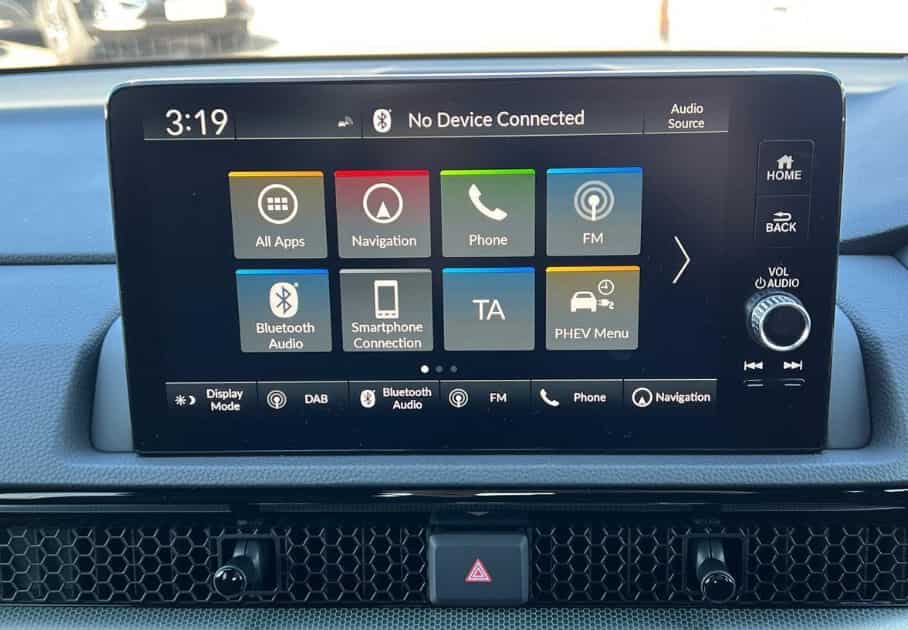
What Are the 12 Most Common Causes of Honda CR-V Bluetooth Problems?
Honda CR-V Bluetooth problems usually come from 12 main causes, including incorrect phone settings, outdated software, corrupted pairing data, device conflicts, and infotainment system errors. Identifying the exact cause helps drivers apply the correct fix instead of trying random solutions.
The first group of problems comes from the smartphone and Bluetooth connection process. A phone may block the connection because of disabled permissions, active connections with other devices, or outdated operating system settings. These issues often appear after changing phones, updating software, or connecting multiple devices to the vehicle.
The second group involves the Honda CR-V infotainment system. The vehicle stores Bluetooth pairing information, controls audio routing, and manages communication between the phone and the car. When this data becomes outdated or the system software has errors, Bluetooth performance can become unstable.
The third group includes hardware-related problems. These issues happen less often but require deeper inspection. A damaged microphone, Bluetooth module, or head unit can prevent successful pairing even when the phone works correctly with other devices.
Incorrect Bluetooth Settings Prevent the Phone From Connecting
Incorrect Bluetooth settings are one of the most common reasons why Honda CR-V Bluetooth does not work. The phone and vehicle must both enable Bluetooth discovery and allow communication before they can create a stable connection.
Many drivers check only the phone’s Bluetooth menu and forget to confirm the vehicle settings. The Honda CR-V infotainment system must also enter pairing mode before it can detect a new smartphone. If either side blocks discovery, the connection process will fail.
Phone permissions also affect Bluetooth functions. Modern smartphones separate Bluetooth access into different categories, including phone calls, media audio, contacts, and nearby device access. A phone may connect successfully but fail to play music or sync contacts if these permissions remain disabled.
For example, an iPhone may show the Honda CR-V as connected while blocking contact access. An Android phone may allow calls but disable media audio. Checking these settings often restores normal Bluetooth operation without requiring a system reset.
Old Paired Devices Create Bluetooth Connection Conflicts
The Honda CR-V stores previous smartphones inside its Bluetooth memory. When this list contains unused devices, the system may struggle to identify the correct phone or automatically connect to the wrong device.
This problem often appears in households where multiple drivers use the same vehicle. The infotainment system may prioritize the phone that connected most recently instead of the phone currently being used.
Removing unused devices helps the Honda CR-V create a cleaner Bluetooth connection environment. Drivers should delete old phones from both the vehicle system and the smartphone before creating a new pairing connection.
For example, a driver who replaces an old iPhone with a new Android phone may experience repeated connection failures until the previous Bluetooth profile disappears from the Honda CR-V memory.
How Do You Fix Honda CR-V Bluetooth That Will Not Connect?
Honda CR-V Bluetooth connection problems usually require a structured troubleshooting process. The fastest solution starts with simple checks, such as restarting Bluetooth, removing old connections, and pairing the phone again. More advanced fixes involve resetting the infotainment system, updating software, or checking for hardware problems.
The correct repair method depends on where the failure happens. If only one phone cannot connect, the smartphone settings usually cause the problem. If multiple phones fail to connect, the Honda CR-V Bluetooth system may have a software or hardware issue.
Restart Bluetooth and Reconnect the Phone
Restarting Bluetooth is the simplest fix for a Honda CR-V that cannot connect to a smartphone. This process clears temporary connection errors and allows both devices to create a new communication session.
Drivers should first turn Bluetooth off on the phone, wait several seconds, and turn it back on. The Honda CR-V system should also exit the Bluetooth menu and reopen the connection settings before attempting another pairing process.
A complete restart often works because Bluetooth connections depend on multiple background processes. A temporary error in phone software or vehicle software can interrupt communication even when both systems appear normal.
For example, a smartphone may display the Honda CR-V as available but fail during pairing because the previous connection process did not close correctly. Restarting both systems forces a new connection attempt.
Delete and Pair the Device Again
Deleting the existing Bluetooth connection and creating a new pairing profile fixes many Honda CR-V Bluetooth problems. Old connection data can contain incorrect permissions, outdated security information, or incomplete pairing records.
Drivers should remove the Honda CR-V from the phone’s Bluetooth list and delete the smartphone from the vehicle’s stored device list. After removing both records, they should restart the phone and pair the devices again.
This process creates a fresh Bluetooth profile between the smartphone and the vehicle. The new profile allows the Honda CR-V to request updated permissions for calls, music, contacts, and other connected features.
For example, a phone that recently received an iOS or Android update may keep an old Bluetooth profile that no longer matches the vehicle software. Re-pairing creates a new connection that matches the current system settings.
Remove Unused Bluetooth Devices From the Honda CR-V
Removing unused devices improves Bluetooth reliability because the Honda CR-V has limited memory for stored connections. A full device list can make pairing slower and increase connection conflicts.
Drivers should review the Bluetooth device list inside the infotainment system and remove smartphones that no longer use the vehicle. This step is especially important for families who share one Honda CR-V between several drivers.
A clean device list helps the system identify the correct smartphone faster. It also prevents automatic connection problems when multiple phones enter the vehicle at the same time.
For example, if three family members previously connected their phones but only one person drives regularly, removing the unused devices reduces unnecessary Bluetooth switching.
Why Is Honda CR-V Bluetooth Connected but Not Playing Music?
Honda CR-V Bluetooth can show a successful connection while still failing to play music because the vehicle and smartphone handle calls and media audio through different Bluetooth profiles. A phone can connect for hands-free calls but block music playback because of incorrect audio settings, permission restrictions, or another active audio source.
The first step is checking the selected audio source inside the Honda CR-V infotainment system. The vehicle must select Bluetooth Audio instead of other sources such as FM radio, USB, satellite radio, or another connected device. A correct Bluetooth connection does not automatically switch the vehicle to Bluetooth audio playback.
Phone settings also control media transmission. Android devices usually include a separate Media Audio permission, while iPhones manage audio access through Bluetooth settings and connected device permissions. If these options are disabled, the Honda CR-V can remain connected but cannot receive music from the phone.
For example, a driver may connect an Android phone successfully and make calls without problems. However, music will not play until the Media Audio option becomes active in the Bluetooth device settings.
Why Does Honda CR-V Bluetooth Connect but Have No Call Audio?
Honda CR-V Bluetooth call problems usually happen because the phone call profile, microphone settings, or audio permissions do not work correctly. The Bluetooth connection has two different functions: sending audio to the vehicle speakers and receiving voice input through the vehicle microphone.
Drivers should first check whether the phone allows call access through the Honda CR-V connection. A smartphone may connect but restrict phone calls if the permission request was rejected during the original pairing process.
The vehicle volume and phone volume also affect call performance. A low call volume setting can make drivers believe that Bluetooth calling has failed when the connection itself works correctly.
Microphone problems create another type of Bluetooth call failure. If callers cannot hear the driver, the issue may involve the vehicle microphone, microphone settings, or the infotainment system rather than the Bluetooth connection.
Testing the system with another smartphone helps identify the source of the problem. If multiple phones experience the same call issue, the Honda CR-V system requires further inspection.
Why Does Honda CR-V Bluetooth Keep Disconnecting?
Honda CR-V Bluetooth disconnects repeatedly when the system loses a stable connection with the smartphone. The most common causes include outdated pairing data, phone battery optimization settings, software conflicts, and multiple connected devices.
Old Bluetooth profiles can create unstable communication because the phone and vehicle continue using outdated connection information. Removing the old pairing record and creating a new connection often solves repeated disconnections.
Smartphone power-saving features can also interrupt Bluetooth performance. Some Android devices limit background processes to save battery, which can reduce connection stability between the phone and vehicle.
Software compatibility creates another common issue. A new phone operating system update may change Bluetooth behavior, while an older Honda CR-V infotainment system may not fully support the updated connection process.
For example, a smartphone may connect normally after starting the vehicle but disconnect after several minutes because the phone limits Bluetooth activity in the background.
How Can You Tell Whether the Problem Is the Phone or the Honda CR-V?
Determining whether the problem comes from the smartphone or the Honda CR-V Bluetooth system prevents unnecessary repairs. The easiest method is to test both sides separately and compare the results. A single failed phone usually points to a smartphone issue, while multiple failed phones usually indicate a vehicle system problem.
Start by connecting the smartphone to another Bluetooth device, such as wireless headphones or another vehicle. If the phone connects normally, the Bluetooth hardware on the phone works correctly. The problem may come from the Honda CR-V settings, stored connection data, or infotainment software.
Next, connect another smartphone to the Honda CR-V. If another phone works without problems, the original smartphone likely has incorrect settings, outdated software, or damaged Bluetooth data. If several phones fail to connect, the vehicle system requires further diagnosis.
The type of failure also helps identify the source. A phone that connects but cannot play music usually has a media audio setting problem. A phone that connects but cannot complete calls may have permission or microphone issues. A system that cannot detect any phone may have a pairing, software, or hardware failure.
For example, if an iPhone and Android phone both fail to appear in the Honda CR-V Bluetooth menu, the problem is unlikely to come from both phones at the same time. The vehicle system becomes the primary area to inspect.
How Do You Reset the Honda CR-V Bluetooth System?
Resetting the Honda CR-V Bluetooth system removes connection errors and restores the communication process between the vehicle and smartphone. The reset method depends on the Honda CR-V model year and infotainment system version.
The first reset step involves removing all saved Bluetooth devices. Drivers should delete the stored phone list from the Honda CR-V system and remove the vehicle connection from each smartphone. This action clears outdated pairing information that may prevent new connections.
A soft restart provides another solution when the infotainment system becomes slow or unresponsive. Turning off the vehicle, locking the doors, and allowing the system to shut down completely can clear temporary software problems.
Some Honda CR-V models also provide a factory reset option through the infotainment settings menu. This process removes personalized settings, saved devices, and system preferences. Drivers should use this option only when simpler solutions do not solve the Bluetooth problem.
For example, a Honda CR-V that repeatedly reconnects to an old phone may continue showing the same error until the stored Bluetooth data disappears. Resetting the connection creates a clean starting point for new pairing.
How Do You Update Honda CR-V Bluetooth and Infotainment Software?
Updating the Honda CR-V infotainment software can fix Bluetooth problems caused by compatibility issues. Vehicle software controls how the system communicates with smartphones, including newer iPhone and Android versions.
Drivers should check the current software version through the infotainment settings menu. If Honda provides a newer update for the specific model year, installing the update can improve connection stability and resolve known Bluetooth errors.
Software updates become especially important when a smartphone receives a major operating system change. A new iOS or Android version may introduce Bluetooth changes that older vehicle software does not handle correctly.
However, not every Bluetooth issue requires a software update. Drivers should complete basic troubleshooting steps first, including restarting Bluetooth, removing paired devices, and creating a new connection.
For example, a Honda CR-V that worked correctly with an older smartphone but fails after a phone upgrade may need updated vehicle software to maintain compatibility.
Are Honda CR-V Bluetooth Problems Different Across Model Years?
Honda CR-V Bluetooth problems can vary between model years because Honda has changed its infotainment systems, smartphone integration features, and connection technology over time. Older CR-V models usually use simpler Bluetooth systems, while newer models include advanced features such as Apple CarPlay, Android Auto, wireless smartphone integration, and updated Display Audio systems.
Older Honda CR-V models may experience Bluetooth issues because their systems have limited compatibility with newer smartphones. A phone released several years after the vehicle may use updated Bluetooth protocols that do not fully match the older infotainment software.
Newer Honda CR-V models usually have better smartphone compatibility, but they can still experience problems after phone operating system updates. A new iOS or Android update may change connection requirements and create temporary compatibility issues with the vehicle software.
The troubleshooting method depends on the system installed in the vehicle. A basic HandsFreeLink system requires different steps compared with a touchscreen Display Audio system. Drivers should identify their Honda CR-V model year and infotainment version before applying a reset or update.
For example, deleting a Bluetooth device from an older Honda CR-V may involve physical buttons, while a newer model may require navigating through a touchscreen settings menu. Using the correct procedure prevents unnecessary changes and reduces troubleshooting time.
When Should You Visit a Honda Dealer for Bluetooth Repair?
Honda CR-V owners should visit a dealer or qualified technician when basic troubleshooting steps fail and the Bluetooth system shows signs of deeper problems. Most connection issues come from settings or software, but some failures involve vehicle hardware.
A professional inspection becomes necessary when multiple smartphones cannot connect, the Bluetooth menu disappears, or the infotainment system repeatedly freezes or restarts. These symptoms suggest that the issue may involve the head unit, Bluetooth module, wiring, or vehicle software.
A technician can use diagnostic tools to check system errors, software versions, electrical connections, and communication between infotainment components. This process helps identify whether the repair requires a software update, component replacement, or another solution.
Drivers should also seek professional help when Bluetooth affects other vehicle functions. Problems such as a non-working microphone, failed steering wheel controls, or repeated screen failures may indicate a larger infotainment system issue.
For example, if three different smartphones fail to connect after deleting devices, resetting the system, and updating software, replacing phone settings will not solve the problem. The Honda CR-V system requires technical evaluation.
How Can You Prevent Honda CR-V Bluetooth Problems From Returning?
Preventing Honda CR-V Bluetooth problems requires maintaining both the smartphone and vehicle connection settings. Simple maintenance habits reduce connection errors and help the Bluetooth system work consistently.
Drivers should remove unused paired devices from the Honda CR-V memory. Keeping only active smartphones reduces connection conflicts and allows the vehicle to identify the correct device faster.
Updating smartphone software and Honda infotainment software also improves compatibility. Modern Bluetooth systems depend on communication between multiple software layers, so outdated versions can create connection failures.
Drivers should also review Bluetooth permissions after major phone updates. Operating system changes can reset access to contacts, calls, media audio, or nearby devices.
Restarting the infotainment system after repeated connection failures can prevent temporary software issues from becoming recurring problems. Regularly checking these settings keeps the Honda CR-V Bluetooth system stable over time.
For example, a driver who removes old devices, updates software, and checks permissions after replacing a phone will usually avoid repeated pairing problems.
What Are the Most Common Questions About Honda CR-V Bluetooth Problems?
Honda CR-V Bluetooth problems often create similar symptoms, but each issue has a different cause. Understanding the most common questions helps drivers identify the right solution before replacing parts or visiting a repair shop.
Why Is My Honda CR-V Not Finding My Phone?
Honda CR-V cannot find a phone when Bluetooth discovery is disabled, the device list is full, or old pairing data blocks a new connection. Drivers should turn on Bluetooth, activate pairing mode, and remove unused devices from the vehicle memory.
Why Does My Phone Say It Is Connected but Bluetooth Does Not Work?
A phone can show a Bluetooth connection while some features remain unavailable. Calls, music, and contact sharing use different Bluetooth settings. Drivers should check media audio, call permissions, and contact access to restore full functionality.
Will Resetting the Honda CR-V Delete Bluetooth Connections?
A factory reset removes saved Bluetooth devices, personal settings, and stored preferences. Drivers should try simpler solutions first, such as restarting Bluetooth and deleting old pairing data. A full reset works best when corrupted settings prevent normal connections.
Can a Honda Dealer Fix Bluetooth Problems?
A Honda dealer can diagnose advanced Bluetooth failures involving software, wiring, the head unit, or the Bluetooth module. Professional inspection becomes necessary when multiple phones fail to connect after completing standard troubleshooting steps.
Conclusion
Honda CR-V Bluetooth problems usually come from connection settings, outdated software, corrupted pairing data, or compatibility issues between the vehicle and smartphone. Most drivers can solve these problems by following a structured troubleshooting process instead of replacing hardware immediately.
Start with simple solutions such as checking Bluetooth permissions, removing old devices, and creating a new pairing connection. If the problem continues, check the Honda CR-V infotainment software and reset the system settings. These steps help identify whether the issue comes from the phone, Bluetooth configuration, or the vehicle system.
A stable Bluetooth connection depends on both the smartphone and the Honda CR-V working together correctly. Keeping software updated, removing unused devices, and reviewing connection settings after phone upgrades can prevent future problems.
When multiple phones fail to connect after completing basic troubleshooting, the issue may involve the head unit, Bluetooth module, or another vehicle component. In that situation, professional diagnosis can identify the correct repair.
By understanding the common causes and following the right fixing methods, Honda CR-V owners can restore reliable Bluetooth performance for hands-free calls, music streaming, and smartphone connectivity.