Hands Free Link usually stops working because the phone and vehicle cannot maintain a stable Bluetooth connection. The most common causes include corrupted pairing data, disabled phone permissions, outdated software, incorrect audio routing, competing Bluetooth devices, or a temporary infotainment system failure. In less common cases, the problem comes from a weak vehicle battery, a damaged microphone, a blown fuse, faulty wiring, or a failed Bluetooth control module.
Most Hands Free Link problems can be fixed without replacing parts. Start by restarting the phone and vehicle system. Next, confirm that Bluetooth is enabled and that the correct phone is selected. Remove the saved connection from both the phone and the vehicle, then complete the pairing process again. You should also check call permissions, contact sharing, media audio settings, and battery optimization controls.
The correct solution depends on the symptom. A phone that will not connect requires a different diagnostic process from a connected phone with no sound. Microphone failure, repeated disconnection, voice command errors, and problems after an iPhone or Android update also have separate causes.
This guide explains each failure type in a logical order. It will help you identify the source of the problem, apply the safest fix first, and recognize when the vehicle requires professional diagnosis.
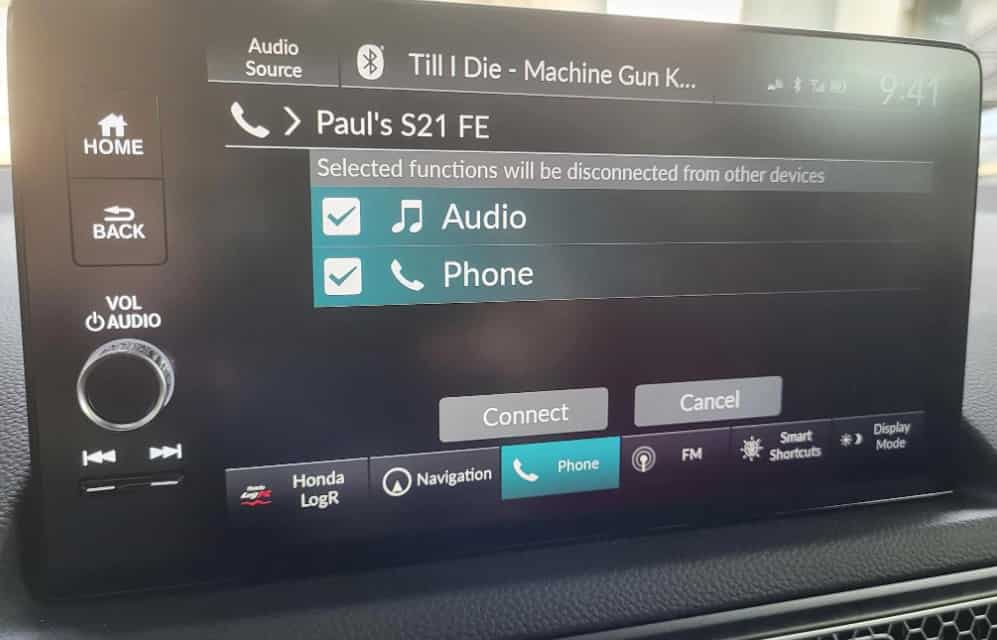
Why Is Hands Free Link Not Working?
Hands Free Link usually stops working because your phone and the Honda infotainment system cannot maintain a stable Bluetooth connection. Corrupted pairing data, missing phone permissions, outdated software, and competing Bluetooth devices cause most connection failures. Hardware problems occur less often, but they can stop the entire system from working.
Corrupted Bluetooth pairing data is one of the most common causes. Every time you pair a phone, both devices store authentication information. An operating system update, repeated pairing attempts, or a software error can damage these records. As a result, the phone may appear in the paired device list but fail to connect automatically. In other cases, Hands Free Link connects for a few seconds before it disconnects again because the authentication records no longer match.
Incorrect phone settings can also interrupt the connection. Bluetooth must stay enabled throughout the pairing process. The phone also needs permission to access contacts, call history, notifications, and media audio. If you disable one of these permissions, Hands Free Link may still connect. However, calling, contact synchronization, or message access may stop working. Android battery optimization can also restrict Bluetooth activity in the background and create unstable connections.
Outdated software often creates compatibility problems. Honda regularly improves infotainment software to support newer smartphone operating systems. Apple and Google also change Bluetooth behavior through iOS and Android updates. If either device runs outdated software, the connection may become unstable or fail completely. Installing the latest software on both the phone and the vehicle often restores normal operation.
Some failures originate inside the vehicle instead of the phone. A weak battery can interrupt the infotainment system during startup. A blown fuse can disable Bluetooth functions or the audio system. Faulty wiring, a damaged microphone, or a defective Hands Free Link module can also prevent calls and voice commands from working. If several compatible phones show the same symptoms after a complete reset, the vehicle itself is the most likely source of the problem.
What Should You Check First When Hands Free Link Stops Working?
Start with the simplest checks before you delete pairing data or reset the infotainment system. Many Hands Free Link problems result from temporary Bluetooth errors rather than hardware failures. A structured troubleshooting process saves time and prevents unnecessary changes to the vehicle settings.
First, confirm that Bluetooth is enabled on your phone and that the correct device is available for pairing. Then restart your phone to clear temporary Bluetooth processes that may interrupt communication. After that, turn the vehicle off completely and wait for the infotainment system to shut down before starting the engine again. This simple restart often restores communication between the phone and the vehicle.
Next, make sure Hands Free Link is trying to connect to the correct phone. Honda vehicles can store several paired devices, but the system normally connects to only one phone at a time. If another family member’s phone connects first, your phone may remain disconnected even though it appears in the paired device list. Disconnect unused devices or temporarily disable Bluetooth on nearby phones to eliminate connection conflicts.
You should also verify the phone’s Bluetooth permissions. Hands Free Link requires access to contacts, call history, notifications, and media audio for all features to work correctly. If the phone blocks one of these permissions, the Bluetooth connection may succeed while calling or contact synchronization fails. This situation is common after major iOS or Android updates because the operating system may reset privacy settings.
Finally, make a short test call while the vehicle is parked. Confirm that the phone connects automatically, the audio plays through the vehicle speakers, and the microphone captures your voice clearly. If every basic check succeeds but the problem remains, continue with the pairing process instead of repeating the same tests. This approach helps you isolate the root cause and move to the next troubleshooting step with confidence.
How Do You Reconnect a Phone to Honda Hands Free Link?
Reconnecting your phone is the most effective solution when Hands Free Link cannot establish a stable Bluetooth connection. This process removes corrupted pairing data and creates a new authentication record between the phone and the vehicle. In many cases, reconnecting the device restores normal Bluetooth functions without requiring a factory reset or dealership service.
Begin by deleting the existing Bluetooth connection from both devices. Open the Bluetooth settings on your phone and remove the Honda Hands Free Link profile. Next, access the paired device menu in the vehicle and delete your phone from the saved list. Restart both the phone and the infotainment system after removing the connection. This step clears temporary Bluetooth information and prevents the system from reusing damaged pairing records.
Once both devices restart, place the vehicle in Park and enable Bluetooth on your phone. Open the Hands Free Link pairing menu and select the option to add a new device. When the Honda system appears on your phone, tap it to begin pairing. Verify that the security code matches on both screens before confirming the connection. A successful pairing creates a secure communication channel for calls, contacts, messages, and Bluetooth audio.
After the connection is complete, approve every permission request on your phone. Allow access to contacts, call history, notifications, and media audio. These permissions enable Hands Free Link to display caller information, synchronize contacts, and support hands free calling. If you deny one or more permissions, the Bluetooth connection may still work, but several features may remain unavailable.
Finish the process by testing the connection before driving. Turn the vehicle off and restart it to confirm that your phone reconnects automatically. Make a short phone call and stream audio through the vehicle speakers. Then activate a voice command to verify that the microphone responds correctly. If the system reconnects automatically and every function works as expected, the pairing process has resolved the problem. If the issue continues, the next step is to reset Hands Free Link and eliminate deeper software conflicts.
How Do You Reset Honda Hands Free Link?
Resetting Hands Free Link can restore normal Bluetooth operation when reconnecting your phone does not solve the problem. A reset removes temporary software errors, clears outdated Bluetooth records, and allows the infotainment system to start with fresh settings. However, you should always try basic troubleshooting before choosing this option because a reset may erase saved devices and personal preferences.
Start with a simple system restart. Turn the vehicle off completely and wait until the infotainment system shuts down. Leave the vehicle off for about one minute before restarting it. Some Honda models also allow you to reboot the infotainment system by pressing and holding the audio power button for several seconds. This restart refreshes the Bluetooth module without removing any saved data, making it the safest option for temporary connection problems.
If the issue continues, clear the list of paired phones from the Hands Free Link menu. Over time, the system can store multiple devices, and old connections may interfere with the current one. Removing every saved phone forces the infotainment system to create new Bluetooth records during the next pairing process. After clearing the list, restart your phone and pair it again as if it were connecting for the first time.
A factory reset should become the final troubleshooting step. Use this option only after restarting the system, reconnecting your phone, and confirming that software updates do not resolve the issue. A factory reset can erase paired phones, radio presets, navigation preferences, and other customized settings. Review the owner’s manual before you begin because the reset procedure varies between Honda models and infotainment systems.
After completing the reset, pair only one compatible phone and test every Hands Free Link feature. Make a phone call, stream Bluetooth audio, access your contacts, and activate voice commands. If every function works normally, the problem likely resulted from corrupted settings or pairing data. If the same issue returns with multiple phones, the vehicle may have a software, electrical, or hardware fault that requires professional diagnosis.
Why Does Hands Free Link Connect but Have No Sound?
Hands Free Link can connect successfully but still produce no sound because the audio is not routed through the vehicle speakers. In most cases, the Bluetooth connection remains active, but the phone sends call audio to its internal speaker or another paired device. Incorrect audio settings, disabled call permissions, or temporary software errors can also prevent sound from playing through the vehicle.
Start by checking the audio output during a phone call. Most smartphones allow you to switch between the phone speaker, Bluetooth devices, and other connected accessories. Select Honda Hands Free Link as the active audio output and confirm that the call transfers to the vehicle speakers. If another Bluetooth headset, wireless earbuds, or smartwatch is connected, disconnect it and test the call again. Multiple Bluetooth devices often compete for audio priority and create unexpected routing problems.
Next, review the Bluetooth settings on your phone. Open the Honda Hands Free Link connection and confirm that Phone Calls and Media Audio are both enabled. If call audio is disabled, the phone may connect normally while every conversation continues through the handset. You should also increase the call volume from both the phone and the vehicle because many Honda models store a separate volume level for Bluetooth calls.
Software conflicts can also interrupt audio playback. A recent iOS or Android update may change Bluetooth permissions or reset audio preferences without warning. Restart both the phone and the infotainment system, then make another test call. If the sound returns after the restart, a temporary software process likely caused the problem. Installing the latest software updates can reduce the chance of the issue returning.
If the connection works but every call remains silent after these checks, test the system with another compatible phone. When a second device produces normal audio, the original phone is the most likely cause. However, if every phone shows the same symptom, the problem may involve the infotainment system, Bluetooth module, amplifier, or another vehicle component. At that point, a professional inspection becomes the most reliable solution.
Why Can the Other Person Not Hear You Through Hands Free Link?
If the other person cannot hear you through Hands Free Link, the problem usually affects the microphone or the Bluetooth call path instead of the connection itself. Your phone may connect successfully and play audio through the vehicle speakers, but your voice never reaches the caller. This issue often results from incorrect microphone selection, disabled call permissions, or a fault within the vehicle’s audio system.
Start by confirming that the call is using Hands Free Link instead of the phone’s internal microphone. During an active call, check the audio output on your phone and make sure Honda Hands Free Link remains selected. If the phone switches to its built in speaker or another Bluetooth device, the caller may receive little or no audio. Disconnect wireless earbuds, smartwatches, or other Bluetooth accessories before testing again because they can interrupt the active call path.
Next, inspect the phone’s Bluetooth permissions. Hands Free Link requires permission to manage phone calls and communicate through Bluetooth. If these permissions are restricted after an operating system update, the connection may remain active while the microphone stops transmitting audio. Open the Bluetooth settings, review the Honda connection, and verify that every calling feature remains enabled.
You should also test the vehicle microphone. Park the vehicle in a quiet location and make a short call. Speak in a normal voice and ask the other person to confirm whether your voice sounds clear. Then activate a voice command and check whether the infotainment system recognizes your speech. If voice commands also fail, the microphone or its wiring may require inspection because both features rely on the same hardware.
Finally, compare the results with another compatible phone. If both devices produce the same symptom, the problem most likely originates inside the vehicle. A damaged microphone, loose wiring, or a faulty Hands Free Link control module can prevent voice transmission even though Bluetooth appears connected. If only one phone experiences the issue, reinstall the Bluetooth connection and update the phone’s operating system before considering vehicle repairs.
Why Does Hands Free Link Disconnect Repeatedly?
Hands Free Link usually disconnects because something interrupts the Bluetooth connection after pairing succeeds. The interruption may come from your phone, the infotainment system, or another Bluetooth device. In most cases, the issue relates to software settings rather than a hardware failure. Finding the source requires a systematic approach because several factors can produce the same symptom.
One common cause is Bluetooth interference from multiple paired devices. Many Honda vehicles remember several phones and automatically connect to the highest priority device. If another phone enters the vehicle with Bluetooth enabled, Hands Free Link may switch connections or repeatedly search for a different device. Remove unused phones from the pairing list and keep only one active device during testing. This simple change often eliminates random disconnections.
Power management settings can also affect Bluetooth stability. Many Android phones restrict background activity to extend battery life, while iPhones may temporarily suspend Bluetooth processes after major system updates. These settings can interrupt communication even when the Bluetooth icon remains active. Disable battery optimization for Bluetooth-related services and confirm that the phone allows background activity. After making the changes, restart the phone and reconnect it to the vehicle.
Outdated software is another frequent cause of unstable connections. Smartphone manufacturers regularly update Bluetooth drivers, while Honda releases infotainment updates to improve compatibility with newer operating systems. If either device runs outdated software, the connection may become unreliable. Install the latest available updates on both the phone and the vehicle before performing additional troubleshooting. This step resolves many recurring Bluetooth issues without changing any hardware.
If the problem continues, inspect the vehicle for electrical issues. A weak battery can reduce system voltage during startup and interrupt the Bluetooth module. A failing infotainment unit or Bluetooth control module can also disconnect unexpectedly even when the phone functions normally. Test Hands Free Link with another compatible phone to identify the source. If multiple devices disconnect in the same way after reconnecting and resetting the system, the vehicle likely requires professional diagnosis.
How Do You Fix Hands Free Link After a Phone Update?
A phone update can change Bluetooth settings, permissions, or compatibility, causing Hands Free Link to stop working. Many users notice connection problems immediately after installing a new version of iOS or Android. The update may remove Bluetooth permissions, reset privacy settings, or replace stored pairing data. As a result, the phone may no longer communicate correctly with the Honda infotainment system.
Start by restarting both the phone and the vehicle. This simple step reloads Bluetooth services and clears temporary software conflicts that often appear after a major operating system update. Once both devices restart, verify that Bluetooth remains enabled and that Honda Hands Free Link appears in the paired device list. If the connection does not restore automatically, continue with the remaining checks instead of pairing the phone repeatedly.
Next, review every Bluetooth permission on your phone. Confirm that Hands Free Link has access to contacts, phone calls, notifications, and media audio. Android users should also check the Nearby Devices permission because recent Android versions require it for stable Bluetooth communication. iPhone users should confirm that Bluetooth access remains enabled in the privacy settings and that contact synchronization is active. Missing permissions often allow the phone to connect while preventing important features from working correctly.
If the problem continues, remove the Bluetooth connection from both the phone and the vehicle. Restart each device before creating a new pairing. This process replaces outdated authentication records that may no longer work after the software update. Pair the phone again, approve every permission request, and complete a test call to confirm that audio, contacts, and voice functions operate normally.
Finally, check whether newer software updates are available. Smartphone manufacturers frequently release maintenance updates to correct Bluetooth issues reported after major operating system releases. Honda may also publish infotainment updates that improve compatibility with newer devices. If Hands Free Link still fails after updating, reconnecting, and resetting the system, test another compatible phone. Similar results with multiple phones usually indicate a vehicle-side issue rather than a problem with the recent phone update.
Can Apple CarPlay or Android Auto Interfere With Hands Free Link?
Yes, Apple CarPlay and Android Auto can affect how Hands Free Link manages Bluetooth connections, calls, and media audio. Although these systems work with Hands Free Link, they do not always use Bluetooth in the same way. A configuration change or software conflict can cause calls, voice commands, or audio to behave differently even when the phone appears connected.
Hands Free Link relies on Bluetooth to support hands free calling and voice communication. Apple CarPlay and Android Auto expand those functions by integrating navigation, messaging, music, and voice assistants into the infotainment system. When CarPlay or Android Auto starts, the system may transfer call handling and audio routing away from the standard Bluetooth profile. As a result, Hands Free Link may appear connected while another platform controls phone calls and media playback.
Connection conflicts often occur after switching between wired and wireless connections. For example, a phone may reconnect to Bluetooth after you unplug the USB cable, but the infotainment system may continue using the previous audio profile. Similar issues can occur when wireless Apple CarPlay or Android Auto reconnects automatically before Hands Free Link finishes the Bluetooth connection. Restarting both the phone and the infotainment system usually restores the correct communication path.
If you experience connection problems, temporarily disable Apple CarPlay or Android Auto and test Hands Free Link by itself. Make a phone call, stream Bluetooth audio, and activate a voice command. If every feature works normally, the issue likely involves the smartphone projection system rather than Hands Free Link. Reconnect CarPlay or Android Auto afterward and check whether the problem returns. This comparison helps identify which system creates the conflict.
Keeping both the smartphone and the infotainment software up to date also improves compatibility. Software updates often resolve communication issues between Bluetooth, Apple CarPlay, Android Auto, and Hands Free Link. If conflicts continue after updating every system, consult your Honda owner’s manual or contact a Honda dealer to determine whether your vehicle requires a software update or a model-specific compatibility fix.
Does Hands Free Link Need a Software Update?
A software update may solve Hands Free Link problems when basic troubleshooting does not restore a stable Bluetooth connection. Honda periodically releases infotainment updates to improve Bluetooth performance, increase smartphone compatibility, and correct software bugs. Phone manufacturers also update Bluetooth drivers through iOS and Android releases. If either system runs outdated software, Hands Free Link may develop connection, audio, or voice command issues.
Software compatibility becomes more important as smartphones receive new operating system updates. A phone running the latest version of iOS or Android may introduce Bluetooth changes that older infotainment software cannot handle correctly. This mismatch can cause pairing failures, unexpected disconnections, delayed contact synchronization, or missing call audio. Installing the latest available software on both devices often restores compatibility without replacing any hardware.
Several signs suggest that your vehicle may need an update. Hands Free Link may disconnect repeatedly even after you reconnect the phone. Voice commands may stop responding without any microphone problem. Bluetooth pairing may fail with multiple compatible phones, or the infotainment screen may freeze while connecting. These symptoms often indicate a software issue instead of a defective Bluetooth module.
Before searching for updates, verify that the problem does not originate from your phone. Install the latest operating system version, restart the device, and create a new Bluetooth pairing. If the same issue appears with another compatible phone, inspect the vehicle software next. This process helps eliminate device-specific problems before you modify the infotainment system.
Honda uses different update methods depending on the vehicle model and infotainment system. Some vehicles support over the air updates through a wireless connection. Others require a USB installation or a software update performed by a Honda dealership. Check the owner’s manual or the official Honda support resources to confirm which update method applies to your vehicle. If the software is already current and the problem remains, the Bluetooth control module or another vehicle component may require professional diagnosis.
Can a Weak Battery, Blown Fuse, or Hardware Fault Cause the Problem?
Yes, electrical and hardware problems can prevent Hands Free Link from working even when the Bluetooth settings are correct. These issues are less common than pairing or software errors, but they become more likely after basic troubleshooting fails. If Hands Free Link shows the same symptoms with multiple compatible phones, you should inspect the vehicle instead of focusing on the phone.
A weak vehicle battery can affect the infotainment system before you notice other electrical problems. During engine startup, low voltage may interrupt the Bluetooth module or delay the system from loading correctly. You may also notice a slow infotainment startup, a clock that resets, or other electronic features behaving unexpectedly. If these symptoms appear together, test the battery before replacing any infotainment components.
A blown fuse can also disable Hands Free Link or related systems. Depending on the Honda model, the Bluetooth module, audio unit, or infotainment system may share electrical circuits with other accessories. When a fuse fails, the system may lose power completely or operate only part of its functions. Always replace a blown fuse with one that matches the original amperage. If the replacement fuse fails again, stop troubleshooting and inspect the electrical system because another fault is likely present.
Hardware failures usually develop gradually, although they can also appear after an accident or electrical repair. A damaged microphone may prevent callers from hearing your voice even when Bluetooth connects successfully. Faulty steering wheel controls can stop voice commands from responding, while damaged wiring or a defective Bluetooth control module can interrupt pairing, audio, and contact synchronization. These problems rarely improve after reconnecting the phone or resetting the infotainment system.
The easiest way to identify a vehicle side problem is to test Hands Free Link with another compatible phone. If every phone shows the same connection, audio, or microphone issue, the vehicle is the most likely source of the fault. At that stage, professional diagnostic equipment can identify failed modules, damaged wiring, or stored fault codes much faster than repeated Bluetooth troubleshooting.
When Should You Take the Vehicle to a Honda Dealer?
You should take your vehicle to a Honda dealer when basic troubleshooting no longer improves Hands Free Link performance. Most Bluetooth problems disappear after reconnecting the phone, resetting the infotainment system, or installing software updates. If the same issue returns after every recommended step, the problem likely involves the vehicle rather than the phone.
One clear warning sign is repeated failure with multiple compatible phones. Connect a second phone that supports Hands Free Link and complete the pairing process from the beginning. If both devices experience the same connection, audio, or microphone problem, the vehicle is the common factor. This result often points to a faulty Bluetooth module, damaged wiring, or another infotainment system issue.
You should also seek professional diagnosis if the infotainment system freezes, restarts unexpectedly, or cannot enable Bluetooth. These symptoms usually indicate a deeper software or hardware fault that standard troubleshooting cannot resolve. In some cases, Honda technicians may identify service bulletins or software updates that are unavailable through normal user settings.
Persistent microphone and voice command failures also require professional inspection. If callers cannot hear your voice and the system fails to recognize voice commands with several phones, the microphone circuit may have failed. Steering wheel controls, wiring connectors, or the Hands Free Link control module may also require testing. These components need specialized diagnostic equipment that most owners do not have.
Before visiting a Honda dealer, collect a few important details about the problem. Record your vehicle model, model year, phone model, and operating system version. Note when the issue started and list the troubleshooting steps you have already completed. This information helps technicians reproduce the fault more quickly and reduces unnecessary diagnostic time. A detailed description also increases the chance of identifying intermittent software or electrical problems during the first inspection.
How Can You Prevent Future Hands Free Link Problems?
You can prevent most Hands Free Link problems by keeping both your phone and your Honda infotainment system properly maintained. Bluetooth issues rarely appear without a cause. They usually develop after software updates, incorrect settings, or changes to paired devices. A few simple habits can significantly improve connection stability and reduce future troubleshooting.
Keep your smartphone and vehicle software up to date. New versions of iOS, Android, and Honda infotainment software often include Bluetooth compatibility improvements and bug fixes. Installing updates promptly reduces the risk of pairing failures, audio interruptions, and unexpected disconnections. After a major operating system update, verify that Bluetooth permissions, contact synchronization, and phone call access remain enabled because these settings may reset automatically.
Maintain a clean Bluetooth pairing list. Hands Free Link stores information for multiple devices, but an excessive number of saved phones can create connection conflicts. Remove devices you no longer use and keep the primary phone at the highest connection priority whenever your Honda model supports this feature. If another family member frequently drives the vehicle, ensure each phone connects intentionally instead of competing for the Bluetooth connection.
Good battery health also contributes to reliable performance. A weak vehicle battery can affect the infotainment system during startup, while an extremely low phone battery may activate aggressive power-saving features that interrupt Bluetooth communication. Keeping both batteries in good condition helps maintain a stable connection during everyday driving.
Finally, avoid waiting until a small problem becomes a persistent failure. If Hands Free Link disconnects occasionally, loses audio, or struggles to reconnect after a phone update, address the issue immediately by checking settings, reconnecting the phone, or installing available software updates. Early troubleshooting prevents minor software conflicts from becoming long-term connectivity problems and helps Hands Free Link continue providing reliable hands-free calling, audio streaming, and voice control.
Conclusion: What Is the Fastest Way to Fix Hands Free Link?
The fastest way to fix Hands Free Link is to restart the phone and vehicle system, remove the existing Bluetooth connection, and pair the devices again. Most connection problems come from temporary software conflicts, outdated pairing information, or incorrect phone permissions. These issues usually require configuration changes rather than hardware replacement.
Start with the simplest solution by checking Bluetooth settings, restarting both devices, and confirming that your phone has permission to access calls, contacts, and audio. If the problem continues, remove the saved pairing from both the phone and the vehicle before creating a new connection. This process clears old authentication data and gives Hands Free Link a fresh Bluetooth connection.
When basic fixes do not work, continue with deeper troubleshooting. Check for software updates, test another compatible phone, and inspect possible vehicle issues such as a weak battery, damaged microphone, or infotainment system fault. Testing another phone is one of the most effective ways to determine whether the problem comes from the device or the vehicle.
A properly working Hands Free Link system depends on three elements working together: a compatible smartphone, stable Bluetooth communication, and a functioning Honda infotainment system. By following the correct troubleshooting order, most owners can identify the cause quickly and restore hands free calling, audio, and voice command features without unnecessary repairs.