A Toyota Gracenote Database Update refreshes the music metadata used by compatible Toyota multimedia systems to identify and display information such as song titles, artists, and albums. Updating the database can help when an older Gracenote version does not contain metadata for newer music, but the update process is not identical across every Toyota vehicle.
The correct update method depends on the vehicle’s model year and, more importantly, the multimedia or head-unit system installed in the vehicle. Some compatible systems support a manual Gracenote database update, while other Toyota multimedia generations use different update methods or do not provide the same user-accessible Gracenote update function. For this reason, drivers should identify their multimedia system and check the installed database version before downloading or installing an update.
This guide explains how to check the Toyota Gracenote database version, determine whether an update is compatible with your multimedia system, perform the update, verify that it was installed successfully, and troubleshoot common update problems. It also distinguishes a Gracenote database update from Toyota multimedia software and navigation map updates, which update different types of vehicle data.
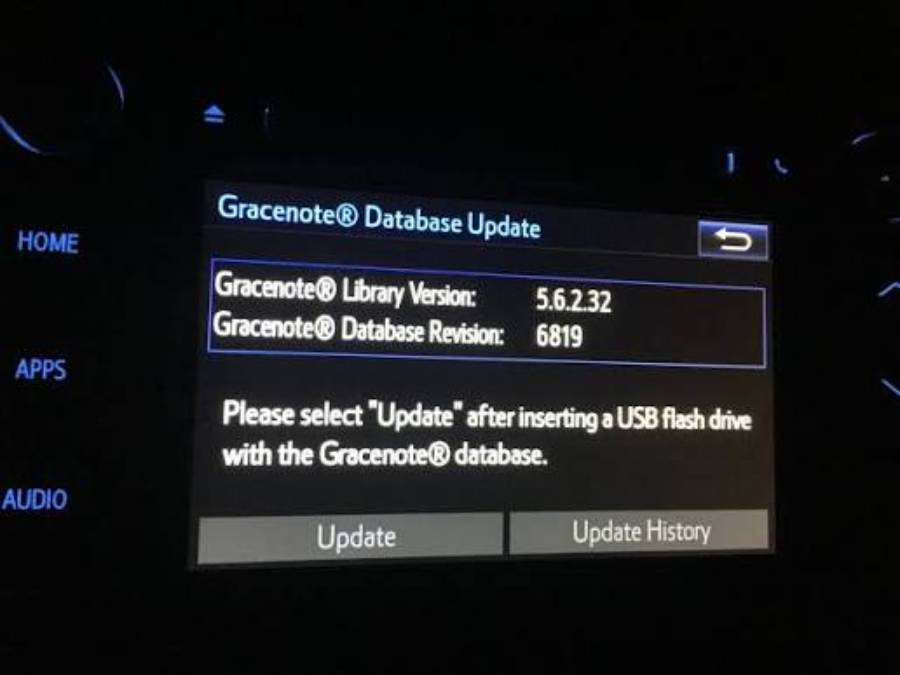
What Is the Gracenote Database in a Toyota?
The Gracenote database in a Toyota provides music metadata that a compatible multimedia system can use to identify and display information about audio content. Instead of relying only on basic information supplied by the media source, the system can use Gracenote data to associate recognized music with details such as the song title, artist, and album.
The database works as a data layer within the multimedia experience rather than as the multimedia operating software itself. When compatible audio content is played, the system can use available identifying information and its Gracenote data to determine what metadata should be displayed. For example, a recognized track may appear with its artist and album information rather than incomplete or generic media information.
A Gracenote database update therefore has a narrower purpose than a complete Toyota multimedia software update. It refreshes the database used for media information; it does not automatically update the multimedia system’s firmware, navigation maps, or every infotainment feature. This distinction is important because a driver looking for newer music information may need a Gracenote update, while a driver experiencing a system-level multimedia problem may need a different type of update.
How Do You Check the Gracenote Database Version on a Toyota?
Check the Gracenote database version through the version or system-information area of the Toyota multimedia system, when that system provides a user-accessible Gracenote version screen. The exact menu path depends on the multimedia or head-unit generation installed in the vehicle, so one menu sequence should not be assumed to apply to every Toyota model and model year.
The version number identifies the Gracenote database currently installed on the multimedia system. This information should be recorded before attempting an update because it provides a baseline for determining whether a newer compatible database is available and for confirming whether an installation succeeds. For example, if the version displayed after an update is identical to the version recorded beforehand, the update may not have changed the installed database.
Drivers should also identify the multimedia system rather than relying only on the Toyota model name. Two vehicles carrying the same model name can use different multimedia generations across model years or equipment configurations. As a result, an update intended for one head unit should not be treated as compatible simply because it is associated with the same Toyota vehicle line.
An outdated Gracenote database should also not be diagnosed from incorrect or missing music information alone. Missing album, artist, or track information can indicate a database limitation, but the displayed metadata also depends on the media source and the capabilities of the multimedia system. The reliable sequence is to identify the installed system, record its current Gracenote version, and then compare that information with the update requirements applicable to that system.
How Do You Find the Correct Gracenote Update for Your Toyota?
Find the correct Toyota Gracenote update by matching the update to the multimedia system installed in the vehicle, rather than selecting a file based only on the Toyota model name. The vehicle model and model year help identify the possible multimedia configuration, but the head unit or multimedia generation determines whether a specific Gracenote database update is applicable.
Start by identifying 4 pieces of information: the Toyota model, model year, installed multimedia system, and current Gracenote database version. These details establish whether an available update belongs to the same system configuration. For example, two Toyota vehicles from different model years can share a model name while using different generations of multimedia hardware and software. An update designed for one generation should not be assumed to work with the other.
The current database version provides another compatibility checkpoint. Compare the installed version with the version specified for the applicable update before starting the installation. This prevents unnecessary installation attempts when the same database version is already installed and reduces the risk of using an update intended for another multimedia system.
How Do You Verify That a Gracenote Update Is Compatible With Your Toyota?
Verify compatibility by matching the update requirements with your vehicle and multimedia-system information before copying or installing any files. The verification sequence is: identify the vehicle and model year, confirm the multimedia or head-unit system, check the installed Gracenote version, and then confirm that the available database update explicitly applies to that configuration.
Do not treat the availability of a downloadable Gracenote file as proof that it is compatible with every Toyota multimedia system. Toyota has used different infotainment systems across vehicles and model years, and update procedures can differ between generations. The update instructions supplied for the applicable system should therefore take priority over a generic Gracenote update procedure found for another Toyota.
Compatibility should be established before the installation begins. If the multimedia system cannot be confidently matched to the update requirements, do not install the file until the correct system and update package have been identified. This is especially important when using a USB-based update because the multimedia system must be able to recognize both the storage media and the applicable update data.
How Do You Update the Gracenote Database on a Toyota?
Update the Toyota Gracenote database by obtaining the compatible update for the installed multimedia system, preparing the required update media, starting the database update through the supported multimedia interface, and verifying the database version after installation. The exact buttons, menu path, file requirements, and update method vary by multimedia generation, so there is no single installation sequence that should be applied to every Toyota vehicle.
Before starting, record the current Gracenote database version and confirm that the new update applies to the installed multimedia system. Follow the update instructions associated with that system rather than instructions based solely on another Toyota model. This prevents a common compatibility problem: using a valid Toyota-related update that was created for a different head unit.
What Do You Need Before Updating the Toyota Gracenote Database?
Prepare the correct update package, the multimedia-system information, the current Gracenote version, and the required installation media before starting the update. A USB flash drive is required only when the applicable Toyota multimedia system uses a USB-based Gracenote update procedure.
The update file must remain in the structure and format required by the applicable installation instructions. Renaming files, placing them in an unsupported folder structure, or using an update intended for another multimedia generation can prevent the head unit from detecting the database. The USB drive itself must also meet the requirements of the multimedia system when USB installation is used.
The multimedia system should remain powered throughout the installation. Interrupting power while an update is being processed can prevent the procedure from completing correctly. Follow any vehicle-operation or power instructions supplied with the applicable Toyota update procedure rather than turning the vehicle or multimedia system off during installation.
How Do You Install the Toyota Gracenote Database Update?
Install the update by loading the compatible database package through the update method supported by your Toyota multimedia system and allowing the installation to finish before removing the update media or switching off the system. For Toyota systems that support manual USB installation, the general process consists of preparing the update files, connecting the USB drive, opening the applicable update function, selecting the Gracenote database update, and confirming installation.
First, prepare the update media according to the requirements for the specific multimedia system. Place the required files in the specified location on the USB drive without changing their names or directory structure unless the instructions explicitly require it. Connect the prepared USB drive to the supported USB port after the update media is ready.
Next, access the multimedia system’s applicable software, database, or system-update area and allow the head unit to detect the update. Review the version information displayed before confirming installation. The new database should correspond to the update that was previously verified as compatible with the vehicle’s multimedia system.
Allow the installation process to reach its completion state before removing the USB drive or shutting down the multimedia system. After installation, return to the system-information or database-version screen and check the Gracenote version again. Comparing this number with the version recorded before installation provides a direct way to determine whether the database was changed successfully.
How Do You Confirm That the Toyota Gracenote Update Was Successful?
Confirm a Toyota Gracenote database update by checking that the installed database version has changed to the expected version and then testing whether the multimedia system can use the updated music metadata. Version verification is the primary check because an installation message alone does not establish which database version is currently installed.
Return to the same system-information or database-version area used before the update and locate the Gracenote version. Compare this number with the version recorded before installation and the version identified in the update package. A successful update should leave the multimedia system displaying the database version expected from the installed package.
Functional testing provides a second verification step. Play compatible audio content and check whether the multimedia system identifies and displays available information such as the track title, artist, and album. This test determines whether the Gracenote functionality is operating after the update rather than checking only whether the installation procedure reached its final screen.
Incorrect metadata for an individual song does not prove that the update failed. Gracenote database coverage, the information available from the media source, and the multimedia system’s capabilities can all affect what appears on the screen. Use the installed database version as the primary verification method and metadata behavior as a secondary functional check.
Why Is the Toyota Gracenote Database Update Not Working?
A Toyota Gracenote database update can fail when the multimedia system cannot recognize the update package, the update is incompatible with the installed head unit, or the installation cannot complete correctly. Troubleshooting should therefore follow the update sequence rather than repeatedly attempting the same installation.
First, determine where the process stops. An update that never appears in the multimedia system has a different failure point from an update that is detected but fails after installation begins. This distinction narrows the problem to recognition, compatibility, or installation instead of treating every failed attempt as the same Gracenote error.
Why Does Toyota Not Recognize the Gracenote Update File?
The Toyota multimedia system may not recognize a Gracenote update when the file, storage media, file structure, or update package does not meet the requirements of that multimedia system. Start by confirming that the downloaded update corresponds to the installed head unit and not merely to the Toyota model name.
Check the update files next. The multimedia system must be able to find them in the location and structure expected by its update procedure. Moving required files into additional folders, changing filenames, or altering the supplied file structure can prevent detection. Recheck the original update instructions before modifying or downloading the package again.
For a USB-based procedure, verify that the multimedia system recognizes the USB device itself. If the head unit cannot access the storage device, it cannot reach the Gracenote update stored on it. A recognized USB device but an unrecognized update package points more strongly toward the file structure, update data, or compatibility rather than the physical USB connection alone.
Why Does the Gracenote Update Fail During Installation?
An update that starts but does not complete should be checked for package compatibility, update integrity, installation requirements, and interruptions during the procedure. This failure occurs later than a file-recognition problem because the multimedia system has already detected at least part of the update process.
Reconfirm the multimedia-system identity and compare it with the requirements of the update package. A Toyota-branded or Gracenote-related file should not be assumed to be interchangeable between different multimedia generations. Using the correct database for the installed head unit is more important than finding an update associated with the same vehicle model.
The update process should also remain uninterrupted according to the applicable installation instructions. Do not remove the update media, switch off the multimedia system, or interrupt the required vehicle power state while installation is in progress. After a failed attempt, restart the verification process from the current database version instead of assuming that the new database was partially or successfully installed.
If the Gracenote version remains unchanged after the procedure reports completion, verify the update package and compatibility again before repeating the installation. Persistent failure after the correct system, database version, media, and update package have been verified indicates that model-specific Toyota documentation or qualified Toyota support is needed. A generic procedure should not override instructions for the multimedia system installed in the vehicle.
Do All Toyota Models Support Gracenote Database Updates?
Not all Toyota vehicles support the same user-accessible Gracenote database update method. Gracenote functionality and the available update procedure depend on the multimedia system installed in the vehicle, so compatibility should be determined from the head unit or multimedia generation rather than from the Toyota model name alone.
Toyota has used different multimedia systems across model years, trim levels, and markets. This means two vehicles from the same model line can have different infotainment hardware or software and therefore different Gracenote capabilities. For example, instructions that apply to an older multimedia head unit should not automatically be applied to a newer system simply because both units are installed in the same Toyota model line.
Model year remains useful because it helps narrow down which multimedia systems could have been installed in the vehicle. However, it is not sufficient by itself to establish Gracenote update compatibility. The more reliable identification sequence is Toyota model → model year → multimedia system/head unit → installed Gracenote version → supported update method.
Newer Toyota multimedia systems should also not be assumed to use the same manual Gracenote update procedure as older systems. Infotainment architecture and update delivery methods change between multimedia generations. A missing manual Gracenote update option can therefore indicate that the system uses a different update architecture rather than that the menu or database is malfunctioning.
Before following instructions written for another Toyota, compare the multimedia interface, system information, current Gracenote version, and applicable update documentation. This prevents a procedure designed for one head unit from being incorrectly generalized to every Toyota vehicle.
What Is the Difference Between a Toyota Gracenote Update and a Software Update?
A Toyota Gracenote update refreshes a database used for music information, while a multimedia software or firmware update changes software that controls functions of the infotainment system. The two updates affect different layers of the multimedia environment and should not be treated as interchangeable.
The Gracenote database focuses on media identification and metadata. Its relevant entities include song titles, artists, albums, and other information associated with recognized audio content. Updating this database can provide newer or revised media information when the multimedia system supports the applicable Gracenote update.
A software or firmware update has a broader system-level purpose. Depending on the Toyota multimedia platform and the specific update, it can address system functionality, compatibility, performance, or software behavior. Installing a multimedia software update therefore does not automatically mean that the Gracenote database has been replaced, just as installing a Gracenote database does not mean that the multimedia operating software has been upgraded.
The problem being addressed determines which update should be investigated. Missing or outdated music metadata is related more directly to Gracenote and the media source. Problems affecting the multimedia interface or broader system functions require investigation at the software, firmware, hardware, or connectivity level rather than assuming that the Gracenote database is responsible.
Drivers should check the name, purpose, version, and compatibility information for an update before installation. An update labeled for multimedia software, navigation data, or another system component should not be renamed or treated as a Gracenote database update merely because it is installed through a similar menu or USB procedure.
A Toyota Gracenote update refreshes music metadata used by a compatible multimedia system, while a navigation map update refreshes geographic data used by the vehicle’s navigation system. Both can involve databases within the infotainment environment, but they contain different information and serve different functions.
The Gracenote database is associated with media identification. Its data helps a compatible system provide information related to recognized audio content, including track, artist, and album details. A Gracenote update is therefore relevant when the objective is to update the database supporting music information.
A navigation map database serves a different purpose. It contains information required by the navigation system rather than the music-identification function. Updating navigation data should therefore not be expected to update Gracenote music metadata, and installing a Gracenote database should not be expected to provide newer navigation information.
The distinction is particularly important when searching for Toyota update files. A vehicle may have multiple updateable components within the same multimedia environment, including Gracenote data, navigation data, and multimedia software. Similar installation interfaces do not make these update packages interchangeable. Check the stated purpose and supported multimedia system before installing any package.
For example, incorrect or missing artist information points toward the media source or Gracenote-related functionality rather than outdated navigation maps. Conversely, a navigation-data problem should not be diagnosed as a Gracenote database issue simply because both functions are accessed through the same multimedia display.
Read more: Toyota P0420: Meaning, Causes, Symptoms, Diagnosis, and Fixes
Do You Need to Update the Toyota Gracenote Database Regularly?
You do not need to update the Toyota Gracenote database on a fixed schedule unless the applicable Toyota multimedia system or update documentation specifies one. The practical decision depends on whether the system supports a Gracenote update, which database version is installed, whether a newer compatible version is available, and whether updating it addresses the user’s actual need.
Start by checking the current Gracenote database version. If the installed database is already the applicable version for the multimedia system, repeating the update provides no clear benefit. If a newer compatible database is available, compare its applicability with the installed multimedia system before deciding to install it.
Music-information problems can justify checking for an update, but they do not prove that the database is outdated. Missing track information, incorrect artist details, or incomplete album information can also relate to the media source, database coverage, or multimedia-system capabilities. Check these factors before treating every metadata problem as a reason to reinstall Gracenote.
The most reliable maintenance approach is therefore condition-based rather than calendar-based: identify the multimedia system, check the installed Gracenote version, determine whether a newer compatible database exists, and update only through the method supported by that system. This approach also reduces the risk of downloading an unrelated package simply because it is described online as a Toyota Gracenote update.
Toyota owners should use system-specific information whenever the multimedia generation is known. The model name alone does not establish which update procedure applies, and instructions for one Toyota head unit should not be generalized to another. When compatibility cannot be verified, confirming the multimedia system and its supported update procedure should come before attempting an installation.